




























Content ITV PRO
This is Itvedant Content department
Learning Outcome
5
Validate elements that become visible after scrolling.
4
Use Playwright methods such as scrollIntoViewIfNeeded().
3
Scroll to a specific web element.
2
Perform vertical and horizontal scrolling using Playwright.
1
Understand the need for scrolling in web automation
Recall
Playwright Basics → Browser, Context, Page
Locators → CSS, XPath, Text
Web Elements → Click, Fill, Select, Check
Page Navigation → URLs, Multiple Pages
Assertions → Text, Visibility, State
DOM Structure → Elements, Hierarchy
CSS Selectors → Pages, Frames
Frame
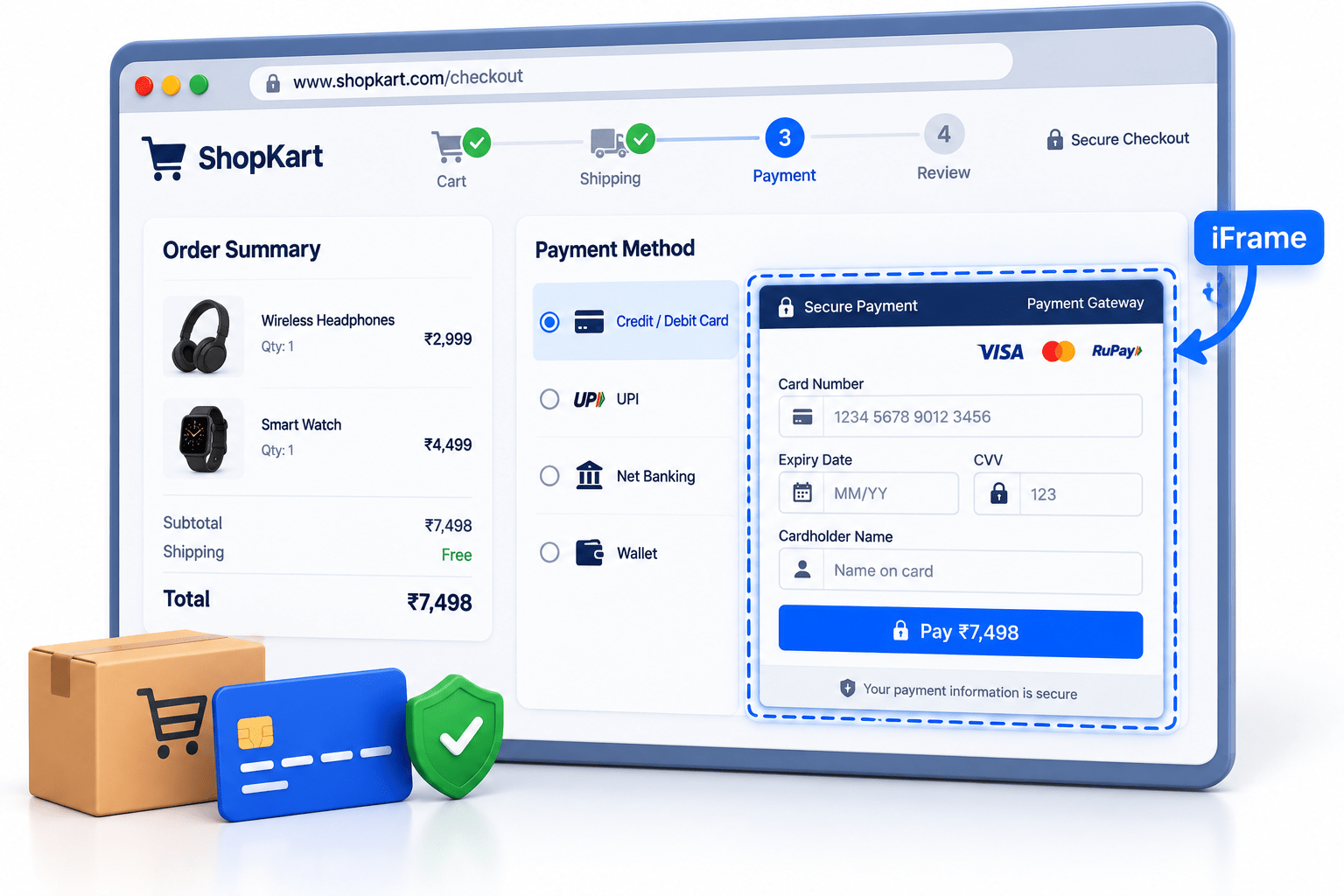
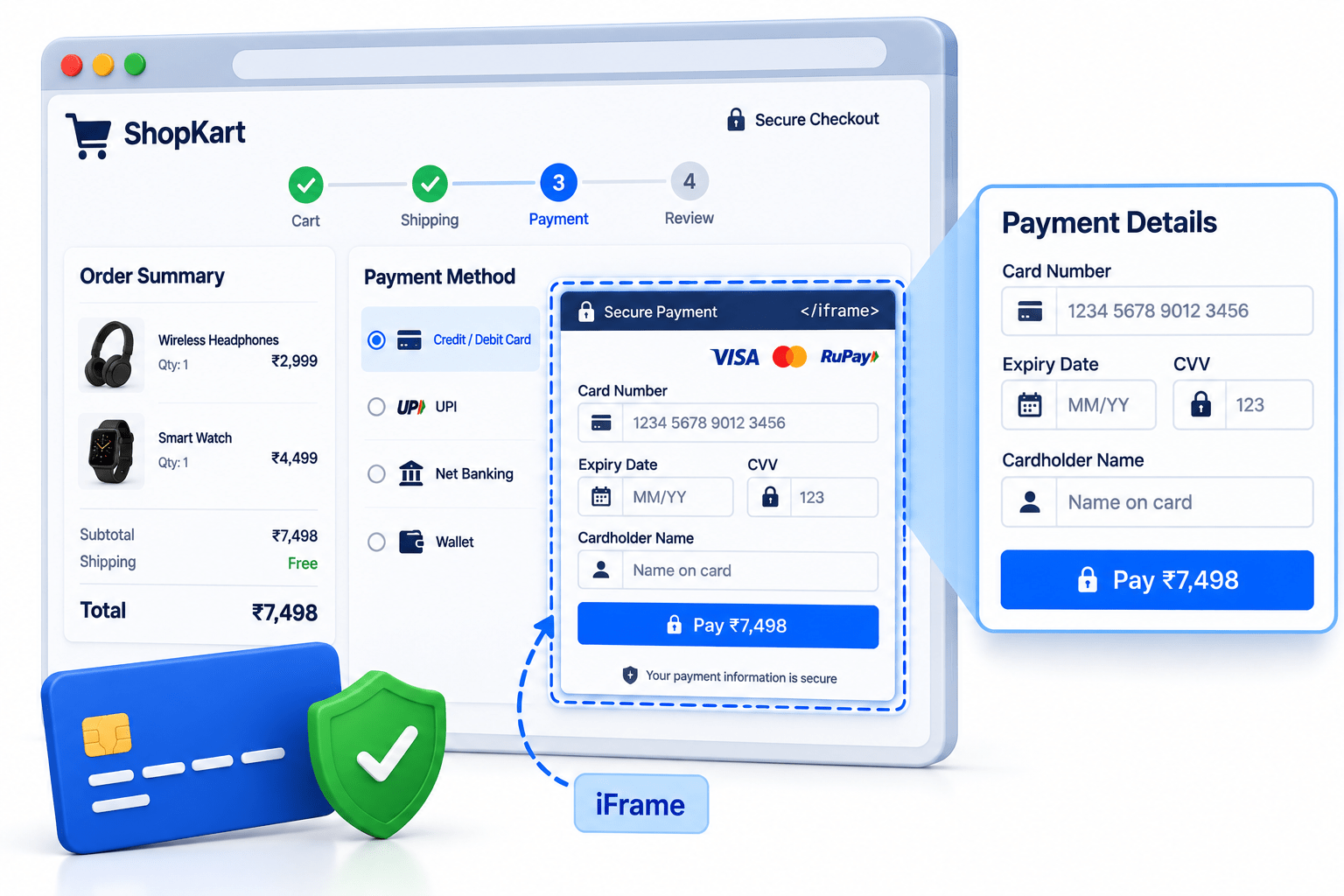
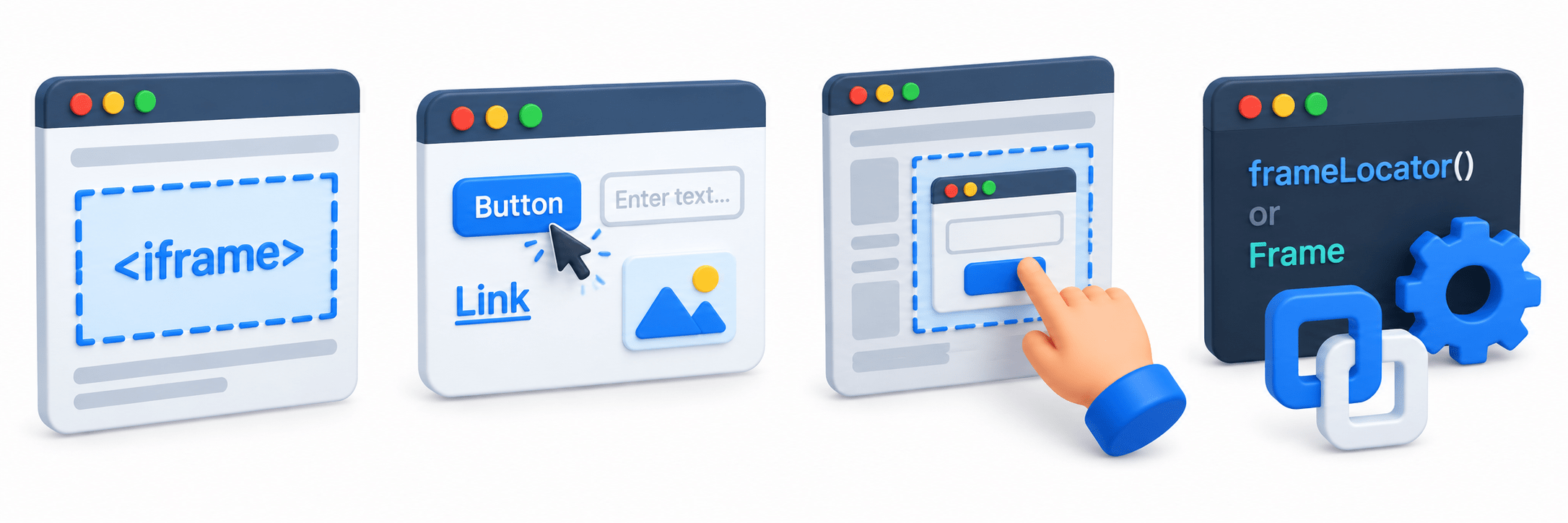
When you enter card details on an online shopping website, the payment form may be displayed inside an iframe embedded within the main checkout page.
Online Shopping Payment Page
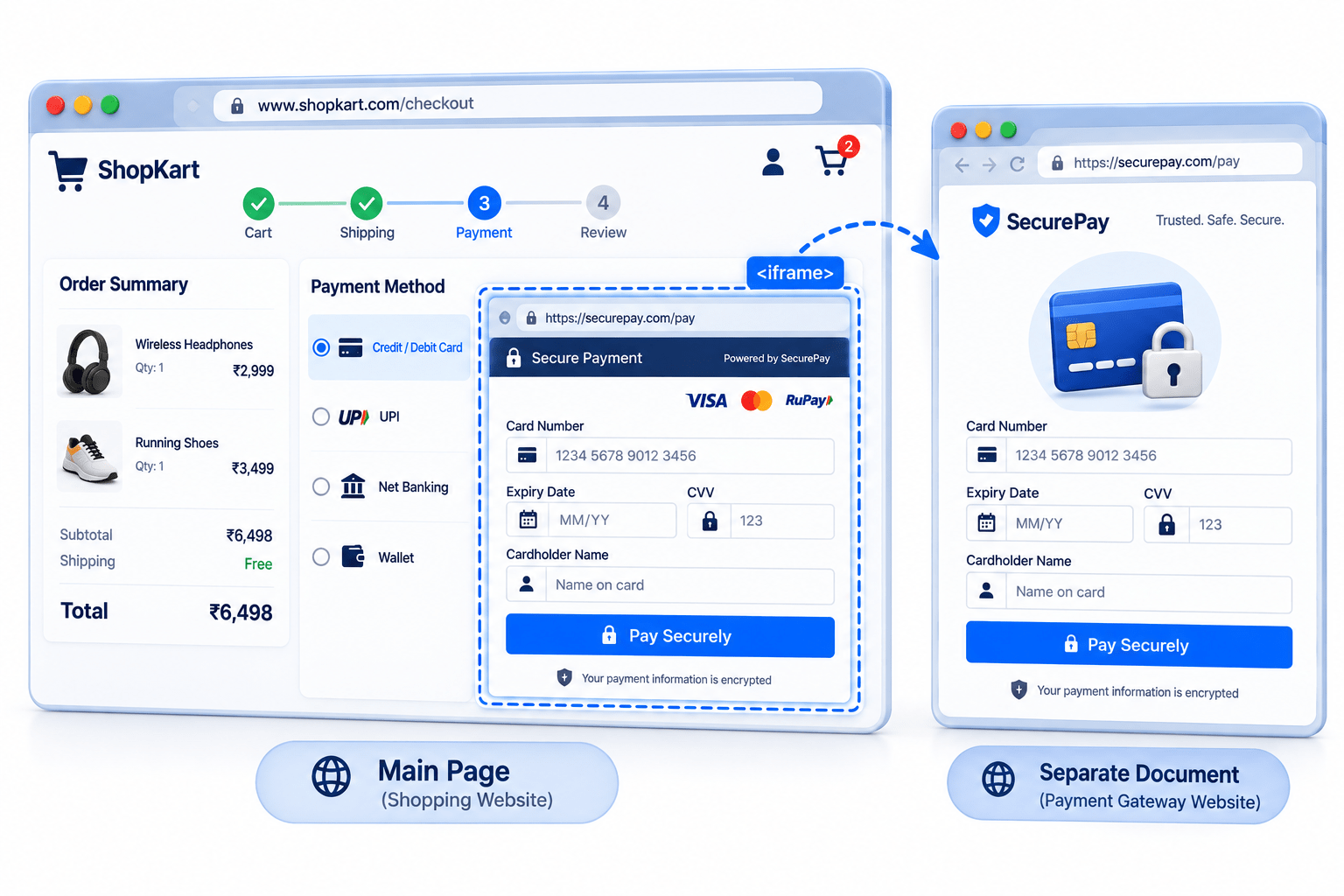
Main Page
The shopping website where you select products and proceed to checkout
Payment Frame (iFrame)
The payment gateway is embedded inside the checkout page.
Payment Fields
Card number, expiry date, CVV, and other payment details are located inside the frame
Separate Document
The content inside the frame belongs to a separate webpage/document.
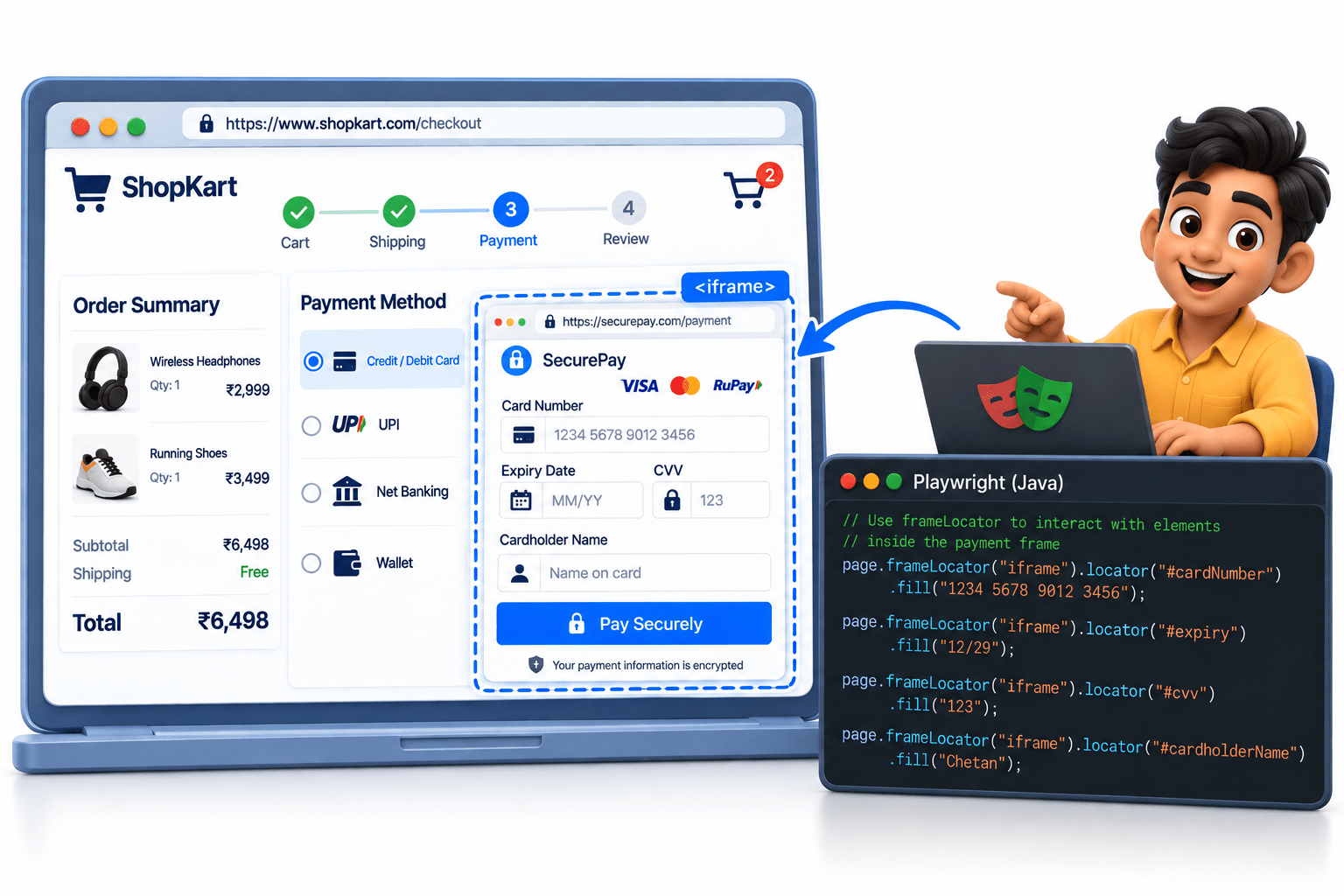
Interaction
To automate these fields, Playwright needs to target the specific frame.
Playwright
frameLocator() can be used to locate and interact with elements inside the frame.
Why Frames need to be handled ?
Separate Document
Frame content is loaded as a separate HTML document.
1
Access Elements
Elements inside a frame need to be accessed through that specific frame
2
Frame Identification
The required frame must be identified before interacting with its elements.
3
Element Interaction
Enables actions such as click, fill, select, and validation inside the frame.
4
Nested Frames
Allows interaction with frames that are placed inside other frames.
5
Reliable Automation
Ensures Playwright interacts with the correct elements without locator failures.
6
What is Frame ?
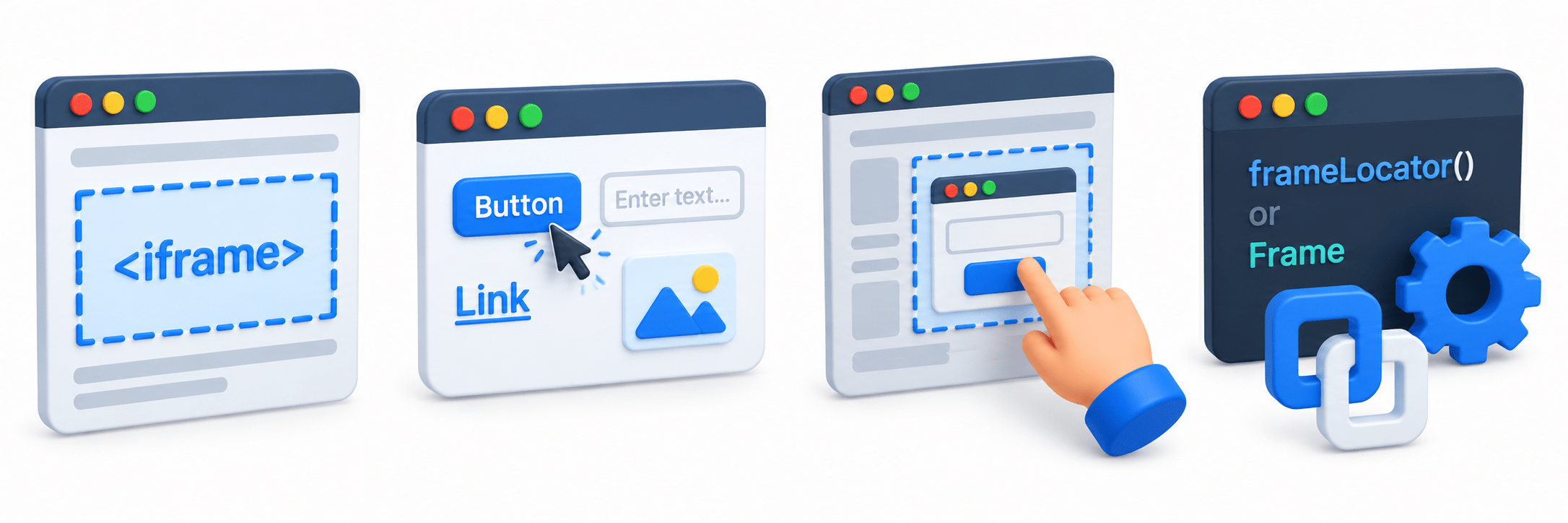
A Frame is a section of a webpage that contains a separate HTML document within the main webpage.
It is commonly created using the <iframe> HTML element
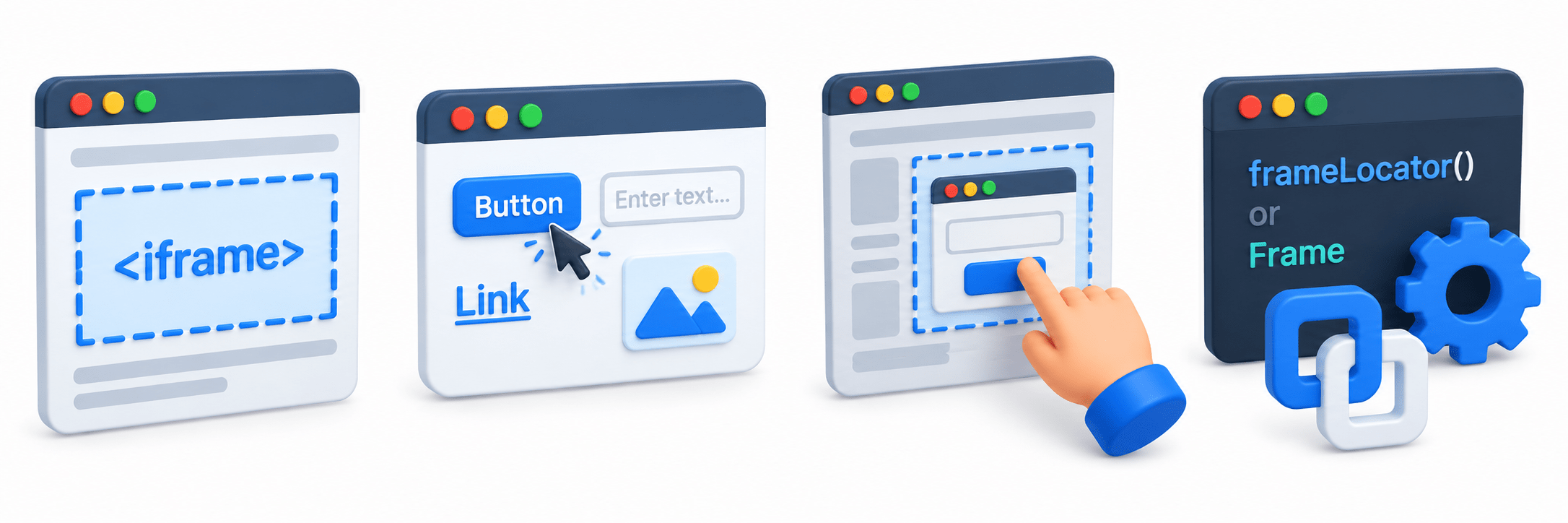
The frame can contain its own buttons, text fields, links, images, and other elements.
Elements inside a frame are handled separately from elements on the main page.
In Playwright, frames can be accessed using frameLocator() or the Frame object.
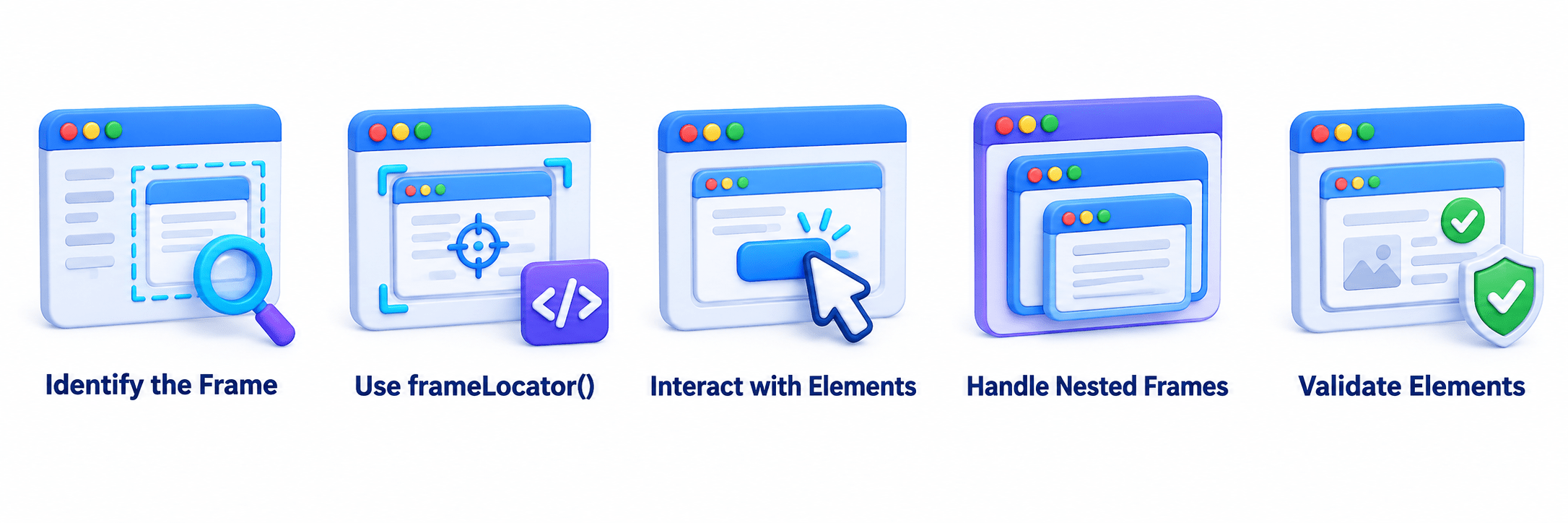
How Are Frames Handled in Playwright ?
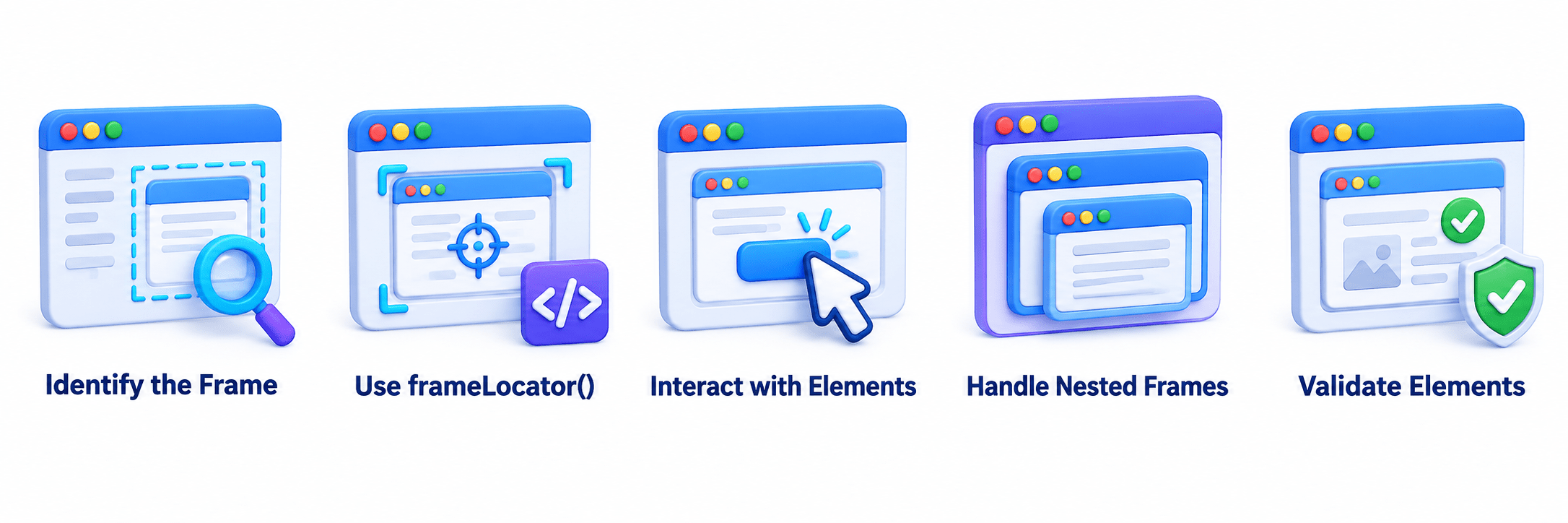
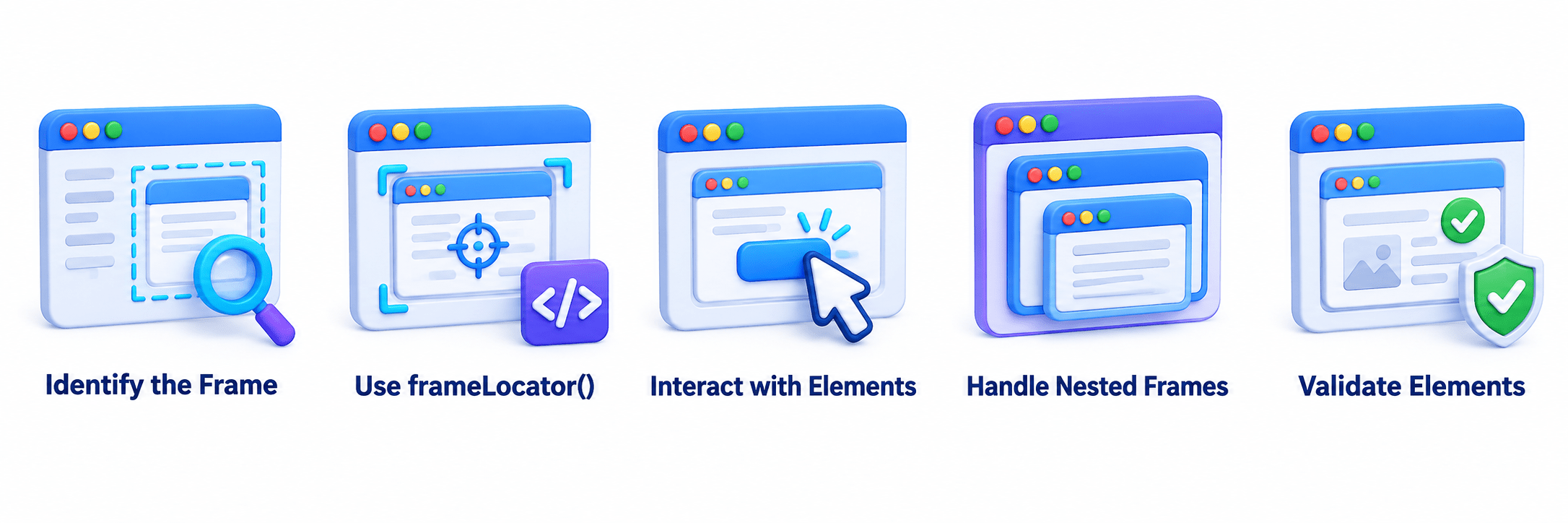
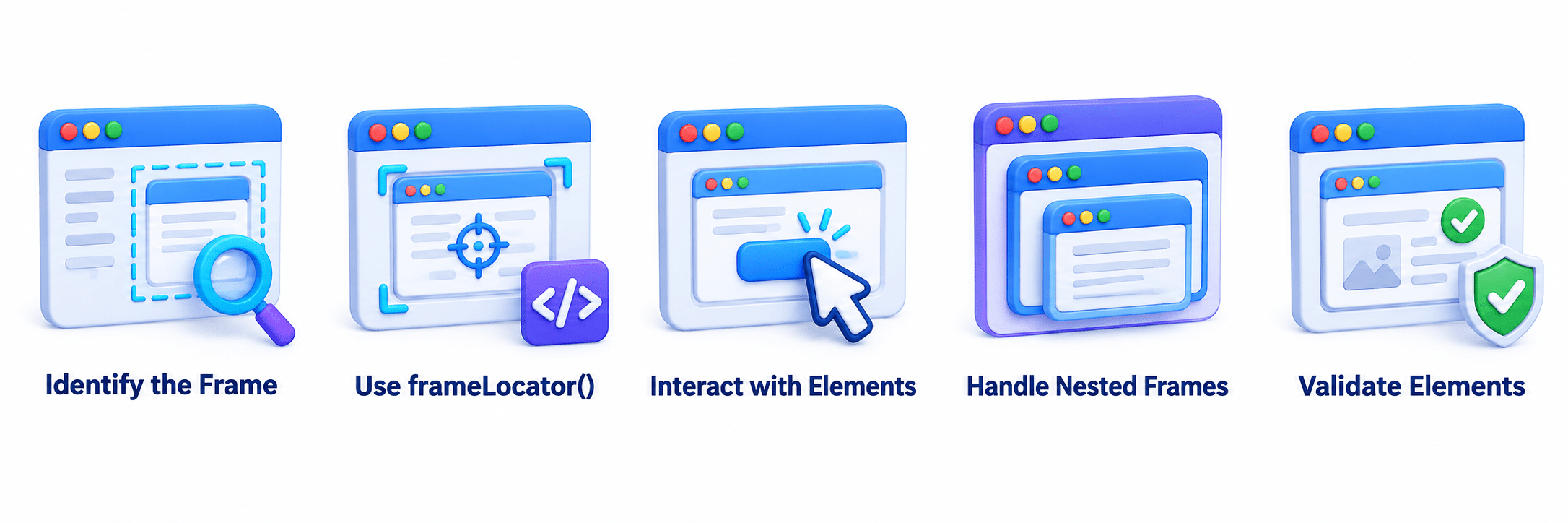
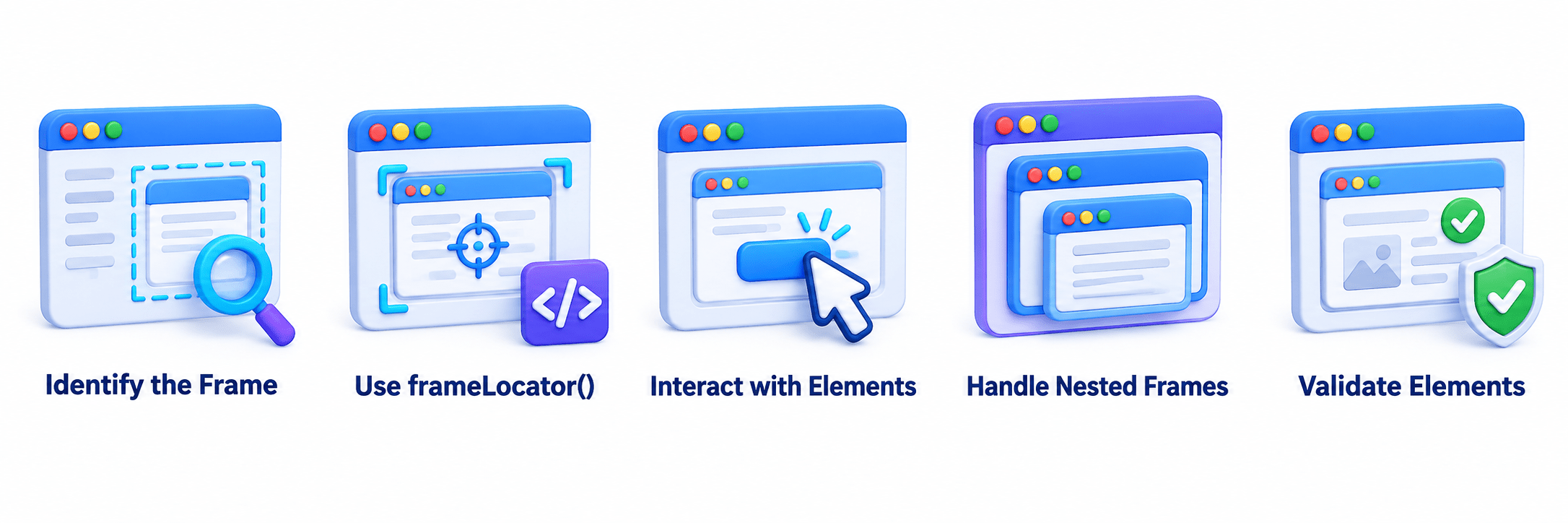
Validate Elements
Handle Nested Frames
Interact with Elements
Use frameLocator()
Identify the Frame
Locate the required frame using its name, URL, or selector.
Directly locate elements inside the frame.
Perform actions such as click(), fill(), and check().
Use the appropriate frame hierarchy when frames are inside other frames.
Use assertions to verify elements and content inside the frame.
Playwright provides Methods
page.frameLocator("iframe").locator("button").click()Frame frame = page.frame("frameName");frame()
frameLocator() (Recommended)
page.frameLocator("#paymentFrame")
    .locator("#cardNumber")
    .fill("1234567890123456");
Here, frameLocator() identifies the frame, and locator() accesses the element inside it
Example
Handling Nested Frames in Playwright
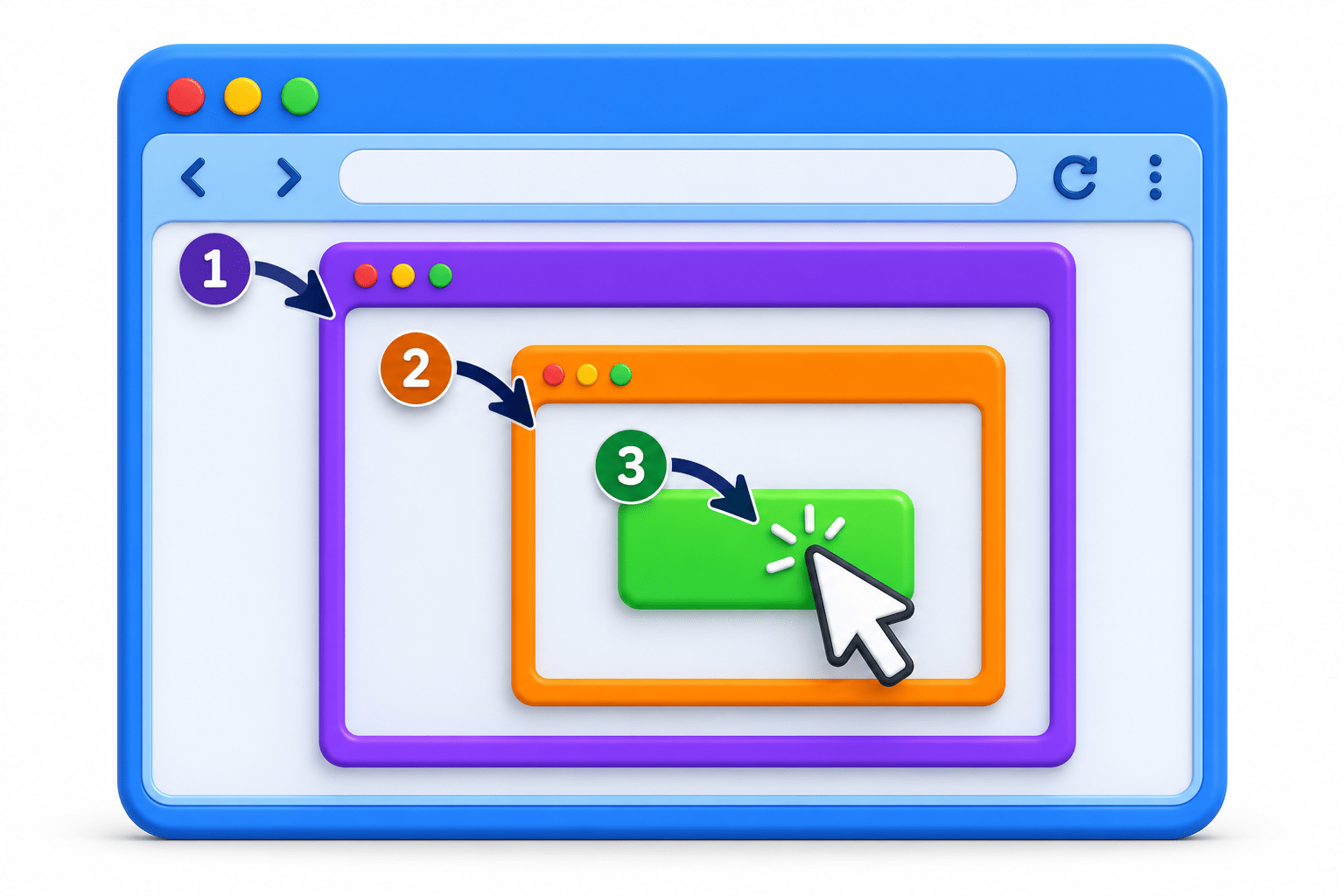
A nested frame is a frame that is placed inside another frame.
To interact with an element inside a nested frame, Playwright must first identify the outer frame, then the inner frame, and finally the required element.
Example
<!-- Main Page -->
<iframe id="outerFrame">

    <!-- Outer Frame -->
    <iframe id="innerFrame">

        <!-- Inner Frame -->
        <input id="username">
        <button id="loginBtn">Login</button>

    </iframe>
</iframe>
The structure is:
Main Page
Outer Frame
Inner Frame
Element
Handling Nested Frame
Playwright allows us to handle this using chained frameLocator().
page.frameLocator("#outerFrame")
    .frameLocator("#innerFrame")
    .locator("#username")
    .fill("admin");
#outerFrame
#innerFrame
#username
fill("admin")
Identifies the outer frame.
Identifies the outer frame.
Identifies the frame inside the outer frame.
Enters the value.
page.frameLocator("#outerFrame")
    .frameLocator("#innerFrame")
    .locator("#loginBtn")
    .click();
Clicking an Element
Why are Frames Important?
Many real-world applications use frames for
Payment gateways
Advertisements
Chat widgets
Embedded forms
Maps
Third-party integrations
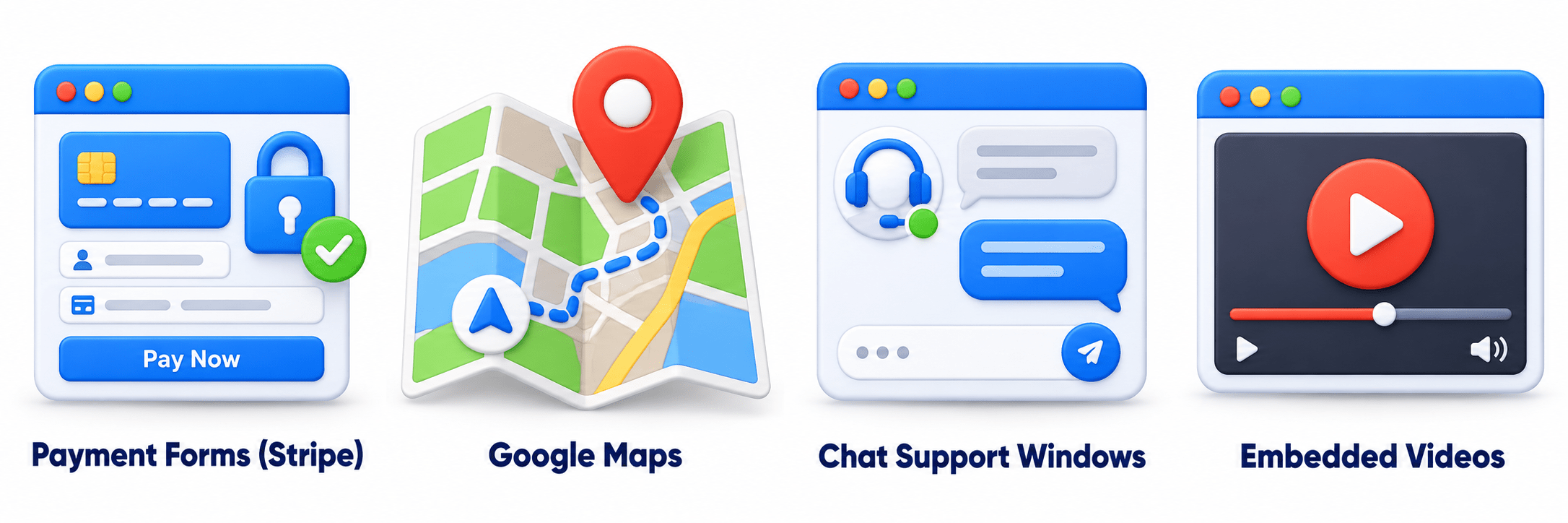
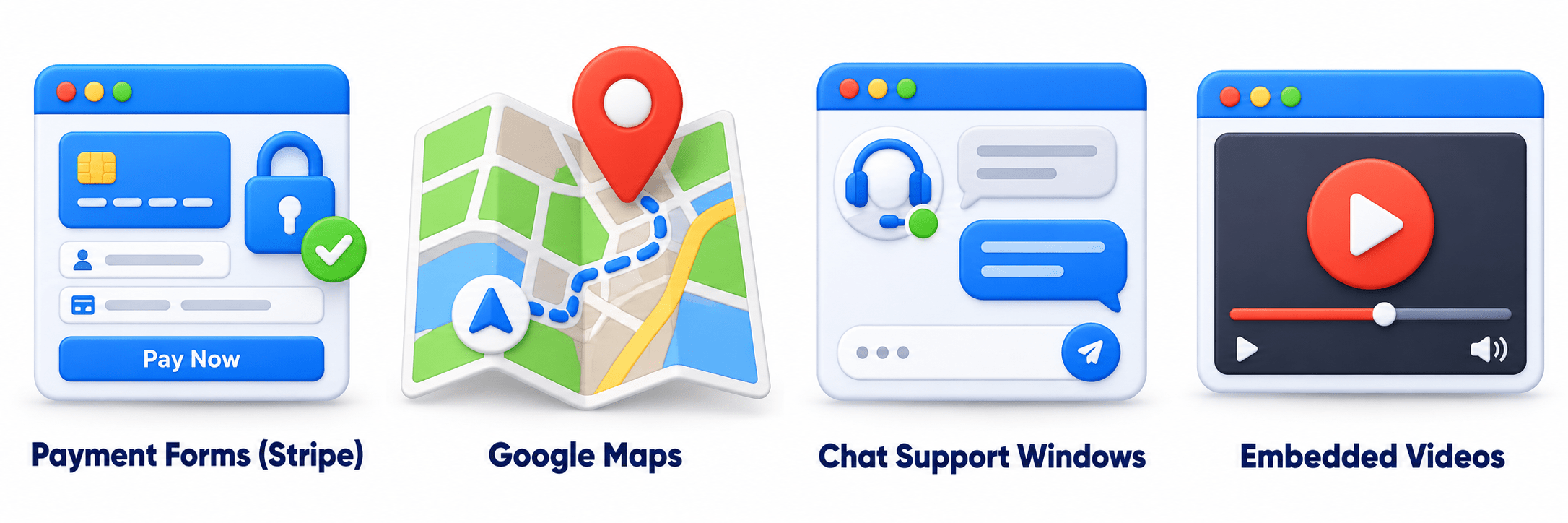
Examples
Payment forms (Stripe)
Google Maps
Chat Support Windows
Embedded Videos
Without handling frames correctly,
Playwright will not find the elements.
Summary
5
Handles nested frames without Selenium-style switching.
4
Supports locating, actions, and validations.
3
scrollIntoViewIfNeeded() brings elements into the visible area.
2
Scrolling moves vertically or horizontally across a webpage.
1
Scrolling accesses content outside the visible area.
Quiz
Which method is used to scroll a specific element into the viewport?
A. scrollToElement()
B. scrollIntoViewIfNeeded()
C. moveToElement()
D. scrollElement()
Quiz-Answer
Which method is used to scroll a specific element into the viewport?
A. scrollToElement()
B. scrollIntoViewIfNeeded()
C. moveToElement()
D. scrollElement()
By Content ITV