Content ITV PRO
This is Itvedant Content department
Online Store Setup
Business Scenario
Welcome!
Your Spice Garden website is now ready for online ordering setup. The next important step is installing WooCommerce and configuring the basic store settings for the restaurant.
In this task, you will install WooCommerce and setup the online store for Spice Garden.
Pre-Lab Preparation
Topic : Ecommerce Website Design
1) Installation Ecommerce Plugin
2) Ecommerce Store Setup
3) Product Categories Creation
4) Uploading Products
5) Variable Products
6) Upselling Products
7) Payment Setup
8) Shipping Setup
Task 1: Online Store Setup
Objective:
To install WooCommerce and configure the basic online store settings for Spice Garden.
Install WooCommerce Plugin
1
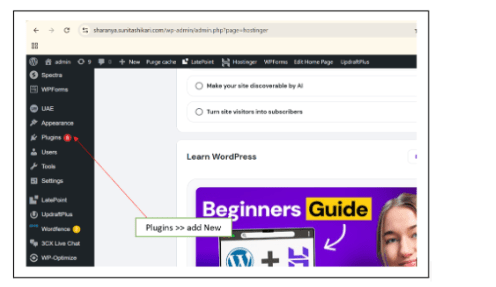
Go to Plugins → Add New
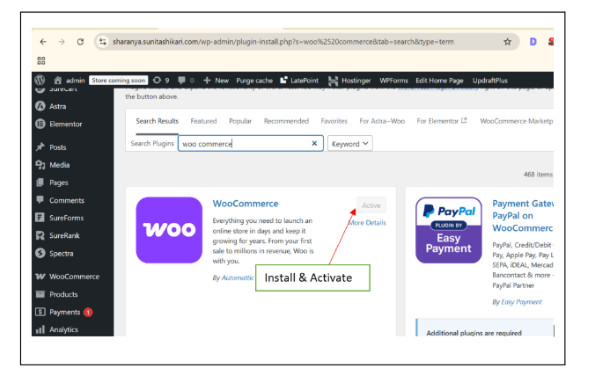
Search for “WooCommerce”
Install and Activate the plugin.
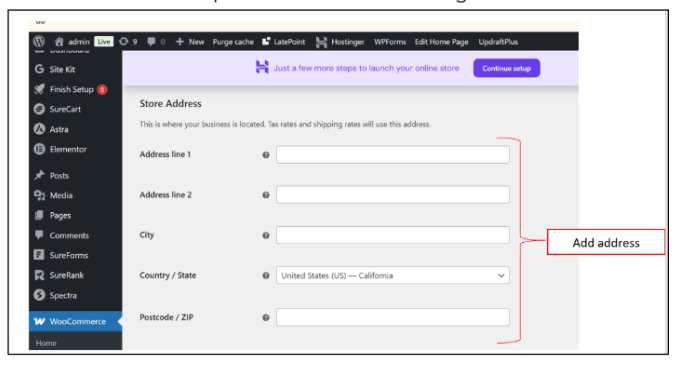
Setup Store Details
2
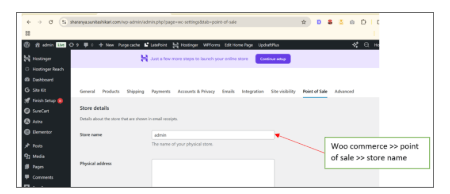
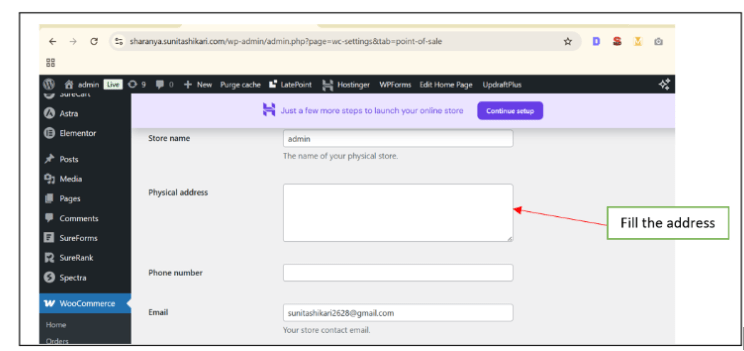
Enter the following details:
Store Name : Spice Garden
Configure Store Pages
3
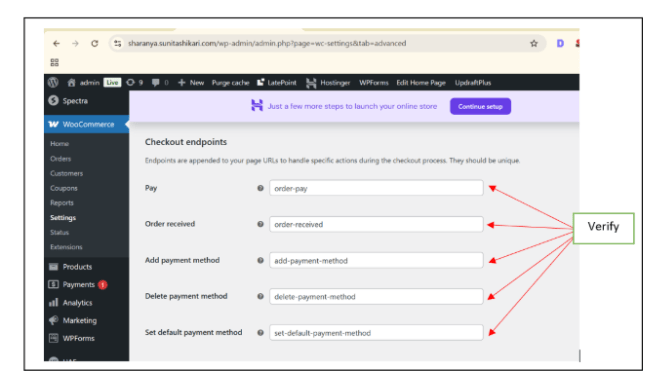
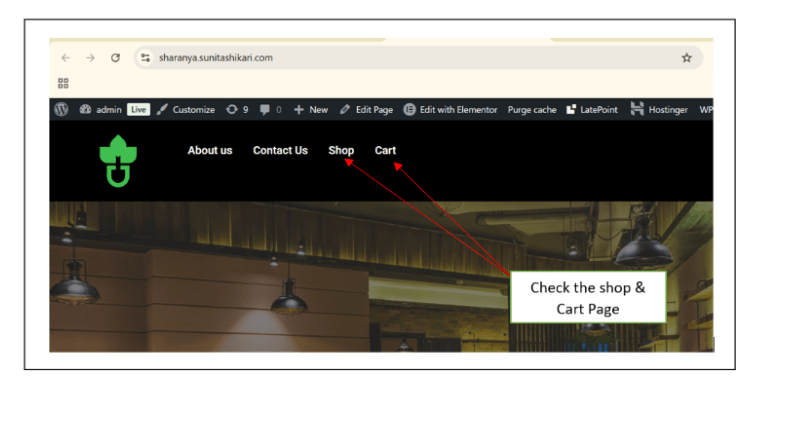
Verify the following pages are automatically created:
Shop Page
Cart Page
Checkout Page
My Account Page
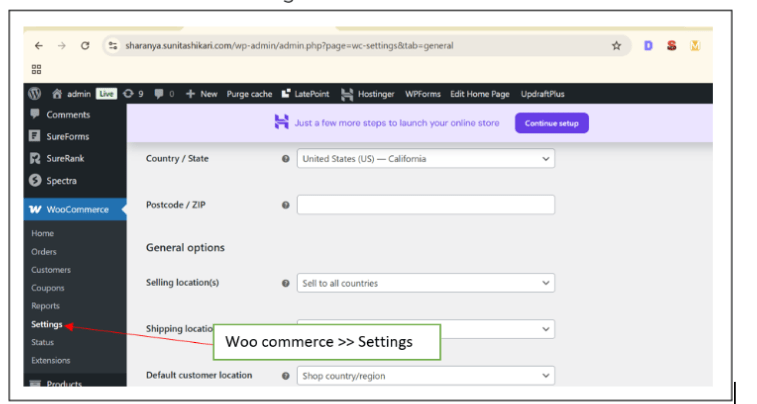
Configure General Store Settings
4
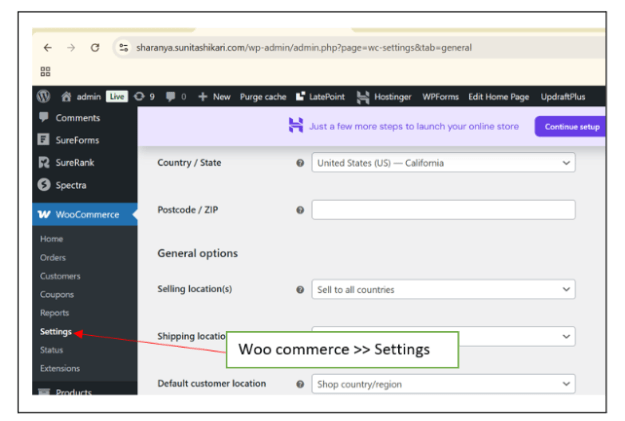
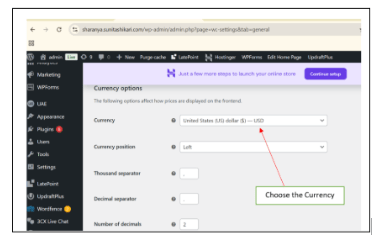
Configure:
Store Location
Currency
Enable Taxes (Optional)
Customer Account Options >> Save the settings
Test Store Setup
5
Open the website and verify:
Shop page is visible
Cart and checkout pages are working properly
Activity
Now it’s your turn!
Setup the Spice Garden online store using WooCommerce.
You need to:
Install WooCommerce
Configure store settings
Verify all store pages
Test basic store functionality
Great job!
You have successfully completed Online Store Setup
What You Learned :
How to install WooCommerce
How to configure online store settings
How to create store pages
How WooCommerce works with WordPress
Checkpoint
By Content ITV