













Content ITV PRO
This is Itvedant Content department
Cell Styles and Basic IF Statements
Learning Outcome
6
Write basic IF statements for decision-making
5
Understand what an IF statement is
4
Apply different Conditional Formatting rules
3
Explain Conditional Formatting and why it is used
2
Apply Cell Styles for consistent and professional spreadsheets
1
Understand the role of formatting in data presentation
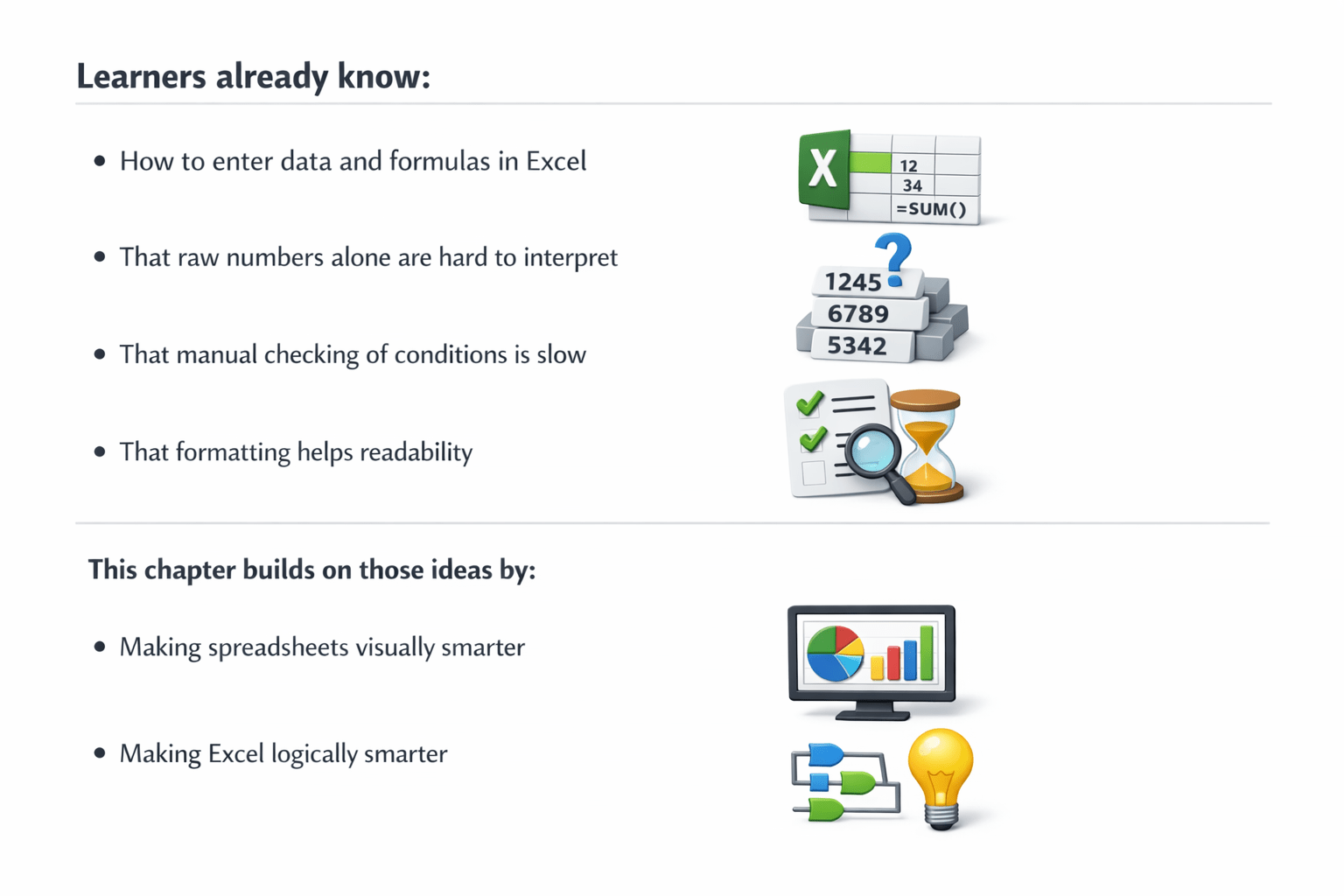
Learners already know:
How to enter data and formulas in Excel
This chapter builds on those ideas by:
That raw numbers alone are hard to interpret
That manual checking of conditions is slow
That formatting helps readability
Making spreadsheets visually smarter
Making Excel logically smarter
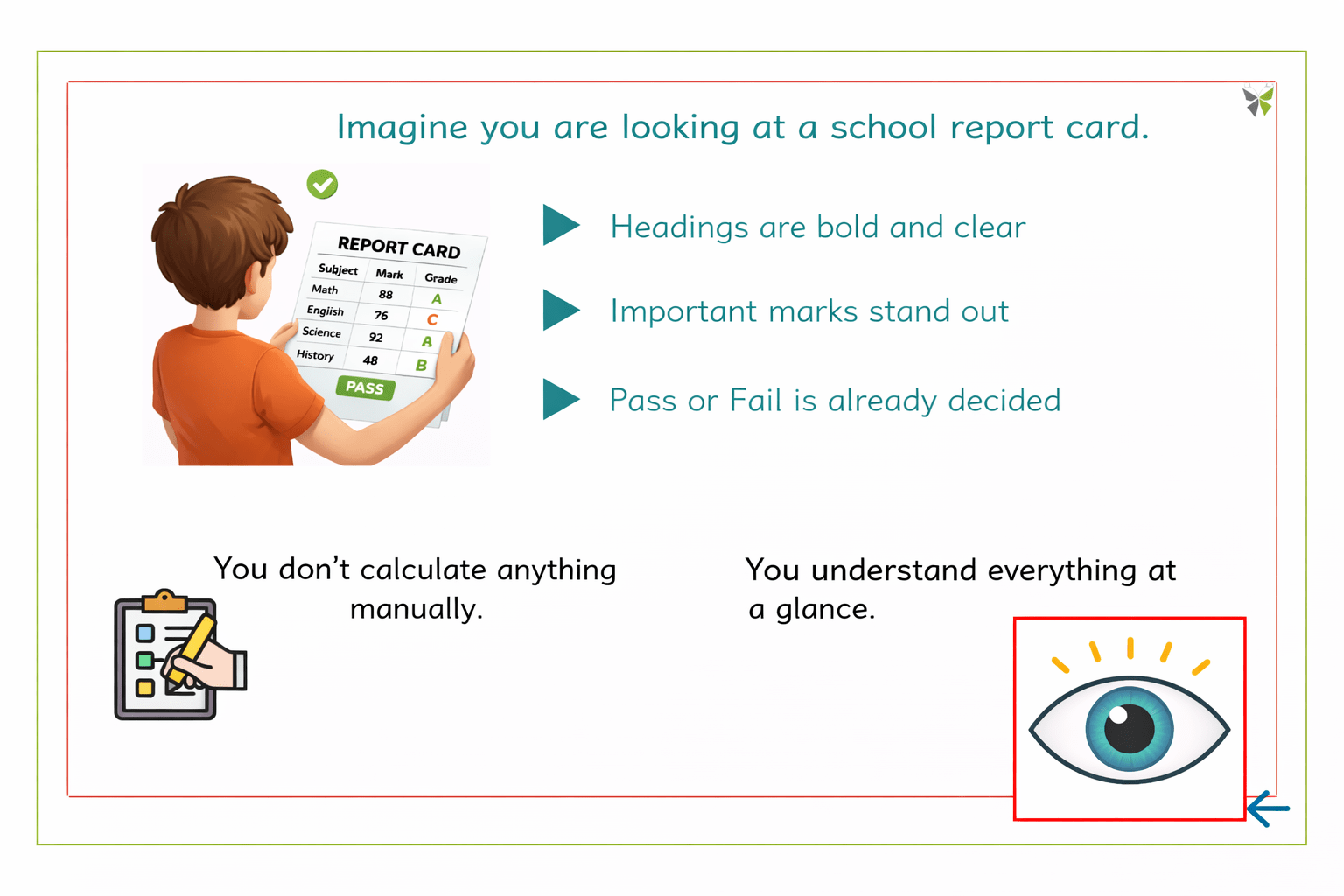
Imagine you are looking at a school report card.
Headings are bold and clear
Important marks stand out
Pass or Fail is already decided
You don’t calculate anything manually.
You understand everything at a glance.
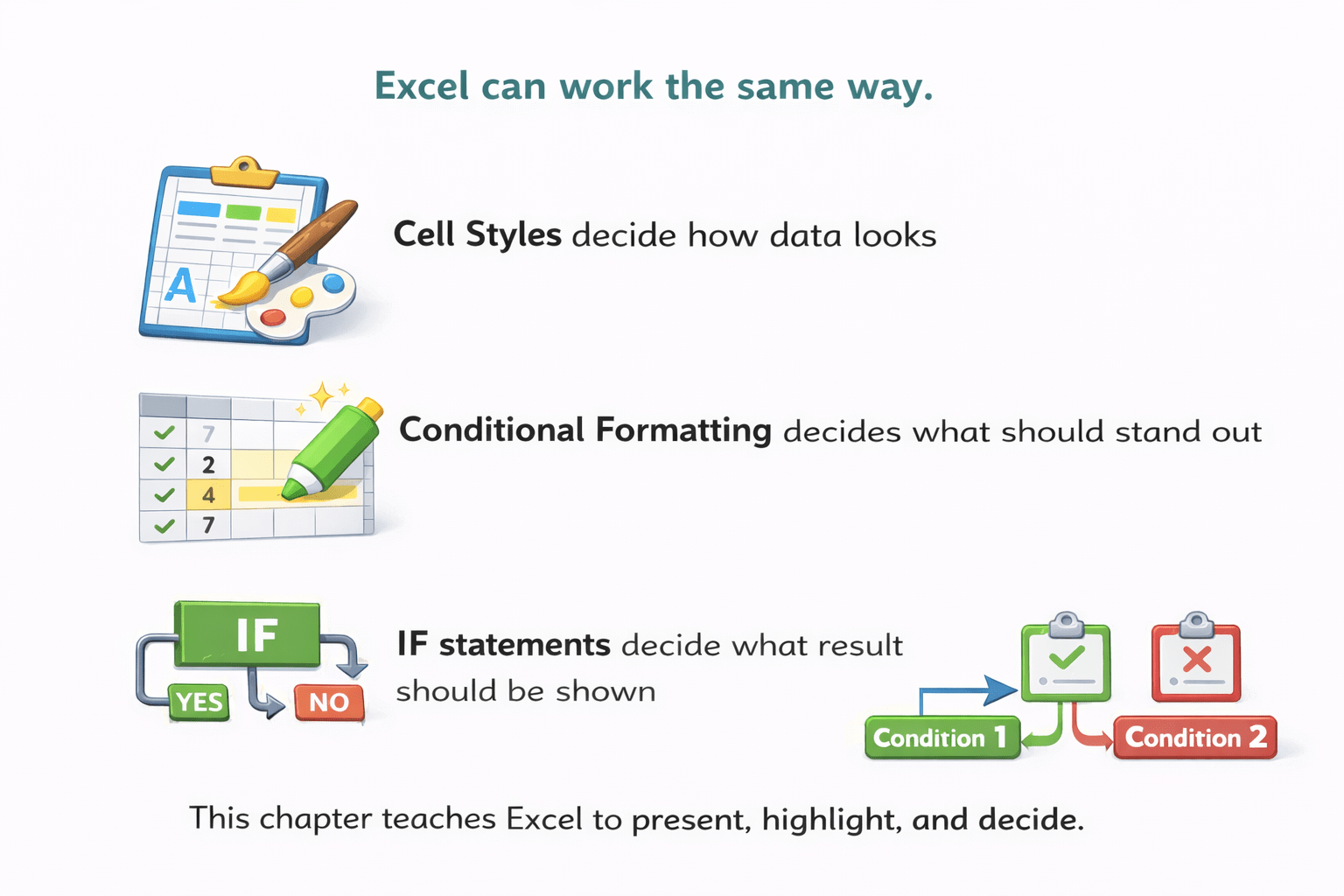
Excel can work the same way.
Cell Styles decide how data looks
IF statements decide what result should be shown
Conditional Formatting decides what should stand out
This chapter teaches Excel to present, highlight, and decide.
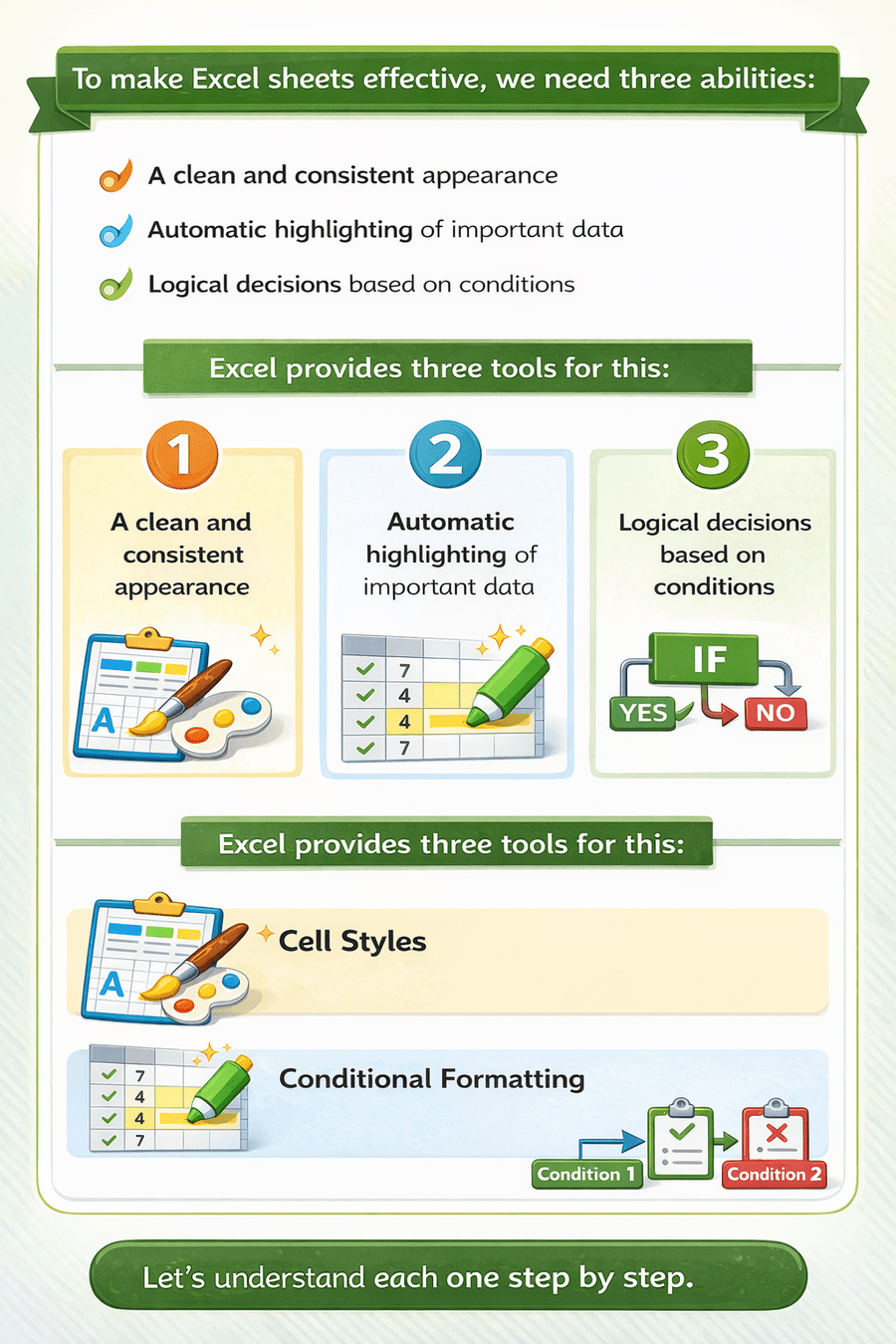
To make Excel sheets effective, we need three abilities:
Automatic highlighting of important data
Logical decisions based on conditions
A clean and consistent appearance
Excel provides three tools for this:
Cell Styles
Conditional Formatting
IF Statements
Let’s understand each one step by step.
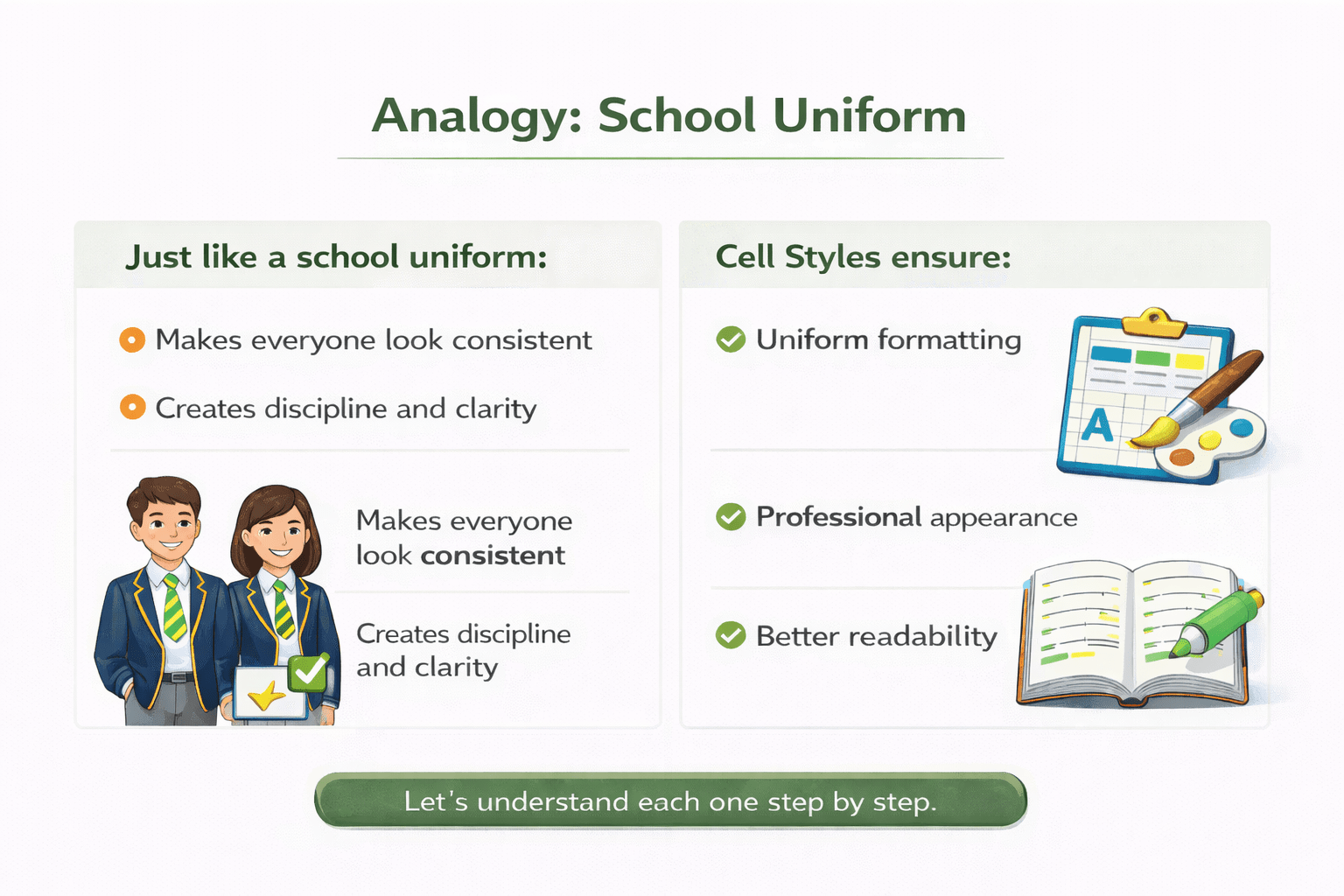
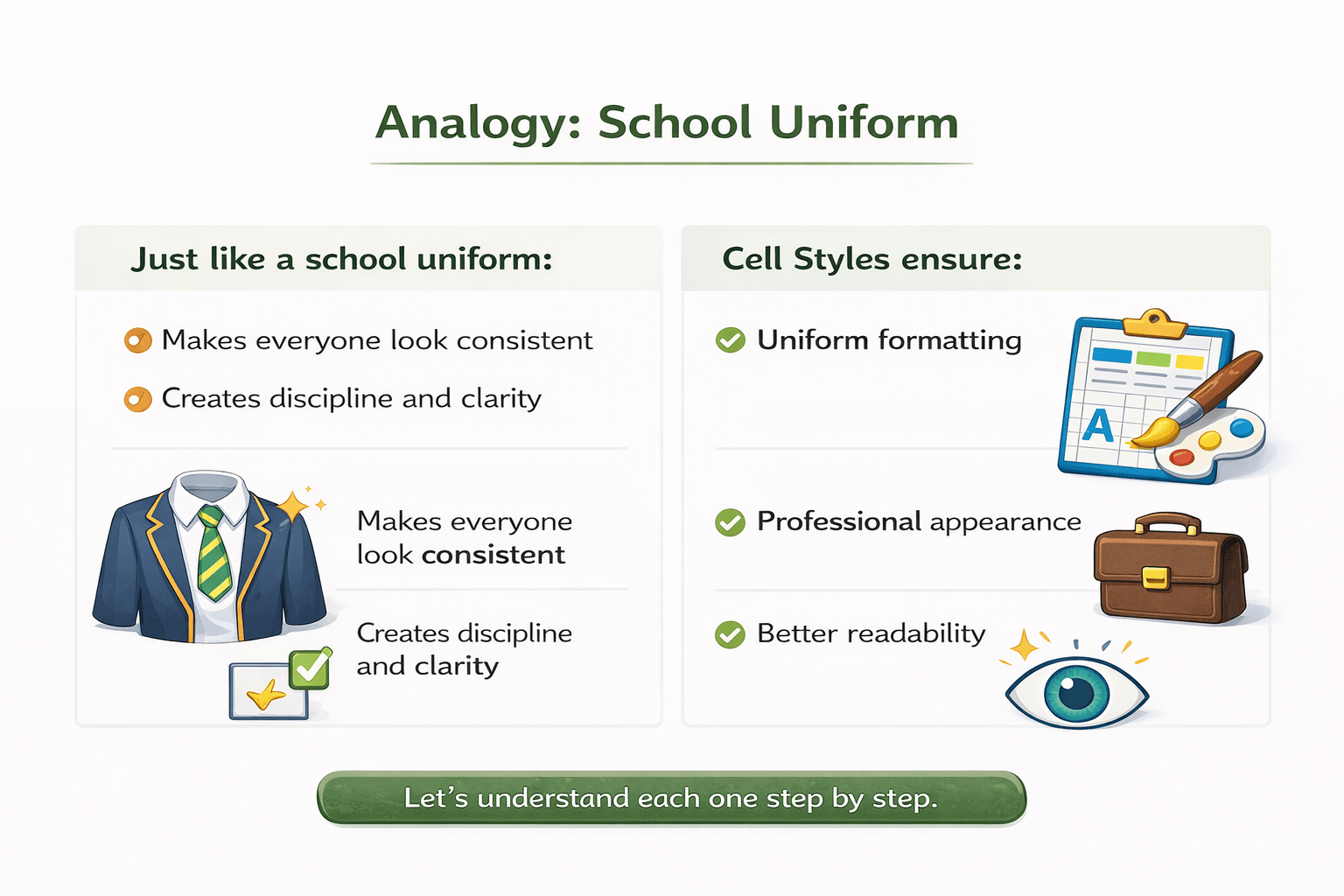
School Uniform
Just like a school uniform:
Makes everyone look consistent
Creates discipline and clarity
Cell Styles ensure:
Uniform formatting
Professional appearance
Better readability
Cell Styles – Enhancing Data Presentation
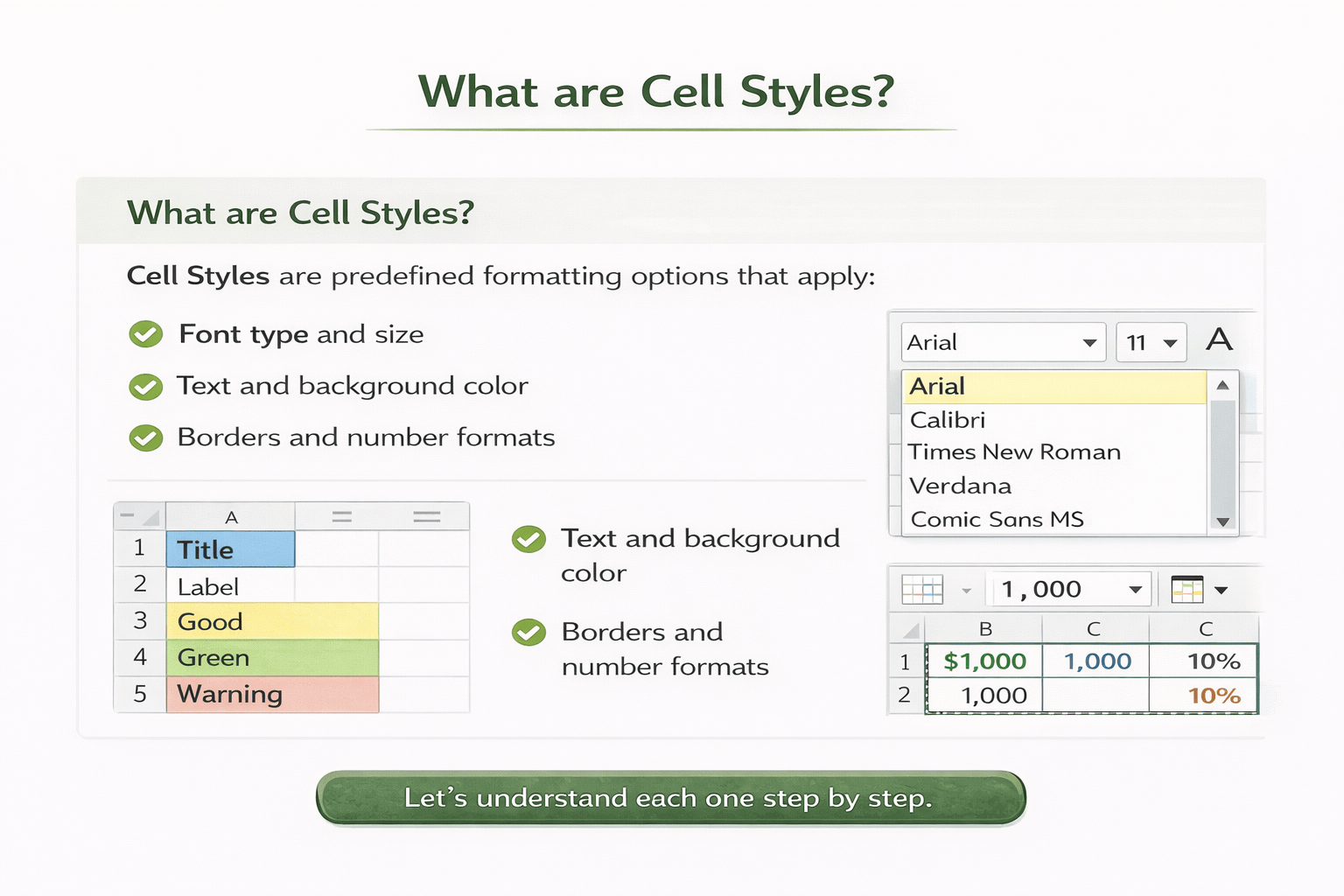
What are Cell Styles?
Font type and size
Text and background color
Borders and number formats
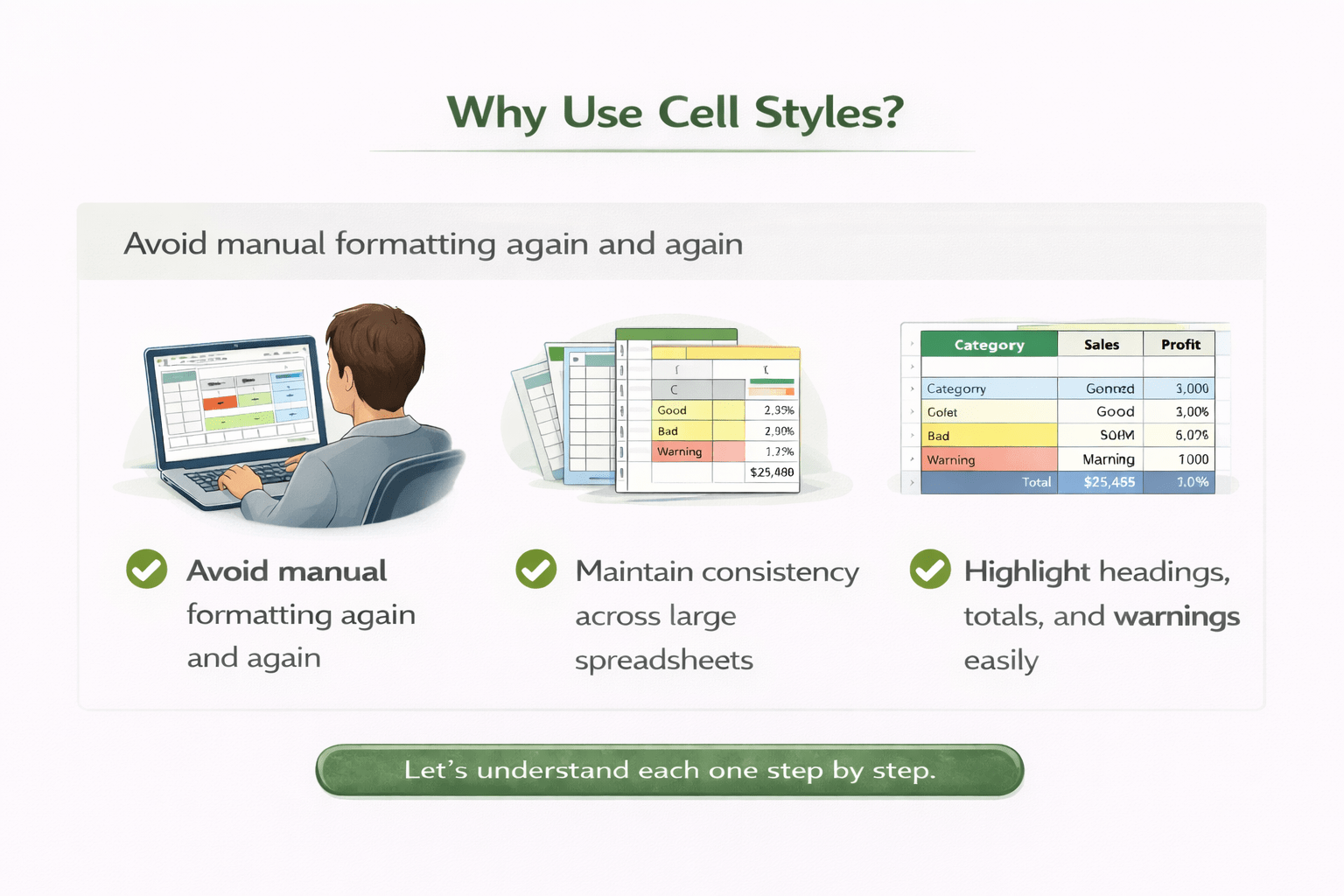
Avoid manual formatting again and again
Maintain consistency across large spreadsheets
Highlight headings, totals, and warnings easily
Why Use Cell Styles?
Select cells
1)
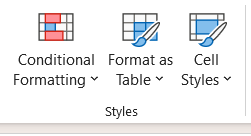
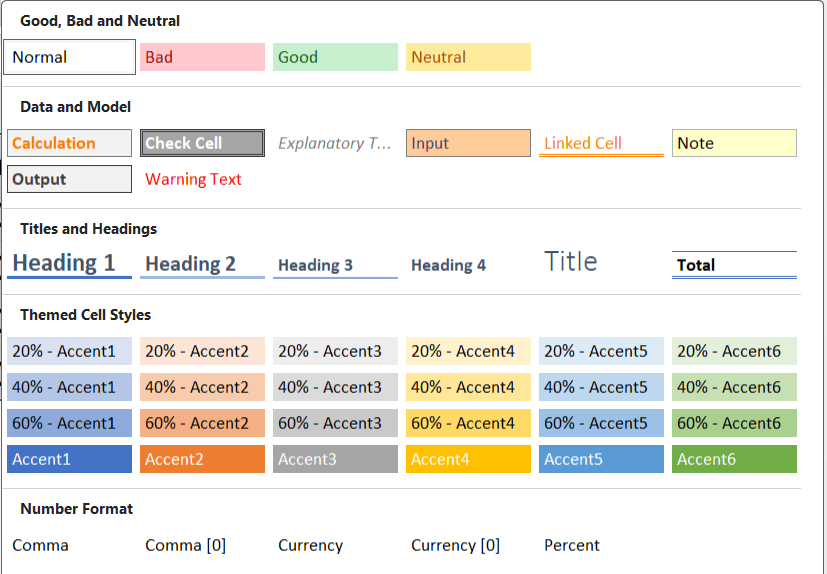
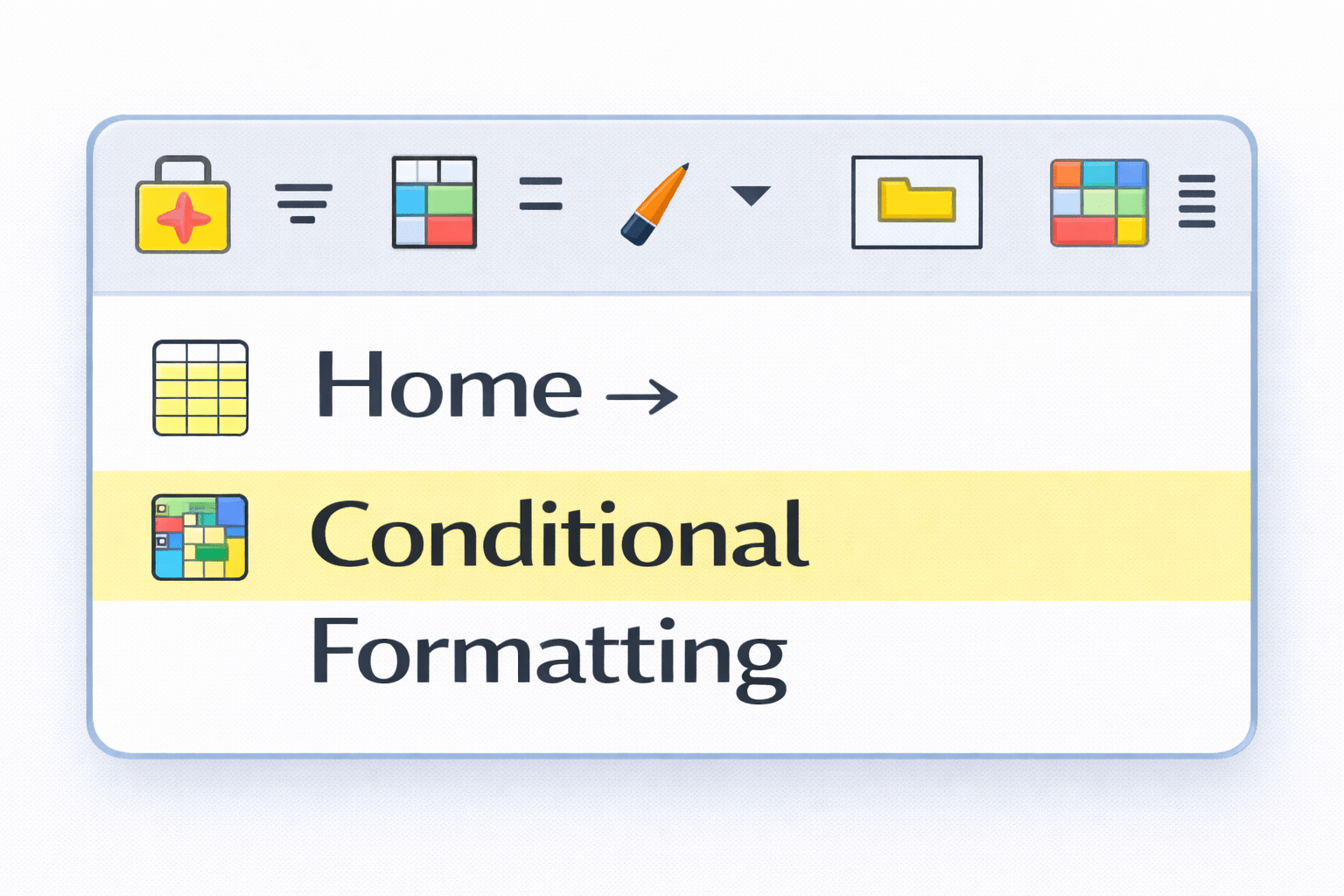
Go to Home → Cell Styles
2)
How to Apply Cell Styles
Choose styles like:
3)
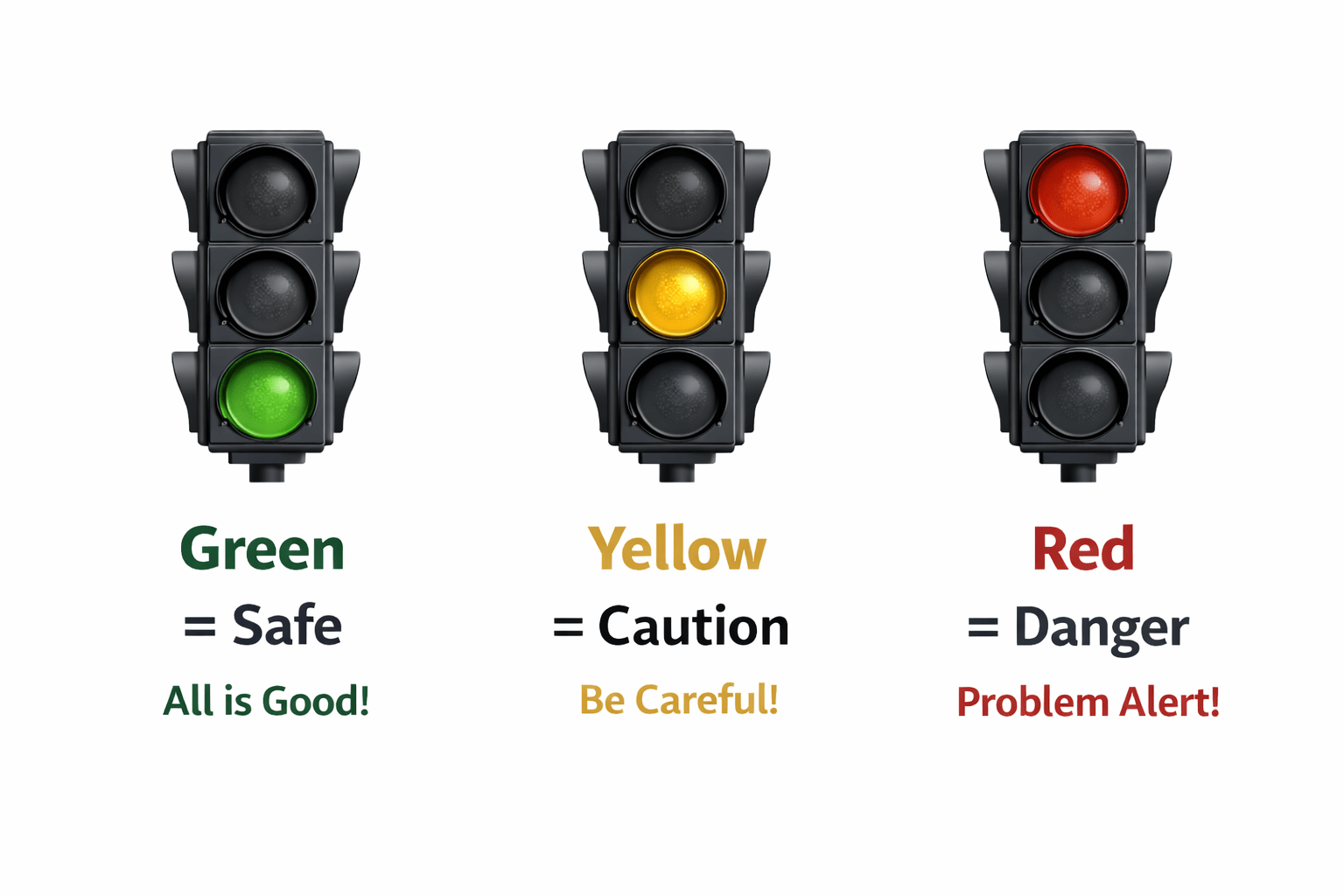
Traffic Signals
Conditional Formatting works the same way.
Conditional Formatting – Let Excel Highlight for You
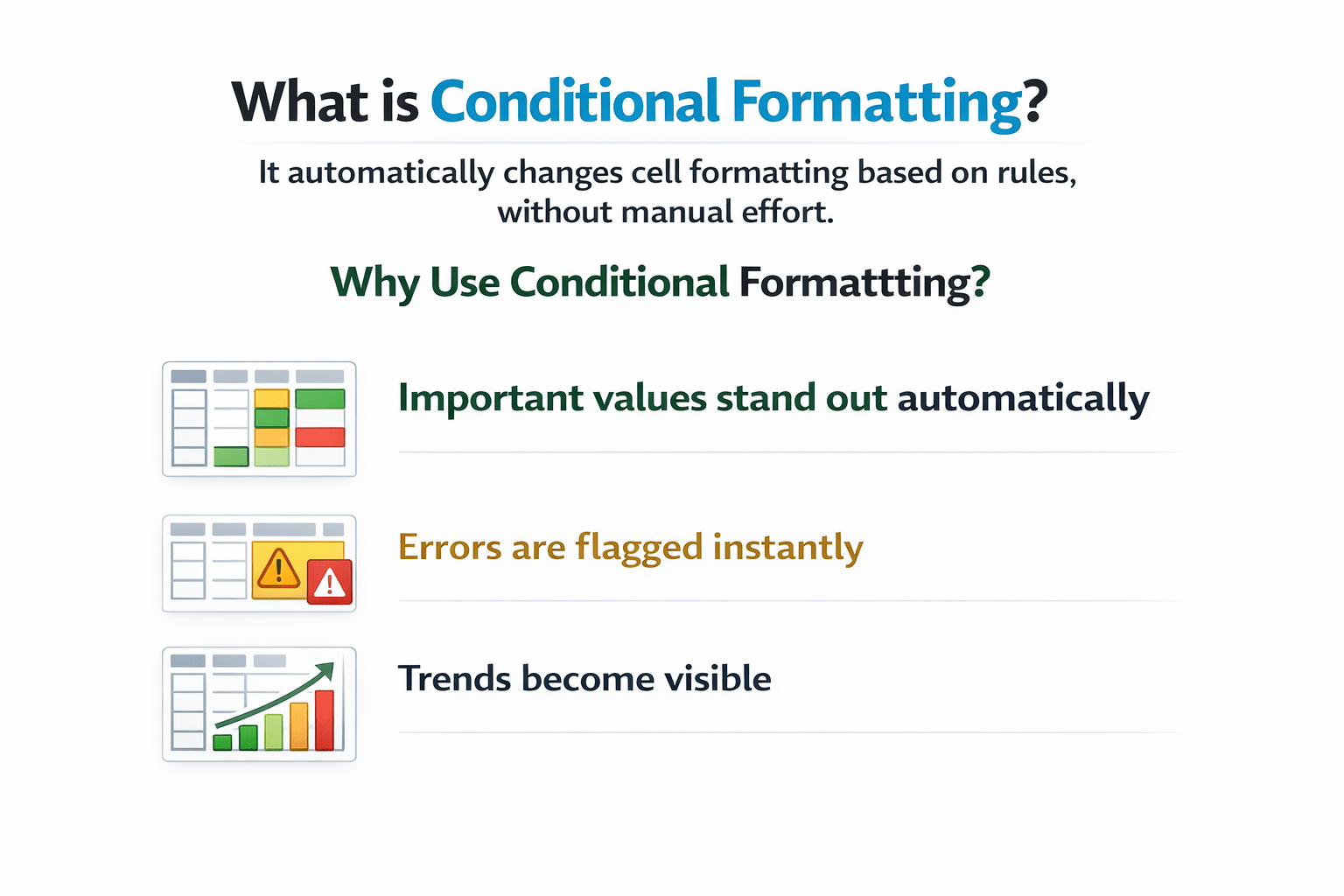
It automatically changes cell formatting based on rules, without manual effort.
What is Conditional Formatting?
Important values stand out automatically
Errors are flagged instantly
Trends become visible
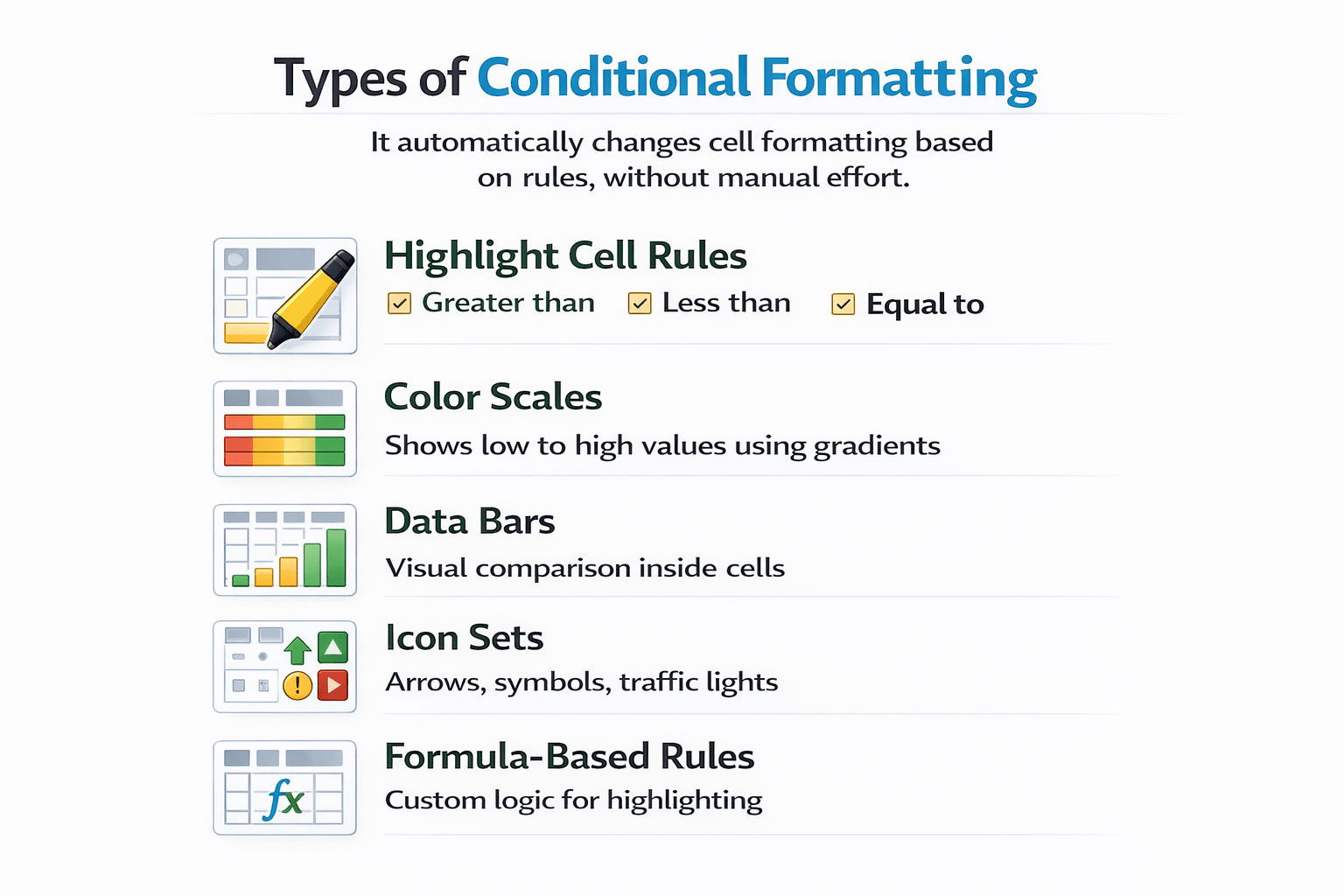
Types of Conditional Formatting
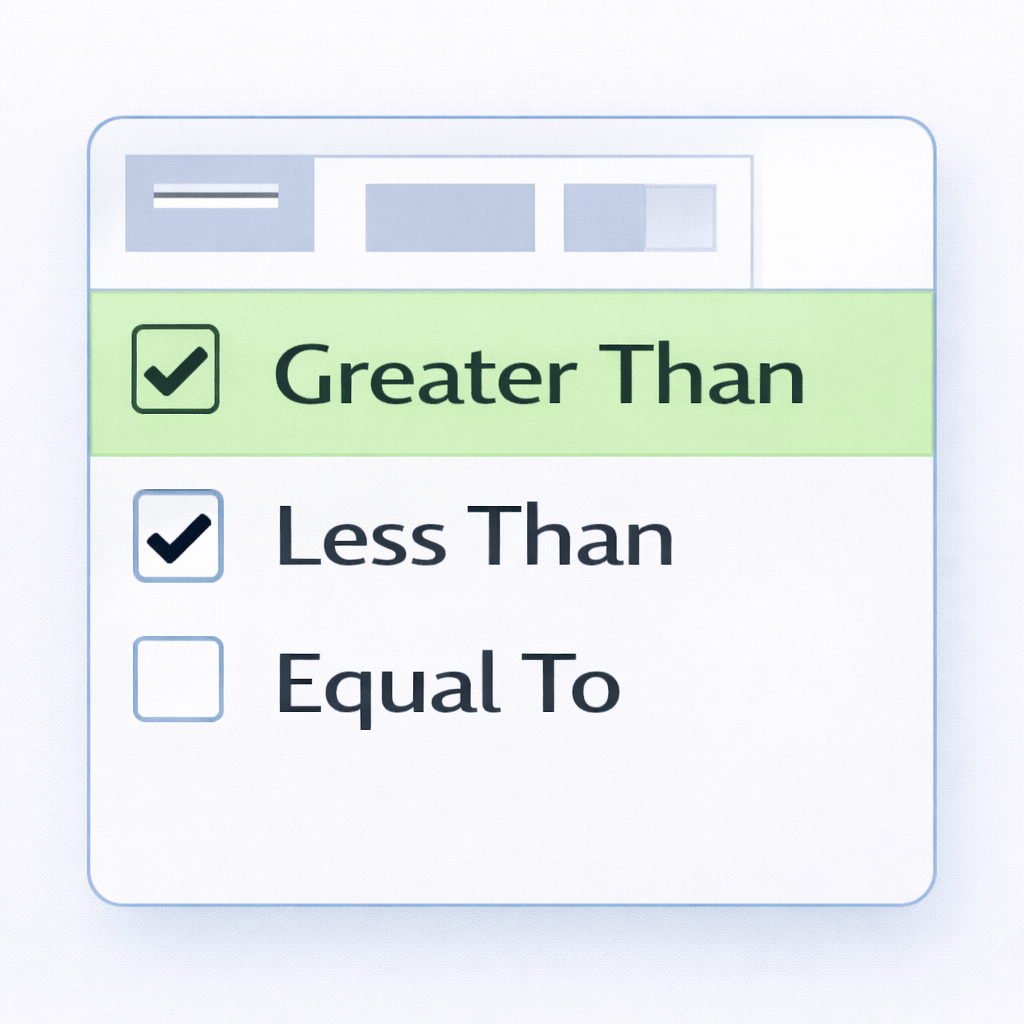
1. Highlight Cell Rules
2. Color Scales
Shows low to high values using gradients
3. Data Bars
4. Icon Sets
Arrows, symbols, traffic lights
5. Formula-Based Rules
Custom logic for highlighting
1)
Select data range
2)
Select data range
3)
Choose rule
4)
Apply formatting
How to Apply
Real-Life Example
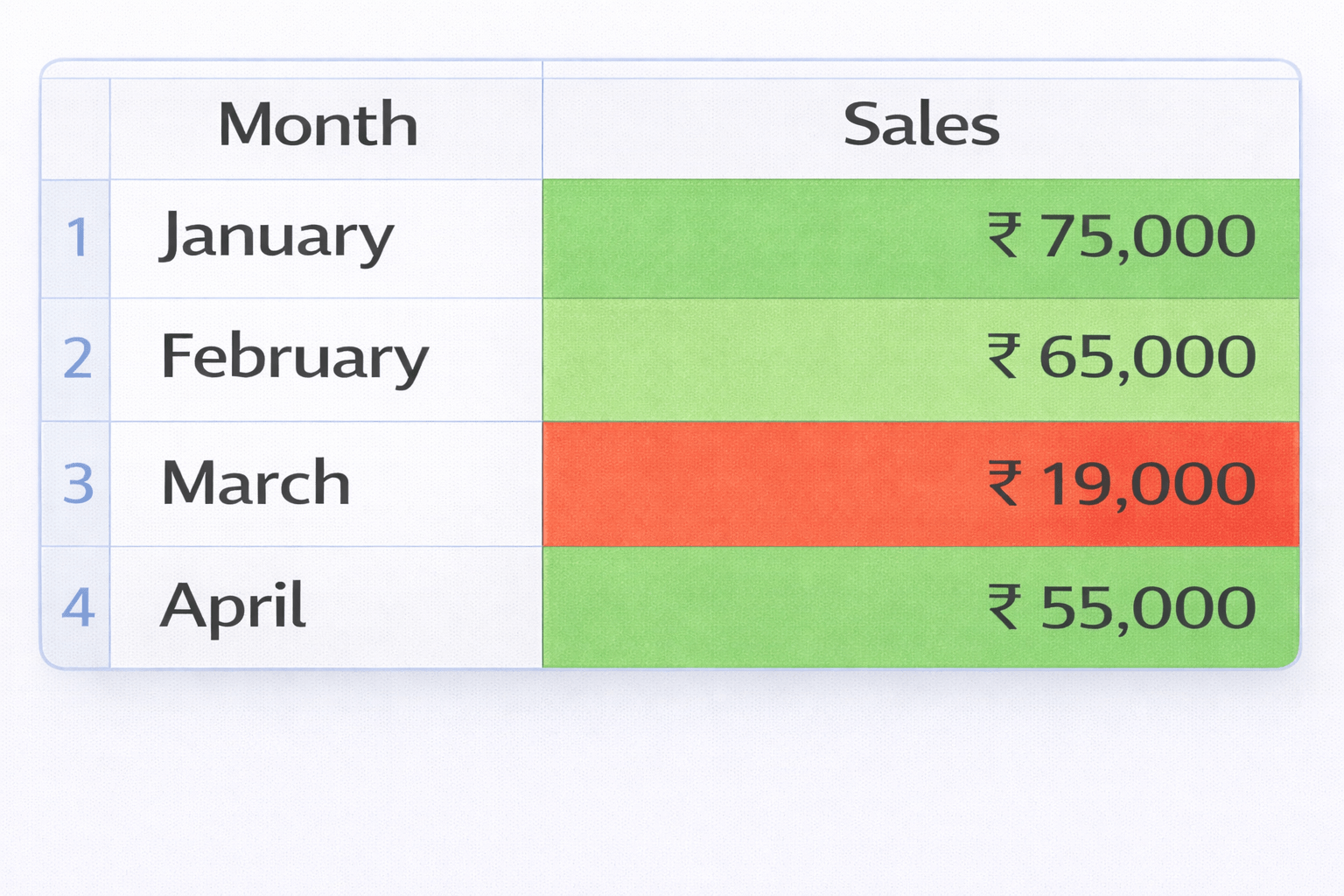
Sales > ₹50,000 → Green
Sales < ₹20,000 → Red
Excel highlights performance automatically.
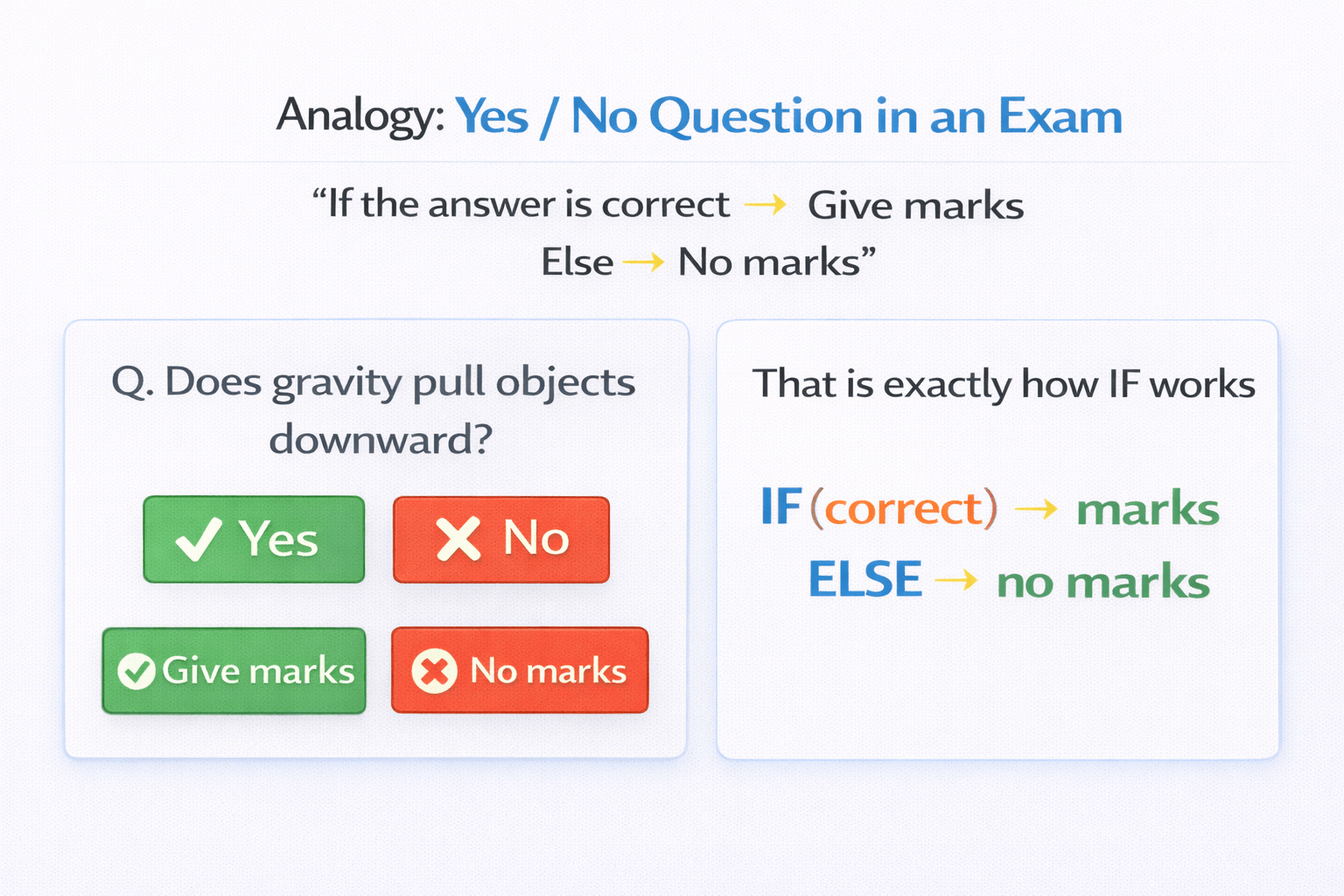
Scenario:
Yes / No Question in an Exam
Does gravity pull objects downwards?
for example:-
IF Statements – Teaching Excel to Decide
What is an IF Statement?
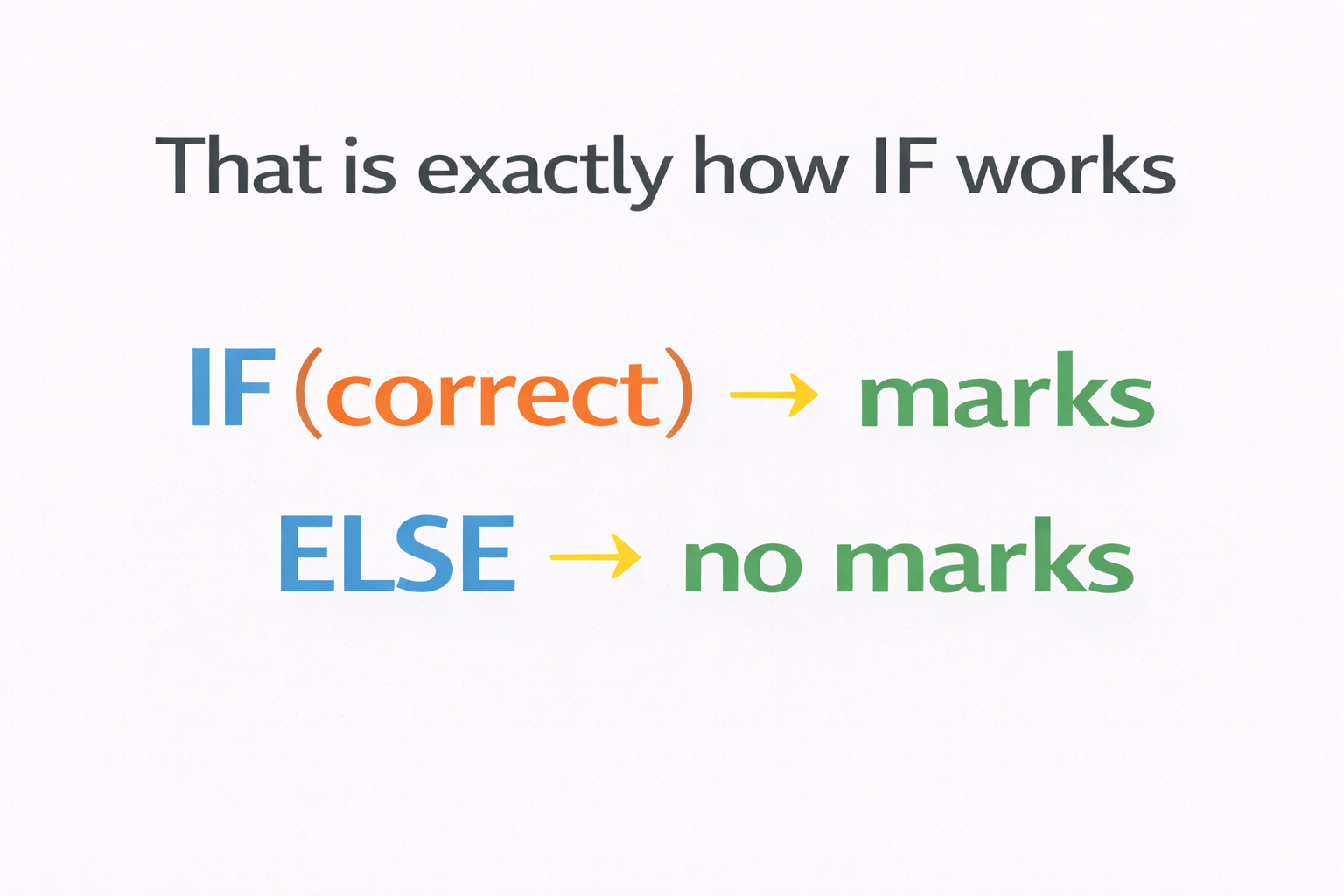
An IF statement checks a condition and returns:
One result if TRUE
Another result if FALSE
Syntax:
= IF(condition, value_if_true, value_if_false)
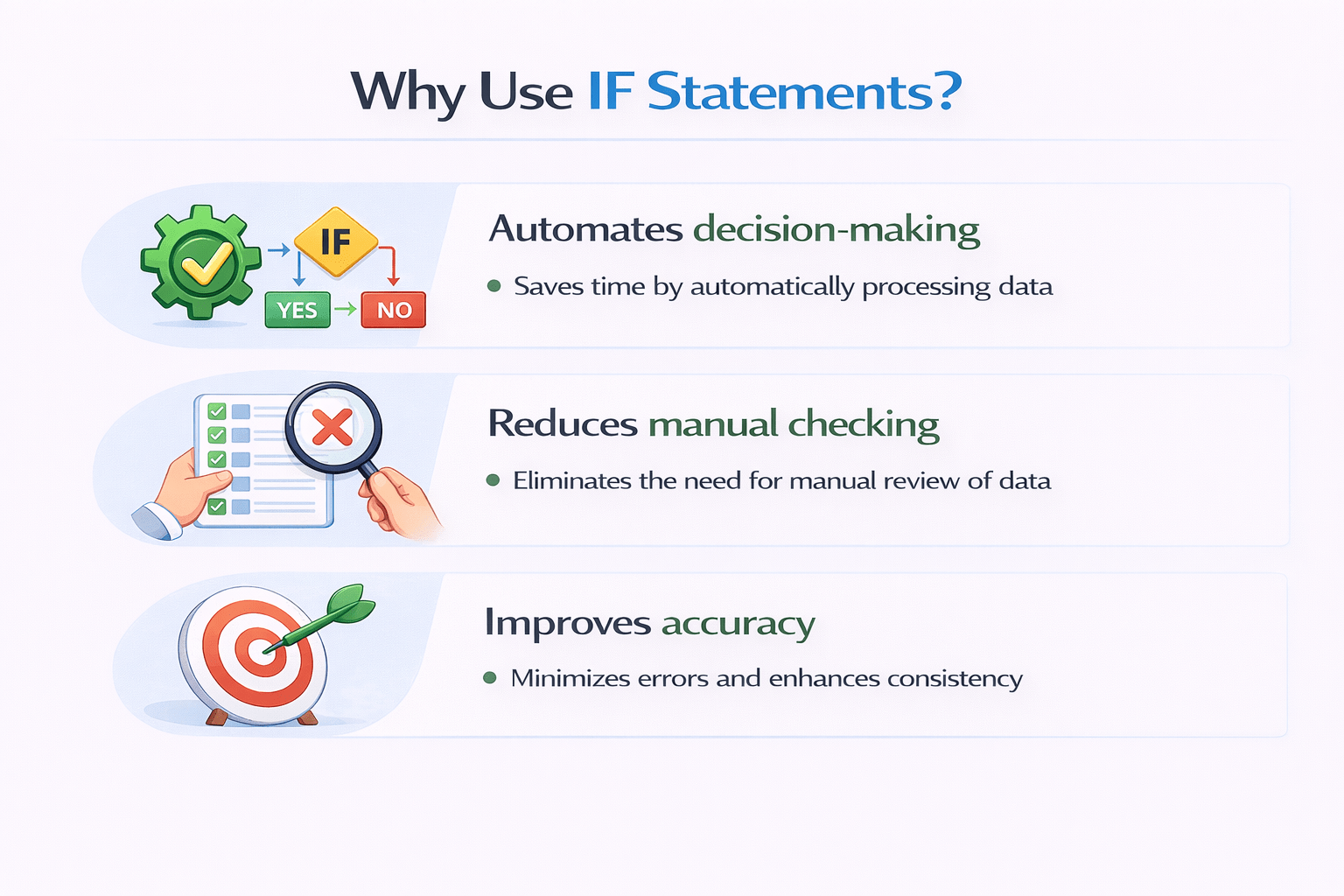
Why Use IF Statements?
Automates decision-making
Reduces manual checking
Improves accuracy
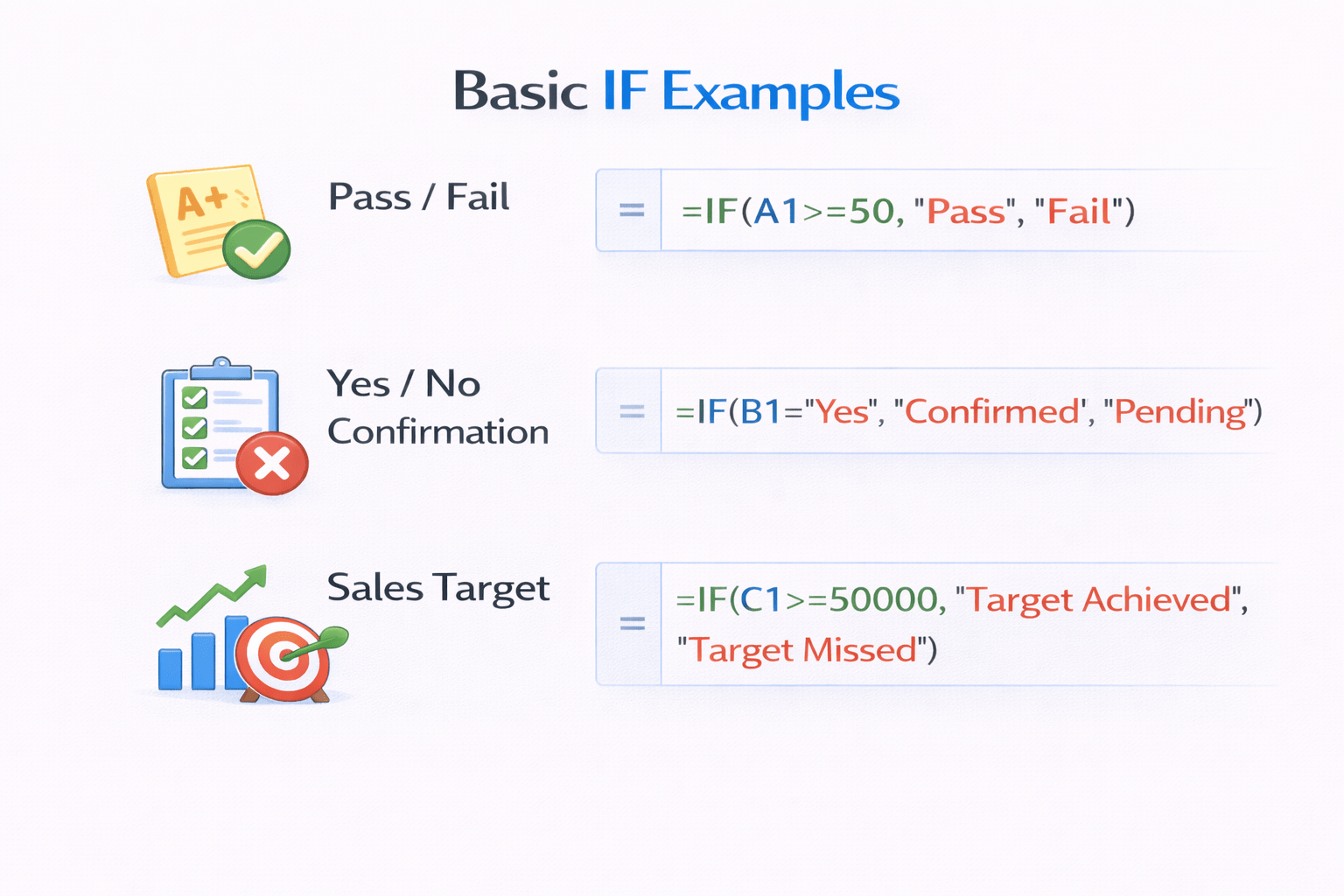
Basic IF Examples
=
IF(A1>=50, "Pass", "Fail")
Pass / Fail
Yes / No Confirmation
=
IF(B1="Yes", "Confirmed", "Pending")
Sales Target
=
IF(C1>=50000, "Achieved", "Missed")
Logical Functions with IF (Basic Level)
Logical functions help IF handle multiple conditions.
1.
AND
=
IF(AND(A1>50, B1="Yes"), "Approved", "Denied")
All conditions must be true
2.
OR
=
IF(OR(A1>50, B1="Yes"), "Proceed", "Hold")
Any one condition must be true
3.
NOT
=
IF(NOT(A1>50), "Fail", "Pass")
Reverses a condition
Used in:
Approvals
Summary
5
These tools make spreadsheets clearer and smarter
4
Logical functions strengthen IF logic
3
IF statements enable Excel to make decisions
2
Conditional Formatting highlights important data automatically
1
Cell Styles improve consistency and presentation
Quiz
Which feature highlights values automatically?
A. Cell Styles
B. Conditional Formatting
C. IF Statement
D. Sort & Filter
Quiz-Answer
Which feature highlights values automatically?
A. Cell Styles
B. Conditional Formatting
C. IF Statement
D. Sort & Filter
By Content ITV