


Session Management

Start Lecture and Marking Attendance

Lecture Initiation Process

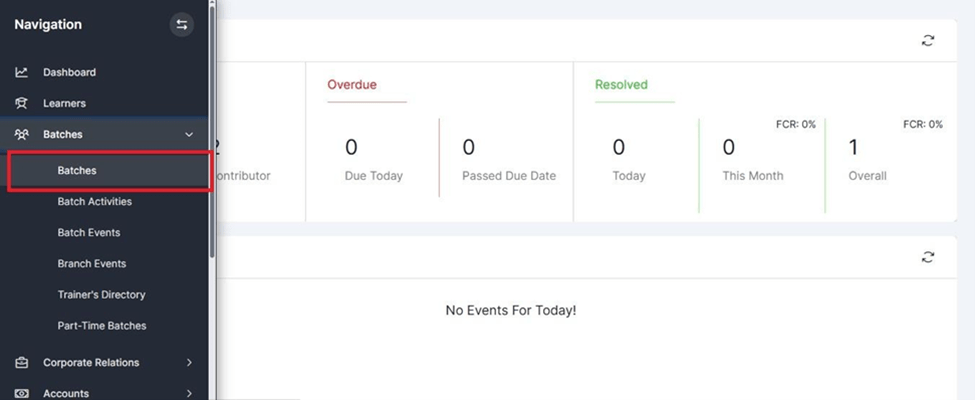
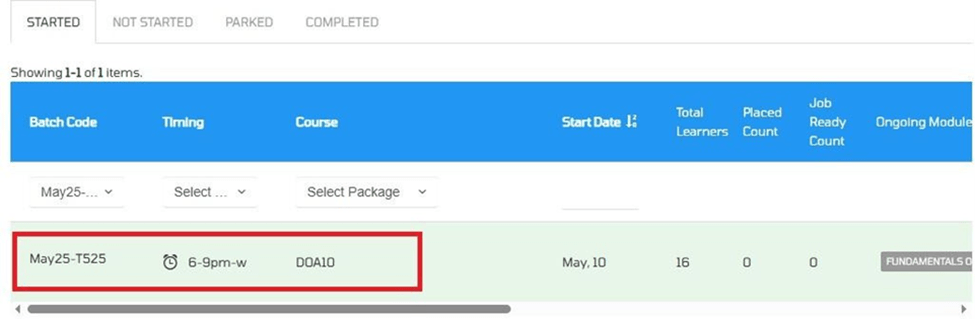
1. Open the Batch

Navigate to the "Batches" section

Lecture Initiation Process

Click on the batch number that needs to be updated

Lecture Initiation Process

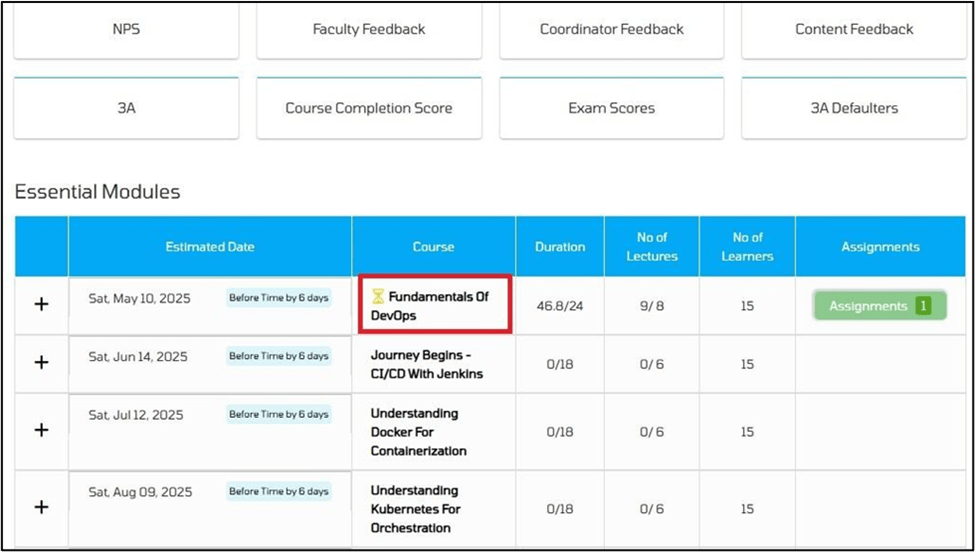
2. Access the Module

Click on the module for which the session was conducted or needs to be updated

Lecture Initiation Process

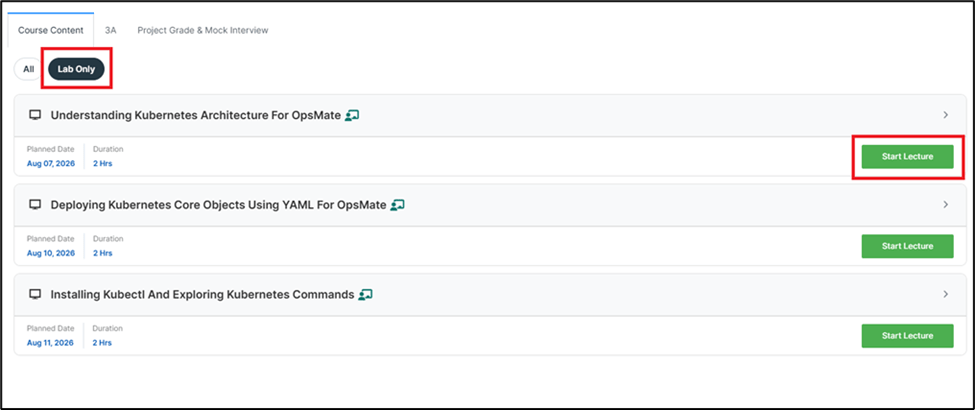
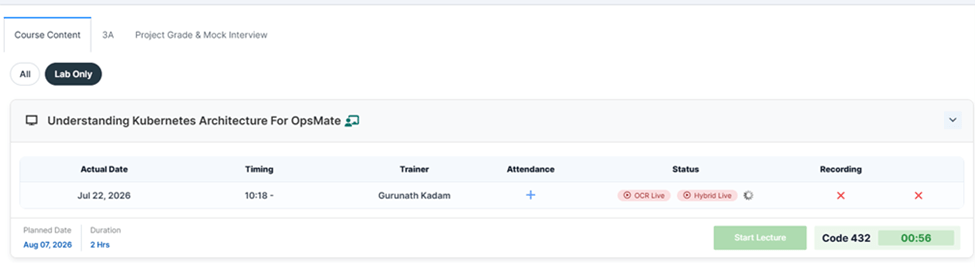
3. Start Lecture

  • Complete all lab training as per the prescribed curriculum.
  • Click "Start Lecture" before every session to enable attendance and session tracking.
  • Follow the prescribed lab sequence to ensure consistent and structured learning.

Lecture Initiation Process

 Hybrid Access – Session Initiation Guidelines

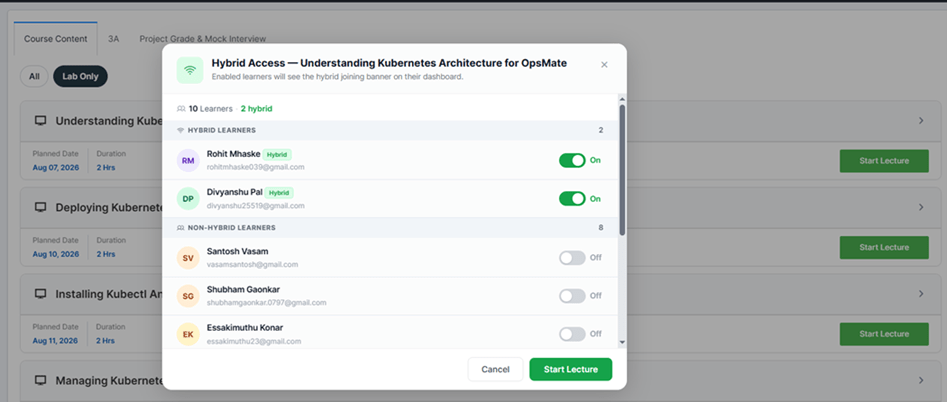
  • After clicking "Start Lecture", the Hybrid Access pop-up appears.
  • Review learners listed under Hybrid and Non-Hybrid categories.
  • Verify or update Hybrid Access using the toggle for each learner.
  • Click "Start Lecture" in the pop-up to begin the session.
  • Only learners with Hybrid Access enabled can join the session remotely.

Lecture Initiation Process

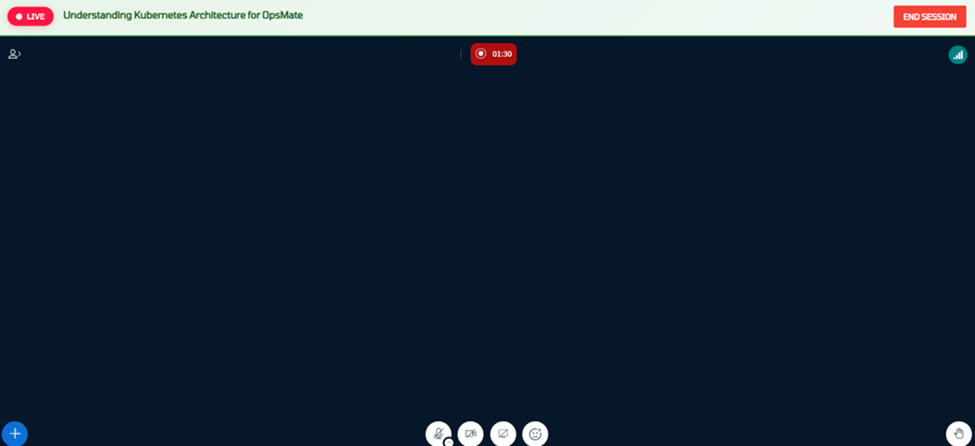
Clicking "Start Lecture" opens the Hybrid Session Control Window in a new browser tab for managing the live hybrid session.

The trainer can perform the following activities from Hybrid Session Control Window :

  • Manage the live hybrid session.
  • Configure webcam and microphone settings.
  • View the list of connected learners.
  • Monitor learner interactions, such as raised-hand notifications.
  • Share the webcam during the session.
  • End the session upon lecture completion.

Lecture Initiation Process

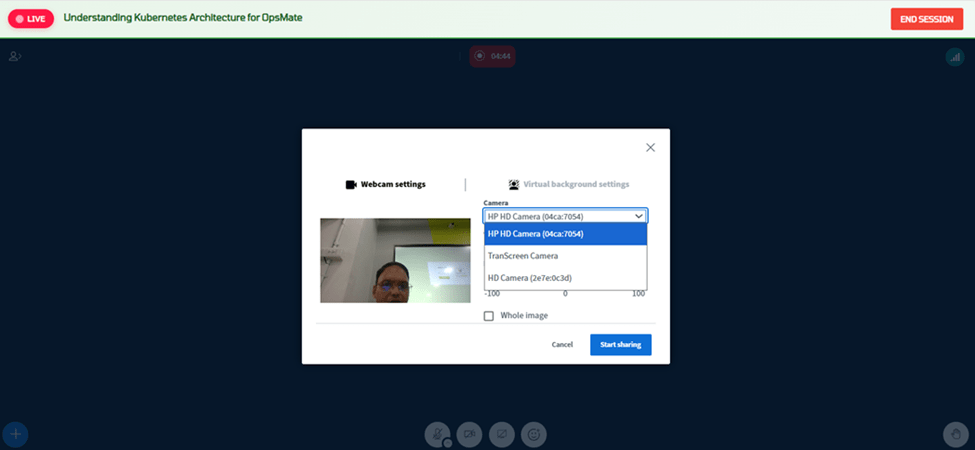
Webcam Configuration

  • Click the Webcam icon in the control toolbar.
  • Select the required camera from the Camera dropdown.
  • Verify the camera preview.
  • Click Start Sharing to enable the webcam.

Note: Trainers should verify that the correct webcam is selected before starting the lecture to ensure learners receive a clear video feed.

Lecture Initiation Process

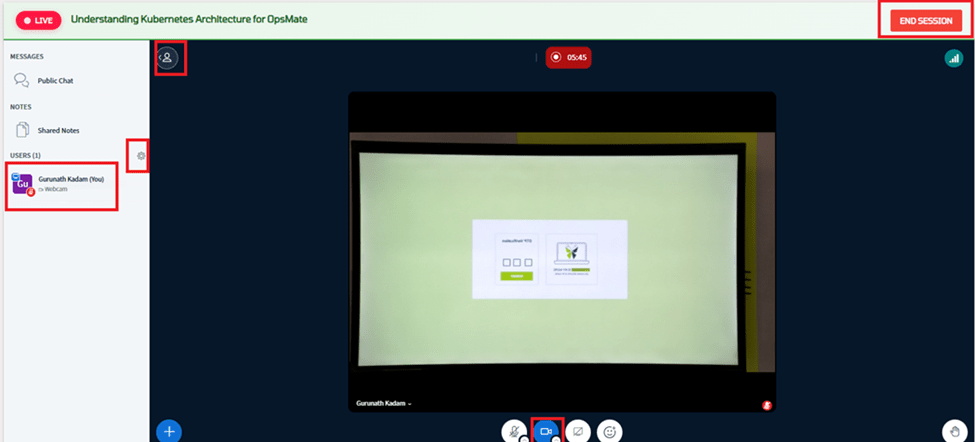
User List

  • Click the User List icon located on the left side of the session window.
  • Trainers can use this panel to: Monitor attendance, raised hands, learner queries, and overall participation during the session.

Recommendation: Trainers should periodically review the User List during the session to ensure active learner participation and promptly address any questions raised.

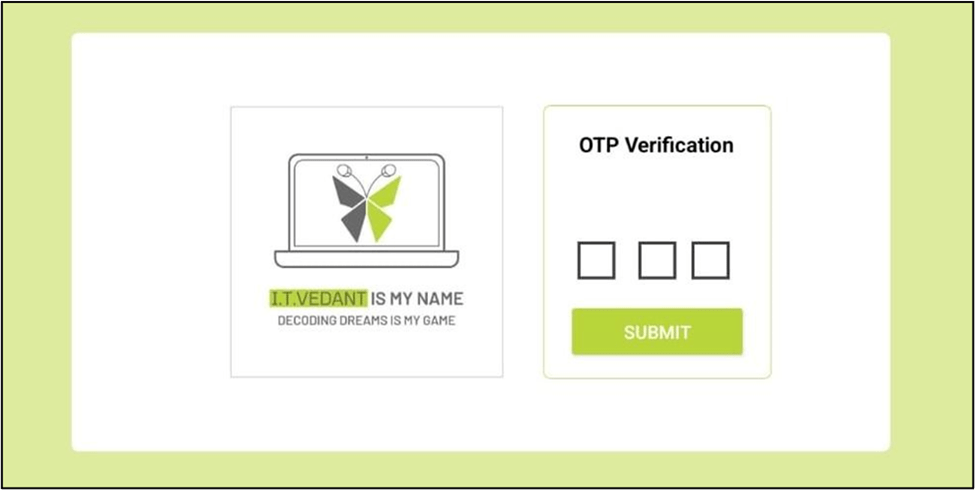
Starting the Lecture Deck using OTP

Navigate back to the Batch tab in the LMS.

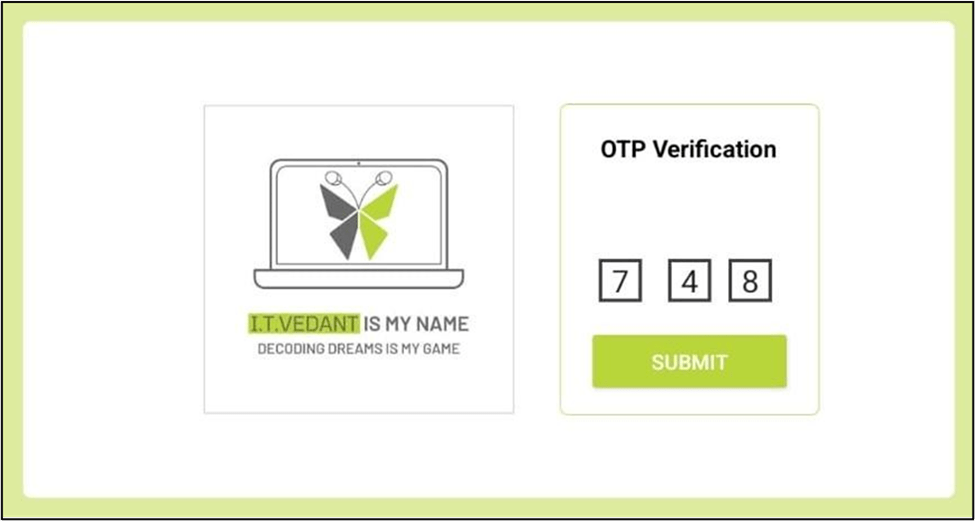
Retrieve the OTP displayed for the scheduled lecture

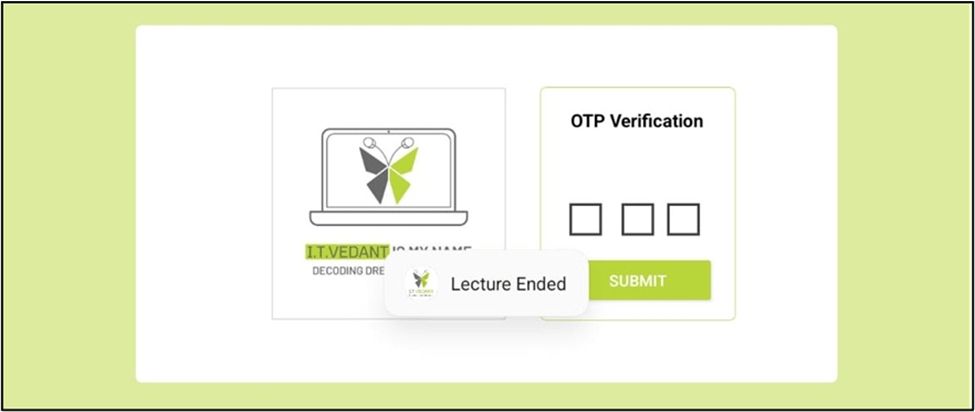
Open OCR on Digi Board. It will ask for code

Starting the Lecture Deck using OTP

  •  Return to the OCR window.
  •  Enter the OTP in the designated OTP field.
  •  Click Submit to validate the OTP.
  •  Once the OTP is successfully verified, the lecture deck will be launched, and the trainer can begin delivering the session.

Starting the Lecture Deck using OTP

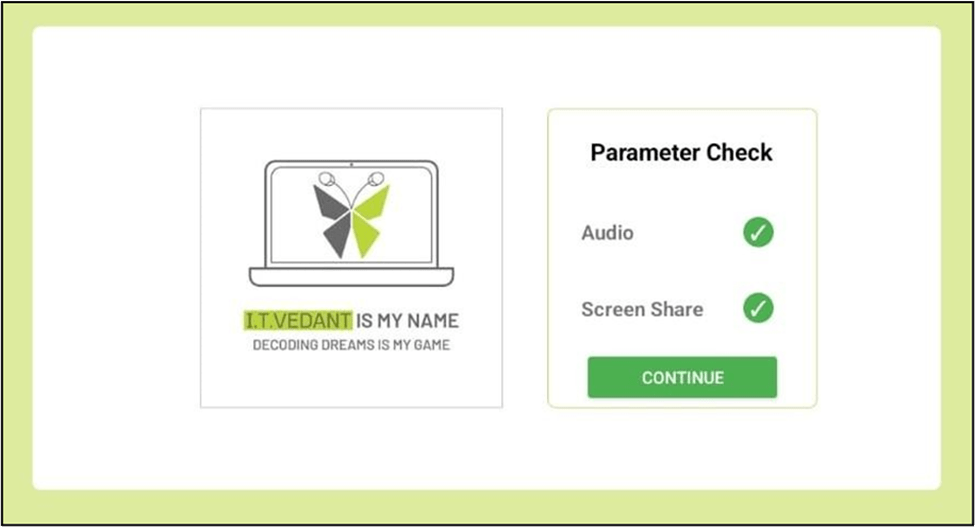
Give permission for audio and screenshare

Once the lecture is done, click on End Lecture

Starting the Lecture Deck using OTP

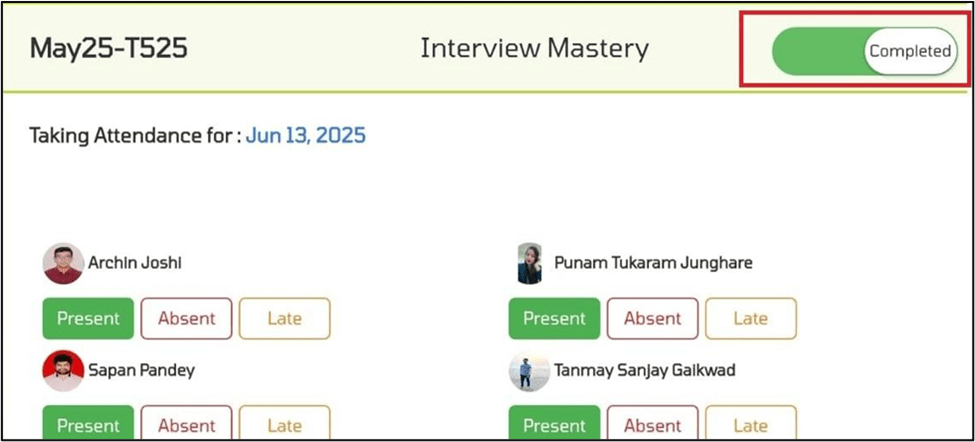
The attendance page will appear

1. Select Topic Status

  • Completed – If the topic was fully covered.
  • Partial – If only part of the topic was taught.

2. View Learners

  • A list of all learners enrolled in the selected batch will be displayed.
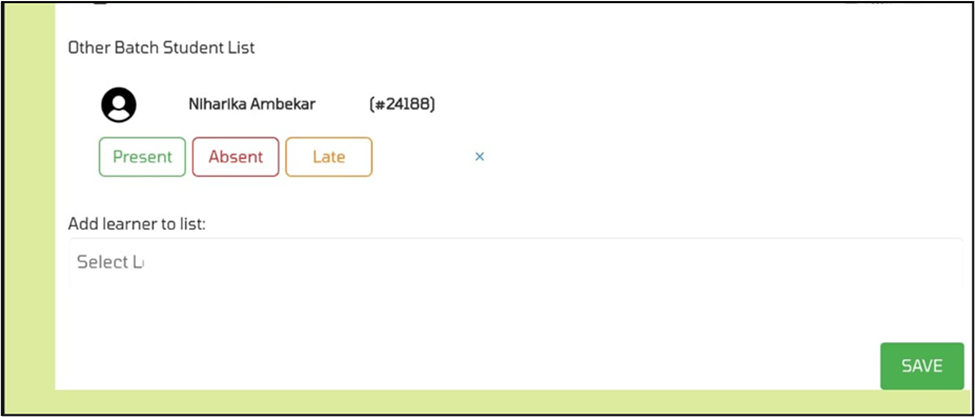
  • Search Learner will help you add learners from another batch for attendance.

Starting the Lecture Deck using OTP

3.    Mark Attendance

  • Present – If the learner attended the session on time.
  • Absent – If the learner did not attend.
  • Late – If the learner joined after 15 minutes from the batch start time.

Starting the Lecture Deck using OTP

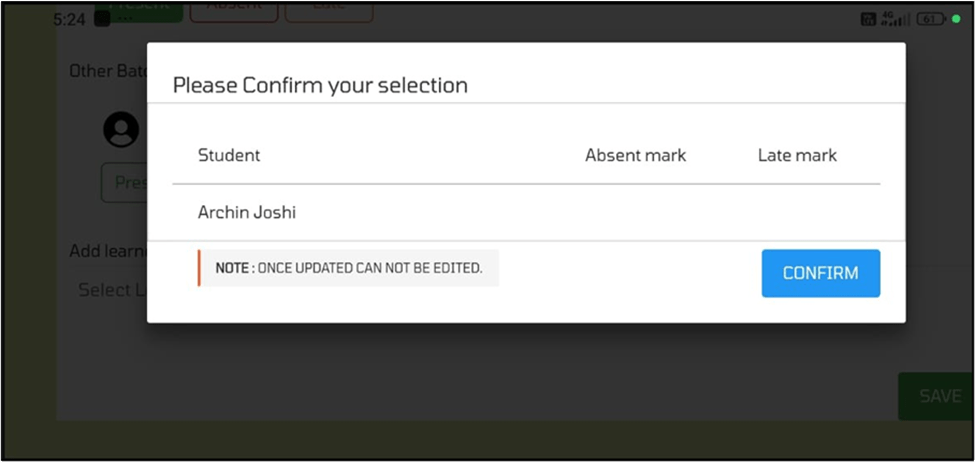
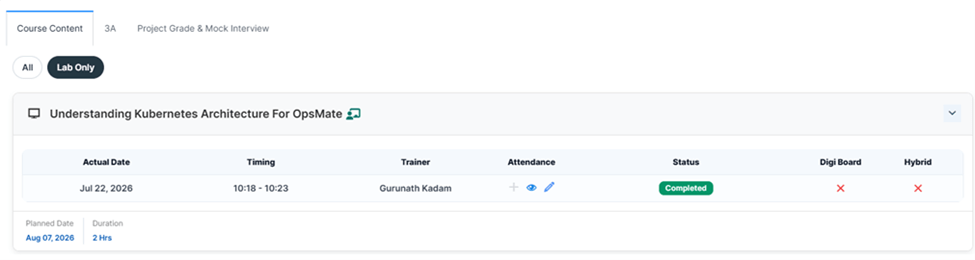
Confirm the marked attendance

Once attendance is submitted, the lecture will end

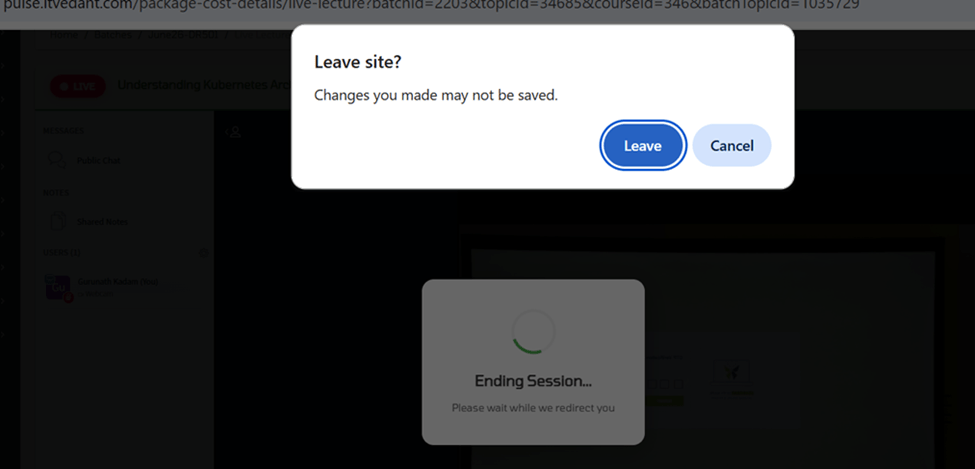
Ending the Live Session

  • Once the lecture has been completed:
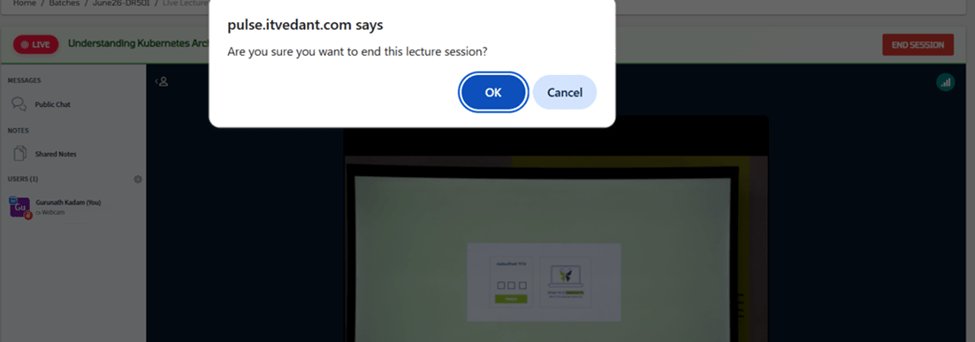
  • Click the End Session button located in the top-right corner of the screen.
  • Confirm the action, if prompted.
  • Ensure the session is properly closed to complete the lecture recording and attendance process.

Important: Trainers should end the session only after completing the lecture and addressing all learner queries to ensure the session is recorded successfully.

Ending the Live Session

Important Note

  • Attendance must be marked on a daily basis during the session.
  • If not marked, the session will be auto-cancelled by the system

Session Management : Start Lecture and Marking Attendance

By Content ITV

Session Management : Start Lecture and Marking Attendance

  • 46