









Content ITV PRO
This is Itvedant Content department
Learning Outcome
5
Apply best practices for stable refresh performance
4
Monitor refresh failures and notifications
3
Understand refresh limits and inactivity behavior
2
Configure and manage scheduled refreshes
1
Explain how data refresh works in Power BI Service
What datasets are in Power BI Service
How reports depend on datasets
That Power BI Service supports scheduled refresh
Basic navigation of the Power BI Service interface
Students already know:
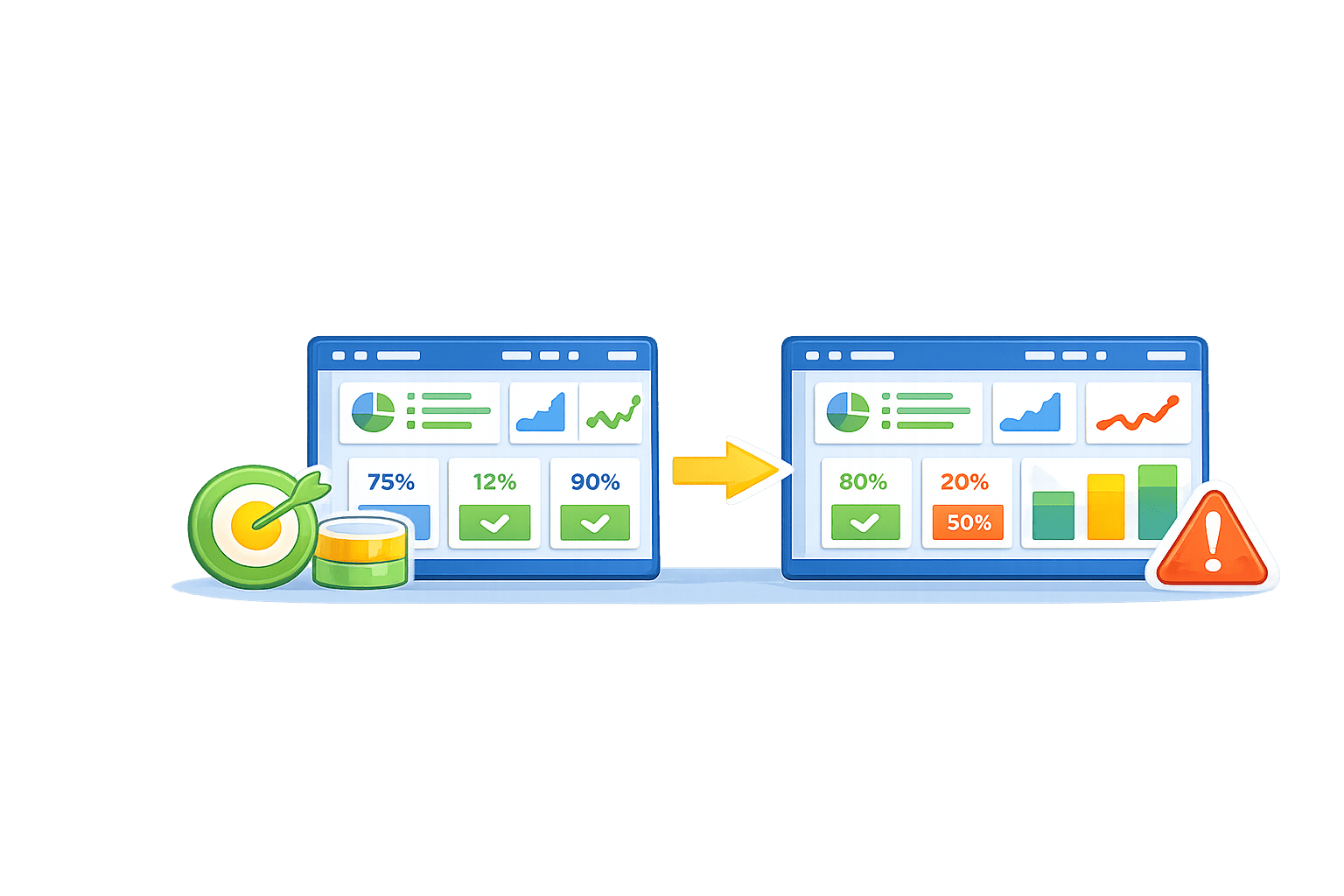
Imagine Your dashboard looks perfect.
Numbers are clean.
Charts are sharp.
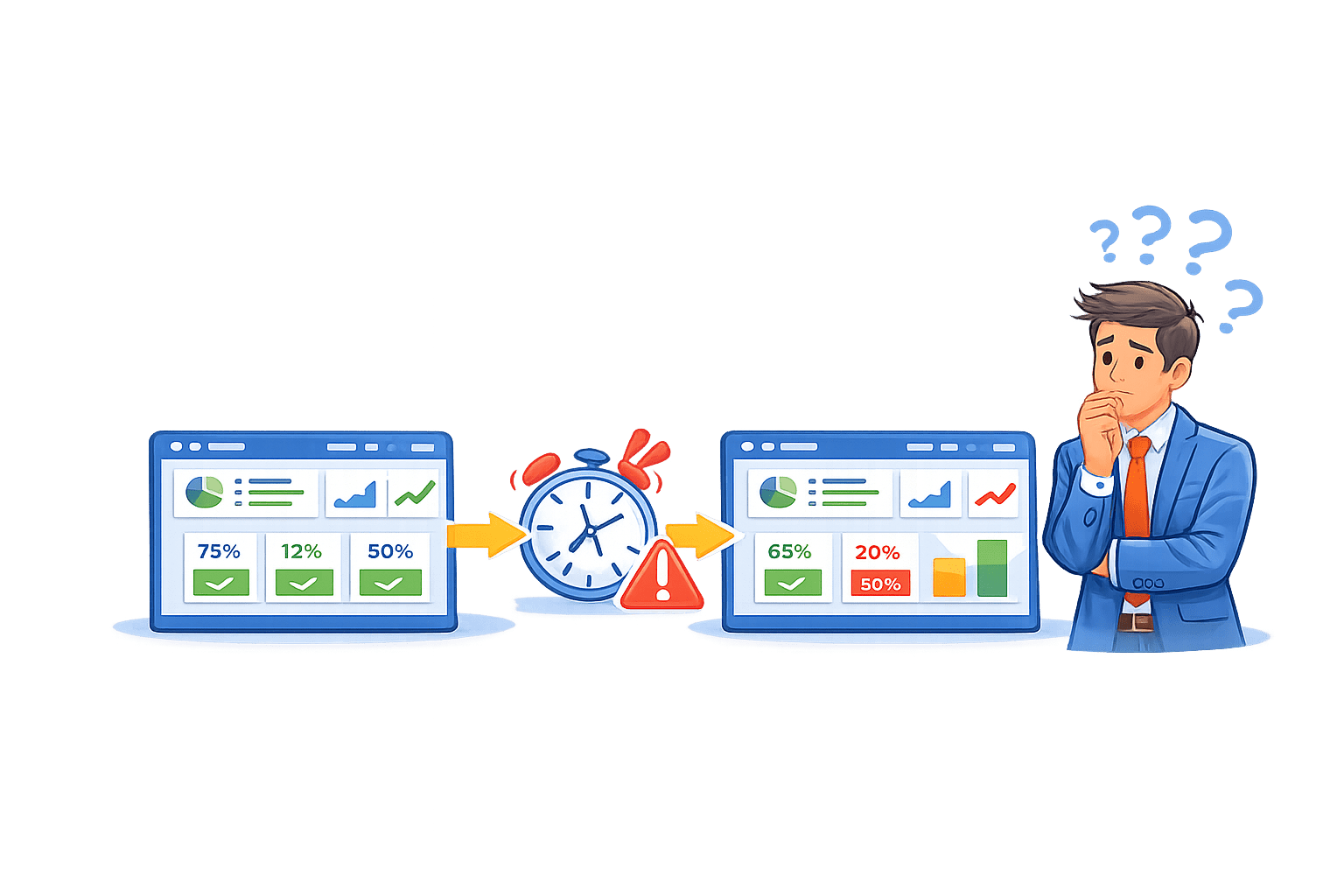
A week later...
Decisions are made.
But something feels off.
The report didn’t change.
The data did.
No one noticed.
The data refreshes automatically
The report stays honest.
A report is only as good as its last refresh.
What happens when data stops updating?
And how do we even know?
That’s why Managing Data Refreshes is critical.
Fresh data keeps decisions trustworthy.
In real systems:
Power BI Service provides tools to:
Automate refresh
Monitor failures
Notify users
The core section explains how refresh works end-to-end
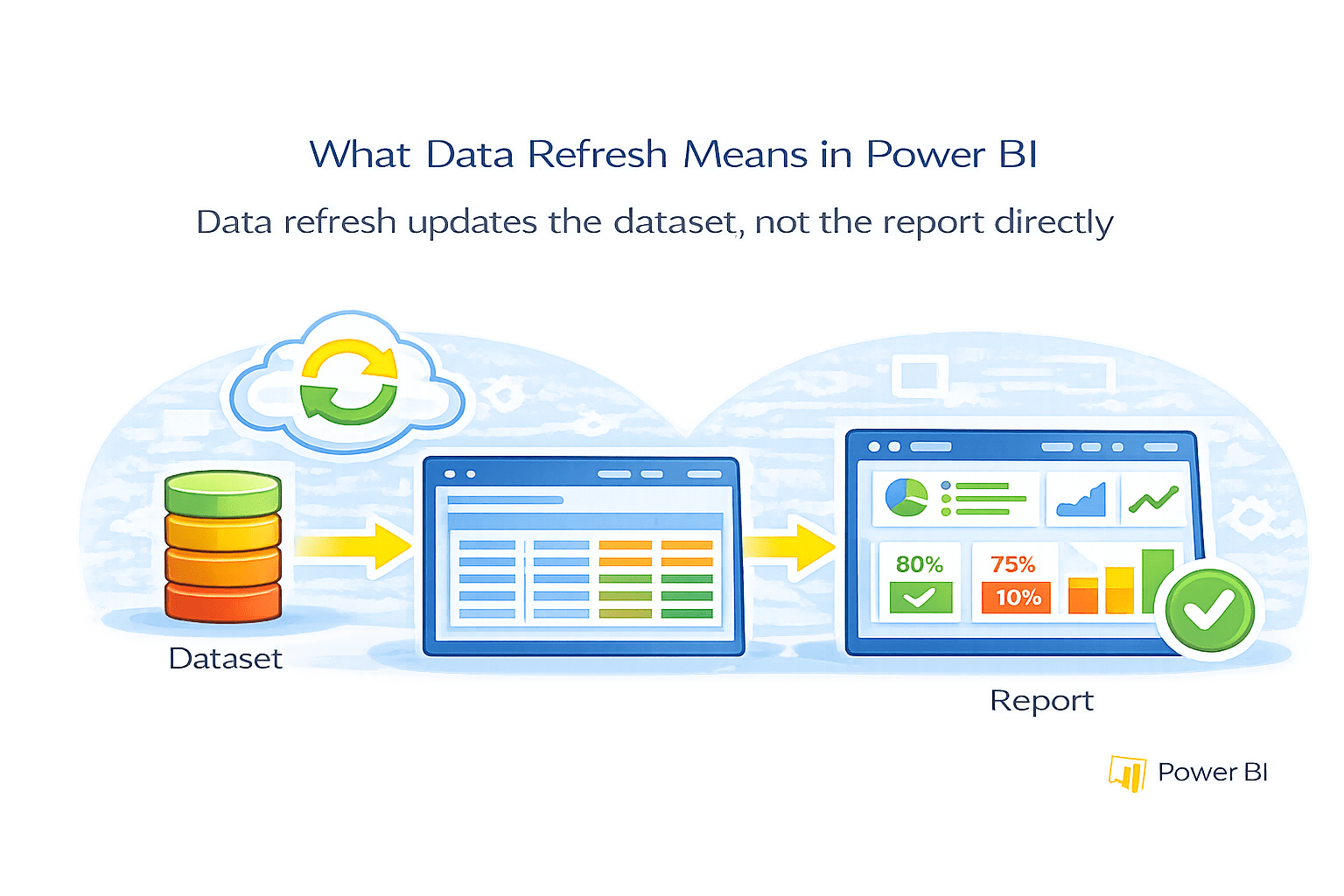
What Data Refresh Means in Power BI
Data refresh updates the dataset, not the report directly
During refresh:
All reports and dashboards connected to the dataset update automatically after refresh
Key Concept
Key Principle
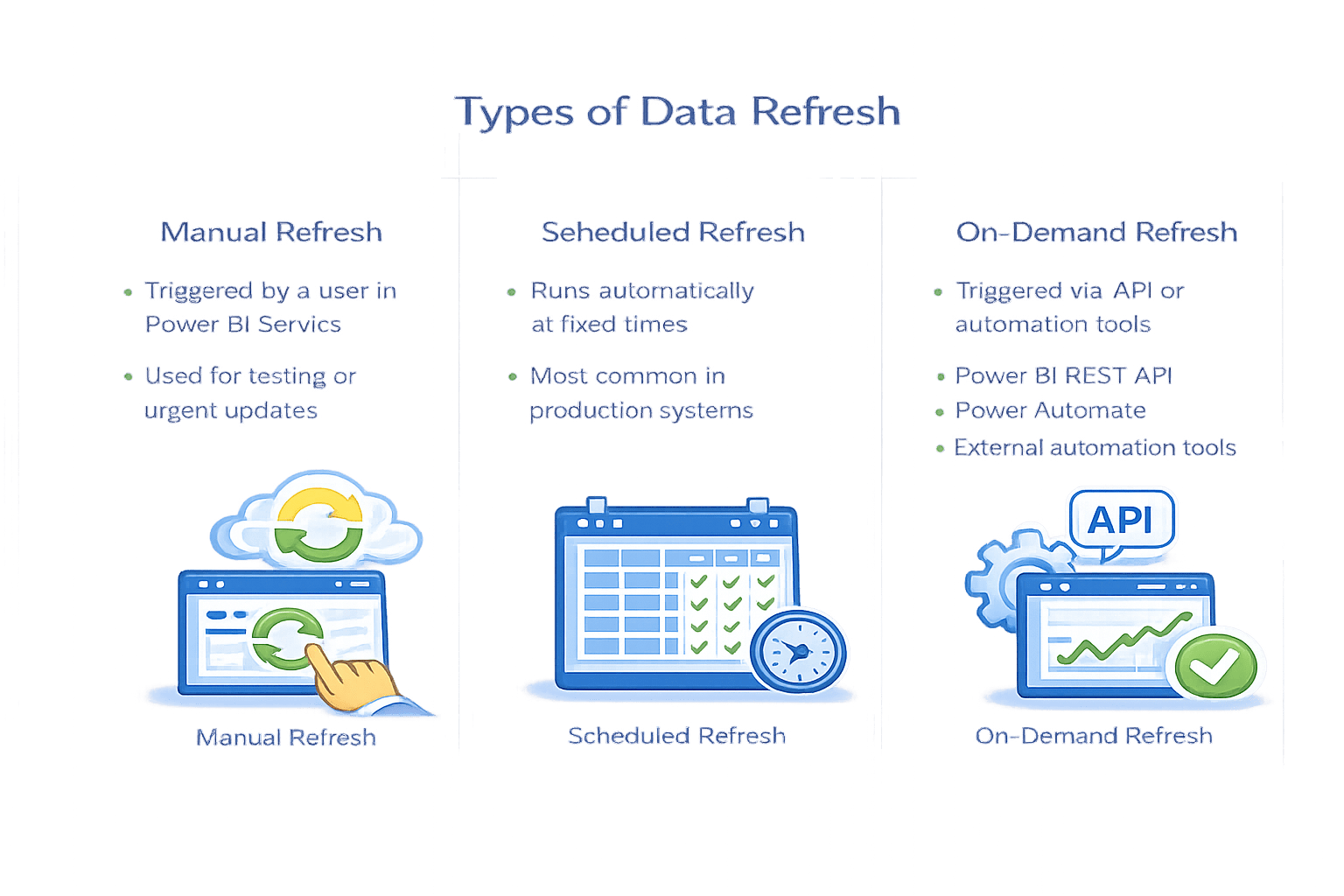
Types of Data Refresh
Manual Refresh
Triggered by a user in Power BI Service
Used for testing or urgent updates
Scheduled Refresh
Runs automatically at fixed times
On-Demand Refresh
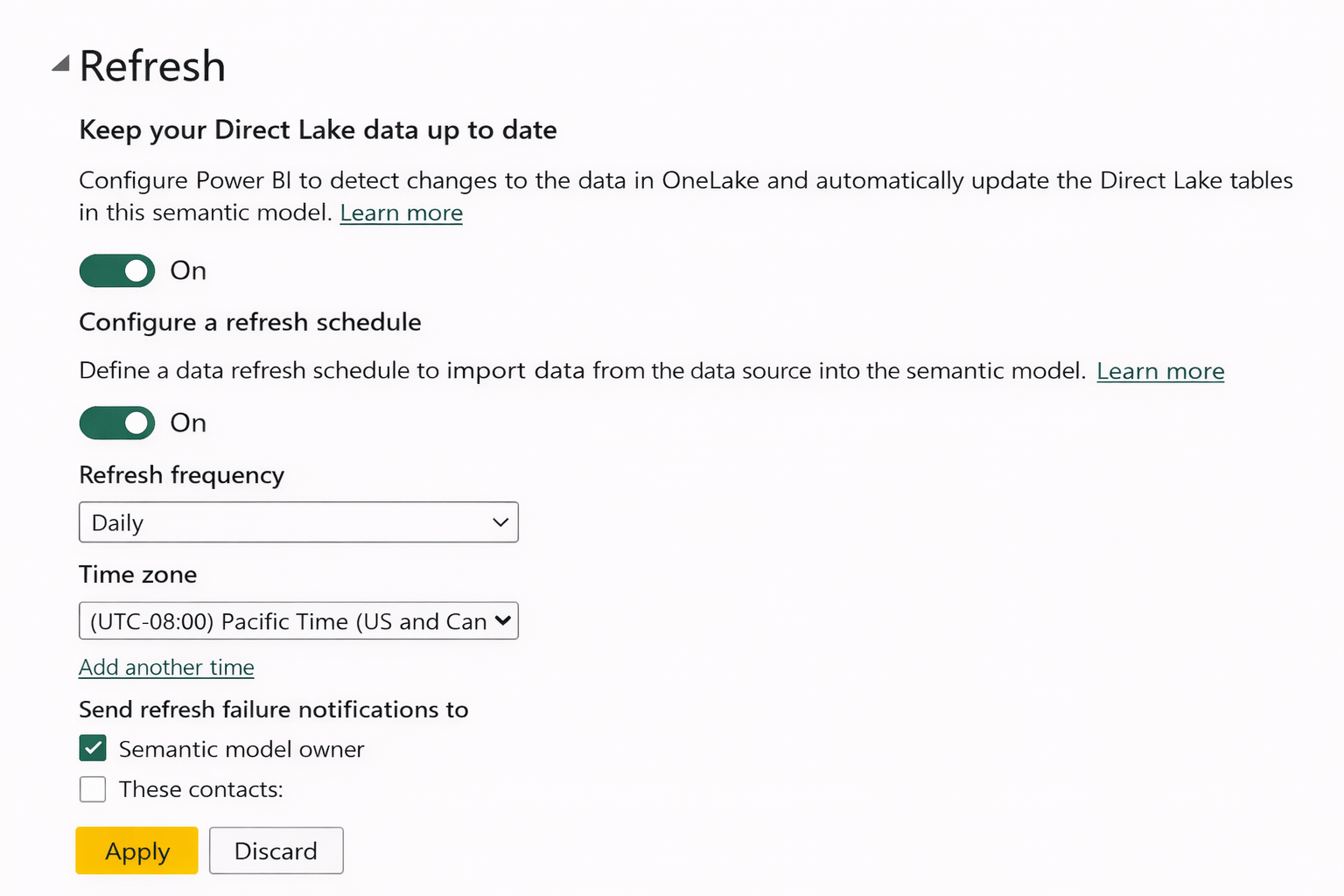
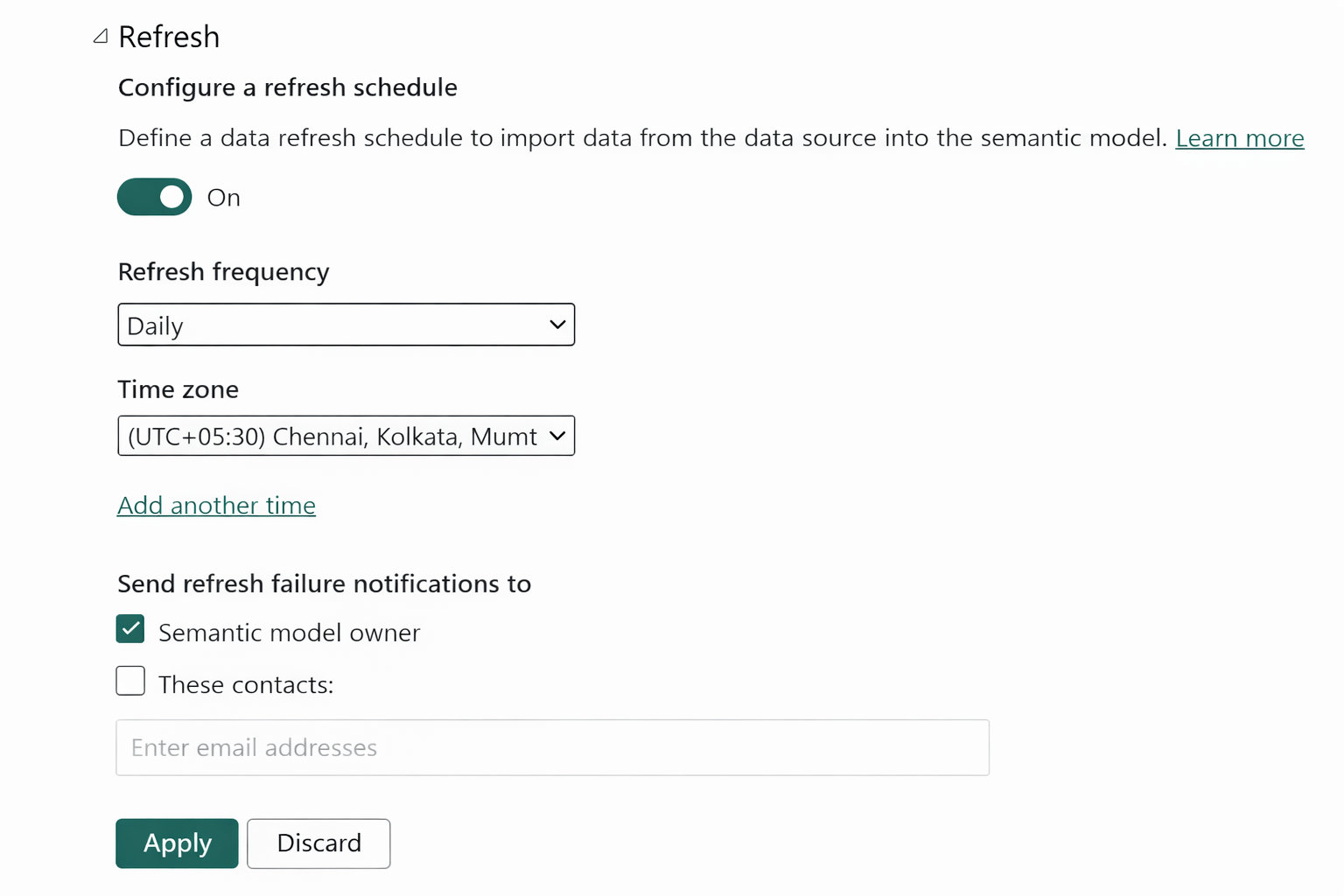
Configuring Scheduled Data Refresh
Scheduled refresh is configured at the dataset level.
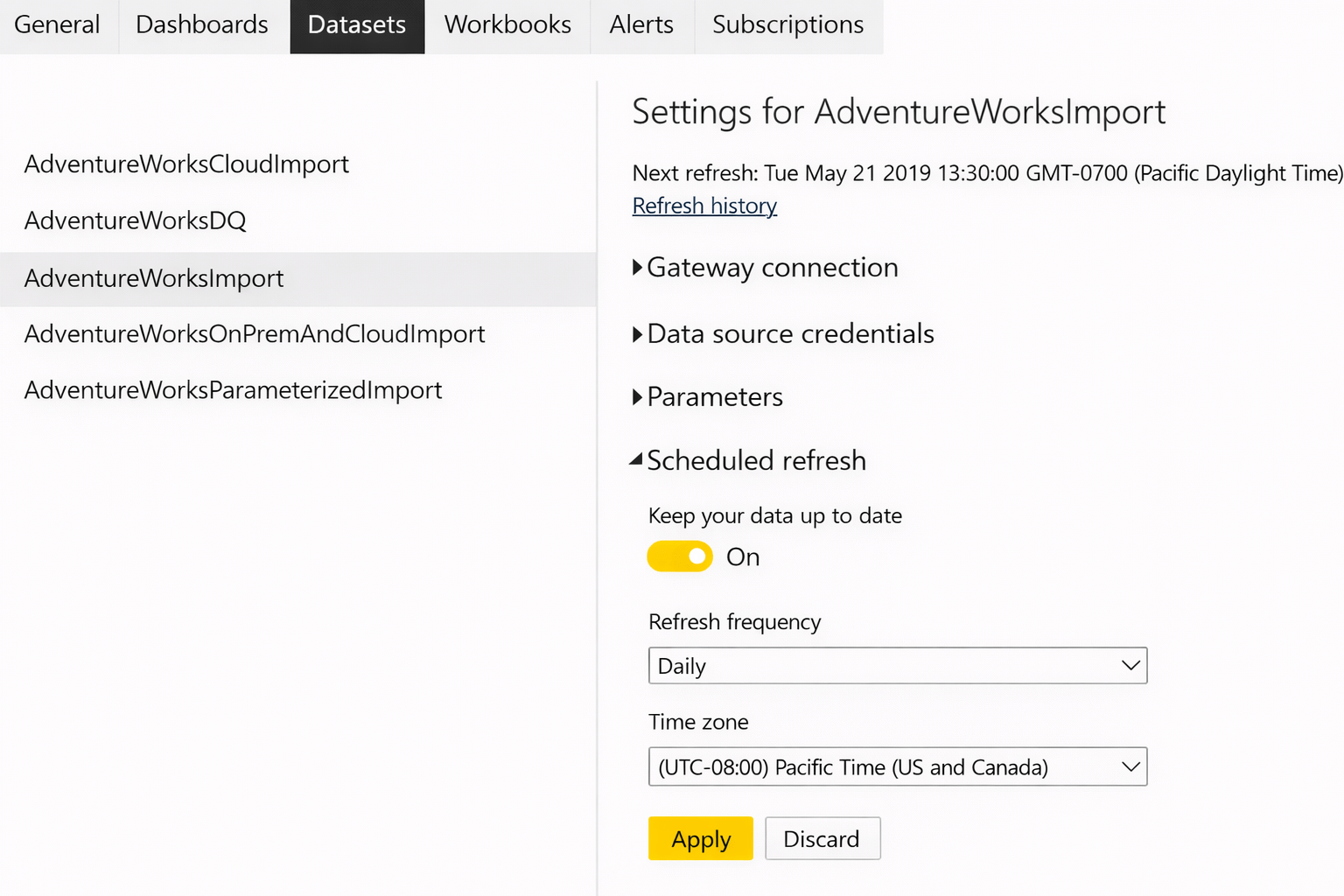
Steps
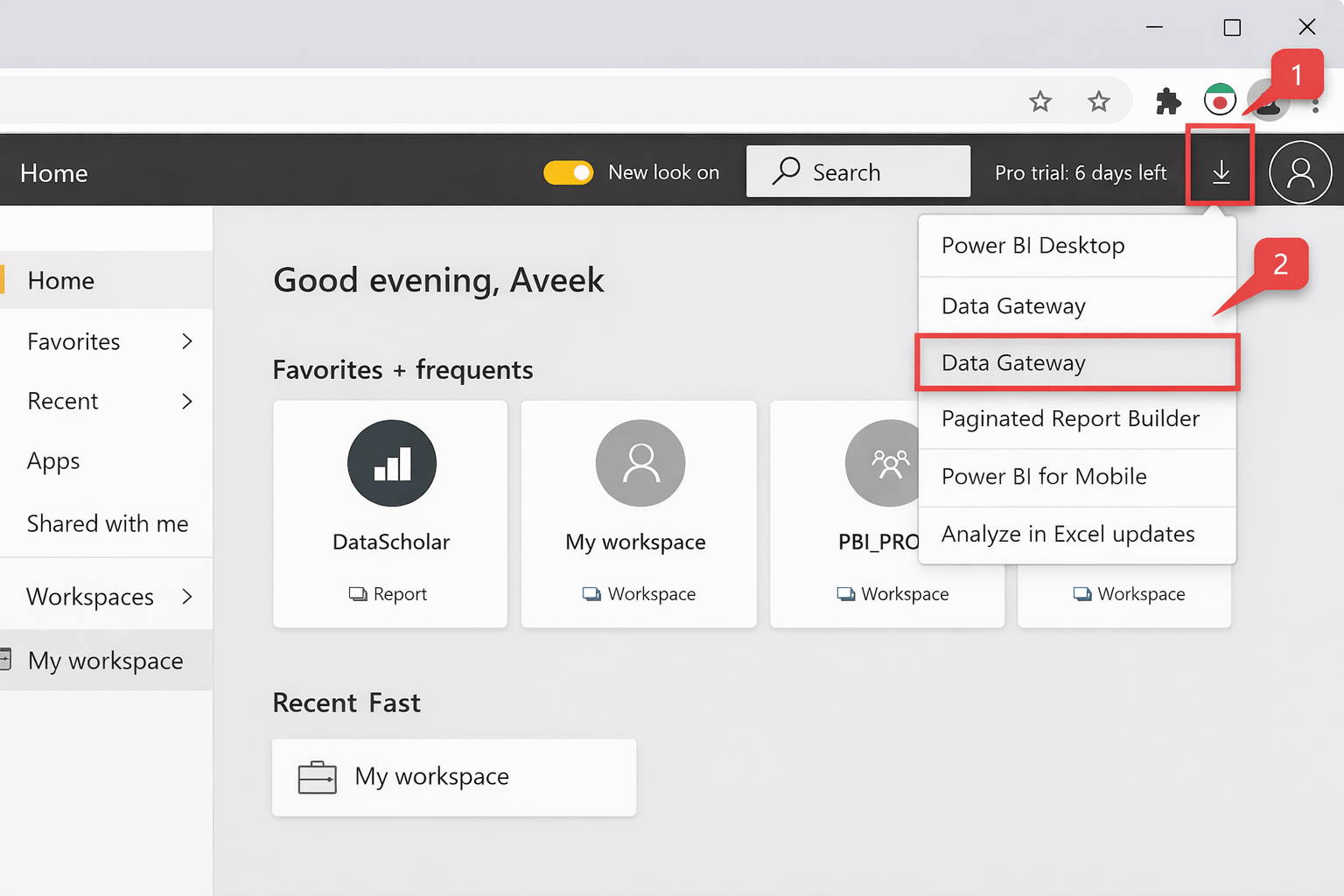
Open Power BI Service
Go to Workspace → Datasets
Select the dataset
Click Settings
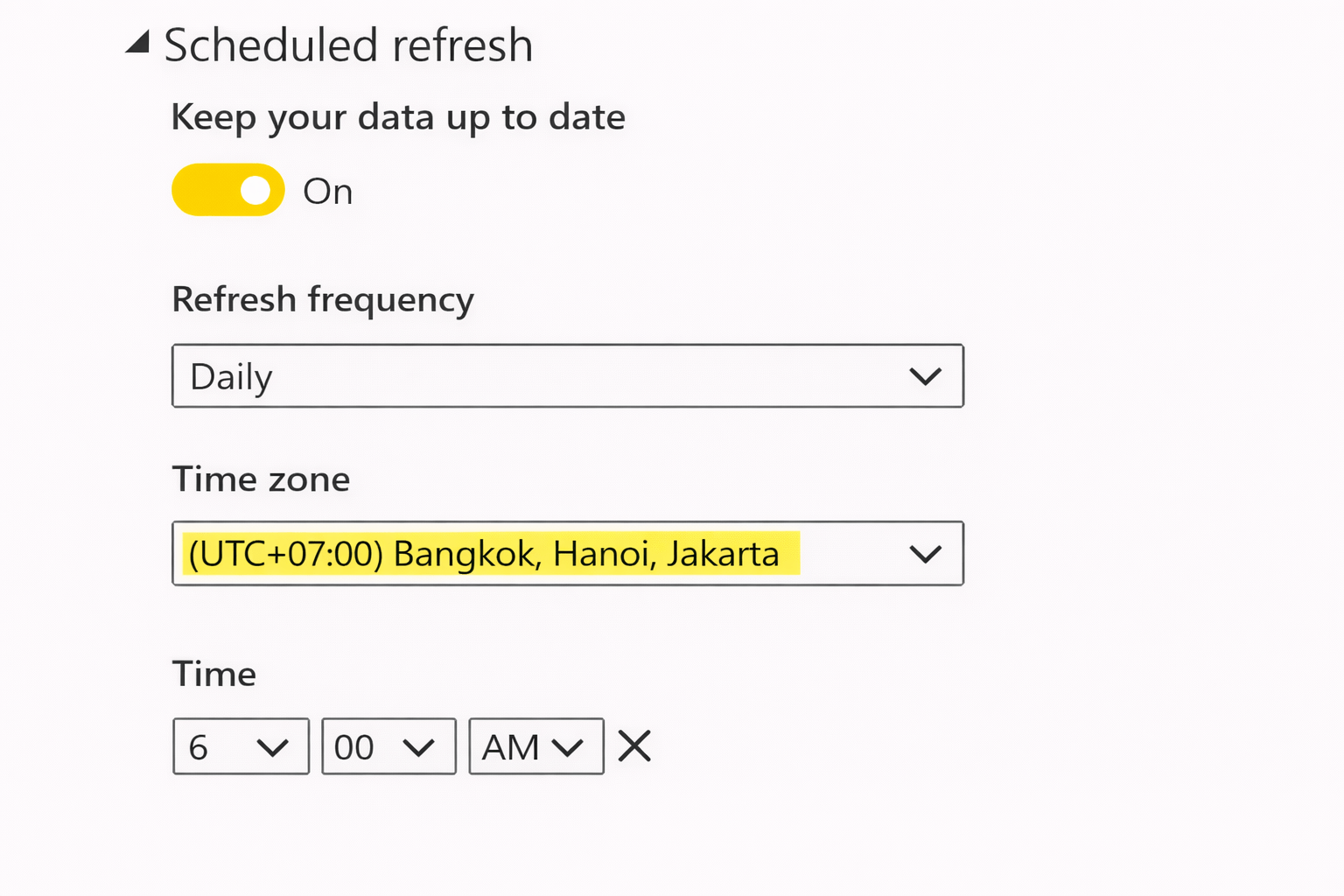
Open Scheduled refresh
Configure:
Refresh frequency
Time zone
Limits
Power BI Pro: Up to 48 refreshes per day
Premium: Higher capacity and concurrency
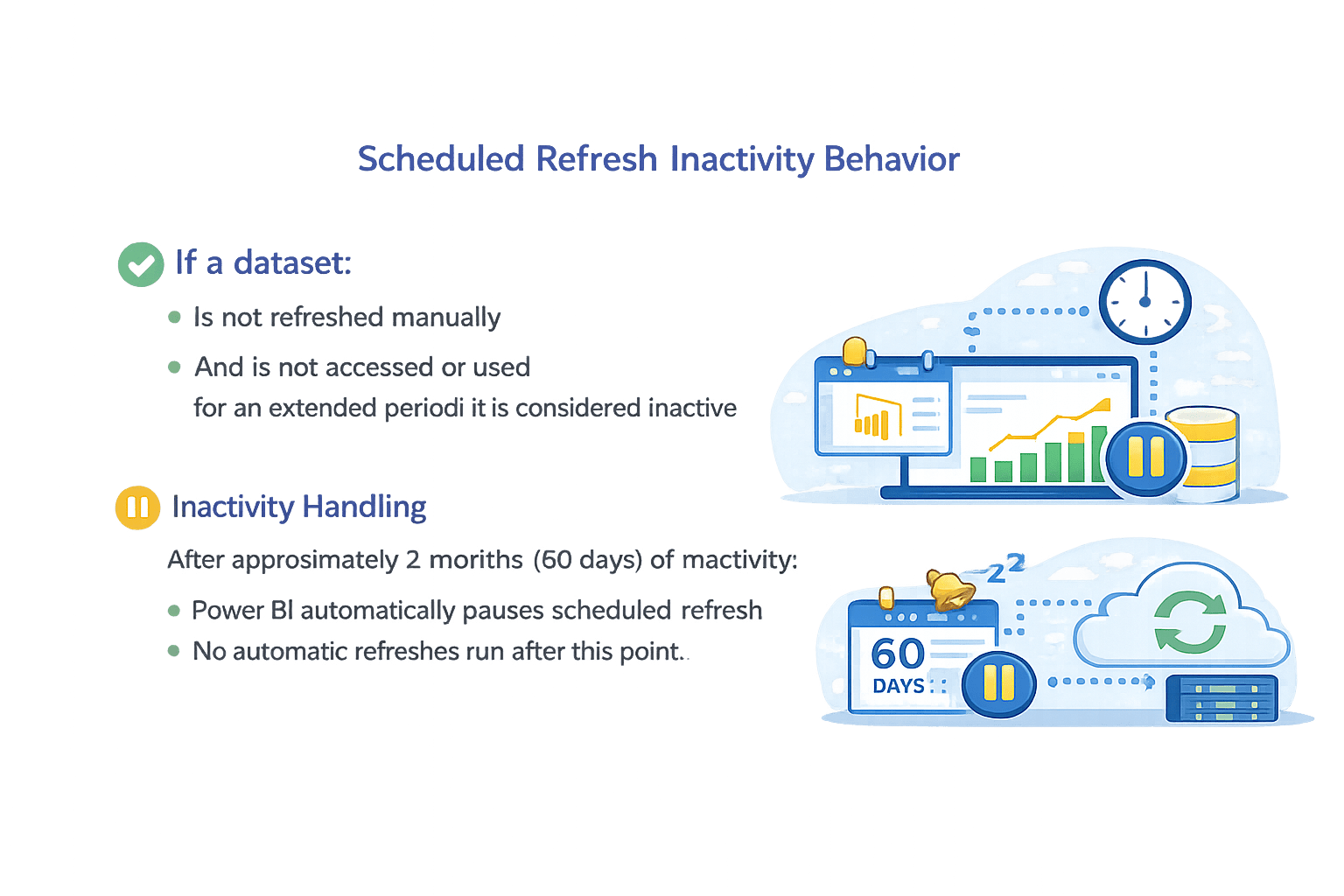
Scheduled Refresh Inactivity Behavior
Power BI monitors dataset activity continuously
If a dataset:
Is not refreshed manually
Inactivity Handling
After approximately 2 months (60 days) of inactivity:
Power BI automatically pauses scheduled refresh
No automatic refreshes run after this point
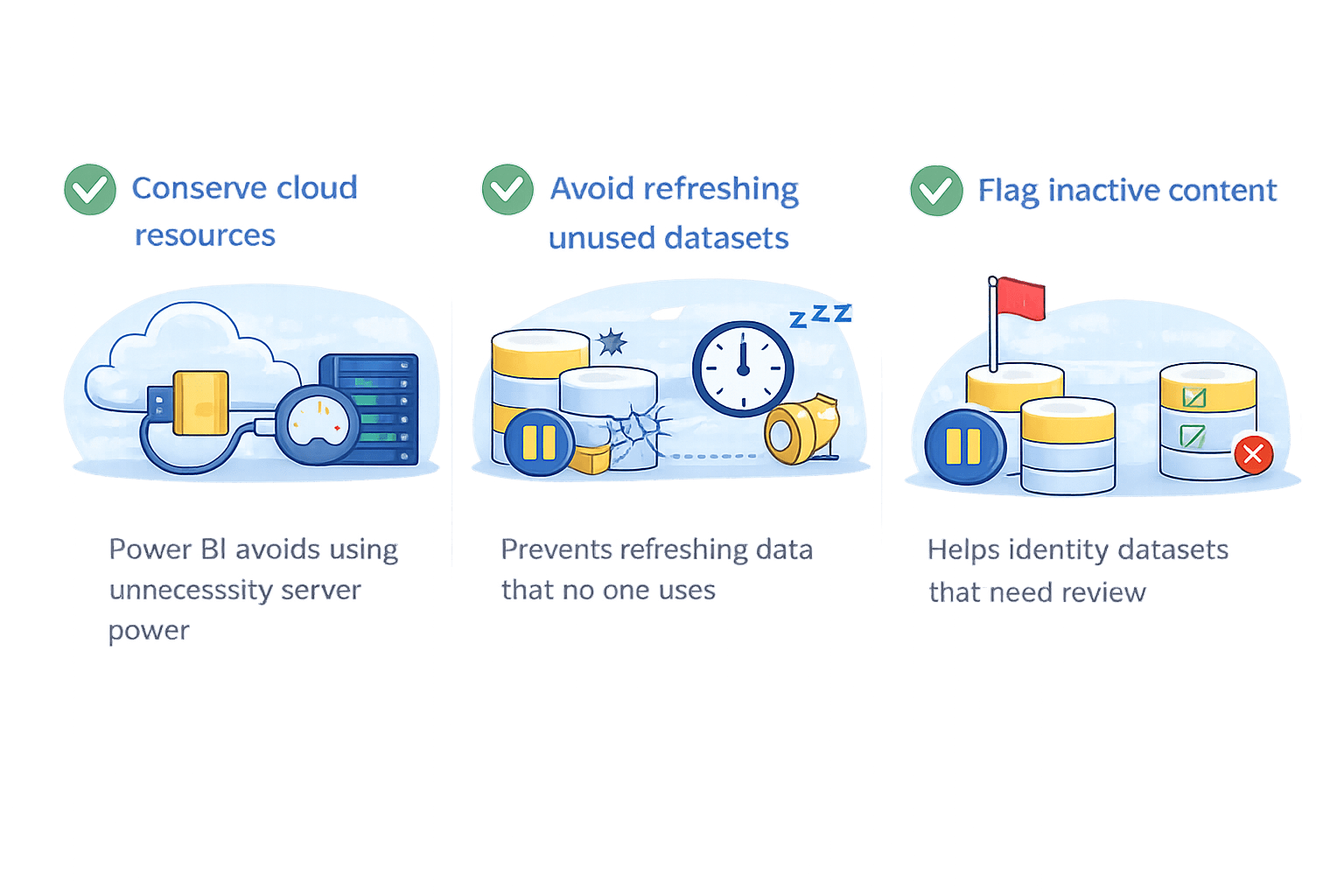
Why This Happens
How to Resume Refresh
Notifications for Refresh Status and Failures
Email Notifications
Power BI can notify users when:
Refresh fails
Refresh succeeds (optional)
Steps
Go to Dataset → Settings
Enable Refresh failure notifications
Enter email addresses
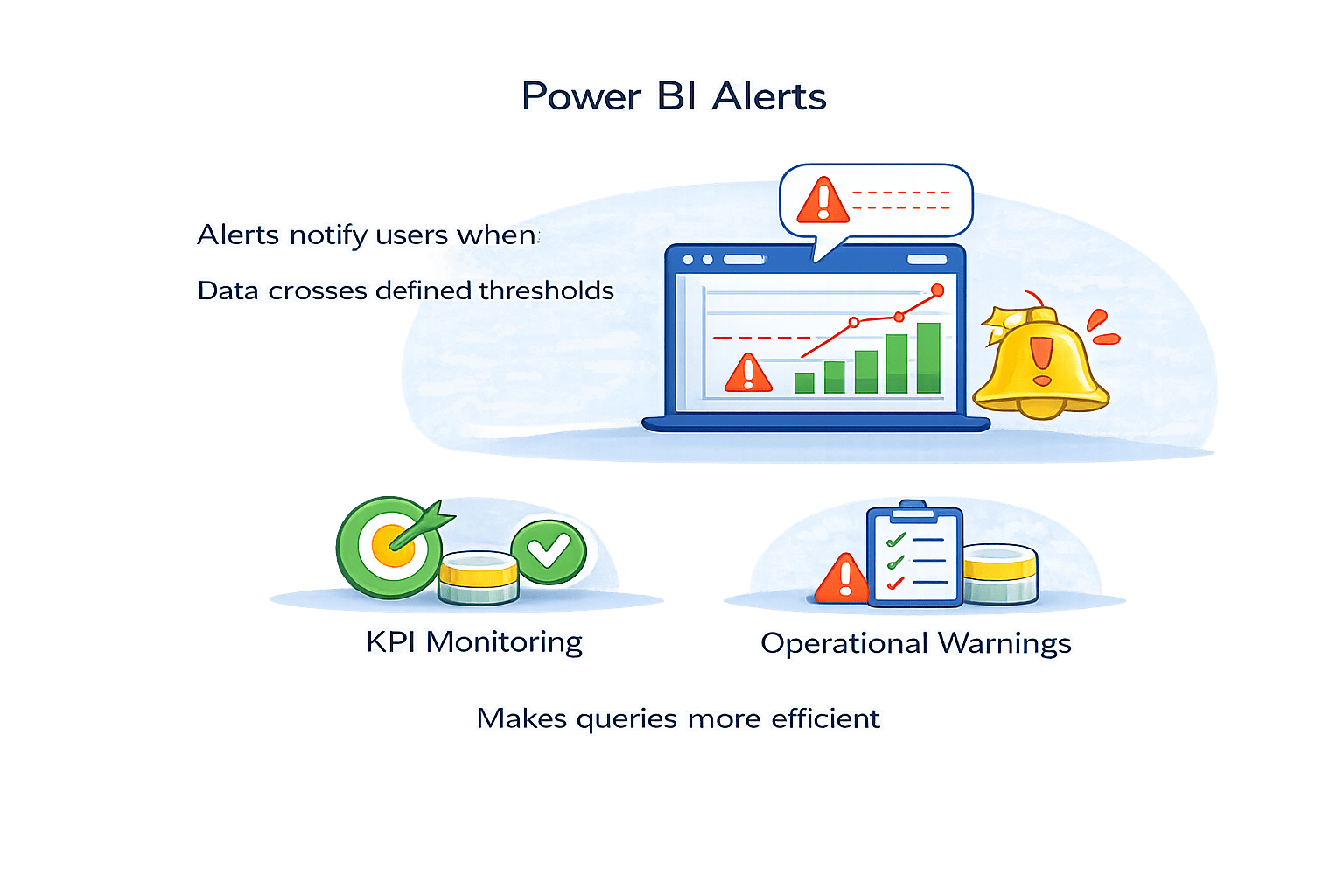
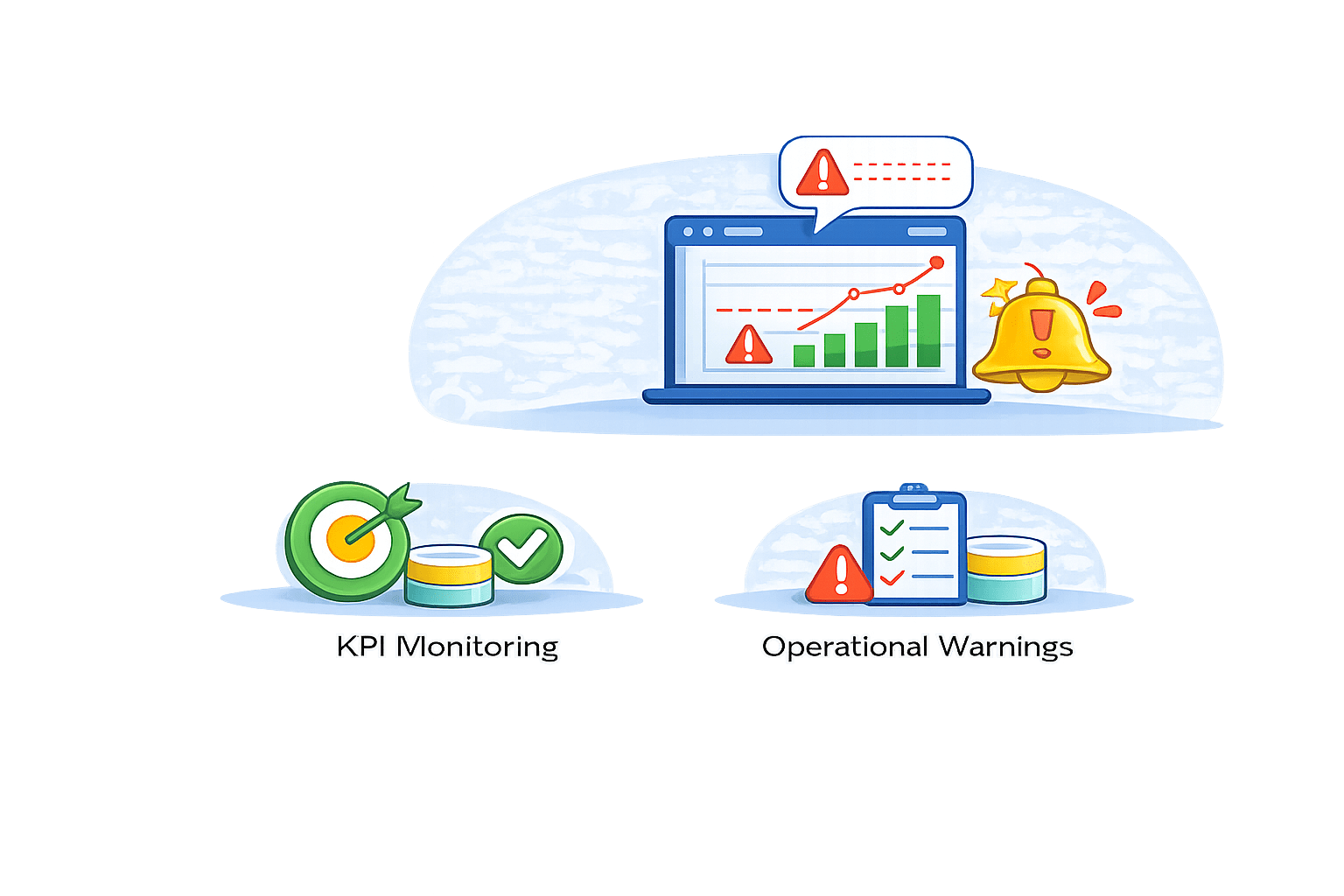
Alerts notify users when Data crosses defined thresholds
Power BI Alerts
Used for:
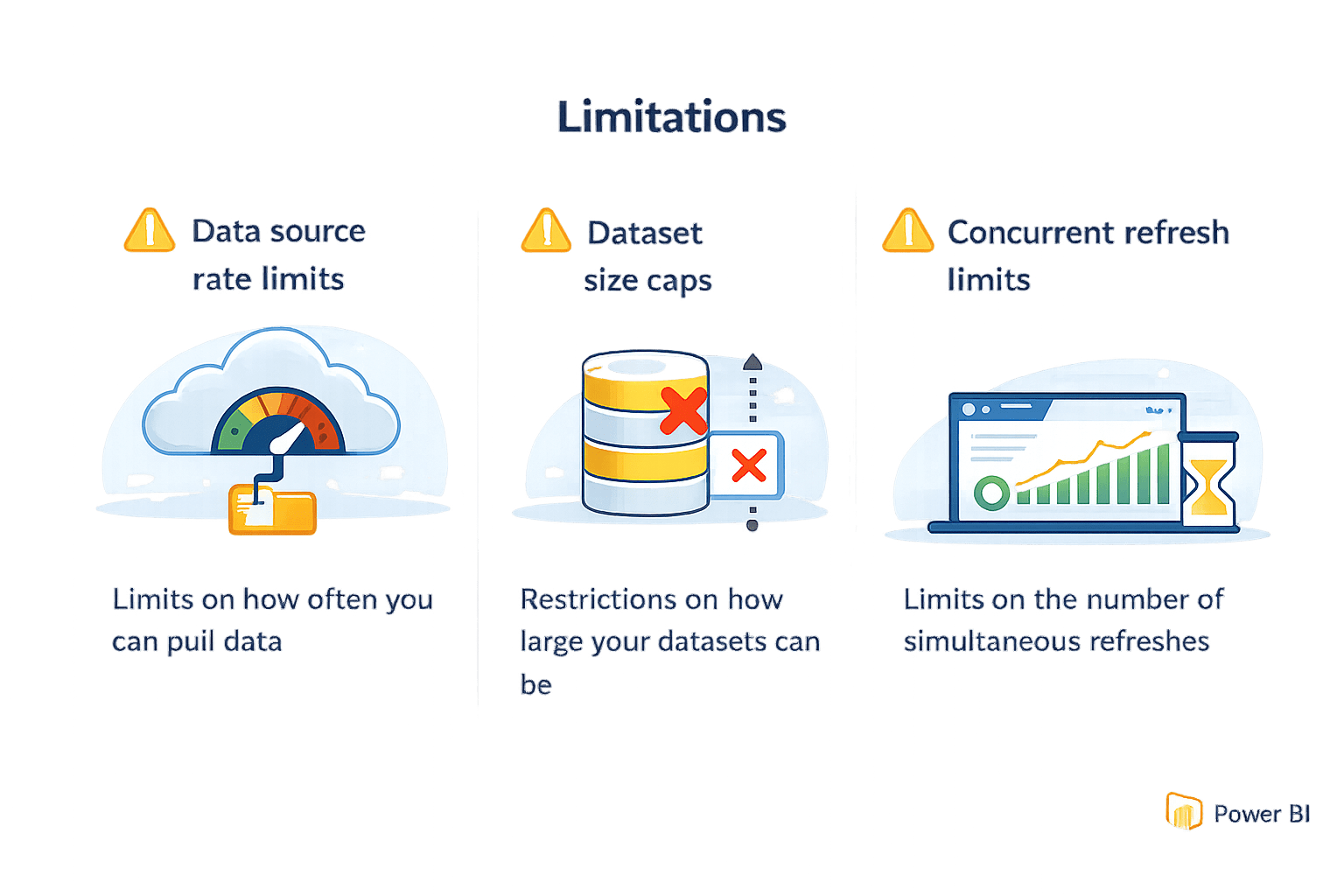
Refresh Limitations
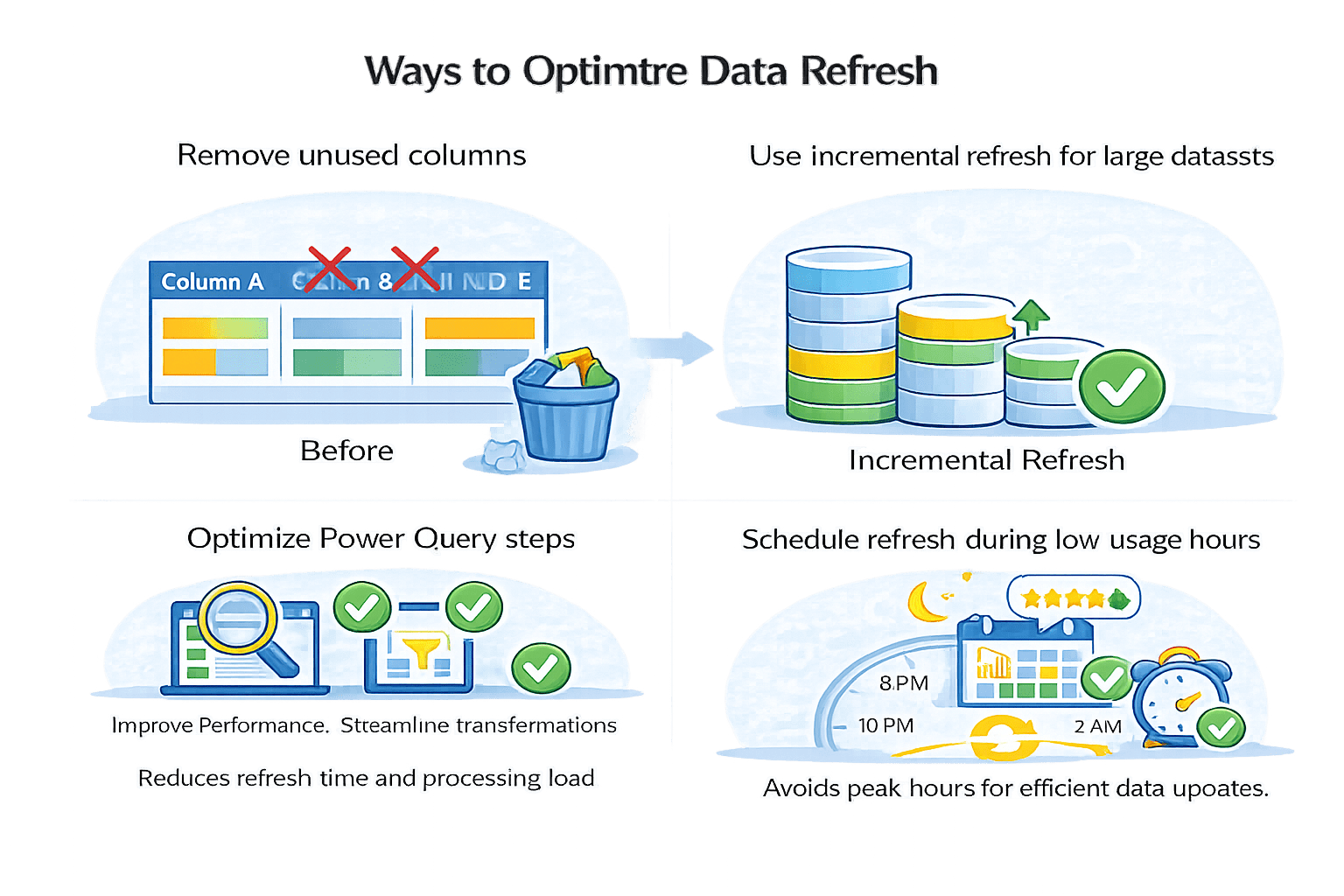
Best Practices
Remove unused columns
Schedule refresh during low-usage hours
Use incremental refresh for large datasets
Optimize Power Query steps
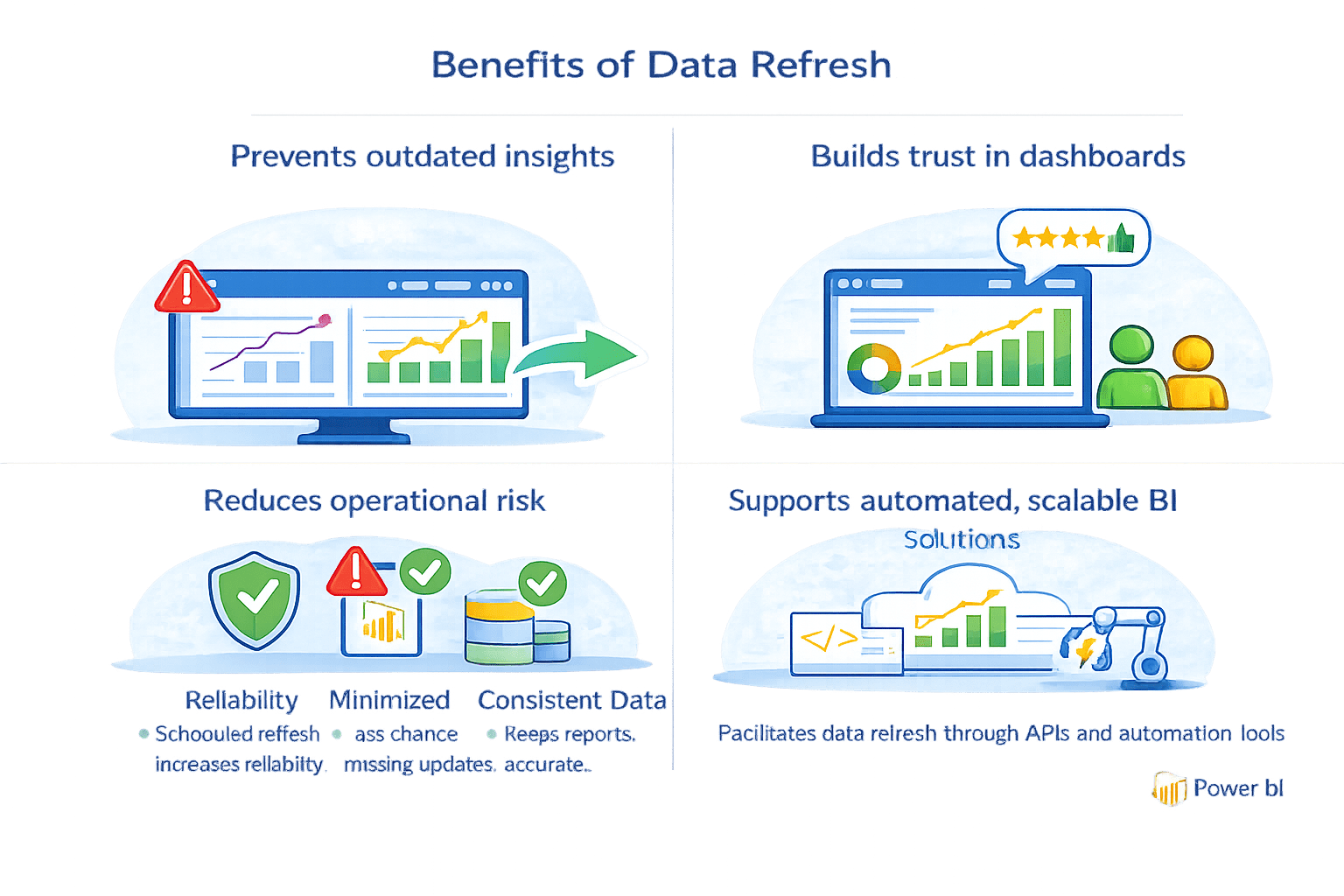
Why Refresh Management Matters
Summary
5
Best practices improve reliability and performance
4
Notifications help detect failures early
3
Refresh pauses after prolonged inactivity
2
Scheduled refresh automates data updates
1
Data refresh updates datasets, not visuals directly
Quiz
At which level does Power BI refresh data?
A. Dataset level
B. Visual level
C. Dashboard level
D. Report level
At which level does Power BI refresh data?
A. Dataset level
B. Visual level
C. Dashboard level
D. Report level
Quiz-Answer
By Content ITV