Content ITV PRO
This is Itvedant Content department
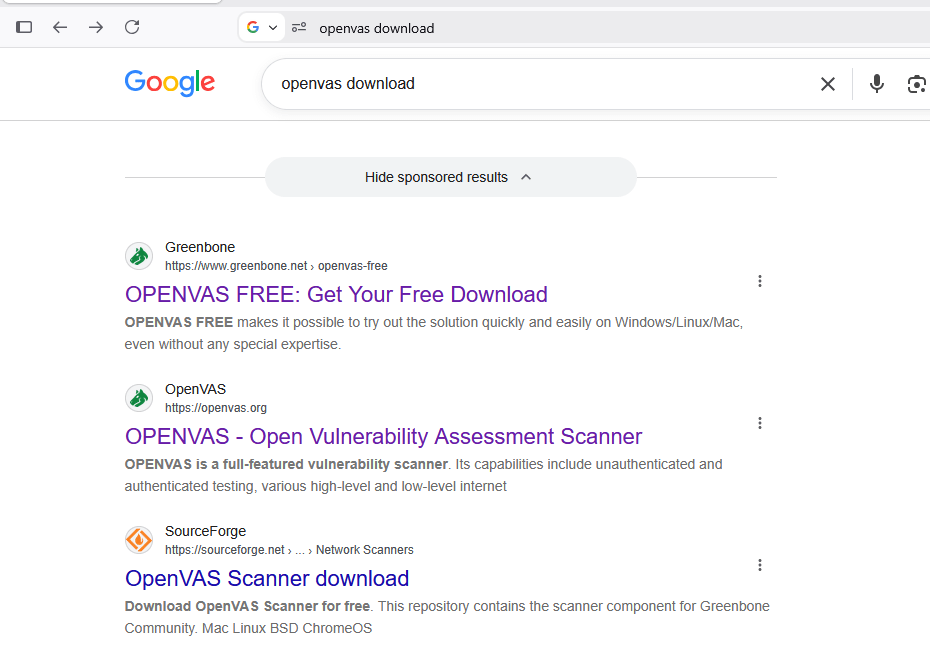
Perform open-source OpenVAS tool for vulnerability scanning
Business Scenario
Welcome!
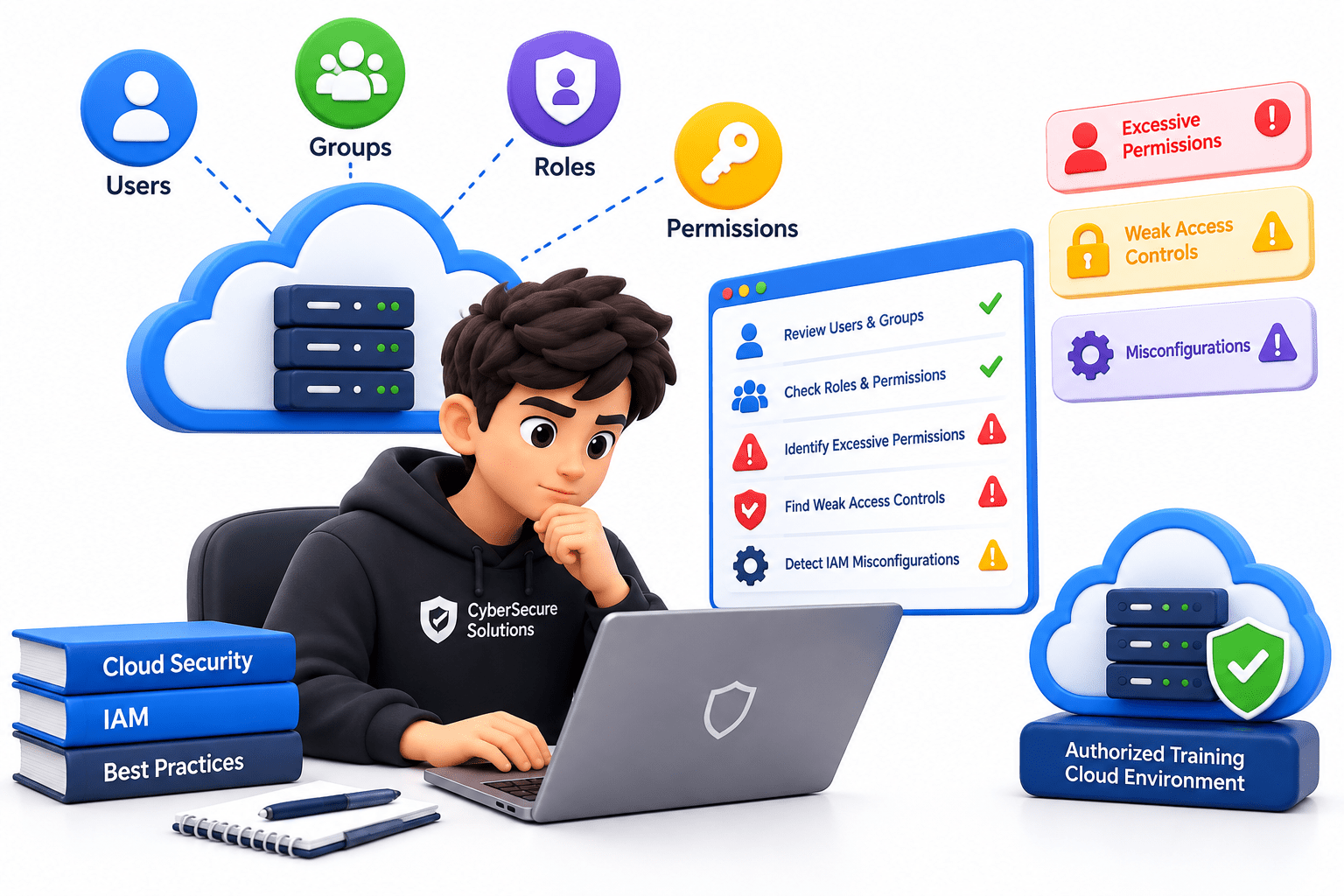
You are a Junior Vulnerability Assessment Analyst at CyberSecure Solutions. The organization wants to identify security weaknesses in its systems before they can be exploited by attackers.
Your task is to use the open-source OpenVAS vulnerability scanner to perform a security assessment of an authorized training target, identify vulnerabilities and outdated services, analyze the scan results, and understand the potential risks associated with the findings.
The assessment must be performed only against the authorized training environment provided by the instructor.
Pre-Lab Preparation
Topic : Vulnerability Scanning and Assessment Tools
1) Vulnerability scanning using Nessus/OpenVAS
2) Basic exploitation methods
understand the potential risks associated with the findings.
The assessment must be performed only against the authorized training environment
provided by the instructor.
Task 1: Start the OpenVAS VM
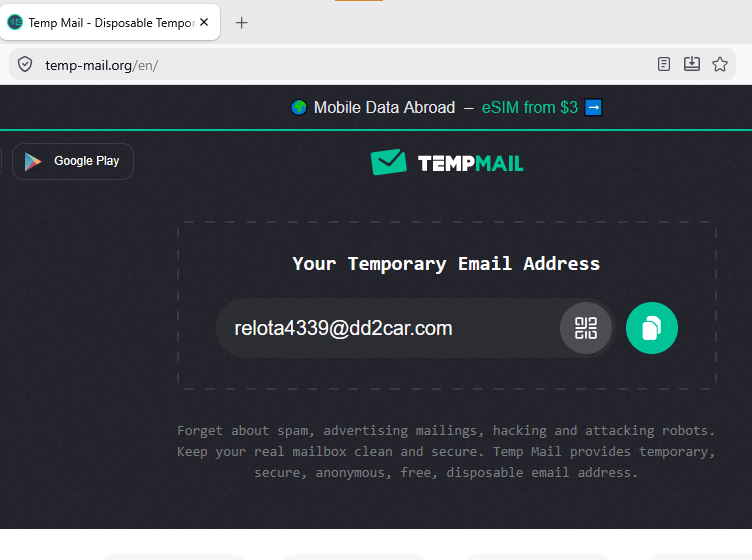
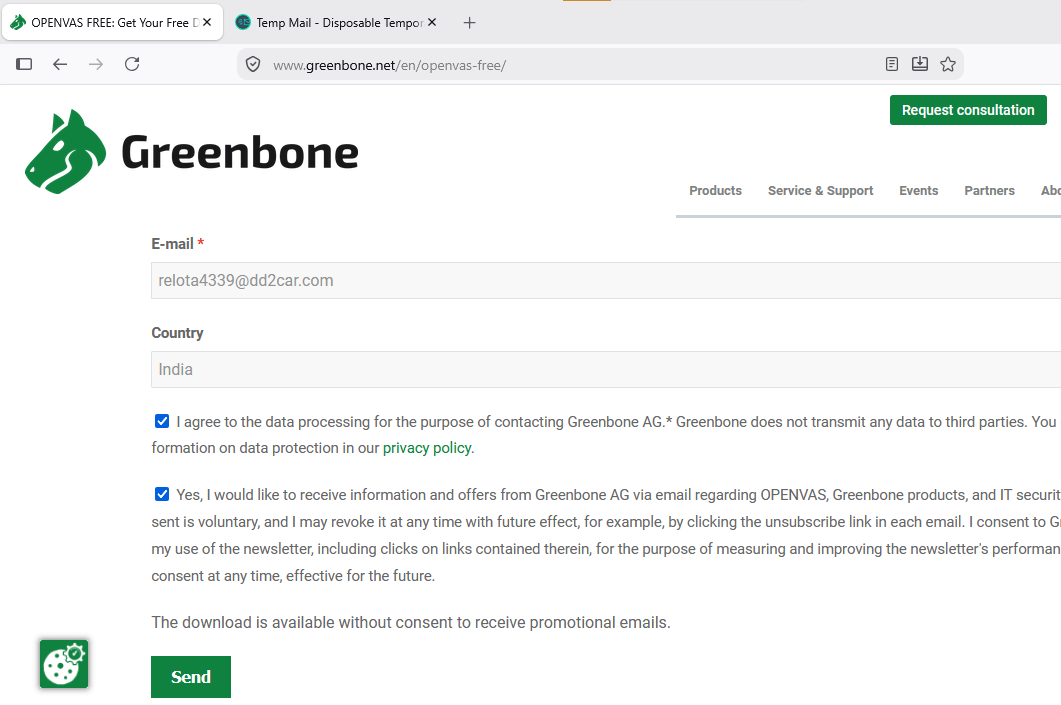
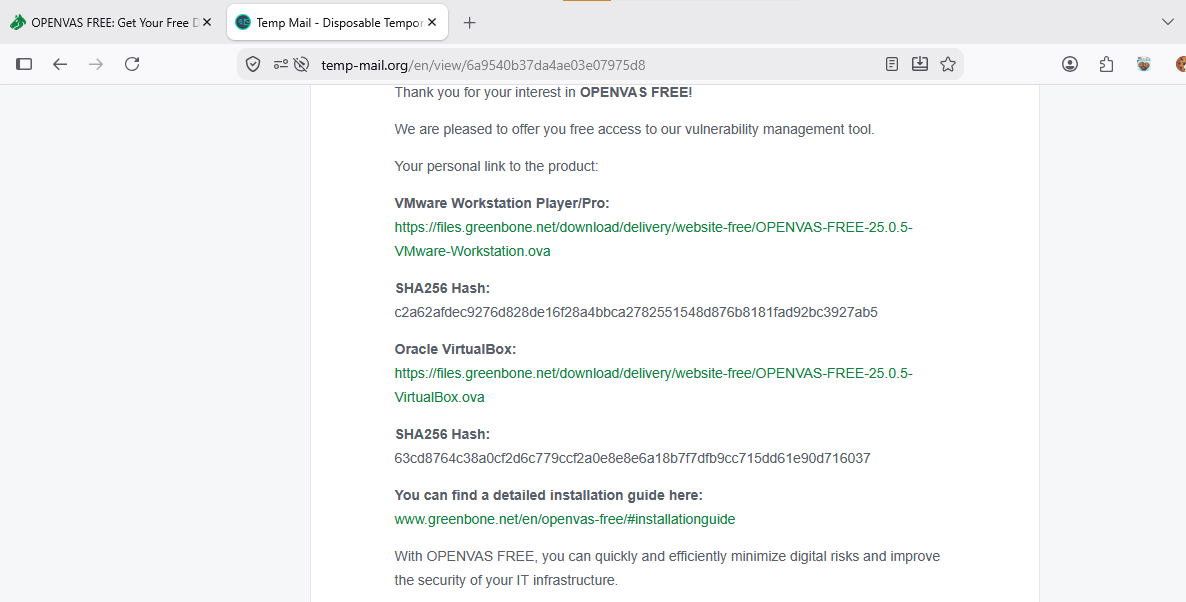
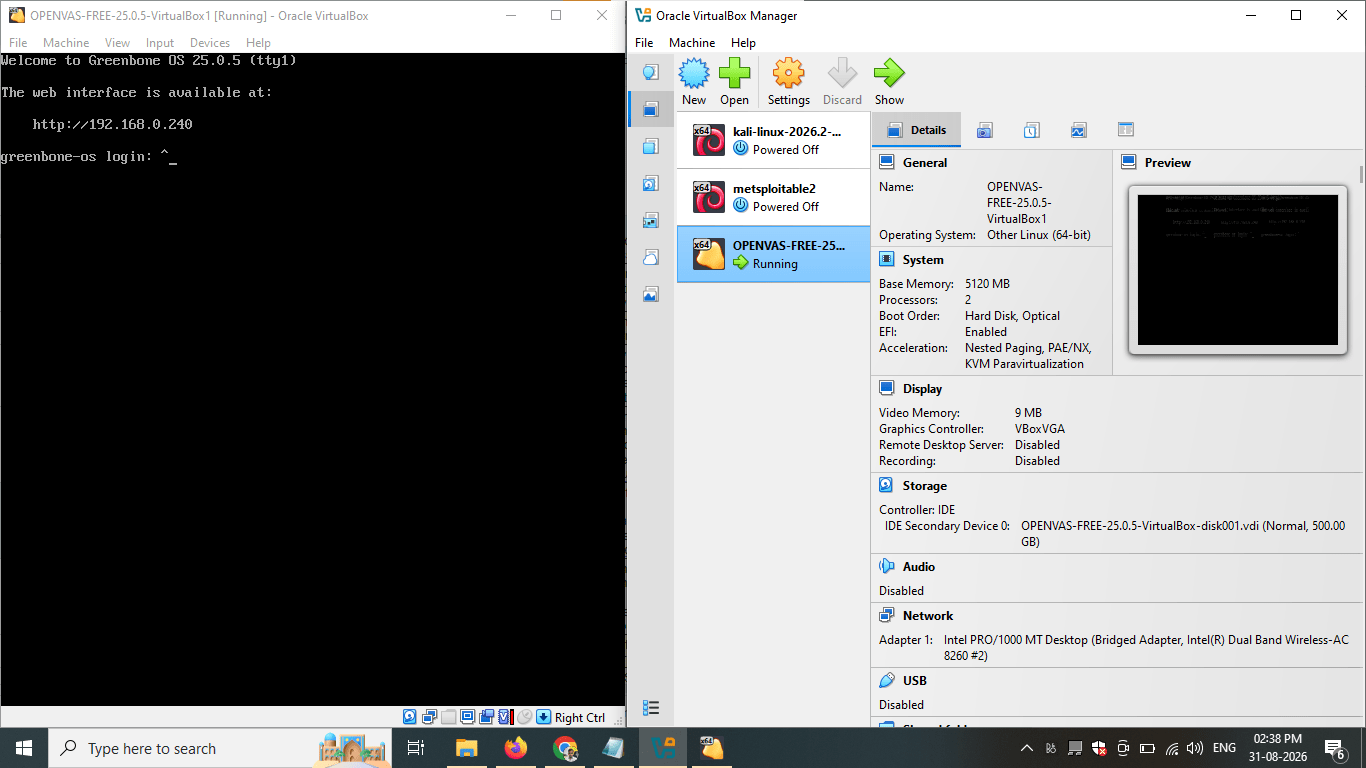
Downloaded and started the Greenbone/OpenVAS virtual appliance in VirtualBox. The VM is running and showing:
1
Task 2: Open the Greenbone web interface
1
Open VirtualBox
2
Select the OpenVAS/Greenbone VM
3
Click Start
4
Wait until the Greenbone OS finishes booting
5
Look for the IP address displayed on the console
6
Record the IP address
7
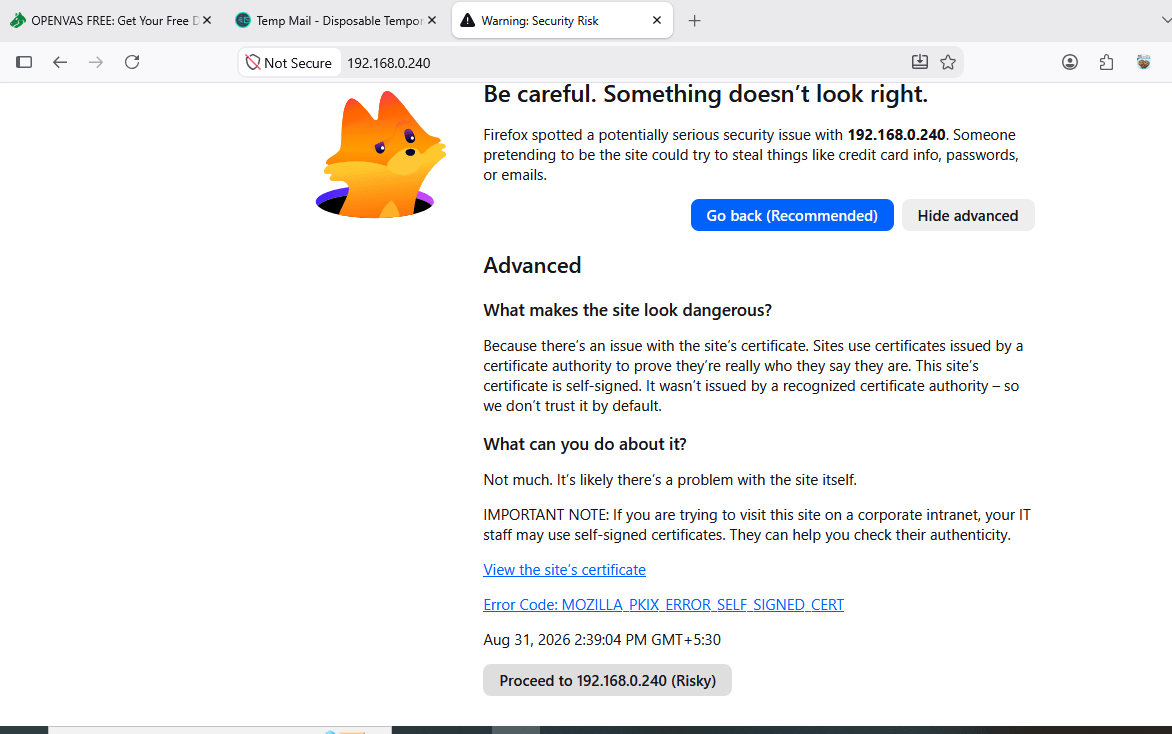
If the browser displays a certificate warning. This can happen in a local lab because the appliance may use a certificate that your browser does not yet trust
8
A certificate warning does not automatically mean the scanner is malicious. In a controlled lab, we need to verify that the address is our own OpenVAS VM before proceeding
In your lab:
OpenVAS IP = 192.168.0.240 On the Windows host, open Chrome/Firefox
https://192.168.0.240
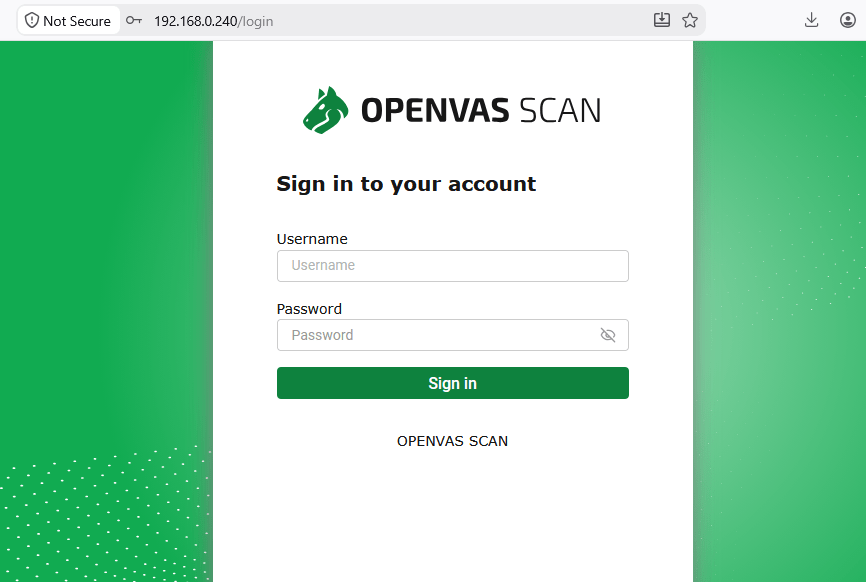
Task 3: Login
Use the administrator account that was configured for your Greenbone installation.
The exact address shown by your appliance. You should get the Openvas web interface.
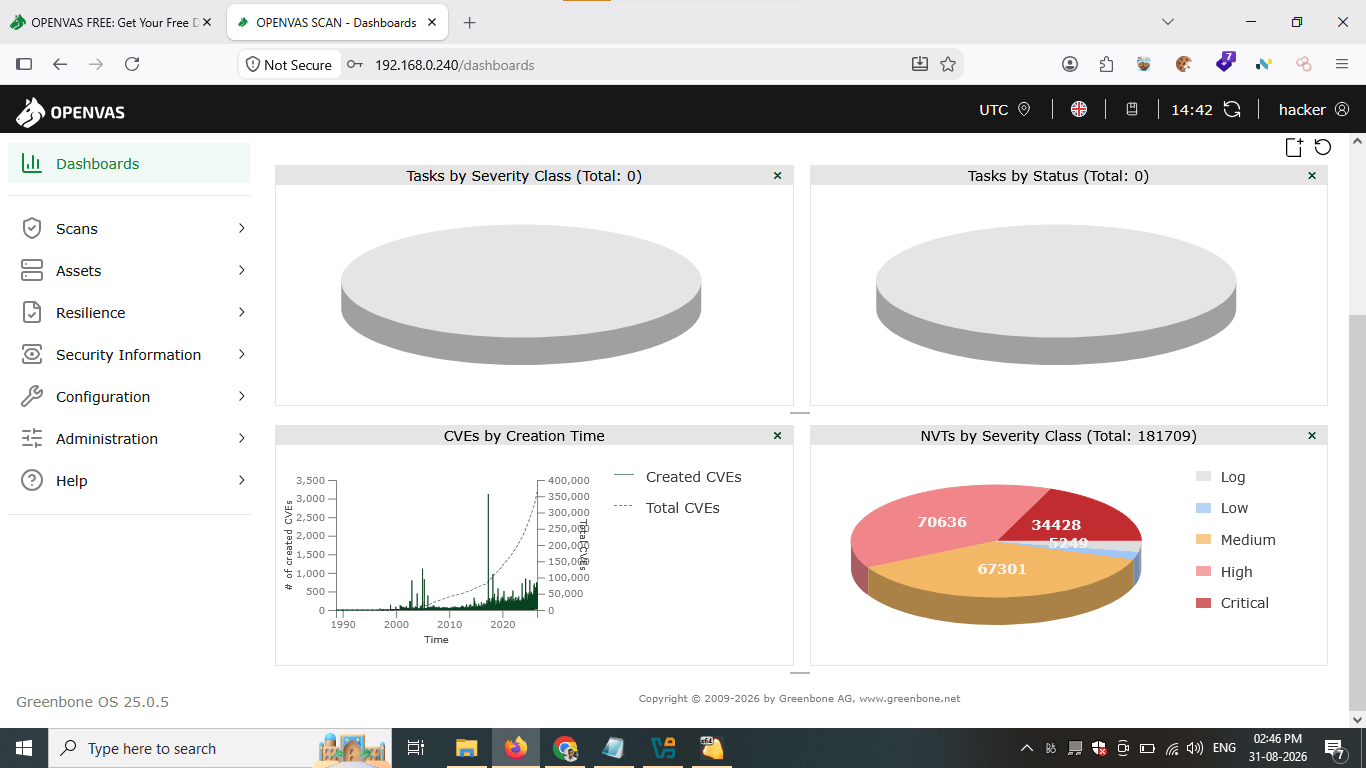
Task 4: Understand the dashboard
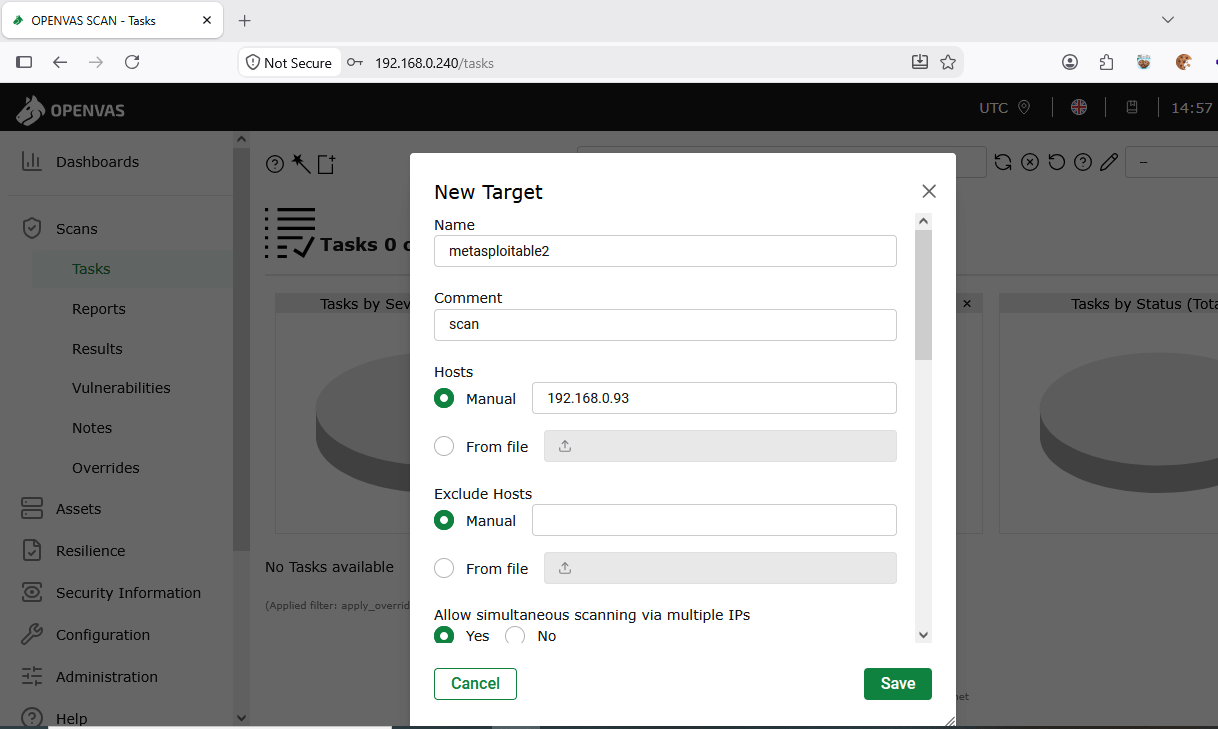
Task 5: Create a Scan Task
New task and New target
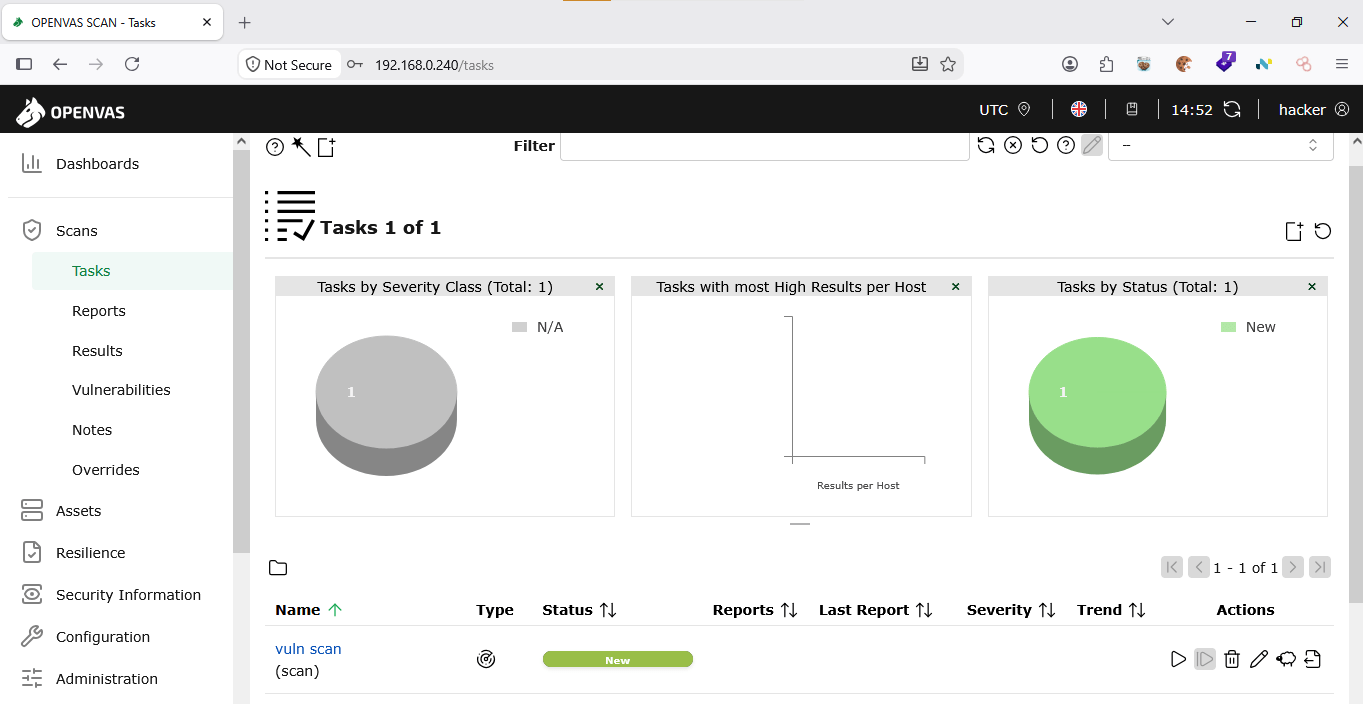
Task 6: Start the scan & Watch the scan status
Depending on the target and scan configuration, the scan can take considerable time. They may see a progress percentage.
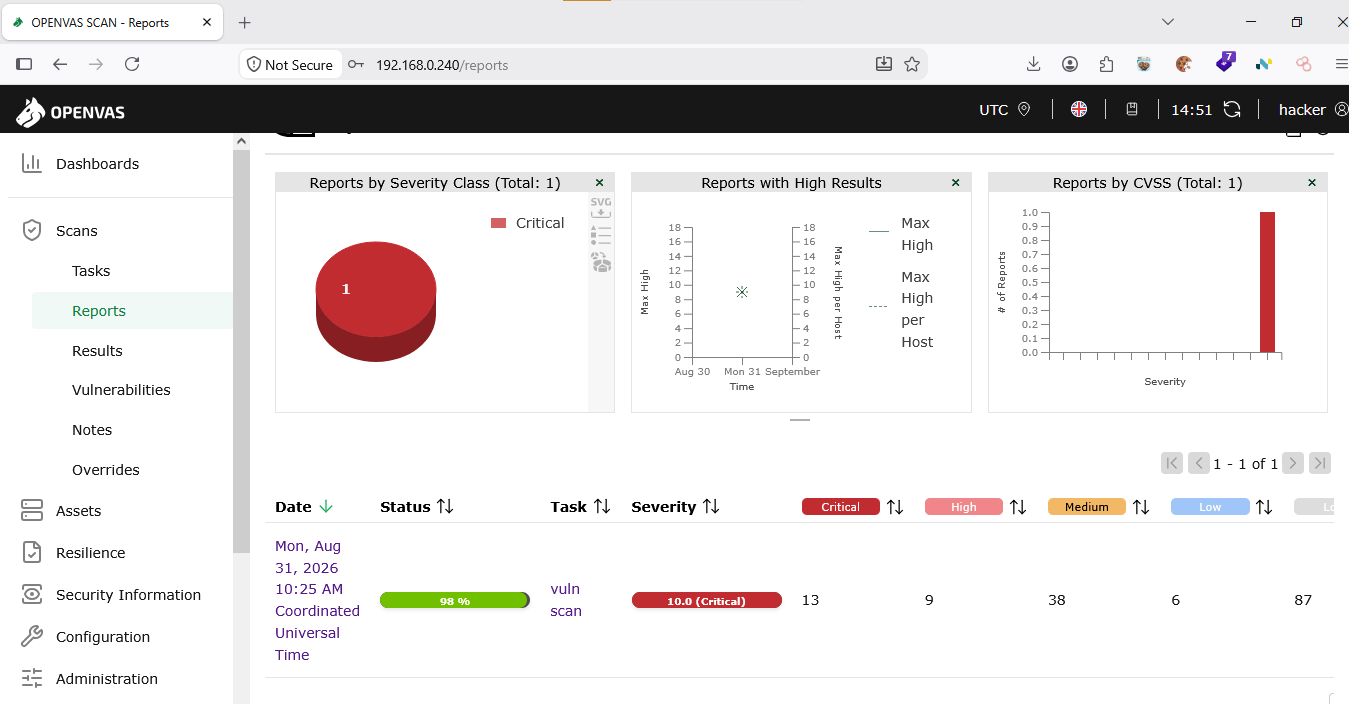
Task 7: Open the report
Great job!
You have successfully completed your first lab on Vulnerability Scanning Using OpenVAS.
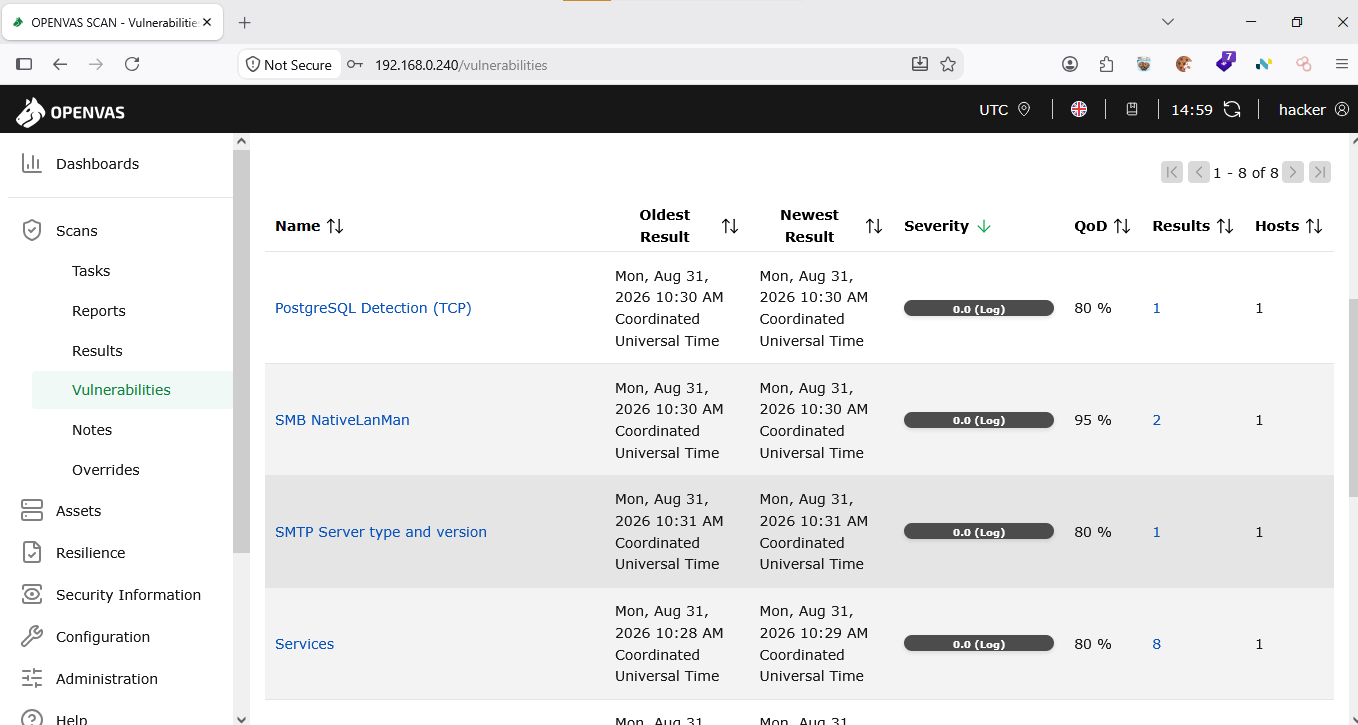
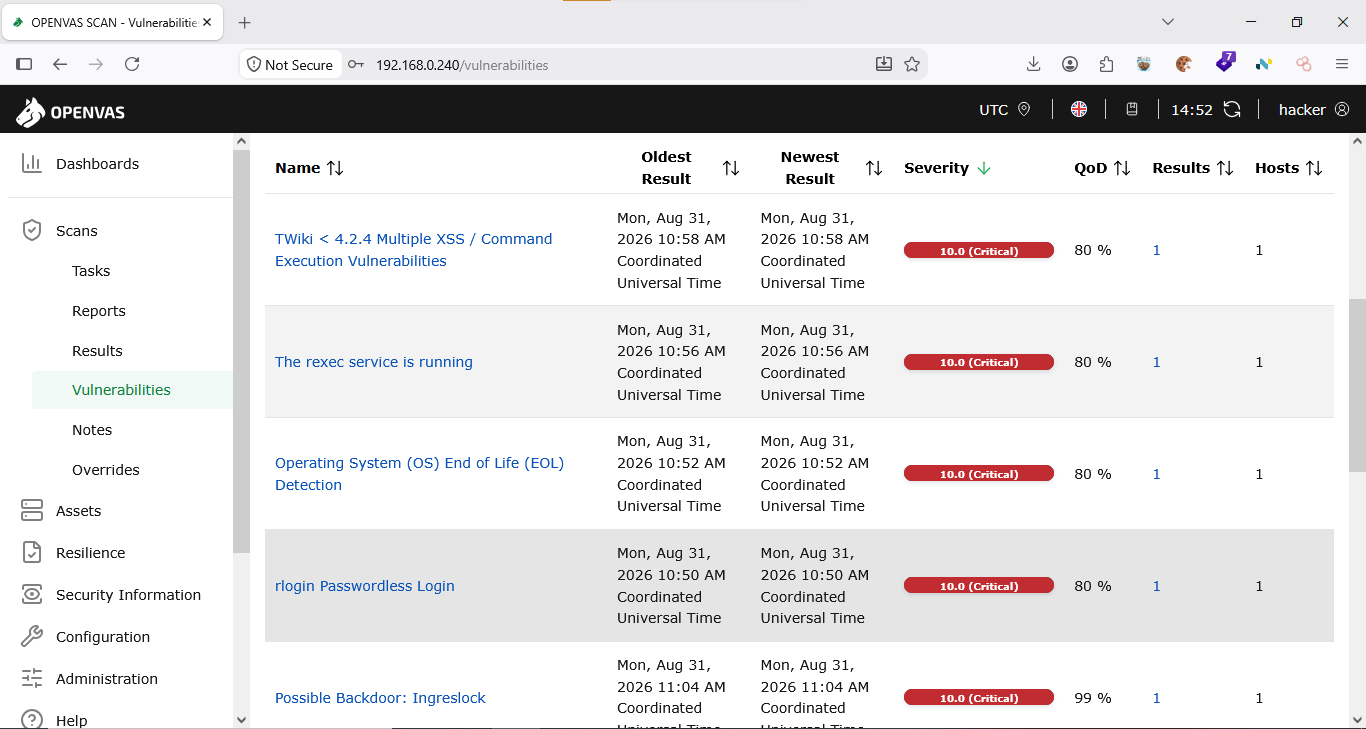
In this lab, you have: Set up and used the open-source OpenVAS vulnerability scanner, Performed a vulnerability scan against an authorized training target, Identified security vulnerabilities and outdated services, Analyzed scan results, and Evaluated the potential risks associated with the identified findings.
You are now ready to move to the next stage of vulnerability assessment and security testing.
Checkpoint
Next-Lab Preparation
Topic : Web Application Testing Techniques
1) Manual vulnerability testing techniques
2) Introduction to Burp Suite
By Content ITV