

































Content ITV PRO
This is Itvedant Content department
Learning Outcome
4
Customize model display and apply security best practices.
3
Upload and manage images through Django Admin.
2
Create a superuser and register models in the admin panel.
1
Configure and access the Django Admin interface.
Recall
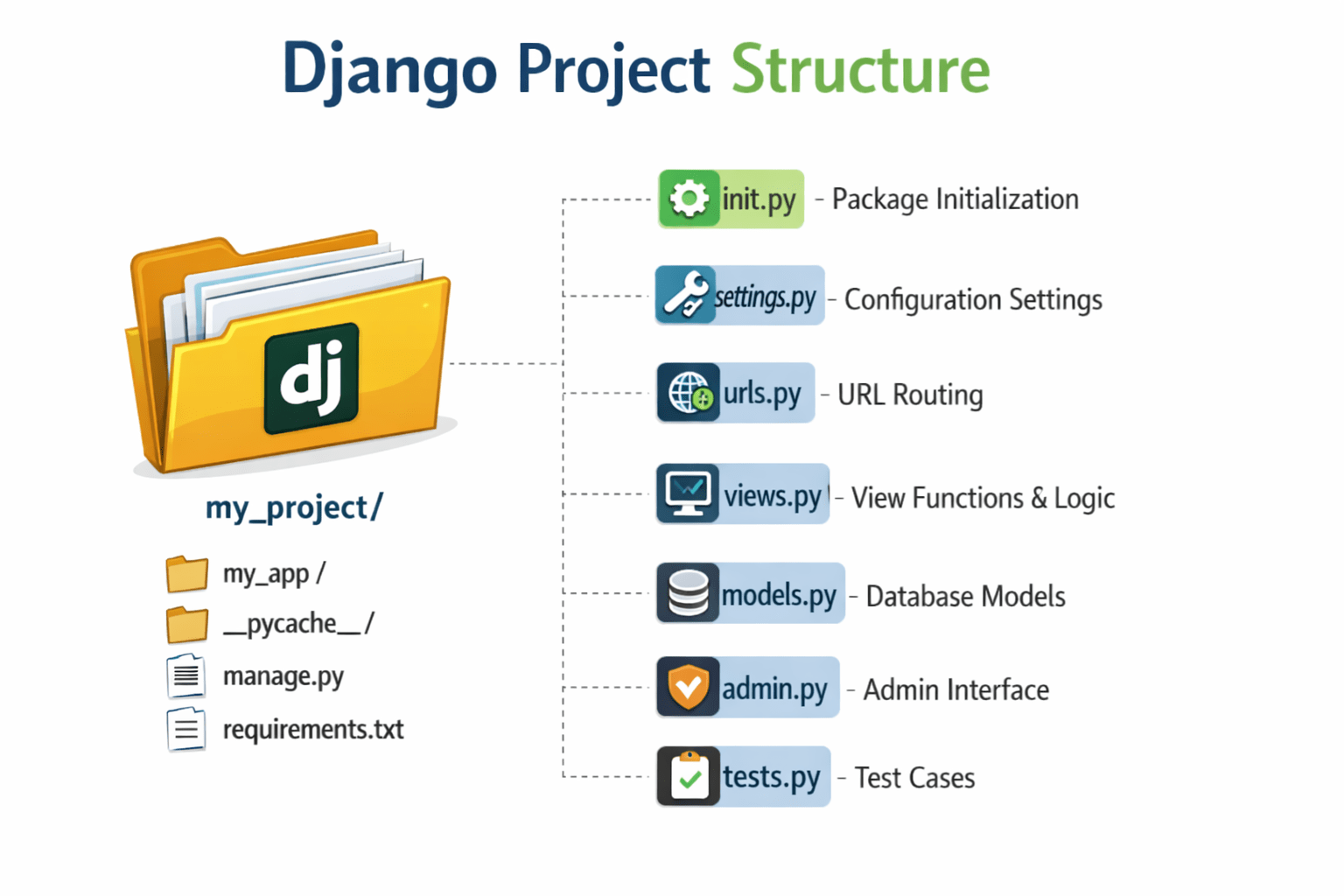
Django project structure
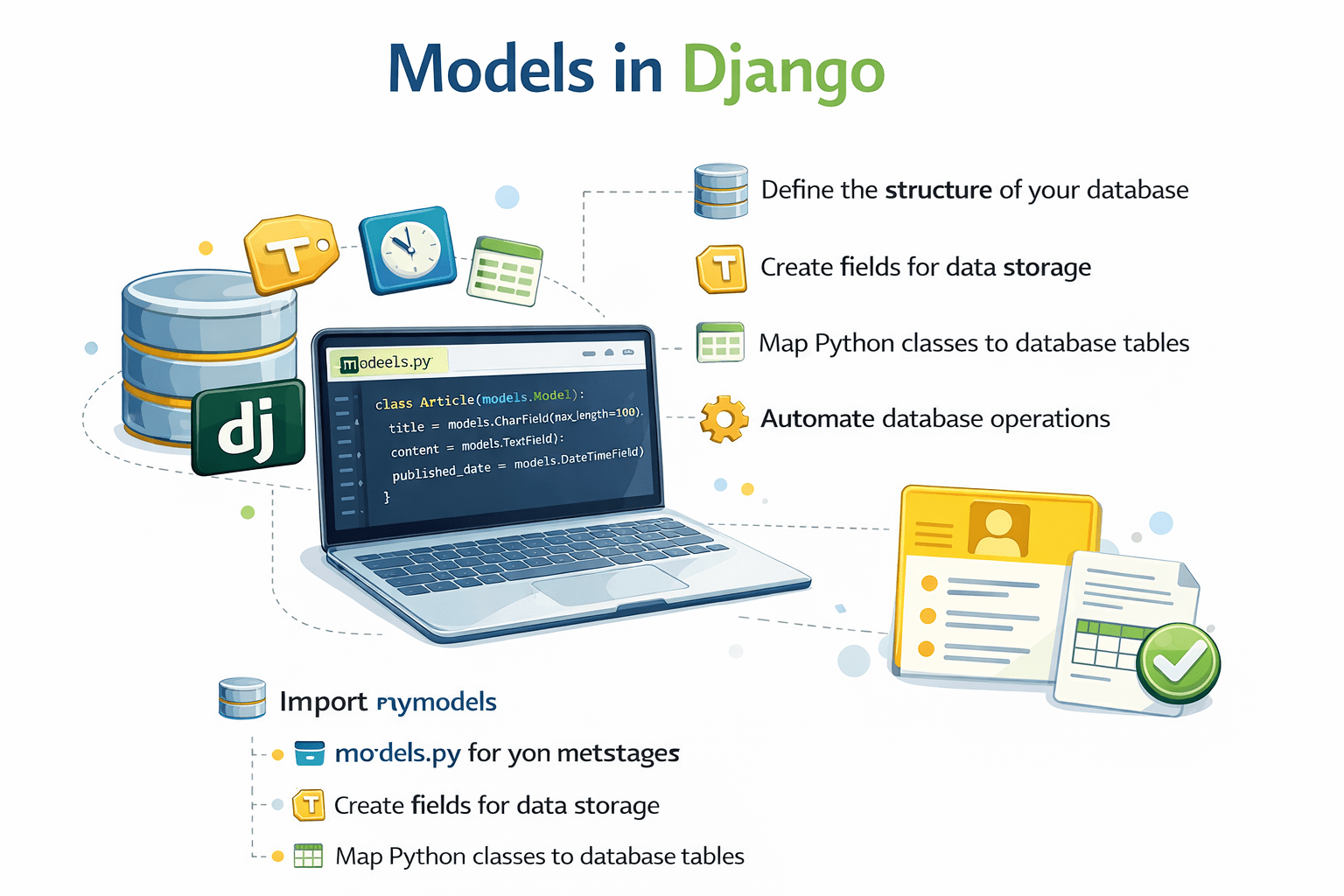
Models in Django
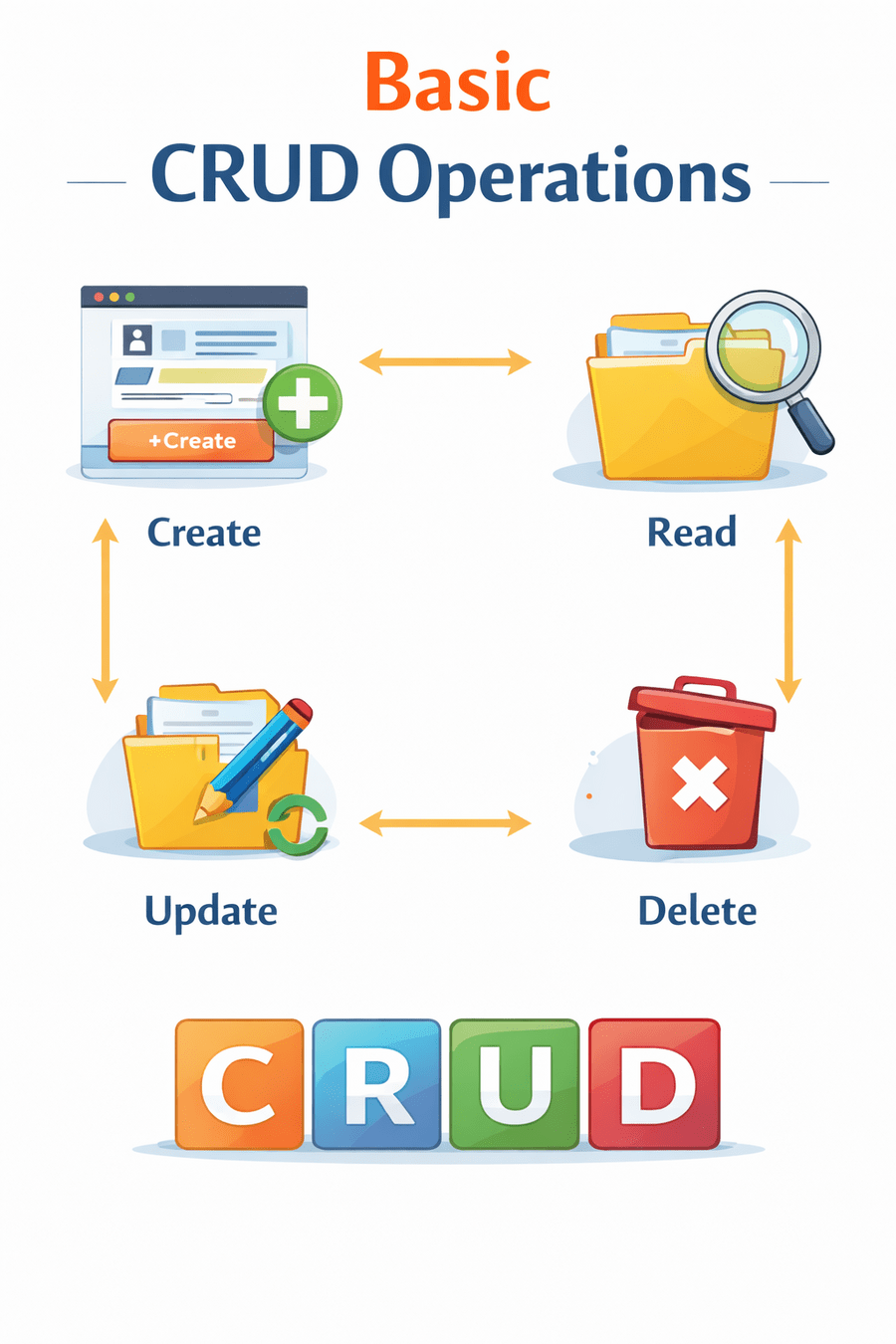
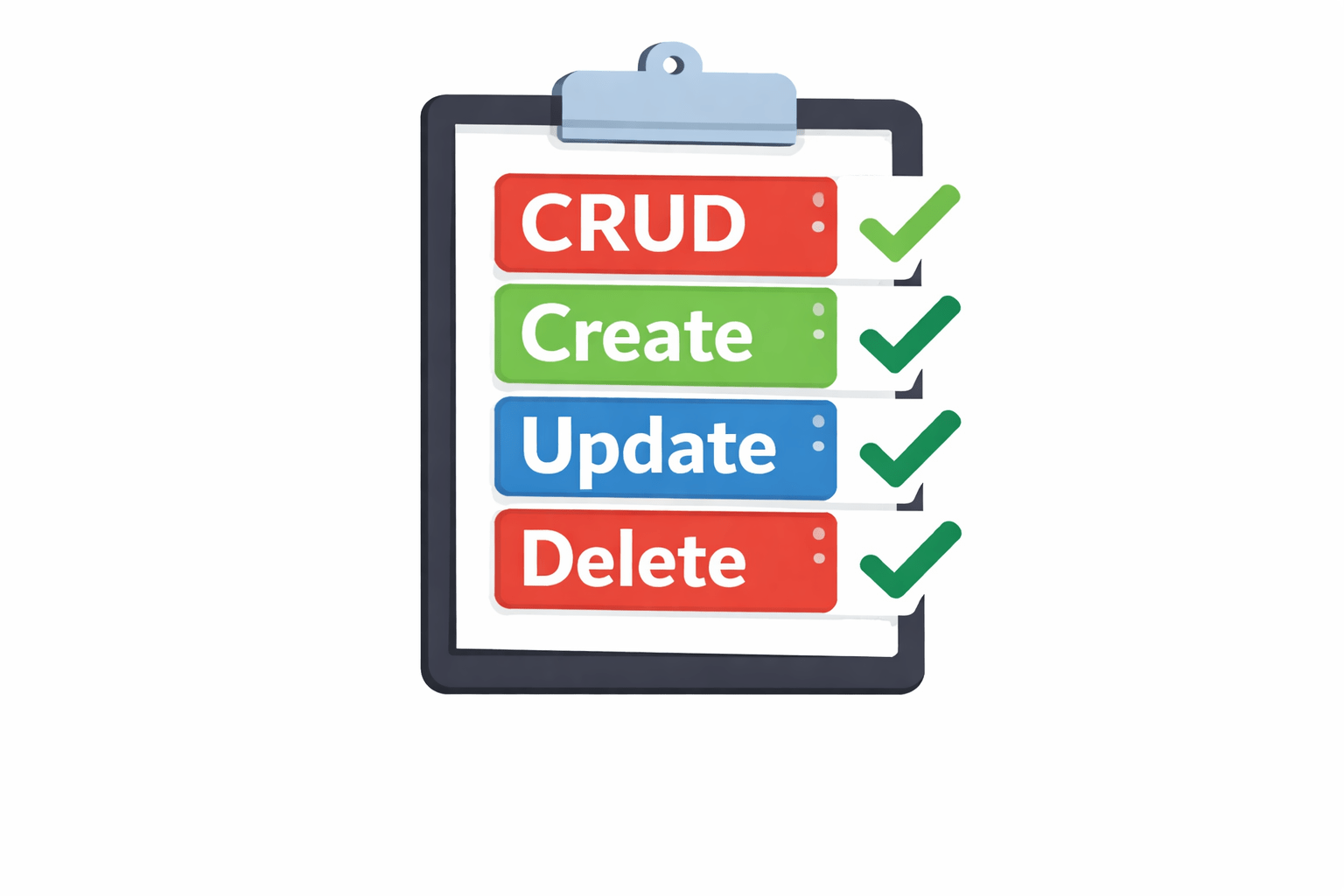
Basic CRUD operations
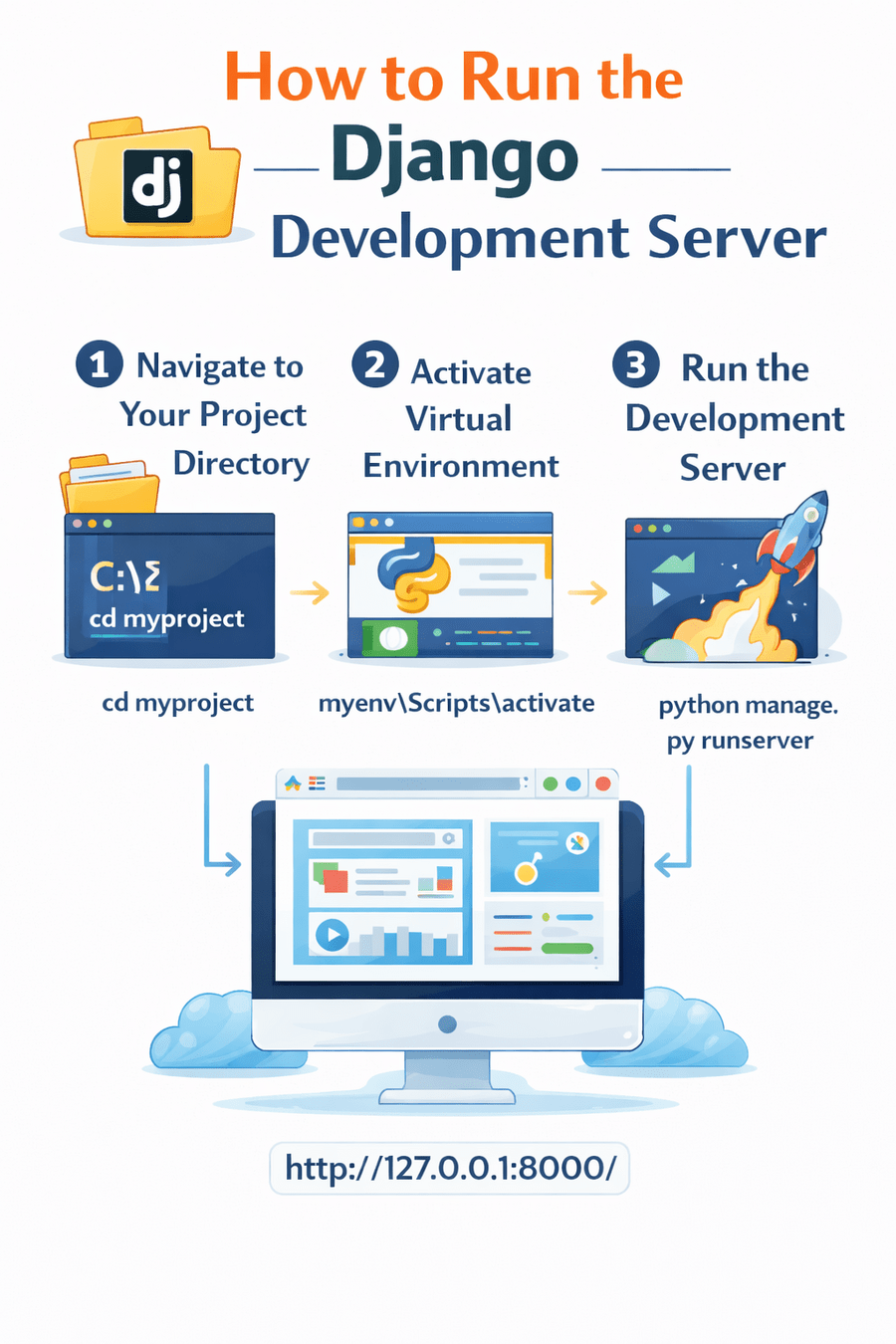
How to run the Django development server
Imagine you are running an e-commerce website like Amazon or Flipkart.
As the store owner, you need a secure backend dashboard where you can:
Update product prices
Upload product images
Add new products
Remove out-of-stock items
Search products
Instead, you use a control panel that allows you to manage everything easily and securely.
Similarly, Django provides a built-in Admin interface that allows developers to manage application data without building a separate management system.
Manually editing the database every time is not convenient.
Introduction to Django Admin
Provides automatic interface for registered models.
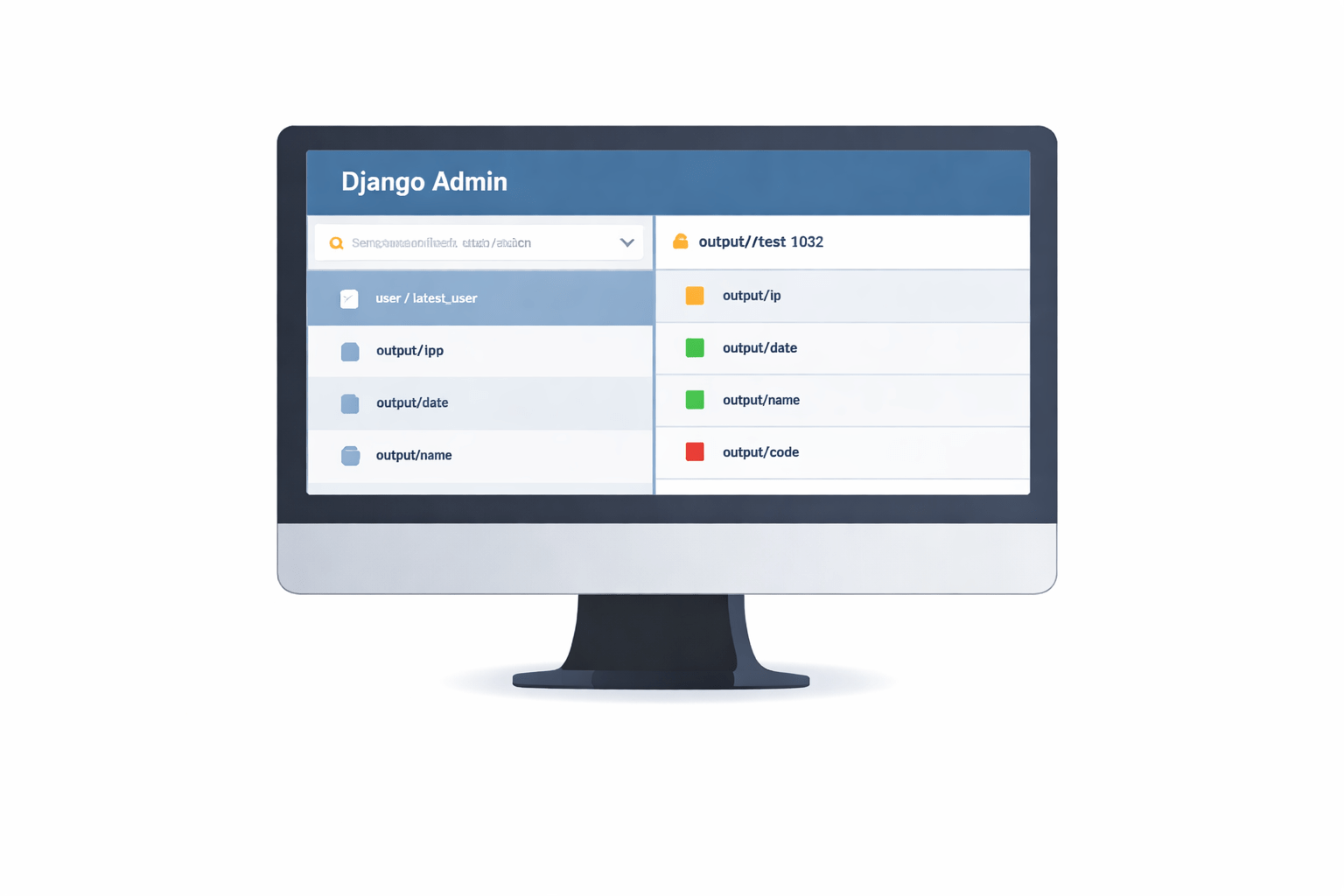
Django Admin is a built-in administrative interface.
Used for managing Django models.
Introduction to Django Admin
If Django Admin is already built into Django, how do we activate and start using it in our project?
It enables seamless CRUD operations.
Setting Up Django Admin
Enable Admin App
Add django.contrib.admin in INSTALLED_APPS inside settings.py.
Configure URL
Import admin in urls.py.
Access Admin
Admin becomes accessible after configuration
path('admin/', admin.site.urls)

urlpattern+=[static(settings.MEDIA_URL,
document_root=settings.MEDIA_ROOT)]
Now that the admin interface is available, who is allowed to log in and manage the system?
Creating a Superuser
Required to access the admin panel.
Superuser account created.
Enables login to admin dashboard.
Steps
After logging in, will our application models automatically appear in the admin panel?
Enter password
Enter email
Enter username
Run command:
python manage.py createsuperuserRegistering Models in Admin
Models must be registered to appear in admin panel.
Registered models become visible in admin.
CRUD operations become available.
What if our model contains an image field — how does Django Admin handle image uploads?
Steps:
Import admin
Import model
admin.site.register(YourModel)Use:
Image Upload in Django Admin Panel
1. Define Model with ImageField
upload_to specifies folder inside media directory.
models.CharField(max_length=100)
models.ImageField(upload_to='Images/')
MEDIA_URL = '/media/'
MEDIA_ROOT = BASE_DIR / 'media'2. Configure Media Settings
Image Upload in Django Admin Panel
4. Upload Process
Run server: python manage.py runserver
Log in
Add new Gallery
Upload image
Save
5. Output
Image saved in /media/Images/
Path stored in database.
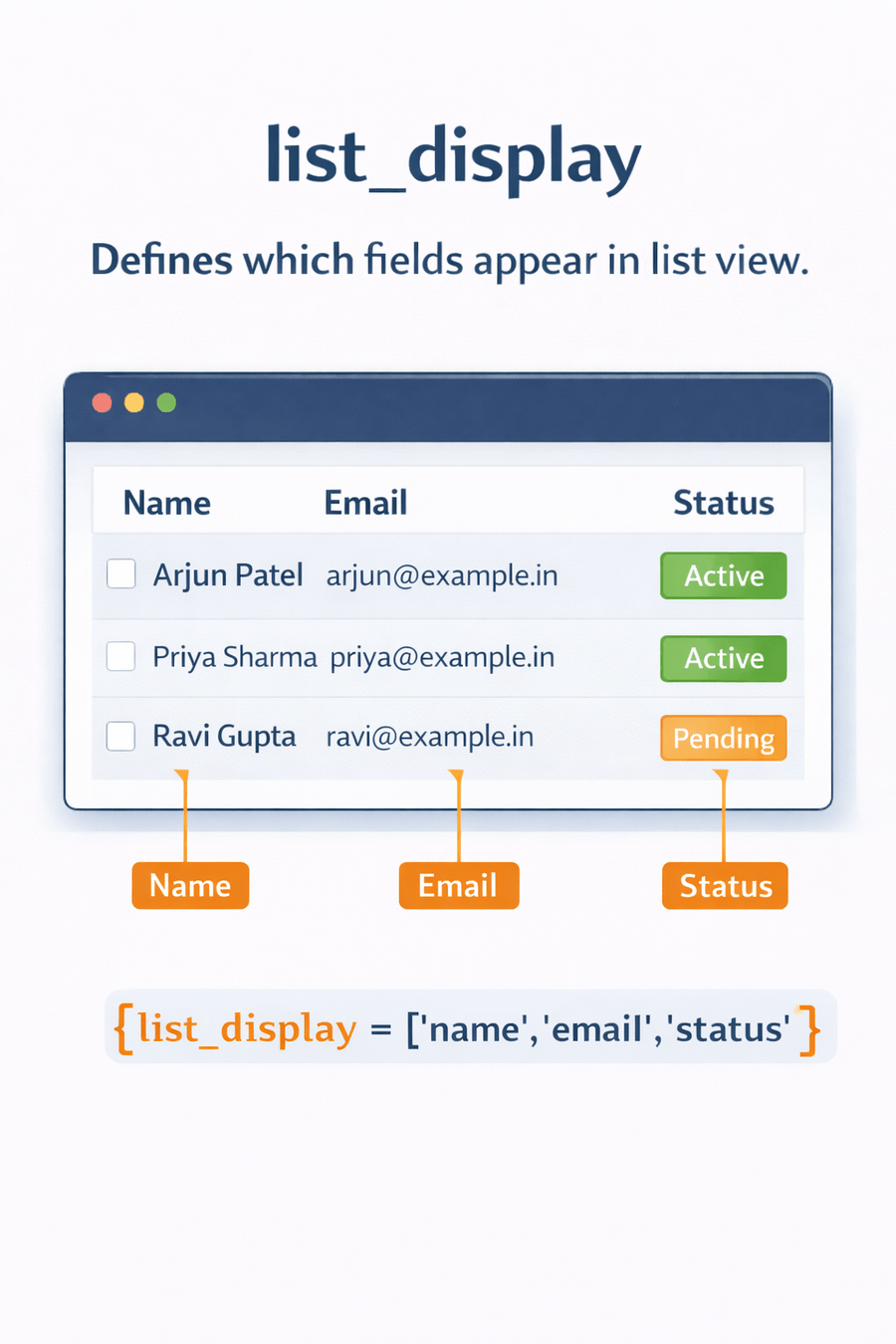
By default, all model fields are displayed in admin. Can we control how the data appears in the list view?
3. Register Model
admin.site.register(Gallery)Customizing Model Display in Admin
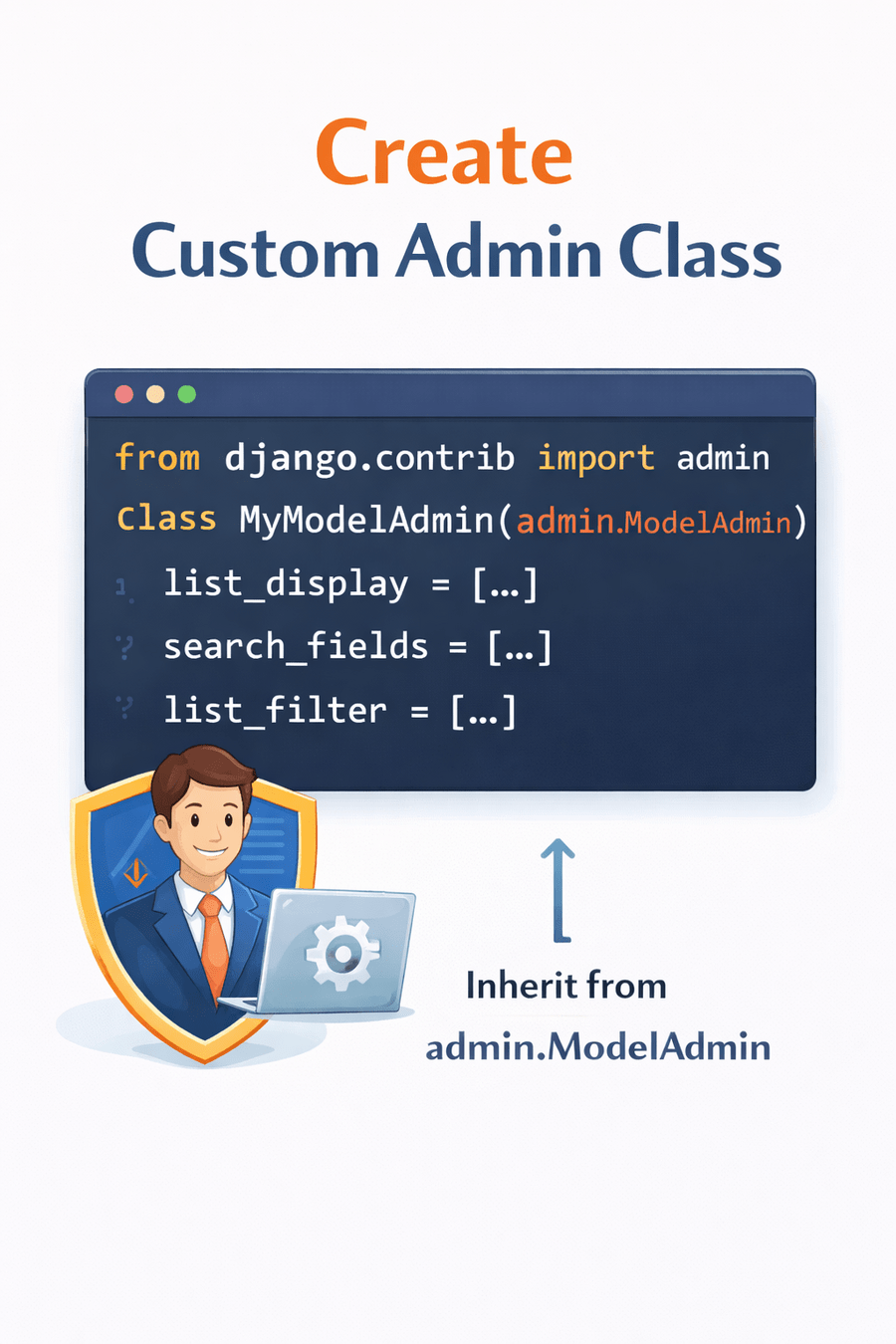
1. Create Custom Admin Class
2. list_display
list_display = ('field1', 'field2', 'field3')Customizing Model Display in Admin
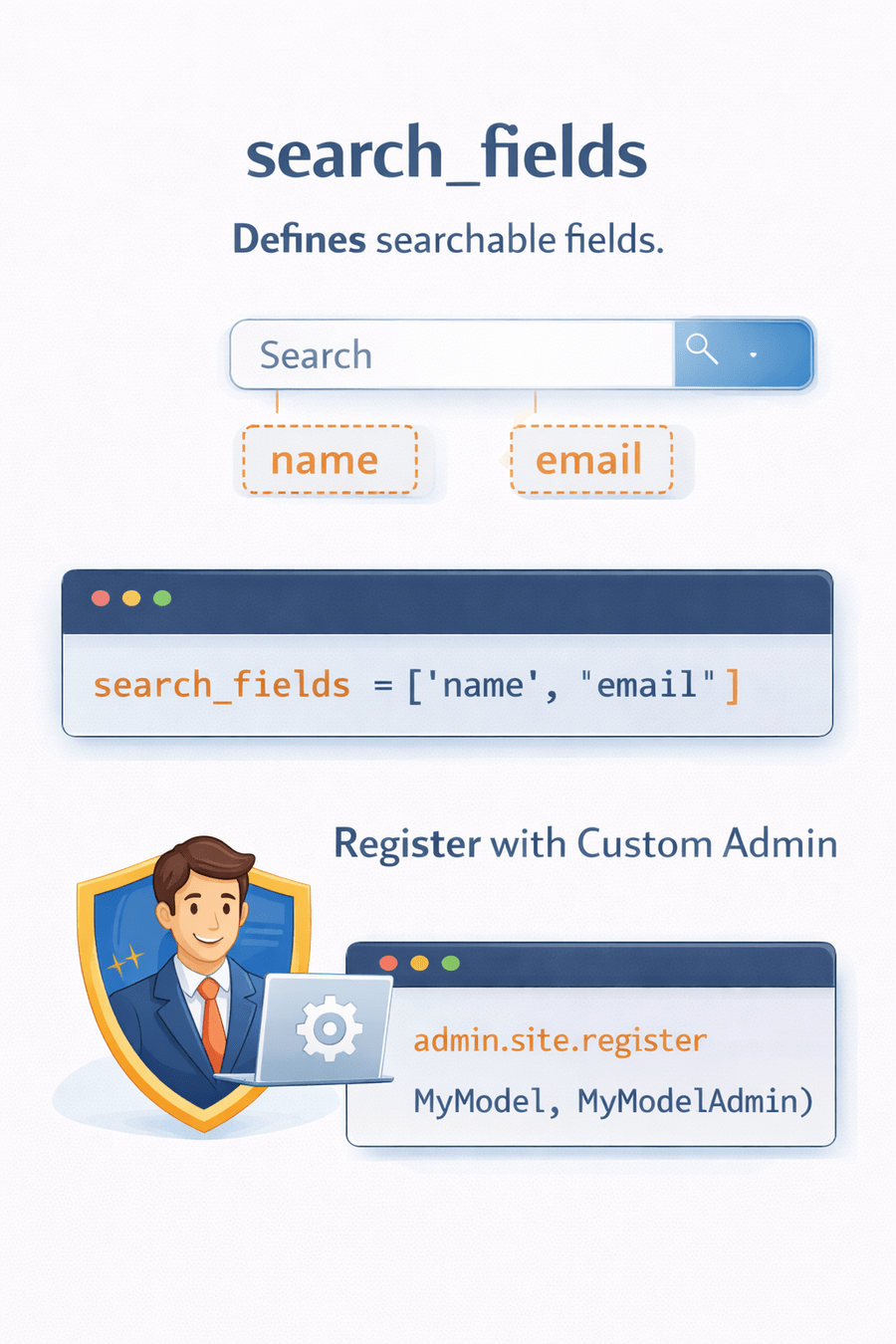
4. Register with Custom Admin
admin.site.register(YourModel, YourModelAdmin)3. search_fields
Defines searchable fields.
search_fields = ('field1', 'field2')Control how data is displayed and searched.
Besides customization, what built-in features does Django Admin already provide?
Admin Interface Features
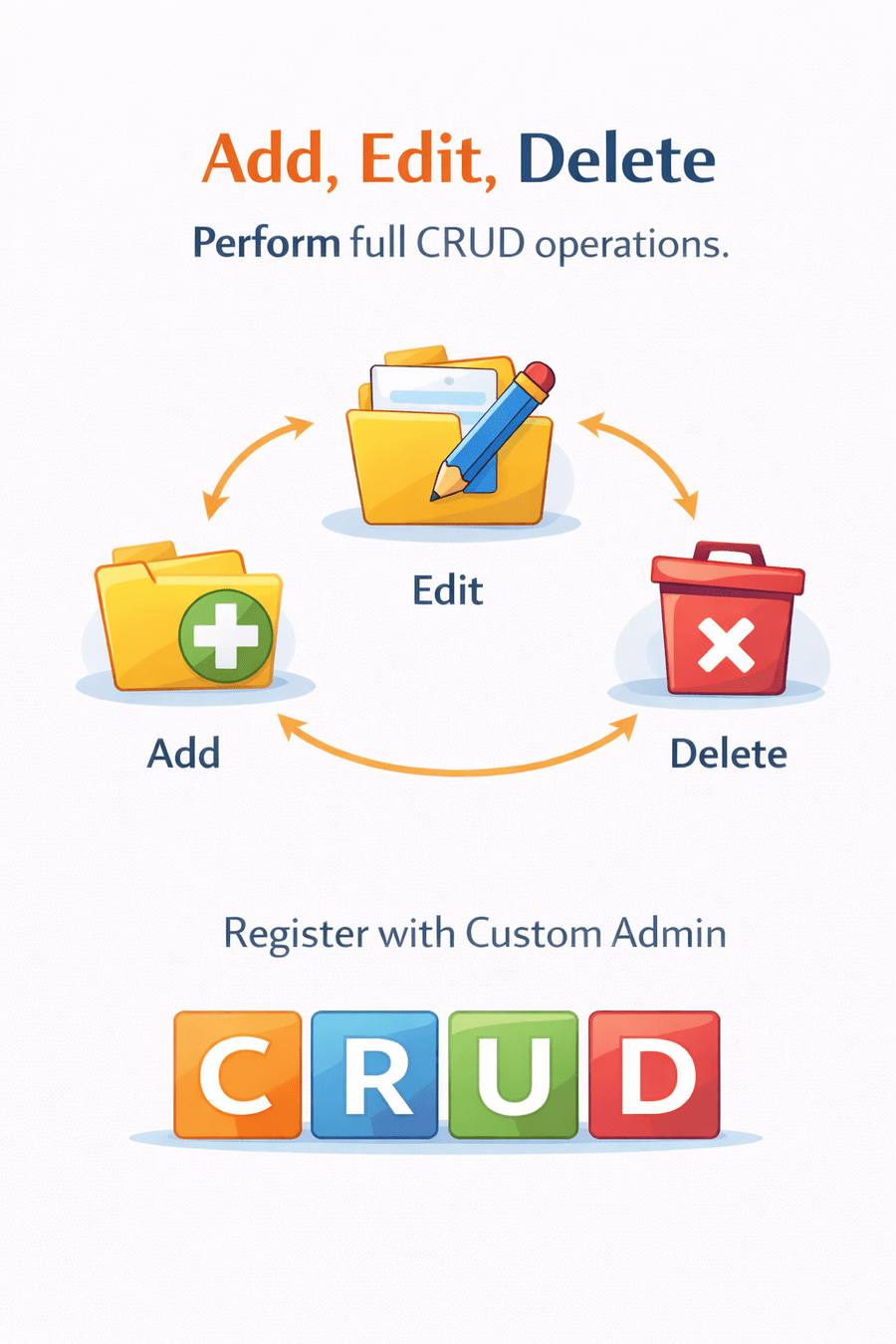
1. Add, Edit, Delete
Perform full CRUD operations.
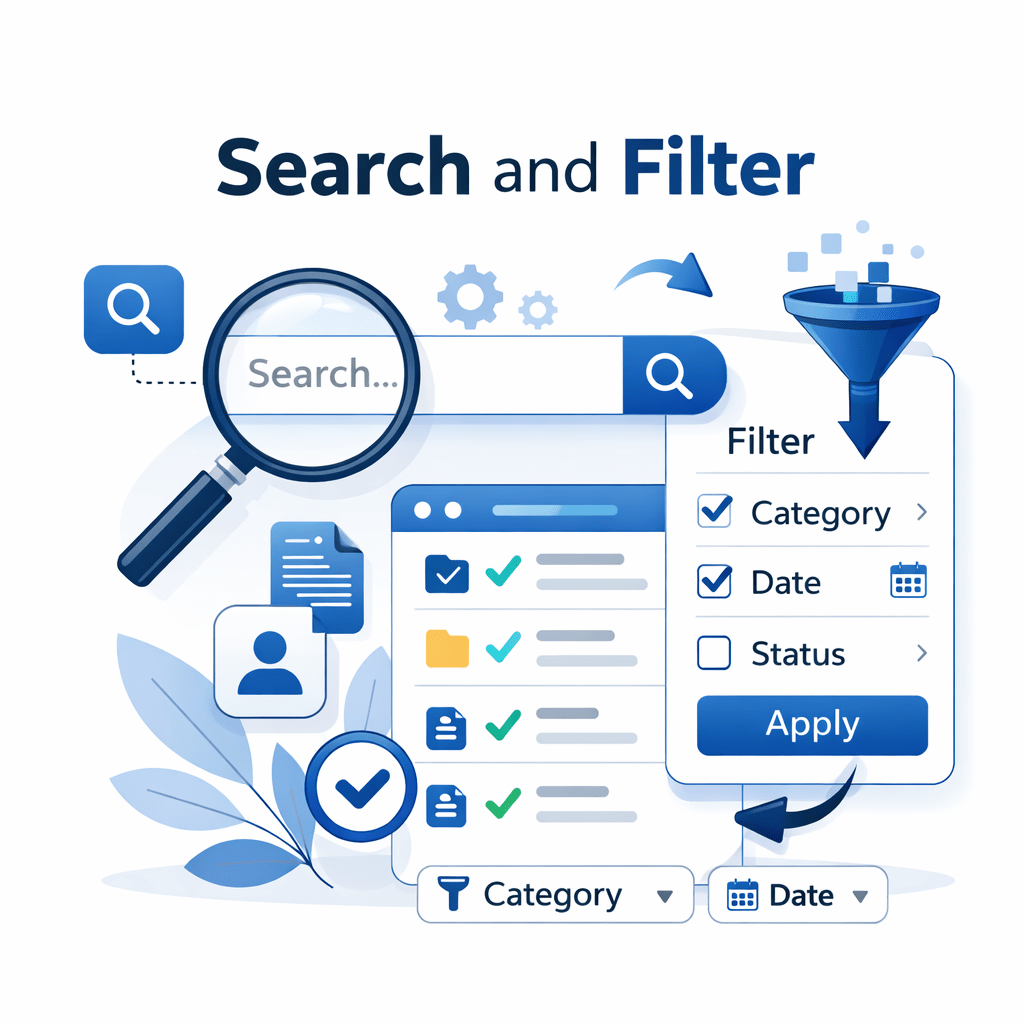
2. Search and Filter
Quickly locate specific records.
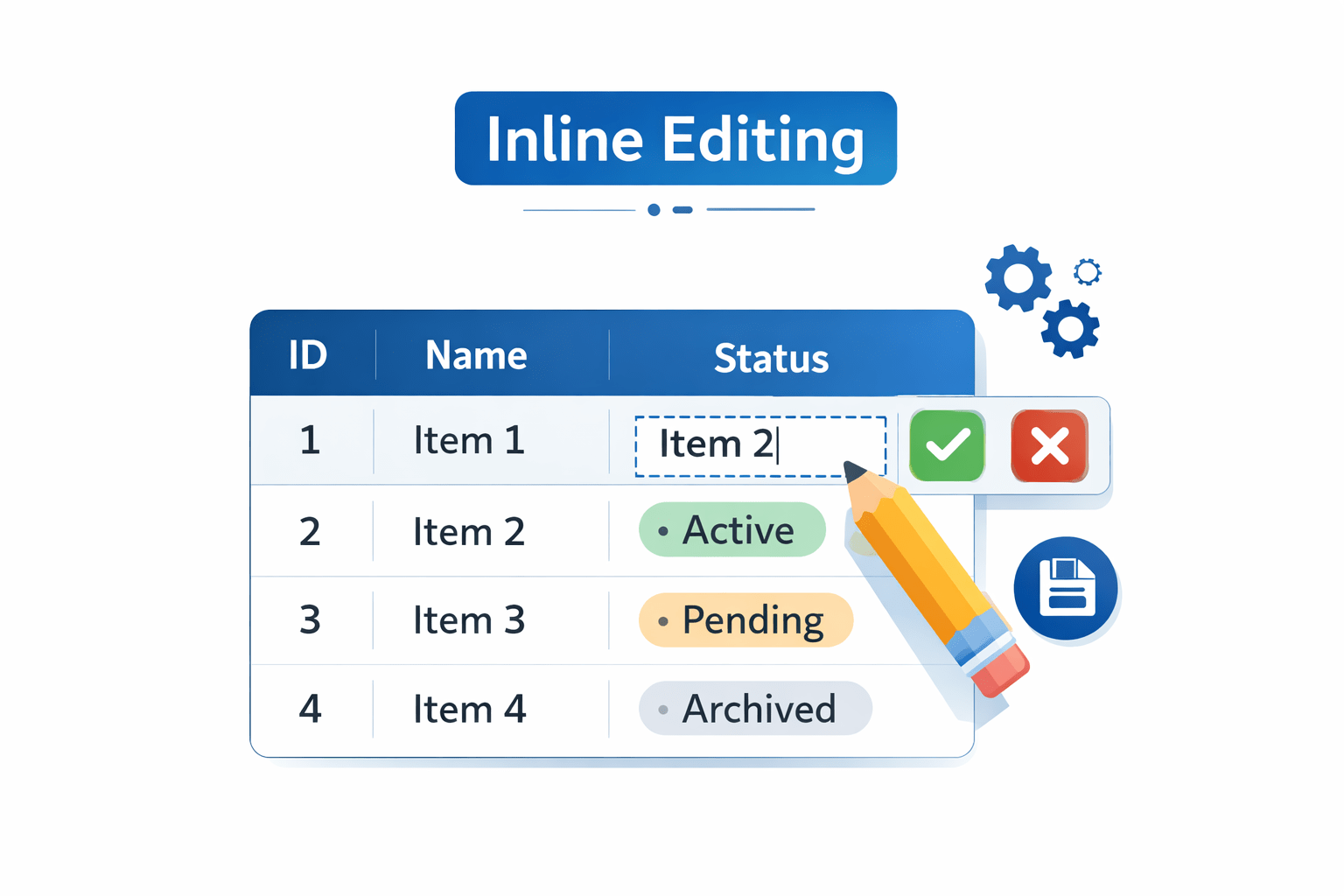
3. Inline Editing
Edit related models from parent model page.
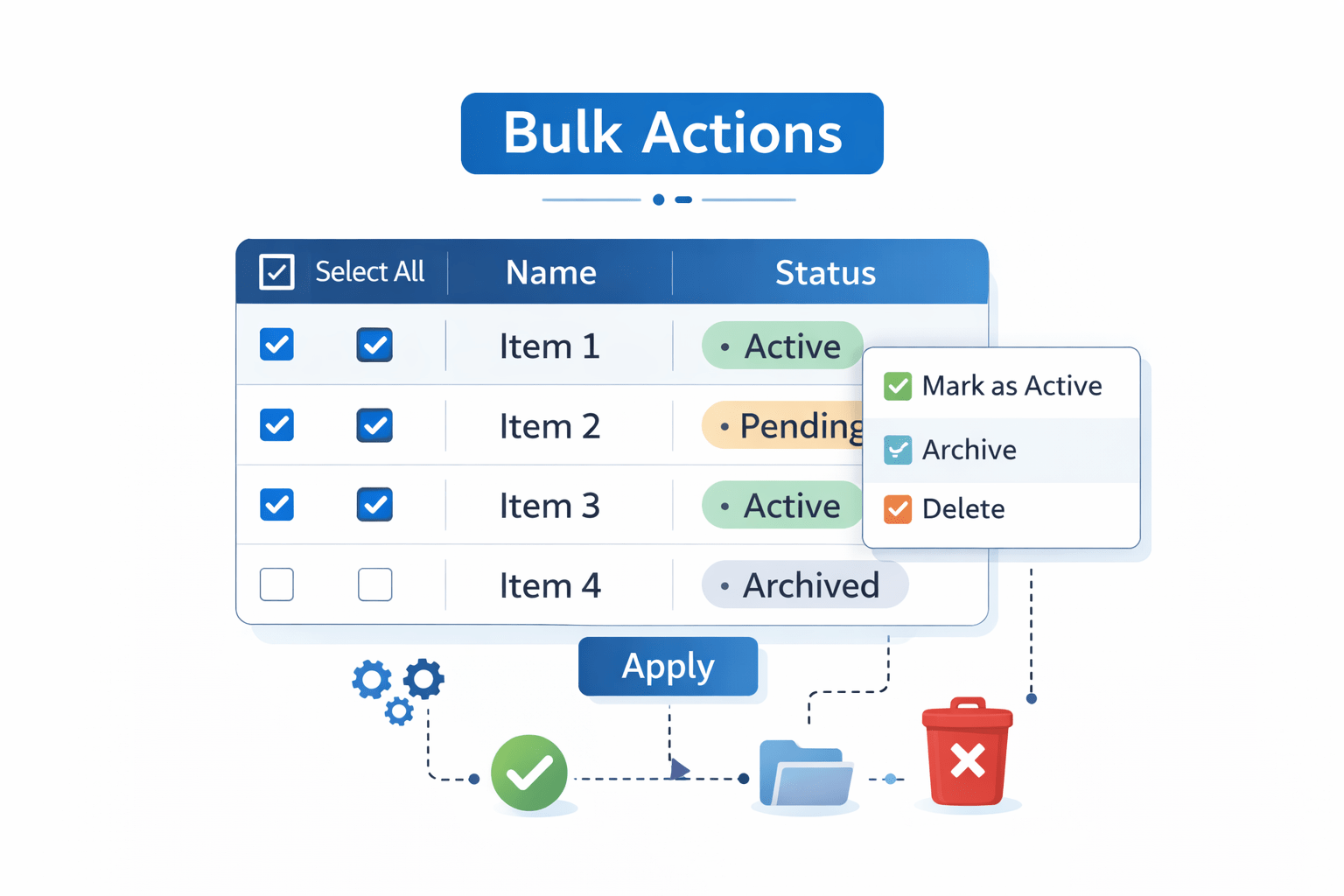
4. Bulk Actions
Perform actions on multiple records at once.
If admin allows managing users, how can we update or reset a user's password?
Changing Passwords in Admin
Steps
Reset or update passwords directly from admin panel.
Since admin has full control over application data, how do we keep it secure?
Navigate to Users section.
Select the user.
Click "Change password".
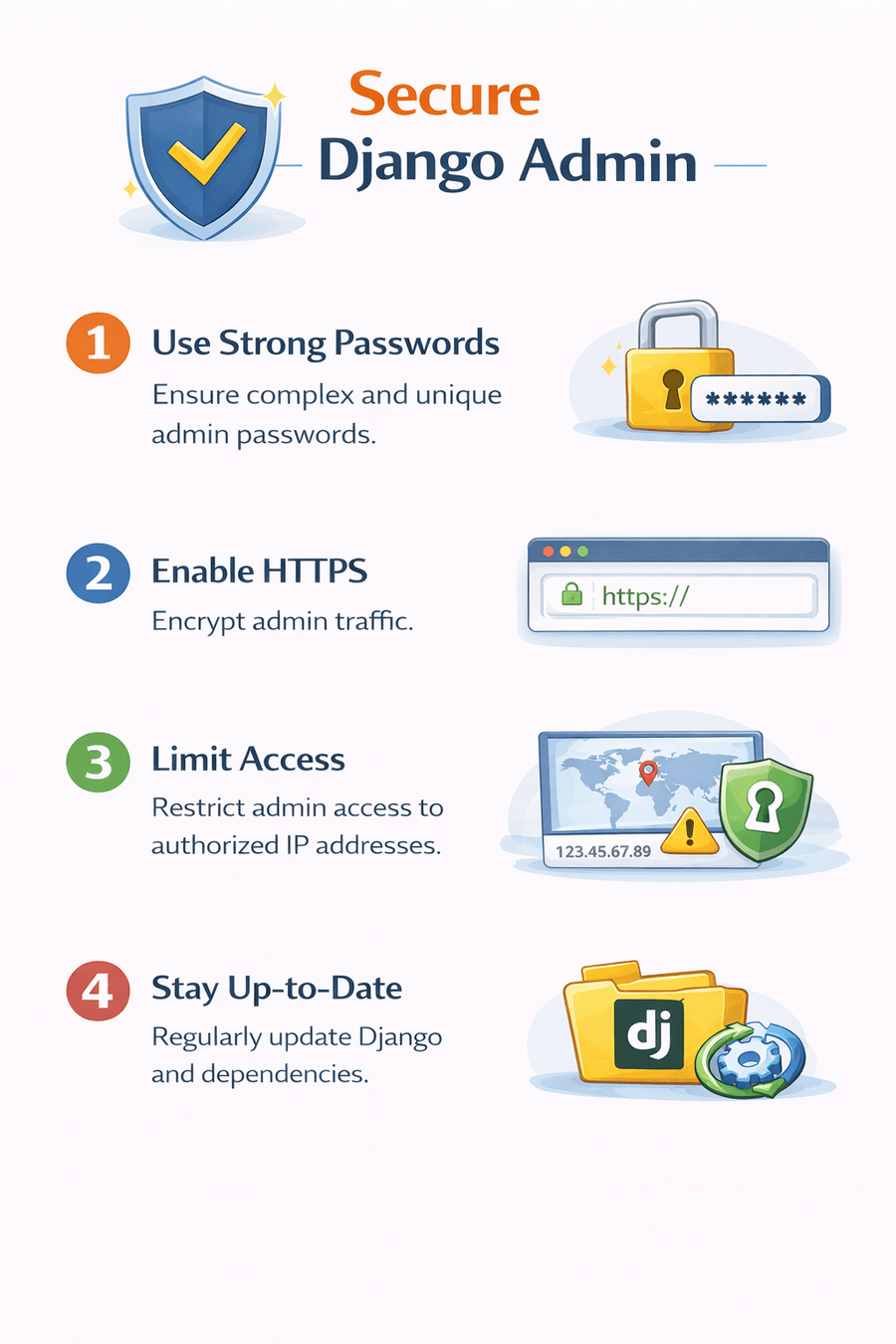
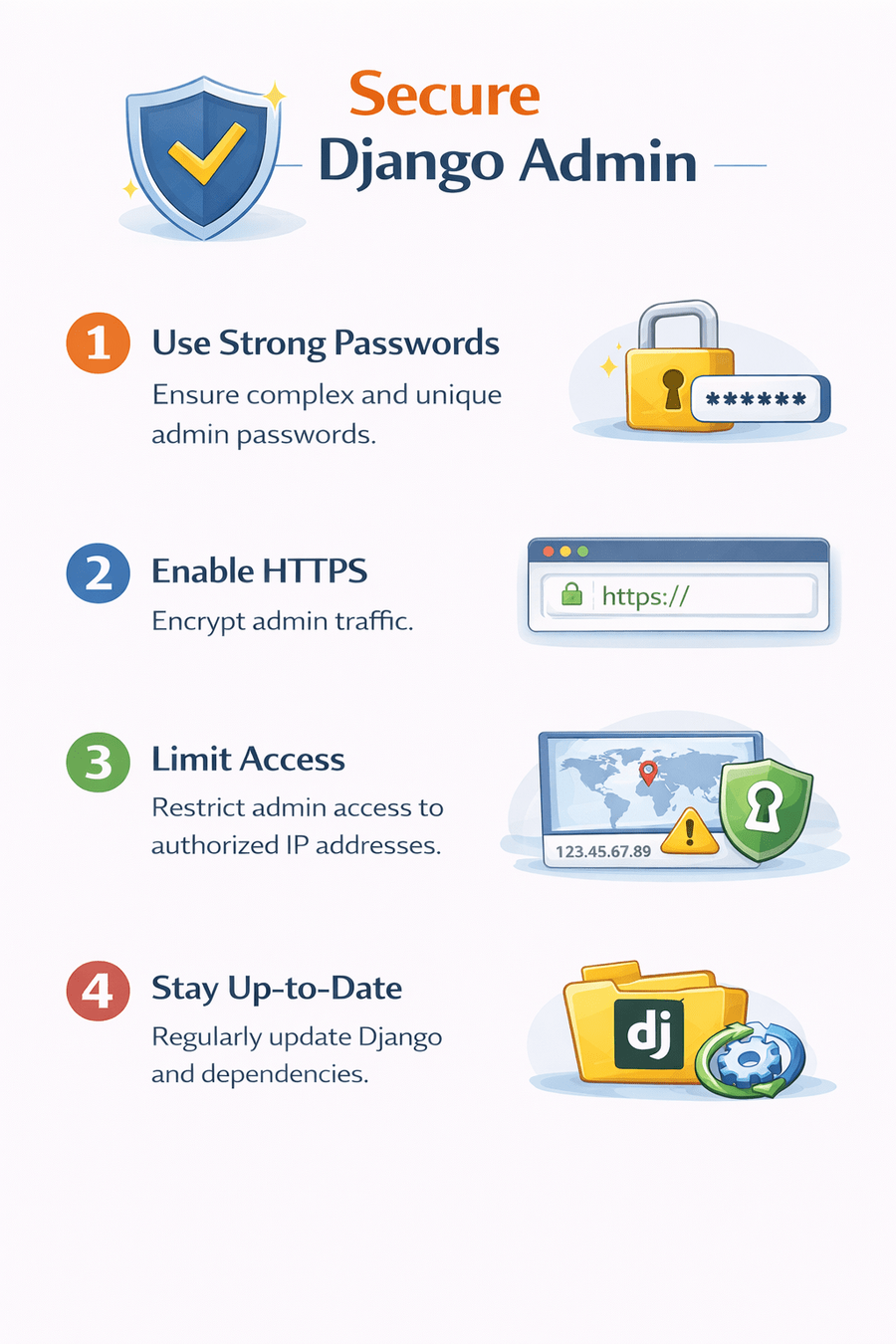
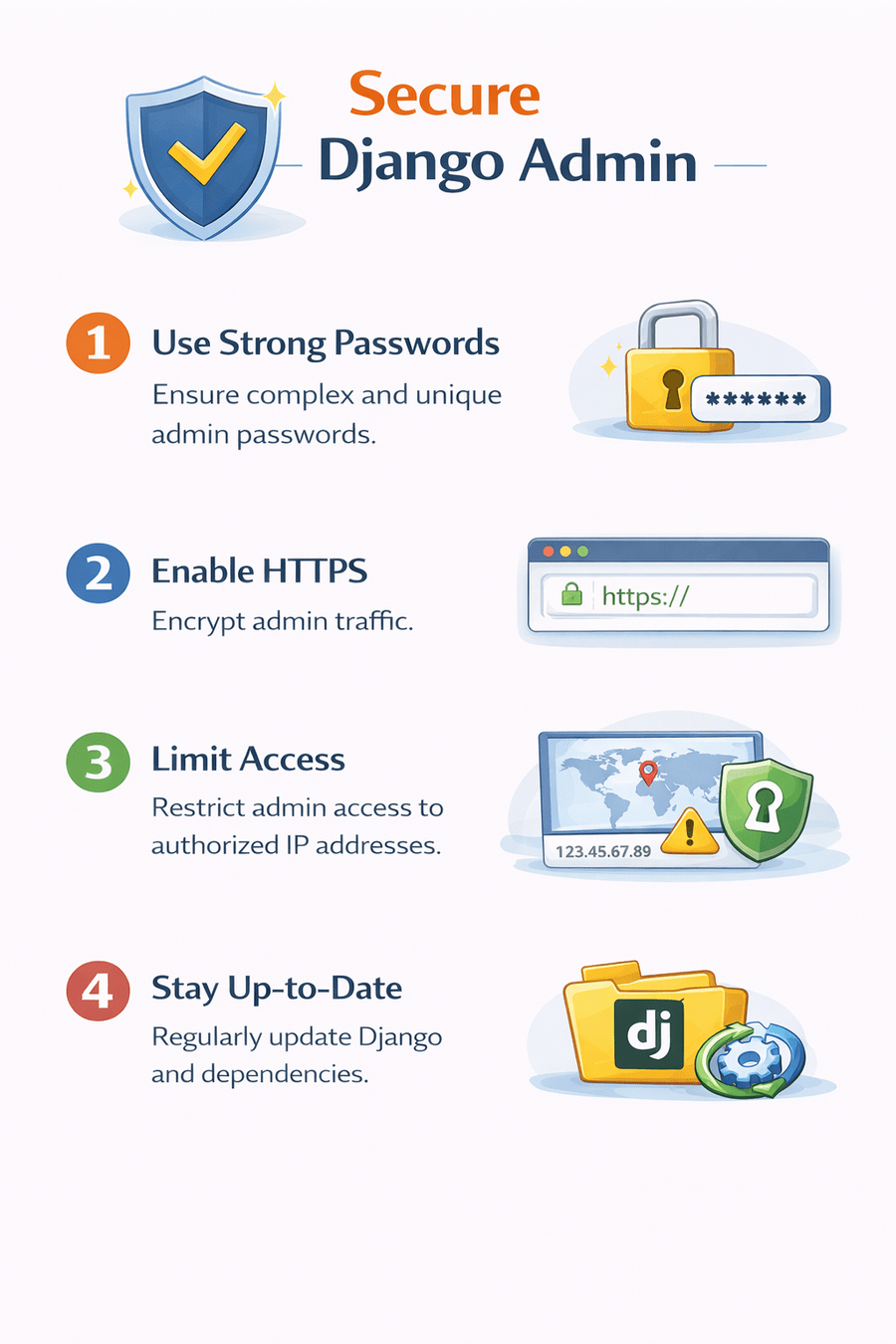
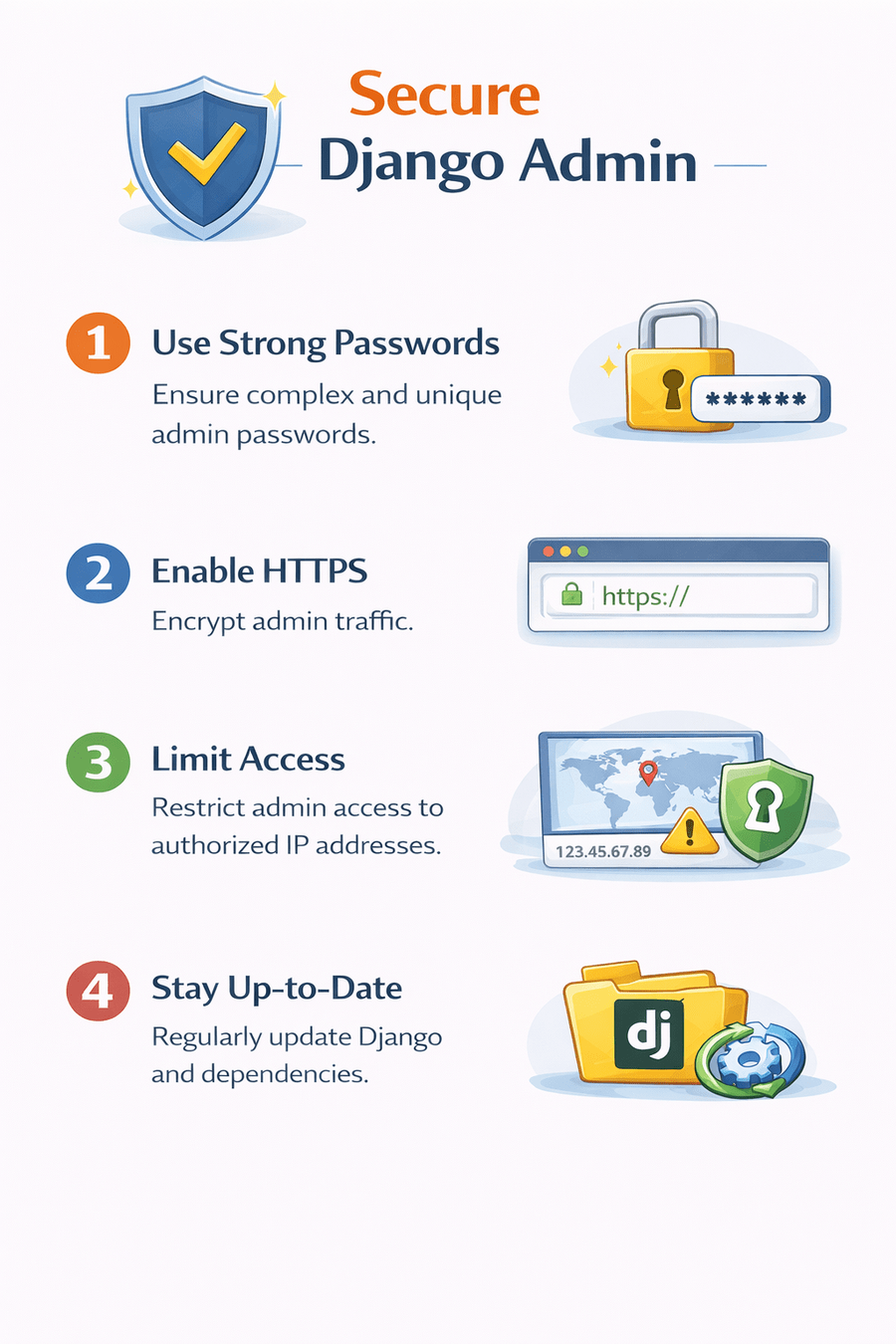
Securing Django Admin
1. Use Strong Passwords
Ensure complex and unique admin passwords.
4. Stay Up-to-Date
Regularly update Django and dependencies.
3. Limit Access
Restrict admin access to authorized IP addresses.
2. Enable HTTPS
Encrypt admin traffic.
Summary
4
Admin provides CRUD, search, filtering, inline editing, and bulk actions.
3
Image uploads require ImageField and media configuration.
2
Superuser is necessary for login.
1
Django Admin is a built-in backend management interface.
Quiz
Which file is used to register models in Django Admin?
A. models.py
B. views.py
C. admin.py
D. settings.py
Quiz
Which file is used to register models in Django Admin?
A. models.py
B. views.py
D. settings.py
C. admin.py
By Content ITV