Content ITV PRO
This is Itvedant Content department
Variable Product Setup
Business Scenario
Welcome!
Your food products are now added to the store. The next important step is creating variable products so customers can select different quantities and sizes while ordering.
Pre-Lab Preparation
Topic : Ecommerce Website Design
1) Installation Ecommerce Plugin
2) Ecommerce Store Setup
3) Product Categories Creation
4) Uploading Products
5) Variable Products
6) Upselling Products
7) Payment Setup
8) Shipping Setup
Task 1: Variable Product Setup
Objective:
To create variable food products with adjustable quantity and size options in WooCommerce.
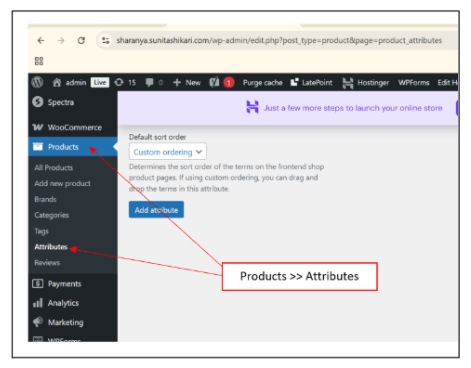
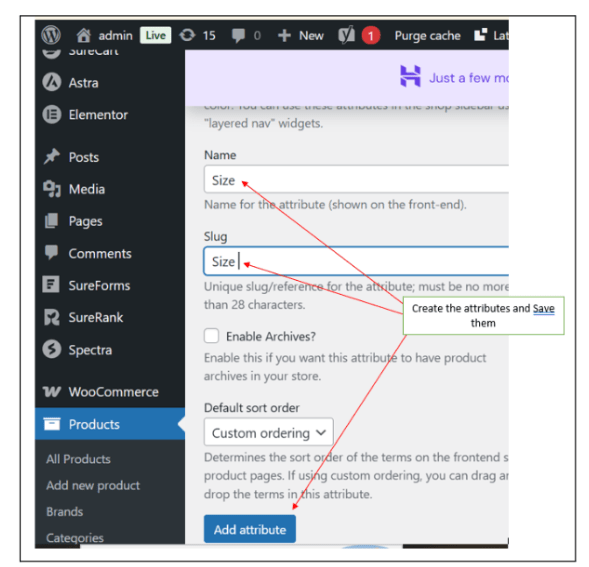
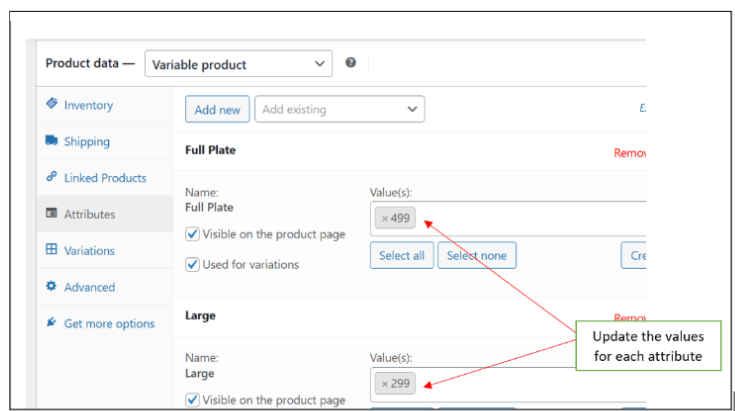
Create Product Attributes
1
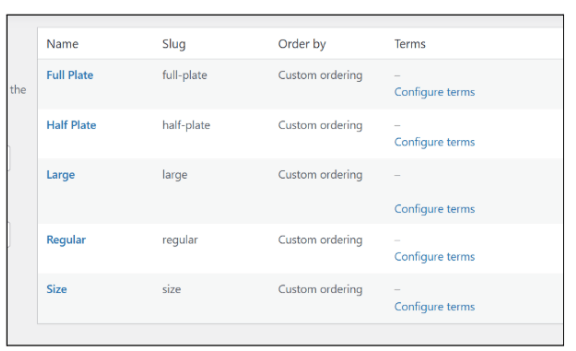
Create attributes such as:
Size
Quantity
Add terms like:
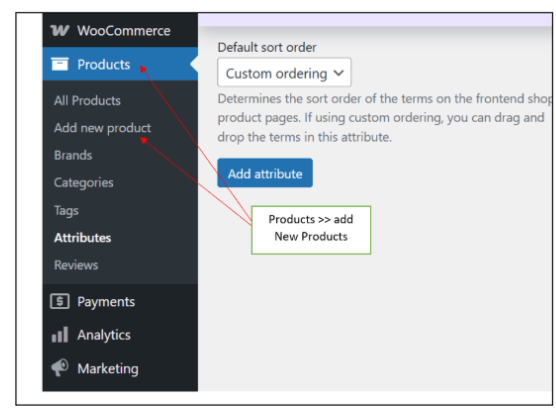
Create Variable Product
2
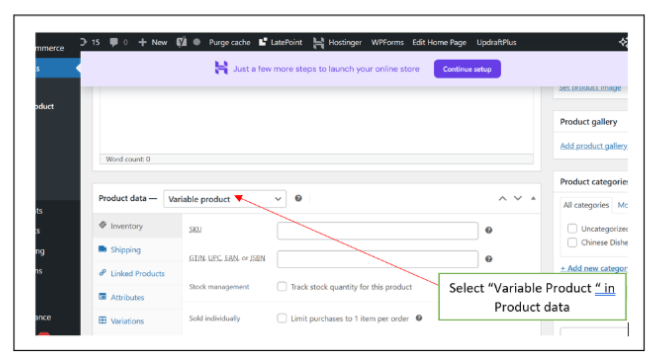
Select Product Type as:
Variable Product
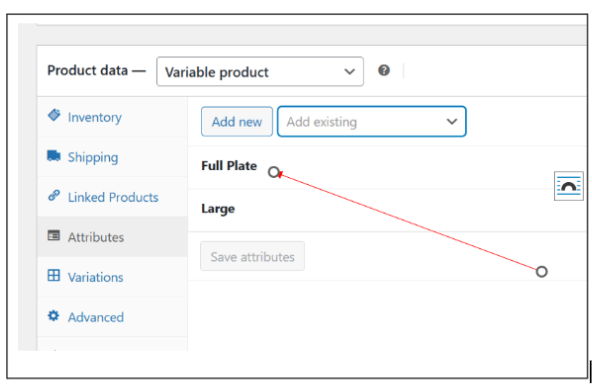
Add Product Variations
3
Add different variations for products.
Example:
Hakka Noodles – Half Plate
Hakka Noodles – Full Plate
Test Product Variations
4
Open the product page and verify:
Variation dropdown works properly
Prices change according to variation
Activity
You need to:
Create product attributes
Add minimum 3 variable products
Configure size/quantity options
Test variation functionality
Now it’s your turn!
Create variable food products for Spice Garden.
Congratulations!
You have successfully completed Variable Product Setup
What You Learned :
How to create variable products
Checkpoint
How to add product attributes
How to manage food quantity options
How to configure product variations in WooCommerce
By Content ITV