


Content ITV PRO
This is Itvedant Content department
Designing Reusable Terraform Modules for ContentSphere
In the previous lab, we configured Terraform and the AWS provider.
Now, the ContentSphere platform needs multiple S3 buckets. Instead of writing the same S3 configuration again and again, we will create one reusable Terraform module and use it to create buckets
Business Scenario
Pre-Lab Preparation
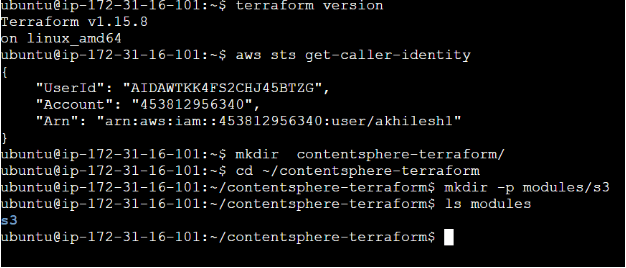
terraform version — Confirms Terraform is installed.aws sts get-caller-identity — Confirms AWS CLI is configured.cd ~/contentsphere-terraform — Opens the Terraform project directory.Task 1: Create Module Directory
Run
mkdir -p modules/s3
Purpose: Creates a separate folder where we will keep our reusable S3 module.
Verify:
ls modules
Expected:
s3
Task 2 : Create S3 Module
Create the module configuration:vi modules/s3/main.tf
Add:
resource "aws_s3_bucket" "bucket" {
  bucket = var.bucket_name
}
Purpose
This file contains the actual S3 resource configuration.
Instead of writing the S3 bucket configuration directly in main.tf, we keep it inside the module so that it can be reused.
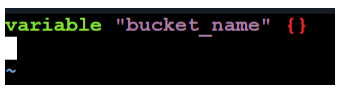
Task 3 : Create Module Variable
Create: vi modules/s3/variables.tf
Add: variable "bucket_name" {}
Purpose
The module needs to know what name to give the S3 bucket.
Instead of hardcoding the name inside the module, we create a variable.
bucket_name
↓
Module receives bucket name
↓
S3 bucket is created
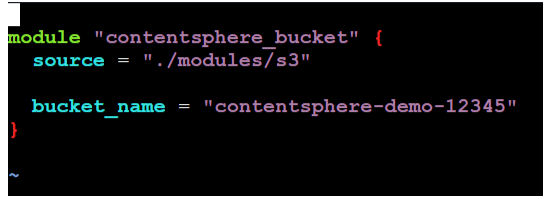
Task 4 : Call the Module
Now we will use the module from the main Terraform configuration.
Open:
vi main.tf
Keep the AWS provider configuration from the previous lab and add:
module "contentsphere_bucket" {
source = "./modules/s3"
bucket_name = "contentsphere-demo-12345"
}
Replace:
contentsphere-demo-12345
Purpose
This tells Terraform:
"Use the S3 module located in modules/s3 and create a bucket using this name."
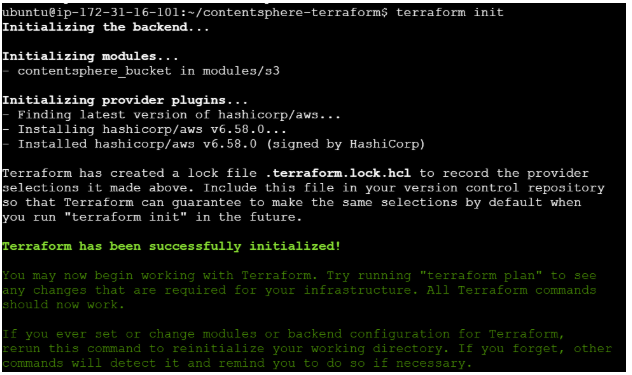
Task 5 : Initialize Terraform
Run: terraform init
Purpose
Terraform needs to prepare the project and download/initialize the required providers and modules.
Because we added a module, Terraform also detects:
./modules/s3
Task 6 : Validate Configuration
Run: terraform validate
Expected: Success! The configuration is valid.
Purpose
Checks whether our Terraform configuration has syntax or configuration errors before creating anything
Task 7 : Review Terraform Plan
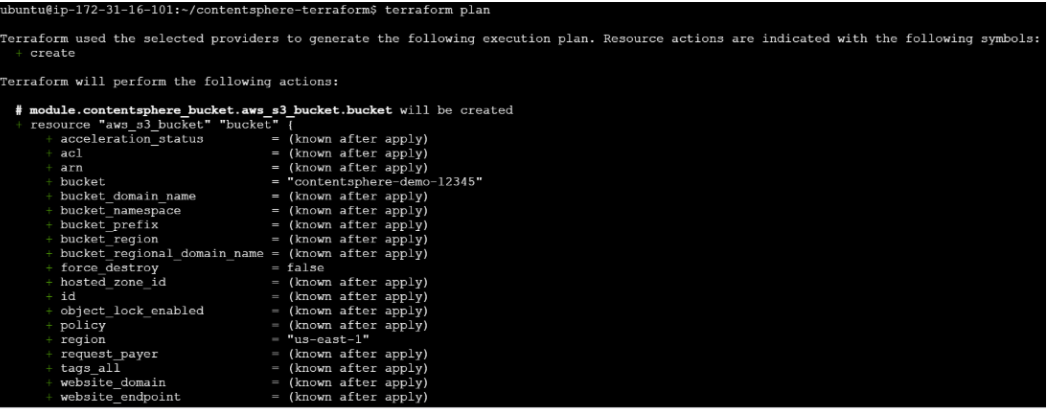
Run: terraform plan
Expected: Plan: 1 to add, 0 to change, 0 to destroy.
Purpose
terraform plan shows what Terraform is going to create without actually creating it.
Think of it as: Plan = Preview
Task 8 : Create the S3 Bucket
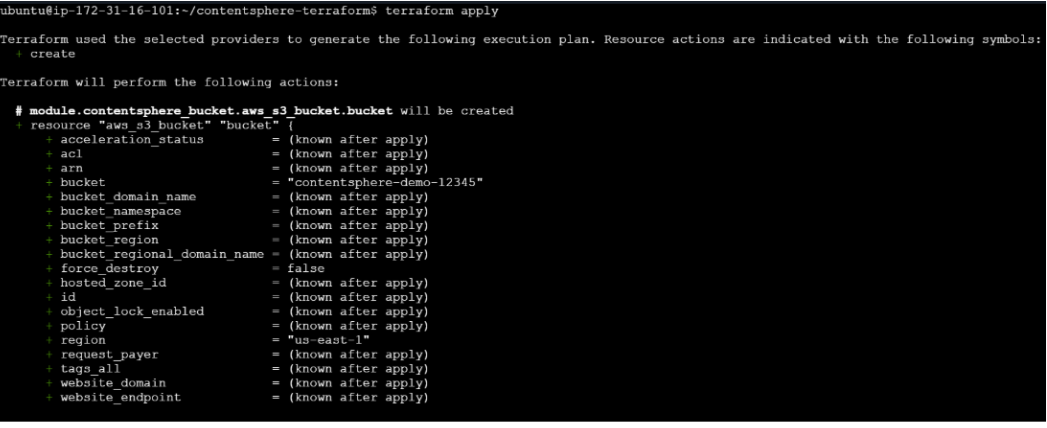
Run: terraform apply
Terraform will ask for confirmation.
Enter: yes
Purpose
terraform apply actually creates the infrastructure described in the Terraform configuration.
In this case:
Terraform
↓
S3 Module
↓
AWS S3 Bucket
Task 9 : Verify the Bucket
Run: aws s3 ls
You should see your bucket:contentsphere-demo-12345
Purpose
This confirms that the S3 bucket was successfully created in AWS
Task 10 : Reuse the Module
Now we will demonstrate the main benefit of modules.
Open:vi main.tf
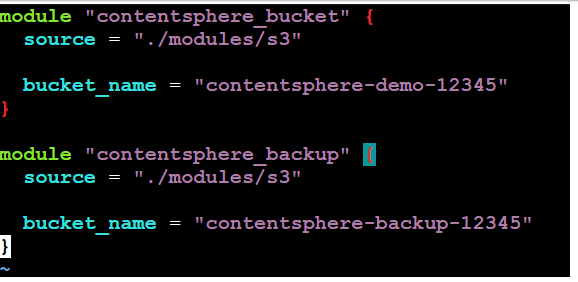
Add another module:module "contentsphere_bucket" {
source = "./modules/s3"
bucket_name = "contentsphere-demo-12345"
}
module "contentsphere_backup" {
source = "./modules/s3"
bucket_name = "contentsphere-backup-12345"
}
Use another globally unique bucket name.
Purpose
We are using the same S3 module again instead of writing another S3 resource.
modules/s3
/ \
↓ ↓
Application Backup
Bucket Bucket
This demonstrates:
Write once → Reuse multiple times
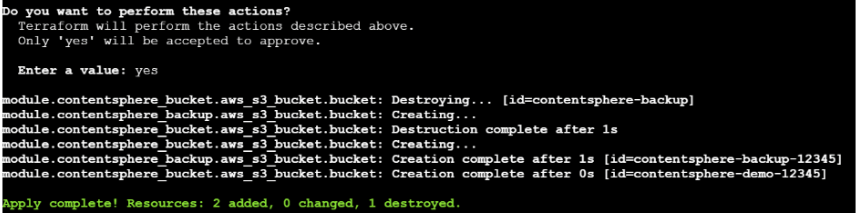
Task 11 : Apply the Second Bucket
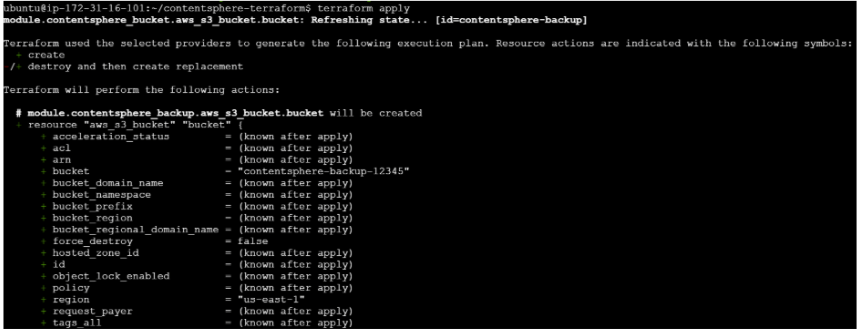
Run: terraform plan
Purpose: Preview the second S3 bucket before creating it.
You should see something similar to:
Plan: 1 to add, 0 to change, 0 to destroy.
Then run: terraform apply
Enter: yes
Purpose Creates the second S3 bucket using the same reusable module.
Task 12 : Verify Both Buckets
Run: aws s3 ls
You should see both buckets: contentsphere-demo-12345
contentsphere-backup-12345
Purpose
Confirms that the same Terraform module successfully created multiple resources.
Task 13 : Review Module Structure
Run: tree
Expected:
contentsphere-terraform/
├── main.tf
├── modules/
│ └── s3/
│ ├── main.tf
│ └── variables.tf
└── terraform.tfstate
Purpose
This helps you understand how a Terraform project is organized.
main.tf
↓
Calls Module
modules/s3/
↓
Reusable S3 Configuration
Task 14 : Clean Up
After completing the lab: terraform destroy
Enter: yes
Purpose
Removes the S3 buckets created during the lab so that the AWS resources are not left running unnecessarily.
Great job!
Checkpoint
By Content ITV