Content ITV PRO
This is Itvedant Content department
GA4 Dashboard
Business Scenario
The Google Analytics 4 (GA4) property has been successfully connected to the Spice Garden website. The next step is learning how to analyze website performance using the GA4 Dashboard and measure important customer actions through Conversion Tracking. In this activity, you will explore the GA4 reports, monitor website traffic, and configure conversion events to track valuable user interactions.
Pre-Lab Preparation
Topic : Google Analytics 4
1) Introduction to GA4
2) Google Analytics 4 Dashboard
3) Google Analytics 4 Conversion Tracking
Task 1: Read the GA4 Dashboard, predict the Future Strategies
Objective:
To explore the Google Analytics 4 Dashboard, analyze website performance, and configure conversion tracking for the Spice Garden website.
Explore the GA4 Dashboard
1
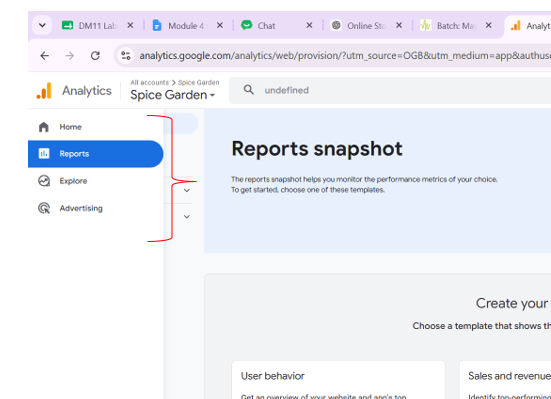
Navigate through the main sections of GA4:
Home
Reports
Explore
Advertising
Admin
Understand the purpose of each section and the type of insights it provides.
Analyze Website Performance Reports
2
Navigate to Reports and review the following:
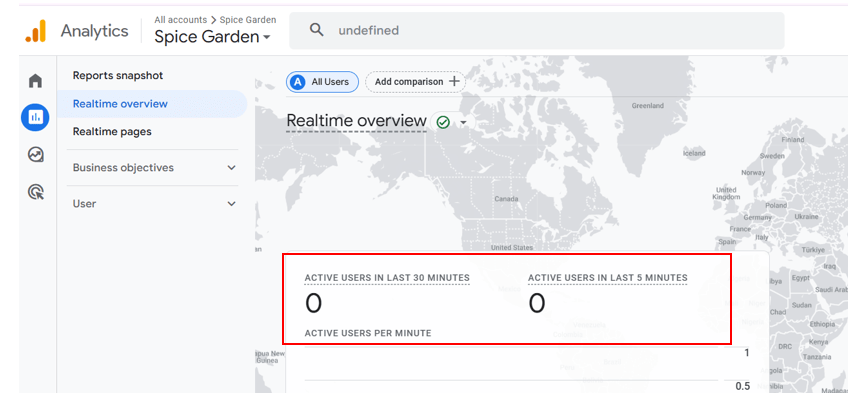
Realtime Report
Observe:
Active Users
User Locations
Pages Being Viewed
Traffic Sources
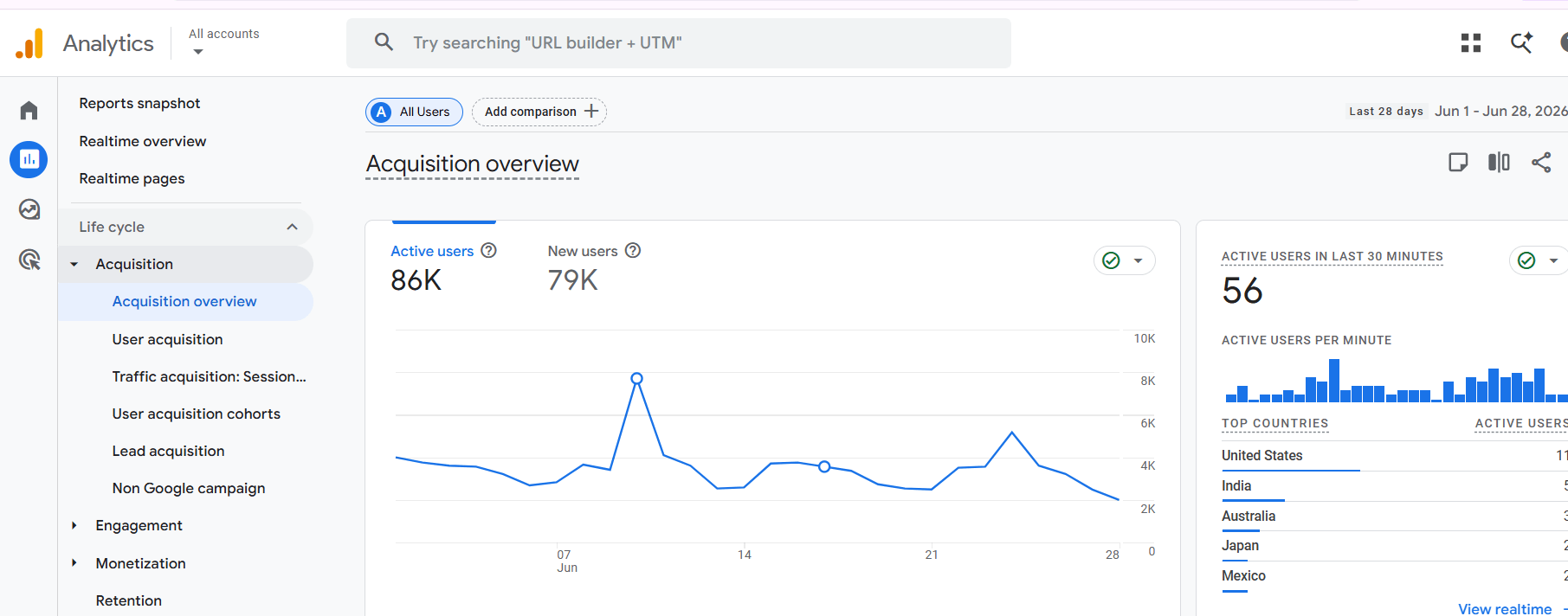
Acquisition Report
Review:
Organic Search
Direct Traffic
Referral Traffic
Social Traffic
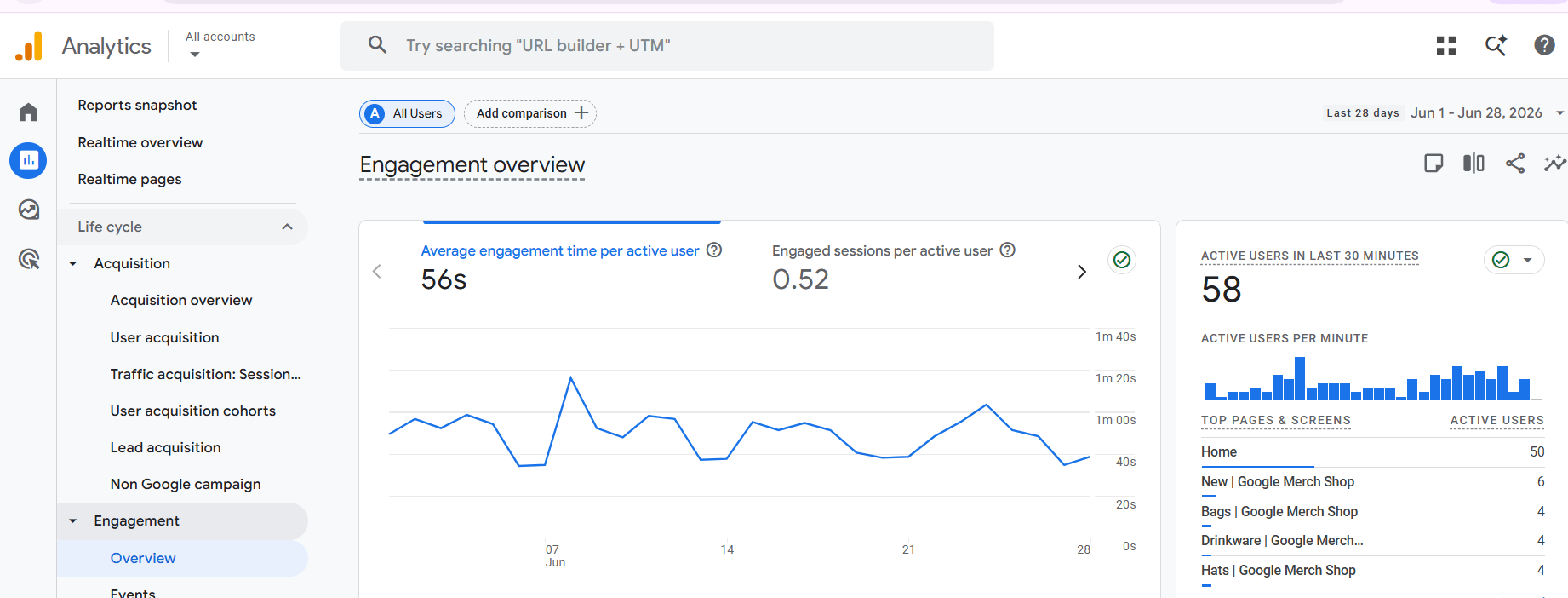
Engagement Report
Analyze:
Page Views
Event Count
Average Engagement Time
Most Visited Pages
Record your observations.
Review Website Metrics
3
Identify the following key metrics:
Total Users
New Users
Sessions
Page Views
Average Engagement Time
Traffic Sources
Understand how these metrics help evaluate website performance.
Identify Conversion Goals
4
Determine the important actions that should be tracked on the Spice Garden website.
Examples:
Table Reservation
Contact Form Submission
Online Food Order
Click-to-Call
Menu Page Visit
Select the most relevant conversion goals
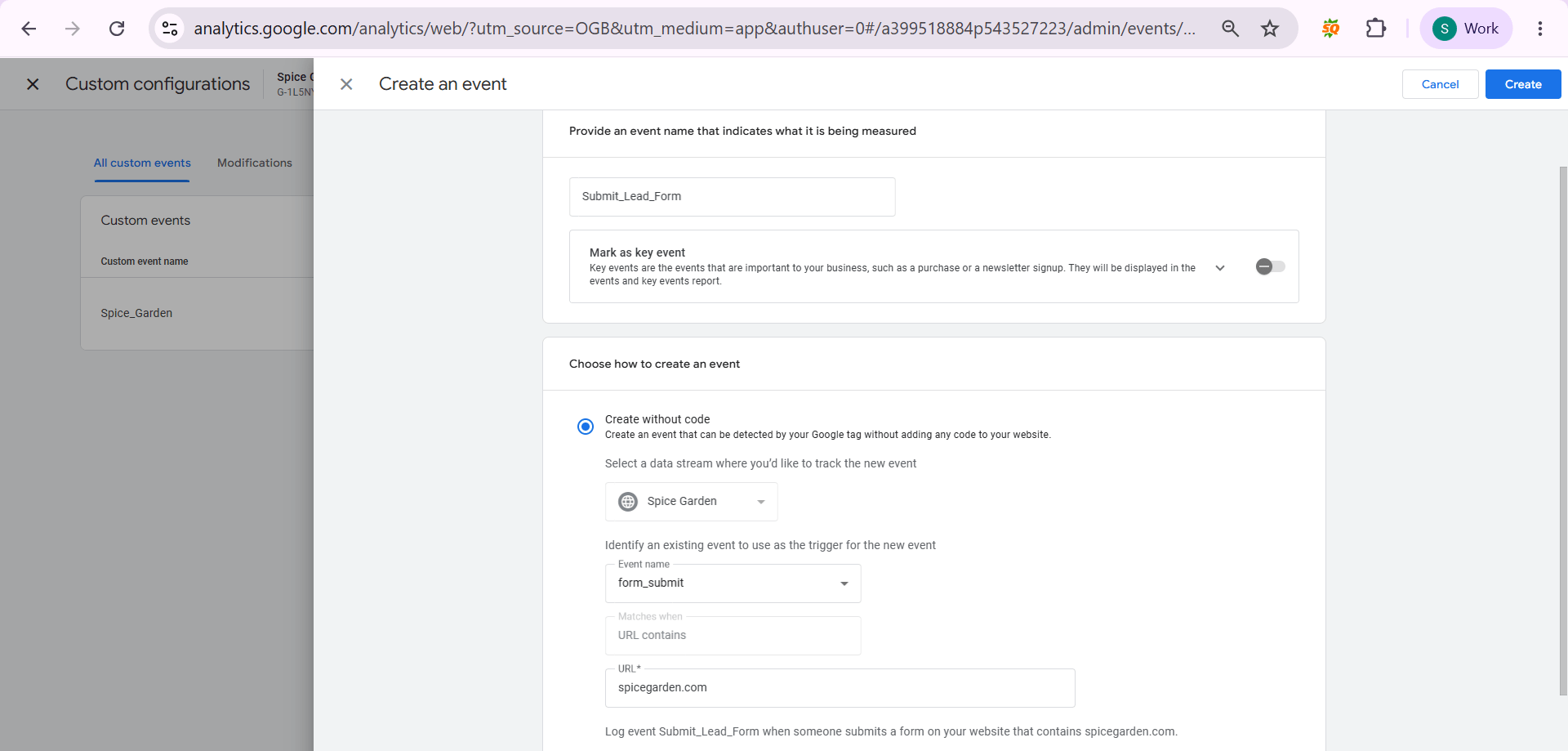
Create a Conversion Event
5
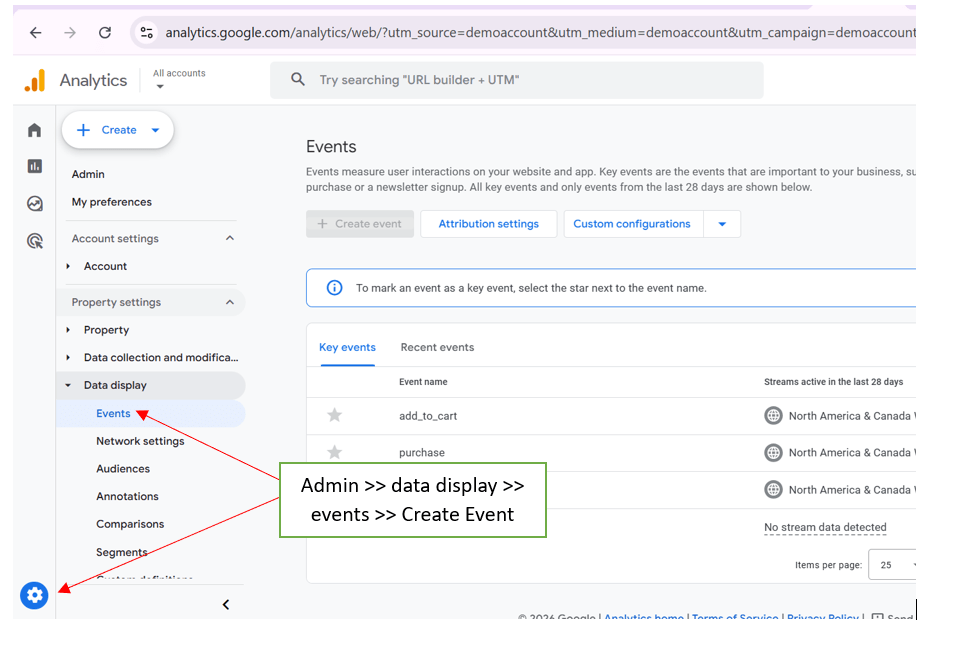
Navigate to Admin and review the existing events.
Create a custom event for a business action if required.
Examples:
table_booking
contact_form_submit
order_completed
Save the event configuration.
Mark the Event as a Conversion
6
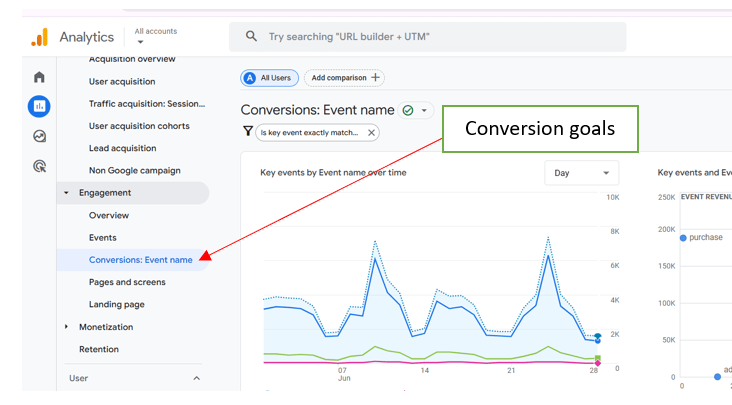
Navigate to the Conversions section.
Select the required event and mark it as a conversion.
Verify that conversion tracking has been enabled successfully.
Test Conversion Tracking
7
Perform the selected action on the Spice Garden website.
Examples:
Submit the Contact Form
Complete a Table Reservation
Place a Test Food Order
Navigate to the Realtime report and verify that the event has been recorded.
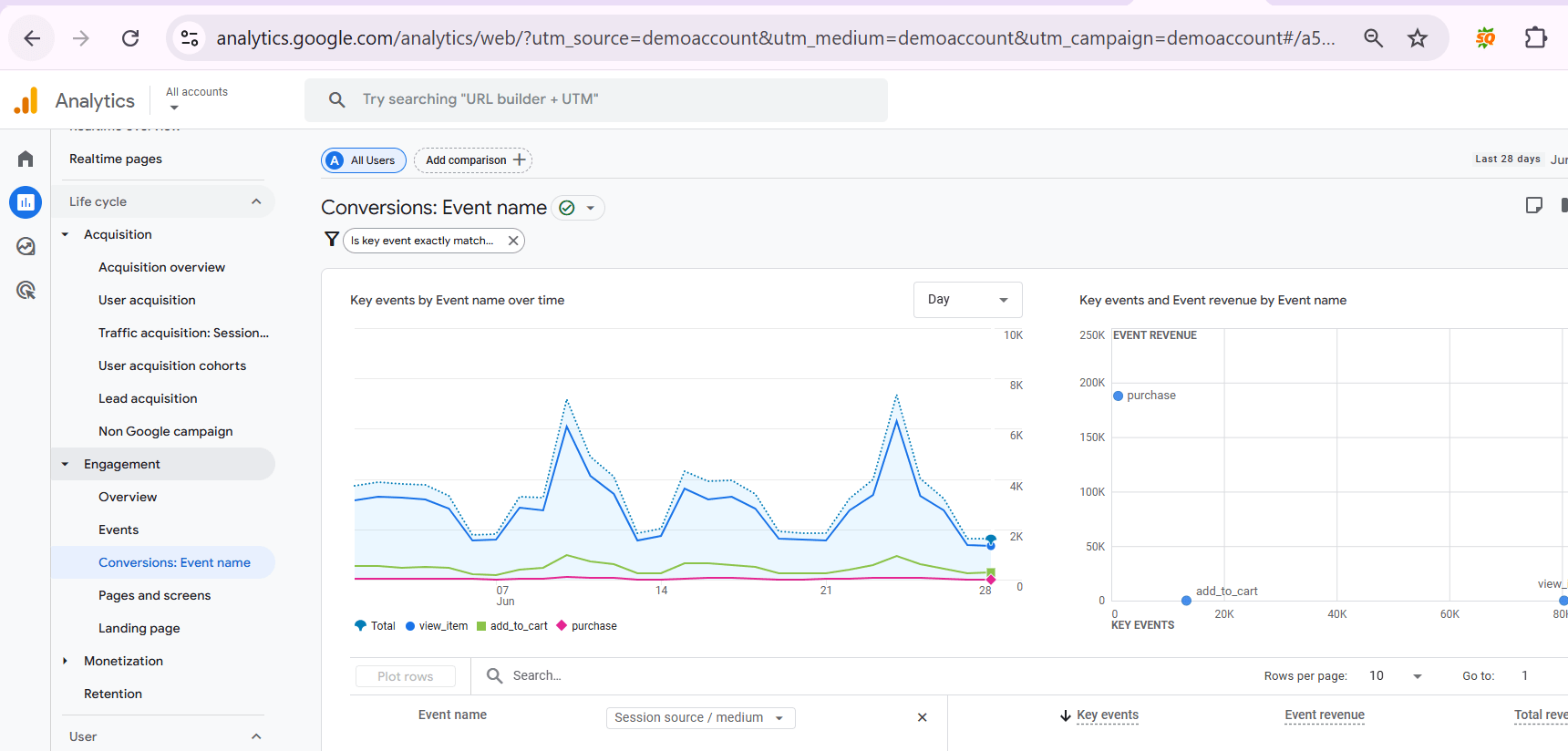
Review Conversion Reports
8
Navigate to the conversion reports and analyze:
Total Conversions
Conversion Events
Event Count
User Actions
Record your findings and identify which actions are being tracked successfully.
Activity
Now it's your turn!
Explore the Google Analytics 4 Dashboard and configure conversion tracking for the Spice Garden website.
You need to:
Access the GA4 Dashboard
Explore the available reports
Analyze website performance metrics
Identify business conversion goals
Create or review conversion events
Mark an event as a conversion
Test the conversion tracking
Review the conversion reports
Congratulations!
You have successfully completed GA4 Dashboard.
What You Learned :
How to navigate the Google Analytics 4 Dashboard
Checkpoint
Next-Lab Preparation
How to analyze website traffic and user engagement
How to interpret key GA4 performance metrics
How to identify business conversion goals
How to configure conversion tracking in GA4
How to verify and analyze conversion data
Topic : Looker Studio
By Content ITV