




Content ITV PRO
This is Itvedant Content department
Business Scenario
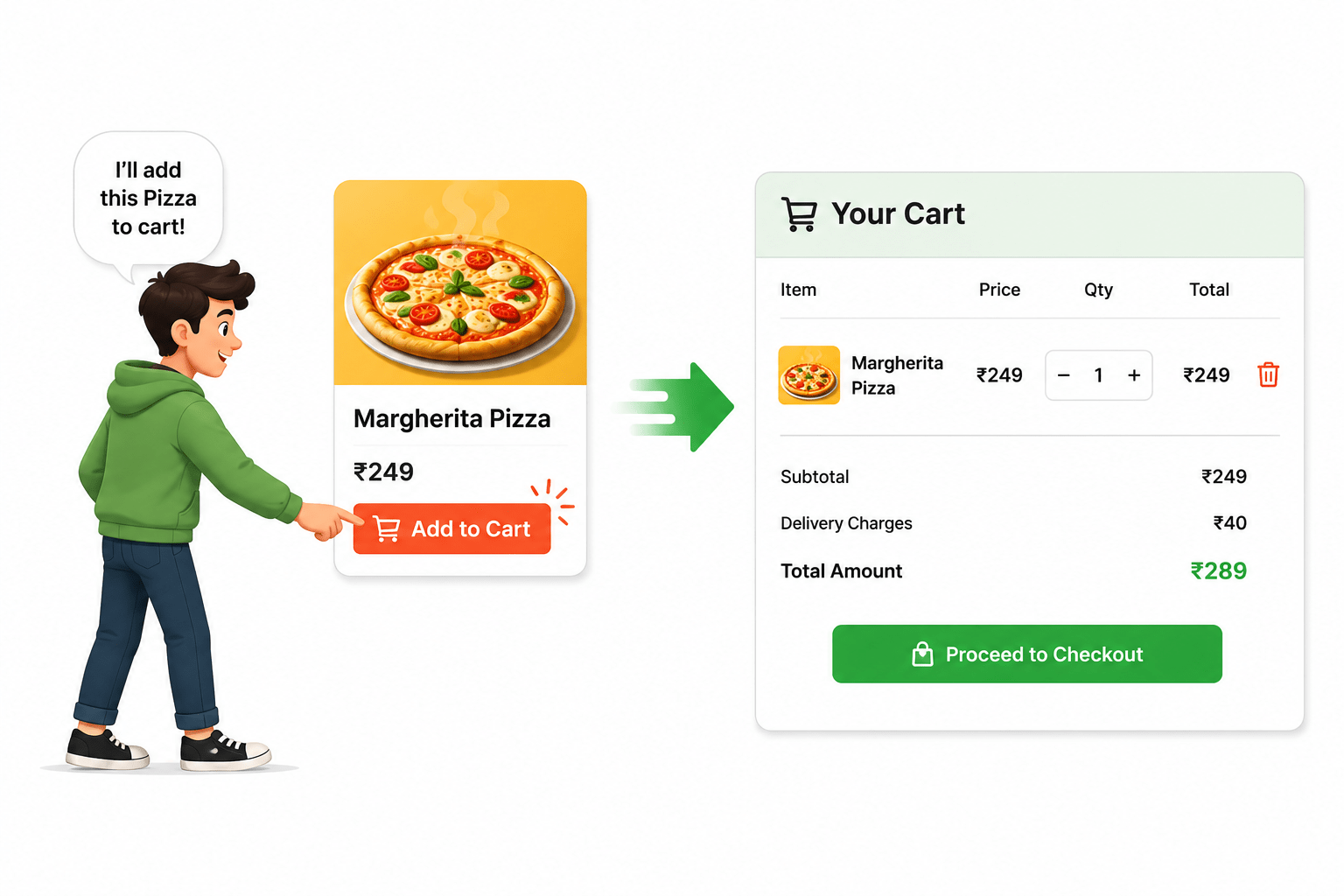
In the previous lab, we built the Customer & Shopping Cart Management system for BiteBox. Customers can now select food items from the Menu, add them to the cart, update quantities, remove items, clear the cart, and continue shopping.
As the BiteBox restaurant grows, the number of food items available on the website will also increase gradually. The menu may eventually contain a large number of pizzas, burgers, pasta dishes, beverages, desserts, and other food items.
Now imagine a customer wants to order a pizza.
If the menu contains dozens or hundreds of items, the customer would have to:
Scroll through the entire menu and manually explore every item until they find a pizza.
This would make the ordering process slow, difficult, and irritating, especially when the customer already knows what they want.
Pre-Lab Preparation
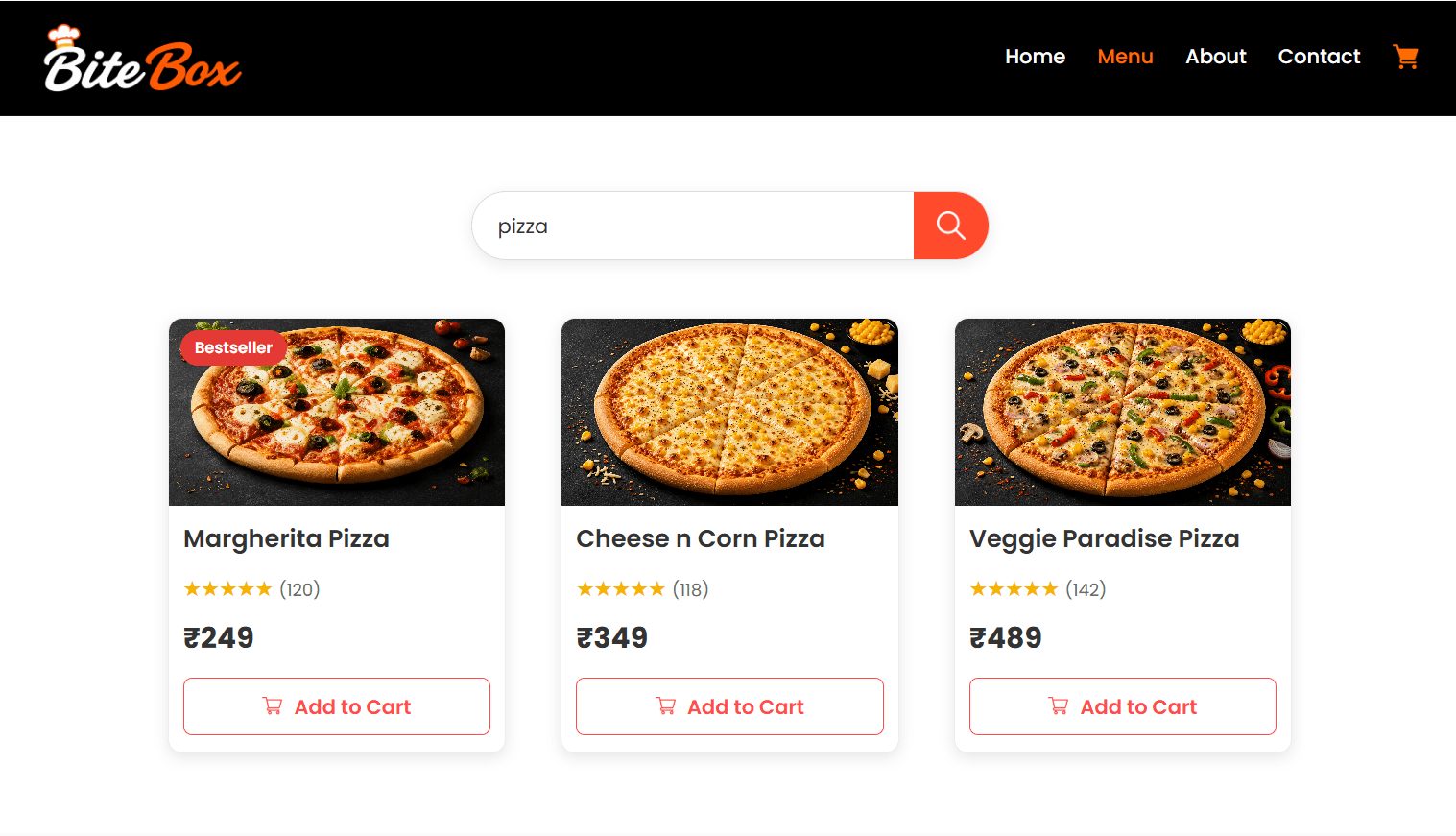
To solve this problem, the BiteBox development team decides to build a dynamic search functionality for customers.
Module:
1) Unlocking JavaScript's Secrets: Mastering Core Concepts
2) Delving into JavaScript Object Dynamics
3) Journey into DOM and Event Dynamics
git pull origin branchNameGit Pull
Task 1: Implement Search Function
Connect JavaScript with Existing Menu Cards
1
Select the existing Menu cards from the BiteBox Menu so JavaScript can access and manipulate them.
let menuCards = document.querySelectorAll("#menu-items article");Add the Menu Search Field
2
Add a search input above the Menu items so customers can enter the food name they want to search for.
<input type="text" id="menu-search" placeholder="Search for dishes..." >
    <button type="button" id="search-button">
        <img src="assets/icons/search.png" alt="Search" width="20" height="20">
    </button>
Style the Menu Search Field
3
.menu-search {
    width: 360px;
    height: 48px;
    margin: 30px auto;
    display: flex;
    align-items: center;
    background-color: white;
    border: 1px solid #ddd;
    border-radius: 25px;
    overflow: hidden;
    box-shadow: 0 3px 10px rgba(0, 0, 0, 0.08);
}
/* Search Input */
.menu-search input {
flex: 1;
height: 100%;
padding: 0 18px;
border: none;
outline: none;
font-family: 'Poppins', sans-serif;
font-size: 14px;
color: #333;
background-color: transparent;
}
/* Placeholder */
.menu-search input::placeholder {
color: #777;
}
/* Search Button */
.menu-search button {
width: 52px;
height: 100%;
display: flex;
align-items: center;
justify-content: center;
border: none;
background-color: #ff4b2b;
cursor: pointer;
}.menu-search button:hover{
background-color: #ac1f06 ;
}
/* Search Icon */
.menu-search button img {
width: 20px;
height: 20px;
object-fit: contain;
}Use the Menu Search Field in js
4
let searchInput = document.getElementById("menu-search");

let searchButton = document.getElementById("search-button");
Implement Search Function
5
function searchMenu(searchText) {
    let searchValue =  searchText .trim().toLowerCase();

    menuCards.forEach(function(card) {
        let foodName = card.querySelector("h3").textContent.trim().toLowerCase();

        if (foodName.includes(searchValue)) {
            card.style.display = "";
        }
        else {
            card.style.display = "none";
        }
    });

}
Create a reusable function that searches the existing Menu cards according to the food name entered by the customer.
Connect Search Button
6
if (searchButton) {
    searchButton.addEventListener(
        "click",
        function() {

            searchMenu(
                searchInput.value
            );
        }
    );

}
When the customer enters a search term and clicks the existing search button, call the searchMenu() function.
Handle Empty Search
7
if (searchButton) {
    searchButton.addEventListener(
        "click",
        function() {

            searchMenu(
                searchInput.value
            );
        }
    );

}
When the customer clears the search field and searches again, all Menu items should become visible.
Task 2: Implement Category Filtering
Connect JavaScript with Existing Categories
1
Use the existing Browse Categories cards as the category filter controls
let categoryCards = document.querySelectorAll("#categories article");Add Category Information to Menu Cards
2
Add a data-category attribute to each Menu card so JavaScript knows which category the item belongs to.
<article data-category="pizza">For example :
<!-- Menu Item 1 -->
      <article data-category="pizza">
        <span class="tag">Bestseller</span>
        <img src="assets/images/margherita-pizza.png">
        <h3>Margherita Pizza</h3>
        ........

      </article>


 <article data-category="burger">
        <img src="assets/images/cheese-burger.png" alt="Cheese Burger">
        <h3>Cheese Burger</h3>
        ........

      </article>
Implement category filter function
3
Create a function that displays Menu items belonging to the selected category.
function filterMenu(category) {

    menuCards.forEach(function(card) {
        let cardCategory = card.dataset.category.toLowerCase();

        if (cardCategory === category) {
            card.style.display = "";
        }
        else {
            card.style.display = "none";
        }
    });

}
Connect Existing Category Cards
4
Detect when the customer clicks one of the existing Browse Categories cards and use its <h3> text as the selected category.
categoryCards.forEach(
    function(card) {

        card.addEventListener("click",function() {
                let category = card.querySelector("h3")
                        .textContent
                        .trim()
                        .toLowerCase();
                filterMenu(category);
            }
        );
    }
);
We are done with this lab. The latest source code has been uploaded to GitHub. You can access the latest commit using the link below:
Git Push
git push origin branchName
Great job!
You have successfully implemented search menu items functionality in our bitebox website
Checkpoint
Next-Lab Preparation
Module:
1) Unlocking JavaScript's Secrets: Mastering Core Concepts
2) Delving into JavaScript Object Dynamics
3) Journey into DOM and Event Dynamics
By Content ITV