Introduction to HTML5
<canvas>
Short plan
-
What is <canvas>?
-
Drawing
-
Text
-
Images
-
Animation
<canvas> overview
-
The HTML <canvas> element is used to draw graphics on a web page
-
The <canvas> element is only a container for graphics. You must use JavaScript to actually draw the graphics.
-
Canvas' methods for animations, offer a lot of possibilities for HTML gaming applications.
-
Canvas has great features for graphical data presentation with an imagery of graphs and charts.
<canvas> overview
-
Canvas objects can move. Everything is possible: from simple bouncing balls to complex animations.
-
Canvas can respond to JavaScript events.
-
Canvas can respond to any user action (key clicks, mouse clicks, button clicks, finger movement).
-
<canvas> is a bitmap system
short history
Canvas was initially introduced by Apple for use inside their own Mac OS X WebKit component in 2004, powering applications like Dashboard widgets and the Safari browser. Later, in 2005 it was adopted in version 1.8 of Gecko browsers and Opera in 2006 and then standardized by the Web Hypertext Application Technology Working Group (WHATWG) on new proposed specifications for next generation web technologies.
Browser Support

declarating
a <canvas> element
<canvas id="exampleCanvas" width="200" height="100">
  Your browser does not support canvas
</canvas>
connection <canvas> to script
<script>
  let canvasElement = document.getElementById("exampleCanvas");
  let context = canvasElement.getContext("2d");
</script>
Drawing
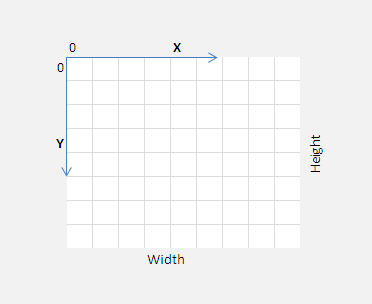
<canvas> coordinate space
Line drawing
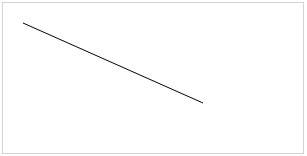
context.moveTo(20,20);
context.lineTo(200,100);
context.stroke();
Rectangle drawing

context.fillStyle = "#000";
context.fillRect(20,20,150,75);
Arc and circle drawing
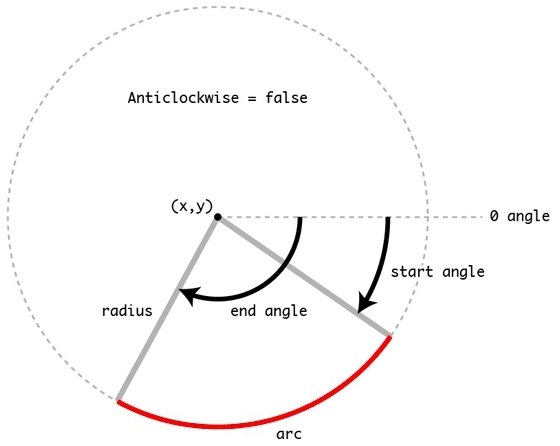
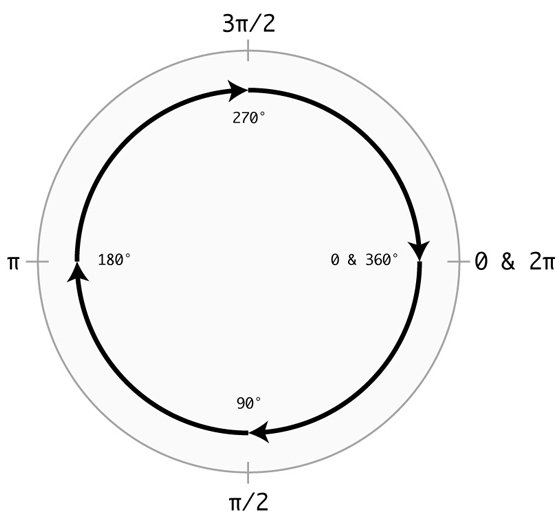
context.arc(50,50,40,0,2*Math.PI);
context.stroke();
arc(x-center, y-center, radius, startAngle, endAngle, anticlockwise)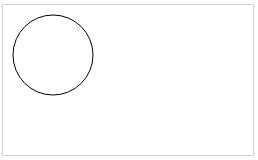
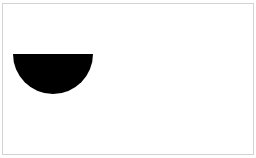
context.arc(50,50,40,0,Math.PI);
context.fill();
Text
strokeText()

context.font = "50px Arial";
context.strokeText("Canvas",20,60);
fillText()

context.font = "50px Arial";
context.fillText("Canvas",20,60);
align text

context.textAlign = "center";
context.fillText("Canvas", canvasElement.width/2, canvasElement.height/2);
Images
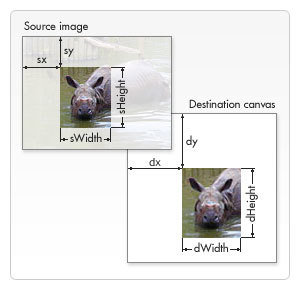
drawImage(image, sx, sy, sWidth, sHeight,
          dx, dy, dWidth, dHeight)
Animations
Simple animation
<body>
  <canvas id="canvasID" width="300" height="300" style="border:2px solid blue;"></canvas>
  <script>
    var canvasElement = document.getElementById("canvasID");
    var context = canvasElement.getContext("2d");
    var image = new Image();
    image.onload = function() {
      setInterval(move, 100);
    };
    var x = 10;
    var y = 10;
    function move() {
      if (x < 200 && y < 200) {
        x += 5;
        y += 5;
      } else {
        x = 10;
        y = 10;
      }
      context.clearRect(0, 0,
        canvasElement.width, canvasElement.height);
      context.drawImage(image, x, y, 80, 80);
    }
    image.src = "./smile.jpg";
  </script>
</body>
Q&A
HTML5 canvas
By Denis Bogush