Software Version Control with Git
- aka -- Software Configuration Management
- aka -- Revision Control Software
Why Version Control?
- How can I keep from losing my work?
- What was that code for anyway?
- How can I go back and see what my code was like before?
- How can I undo some changes or mistakes I made?
- How can I work on the same codebase on my home machine and laptop?
- How can I maintain several different versions of my project?
- How can several people all work on the same codebase at the same time?
- Who made these changes?
Many Options
- Git
- Subversion
- Mercurial
- CVS
- RCS
- Visual Studio Team Services
(Team Foundation Server) - ...
Choose from Different Architectures
- Locally managed, shared filesystem
- Client-Server
- Distributed
Choose from Different Usage Models
- Check out files to work on them (locking)
- Allow simultaneous changes (then facilitate merges)
Choose Project Model
- Open Source / Free Software
- Closed Source / Proprietary / Licensing
Git
About
- Written by Linus Torvalds (for Linux kernel dev)
- Licensed under GNU GPL v.2
- Free and Open Source (free as in speech, not free as in beer)
- Fully distributed model enforces Free Software Principles
- Supports MANY workflows: from large distributed projects to centralized small teams
- REALLY popular
- NOT simple!
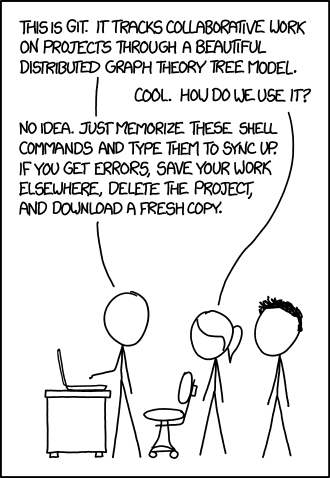
Why We Choose Git?
- Industry standard
- Works with all languages and project types
- Supports individual development and team based work
- Easy and free to install, runs anywhere
- Small and fast, lightweight
- Free online hosting: GitHub, Bitbucket, ...
- Easy for you to create an online Portfolio of your work
Why NOT Use Git?
- Your organization is already using something else
- You actually want centralized control
- You need compartmentalization, permission controls
- Want something easier, point and click
Operating Model
- It's a plain (command line) application
- Linux app
- Run on demand, i.e. command based
- Nothing running in the background "watching" your code
- Nothing happens automatically
- Based on a folder in your filesystem
Snapshots
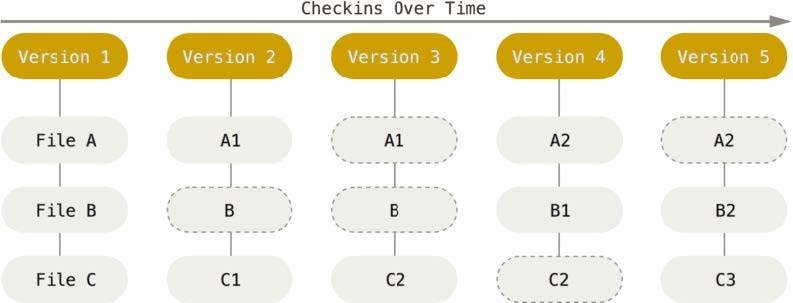
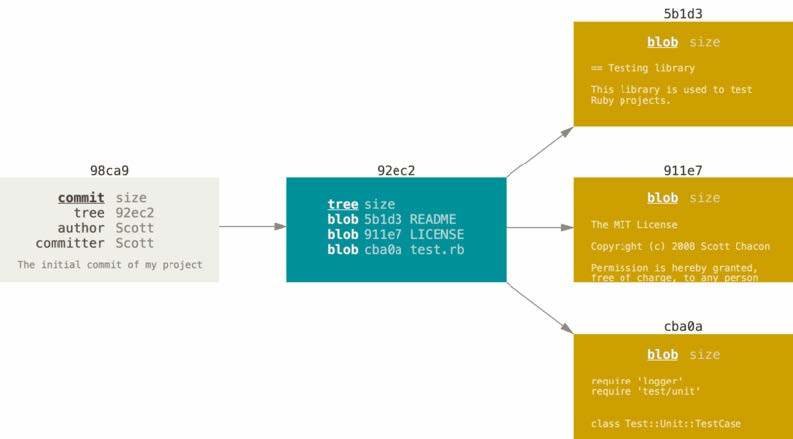
A Commit
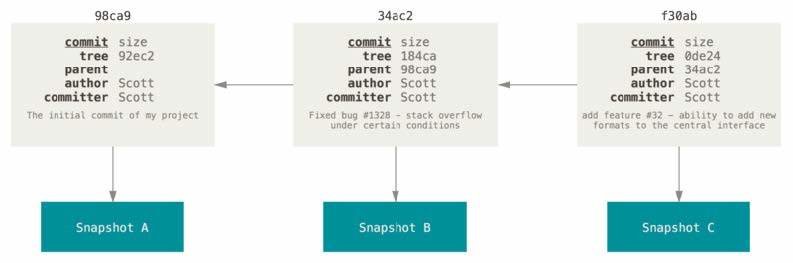
3 Commits
Branch "Pointers"
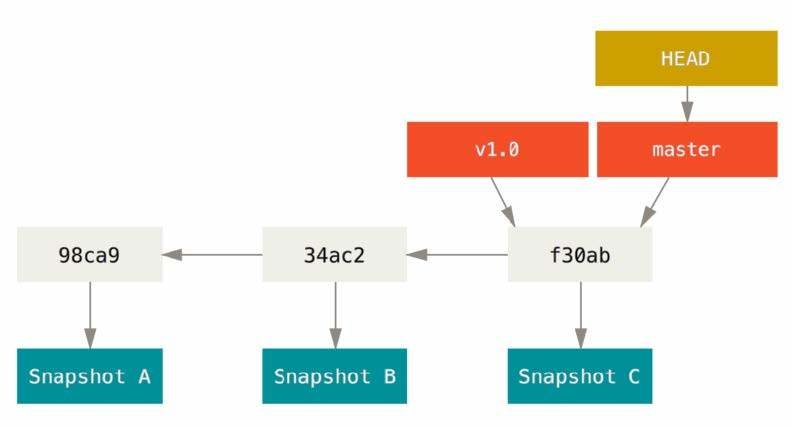
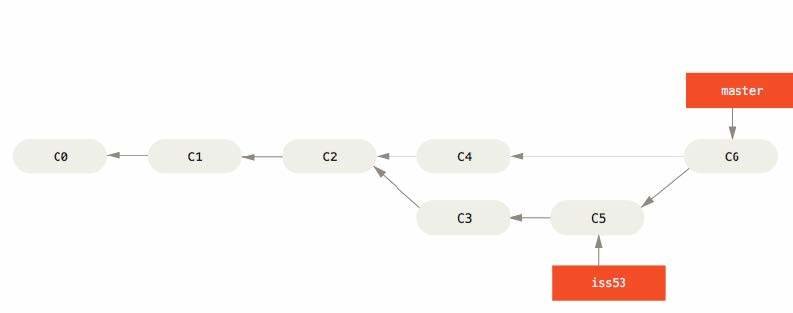
Branches
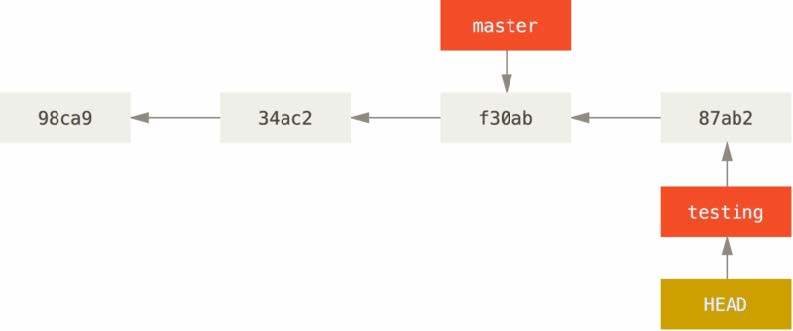
A Commit History
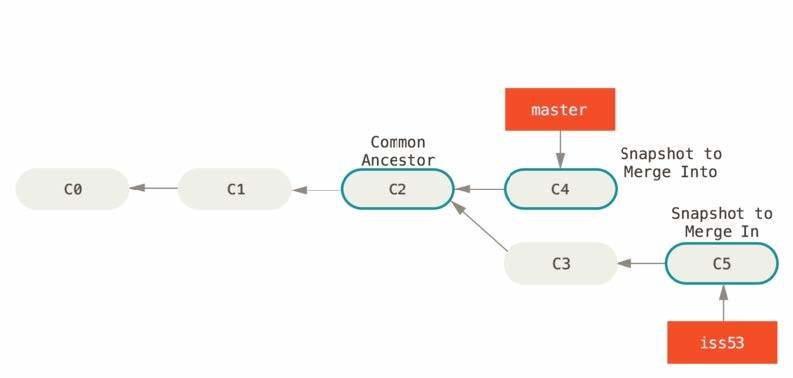
Preparing to Merge
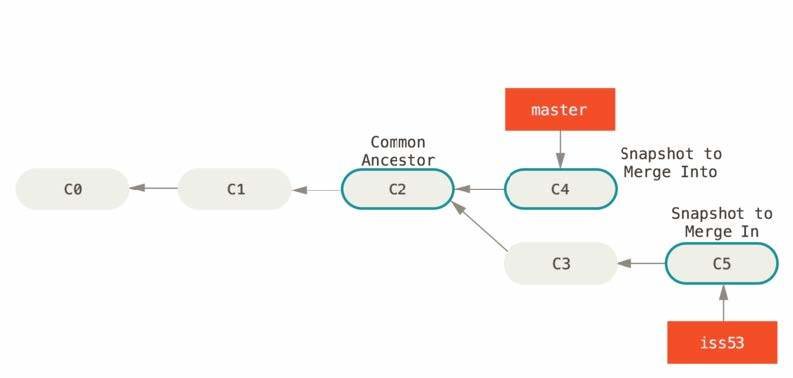
After Merge
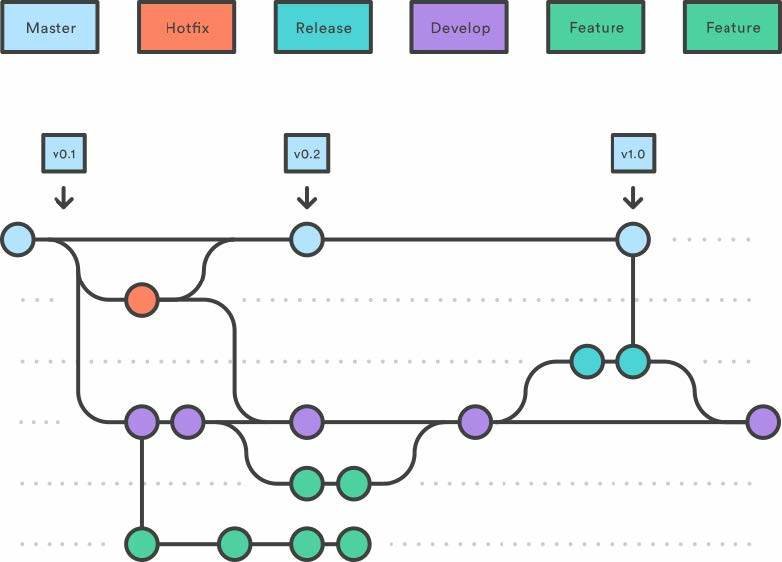
Complex Workflows
Image from: Bitbucket tutorial
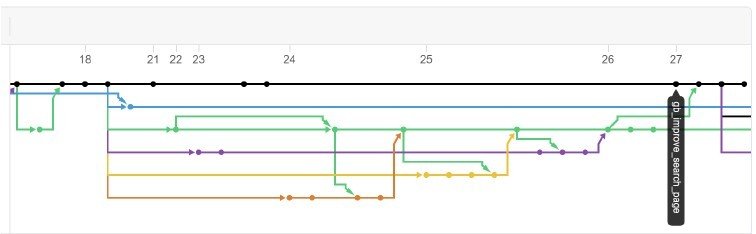
Example from Past Years
Graph of commit history for part of a team project
Git: Basic Process
3 States
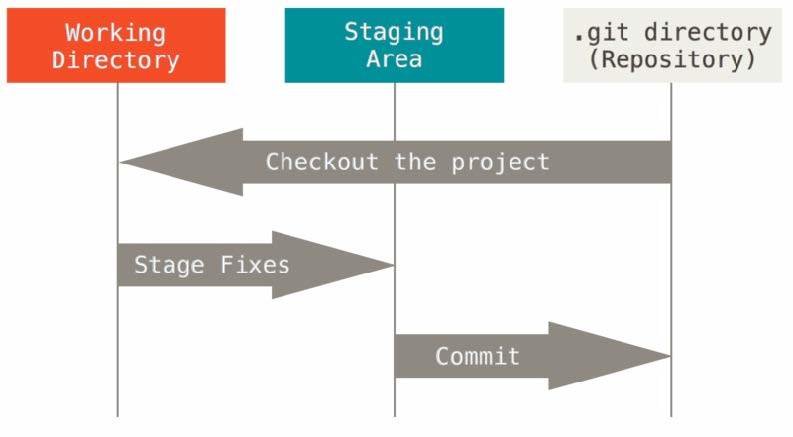
Lifecycle
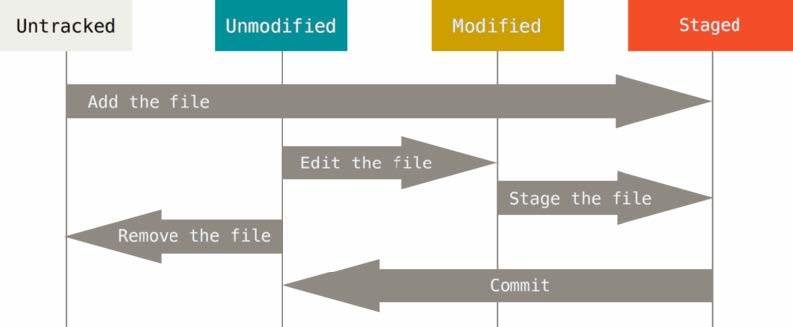
Git in Practice
Demonstration of basic workflow
First Get It
- Go to git-scm.com and install it.
- Windows: Git Bash
- Mac OS and Linux: Terminal (which by default is usually a bash shell)
Basic Use
- Create an empty repository
- some files to the working directory
- Stage one or more files
- Make a commit
- Edit a file and make another commit
- View commit graph and history
Thoughtfully assemble a commit
Ultimately a commit will mean something for the project
- How to un-stage files
Viewing work from the past
- Checkout
- Show
- Diff
Removing files
- Removing from the directory, vs.
- Removing from the repository
Lots of Useful Commands
- Go back to a previous version of a file
- "Undo" a commit
- View differences between one commit and another
- Stash in-progress work
- ...
Remotes (Remote hosting)
- GitHub
- Bitbucket
- GitLab
- ... your own server
What they do
Git in Practice
Using remotes
Start with a remote repo
- Create a repo on GitHub
- Clone it
- Make local commits
- Push local changes to the remote
Start with a local repo
- Create a repo on GitHub
- Push local repo and all history to remote
A Few Tips
- Always keep in mind the commit graph
- Don't just type in a command and execute it -- think carefully first
- Run
git statusa ton - Always write useful commit messages -- explain to yourself and others what the changes in the commit represent
- Learn to use Git from the command line first before trying to use a GUI for Git
- Ask for help
Where to go from here?
- Practice the correct workflow until it is second nature
- There will always be more to learn -- Git is powerful and complicated
- When in need, search for what you need to do (but be careful)
- Master using it yourself before joining a project with others
- Use it for all your projects!
Version Control with Git
By drmorgan
Version Control with Git
Introduction to Version Control with Git CS366