Email Signature Rescue
We create awesome HTML email signature templates that work with all you favorite email clients like Outlook, Gmail, Mac Mail, Thunderbird, iPhone, iPad + more.

Brought to you by Email Signature Rescue
Before you begin please have the following ready:
Your HTML email signature file saved to your computer.
HTML reading software like Notepad on PC or TextEdit on Mac, or any other HTML reading software is fine.
An email account using Horde webmail.
Brought to you by Email Signature Rescue

Login to your Email Signature Rescue account and download the email signature you would like to install.
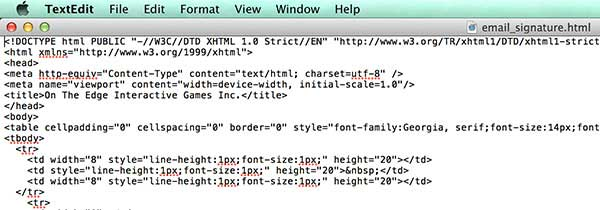
Open your email signature in Notepad on PC or TextEdit on Mac, or any other HTML reading software is fine.
Brought to you by Email Signature Rescue
Once your email signature is open in Notepad/TextEdit, press CTRL + A (Command + A for Mac) to highlight the code.
Then press CTRL + C (Command + C for Mac) to copy the code.

Brought to you by Email Signature Rescue
Important:
Do not use your mouse to select the area, only use CTRL + A (or Command + A) as you may miss out on grabbing some of the code.
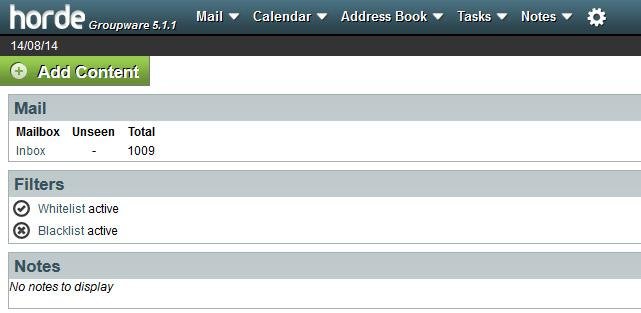
Login to your Horde Webmail Account.
Brought to you by Email Signature Rescue
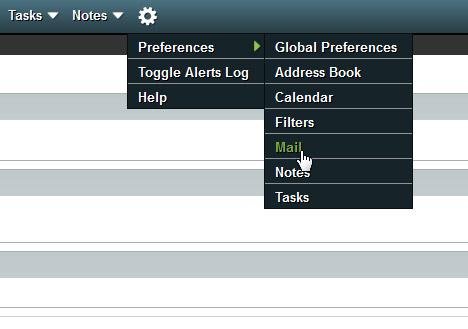
Once logged in, navigate to the Settings cog icon.
Click Preferences, then Mail.
Brought to you by Email Signature Rescue
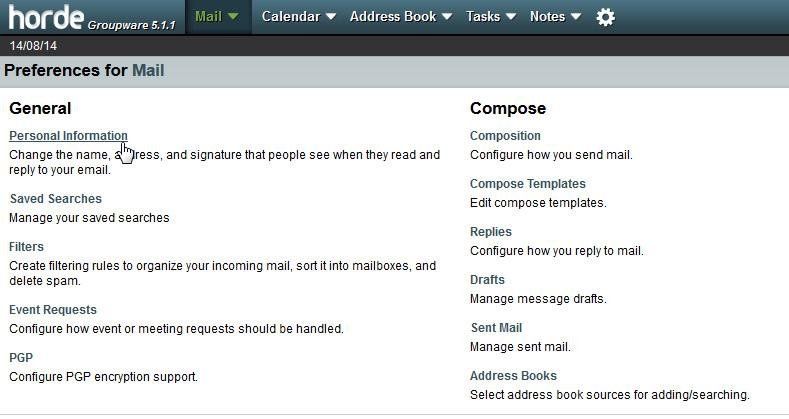
Underneath "General", click on the "Personal Information" link.
Brought to you by Email Signature Rescue
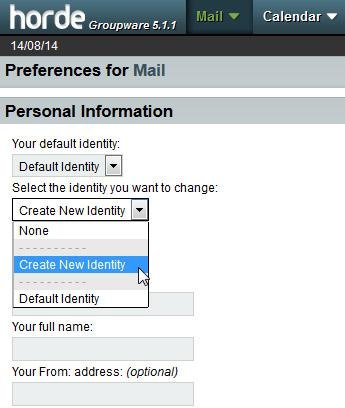
Click the dropdown just below "Select the identity you want to change:" and select "Create New Identity".
Enter your personal information in the corresponding text fields.
Brought to you by Email Signature Rescue
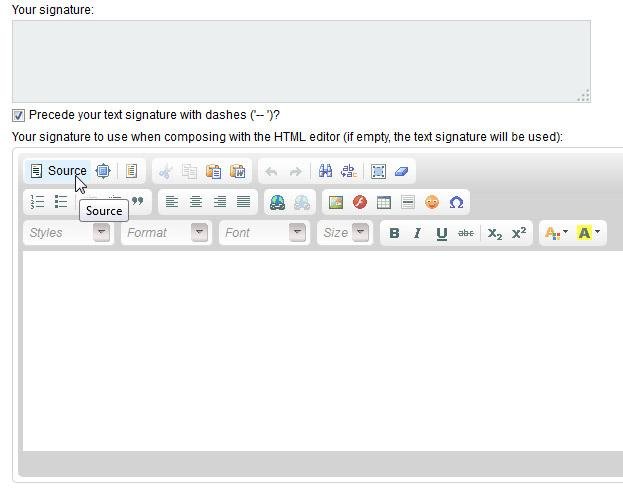
Ignore the top text field that says "Your signature:" as that is for Plain Text only.
We want to enter our signature in the one below that for HTML.
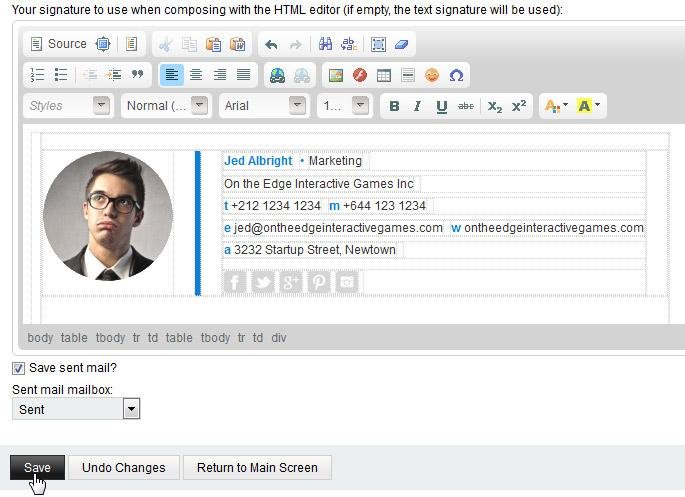
Click the source button to switch the text field to allow HTML code input.
Brought to you by Email Signature Rescue
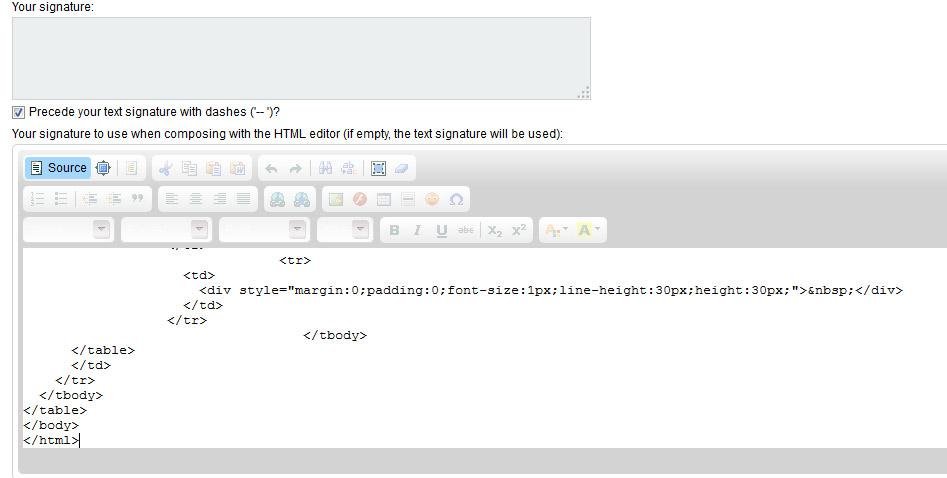
The source button will highlight blue. You can then paste the code you copied earlier into the text field.
It will look like the image to the right.
Brought to you by Email Signature Rescue
Click the source button again.
The text field will now switch back, and display your awesome signature.
Save your changes.
Brought to you by Email Signature Rescue
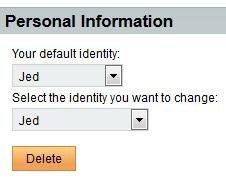
Once saved, change your default identity at the top, to the one you've just created.
Save again.
Brought to you by Email Signature Rescue
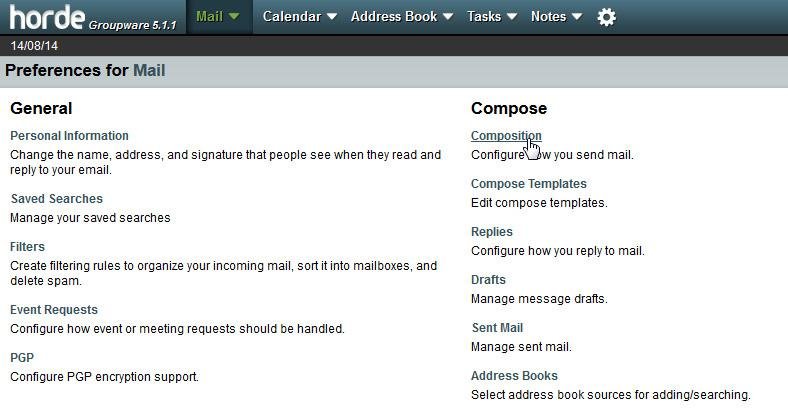
Return to the main screen from the menu at the bottom.
Select Composition underneath the Compose heading.

Brought to you by Email Signature Rescue
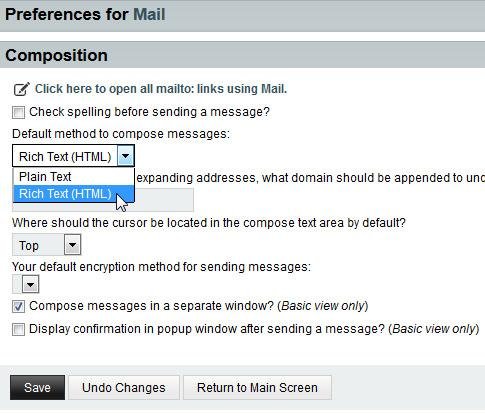
Navigate to the dropdown menu beneath "Default method to compose messages:" and select Rich Text (HTML).
This will ensure all emails are sent in HTML to allow for the formatting in your signature.
Brought to you by Email Signature Rescue
Compose a new message.
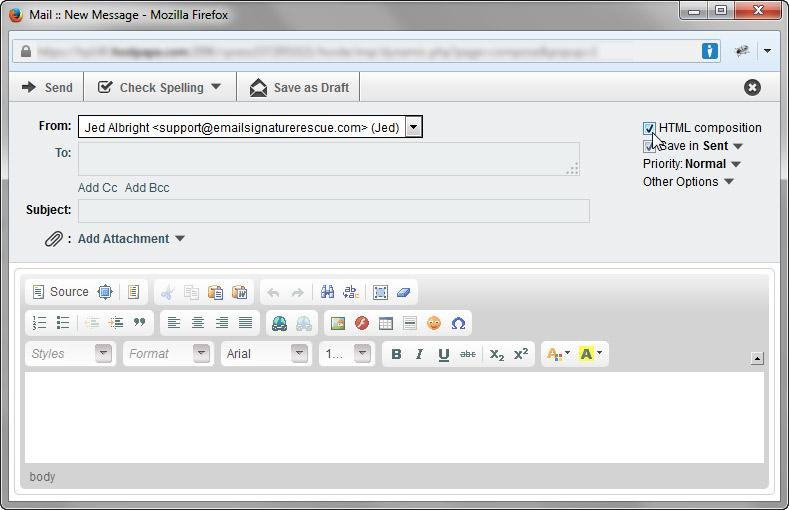
In the top right, ensure HTML composition is ticked.
Also, make sure the From: has the name of the identity you created at the end.
In our case (Jed) as you can see in the image to the right.
Note:
You will not see your signature when composing emails. However you can send a test email to yourself to ensure your signature is attaching at the bottom of emails you send.
That's it!
You will now be able to send your brand spanking new Email Signature when sending emails with Horde webmail.
Brought to you by Email Signature Rescue
Note:
You will not see your signature when composing emails. However you can send a test email to yourself to ensure your signature is attaching at the bottom of emails you send.
By Email Signature Rescue
How to install a custom HTML signature file into your Horde webmail