{Git &. GitHub}
Mastering Version Control
Let's start our adventure.
Meet our main protagonists
Meet the Team
👩🏻
Yasmine
👨🏼🦱
Karim
# The Story Begins
Yasmine and Karim have a group presentation due tomorrow morning.
- Topic: Climate Change
- Format: 20 Slides
- Stakes: 30% of their final grade
The Mission
They've been working on it separately all week and put everything in one shared folder: Groupe_Projet_Final.
# The Story Begins
11:00 PM 🌙
Yasmine has just finished writing all the text, 3 hours of intense writing.
The Calm Before the Storm
She saves the file and goes to grab a coffee.
# The Story Begins
11:05 PM 💥
Karim wakes up, opens the exact same file, adds his designs, charts and images., and hits Save.
The Gut-Punch
His version overwrites Yasmine's, because they were both editing the exact same file, at the same time, in the same folder.
Yasmine’s 3 hours of work?
Gone. Overwritten.
# The Story Begins
How do we usually react?
The Panic Instinct 🚨
- Spamming Ctrl+Z and hope
- Texting the group: "Does anyone have a backup?"
- Start over, but safely this time, by saving multiple versions:
report.docx- →
report_v2.docx - →
report_FINAL.docx - →
report_FINAL_vrai_cette_fois.docx
# The Story Begins
The Hard Truth
Why these "solutions" fail
- Ctrl+Z only works on your machine. It can't undo Karim's actions.
- Backups rely on luck, not a system.
- Messy Filenames are chaotic. Which one is the real final version? Who made the last change?
# The Story Begins
The Real Solution
What they actually needed
A system that:
- Never loses a version (even if overwritten)
- Lets you travel back to any point in history
- Tracks exactly who changed what and when
They didn't need a better filename.
They needed a Time Machine.
The Time Machine has a name:
Meet the VCS
Version Control System (VCS)
# CHAPTER 2
It is a system or a tool that tracks and manage every changes to your files over time.
keeping a full history in a special database called a repository
What is a Version Control System?
# CHAPTER 2
Know exactly what changed, when, and who did it.
1.Track changes
Roll back to a previous version if something breaks.
2.Revert mistakes
See differences between updates.
3.Compare versions
Work with others without overwriting each other’s work
4.Collaborate safely
Why do we use it ?
Experiment with new ideas without affecting the main project
5.Create branches
Here's exactly what a VCS would have given them
# CHAPTER 2
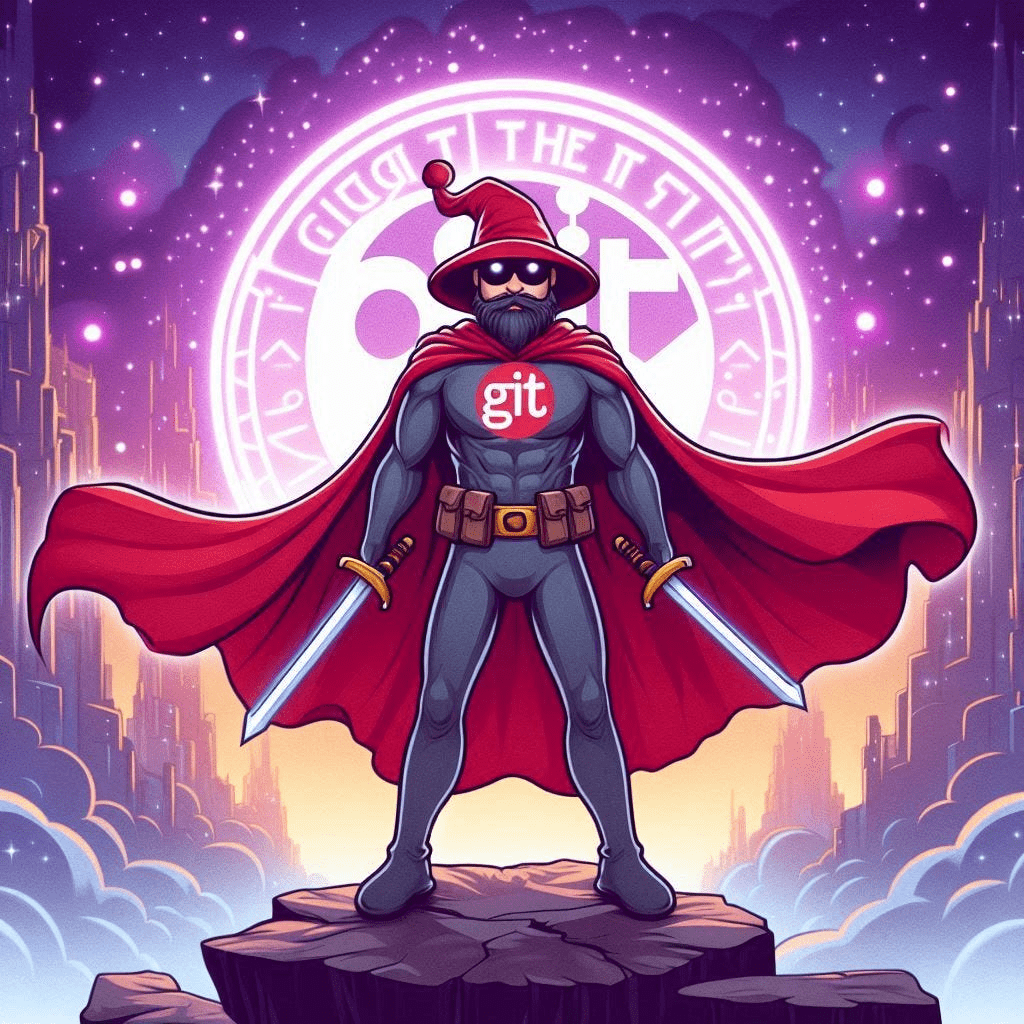
Meet Git: Your Version Control Superhero!
# The Story Begins
The most popular Version Control System in the world.
Meet Git
Git is a free and open-source version control system designed to handle everything from small to very large projects with speed and efficiency.
- Built for developers who needed a fast, reliable, and flexible way to manage code changes
- Works on any operating system: Windows, macOS, Linux
Lightning-fast operations
1.Fast
Easy and powerful
2.Branching & Merging
Every user has a full copy of the project history
3.Distributed
Make commits without an internet connection
4.Offline Work
Why Git specifically?
Cryptographic hashing ensures data integrity
5.Security
Git isn’t just another VCS, it’s the most popular one in the world
Perfect for solo devs, teams, and huge open-source communities
6.Flexibility
# The Story Begins
Git replaces the chaos of messy filenames with Commits
Commits, the "smart save"
A commit is a snapshot of your entire project at one exact moment, with a short message explaining what changed.
No more report_FINAL_vrai_cette_fois.docx.
Just: save, describe what you did, done
# The Story Begins
What a commit actually looks like
The Commit History
"Added introduction and climate data section" → Snapshot #1
"Fixed typo in slide 4 title" → Snapshot #2
"Added charts to slide 7" → Snapshot #3
Each snapshot is safe, dated, and attributed to whoever made it, and fully reversible.
# The Story Begins
The Next Morning ☀️
Yasmine wants to experiment
Yasmine has an idea: completely redesign the presentation, new colors, new layout, more graphs.
But she's scared. She doesn't want to break the version that already works.
# The Story Begins
A Branch
The solution: Branches
A separate copy of the project where you can experiment freely.
- If it works → bring it back.
- If it fails → delete it. The original is untouched.
# The Story Begins
The original, safe version has a name: main (or master)
Main/Master: the safe original
The default branch. The official, always-working version.
It's the version you'd hand in if the deadline hit right now.
The Next Challenge
A new problem
Yasmine is at home. Karim is at his place.
They want to keep working on the same project, without emailing files back and forth forever.
# GitHub
GitHub:
Your Cloud Home for Code


GitHub is a cloud-based platform for hosting and collaborating on Git repositories.
It provides features like code sharing, review and management, making it a popular tool for developers to work together on projects.
What Is Github ?
# GitHub
GitHub is more than just a place to store code !
it’s a collaboration hub for developers around the world...
# GitHub
How do we use Git ?
The question you're probably asking yourself right now
via the command Line
The answer is pretty simple
What is this again !
The command Line ?
# CHAPTER 2
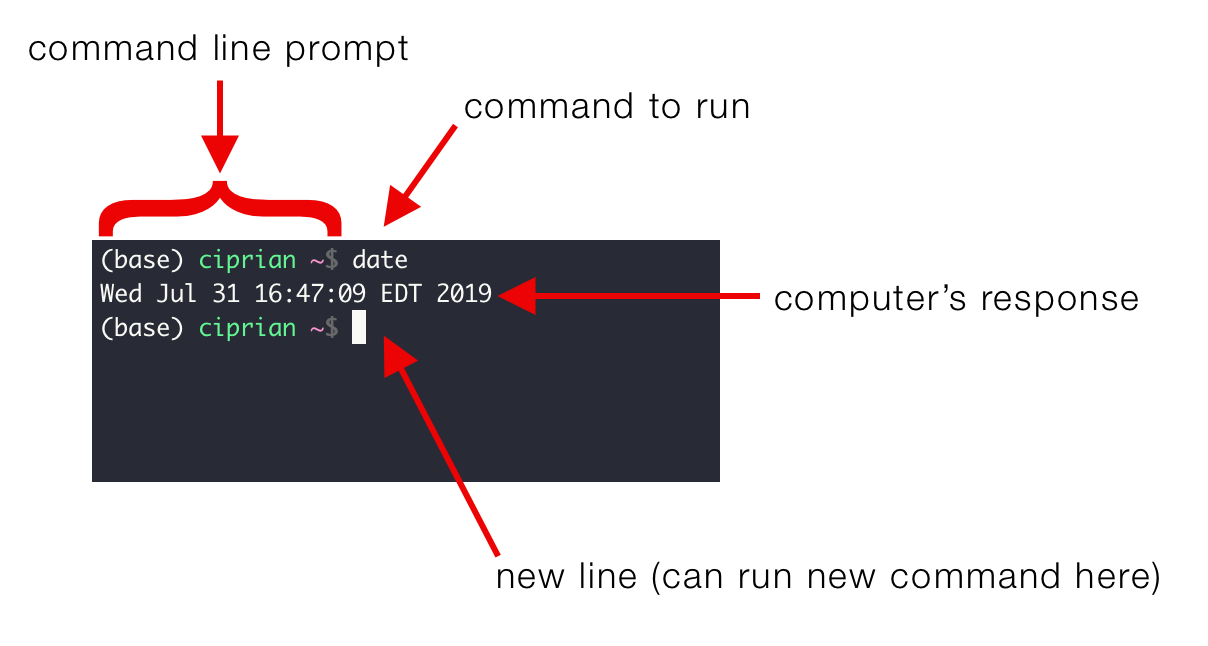
What Is the Command Line?
- The command line interface (CLI) is a text-based way to interact with your computer.
- Instead of clicking buttons, you type commands to perform actions.
# CHAPTER 2
# CHAPTER 2
Installing Git & Git Bash
git --version# PRESENTING CODE
Checking git’s version
If you see something like git version 2.xx.x, then you're good to go!
# CHAPTER 2
Configuring Git – Setting Up Your Identity
Configure Git settings
git config --global user.name "YOUR NAME"# PRESENTING CODE
git config --global user.email "YOUR EMAIL"git config --global core.editor "code --wait"
# Note : you must add vsc path to the env variableThese details appear in every commit you make, so make them official!
Git Commands in a Flash! ⚡
# PRESENTING CODE
Basic terms which help to understand git commands
-
Repository => the folder holding all your project's files, commits, and branches.
-
Branch => a separate copy holding a specific version of the project.
-
Master/Main => The default, official branch of the repository.
-
Commit => a saved snapshot of your changes, with a message.
-
checkout => Switching between the current branch and the one specified in the command.
# PRESENTING CODE
Basic terms which help to understand git commands
-
Merge => Combining changes from one branch into another.
-
Fork => Copying someone else’s repo to work on it independently.
- Head => Most recent commit of the repository you work with.
Your Git Command Cheat Sheet!
git init # Start a new repository# PRESENTING CODE
- Initialize a Repository
git clone [url] # Copy an existing repo- Clone a Repository
Your Git Command Cheat Sheet!
git status
# Note : Shows the current state of the working directory and staged changes,
# letting you see what’s new or what has been modified.
# PRESENTING CODE
- View the Status of Your Repository
git log
# Note : Shows a log of all previous commits, including commit messages, author names, and commit IDs.- View Your Commit History
Your Git Command Cheat Sheet!
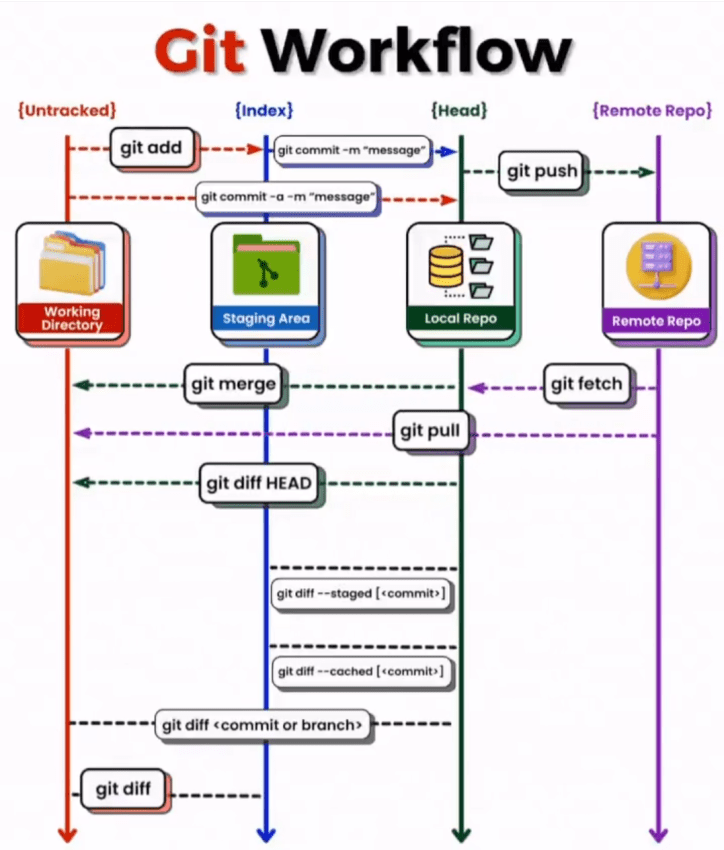
git add <file>
# Note : Stages the specified file(s) for the next commit.
# PRESENTING CODE
- Stage and Commit Changes
git add .
# Note : Stages all files for the next commit.
git commit -m "message"
# Note : Save the changes and adds a message to describe the commit.Your Git Command Cheat Sheet!
git branch <branch-name>
# Note : Creates a new branch, which is like a copy of your project where you can work on new features without affecting the main project.
# PRESENTING CODE
- Branching
git checkout <branch-name>
# Note :Switches to the specified branch.
git merge <branch-name>
# Note : Merges the specified branch into the current branch, combining changes.git branch # List branchesYour Git Command Cheat Sheet!
git remote add origin <url>
# Note : Connects your local repository to a remote GitHub repository.
# PRESENTING CODE
- Synchronizing with GitHub
git push
# Note : Uploads your changes from your local repository to GitHub.
git pull
# Note : Downloads changes from the GitHub repository to your local machine.git remote -v # Show remote reposYour Git Command Cheat Sheet!
git diff
# Note : Shows unstaged changes.
# PRESENTING CODE
- Viewing Differences
git diff --staged
# Note: Shows staged changes only.
# PRESENTING CODE
GitHub: Collaboration & More!
# PRESENTING CODE
git clone <url>
Copies an entire repository from GitHub to your local machine.- Cloning a Repository

- Forking
Forking a repository on GitHub creates a copy of it in your account. You can then work on it independently, making changes that don’t affect the original project until you submit a pull request.
GitHub: Collaboration & More!
# PRESENTING CODE
- Code Review and Collaboration Tools
GitHub allows team members to comment on code, suggest changes, and perform code reviews to ensure quality and consistency.
- Pull Requests
Pull requests (PRs) are a feature on GitHub that allows developers to propose changes, review code, and discuss updates before merging them into the main branch. A PR is created when you want your code reviewed before it becomes part of the main codebase.

GitHub: Collaboration & More!
# PRESENTING CODE
- Using .gitignore file
Purpose: Specify files or directories that Git should ignore (e.g., sensitive data, build files).
- GitHub Issues and Project Boards
GitHub issues are used for tracking bugs, features, and other tasks related to a project. Project boards allow teams to organize and prioritize work.
# PRESENTING CODE
Let's practice together !
It's your turn now !
- Git is a local tool for tracking changes in code.
- GitHub is a cloud-based platform for hosting Git repositories, enabling collaboration, and adding social features.
Summary: Git vs. GitHub

Git &
Github
in Action!
Let's Prractice all what we've learned today
Git & GitHub
By Fatima BENAZZOU


