Introduction to
Virtual Desktop infrastructure
presented by:
[Hamid Salehian]
Familiar with Virtualization?
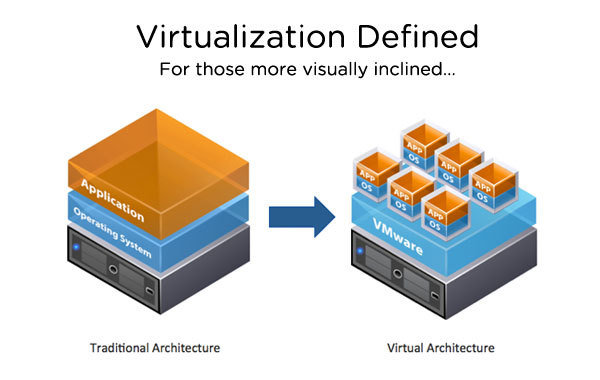
Virtualization: what is?
Software that manipulates hardware.
Virtualization: what is?
- The Kernel no longer gets direct access to hardware
- A hypervisor gets access instead
- A Specialized SW called as hypervisor emulates the PC’s CPU, Memory, HDD, network and other resources completely, enabling virtual machine to share the resources.
Type 1 vs Type 2:
Hardware
Hardware
VMM (Hypervisor)
VMM (Hypervisor)
Host
OS
Guest OS
Guest OS
Guest OS
Guest OS
Guest OS
Application
Application
Application
Application
Application
Type-1
Type-2
Bare metal architecture
XenServer, VMware ESX server, Hyper-V
Mostly for server, but not limited
OS-independent VMM
Hosted architecture
VMware Workstation, VirtualBox, Parallels
Mostly for client devices, but not limited
OS-dependent VMM
bin/libs
bin/libs
bin/libs
bin/libs
bin/libs
Physical vs VM
| - Desktop refresh is complicated and slow - One-off fixes are costly - Data security and compliance are at risk - Application conflict and impact performance |
- Rapidly update PCs or OS - Centrally fix and deliver patches globally at a lower cost - Centrally control track and secure date - Isolate application to improve performance and speed |
Physical World
Virtual World
VDI
also known as DaaS (Desktop as a Service)
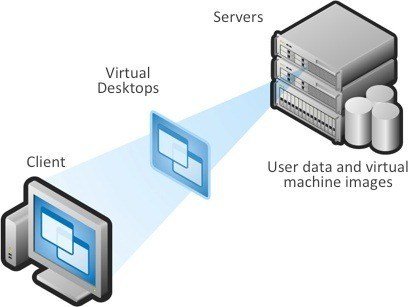
- Virtual Desktop Infrastructure is a computing model that adds a layer of virtualization between server and the desktops
- Desktop-centric service
VDI: what is?
-
End users connect to a remote desktop, but have a local experience
-
In a virtual desktop model the programs, applications, processes, and data are stored and run in a centralized server environment.
-
This allows users to access their desktops on any capable device, such as a traditional personal computer, notebook computer, smartphone, iPad, or thin client.
-
Every desktop user can utilize the same image
Dominant Products to build VDI: Citrix [XenDesktop, XenApp] VMware [View, ThinApp]
VDI: what is?
-
Desktop Location Independence
-
Hot-desking between Desktop PCs
-
Flexibly work from home and offsite contractor locations
-
-
Data Security & Compliance
-
Keeps data safe in the datacenter
-
Centralized tracking helps
-
-
Business Continuity
-
Quicker recovery from device malfunctions
-
Centralized data storage and backup reduces losses from stolen devices
-
-
Centralized Management
-
Reduced IT travel to user workstations for support
-
Improved desktop lifecycle management through quick access to centralized desktops.
-
VDI: why?
How it Works?
Architecture
VDI Server
Virtual Machines
Virtual Desktop Agent
VDI Client
VDI Protocol
Virtualization Management Platform
Session Broker
Architecture
-
Virtual Desktop Client (VDC)
-
The converged end user device
-
-
Virtual Desktop Agent (VDA)
-
The control software reside in a virtual machine hosted in datacenter
-
-
VDI Protocol
-
Transport the necessary control commands and I/O data
-
-
VDI Server
-
Virualmachin Hypervsior to provide VMs
-
-
Session Broker
-
Distribute session from clients to VM
-
Redirect disconnected session of users back to their original VMs
-
-
Vritual Management Platform
-
Manage the servers
-
Provision VMs quickly
-
Use template and libraries of disk image to provision client OS in VM
-
Ensure there is always a pool of VM available for new session
-
Protocols
Decision about a protocol depends on the device end users
| Microsoft Remote Desktop Protocol (RDP) |
− Standard Windows Remote Viewing Protocol − Good performance, supports audio output − Supported by VMware, Windows Hyper-V − Use UDP |
|---|---|
| Citrix Independent Computing Architecture (ICA) | − Highly secure, encrypted traffic − Bi-directional audio support − High performance over WAN − Use TCP |
| VMware PC over IP (PCoIP) | − To be incorporated into VMware − High Performance; more forgiving for high latency − Reducing bandwidth consumption over the LAN − Use UDP |
| Citrix High Definition End User (HDX) | − Multimedia redirection − Browser acceleration − Bandwidth control − Better Flash redirection and a new end-to-end flow control and frame-dropping capability. − better performance on WAN − based on ICA with massive improvement |
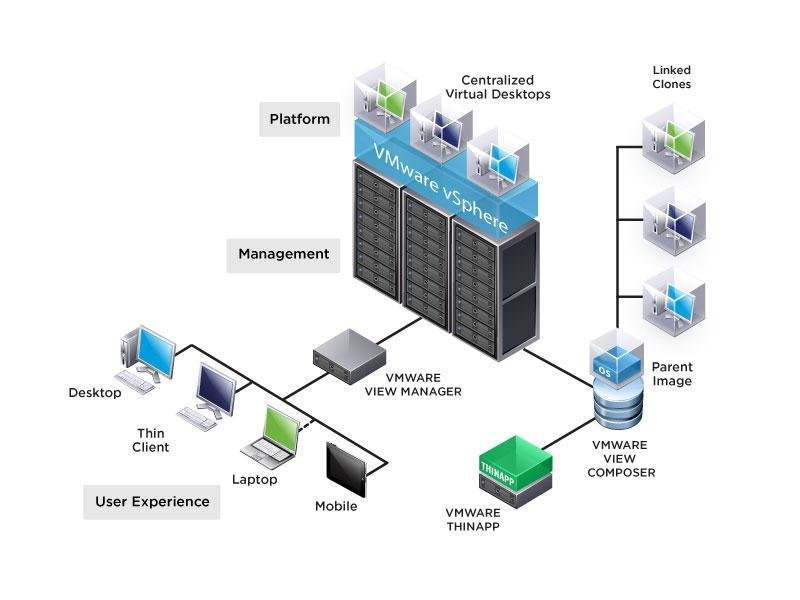
VMWare Horizon
- Directly Leverages the Power of vSphere
- Easier to Manage and Deploy
- More Companies Supported
- Better Integration with Microsoft Windows
VMWare Horizon
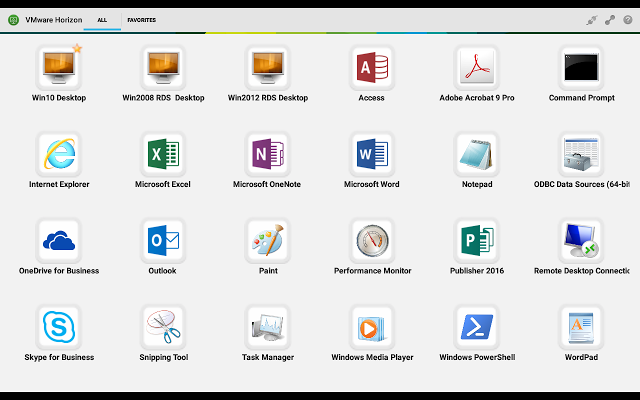
VMWare Horizon Arch
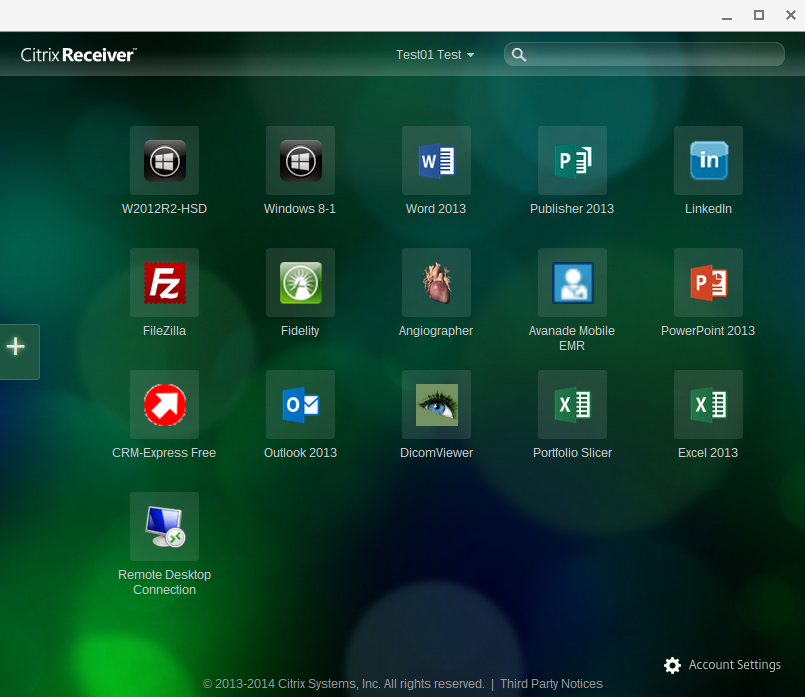
Citrix XenDesktop
- Supports any device, anywhere
- Run Independently on any hypervisors (vSphare, XenServer, Hyper-V)
- Deliver better performance for 3D and graphical application
- Better intergaration with Linux based operating system
- Hard to manage and deploy
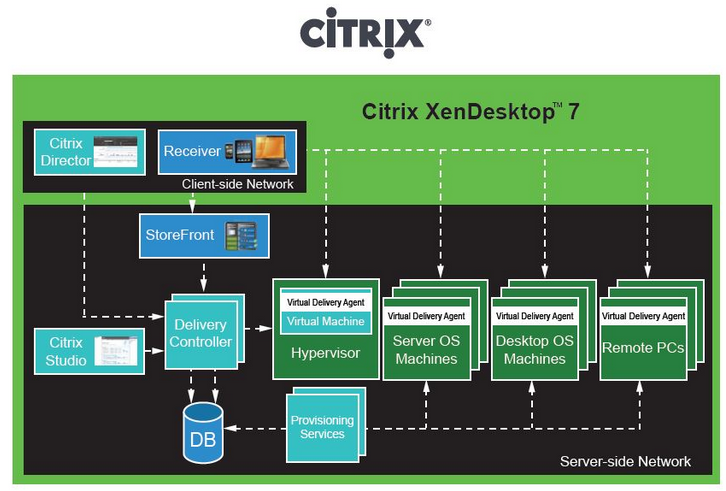
Citrix XenDesktop
Citrix XenDesktop Arch
Lets See
You Judge It
Want More...
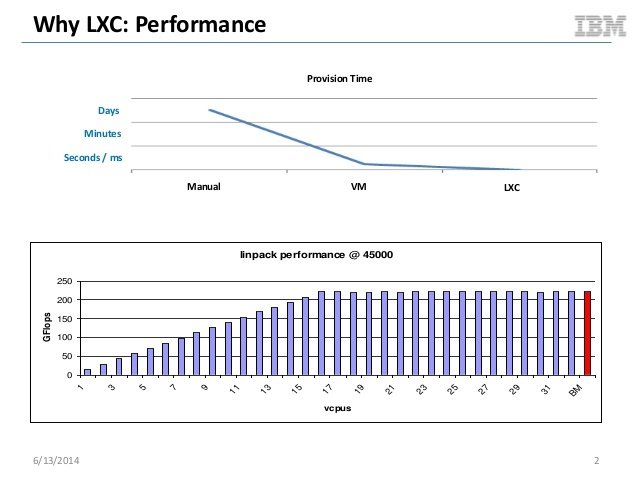
Linux Containers
Linux Container
- LXC (LinuX Containers) let you run a Linux system within another Linux system.
- A container is a group of processes on a Linux box, put together in an isolated environment.
- This is "chroot() on steroids"
Linux Container
Hardware
VMM (Hypervisor)
Host OS
Application
Application
Application
Hardware
VMM (Hypervisor)
Host OS
Guest OS
Guest OS
Application
Application
bin/libs
bin/libs
Guest OS
Application
bin/libs
bin/libs
• From the inside it looks like a VM
• From the outside, it looks like normal processes
How it Works?
Hardware
Linux Kernel
Containers
Containers
Containers
Containers
Containers
SELinux
cgroups
namespaces
Drivers
Management Interface
- namespace
- cgroups
- SELinux
namespaceS
Isolate processes from one another
- process
- filesystem
- networking
1
2
3
4
5
6
7,1
8
8,2
9,3
10,4
namespace
Cgroups
(control group)
Control resource allocation to processes
- I/O: limit reads / writes
- CPU: limit CPU usage
- Memory: limit total memory available
SElinux
Security-Enhanced Linux (SELinux) provides
secure separation of containers by applying
SELinux policy and labels.
2
Good, Bad, Ugly
Remember... (old Desktops)
-
Difficult to manage
- Variety of PC hardware and users’ need broadly distributed PC hardware
- Inefficient resource utilization
- High cost of PC management and support
- Difficult to protect and secure data
- Licences for application and OS required for every clients
Good
Benefits
-
Scalability
- Rapid Client Deployment
- Easy to deploy for scaled situation (If required easy to deliver new desktop for new users)
- Better business continuity and disaster recovery capabilities.
-
Energy Saving
- Reduction in electricity costs, as thin client computers use only a fraction of amount of energy that is used by a desktop computer.
- Green Computing
-
Security
- Improved Data Security and centralized data storage
-
Productivity
- Improved worker productivity because of reduced PC downtime and the ability to access desktops from multiple locations;
-
Mobility
- Access from Anywhere and Any device
Special Benefits
-
Established new classes
- Oracle RAC
-
Students can access for class desktop from any devices
- Student can bring own laptops
-
Virtual Classes
- Trend in Education Systems
-
Enable Hardware independently deployment for any client and desktop
- ASM on Oracle
-
Allow users to use mixed environment operating systems and application
- Oracle Linux alongside Windows
-
Data consistency
- Restore to previous class session
-
Data Security
- Easy to control user in class
- Enable Limited Internet to class user
Bad
Hardware
- Fewer computers need to be purchased.
- Reduce cost of maintain and purchased hardware
- PCs last longer and older PCs are able to run on a newer operating system and updated applications.
- “Bring your own device” or BYOD programs
Pros
Cons
- The initial cost of VDI hardware exceeds the cost of purchasing new PCs
- There is a lot of new equipment your company needs to purchase before and after implementation.
Application
- Most applications are easy to virtualize and seamlessly
- Run highly resource required Application and delivered to users (AutoCAD, Mathlab, Photoshop CS)
- Installed and maintained by functional group and can be mass updated and patched.
- Install application alongside without conflict
Pros
Cons
- Specialized applications that require modifications or special parameters are difficult to virtualize
- Some of your company’s applications are unable to be virtualized
Administration
- The operating system and applications are used on the same image making them less expensive to administer.
- The system is controlled centrally and fewer personnel are necessary to complete fixes.
- Reduction in desktop support costs
- Reduce IT personnel time
Pros
Cons
- Administrator turnover tends to be high during the initial implementation due to significant changes in duties.
- Require more training for admins to manage and configuration
- Training for users of VDI is challenging, they need to learn new terminology and transition to a different interface with different troubleshooting steps.
Deployment
pre process
- Collect detailed information on current estate
- OS versions and patch levels
- CPU make, model, speed,
- Physical memory size
- Age of device
- Total number of displays and maximum resolution
- Total number of local disks, total capacity of storage available, total amount of storage utilized
- Local printers USB devices and peripherals (connected at scan)
- Applications deployed • The installed applications discovered on the end point,
- Application usage • The average and maximum memory used by each discovered application
- The peak and average CPU usage of each discovered application
- Local storage usage – the amount of disk space broken down by application
-
Software
- Minimal
- VMware Horizon Server
- VMware Mirage
- VMware Horizon Client
- Recommended
- Citrix XenDestop
- Citrix Reciever
- Net NetScaler
- Minimal
Requirment
-
Hardware
- Minimal
- Server : HP Proliant DL380 Gen8
- CPU :
- RAM : 68 GB
- Storage : 4 x 300 GB (1.2TB) SAS 10K
- Recommended
- Server : HP Proliant DL380 Gen9
- CPU :
- RAM : 128 GB
- Storage : 6 x 300 GB (1.8TB) SAS 15K
- Minimal
Requirment
Demo Time
Question!?
References
- Vmware VDI http://www.virtualizationadmin.com/articles-tutorials/vdi-articles/general/virtual-desktop-infrastructure-overview.html
- Virtual Desktop Infrastructure http://ebookbrowse.com/03-david-young-vdi-ppt-d138117600
- Virtual Desktop Infrastructure (VDI) Protocol Problem Statement http://wenku.it168.com/d_000070198.shtml
- Microsoft Client Virtualization Strategy White Paper http://ebookbrowse.com/microsoft-client-virtualization-strategy-white-paper-final-brz-pdf-d216269211
- Citrix http://flexcast.citrix.com/technology/hostedshared.html
- VMware View 5 Competitive Datasheet
- VMware Reference Implimantation - Northrim Bank
- How to migrate XenDesktop to VMware Horizon - VMware Inc.
Thank You For Your Attention
powered by: slides.com
see more: https://slides.com/hsarena
Introduction to VDI
By Hamid Salehian
Introduction to VDI
Introduction to Virtualization and VDI