Session #6:
Simon Game - finally coding
Follow these steps to get the multiplayer Simon Says game running locally and deployed to the cloud.
💡 Tip: Hover over any gray code block to see the copy button, or triple-click inside to select all text.
Text
📋 Prerequisites
Before starting, make sure you have:
- ✅ Cursor IDE installed → Download here
- ✅ Node.js 18+ installed → Download here
- ✅ Git installed → Download here
- ✅ GitHub account → Sign up
- ✅ Render.com account (free tier) → Sign up
Step 1: Clone and Open in Cursor
1.1 Open Terminal
-
Mac: Press
Cmd + Space, type "Terminal", press Enter -
Windows: Press
Win + R, type "cmd", press Enter
1.2 Clone the Code
Copy and paste this command:
git clone https://github.com/itayshmool/simon-game-app-cday.git
1.3 Open in Cursor
- Open Cursor IDE
- Click File → Open Folder
- Navigate to the
simon-game-app-cdayfolder - Click Open
Step 2: Setup and Run
In Cursor, open the terminal: Press Ctrl + ` (backtick key)
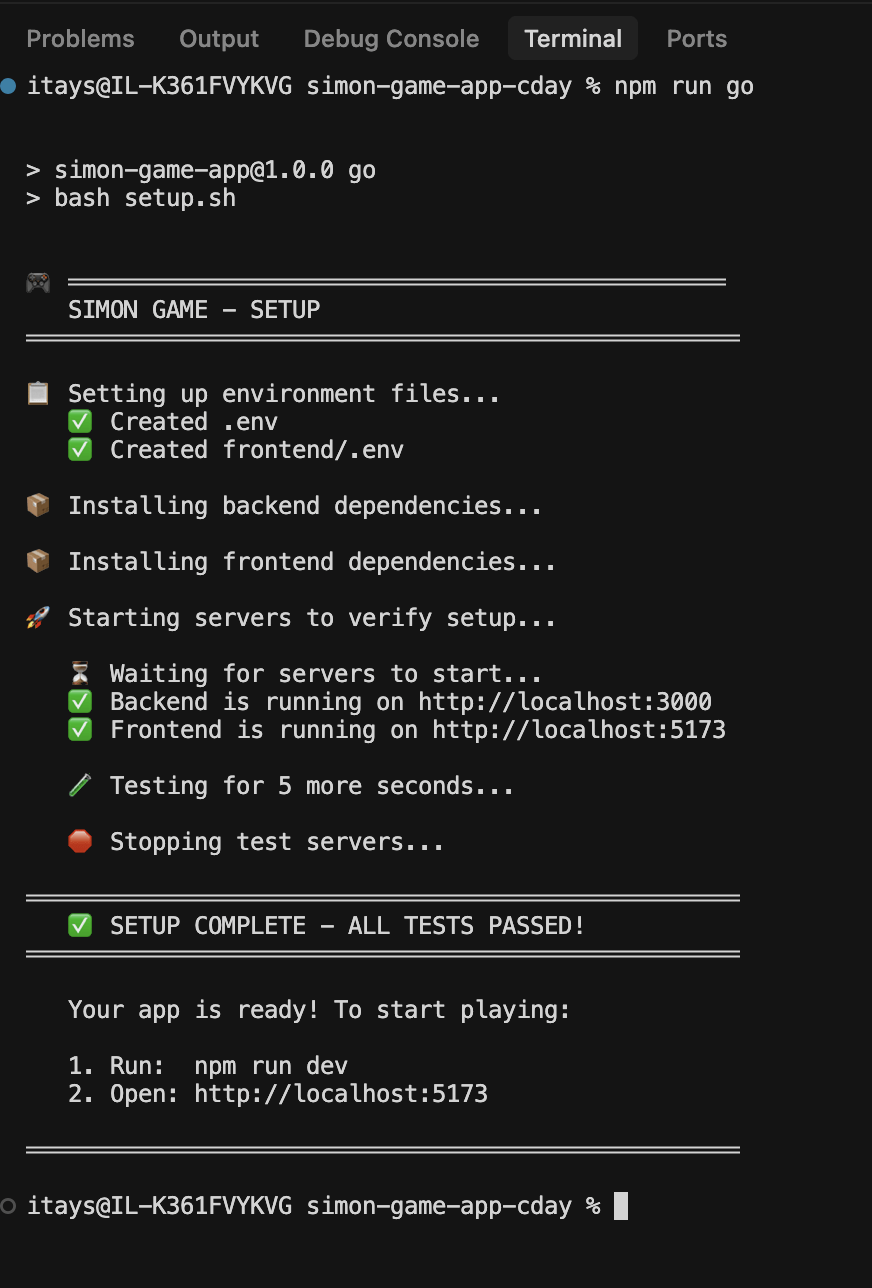
Run this command:
npm run go
Step 2: Setup and Run
This will install everything and start the app. You should see:
🎉 The game is running (locally)!
Step 3: Test the Game Locally
- Click "Create Game"
- Enter your name, pick an avatar
- Click "Create Game"
- Click "Start Solo Game"
- Play! 🎮
Step 4: Deploy to Render
Now let's put your game online so anyone can play!
4.1 Create Your Own GitHub Repository
First, you need the code in YOUR GitHub account (not the workshop account).
Run this command:
npm run publish
This will:
- ✅ Create a new repository in your GitHub account
- ✅ Push all the code to it
When done, you'll see your repository URL: https://github.com/YOUR_USERNAME/simon-game-app
Step 4: Deploy to Render
⚠️ First time? If you see "GitHub CLI not installed", ask Cursor:
Help me install GitHub CLI and login
4.2 Deploy on Render (Using Cursor)
In Cursor chat (Cmd+L or Ctrl+L), copy and paste:
Deploy my simon-game-app to Render. Create a backend web service and a frontend static site using the render.yaml configuration
Cursor will:
- ✅ Create the backend service on Render
- ✅ Create the frontend static site on Render
- ✅ Configure the build commands
- ✅ Give you the URLs when done
⏳ Wait 5-10 minutes for the first deployment to complete.
4.2 Alternative: Deploy Manually
If Cursor can't deploy, do it manually:
- Go to dashboard.render.com
- Click New → Blueprint
- Connect your GitHub account (if prompted)
- Select your
simon-game-apprepository - Click Apply
4.3 Configure Environment Variables
In Cursor chat, copy and paste:
Get my Render services URLs and configure the environment variables: set FRONTEND_URL on simon-game-backend to the frontend URL, and set VITE_API_URL and VITE_SOCKET_URL on simon-game-frontend to the backend URL
Cursor will:
- ✅ Find your services on Render
- ✅ Get the URLs automatically
- ✅ Configure all environment variables
- ✅ Trigger a redeploy
⏳ Wait for redeploy to complete (1-2 minutes).
4.3 Alternative: Configure Manually
If Cursor can't configure, do it manually:
- Go to dashboard.render.com
- Click simon-game-backend → Environment
- Set
FRONTEND_URL= your frontend URL (e.g.,https://simon-game-frontend-xxx.onrender.com) - Click Save Changes
- Set
- Click simon-game-frontend → Environment
- Set
VITE_API_URL= your backend URL - Set
VITE_SOCKET_URL= your backend URL - Click Save Changes
- Set
4.4 Save Your Deployment Configuration
Let's save your deployment details so you can reference them later.
In Cursor chat, copy and paste:
Create a .cursorrules-deployment file that documents my Render deployment: include the service names, URLs, and environment variables configuration. Get the actual values from Render.
Cursor will create a file with your deployment details like:
- Backend URL
- Frontend URL
- Environment variables
- Service IDs
This is useful if you need to update or redeploy later!
4.5 Test Online
- Open your frontend URL in browser
- Create a game
- Share the link with a friend
- Play together! 🎉
🎉 Congratulations!
You've successfully:
- ✅ Set up a full-stack TypeScript project
- ✅ Run a React + WebSocket app locally
- ✅ Deployed to the cloud
Your game is live! Share the link with friends and family.
🛠️ Troubleshooting
| Problem | Solution |
|---|---|
npm run go fails |
Make sure Node.js is installed: node --version should show v18+ |
| App won't start | Close other terminals, try again |
| Can't connect on Render | Check environment variables are set correctly |
| WebSocket issues | Make sure URLs use https:// not http://
|
❓ Need Help?
Ask Cursor! Open chat (Cmd+L) and describe your problem:
I'm getting this error: [paste error message]
Happy coding! 🚀
🎮 Simon Game Workshop
By Itay Shmool
🎮 Simon Game Workshop
Explore the exciting Simon Game Workshop! Learn how to clone, set up, and deploy your own game effortlessly, with troubleshooting tips along the way. Uncover the joy of game development and unleash your creativity!