COMP3512
winter 2024
lec-js-05
Time Marches On.
⚠️
⚠️
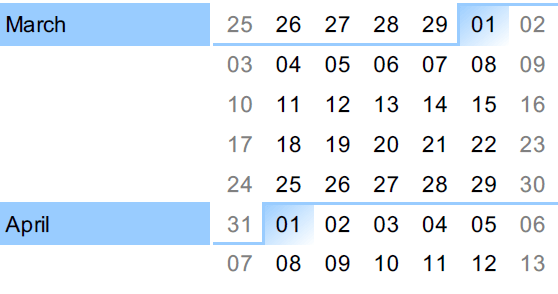
March 13th: Midterm 2 (JS)
March 15th: Withdraw Deadline
⚠️
⚠️
⚠️
April 5th: Project Submission
April 11th: Final Exam
let's talk about these things today:
◉ How can we effectively add multiple elements?
Modifying DOM elements
◉ How can we react to user actions on a web page? (multiple examples)
Working with Events
Effectively adding multiple DOM elements.
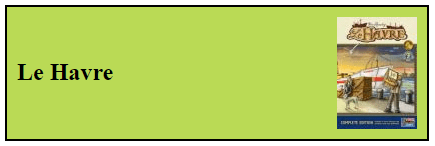
On Wednesday, we made some div elements like this:
<div class="game-tile">
  <h2 data-bgg-id="35677">Le Havre</h2>
  <img src="./img/le-havre-small.jpg" alt="Le Havre" />
</div>
What if we wanted to make a bunch of them?
If we've made a function to create one of these elements from a game object...and if we assume we've got an array of game objects...then we've got ourselves an easy way to get what we want.
Hint: do you know a way of turning an array of something into an array of something else? 🤔
01-element-factory
Let's get interactive.
We want our web pages to react to user actions.
What kind of actions can a user take when they interact with a web page? 🤔
These user/page interactions are examples of events.
There are many (many many) types of events that can occur in a web page.
In this course, we'll only dabble with a few specific events, but that's ok: once you know how to deal with one event, you'll have a good idea how to deal with any event if the need arises in the future.
A very good habit to get into when dealing with events:
Write down the guiding sentence
"When a user [ some action ], [ some result ]."
- When a user presses the h key, the navigation bar's visibility should toggle.
- When a user enters something with an 'a' in an input box, the search button should change from disabled to enabled.
- When a user clicks on the ➕, the next question should appear in the question area.
- When a user submits the form, the user they entered should appear as a tile on the game board.
"When a user [ some action ], [ some result ]."
This helps us figure out what specific event we want to react to.
This helps us focus on what needs to happen when the event fires - it tells us what our event handler needs to do.
Now that we have an idea what's supposed to happen, we need to take some steps.
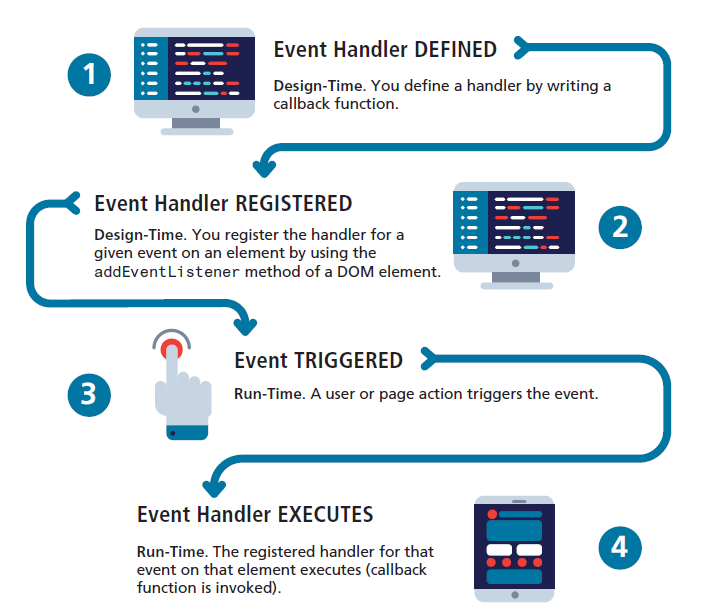
Define an event handler
Register that handler
Fig 9.10 from the textbook
When a user presses the h key, the navigation bar's visibility should toggle.
We want to react to the keydown event.
(Yes, you could use keyup or keypress successfully here. Feel free to investigate their differences.)
We want to toggle a nav element's visibility when the event fires.
I find it useful to start by temporarily registering a console.log as the handler.
This way, I can make sure I'm choosing the right event, attaching it to the right thing, and getting a chance to look at the event object involved, too!
When reacting to someone hitting a key, I suggest telling either the document or the body element to listen for the keydown event.
document.addEventListener("keydown", console.log);
document.querySelector("body").addEventListener("keydown", console.log);
document.body.addEventListener("keydown", console.log);
⚠️Use only ONE of these! 😁

Here's what happens in the console when I press f, followed by s
Notice any useful property?
Now that I know the page can react to a key being pressed, I can create a "real" event handler.
You can use an anonymous function (standard or arrow form) if you'd like...but having a well-named function declaration helps a lot.
let nav = document.querySelector("nav");

function toggleNavVisibility(event) {
  if (event.key === "h") {
    nav.classList.toggle("hidden");
  }
}

document.body.addEventListener("keydown", toggleNavVisibility);
Put this here so it is just runs once.
Make sure we only deal with 'h'!
Callback time!
02-keydown
BRAIN BREAK
When a user enters something with an 'a' in an input box, the search button should change from disabled to enabled.
We want to react to the input event.
We want to change a button's state from disabled to enabled.
document.querySelector("input").addEventListener("input", console.log);Let's start off as before, console.logging on the input event.
Input events happen with input elements.

Here's what happens in the console when I press h, followed by i
Notice any useful properties here?
Once again, we're now in a position to create a useful handler.
let inputElem = document.querySelector("input");
let buttonElem = document.querySelector("button");

function enableButtonIfAPressed(event) {
  if (event.data === "a") {
    buttonElem.disabled = false;
  }
}

inputElem.addEventListener("input", enableButtonIfAPressed);
03-input
03a-input
Let's do a slight variant: the button should be disabled unless there is an 'a' in the input field.
In this case, we can't use the event's data property. We need to talk to the input itself and ask it what text it has.
⚠️ Note that our event hander does NOT have to use the event! This is perfectly ok!
BTW, this variant is useful for the Project's movie title search requirements....
When a user clicks on the ➕, the next question should appear in the question area.
We want to react to the click event.
We want to add a new element to the DOM.
let addQuestionElem = document.querySelector("#add-question");

addQuestionElem.addEventListener("click", console.log);
Let's start off as before, console.logging on the click event.
You can click ANY element in the body!
Here's what happens in the console when I click on div#add-question:
There isn't really anything here I need - I just want to know that the div was clicked!

So just like our last input variant, we don't need to use the event object in our handler.
04-click

lec-js-05
By Jordan Pratt
lec-js-05
Events 1