How to conduct studies online
Using lab.js and JATOS
Lab meeting 7.5.21
Lea
Today...
- Lab.js
- brief overview interface
- creating a simple study
- Getting the study online
- open-lab
- JATOS
- Redirect from & to SONA
Easy to...
-
...start → browser-based
-
...share experiments (.json)
-
...use: Builder (+ scripts)
-
...put studies online (open-lab/JATOS)
-
...use for online studies → javascript
-
...mousetrack
-
...get help (slack)
But...
-
There might be some initial confusion,
-
The documentation consists of videos,
-
Some Javascript (and html) might be necessary!
lab.js
The lab.js interface
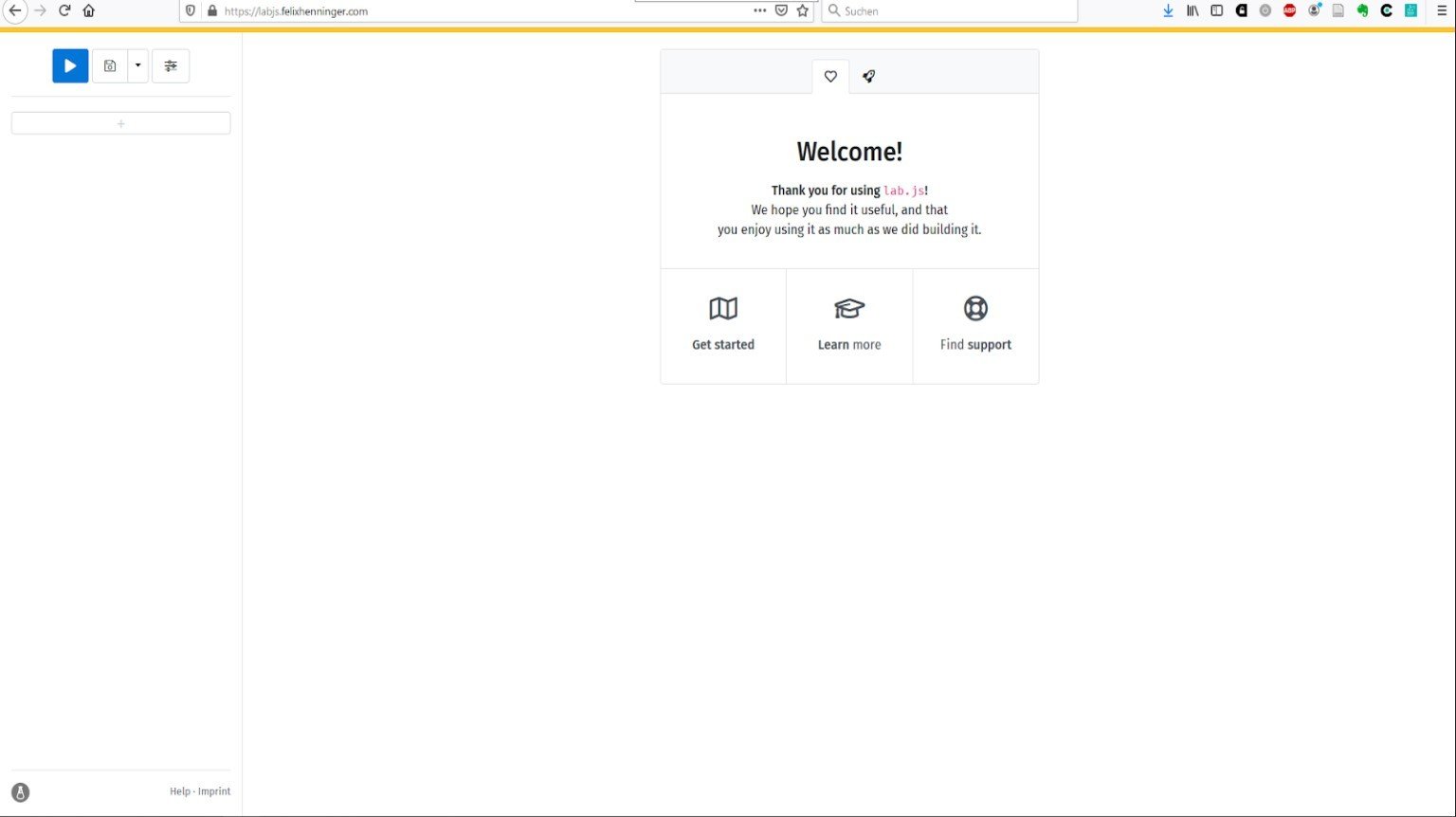
labjs.felixhenninger.com/
A simple study
-
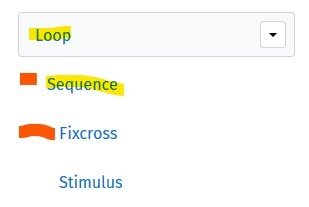
Add a trial sequence
- Determine the behavior (i.e. time-outs, clicks...)
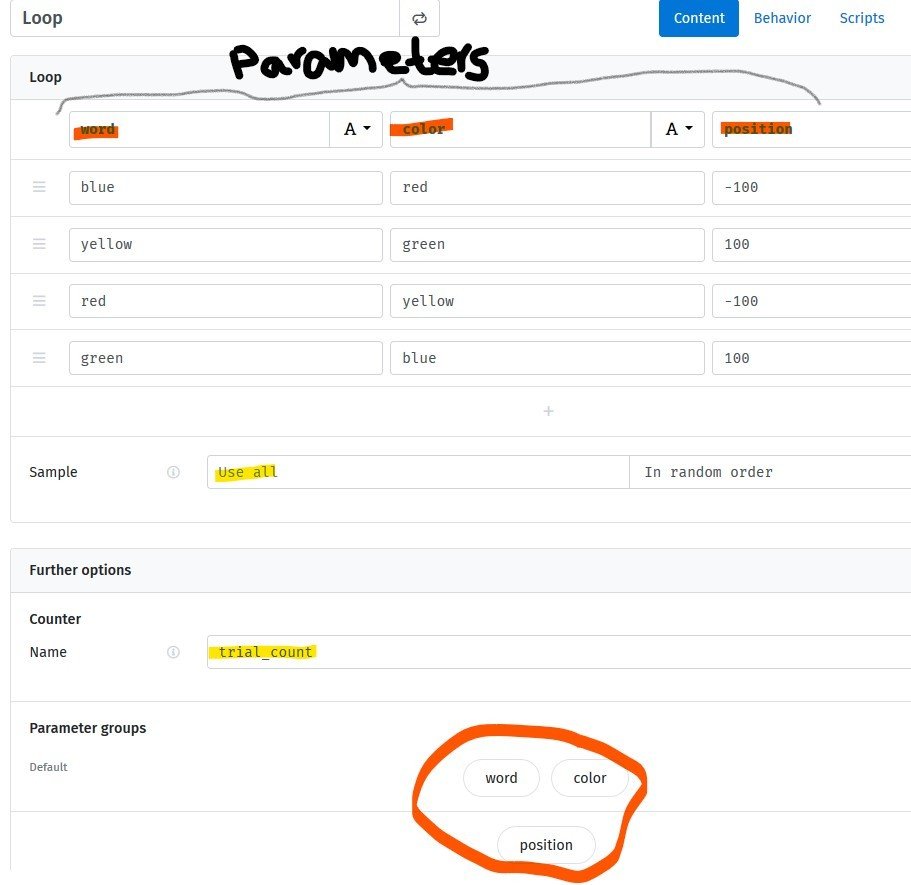
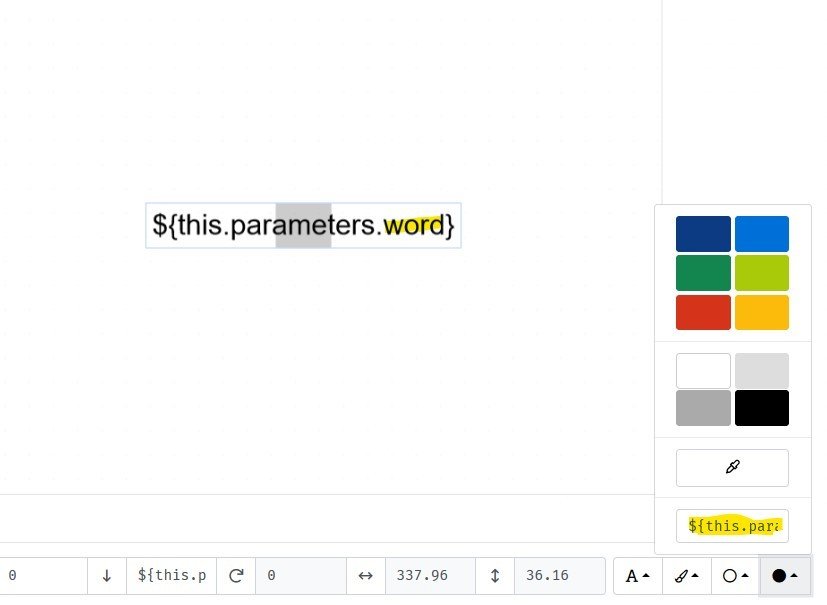
- Nest it in a loop (w/ changing parameters, i.e. stimuli)
- Add instructions etc.
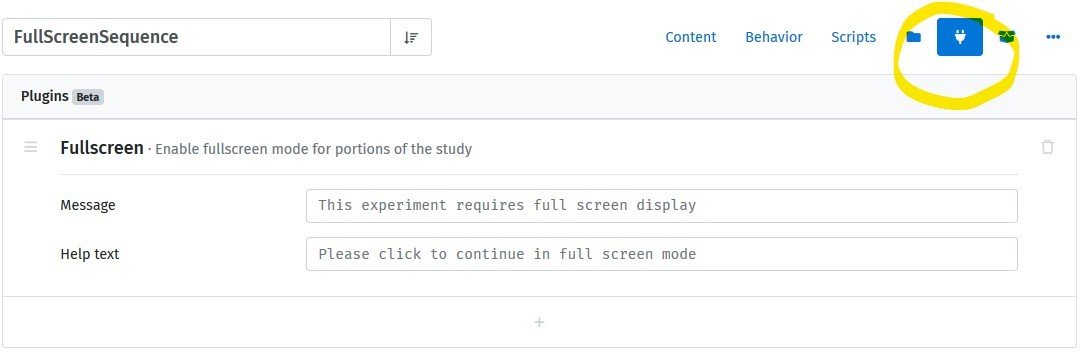
- Wrap it in a full screen sequence
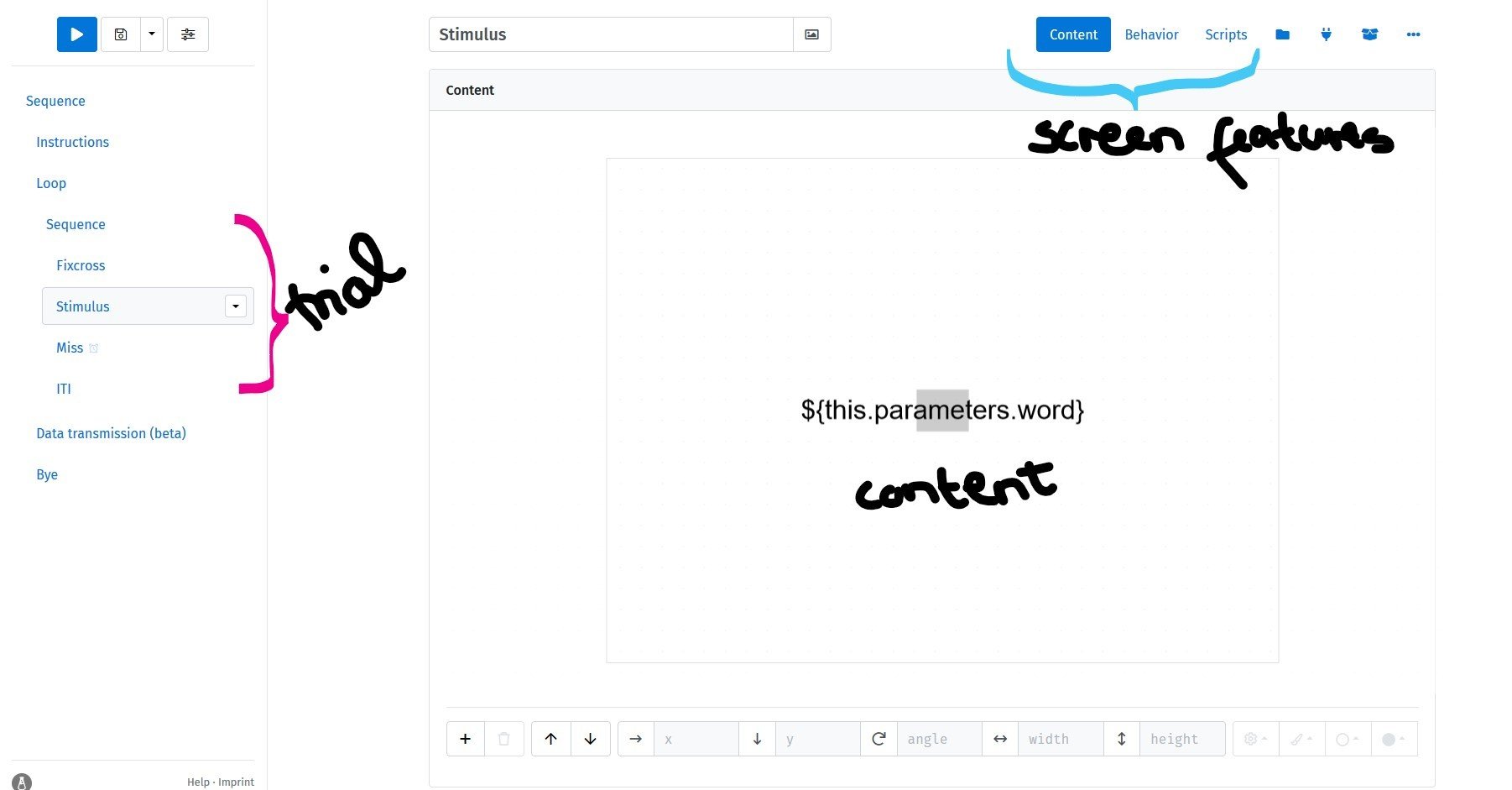
The lab.js interface
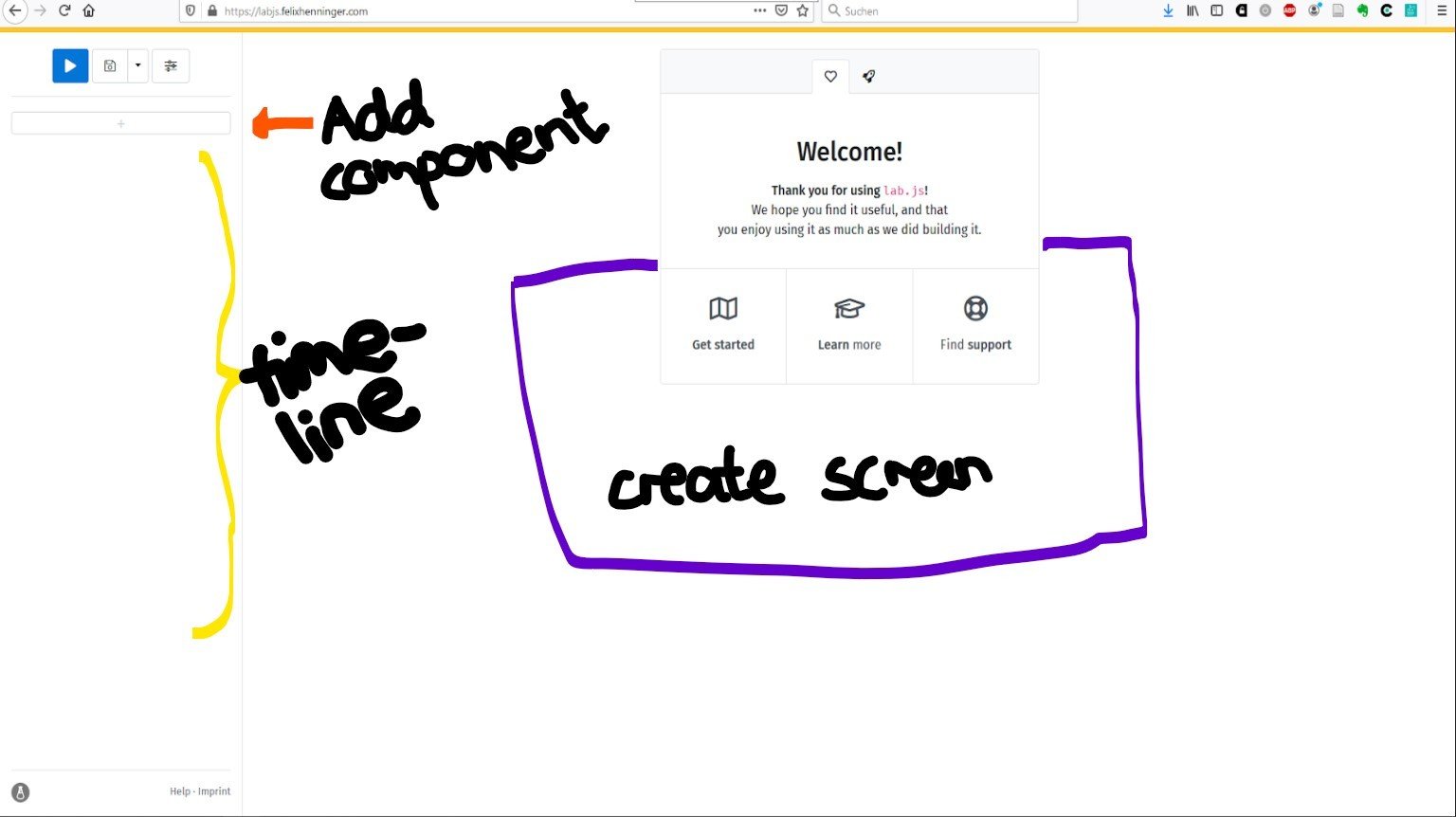
The lab.js interface
Create a Trial
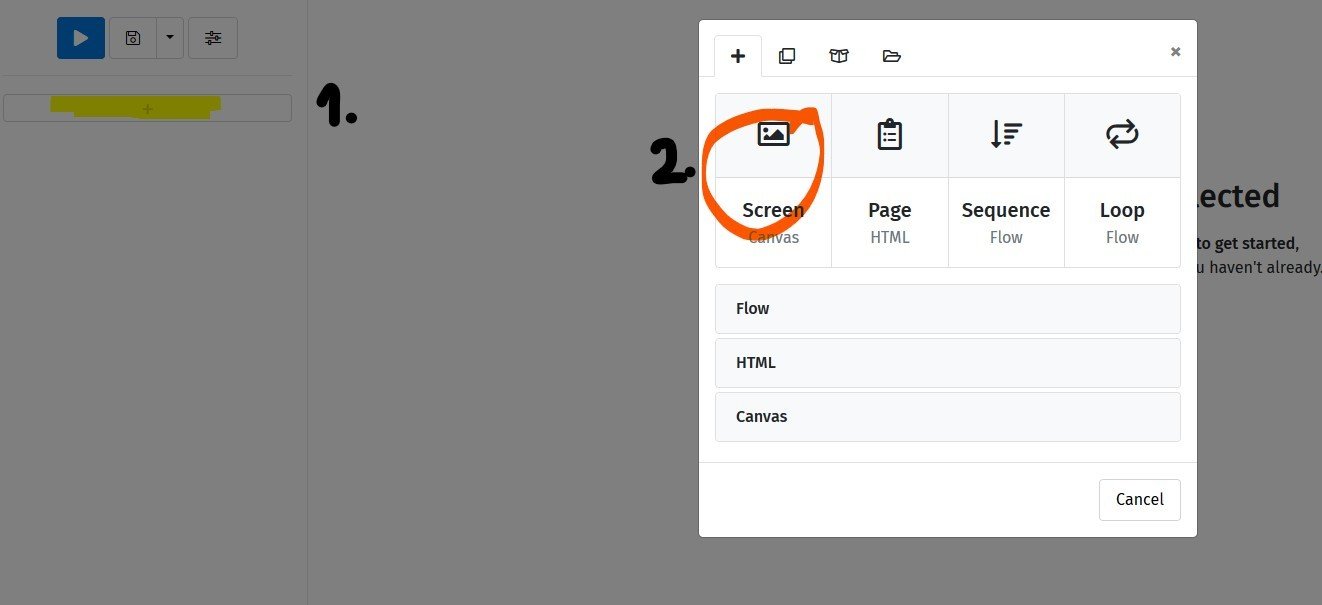
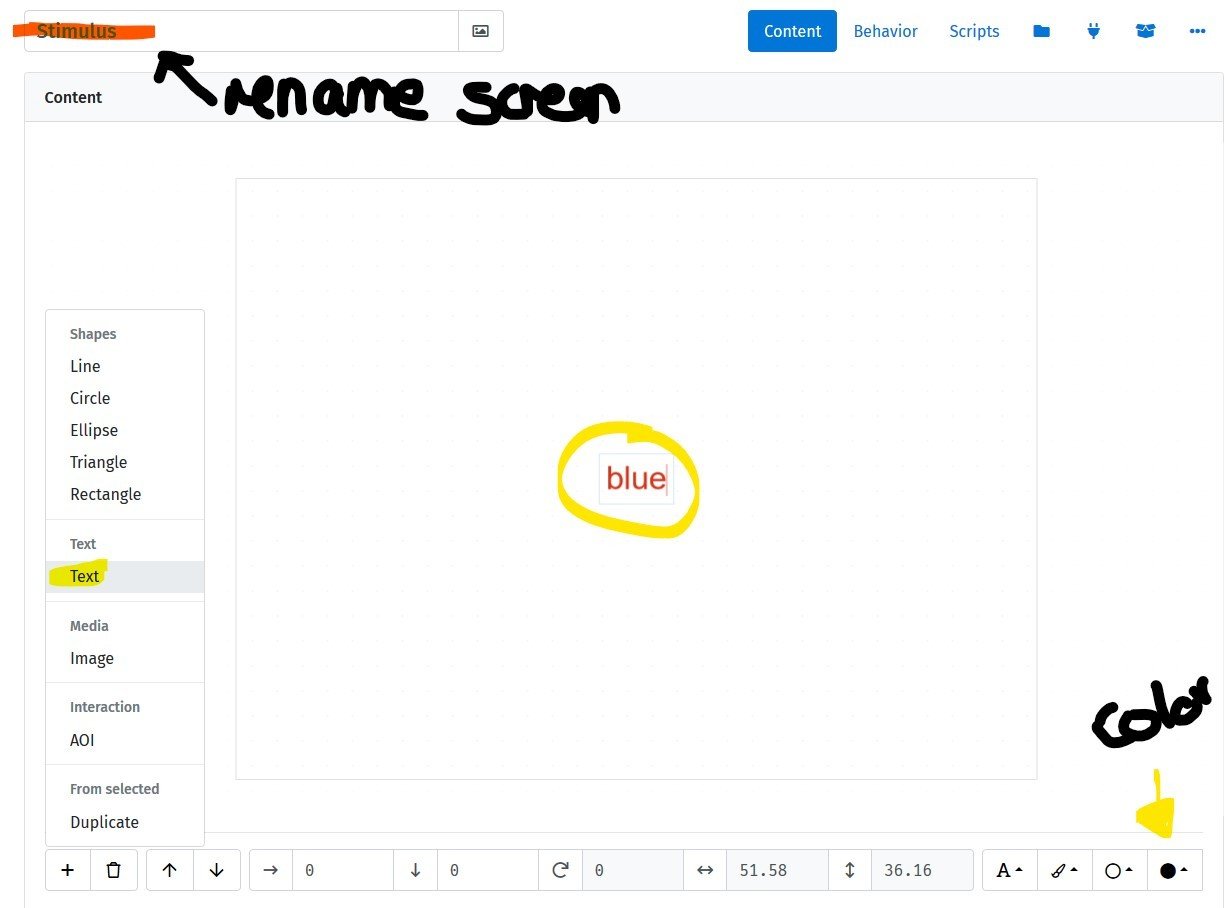
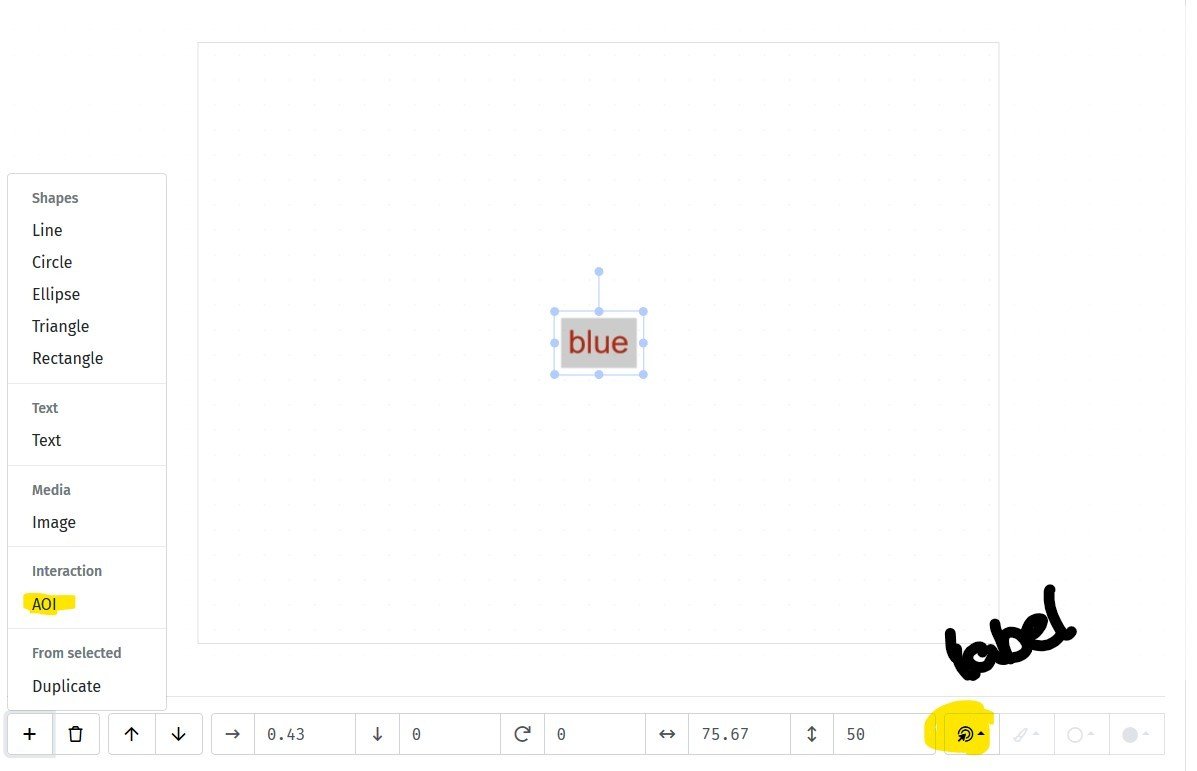
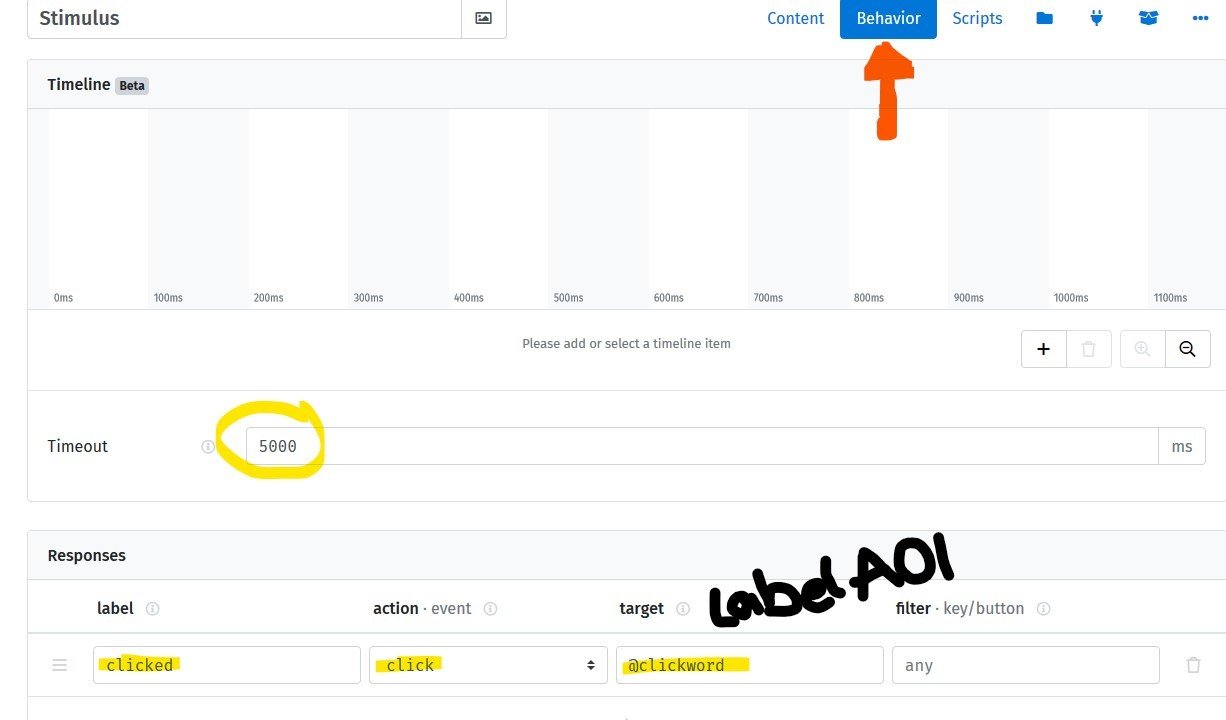
Create several trials in a loop
Add Instructions etc.
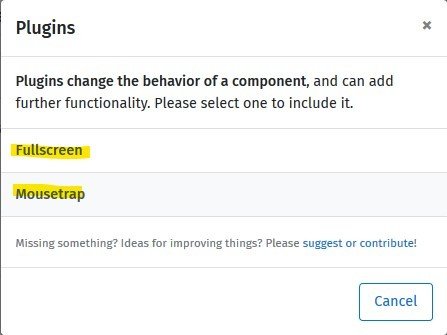
Getting the study online
- Open-lab
- JATOS
Open-Lab
- open-lab.online/
- One study = free
- Easy to use
- Possible to collaborate
Create & manage study
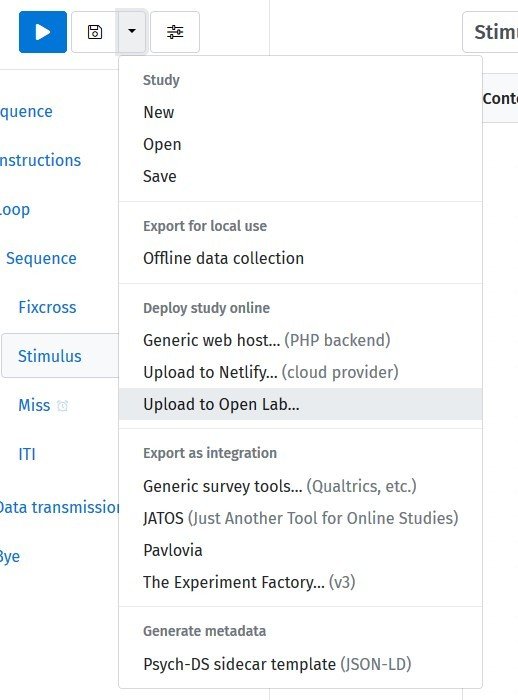
- Upload study from lab.js
- Register/log in
- Check and save the study as a new task
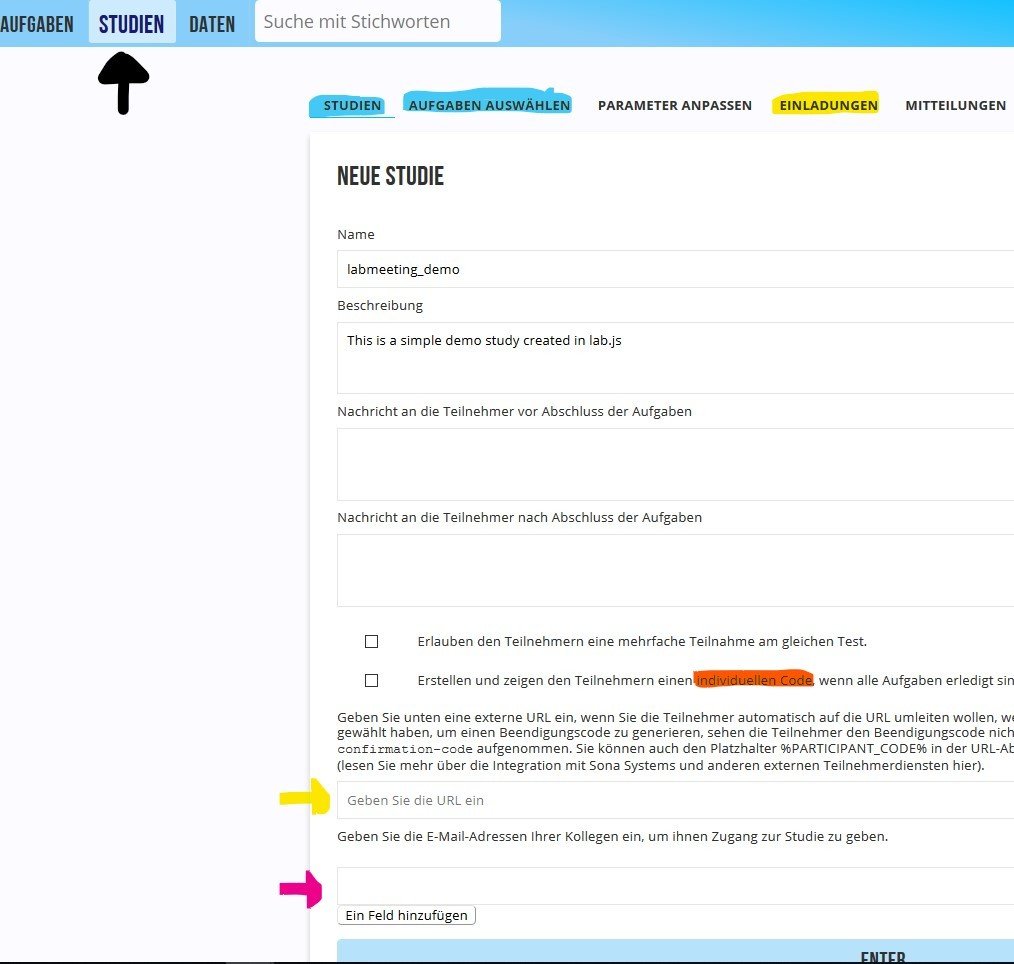
- Create a study ->
- Add the task (Aufgabe auswählen)
- Invite your participants (see Einladungen)
- Download the data (Daten)
User Management
Select one of the invitation options under Einladungen.
I typically use the first one, direct invitation (often with a code sent from i.e. Sona), but you might also want the participants to log in with a code you or they provided.
Data
Management
Simply go to Daten and download either all data or single data files ("laden")
Getting the study online
- Open-lab
- JATOS
JATOS
- Our own server -> Data in Würzburg
- No study limit
- A few more steps to set up, but more flexible
Download & run locally
To use JATOS, it is highly recommended to download a local version of JATOS to set up and test your study!
https://www.jatos.org/
To run JATOS locally...
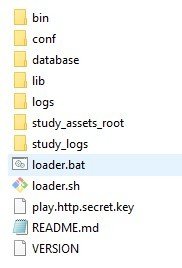
- double-click the "loader.bat" file
- paste the path into your browser
- log in w/ "admin" & pw: "admin"
Get the study online
- Export the study in lab.js
- DO NOT unzip
- In your local JATOS, click on Import Study (top left)
- Test your study (click run), check out results...
- Possibly change things, add other tasks...
- Once it works, export it!
- Go to our server's JATOS*: https://ls1.psychologie.uni-wuerzburg.de/ja/jatos/login
- Click on Import Study and import the .jzip.
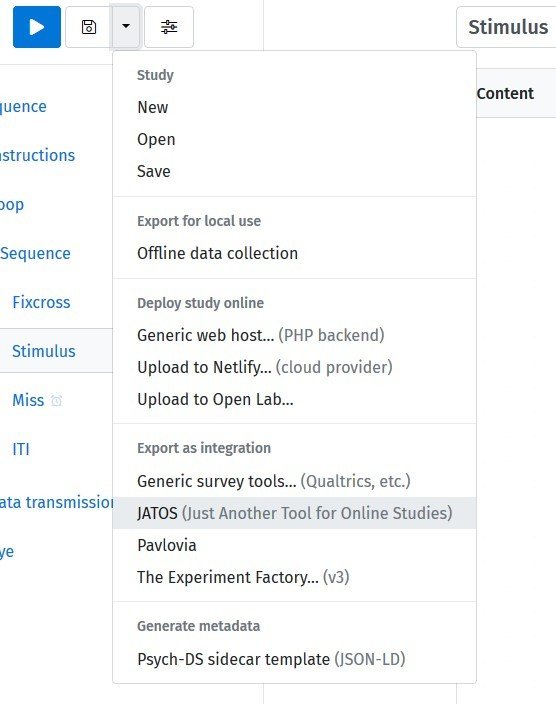

*(you need an account from Dominik, see wiki!)
User Management
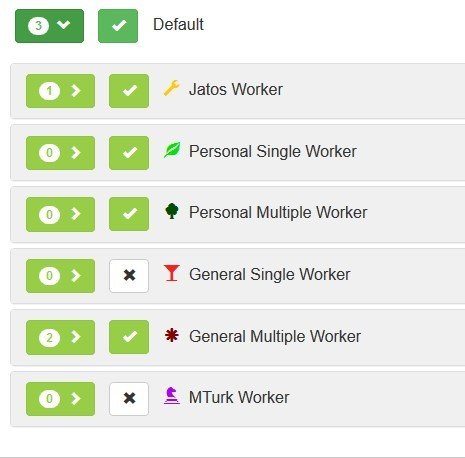
- To get the invitation links in JATOS, click on Worker & Batch Manager.
- Click in the little arrow in the green field (next to the 3 in the picture).
- Now you can see the user types that can access the study. If you hover over the names, you can see a short description.
- Enable (green check mark) the worker you need: I typically use General Single/Multiple Workers, which are unpersonalized links.
- Click on Get Link(s) on the right side of the row. Distribute this link.
- In JATOS, you can also work with Batches of users...

Data Management
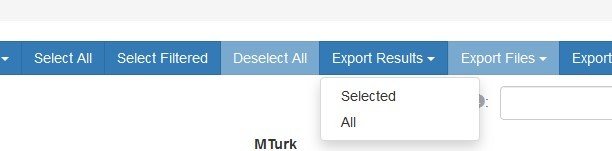
In JATOS, in the main window of your study, click on Results.
Either select individual rows or export all results via Export Results.
The exported files are .json files. You can read them into R with the code on the right (given the files are all in one folder, adjust path):
require(pacman)
p_load('tidyverse', 'jsonlite')
filelist <- dir("PATH/TO/DATA/", full.names = TRUE)

readfl <- function(fname) {
  data <- read_file(fname) %>%
    str_split('\n') %>% first() %>%
    discard(function(x) x == '') %>%
    map_dfr(fromJSON, flatten=T)
}
data <- filelist %>%
  map_df(~readfl(.))
Jatosify other studies
- Add Jatos to your html script (in the <head>):
<script src="jatos.js"></script>
- Wrap your experiment code (js) in
jatos.onLoad(function() {
  // initialize and start your JavaScript here
});
- At this to the end of your study (when saving data/submitting):
jatos.submitResultData(resultJson, jatos.startNextComponent);

https://www.jatos.org/Adapt-Pre-written-Code-to-run-it-in-JATOS.html
Redirecting
From Sona to Open-Lab/JATOS and back
(incl. automatically booking the participants' credits)
Four Steps
- Get invitation link from Open-Lab or JATOS
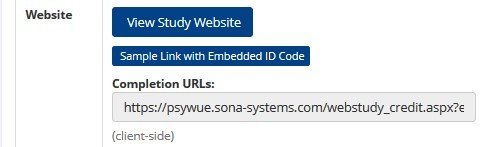
- Set up a web study in SONA, paste link in Study URL field
-
Add "?code=%SURVEY_CODE%" to the end
-
k
-
-
- Save study, copy (first) completion URL from SONA
-
- Add this URL (without the "XXXX" at the end) to the end of your study (see next slides)

Open-Lab
In open-lab, you can simply paste the completion URL from SONA in the field with the yellow arrows in the study set-up!
Replace the "XXXX" at the end with "%PARTICIPANT_CODE%"
You can also find a german instruction for Sona <-> open-lab here: https://open-lab.online/docs/project#integration
JATOS
In JATOS, you can easily redirect by pasting an URL in the study properties:
However, I haven't figured out how to add the correct URL parameter (the SONA code).
That's why I add code to the study's javascript file (or script components)!

http://www.jatos.org/End-page-after-your-study-finished.html
JATOS:
grab code from URL
Add the following code to your first component in lab.js:
this.parameters.jatosid = jatos.workerId;
this.parameters.sonaCode = "";
this.parameters.sonaCode = jatos.urlQueryParameters.code;
jatos.studySessionData["sonaCode"] = this.parameters.sonaCode;
send back to Sona
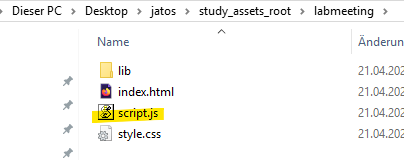
Open the script.js in the study assets folder of your local JATOS with a text editor:
locate the command (at the beginning):
jatos.submitResultData(resultJson, jatos.startNextComponent);
Add the following line (w/ SONA's completion URL):
jatos.endStudyAndRedirect("https://LINK_TO_SONA/?code="+jatos.studySessionData.sonaCode);
deck
By leahilde