Flexbox로 만들 수 있는 10가지 레이아웃
UI개발2팀 이민영
목차
1. 개요
- Flexbox 란?
2. 본문
- Flexbox로 만들 수 있는 10가지 레이아웃
3. 결론
- Flexbox를 사용하면 뭐가 좋을까?
Flexbox 란?
뷰 포트 및 엘리먼트의
크기가 불명확하거나 동적인 경우에도
문서 내의 엘리먼트 간에 공간을 배치, 정렬 및 분산하는
효율적인 방법을 제공하는 CSS3의 새로운 레이아웃 방식
1-1. Flexbox 란?
1-1. Flexbox 란?
.container
.item
.container{
    display:flex;
}
.item
.item
flex container
flex item
flex item
flex item
main axis
cross
axis
1-1. Flexbox 란?
Flexbox로 만들 수 있는 10가지 레이아웃
2-1. 스크롤 없는 100% 레이아웃
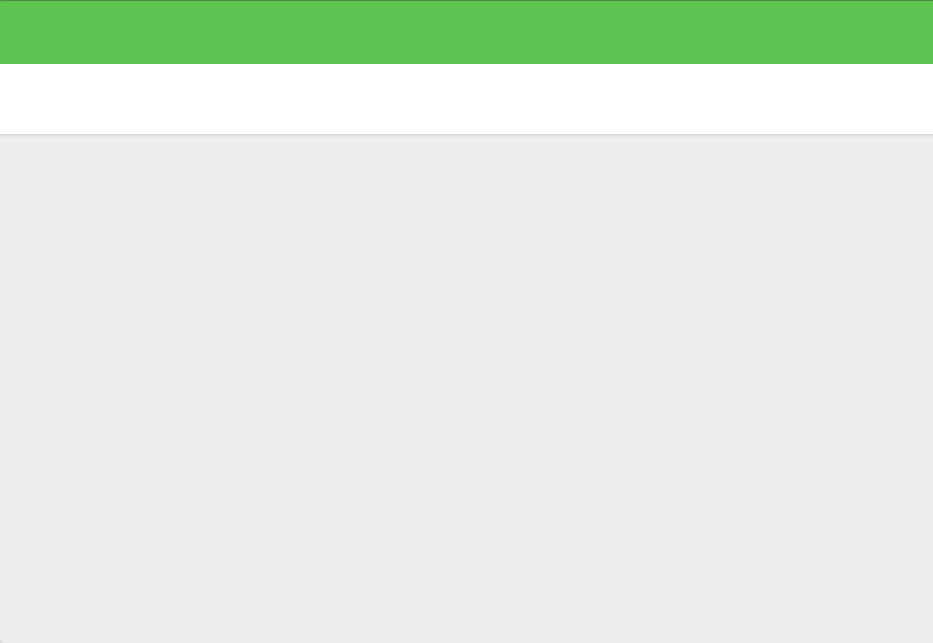
- 기존 레이아웃
.header
.filter
.container
.wrap
.wrap
.header
.filter
.container
2-1. 스크롤 없는 100% 레이아웃
- 기존 레이아웃
html,
body{
    height: 100%;
}

.wrap{
    height: 100%;
}
.header{
    height: 65px;
}
.filter{
    height: 70px;
}
.container{
    height:
    calc(100% - 135px);
}
.header와 .filter의 크기가 변경 될 때마다
.container의 height를 재선언 해야 한다.
2-1. 스크롤 없는 100% 레이아웃
- flex를 사용한 레이아웃
.wrap{
        ?
    height: 100%;
}


/* 영역 확인용 임시 사이즈*/
.header,
.filter,
.container{
    width: 33.3%
    height: 100%;
}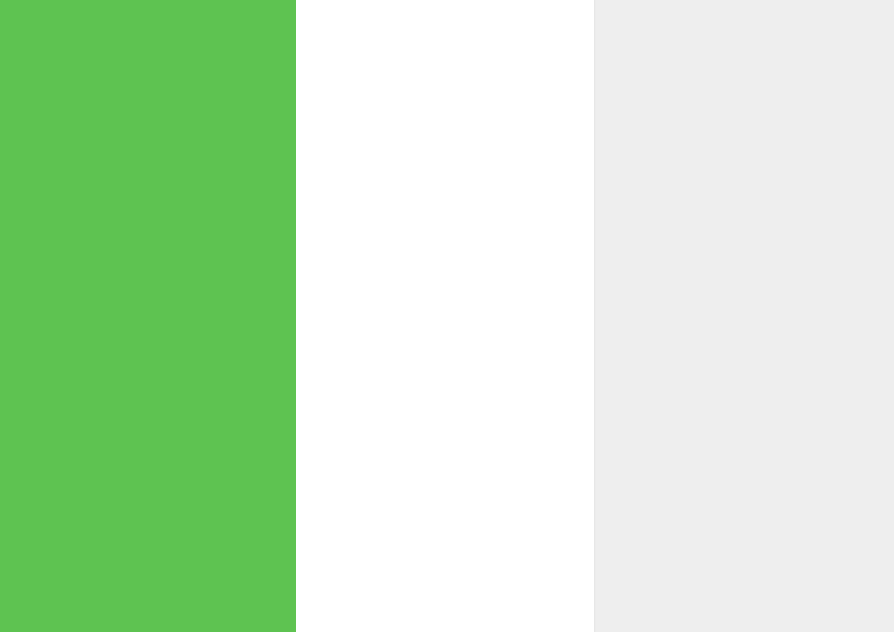
display: flex;
.wrap{
    display: flex;
    height: 100%;
}
2-1. 스크롤 없는 100% 레이아웃
- flex를 사용한 레이아웃
.wrap{
    display: flex;
        ?
    height: 100%;
}


/* 영역 확인용 임시 사이즈*/
.header,
.filter,
.container{
    height: 33.3%;
}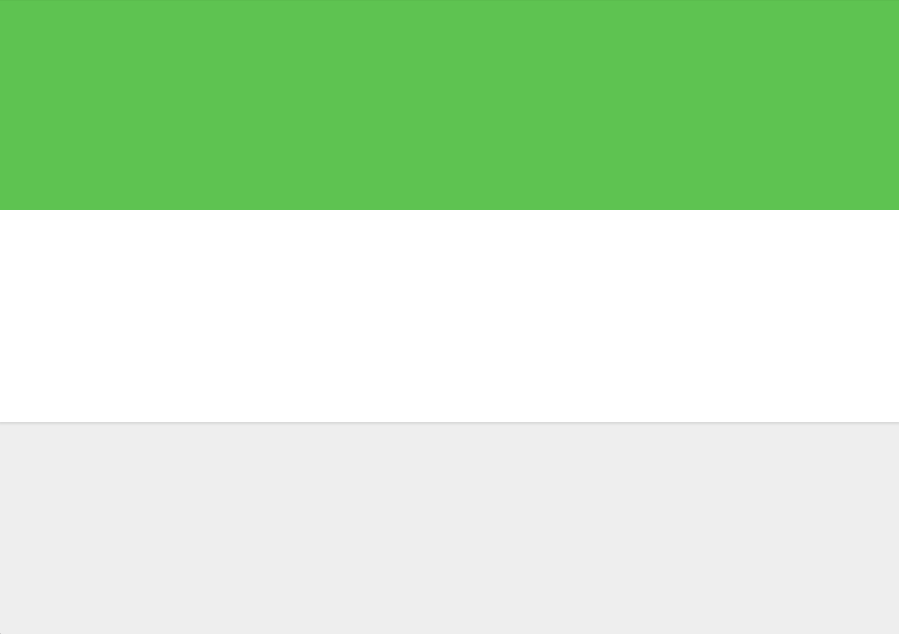
flex-direction: column;
.wrap{
    display: flex;
    flex-direction: column;
    height: 100%;
}
2-1. 스크롤 없는 100% 레이아웃
- flex 속성
row(기본 값)
column
flex-direction :
2-1. 스크롤 없는 100% 레이아웃
- flex를 사용한 레이아웃
.wrap{
    display: flex;
    flex-direction: column;
    height: 100%;
}


.header{
    height: 65px;
}
.filter{
    height: 70px;
}
.container{
    ?
}
flex: 1;
빈 공간
.container
flex: 1;2-1. 스크롤 없는 100% 레이아웃
- 기존 레이아웃
.aside
.main
.aside
.main
2-1. 스크롤 없는 100% 레이아웃
- flex를 사용한 레이아웃
.container{
        ?
    flex: 1;
}

.aside{
        ?
}

.main{
        ?
}
.container{
display: flex;
flex: 1;
}
.aside{
width: 400px
}
.main{
flex: 1;
}
2-1. 스크롤 없는 100% 레이아웃
<flex-grow> <flex-shrink> <flex-basis>
확장 축소 기본 값
- flex 속성
flex :
2-1. 스크롤 없는 100% 레이아웃
0 | 양의 정수
- flex 속성
flex-grow :
0
1
양의 정수
1
2
2
1
1
1
원래 크기 유지
확장
2-1. 스크롤 없는 100% 레이아웃
1 | 0 | 양의 정수
- flex 속성
flex-shrink :
0
1
0과 1의 차이
1
1
1
1
1
0
원래 크기 유지
축소
2-1. 스크롤 없는 100% 레이아웃
auto | 0 | 양의 정수 (px, %)
- flex 속성
flex-basis :
양의 정수
30px
15px
50px
content < width < flex-basis
< max-width/min-width
2-1. 스크롤 없는 100% 레이아웃
- flex 속성
flex-basis :
auto 와 0의 차이는?
중간 내용
기이이이이이인 내용
짧
0
auto
중간 내용
기이이이이이인 내용
짧
1
1
1
1
<flex-grow: 1>
1
1
1
1
1
2-1. 스크롤 없는 100% 레이아웃
- flex 속성
flex-basis :
auto 와 0의 차이는?
absolute flex item
컨텐츠 크기와 상관없이
flex를 기준으로 크기를 가진다.
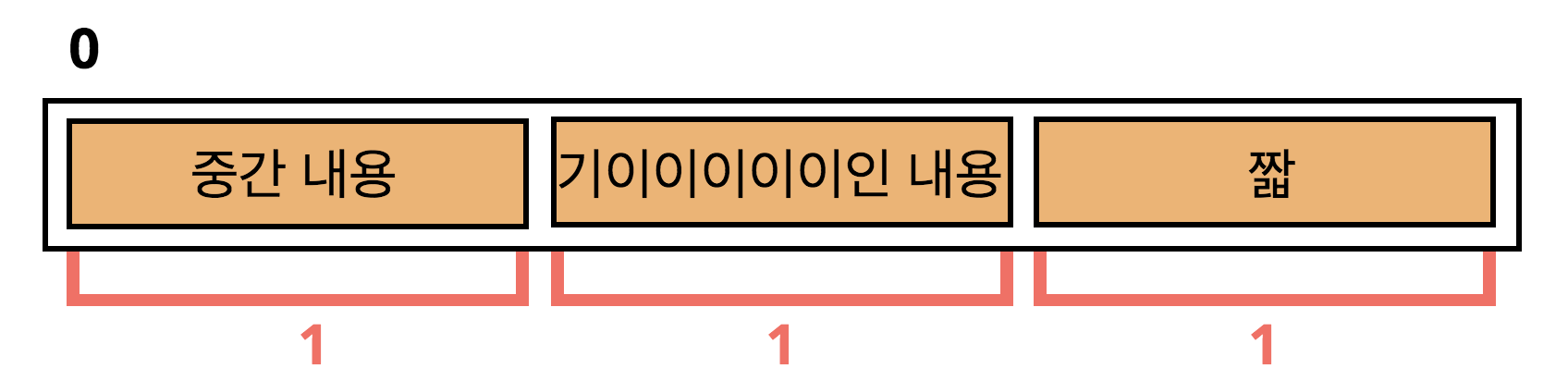
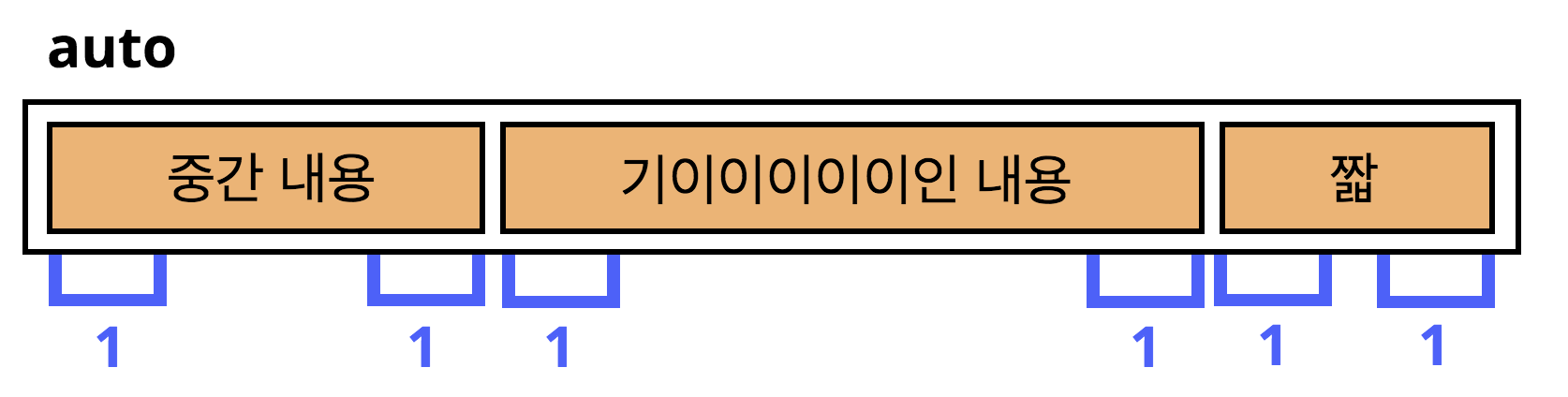
relative flex item
컨텐츠를 기준으로 크기를 가진다.
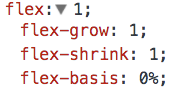
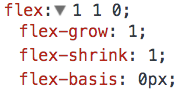
flex-basis : 0 사용시 단위를 반드시 붙여서 써야 한다.
2-1. 스크롤 없는 100% 레이아웃
- flex 속성
initial (기본 값) | none | auto | 정수
| flex | flex- grow |
flex-shrink | flex-basis |
|---|---|---|---|
| initial | 0 | 1 | auto |
| none | 0 | 0 | auto |
| auto | 1 | 1 | auto |
| 정수 | 정수 | 1 | 0 |
flex:
flex 사용의도를 명확하게 표현하기 위해, 축약한 단어로 쓰는 것을 추천한다.
축소 되는 것만 반응형이다.
반응형이 아니다.
반응형이다.
반응형이고, 정수 만큼의 비율로 확장된다.
2-2. 네비게이션
- 기존 레이아웃

.logo
.search
.gnb
.header
.header
.logo
.search
.gnb
2-2. 네비게이션
- 기존 레이아웃

.gnb{
    float: right;
}
.gnb{
    position: absolute;
    right: 0;
    top: 0;
}
.header:after{
    display:block;
    clear:both;
    content:'';
}
.header{
    position: relative;
}
부모 계층에서 추가 작업이 필요하다.
2-2. 네비게이션

.header{
    display: flex;
}
.logo,
.search,
.gnb{
flex: none;
/* flex: 0 0 auto */
}
.search{
width: 400px;
}- flex를 사용한 레이아웃
2-2. 네비게이션
- flex를 사용한 레이아웃
.gnb만 오른쪽으로 정렬시키는 방법

.search{
    flex: 1;
}
1. flex: 1을 활용
2. margin: auto 활용
.gnb{
    margin-left: auto;
}
1. flex: 1을 활용
.search를 확장하여 .gnb가 오른쪽으로 밀리도록 한다.
.gnb만 오른쪽으로 민다.
2. margin: auto 활용
2-2. 네비게이션
- flex를 사용한 레이아웃
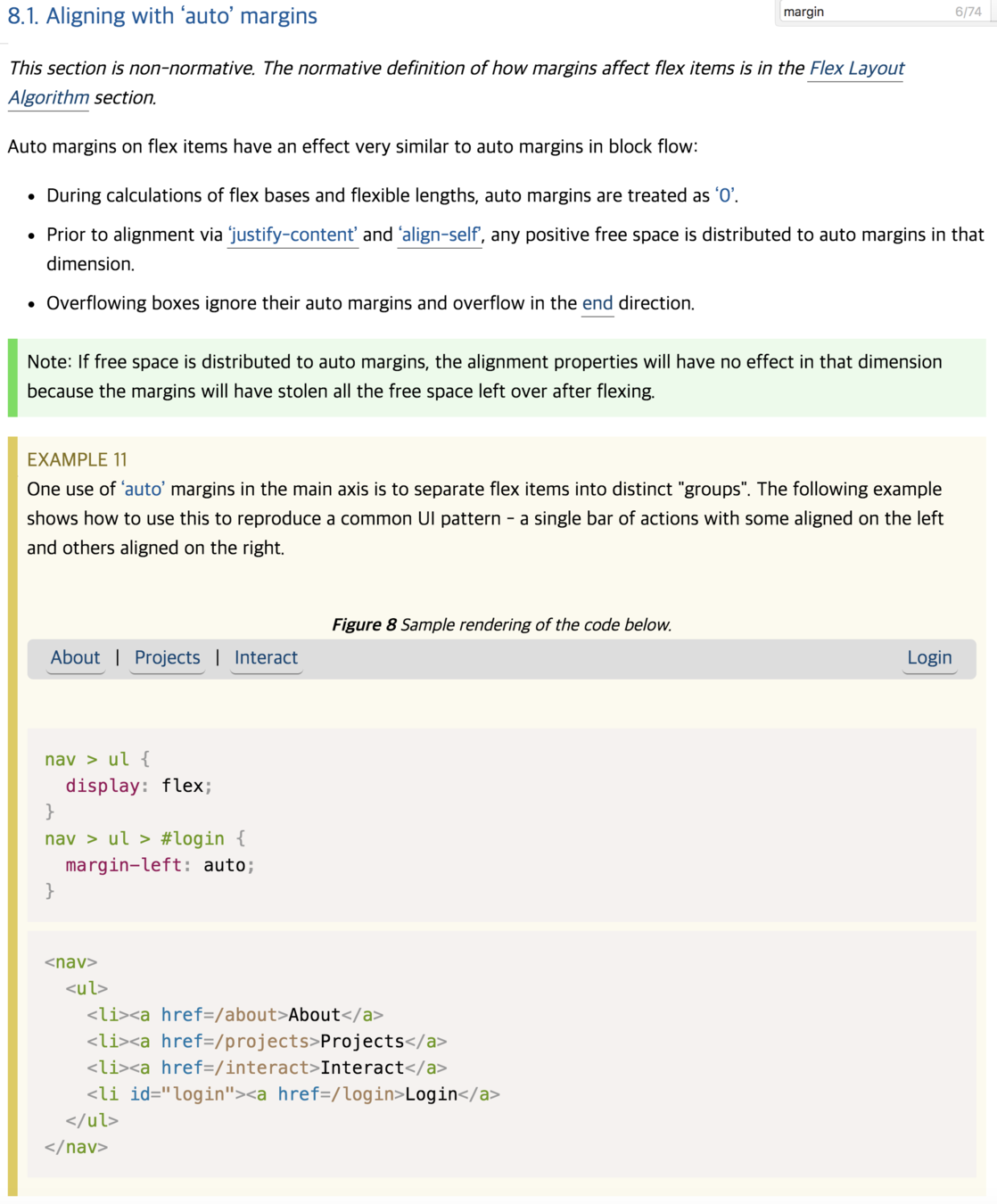
flex에서 margin : auto
.flex-container{
     display: flex;
}

.flex-item{
    margin-right:auto;
}
margin-right:auto;
2-2. 네비게이션
- flex를 사용한 레이아웃
flex에서 margin : auto
.flex-container{
     display: flex;
}

.flex-item{
    margin-left:auto;
}
margin-left: auto;
2-2. 네비게이션
- flex를 사용한 레이아웃
flex에서 margin : auto
.flex-container{
     display: flex;
}

.flex-item{
    margin:0 auto;
    /*
        margin-left: auto;
        margin-right: auto;
    */
}
margin:0 auto;
2-2. 네비게이션
- flex 속성
margin: auto는 핵이 아니라, 스펙에서 권장하는 방법 중 하나이다.
2-2. 네비게이션
- 기존 레이아웃
.search
.search
input
button
input
button
2-2. 네비게이션
.search{
    display: flex;
    width: 400px;
}
input{
flex: 1;
/* flex: 1 1 0; */
}- flex를 사용한 레이아웃


2-3. 바닥에 붙는 푸터
- 기존 레이아웃
.main
.footer
.main
.footer
2-3. 바닥에 붙는 푸터
- 기존 레이아웃
기대하는 결과
컨텐츠의 높이가 짧을 때
컨텐츠 높이가 짧을 때, 기대하는 결과를 얻지 못할 수도 있다.
2-3. 바닥에 붙는 푸터
- flex를 사용한 레이아웃
.main{
    display: flex;
}

.footer{
    ?
}
margin-top: auto;
.footer{
    margin-top: auto;
} 
- flex를 사용한 레이아웃
flex에서 margin : auto
.flex-container{
     display: flex;
}

.flex-item{
    margin-top:auto;
}
.flex-container{
display: flex;
}
.flex-item{
margin-bottom:auto;
}2-3. 바닥에 붙는 푸터
- flex를 사용한 레이아웃
flex에서 margin : auto
.flex-container{
     display: flex;
}

.flex-item{
    margin: auto 0;
    /*
        margin-bottom: auto;
        margin-top: auto;
    */
}
2-3. 바닥에 붙는 푸터
정~말 까다로운 수직 정렬도 margin으로
간단하게 할 수 있다.
수직정렬의 어려움
2-4. 정렬이 다른 메뉴
- 기존 레이아웃

.tablist
.tablist
.list
.list
- 기존 레이아웃
.list{
    text-align: center;
}
.list{
    text-align: center;
}

.tablist .list:first-child{
    text-align: left;
}
.list{
    text-align: center;
}

.tablist .list:first-child{
    text-align: left;
}

.tablist .list:last-child{
    text-align: right;
}
각각의 메뉴마다 text-align 속성 값을 다르게 선언해야 한다.
2-4. 정렬이 다른 메뉴
- flex를 사용한 레이아웃
.list{
    text-align: center;
}
.list{
    text-align: center;
}

.tablist .list:first-child{
    text-align: left;
}
.list{
    text-align: center;
}

.tablist .list:first-child{
    text-align: left;
}

.tablist .list:last-child{
    text-align: right;
}
각각의 메뉴마다 text-align 속성 값을 다르게 선언해야 한다.
2-4. 정렬이 다른 메뉴
- flex를 사용한 레이아웃
.tablist{
    display: flex;
    ?
}
2-4. 정렬이 다른 메뉴

justify-content: space-between;.tablist{
display: flex;
justify-content: space-between;
}

- flex 속성
2-4. 정렬이 다른 메뉴
justify-content :
flex-start (기본 값)
flex-end
center
space-between
space-around
활용할 수 있는 다양한 레이아웃
- 기존 레이아웃
2-5. 폼 타이틀 수직 중앙정렬


한 줄
두 줄
.title
.title
th
td
- flex를 사용한 레이아웃
2-5. 폼 타이틀 수직 중앙정렬
.title{
    display: flex;
    ?
}
align-items: center;.title{
display: flex;
align-items: center;
}- flex 속성
align-item :
stretch(기본 값)
flex-start
center
baseline
2-5. 폼 타이틀 수직 중앙정렬
flex-end
baseline
baseline
baseline
- flex 속성
align-item :
stretch(기본 값)
flex-start
center
baseline
2-5. 폼 타이틀 수직 중앙정렬
flex-end
baseline
baseline
baseline
만들 수 있는 다양한 레이아웃
- 기존 레이아웃
2-6. 중앙정렬 아이콘
.box
.box
.icon
.icon
- 기존 레이아웃
2-6. 중앙정렬 아이콘
.box{
    display: table;
}

.icon{
    display: table-cell;
    vertical-align: middle;
    text-align: center;
}
.box{
position: relative;
}
.icon{
position: absolute;
top: 0;
left: 0;
right: 0;
bottom: 0;
margin: auto;
width,height: 고정 값
}.box{
position: relative;
}
.icon{
position: absolute;
top: 50%;
left: 50%;
transform:
translate(-50%,-50%);
}중앙정렬을 하는 다양한 방법들
- flex를 사용한 레이아웃
2-6. 중앙정렬 아이콘
.box{
    ?
}
.box{
    flex: 1;
}
.box{
    flex: 1;
    justify-content: center;
    align-items: center;
}
justify-content와 aligin-items을 통해
직관적인 코드를 작성할 수 있다.
- flex를 사용한 레이아웃
2-6. 중앙정렬 아이콘
.box{
    flex: 1;
}

.icon{
    ?
}
.box{
flex: 1;
}
.icon{
margin: auto;
}
margin: auto로 간결한 코드를 작성할 수 있다.
- flex를 사용한 레이아웃
2-6. 중앙정렬 아이콘
flex를 사용하지 않은 코드
.box{
    display: table;
}

.icon{
    display: table-cell;
    vertical-align: middle;
    text-align: center;
}
.box{
position: relative;
}
.icon{
position: absolute;
top: 0;
left: 0;
right: 0;
bottom: 0;
margin: auto;
width,height: 고정 값
}.box{
position: relative;
}
.icon{
position: absolute;
top: 50%;
left: 50%;
transform:
translate(-50%,-50%);
}.box{
flex: 1;
}
.icon{
margin: auto;
}
.box{
    flex: 1;
    justify-content: center;
    align-items: center;
}
flex를 사용한 코드
2-7. 유동 너비 박스
gif
- 기존 레이아웃
1. 공간이 충분 할 때는 컨텐츠 길이에 맞게 배치
2. 공간이 충분하지 않을 때는 컨텐츠 길이가 줄어듦


2-7. 유동 너비 박스
- 기존 레이아웃

.filter
.filter_box
.filter_box
.filter
2-7. 유동 너비 박스
- flex를 사용한 레이아웃
.filter{
    ?
}

.filter_box{
    ?
}
.filter{
display: flex;
}
.filter_box{
?
}.filter{
display: flex;
}
.filter_box{
max-width: 300px;
}.filter{
display: flex;
}
.filter_box{
max-width: 300px;
?
}.filter{
display: flex;
}
.filter_box{
max-width: 300px;
/* flex: 0 1 auto가
기본값이므로 생략가능 */
}2-7. 유동 너비 박스
- flex를 사용한 레이아웃
.filter{
    ?
}

.filter_box{
    ?
}
.filter{
display: flex;
}
.filter_box{
?
}.filter{
display: flex;
}
.filter_box{
max-width: 300px;
}.filter{
display: flex;
}
.filter_box{
max-width: 300px;
?
}.filter{
display: flex;
}
.filter_box{
max-width: 300px;
/* flex: 0 1 auto가
기본값이므로 생략가능 */
}2-7. 유동 너비 박스
- flex를 사용한 레이아웃


filter .filter_box:first-child{
    order: 1;
}
before
after

filter .filter_box:last-child{
    order: -1;
}
-1 0 0 1
order 속성 값이 낮으면 왼쪽에 높으면 오른쪽에 위치한다.
마크업 구조 변경없이 유연하게 순서변경이 가능하다.
2-8. 말줄임 + 아이콘
gif
- 기존 레이아웃
1. 컨텐츠가 넘치지 않을 때
2. 컨텐츠가 넘칠 때


- 기존 레이아웃
.title
.title_container
.option
.title_container
2-8. 말줄임 + 아이콘
.title
.option
2-8. 말줄임 + 아이콘
- 기존 레이아웃
.title{
    overflow: hidden;
}

.option{
    float: right;
}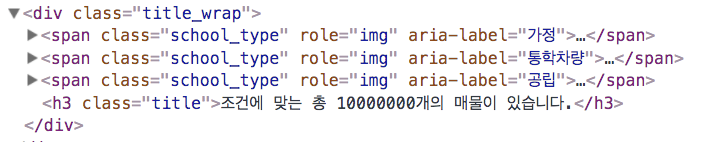
마크업 순서를 변경해야 한다.
2-8. 말줄임 + 아이콘
.title_container{
    ?
}
- flex를 사용한 레이아웃
.title_container{
    display: inline-flex;
    max-width:100%;
}

.option{
    flex: none;
}
display: inline-flex;
.title_container{
    display: inline-flex;
    max-width:100%;
}
.title_container{
    display: flex;
}

.option{
    flex: none;
}

2-9. 상하 정렬 롤링리스트
gif
- 기존 레이아웃
2-9. 상하 정렬 롤링리스트
- 기존 레이아웃
1
2
3
4
5
6
7
8
Normal flow의 우선 순위는 좌우이고,
좌우의 흐름을 따를 수 없을 때 상하의 흐름을 따른다.
2-9. 상하 정렬 롤링리스트
- 기존 레이아웃
1
2
3
4
1
2
3
4
5
6
7
8
depth가 깊어지게 되고,
UI 변경시 마크업 구조 수정이 필요하다.
2-9. 상하 정렬 롤링리스트
- flex를 사용한 레이아웃
.container
.item
.container
.item
2-9. 상하 정렬 롤링리스트
- flex를 사용한 레이아웃
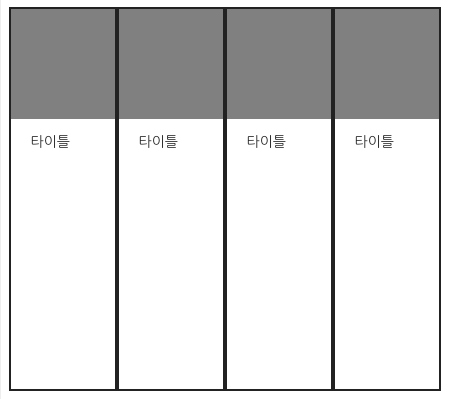
.cotainer{
    display: flex;
    overflow: hidden;
    width: 400px;
    height: 450px;
}

.item{
    display: flex;
    flex-direction: column;
    width: 200px;
}
1
2
3
4
2-9. 상하 정렬 롤링리스트
- flex를 사용한 레이아웃
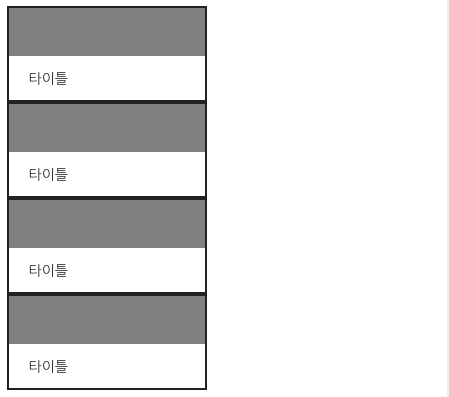
.cotainer{
    display: flex;
    ?
}

.item{
    ?
}
1
2
3
4
1
2
3
4
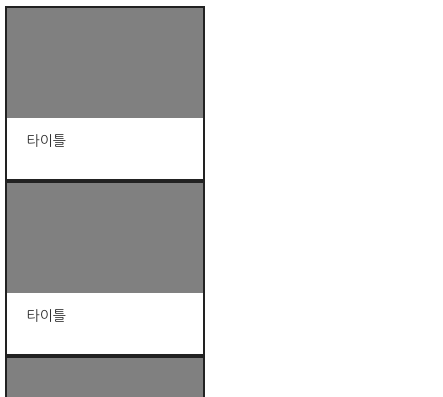
.cotainer{
    display: flex;
    flex-direction: column;
}

.item{
    ?
}
1
2
1
2
3
4
.cotainer{
    display: flex;
    flex-direction: column;
}

.item{
    flex: none;
    height: 180px;
}
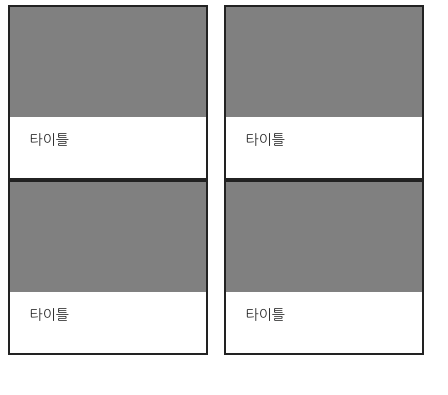
.cotainer{
display: flex;
flex-direction: column;
flex-wrap: wrap;
}
.item{
flex: none;
height: 180px;
}.cotainer{
display: flex;
flex-flow: column wrap;
}
.item{
flex: none;
height: 180px;
}flex-direction: column;flex-wrap: wrap;flex-flow: column wrap;flex: none;
width: 180px;2-9. 상하 정렬 롤링리스트
- flex를 사용한 레이아웃
1
2
3
4
.cotainer{
    display: flex;
    flex-flow: column wrap;
    justify-content: space-around;
}

.item{
    flex: none;
    height: 180px;
}
justify-content: space-around;
.cotainer{
    display: flex;
    flex-flow: column wrap;
    ?
}

.item{
    flex: none;
    height: 180px;
}
.cotainer{
display: flex;
flex-flow: column wrap;
justify-content: space-around;
align-content: space-around;
}
.item{
flex: none;
height: 180px;
}align-content: space-around;1
2
3
4
1
2
3
4
margin, padding으로 여백을 주지않아도 된다.
상하 흐름을 우선 순위로 만들 수 있다.
2-10. 가로세로 비율을 유지하는 반응형박스
gif
- 기존 레이아웃
2-10. 가로세로 비율을 유지하는 반응형박스
- 기존 레이아웃
.container
.item
.thumb
.title
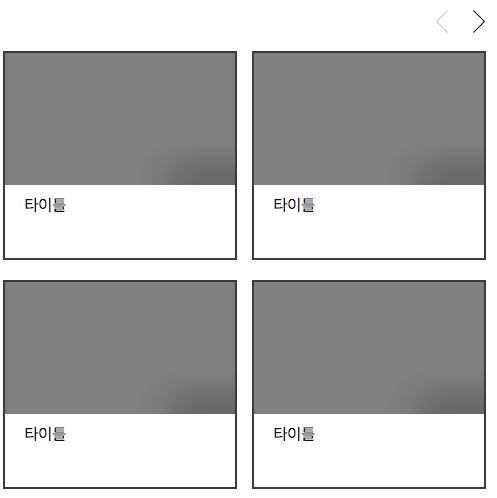
.thumb
.title
.item
.container
2-10. 가로세로 비율을 유지하는 반응형박스
- 기존 레이아웃
.item{
    width: 33.3%;
}
img{
    width: 100%;
    height: 100%;
}
이미지가 없을 때, height는 0이 된다.
2-10. 가로세로 비율을 유지하는 반응형박스
- 기존 레이아웃
.thumb{
    position: relative;
}
.thumb:before{
    display: block;
    padding: 148.96%
    content:'';
}

img{
    position: absolute;
    top: 0;
    right: 0;
    left: 0;
    bottom: 0;
    width: 100%;
    height: 100%;
}
100%
? %
padding-top: 148.96%;
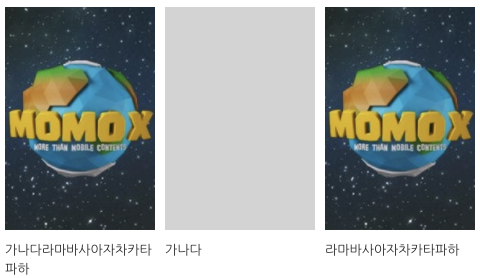
이미지 크기가 변경되면 가로세로 비율을 재계산하여 padding-top 속성값을 바꿔줘야한다.
2-10. 가로세로 비율을 유지하는 반응형박스
- flex를 사용한 레이아웃
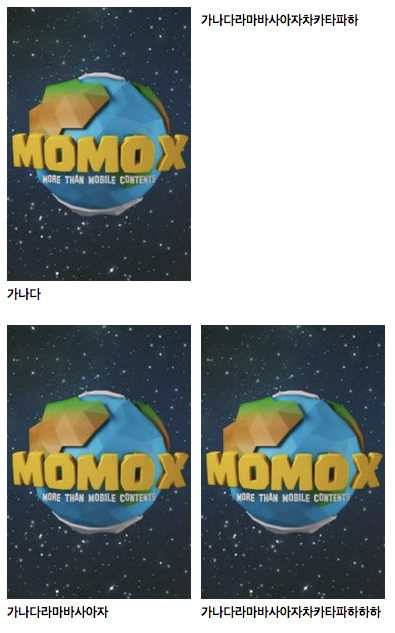
.cotainer{
    display: flex;
    flex-wrap: wrap;
}
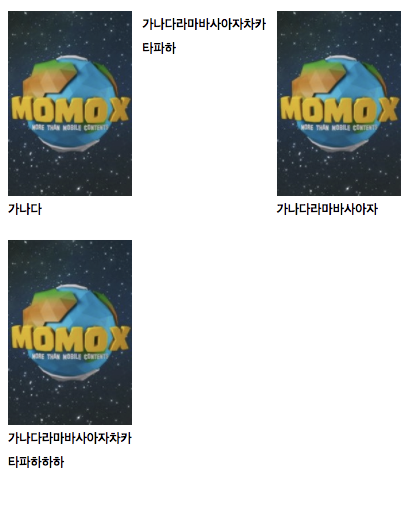
.cotainer{
    display: flex;
    flex-wrap: wrap;
}

.item{
    flex: none;
    flex-basis: 33.3%;
}
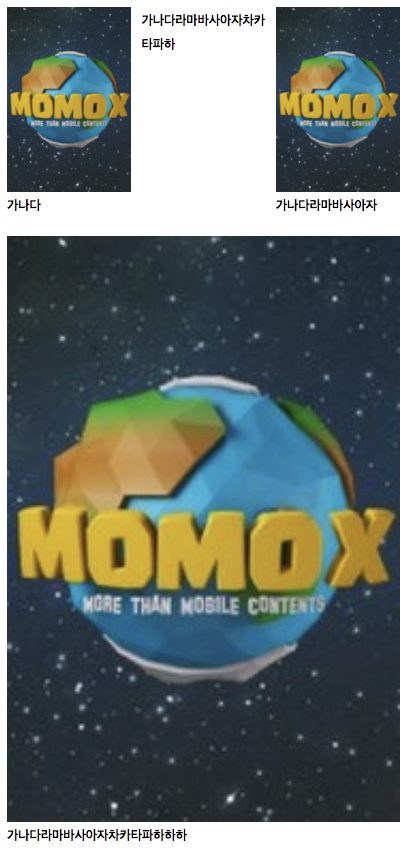
.cotainer{
display: flex;
flex-wrap: wrap;
}
.item{
flex: auto;
flex-basis: 33.3%;
}
flex: none;
flex-basis: 33.3%;
flex: auto;2-10. 가로세로 비율을 유지하는 반응형박스
- flex를 사용한 레이아웃
.cotainer{
    display: flex;
    flex-wrap: wrap;
}
.cotainer{
    display: flex;
    flex-wrap: wrap;
}

.item{
    flex: none;
    flex-basis: 33.3%;
}
.cotainer{
display: flex;
flex-wrap: wrap;
}
.item{
flex: auto;
flex-basis: 33.3%;
}flex: none;
flex-basis: 33.3%;flex: auto;2-10. 가로세로 비율을 유지하는 반응형박스
- flex를 사용한 레이아웃
display: flex;
flex-direction: column;
flex: none;
.item{
    display: flex;
    flex-dirextion: column;
}
.item{
    display: flex;
    flex-dirextion: column;
}

.thumb{
    flex: auto;
    background: gray;
}
.item{
display: flex;
flex-dirextion: column;
}
.thumb{
flex: auto;
background: gray;
}
.title{
flex: none;
flex-basis: 40px;
}flex: auto;Flexbox를 사용하면 뭐가 좋을까?
1. 구조가 간단하다.
ul, li 같은 개념
2. 반응형 레이아웃을 편하게 구현할 수 있다.
- 크기변경 될 때마다 세부크기 조정을 하지 않아도 된다. padding, margin 등
3. 초보자가 레이아웃 작업하기 편하다.
- 꼼수 같은거 몰라도 됨. 쉬움.
4. 유연한 레이아웃 작업이 가능하다.
-normal-flow를 따르지 않는 레이아웃
(column, order)
3. float 해제나 부모에 relative를 주는 등의 추가작업을 하지 않아도 된다.
4. 코드가 간단하고 직관적이다.
-내가 의도하는 바를 코드로 정확히 전달할 수 있다.
5. flex: 1, width:100%과는 다른...
스펙
original
By Min Young Lee