





Welcome to Interactive Media 2 (Soon to be Web Design 2)!

What You Should Already know

  • Basics of HTML

  • Basics of CSS

  • Creating a Design mockup

What You Will KNow/Do

  • Build an application using HTML, CSS, JQuery;
  • Work with and understand basic Unix terminal commands;
  • Learn about version control using Git;
  • Learn how to store their code on Github via Git and the Unix terminal;
  • Responsive Design
  • Chrome Dev Tools

Syllabus

Optional Resources:

Codacademy.com JQuery course: https://www.codecademy.com/learn/jquery

Syllabus

Required software/Hardware:

1) Sublime Text (text editor)

2) Mac with Mavericks OSX (10.9) or PC with Windows 8 or later

Extra Credit

Completing the Javascript or jQuery modules on Codeacademy.com will get you 10% towards your final grade. Completing both will get you 15% towards your final grade.

Syllabus

Assesment Items:

Discussion: 10%

Code Camp Questions: 30%

Project Updates: 30%

Final Project: 30%


Note: Your Final Project will just be an accumulation of the project updates you have completed throughout the quarter

Late Work

Will not be accepted. I used to make exceptions for this, but it resulted in chaos. Unless you let me know ahead of time, I won't accept late work. Sorry :(

Make Up Assignments

Again, unless you let me know ahead of time, Assignments cannot be made up

The Terminal (Not the movie)

Loose Definition: 

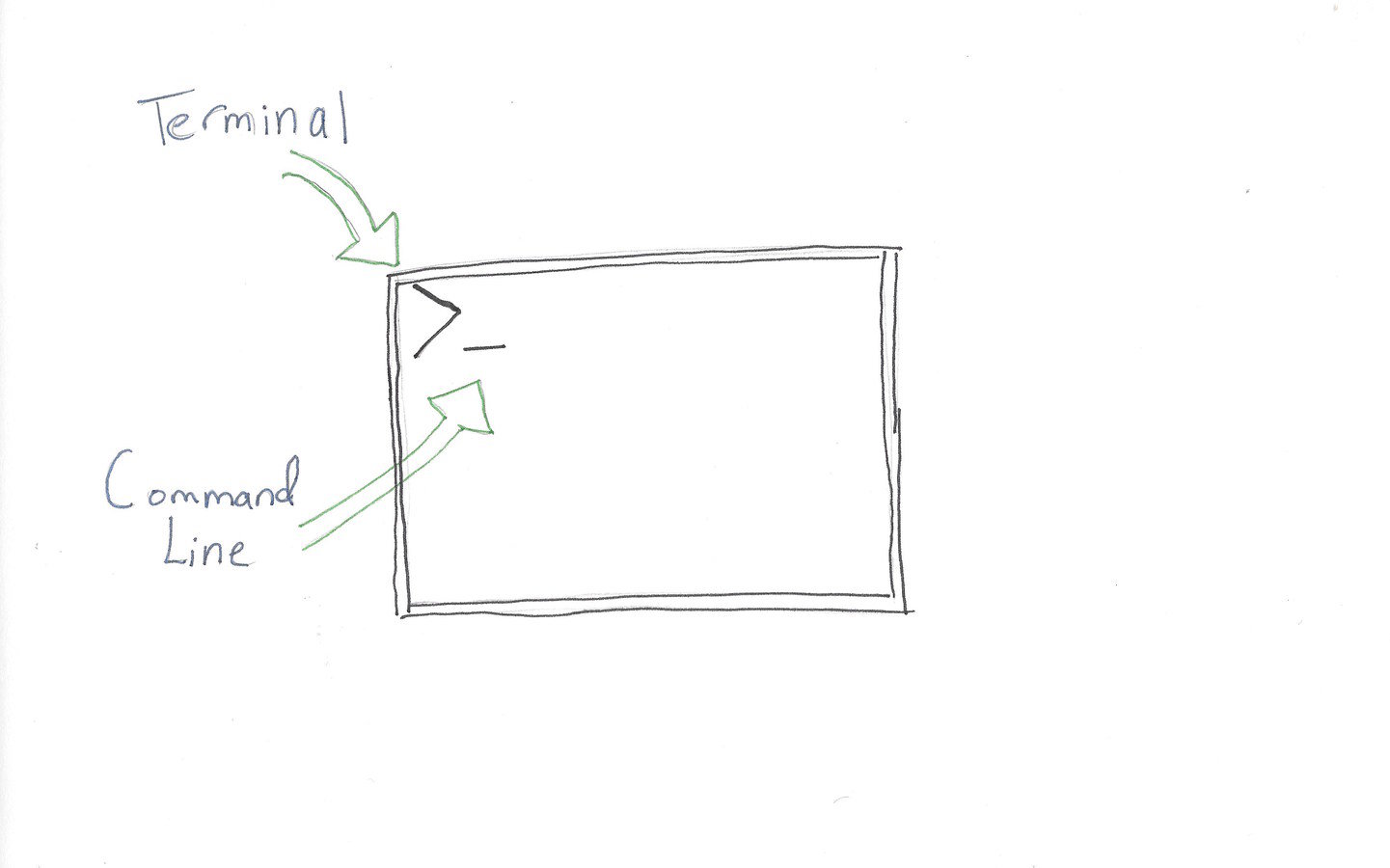
an interface in which you can type and execute text based commands in order to interact with your computer (Source: http://askubuntu.com/questions/38162/what-is-a-terminal-and-how-do-i-open-and-use-it).

That's Nice, but why Do I need it?

1) We'll be using the terminal for Git and in Interactive Media 3, PhoneGap. Don't worry about Git for now, but just know that we need to understand how to use the terminal in order to use other technologies. 

2) More efficient in the long run

3) Same commands across Mac and Linux systems since we'll be using UNIX commands. For our case, I just want you to understand that UNIX systems all use the same commands.  If you want a further understanding of UNIX, check out this great article: https://kb.iu.edu/d/agat

Ok, how Do I use unix commands in the terminal?

Mac/Linux users

  1. Open your terminal by typing in "Terminal" in Spotlight Search
  2. You should now have a terminal window open. 
  3. On the command line, I want you to try out a variety of different UNIX commands. 

PC Users

Please download Git Bash and then open it: https://git-for-windows.github.io/

UNIX Commands

The following UNIX commands will allow you to move through your system as you would using Finder:

  1. cd name_of_directory - move to the specified directory from the current directory
  2. cd - takes you to your home directory
  3. cd .. - move up one directory from the current directory
  4. ls - list all files in the current directory, except hidden files
  5. ls -a - list all files in the current directory, including hidden files
  6. mkdir - make a directory 
  7. pwd - check your present working directory (current directory)
  8. touch name_of_file - create a file
  9. rm -i - remove a file
  10. rmdir - remove an empty directory

In Class Exercise

  1. Create a directory named "project_example" (without the quotes) by typing mkdir project_example
  2. cd into project_example by typing cd project_example
  3. create a file and name it "test_file.txt" by typing touch test_file.txt
  4. While in project_example, use the ls command to show all files present in that directory. There should only be a file named "test_file.txt"
  5. Next, use the ls -a command to see if there are any hidden files in your directory.  You should something like ". ../ test_file.txt". Anything starting with a "." is hidden. 
  6. Now, type pwd to see what directory you're currently in
  7. We don't need the file anymore, so let's remove it. Type rm test_file.txt
  8. once you're done, cd out of the directory by typing  cd ..
  9. Now that we're done with the project, we can remove the directory. Type rmdir project_example to remove the directory.

Setting Up Development Environment

Several Technologies used in this Course, including Git. 

  1. Make sure Command line tools are up to date (need it for Git)
    1. On your command line, type xcode-select --install
  2. Download Git: http://git-scm.com/downloads
  3. Install it onto your system

Update 1

Create a wireframe of a web application on the topic of your choice. That’s right, you get to let your creativity out and build a site that you want. Since this is the first exercise, you will only be constructing the basics of your site. Ie, the concept, flow, and general wireframe, rather than the site itself.

Tool: You will be creating a wireframe of your website using a medium of your choice. You can use Photoshop if you’d like, but you can also choose to use https://wireframe.cc/. I chose this wireframing site, because it makes it very easy to create and share a wireframe, all without having to log in or pay anything. The downside is that each page will need it’s own url, so you will have a minimum of 3 urls, 1 for each page.

Guidelines:

  1. Create a very basic wireframe of your web application using the wireframe tool. You will be developing the user flow and basic design elements for this exercise.

  2. You will be creating a minimum of 3 pages for this assignment. So, that's 3 wireframes per device (mobile, tablet, and desktop) and makes a total of 9 wireframes.

Code Camp Reading


https://goo.gl/gMzr0q

Web Design 2: Presentation # 1 (new)

By Omar Patel

Web Design 2: Presentation # 1 (new)

  • 860