Interactive Media # 1

Aka DES261

Week # 6

Let's go over your Assignment

Checking the comp across Mobile, Tablet, and Desktop

Please submit your comps as either a jpg, jpeg, pdf, or png format and email them in zipped format to omarpatel123@gmail.com

Quiz time!

Let's go over the Project

Now that you know what the site is going to look like, we're going to try and bring it to life using HTML, CSS, and JavaScript.

I don't know what any of those mean and you're scaring me

Well, hopefully the video and the article I had you read helped explain some of what HTML and CSS is, but let's go over it again.

Building a web application

Text Editor

  • Before we start writing code for your website, you'll need to first download a tool to do so.
  • In this class, we're going to be using Sublime Text.
  • Sublime Text is a free text editor that is used to write code.
  • Sublime even has text highlighting, convenience tools, and color changes based on what language you're using.
  • Let's start by downloading Sublime Text: http://www.sublimetext.com/

HTML

  • The first step in building your web application from a comp is to code the markup.
  • By markup, I'm referring to HTML. HTML stands for "HyperText Markup Language". 
  • HTML is a language used to build the structure of your application, similar to how you built your wireframes. 

Building a web application

CSS

  • The second step in building your web application is to code the CSS.
  • CSS stands for "Cascading Style Sheets". 
  • CSS is a language used to build the styling and layout of your application, similar to how you filled out your wireframes with the surface.

Building a web application

Learning HTML and CSS

OK, now that we know what we're supposed to learn, let's start learning!

Instead of building a more-than-likely-crappy tutorial for you to learn HTML and CSS, I'm going to utilize existing, tested resources like the lazy engineer I am!

In this class, we're going to be completing this free tutorial from Code Academy: https://www.codecademy.com/en/tracks/web over the next couple of weeks.

We're going to stop at each section and review over any material students don't understand. I'll then go over further examples on the board.

Work Time!

Sign up for Code Academy by going to codeacademy.com and then start working on their "HTML & CSS" track. 

Next, pair up in groups! You will get stuck and it's always better to pair program than program on your own!

You can go as fast as you want, but be sure to really understand what you're learning. 

I'll be answering questions during your exercises and in between them. 

Good luck!

HTML Cheat Sheet

  • <!DOCTYPE html> : Tells the browser what version of HTML to use
  • <html></html> : Everything in an an html document is contained within these tags.
  • <head></head> : container for meta data (data about data). Your <title></title> tags go here as well as links to your css and javascript files.
  • <title></title> : Gives the title of the page (seen in the tab of the browser). Also, helps with SEO
  • <body></body> : Where all of your content that you want seen goes. This is where most of your work is done. 

HTML Cheat Sheet

  • <h1></h1>, <h2></h2>, <h3></h3>, <h4></h4>, <h5></h5>, <h6></h6> : Heading elements that hold text used as headers for the different parts of the web page.
  • <p></p> : Paragraph tags are used to hold general texts. For instance, as paragraphs. 
  • <a></a> : Anchor tags are used to link to either a resource that's on your own machine or to an external resource. The attribute for anchor tags is href and the value is the link to the resource. For example, <a href="http://www.google.com">Some text</a> will link Some text to google's web page. 
  • <img> : The image tag is used to add an image element. The image element uses a src attribute to populate the image tag. For example, <img src="some_image.png">

HTML Cheat Sheet

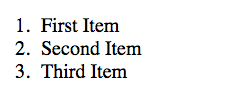
  • <ol></ol> : Ordered list of elements. Each element in an ordered list is a list item, denoted by <li></li>. Ordered list items are numbered. For example, the following code will render like so:
<ol>
    <li>First Item</li>
    <li>Second Item</li>
    <li>Third Item</li>
</ol>

Code

Output

  • <li></li> : List items are used as elements within either an ordered list or an unordered list. See above for an example.
  • <ul></ul> : Unordered lists are lists of items that aren't numbered or in any particular order. By default, the list items are shown as bullet points per item (instead of numbered).
  • <!-- --> : Comment tags are used in HTML to prevent the html code in that area from being rendered by the browser. For example, if you want to write some notes for yourself in the HTML file, you can do <!-- This is a note for myself -->

HTML/CSS Cheat Sheet

  • style attribute : Used to render inline CSS within an HTML element. For example,
<p style="font-size: 12px;">This text is now 12px in size</p>

Code

  • font-size: CSS property to change the font size of an element. For example,
<p style="font-size: 18px;">This text is now 18px in size</p>

Code

  • font-family: CSS property to change the font of an element. For example,
<p style="font-family: Arial;">This text is now using Arial as the font family.</p>

Code

Code

  • color: CSS property to change the color of an element. For example,
<p style="color: blue;">This text is now blue.</p>

HTML/CSS Cheat Sheet

  • Multiple inline CSS styles: Adding multiple inline CSS styles is easy. Just use the style attribute and then separate each style property and value using a semicolon. For example,
<p style="font-size: 20px; color: blue; font-family: Arial;">
A truly spectacular paragraph!</p>

Code

  • background-color: CSS property to change the background-color of an element. For example,
<h3 style="background-color: violet;">Favorite Football Teams</h3>

Code

  • text-align: CSS property to change the alignment of an element within its container. For example,
<h3 style="text-align: center;">This will be in the middle of the container</h3>

Code

  • <strong></strong>: HTML element used to bold words. For example,
<p>I am not bold, <strong>but I am</strong></p>

Code

HTML/CSS Cheat Sheet

  • <em></em>: HTML element used to italicize text (called "emphasizing"). For example, 
<p>I am not emphasized, <em>but I am</em></p>
  • <table></table>: HTML element used to create a table. A table, according to Codecademy.com is "A table is just a bunch of information arranged in rows and columns."
  • <tr></tr>: HTML element used to create a row within a table.
<table>
    <tr>I'm a row</tr>
    <tr>Me too!</tr>
</table>

Code

HTML/CSS Cheat Sheet

  • <td></td>: HTML element used to create columns within a table.
<table>
    <tr>
        <td>First Column</td>
    </tr>
        <td>Second Column</td>
</table>

Code

  • <thead></thead>: HTML element used to "contain information about a table" - Codecademy.com
<table>
  <thead>
    <tr>
      <th>Header for first Column</th>
      <th>Header for second Column</th>
    </tr>
  </thead>
    <tr>
        <td>First Column</td>
        <td>Second Column</td>
    </tr>
    <tr>
        <td>First Column</td>
        <td>Second Column</td>
    </tr>
</table>

Code

HTML/CSS Cheat Sheet

  • <tbody></tbody>: HTML element used to contain all of the table data outside of the header and footer.

Code

<table>
  <thead>
    <tr>
      <th>Header for first Column</th>
      <th>Header for second Column</th>
    </tr>
  </thead>
    <tbody>
        <tr>
            <td>First Column</td>
            <td>Second Column</td>
        </tr>
        <tr>
            <td>First Column</td>
            <td>Second Column</td>
        </tr>
    </tbody>
</table>

HTML/CSS Cheat Sheet

  • colspan: HTML attribute used to determine how many columns the header will span across.

Code

<table>
  <thead>
    <tr>
      <th colspan="2">Covers the length of two columns</th>
      <th>blah blah blah</th>
    </tr>
  </thead>
    <tbody>
        <tr>
            <td>First Column</td>
            <td>Second Column</td>
        </tr>
    </tbody>
</table>
  • <div></div>: HTML element used as a container for other elements. Helps separate code into separate blocks. 

Code

<div>This is a container</div>

HTML/CSS Cheat Sheet

  • <span></span>: HTML element used to style elements within another element.

Code

<h1>styled only on h1
<span style="color: red;">
able to style this part separately, but along with h1 styling
</span>
more words</h1>

Assignment # 6

Finish the HTML part of the the tutorial by next week. This includes: INTRODUCTION TO HTML, HTML STRUCTURE: USING LISTS, HTML STRUCTURE: TABLES, DIVS, AND SPANS

Quiz for next week will be based off of the HTML Tutorials

Next Week's Quiz

Copy of Interactive Media # 1 Week 6

By Omar Patel

Copy of Interactive Media # 1 Week 6

  • 691