Interactive Media # 1

Aka DES261

Week # 7

Let's go over your Assignment

Finish the HTML part of the the tutorial by next week. This includes: INTRODUCTION TO HTML, HTML STRUCTURE: USING LISTS, HTML STRUCTURE: TABLES, DIVS, AND SPANS

Quiz time!

Let's go over the Project

Now that you know what the site is going to look like, we're going to try and bring it to life using HTML, CSS, and JavaScript.

Learning HTML and CSS

Alright, so last week we completed part of the HTML tutorial in class. This week, we're going to go over CSS. Remember these facts about CSS?

CSS

  • The second step in building your web application is to code the CSS.
  • CSS stands for "Cascading Style Sheets". 
  • CSS is a language used to build the styling and layout of your application, similar to how you filled out your wireframes with the surface.

Work Time!

Continue Working on the HTML & CSS track. Hopefully, you have completed the HTML portion of the tutorial (which is what's due today). 

I can go over any concepts you didn't understand. Also, please take a look at the updated notes for last week's slides (they are now at a different link)

Again, please pair up in groups so that you can accomplish this together and help one another. I'll be here to answer questions, but I might not be available as fast as the person next to you.

CSS Tutorial Notes

  •  <link type="text/css" rel="stylesheet" href="stylesheet.css"/> : Refers to the method for linking to a CSS stylesheet. In this case, the stylesheet is named "stylesheet.css" and is located in the same folder as the html file linking to it. the type and rel attributes and values will always be the same as shown above. Also, the link is always placed in the head element.
  • element selectors : Element selectors are used in CSS to add CSS to all elements with the element name. Notice that when adding CSS to an element, you must first start with a "{", then add the css you want (each separated by a ";") and then end with a "}"


p {
  color: red;
}

CSS Tutorial Notes

  • /* */ : Comments allow you to hide code from the browser. This is useful when you want to organize your code, add your own personal comments, or save some code to use later but don't want implemented immediately. 
/* The following is CSS for the Index.html file only */

p {
    color: red;
    /* font-family: Arial; Don't want to use this code for now */
    font-size: 12px;
}

h1 {
    color: white;
}

CSS Tutorial Notes

  • Properties and Values: In CSS, the property is the type of CSS you want to add and the value is exactly what you want to to set that property to. For example, "color" is the property and "red" is the value.


  • Backup fonts: There are times when you're using a font and the browser won't be able to render them. Usually, this is due to the browser being older or the font being obscure. In that case, you want to set backup fonts when the main font fails to load. To do that, simply set the fonts in the font-family by order of importance. That is, the first font is the font you want to use and then other fonts are the default font or fonts you want to use in case the one before it fails. Example is on the next page.
p {
    color: red;
}

CSS Tutorial Notes

Subtitle

p {
    font-family: Tahoma, Verdana, sans-serif;
}
  • Height and Width Attributes: By default, HTML elements have a height and width equivalent to how much space they take up. However, if you want an element to take up only a certain amount of space, then you can use the height and width attributes.
div {
    width: 50px;
    height: 50px;
}
  • border : The border property allows you set the size, type, and color of the border of an HTML element. 
div {
    border: 1px solid green;
}

CSS Tutorial Notes

  • text-decoration : CSS property that allows you to underline, line-through, underline, overline, and none. The "none" value removes all text-decorations set on the element previously or by default.
a {
    text-decoration: none;
}
  • border-radius : CSS property that sets how round the edges of your element are. 
div {
    border-radius: 2px;
}
  • margin : CSS property that sets how much spacing there is between an element and other elements. Is also used to set an automatic margin using the value ​auto. Order is top, right, bottom, left.
div {
    margin: 1px 2px 8px 0;
}

CSS Tutorial Notes

  • nested selectors : You can use nested selectors to target HTML elements that are only contained within certain HTML elements.


    The code above will only select anchor tags that are within a div that are within another div. So, that means the anchor element has to look like this in order to be selected:
div div a {
    color: white;
}
<div>
    <div>
        <a></a>
    </div>
</div>

CSS Tutorial Notes

: The universal selector or * is used in CSS to select every HTML element. This is rarely used and if used, should be done carefully.

* {
    border: 1px dashed black;
}
  • Parent, sibling, and child : In HTML, the elements work like a family tree. So, elements that contain other elements are parents and the elements they contain are children. Elements that are adjacent to one another are siblings. 
<!-- The divs with id's "first_div" and "second_div" are siblings -->
<div id="first_div">
    <!-- The div with the id "first_nested_div" is a child 
    of the div with id "first_div". This also makes "first_div"
    a parent of "first_nested_div" -->
    <div id="first_nested_div">
    </div>
</div>
<div id="second_div">
    <div id="second_nested_div">
    </div>
</div>

CSS Tutorial Notes

  • Cascading and it's role in specificity : The cascading property of CSS causes selectors with higher specificity to override selectors with lower specificity. For example, let's say you have some CSS like this:


If p was contained in a div, then you could override that CSS if you increased your CSS specificity like this:


p {
    color: white;
}
div p {
    color: purple;
}
  • and . : The "#" represents the id selector and "." represents the class selector. The id selector is used when selecting just one element, while the class selector is used when selecting multiple elements (the exception is if the element was only used once in the HTML). 

CSS Tutorial Notes

<div class="container">
    <h1 id="title_header">Welcome!</h1>
</div>

<style>

    .container {
        color: white;
    }

    #title_header {
        background-color: purple;
    }

</style>
  • pseudo-class selector: According to codeacademy, "pseudo-class selector is a way of accessing HTML items that aren't part of the document tree". 
a:hover {
    color: pink;
}

CSS Tutorial Notes

  • anchor pseudo classes : These are pseudo-classes just on the anchor tag. This includes :link for unvisited links, :visited for visited links, :hover for hovering over a link, and :active for selected links. You can interact with examples here: http://www.w3schools.com/css/css_pseudo_classes.asp
  • :first-child : Pseudo-class for styling only the first child of an element. For example, the following will only style the first p element inside a div:
<div>
    <p></p>
    <p></p>
</div>

<style>
    /* Will only style the first p element */
    p:first-child {
        color: red;
    }
</style>

CSS Tutorial Notes

  • :nth-child : This is a pseudo-class that allows you to select any child of an element. So, if you wanted just to style the 4th child of a p element, you could do this:
p:nth-child(4) {
    color: yellow;
}
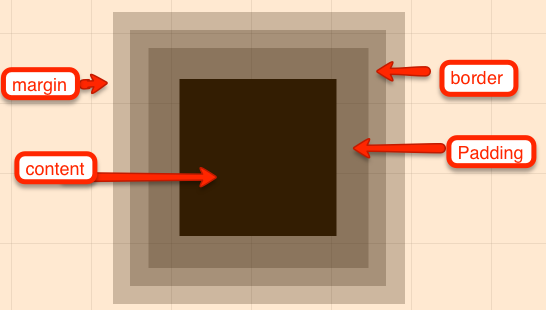
  • CSS Box Model : The CSS box model is the basis for every HTML element. It shows that each element has content, border, padding, and a margin. 
    • We've already gone
      over border and margin 
      properties earlier, but
      here's a good
      visualization of what
      that looks like to the
      browser.

CSS Tutorial Notes

  • CSS Box Model (continued) 
    • The padding is what gives spacing to the inside of an element. So, if you wanted to move content within your element, you would use padding. 
    • The margin is what gives spacing around the element (source: codeacademy)
    • The border is the surrounding edge of the element (source: codeacademy)
    • The content is what's contained within the element between its tags. 
div {
    padding-top: 4px;
    padding-left: 2px;
    margin-top: 1px;
    border: 1px dotted purple;
}
  • display : The CSS display property is used to determine what type of alignment the element will be, in terms of width. There are many values for display, but the main ones are block, inline-block, inline, and none.
    • display: block will set the element to take up the full width of the screen and have a box shape (just like the CSS Box model)
    • display: inline-block will set the element to still be a block, but allows for other elements to be in the same line as it.
    • display: inline will set the element to only take up as much space as its content and allow elements on the same it's in. 
    • display: none will make the element disappear. 

CSS Tutorial Notes

<div id="block_container"></div>
<div id="inline_block_container"></div>
<div id="inline_container"></div>
<div id="invisible_container"></div>

<style>
    #block_container {
        display: block; //default display for divs
    }

    #inline_block_container {
        display: inline-block; 
        /* displays element in the same line 
        as other elements, but as a block shape */
    }

    #inline_container {
        display: inline; //displays element in same line
    }

    #invisible_container {
        display: none; //hides element
    }
</style>

CSS Tutorial Notes

  • float and clear : The float property sets the element in a flow relative to other elements. Floats are generally used to move elements into right or left positions. Issues do occur when you mix floated elements with non-floated ones. So, after you're done floating an element, you should clear that float so other non-floated elements don't run into your floated elements. 
div {
    float: right;
}

#footer {
    clear: both;
}
  • position : Positioning tells elements how they will be positioned in relation to the page. There are several values: static (default), absolute, relative, and fixed.
    •  position: static the default position of all elements. 

CSS Tutorial Notes

  • position (continued) : 
    •  position: absolute moves the element relative to it's non-static container. So, if its container is a div with position: relative, then the element would move how much ever you wish from the point of the container. 
    • position: relative moves the element relative to wherever it is on the page. 
    • position: fixed basically makes the element stay in the same place, even as you move across the page. Essentially, it follows the user. 
<div id="static_container"></div>
<div id="absolute_container"></div>
<div id="relative_container"></div>
<div id="fixed_container"></div>

<style>
    #static_container {
        position: static; //default position for any element
    }

    #absolute_container {
        position: absolute; /* position relative to container
                               if container is non-static */
    }

    #relative_container {
        position: relative; //position is relative to where it is
    }

    #fixed_container {
        position: fixed; // position is stuck, even on scroll
    }
</style>

CSS Tutorial Notes

CSS Tutorial Notes

  • z-index : used to determine the stack order of elements. Basically, an element with a higher z-index would be above another element on the z-plane. 
<div id="first_div"></div>
<div id="second_div"></div>

<style>
    #first_div {
        z-index: 2; /* If both elements were stacked,
                       this element would be above
                       the other div. */
    }

    #second_div {
        z-index: 1;
    }
</style>

Assignment # 7

Finish the final part of the the tutorial by next week. This includes: INTRODUCTION TO CSS, CSS CLASSES AND IDS, CSS ELEMENT POSITIONING

Quiz for next week will be based off of the CSS Tutorials

Next Week's Quiz

Copy of Interactive Media # 1 Week 7

By Omar Patel

Copy of Interactive Media # 1 Week 7

  • 751