Tipperary Community Services Centre
Wordpress CMS Training
Training Overview
- Note on Importance of linking to the site
- Home page slider
- About Us section
- Upcoming events
- Latest News
- Contact page
- Gallery
- Links section
- Featured content blocks
What is WordPress?
- WordPress is web software you can use to create a websites and blogs.
- One of the Key ideas behind WP are Pages and Posts
Pages:
Pages are meant to be static “one-off” type content such as your about page, privacy policy, contact
page etc.
Posts:
You will mainly use posts when adding new content. These are used for news items, business listings etc.
The Admin Dashboard
-
tipperarycommunityservicescentre.com/wp-admin/
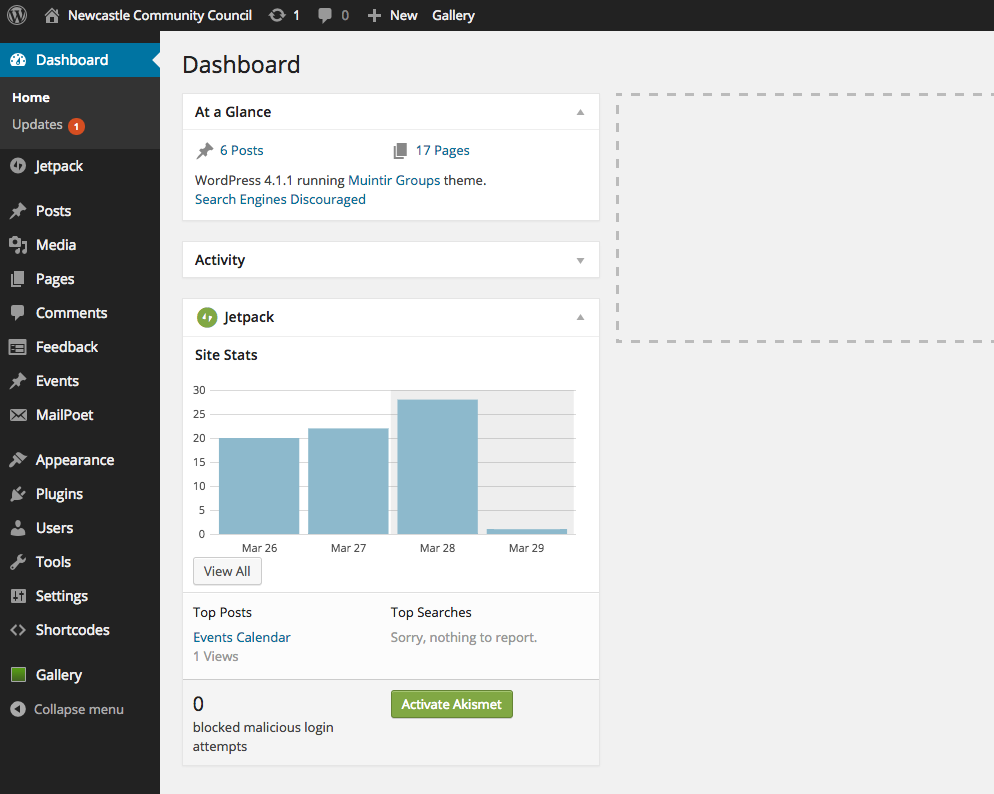
The Admin Dashboard
| Pages | View all pages, edit, add new |
| Posts |
This is where you can create a new Blog Post. You can also update your Categories and Post Tags. |
| Media |
This is where all your uploaded images, documents or files are stored. You can browse through your Media library, as well as edit and update the files. |
| Appearance |
This menu is where you control how your site looks. You can choose a new Theme, manage your site Widgets or Menus and even edit your site theme files. |
| Plugins | Extend functionality of Wordpress, experienced users only. Otherwise only used for updating existing plugins. |
The Admin Dashboard
| Users |
This screen lists all the existing users for your site. You can also add new Admin users as well as manage their Roles. |
| Tools | N/A |
| Settings |
This is where most of your site is configured. Among other things, it allows you to configure your site name and URL |
The Admin Toolbar
- Pages and Posts can be edited from the dashboard or else by navigating to the page and selecting the 'edit' option from the Admin toolbar at the top of the page
- New Events and Files can added by hovering over the 'New' link
Homepage Slider
- Slides on the homepage carousel can be edited by visiting: Appearance > Theme Options. Then click on the 'Slider' Tab
- Slider images should be 1024px wide and a max height of 300px
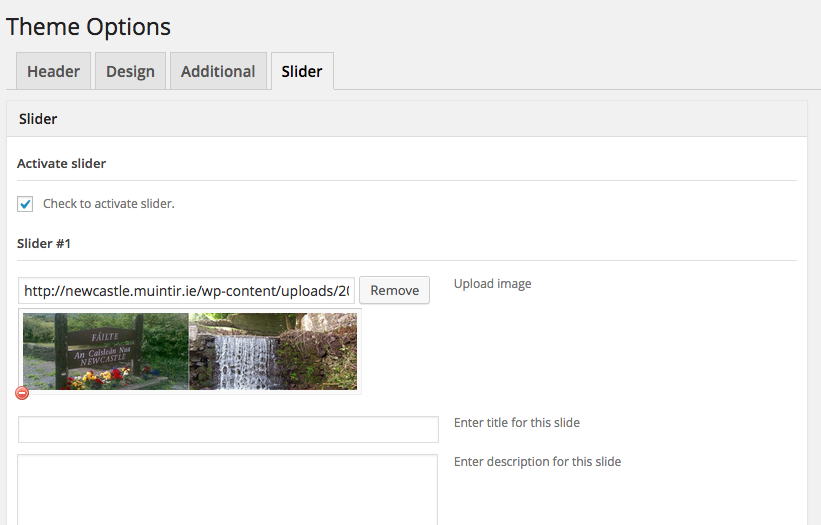
Homepage Slider
- Enter details for each slide you wish to include (max of 4)
- Where appropriate enter a url to link the slide to - this can be an existing page or a link
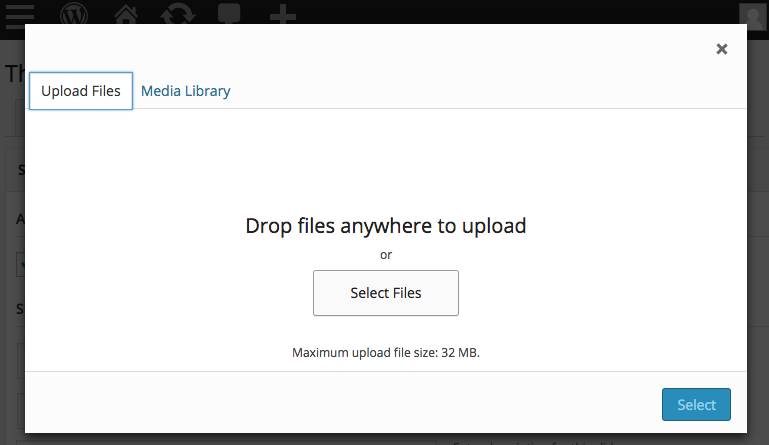
to an external site - To change / upload a slide image, click the remove / upload button and select an image via the Media popup window
- Images may be selected from your computer (Upload) or alternatively from the existing Media Library within Wordpress
About Us Page
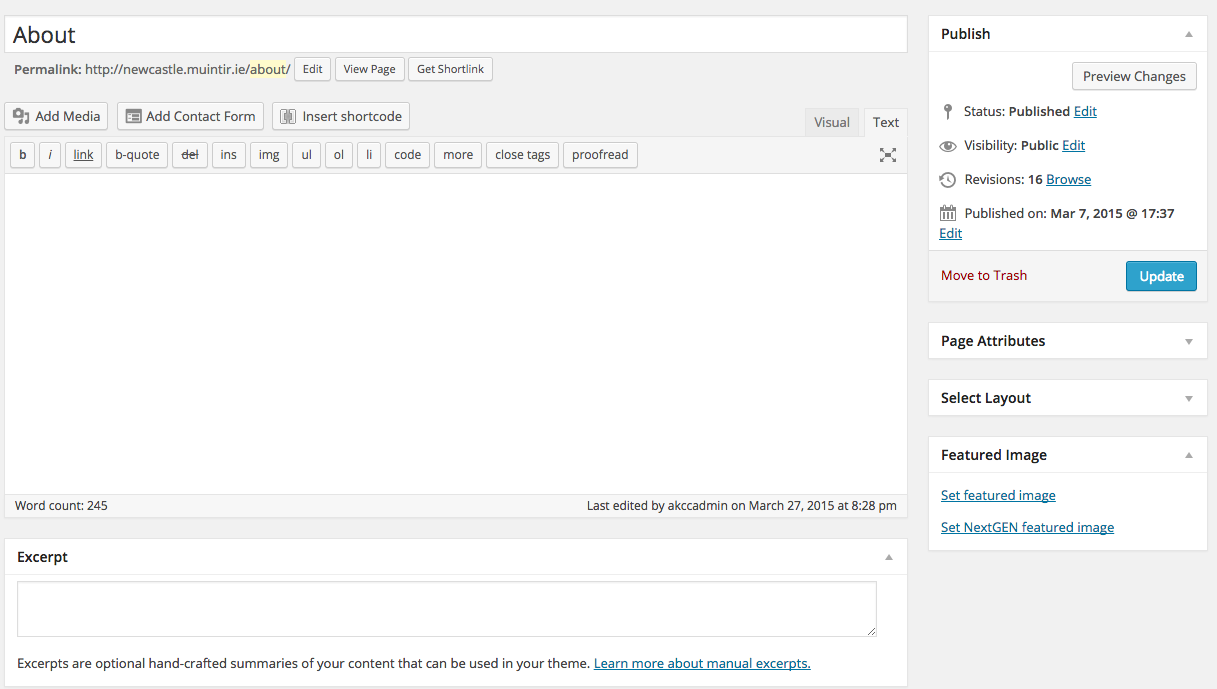
- This is an example of editing for all standard current and future pages
- Navigate to the 'About' page in your browser
- Click on 'Edit Page' link within the Admin toolbar
About Us Page
- This is an example of editing for all standard current and future pages
- Navigate to the 'About' page in your browser
- Click on 'Edit Page' link within the Admin toolbar
Enter content in the main
rich text editor on the page.
About Us Page
- This is an example of editing for all standard current and future pages
- Navigate to the 'About' page in your browser
- Click on 'Edit Page' link within the Admin toolbar
Enter a short description of the page in the excerpt field, this can just be a repeat of the first line of content. This excerpt will appear under the 'About Us' feature on the Home page
About Us Page
- This is an example of editing for all standard current and future pages
- Navigate to the 'About' page in your browser
- Click on 'Edit Page' link within the Admin toolbar
Click the Update button to save your changes
(Note: 'Publish' appears on the button when creating a new page)
Page: Revisions
- Don't worry if you make a mistake: Revisions are backups of earlier versions of the page
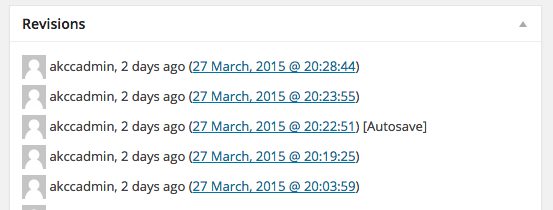
- Click the date of the revision you wish to compare it to
Page: Revisions
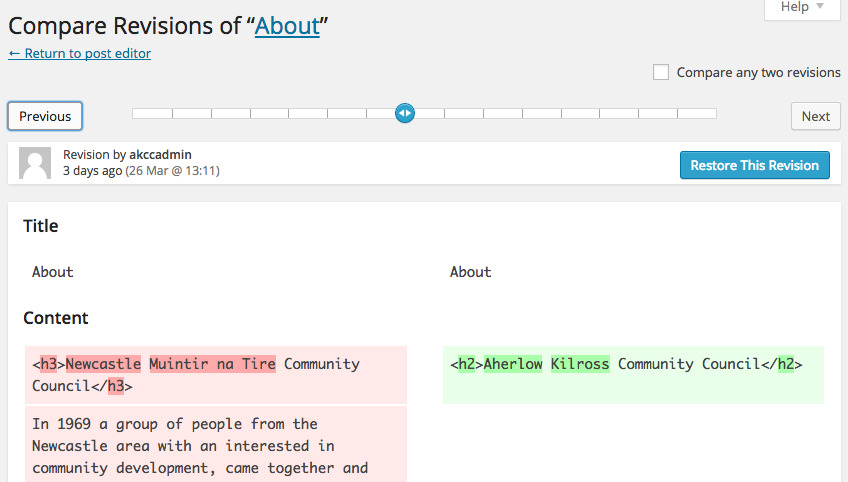
- This brings you to the Revision selector where you can compare versions
- Use the Previous / Next buttons to view different versions
- Once you fine the version you wish to restore, click 'Restore this Revision'
- Then click 'Return to post editor' and finally click 'Update' to save.
Events Calendar
The Events Calendar acts as a community reference for upcoming
one-off events, recurring meetings etc

Events Calendar
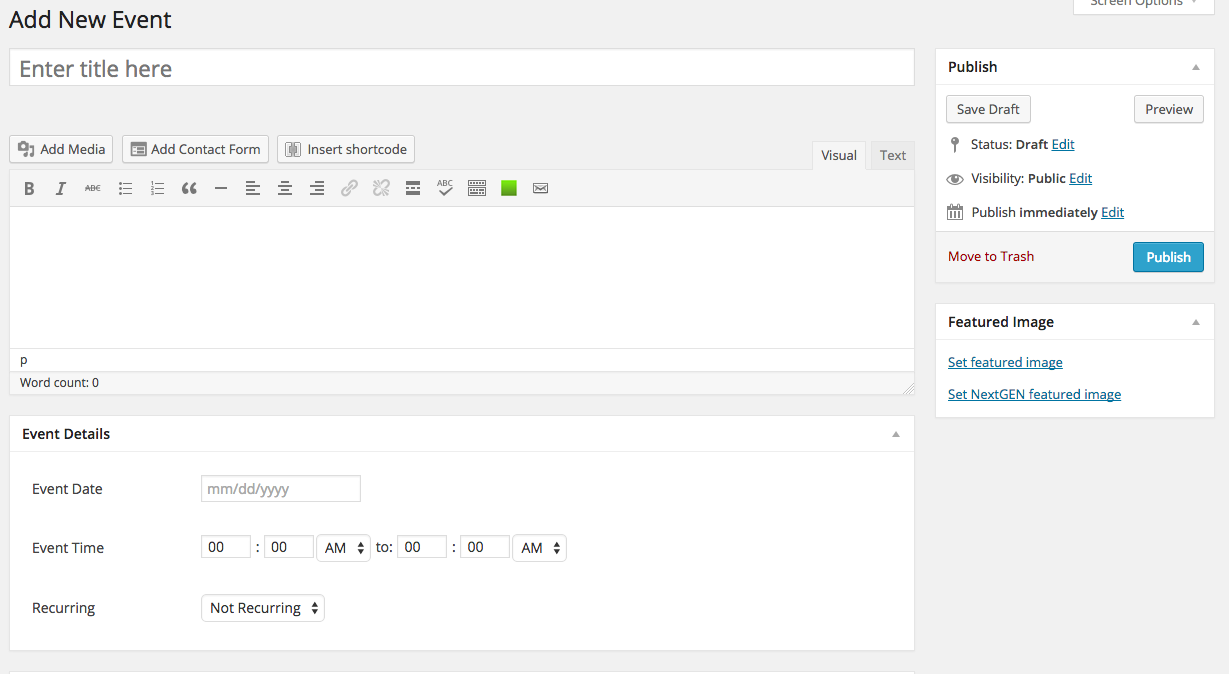
- Click Events > Add new event. Enter event details
- Click 'Publish' to save (or 'Update' if editing an existing entry)
Events can be added as either one-off events or ones that recur on a weekly, monthly or yearly basis.
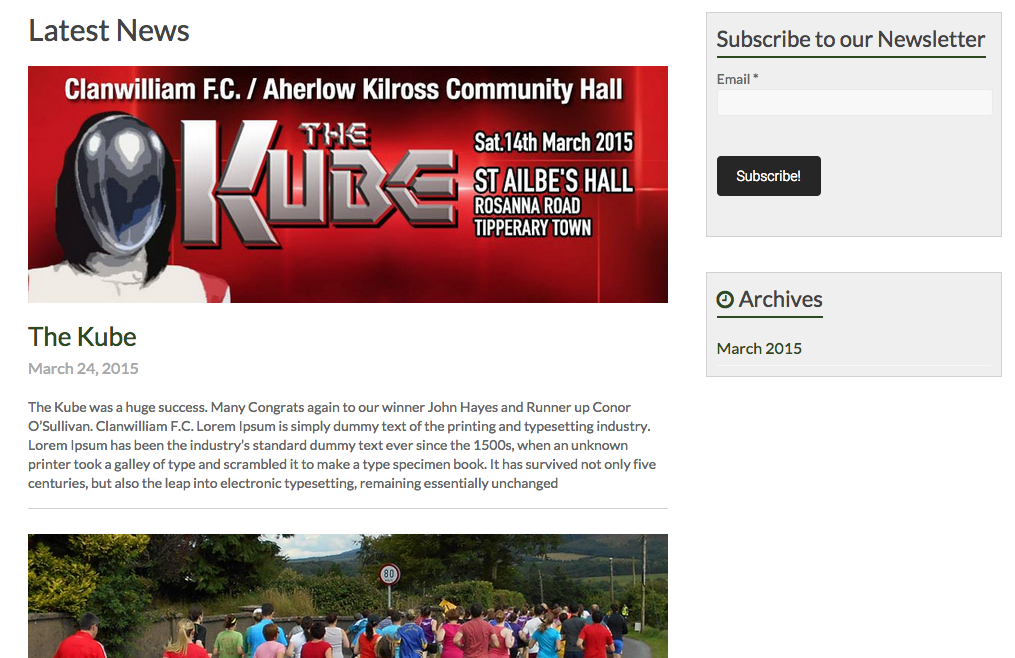
Latest News
- News items should be thought of as individual Posts.
- For more on the differences between Posts vs Pages consult the expanded PDF
This section contains all posts for news items of local interest
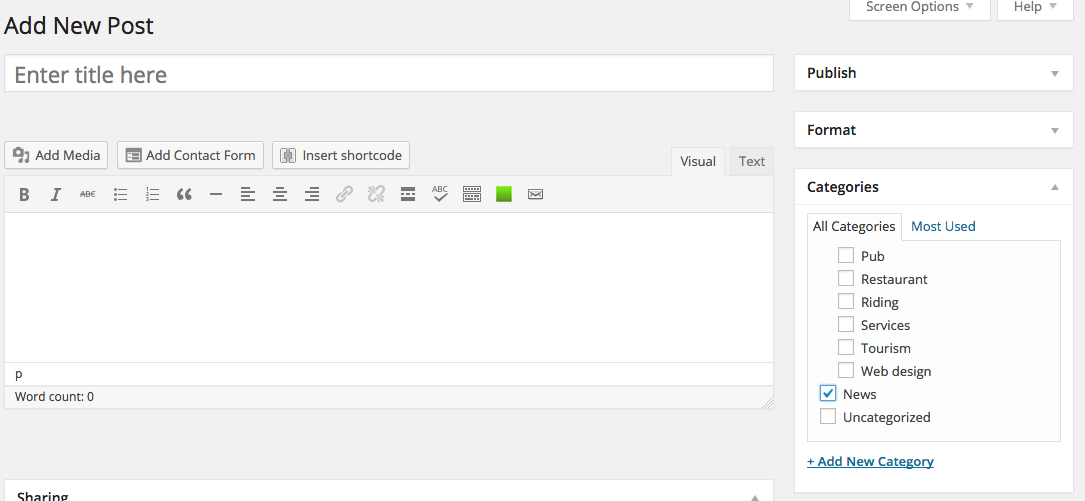
Adding News Posts
- News items should be thought of as individual Posts.
- The 'News' checkbox in the 'Categories' box must be selected.
- For more on the differences between Posts vs Pages consult the expanded PDF
This section contains all posts for news items of local interest
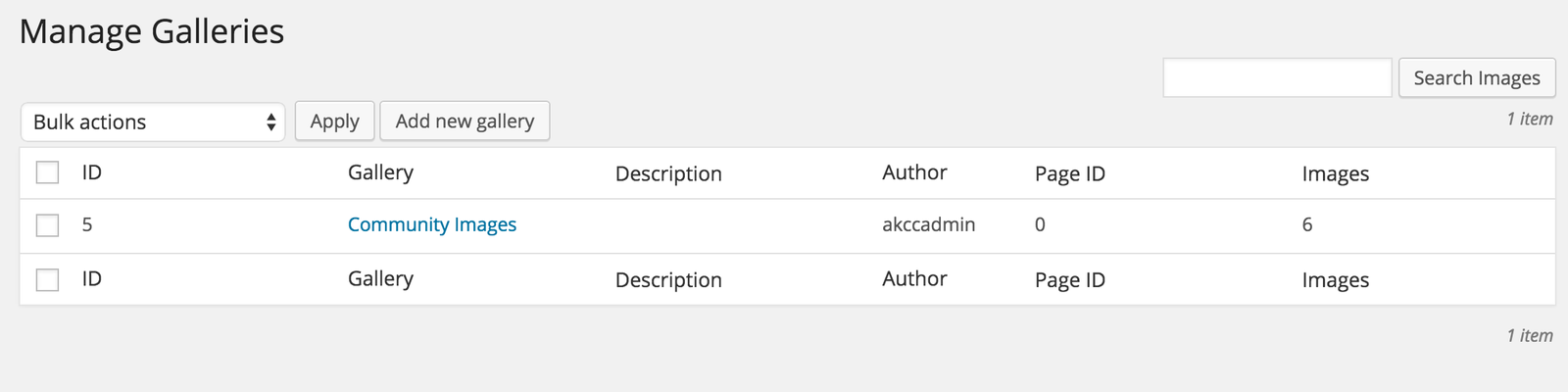
Gallery (1/7)
- Navigate on the dashboard left hand menu to Gallery > Manage Galleries
- Click the name of the Gallery on the Manage Galleries page
Note: Gallery instructions have been updated and are available to view on the
muintir.ie site training page
Managing the default gallery:
Gallery (2/7)
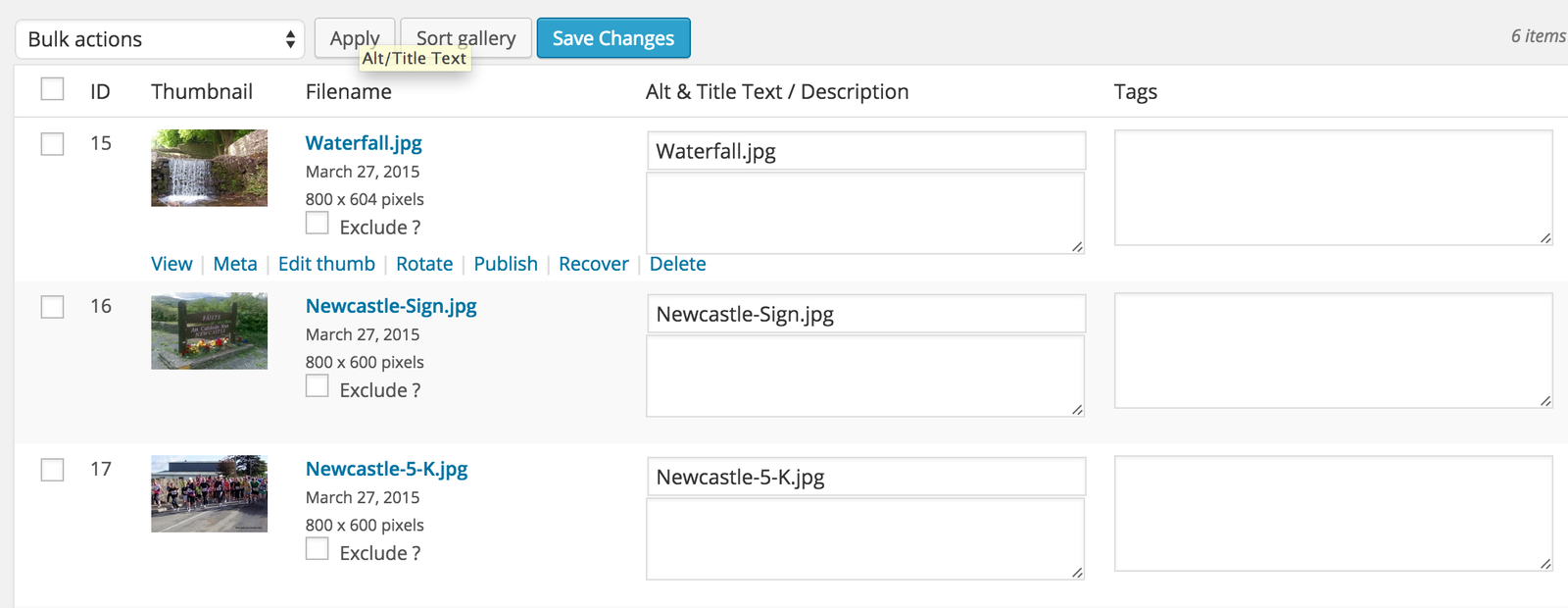
- The gallery edit page allows you to edit image descriptions and alt text, as well as delete
images and change gallery sort order - To change the order of images, simply click 'Sort Gallery' and on the next page, drag the
images to your preferred order and save. - To delete an image, click the checkbox next to the image ID, from the 'Bulk actions' menu
select 'delete' then hit the Apply button
Managing the default gallery:
Gallery (3/7)
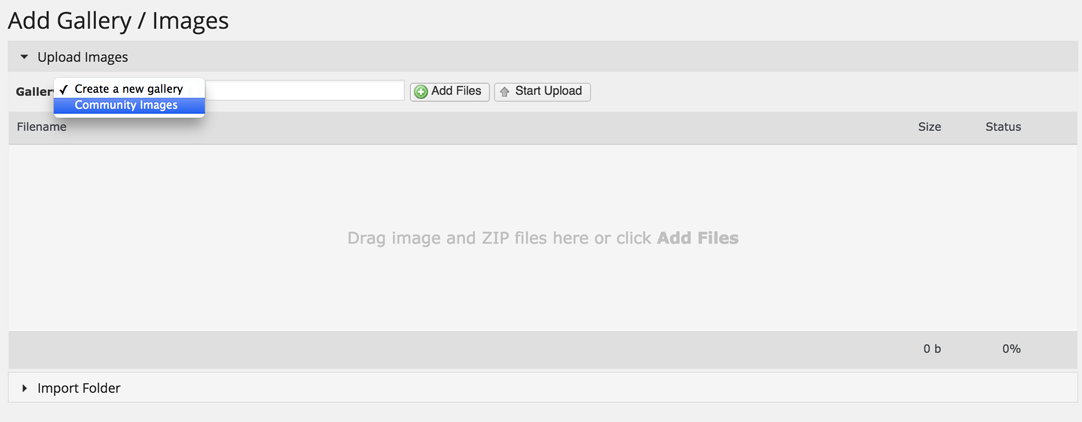
- Navigate on the dashboard left hand menu to Gallery > Add Gallery/Images
-
In the dropdown menu select either 'Create a new gallery' or alternatively select the name
of an existing gallery (if a new gallery, enter a name in the text field provided) - Click the 'Add Files' button and select images for upload
Adding images to an existing gallery or create a new gallery:
Gallery (4/7)
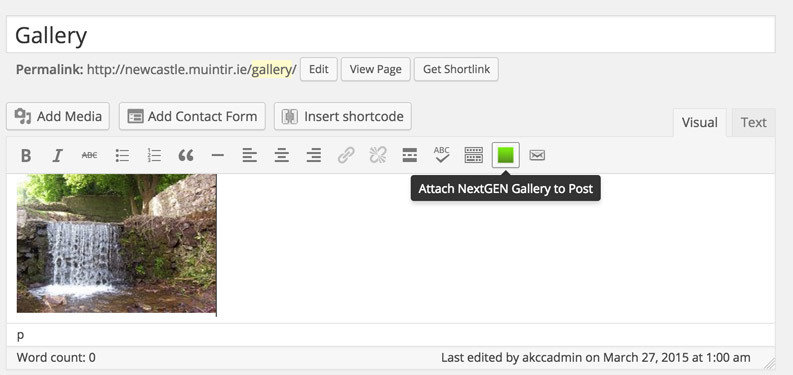
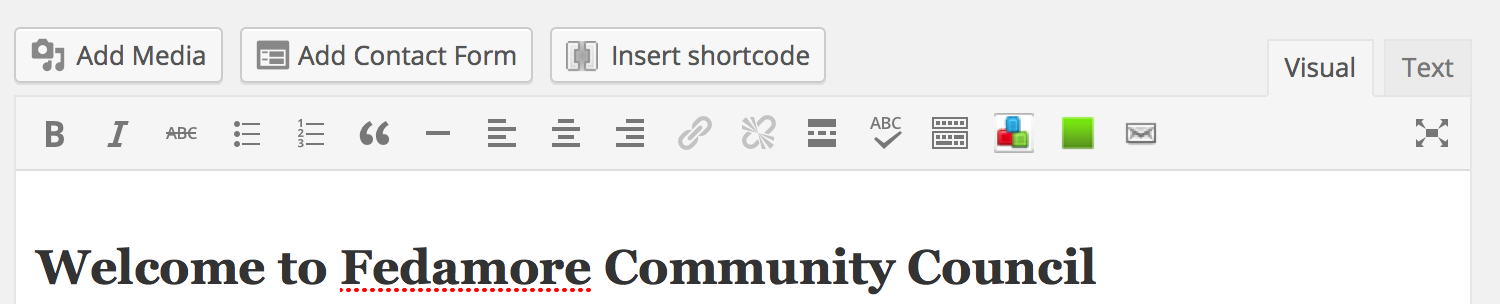
- When editing the page, click in the rich text editor and then click the green 'Attach Gallery to Post' button
Adding a gallery to another page on your site (or adding additional galleries to the same page:
Gallery (5/7)
-
When editing the page, click in the rich text editor ensure the 'Visual' Tab is selected
- and then click the green 'Attach Gallery to Post' button
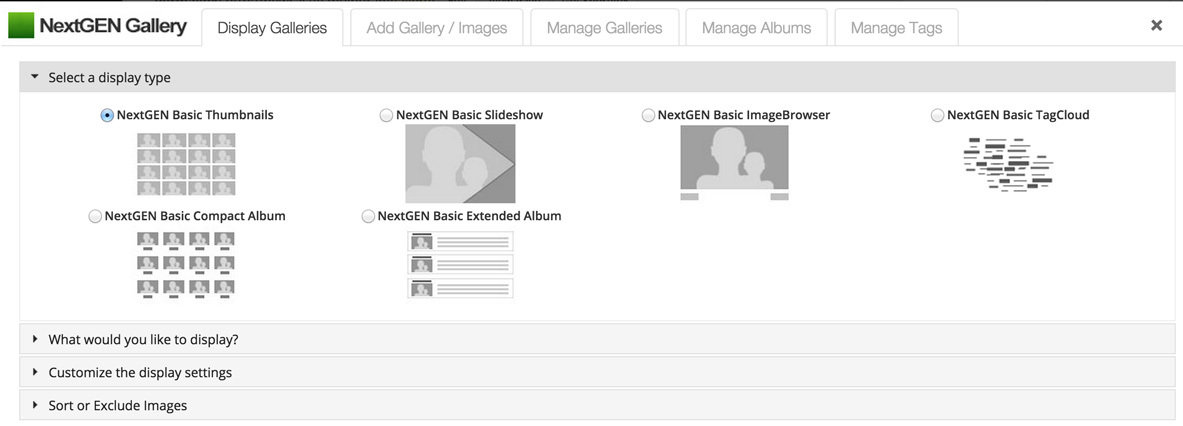
- Under 'Select a display type' make sure 'NextGEN Basic Thumbnails' is checked
- Under 'What would you like to display'
Adding a gallery to another page on your site (or adding additional galleries to the same page:
Gallery (6/7)
-
Under 'Select a display type' make sure 'NextGEN Basic Thumbnails' is checked
Adding a gallery to another page on your site (or adding additional galleries to the same page:
Gallery (7/7)
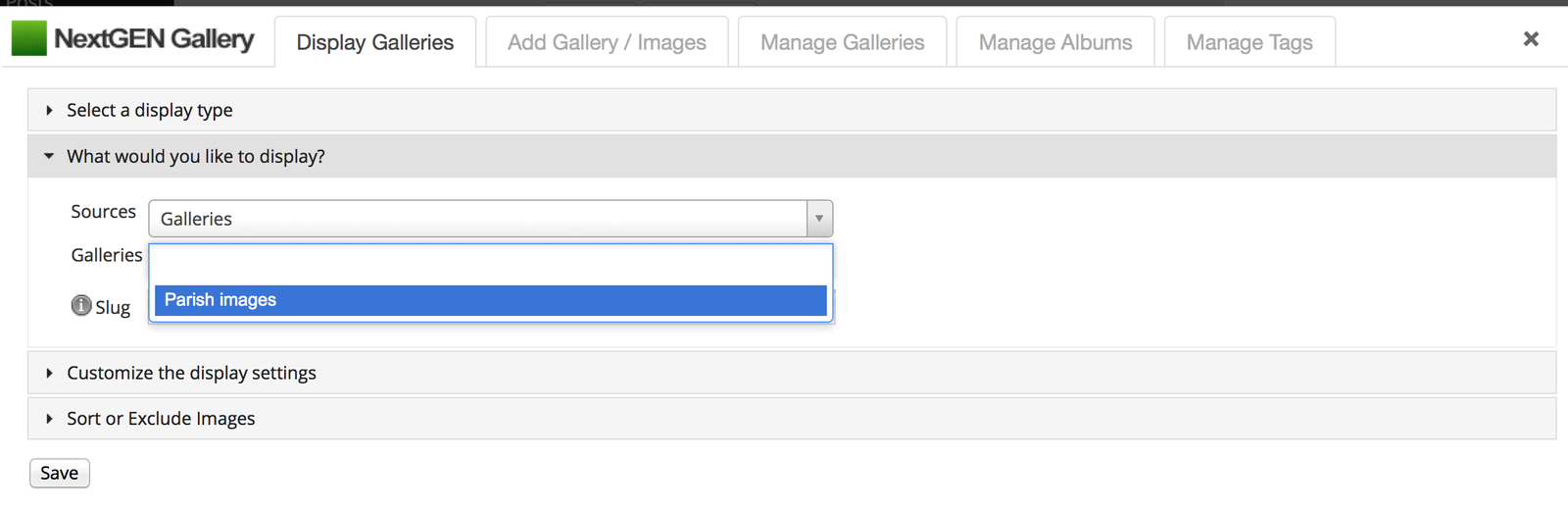
- Under 'What would you like to display' ensure 'Galleries' is the selected 'Source' item
- Click into the input field next to 'Galleries' and select the appropriate gallery to be added from the dropdown menu
- Click save, then click 'Update' when finished editing
Adding a gallery to another page on your site (or adding additional galleries to the same page:
Links
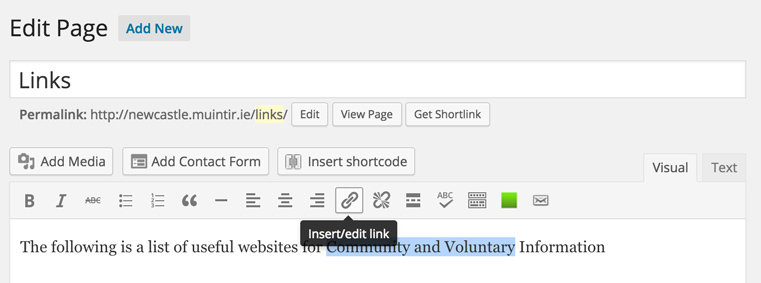
- Highlight the text you wish to link in the editor, and click the link button in the menu
To add or edit hyperlinks in the content of any page, first navigate to the page and select 'Edit Page' from the Admin Toolbar:
-
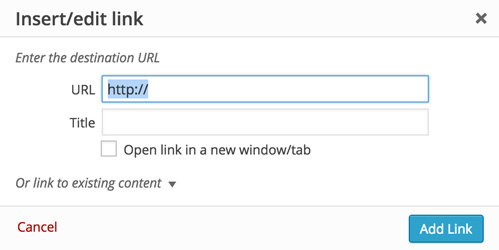
In the link popup insert the url you wish to link to
e.g. http://domainname.com
Featured content blocks
- These are the 6 feature areas on the site homepage
- Bottom three are fixed however the first row of three elements can be updated to highlight a feature of the groups choosing. (Confirmation required in the week following training)|
- The text for these items can be edited here:
- Settings > Global Content Blocks
- Select relevant block name, edit text and save
(blocks are named as follows feature-block-r1c1 = row 1, column 1)
- Note: text entered should be short and to the point
Further info
-
Media library: further info on cropping and scaling images is available in the expanded support PDF
- The Feedback link stores a database of all entries submitted via the site's contact form
-
A dedicated training page will shortly be available on rassoodock.ie detailing any FAQs arising from site training. It will also contain download links for training materials:
www.rassoodock.ie/wordpress-training/
Exercises
-
Edit the "About page" and add some content.
-
Create a new page and add it to a parent page of your choice.
-
Create a post and link it to "News".
-
Create a New Event.
- Add an image to the "Gallery"
TCSC Website Training
By rassoodock