Creating an Assessment
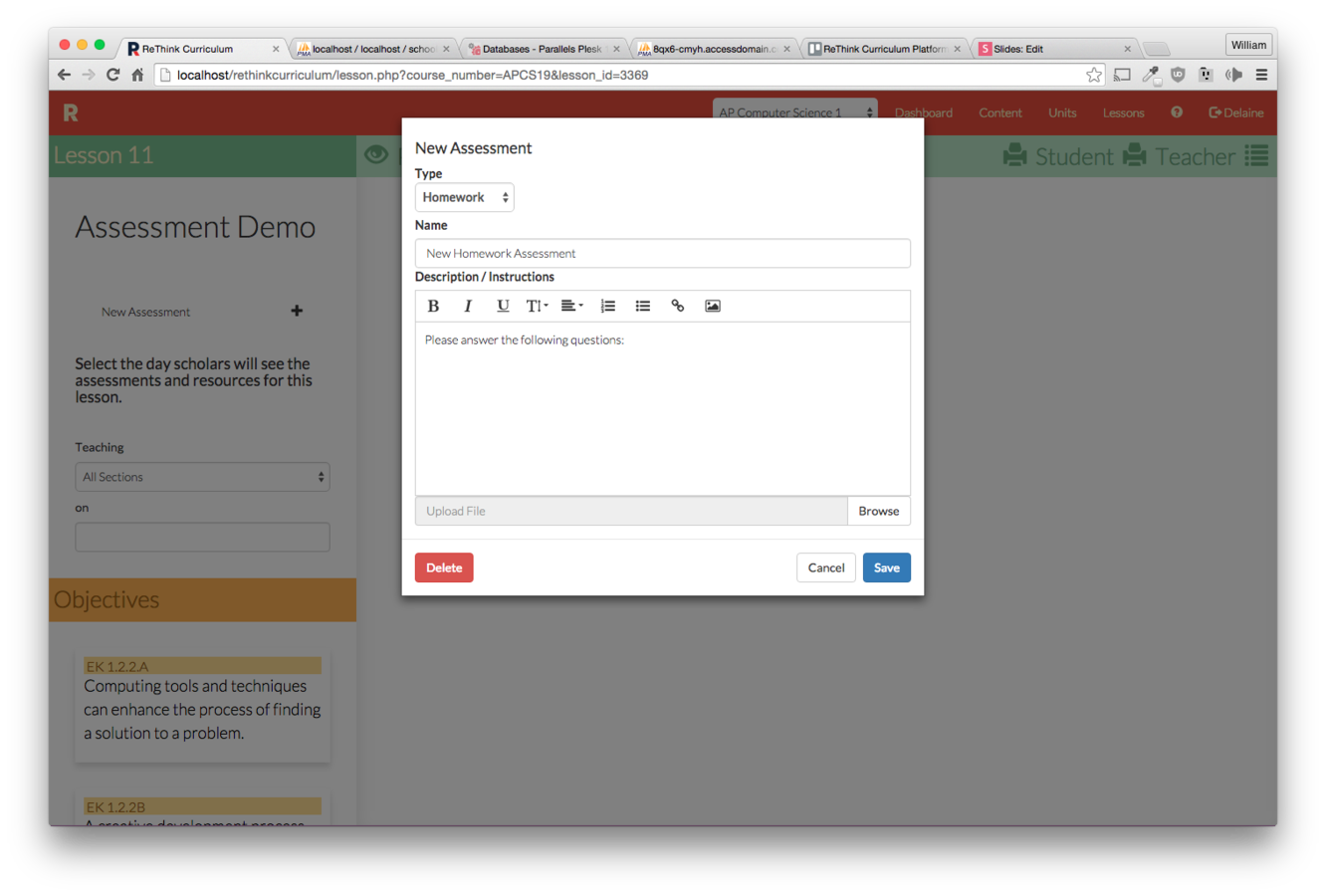
Click the "New Assessment" button on the lesson you wish to make an assessment for.
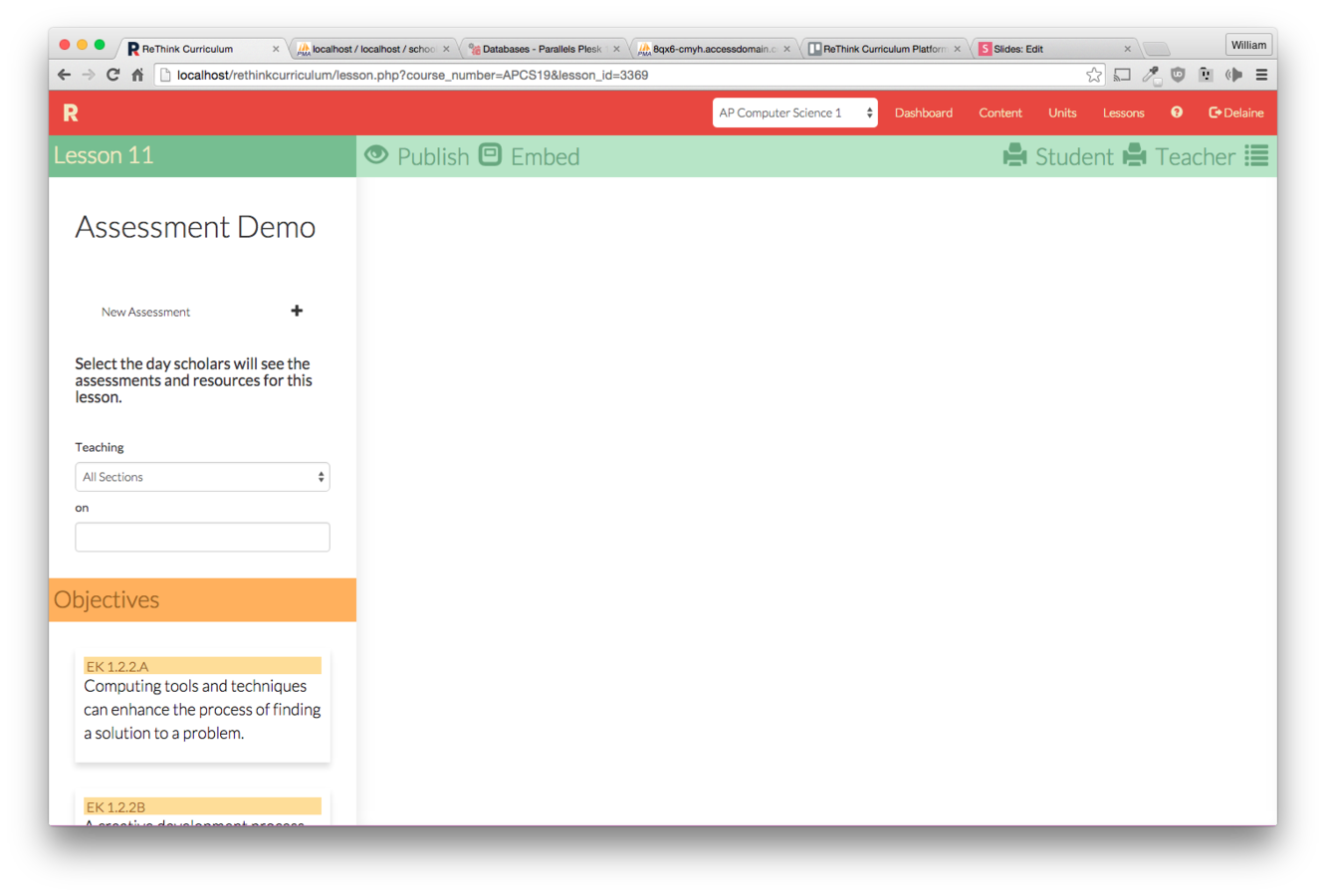
Give the assessment a name and description. You can edit these later.
The assessment will now appear on the lesson.
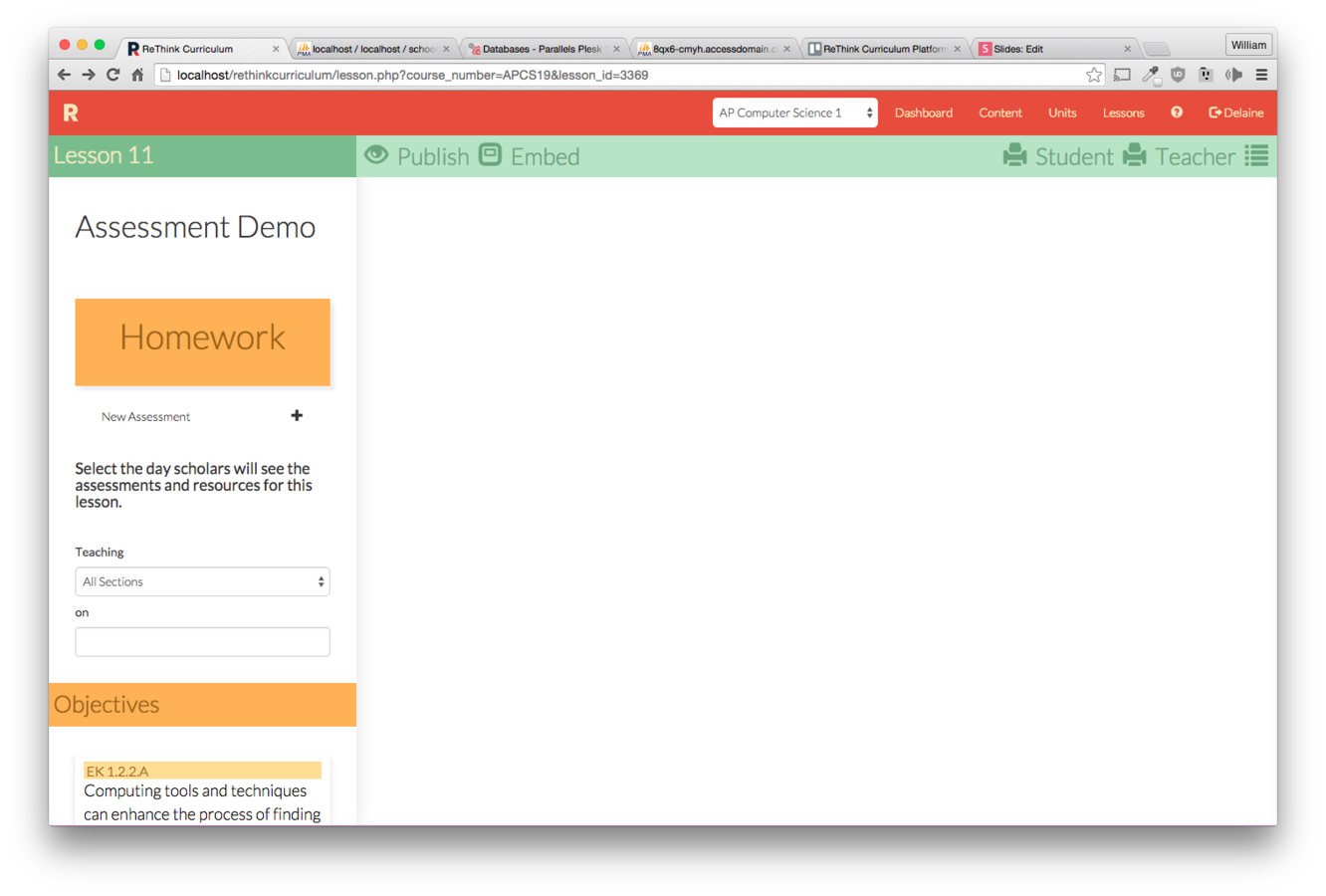
Click on it to open it.
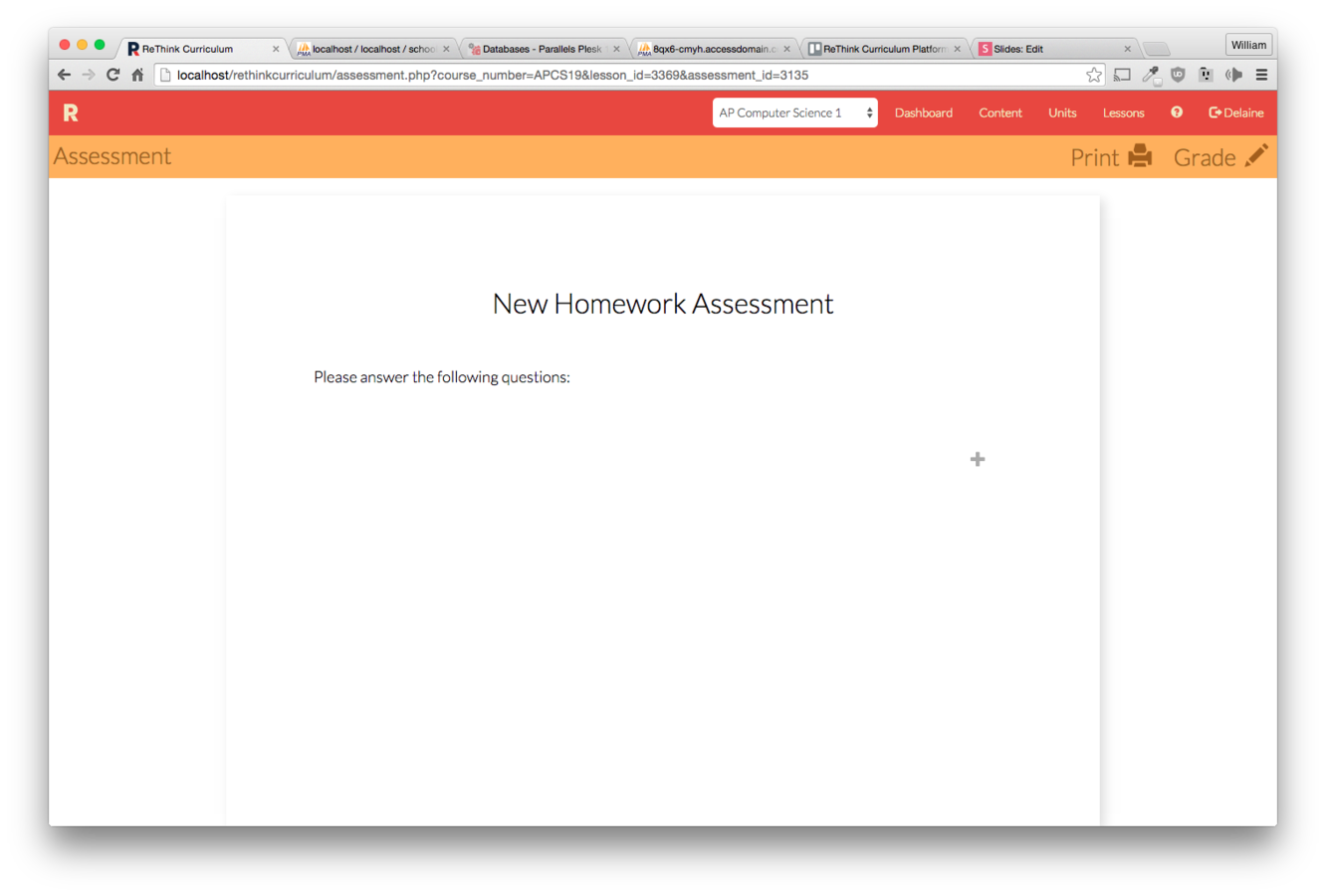
Click on the plus sign to make a new question.
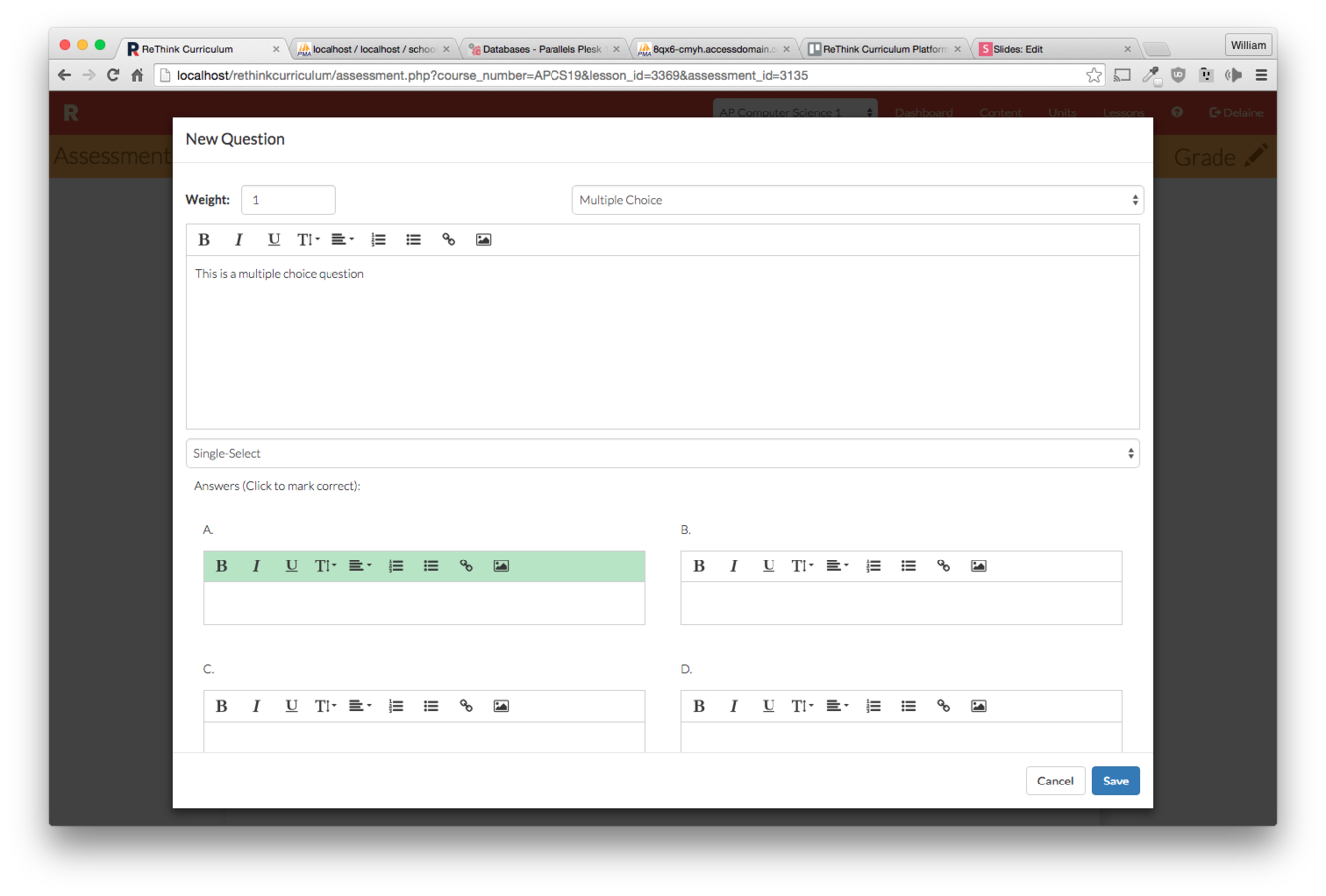
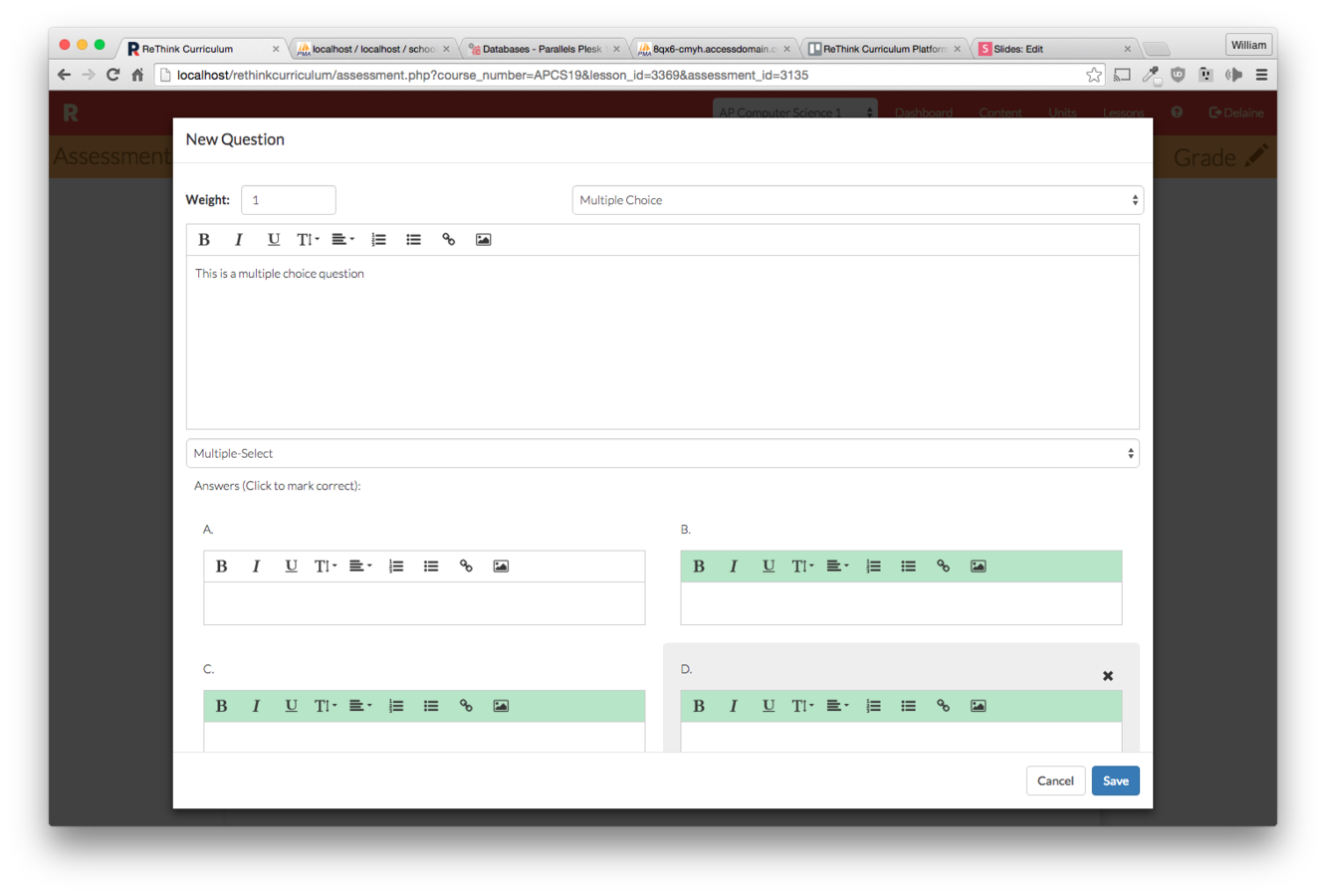
Click on an answer to mark it correct.
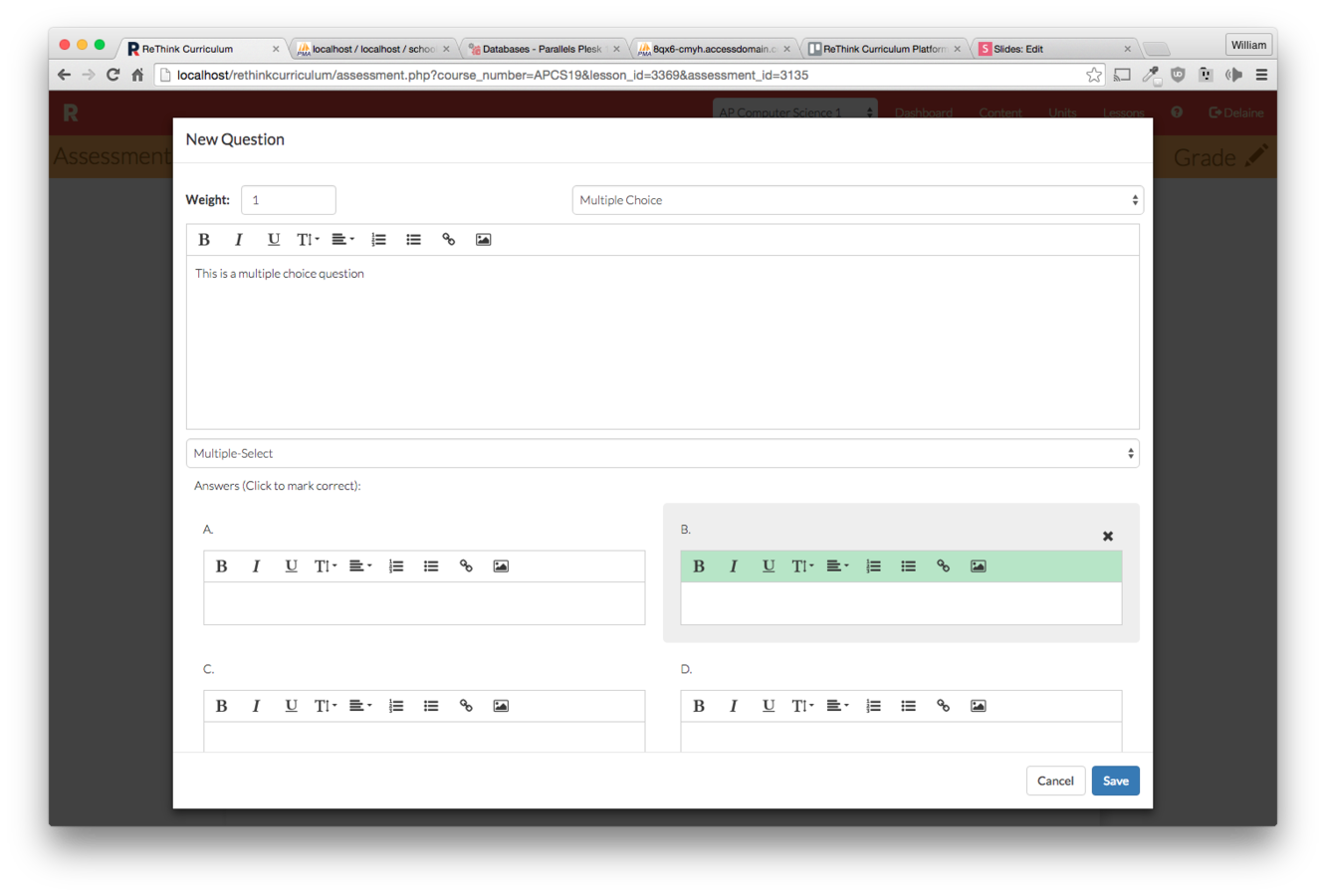
Choose "multiple-select" to allow more than one correct answer
Choose "Short Answer" for an open-response question. These are not automatically graded.
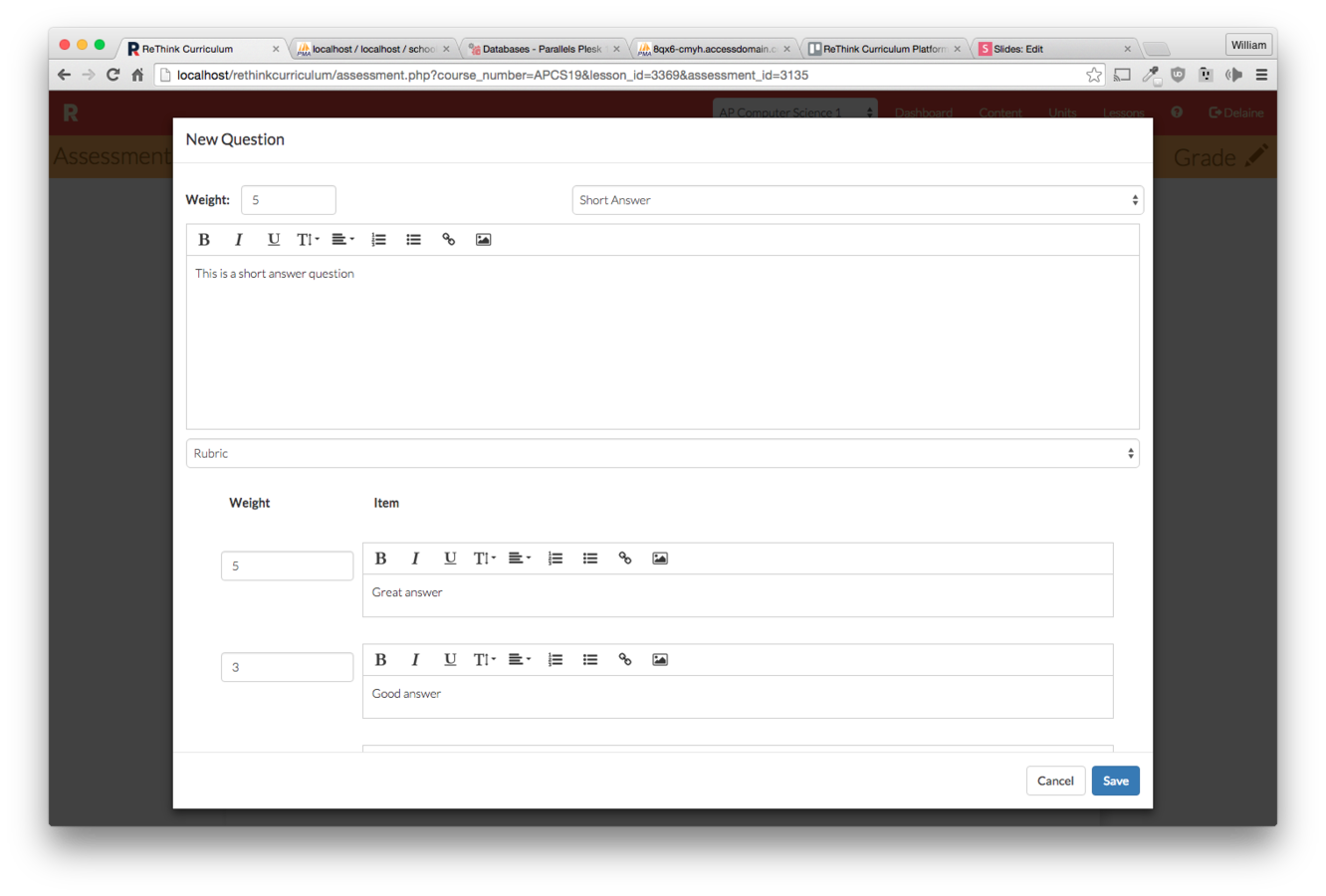
Create a rubric or checklist to use while grading the question. These will not actually calculate into the score (anymore).
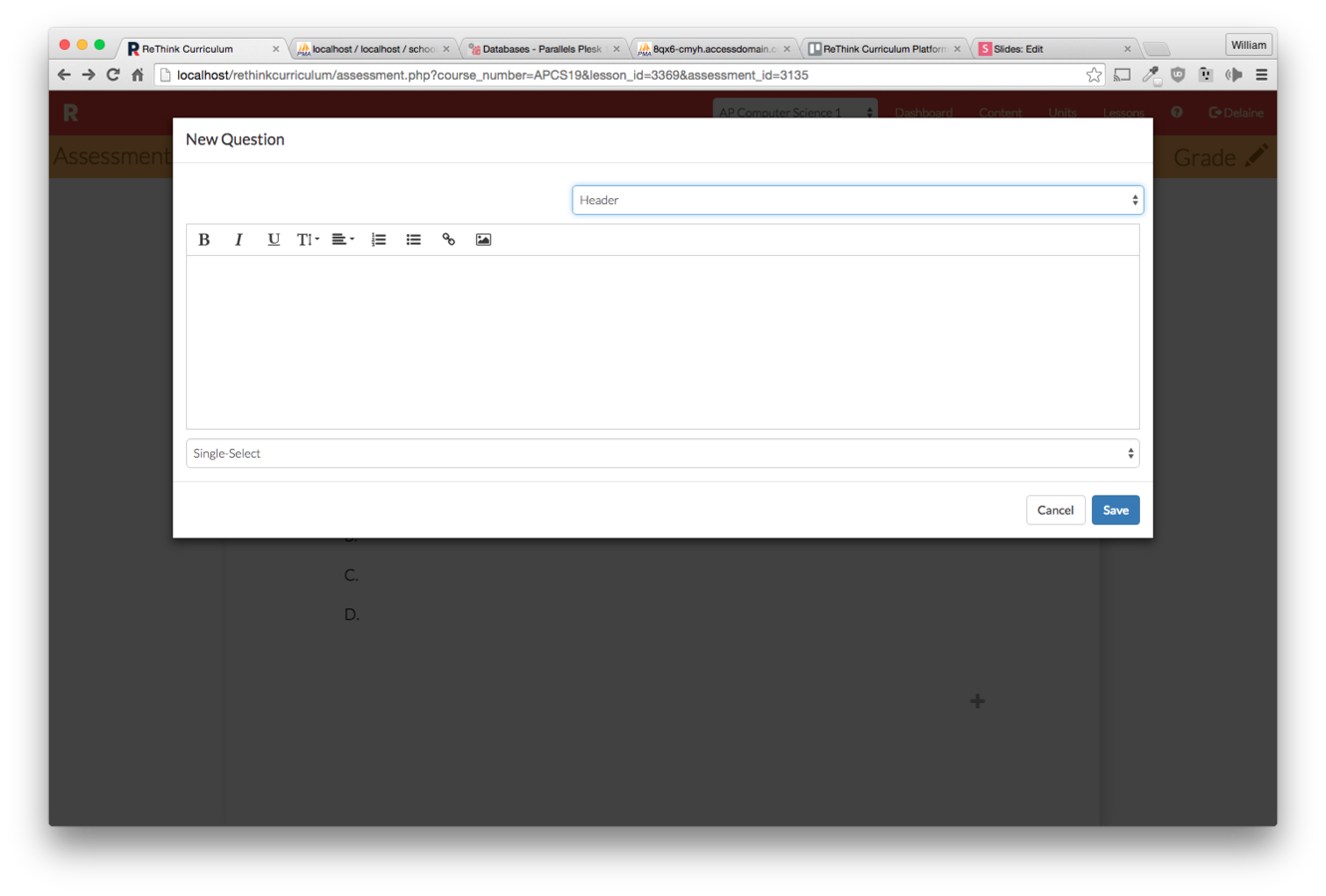
You can also create a header to give context to multiple questions.
Finally, tag the question with an objective.
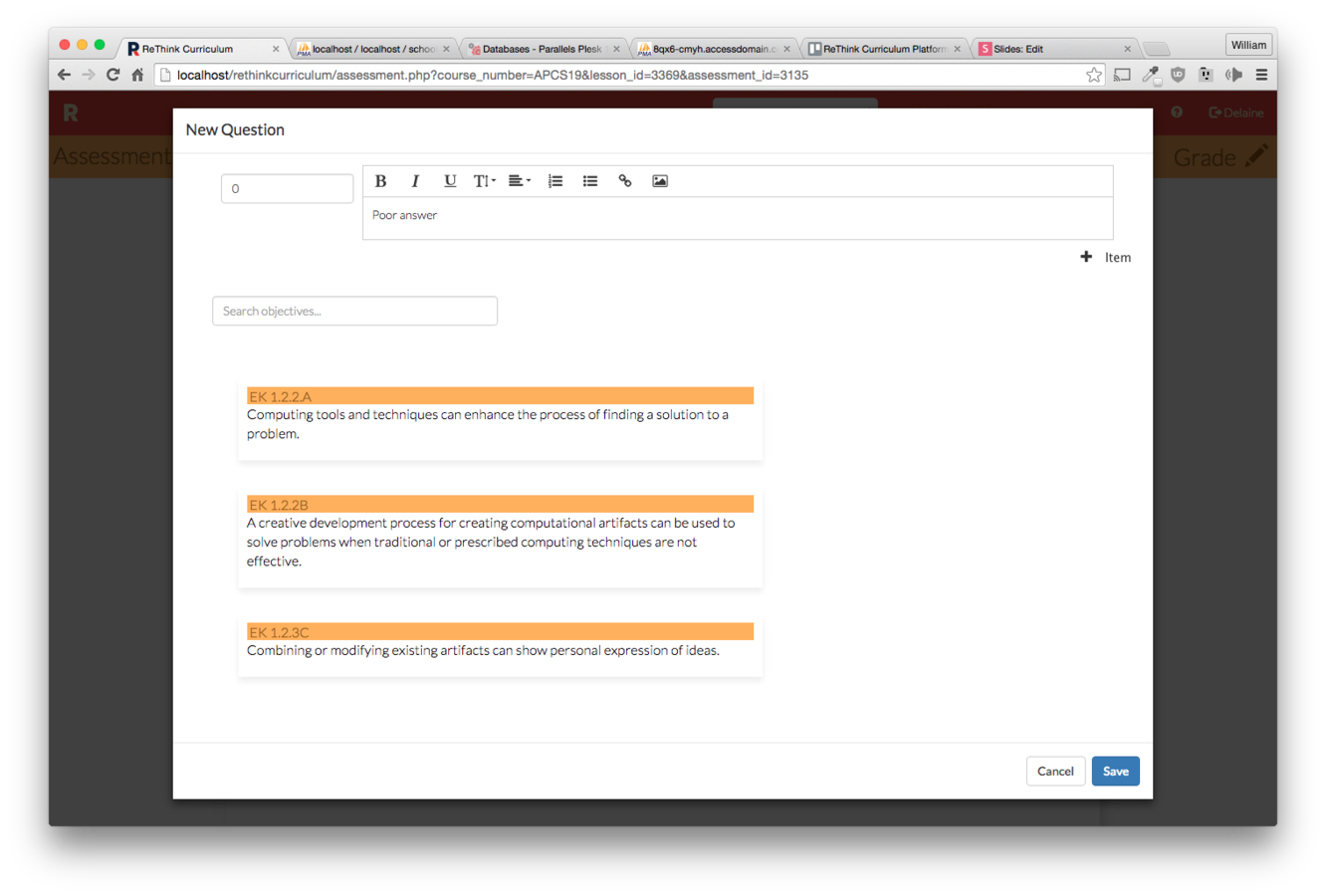
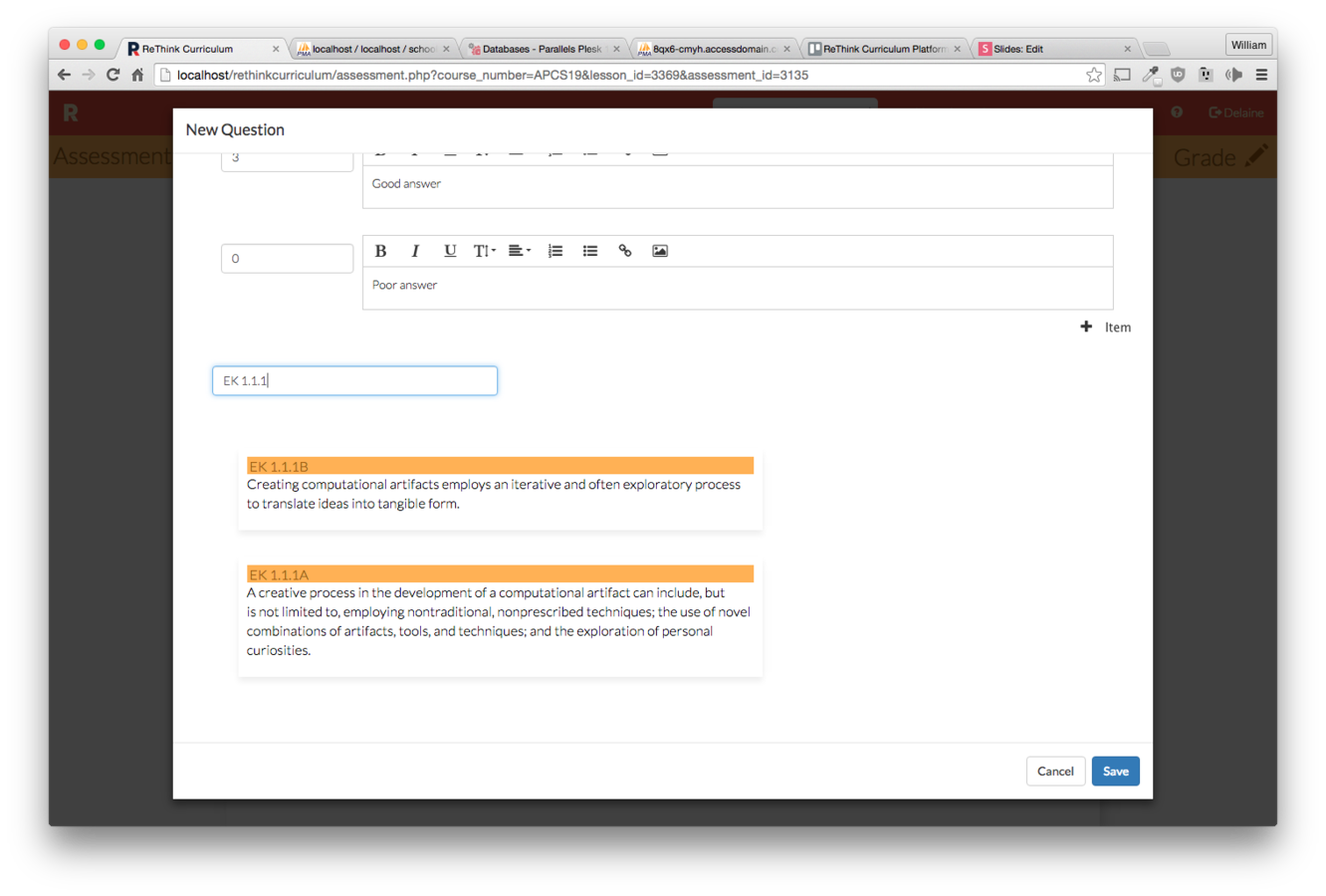
If the objective isn't in the list, you can search for it.
To edit a question, click on it. You can also drag questions around to reorder them.
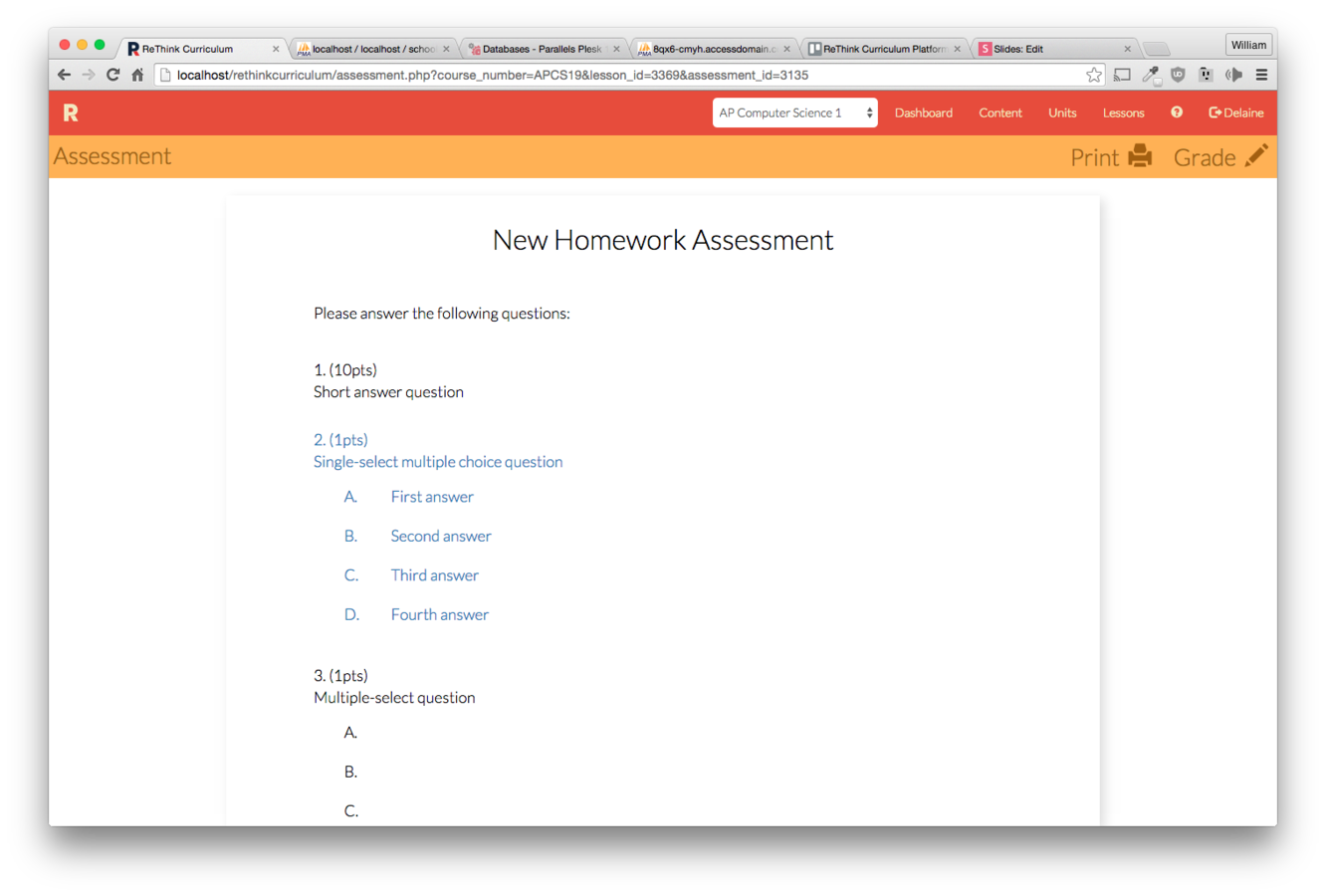
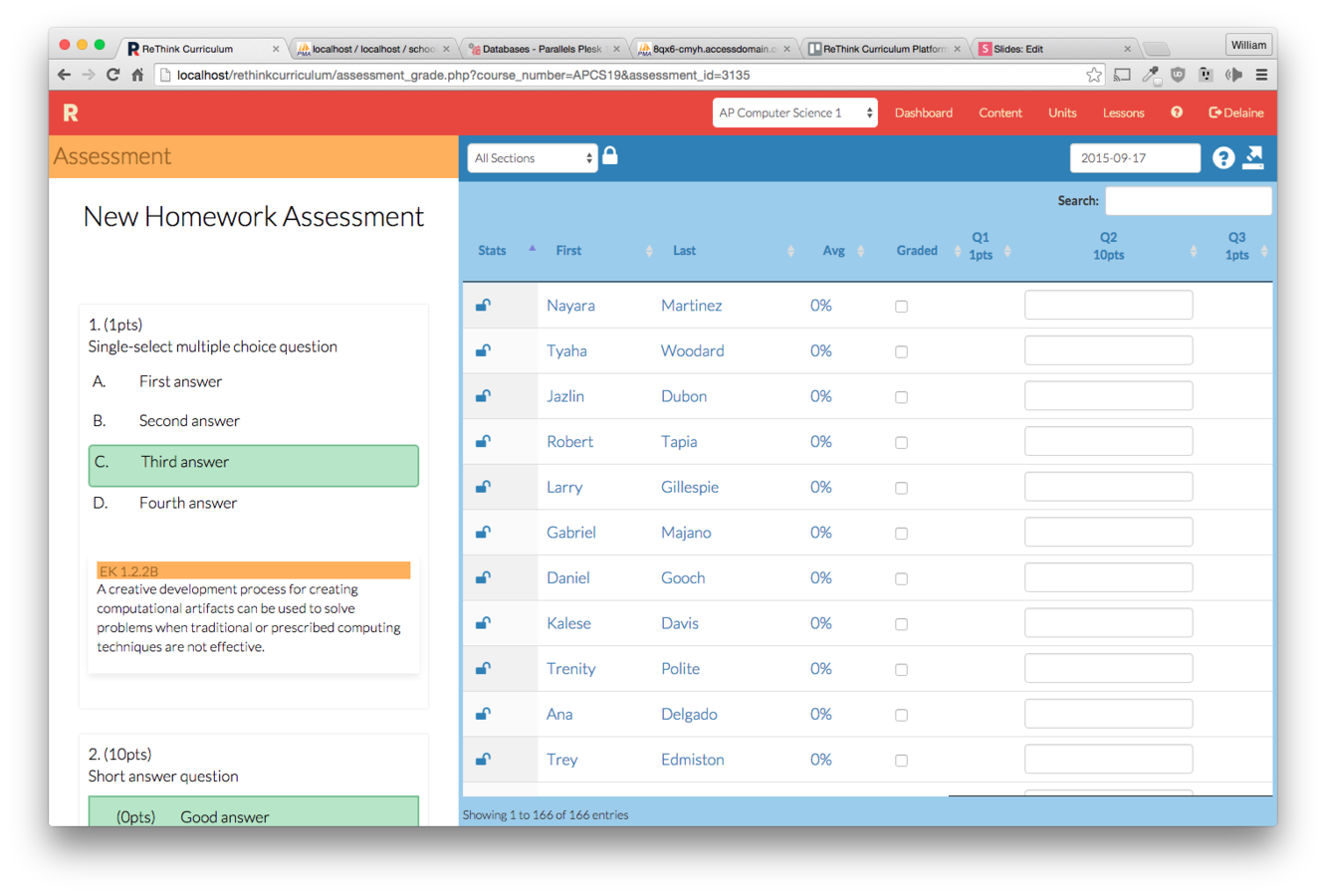
Click "Grade" to see the correct answers and objectives.
Creating an Assessment
By ReThink Curriculum