Grading in ReThink
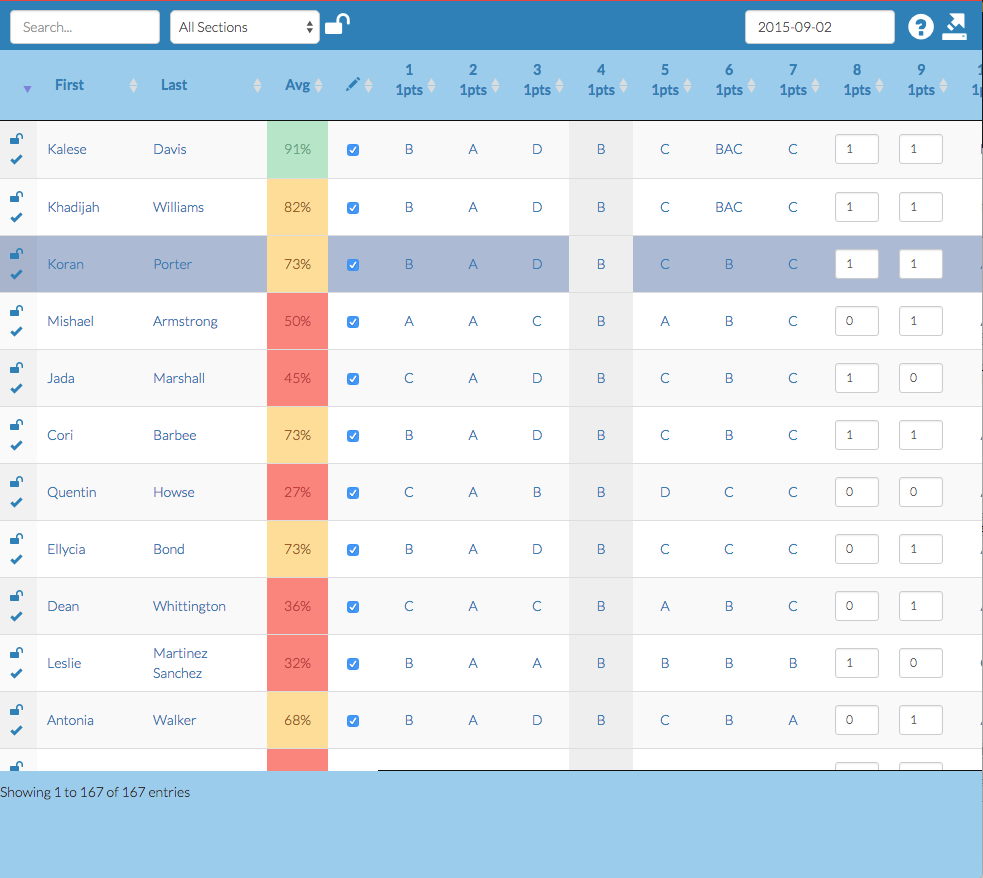
All grades are visible on the right
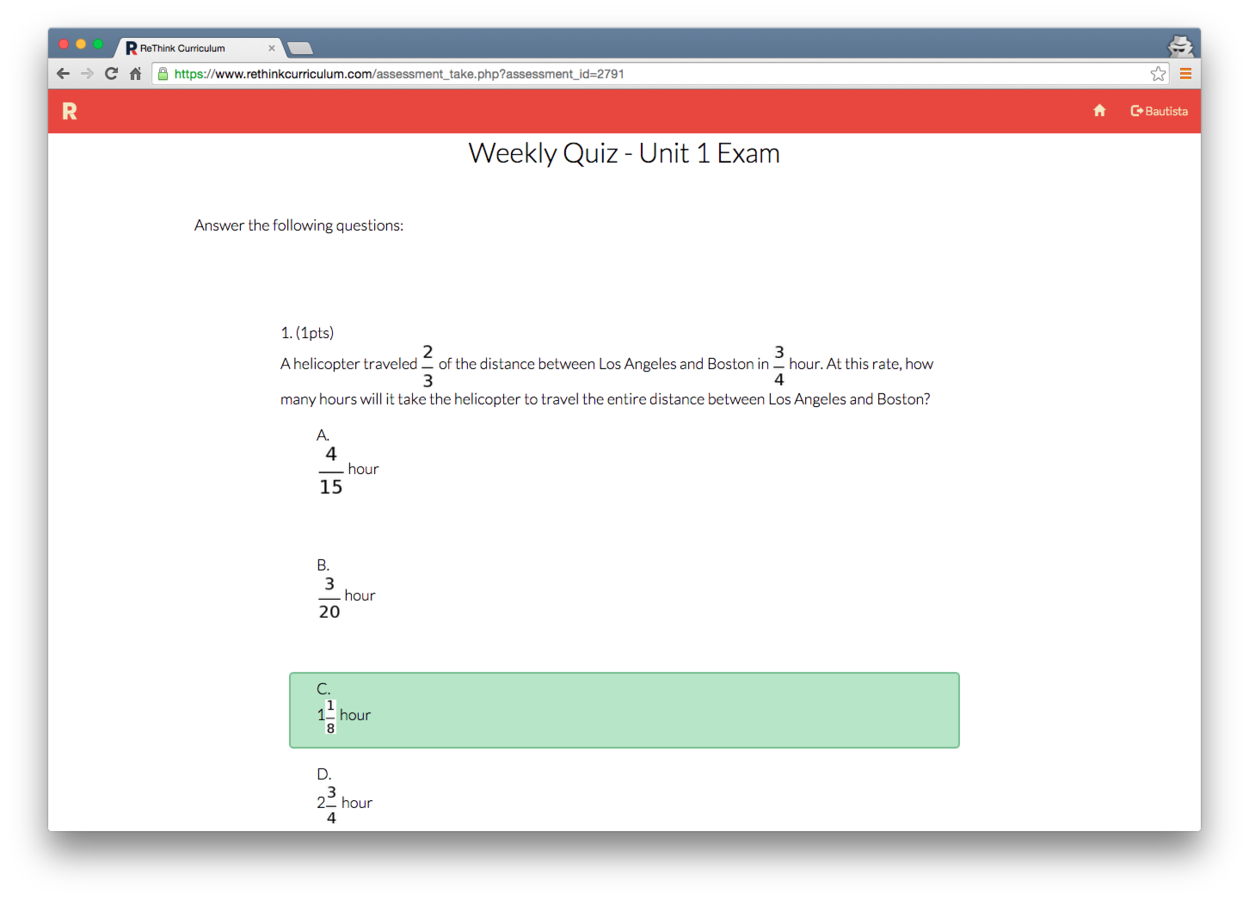
Questions show on the left

Click the textbox to see a scholar's response
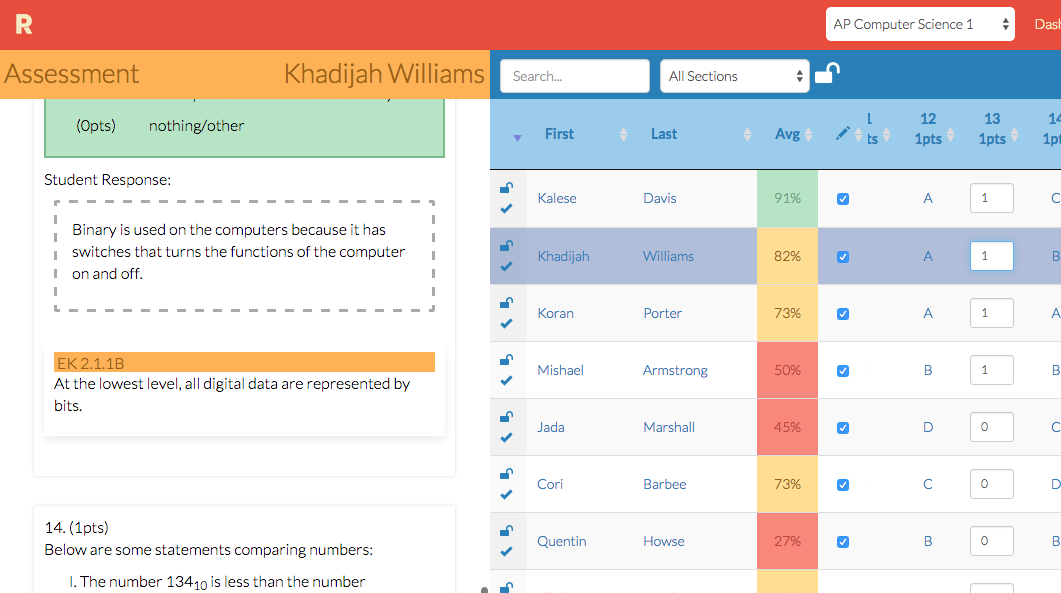
Press up, down, and tab to move around.
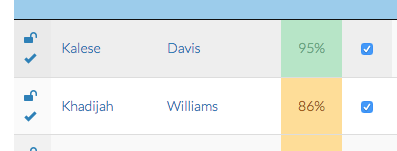
Search students and unlock sections
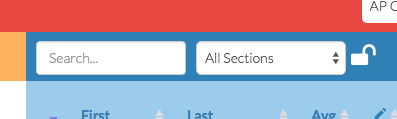
Left:
-
Locked / unlocked
-
Finished on their computer
Right:
-
Finished grading (automatic)
-
Will not sync to SchoolRunner unless checked
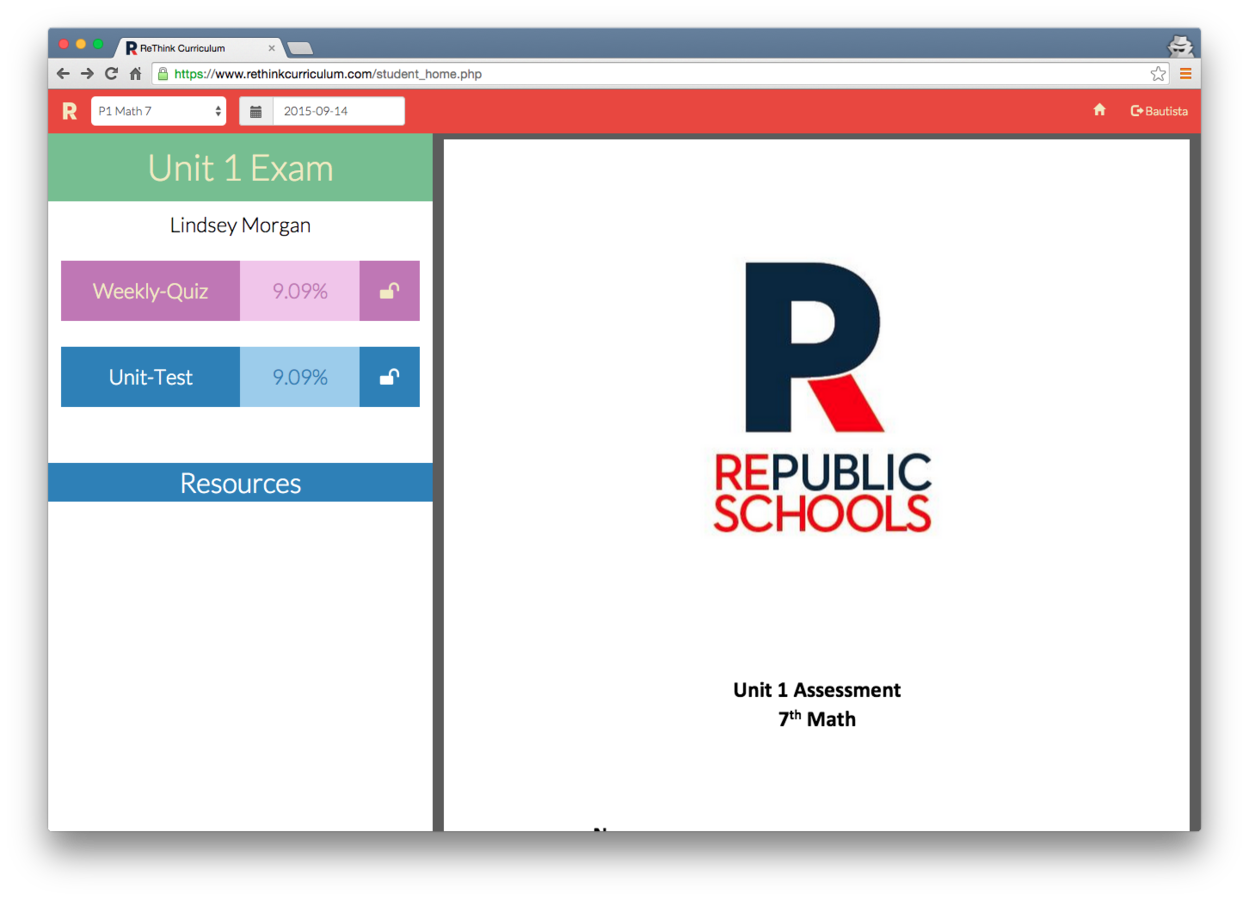
Scholars can only take assessments if they are unlocked.
You must be teaching an exit ticket or homework's lesson in order for them to see it.
You must be teaching a lesson in order for them to see quizzes and tests.
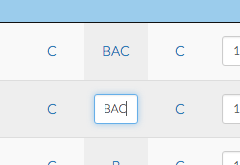
Type points earned for open response questions
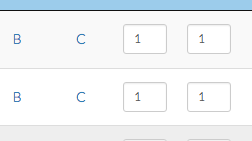
Type letters for multiple choice
(still automatic - double-click to edit)
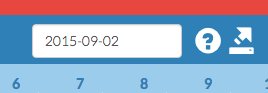
Click here to sync with SchoolRunner
- Make sure the date is right.
- Only students marked "graded" will sync.
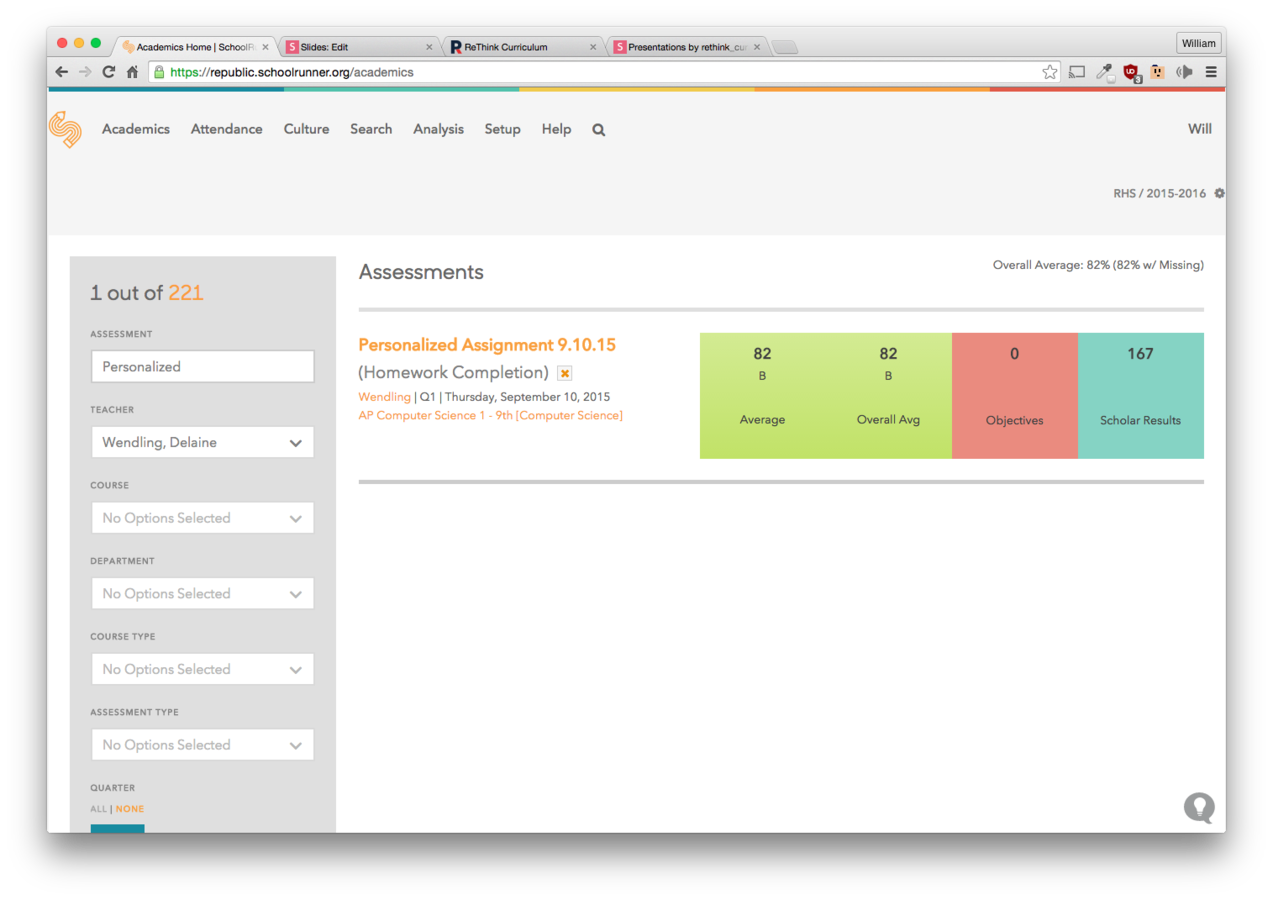
Verify that it synced correctly
Common Syncing Problems
- The assessment was marked as "inactive" in SchoolRunner
- The assessment was edited in SchoolRunner manually
- ReThink will override manual entries
- Internet connectivity was lost while grading.
If you have trouble syncing, please submit a ticket to the ReThink HelpDesk
Grading an Assessment
By ReThink Curriculum