Creating Schedule
robustack.com
Robustack equipped with variety of schedule frequencies. And at the point of scheduled slot, you can impose a condition whether to make the child actions run or not.
The objects which will be handled in those schedule actions can be any groupstacks or groupstack members in any locations.
Create Schedule
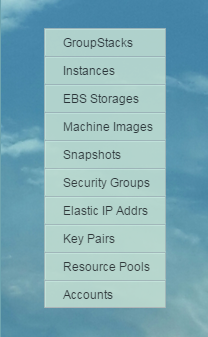
(1) Click "GroupStacks" in main menu.
(2) Select groupstack to create schedules on it.
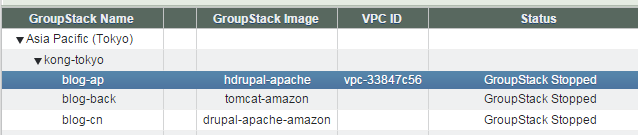
(3) Click right arrow to see "Schedule Jobs" tab.
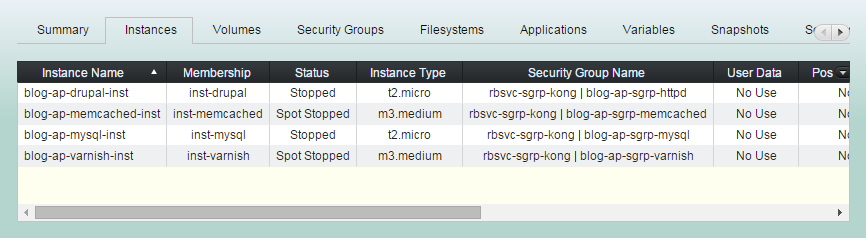
(4) Click "Schedule Jobs" tab.
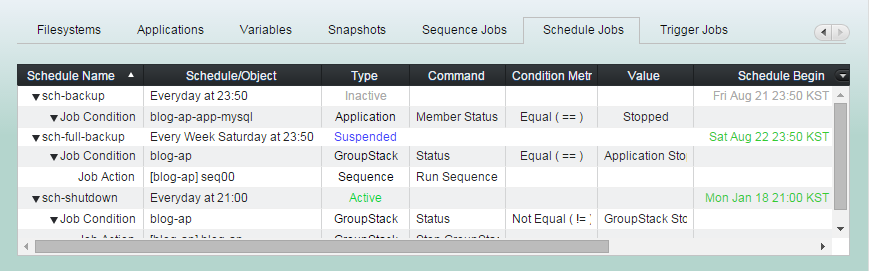
(5) Click "Add Schedule" button
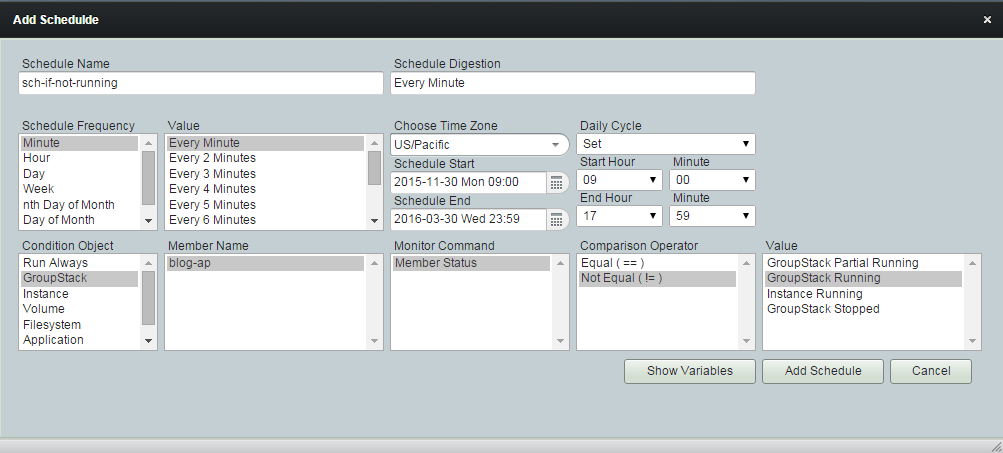
(6) Enter 'Name', 'Frequency', 'Condition' option and click "Add Schedule" button.
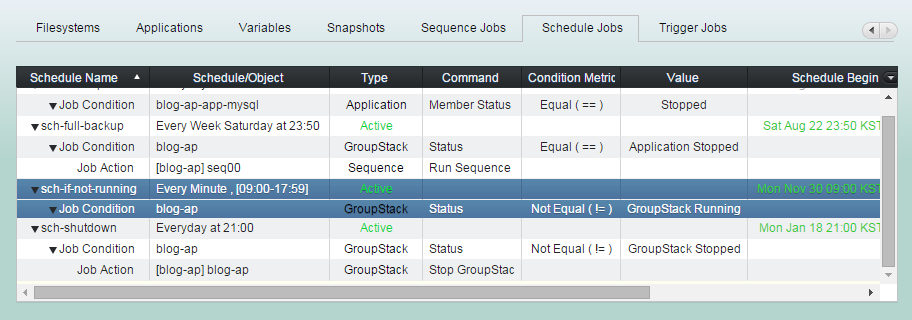
(7) 'Add Schedule' completed.
You can now add actions to be run if the schedule condtion meet.
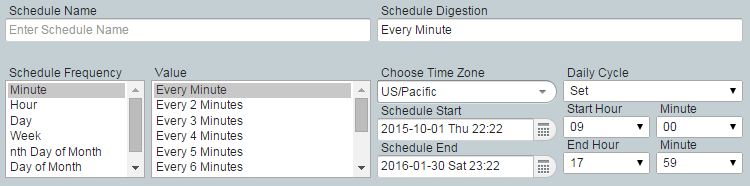
Schedule Frequency
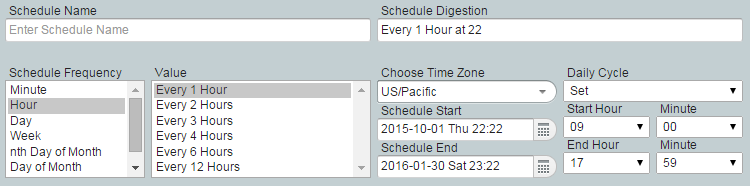
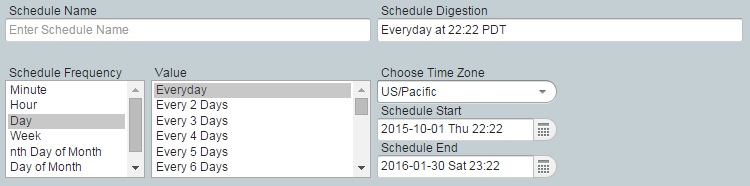
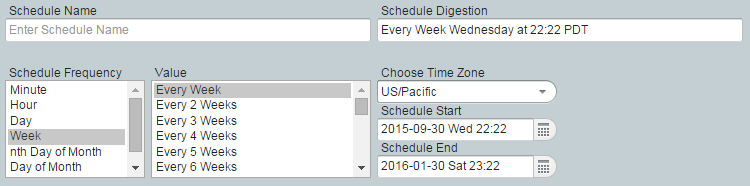
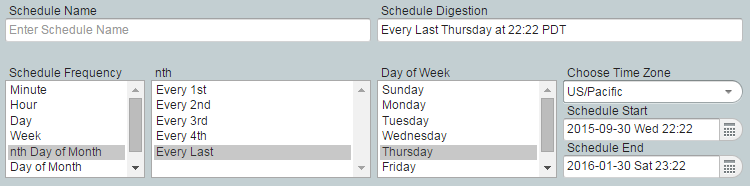
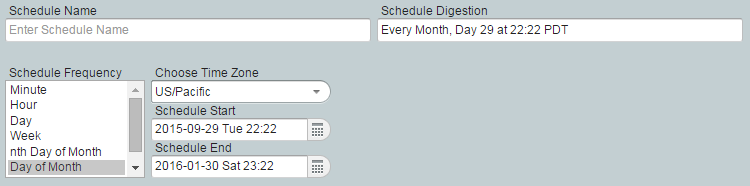
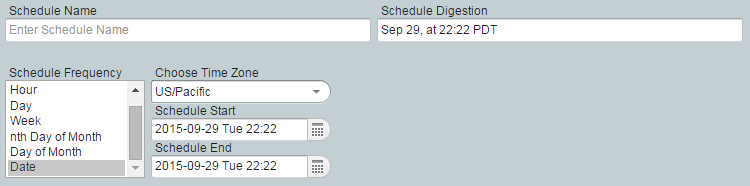
Schedule Condition
Schedule condition is an optional clause of the schedule which specifies a condition that must evaluate to true to run the associated actions.







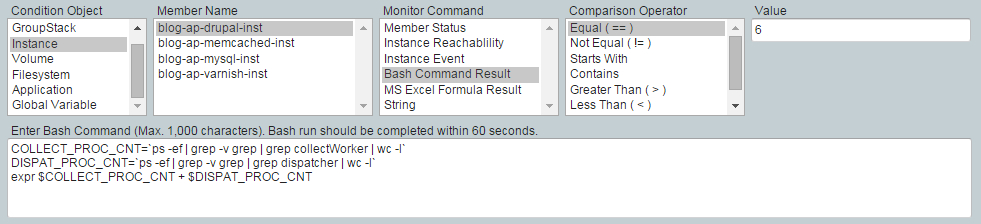
In case the condition requires the result of bash script run, it should return in 60 seconds.
Add Schedule Action
All child job actions in a schedule or a trigger will run in parallel.
Robustack may limit you from creating multiple workflow type actions for one single member of groupstack in a schedule.
(1) Click "Schedule Jobs" tab and select a schedule you'd like to add actions into it.
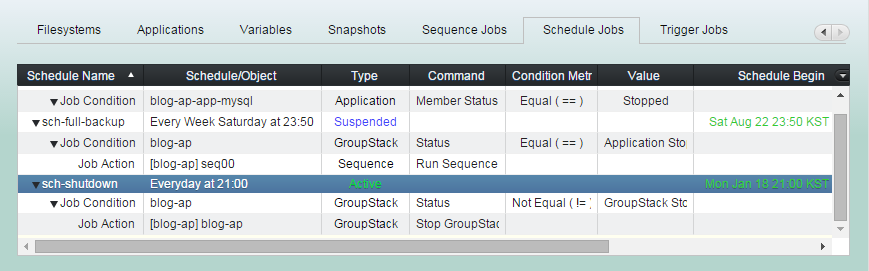
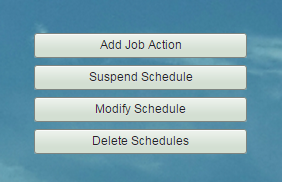
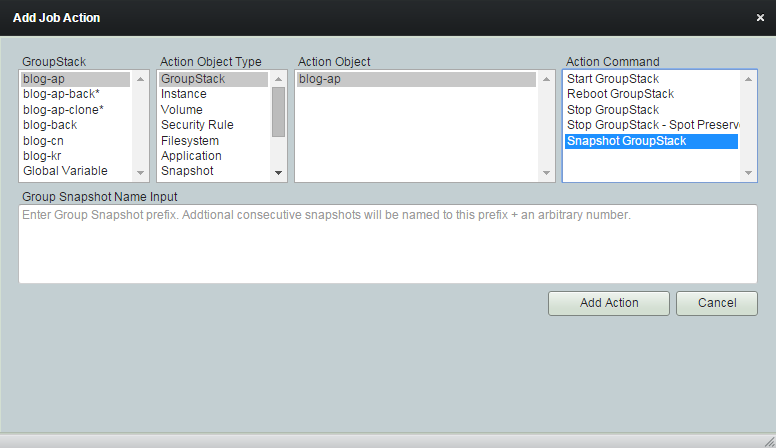
(2) Click "Add Job Action" button
You can select any groupstack
in any location.
Or Global variable.
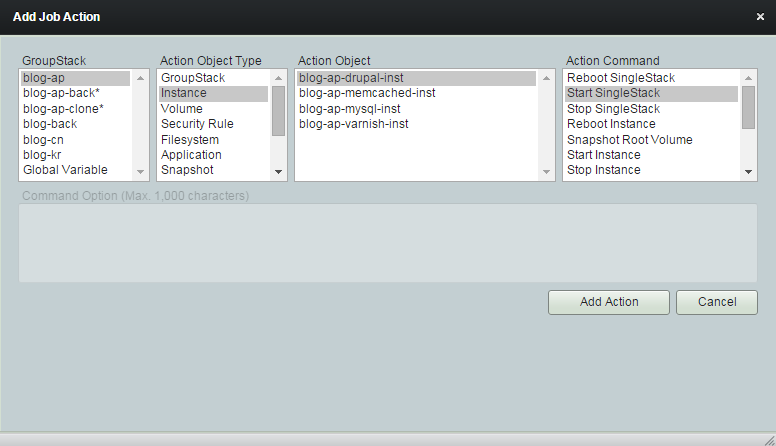
Select one type of action object.
GroupStack
Instance
Volume
Security Rule
Filesystem
Application
Snapshot
Schedule
Variable
Sequence
Trigger
Global Variable
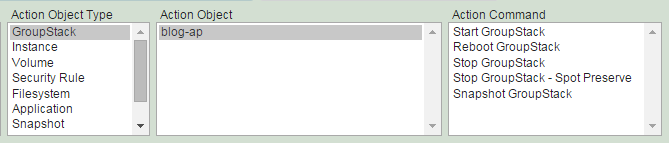
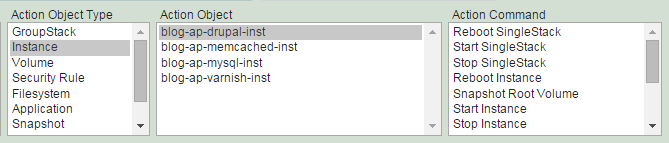
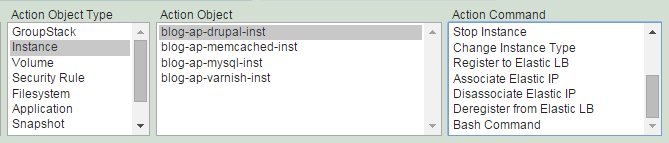
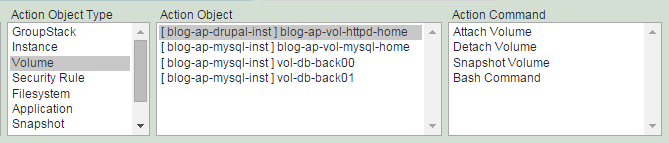
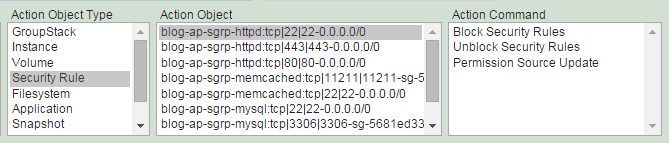
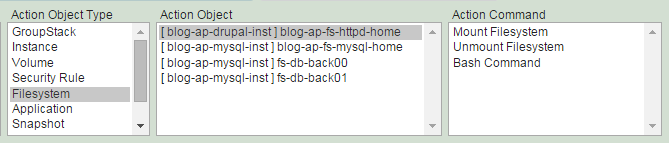
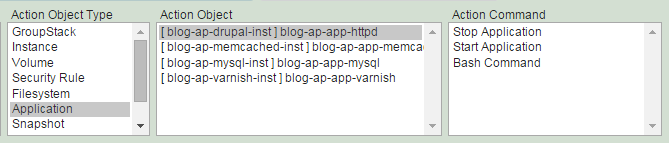
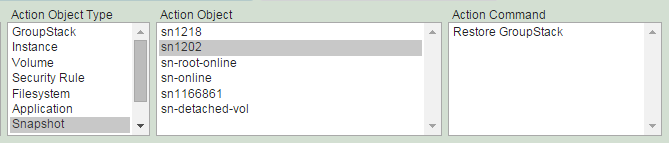
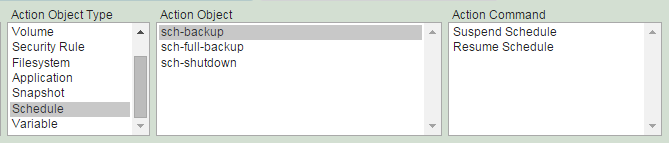
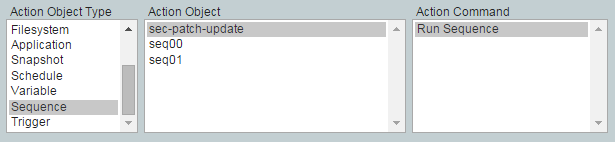
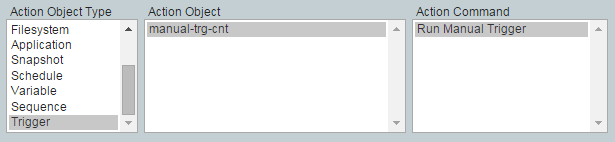
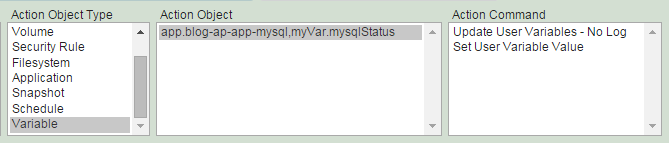
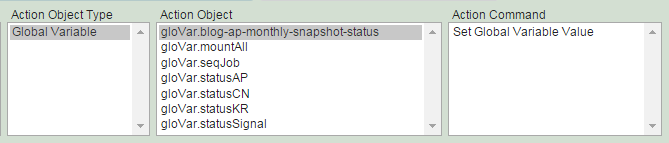
Select action objects and command.
Fill 'Command Option' if requested.
(3) Click "Add Action" button.
Batch Job - Creating Schedule
By robustack.com
Batch Job - Creating Schedule
Batch Job - Creating Schedule. Robustack is an Amazon EC2 Orchestration Platform. This slides explains how you can create Schedules and Actions.