Managing
Application
robustack.com
Start Application
This will start an application checking its 'Start dependency'. If you select multiple applications, it will start them according to those groupstack-wide
'Start Order'.
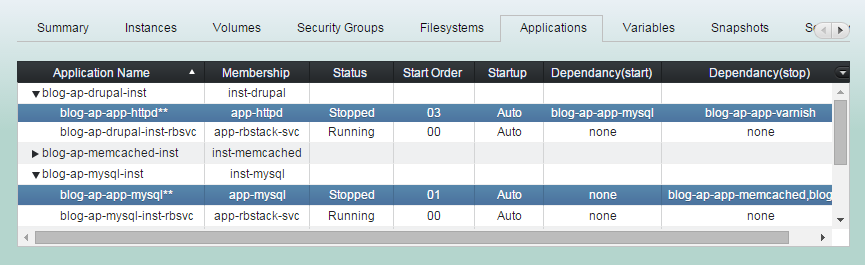
(1) Click "Applications" tab in groupstack sub table view. And select applications you want to start.
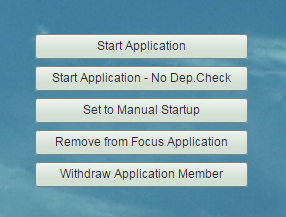
(2) Click "Start Application".
Be sure that start-dependency applications started if they are not a part of applications you'd like to start. Or it will wait until the dependency fulfilled or timed-out.
(3) 'Start Application' workflow.
1. Checks start-dependency of the lowest 'Start Order' application.
2. Starts the lowest application.
3. Waits until the application started if its waiting option of the start command is 'Wait'. Or continues for next application at once.
(3) 'Start Application' workflow.
4. Continues the same steps for next application.
(4) 'Start Application' completed.
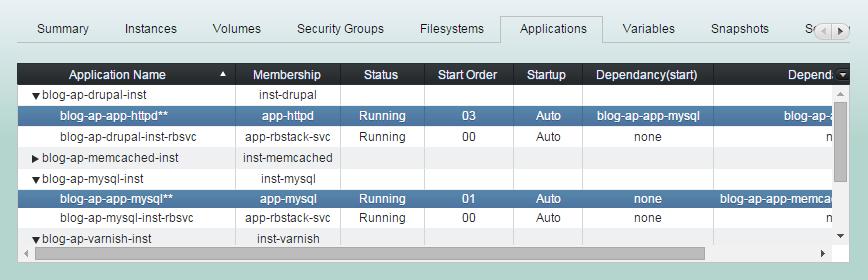
Starting order come from "Application Start Order" slot in its configuration form.
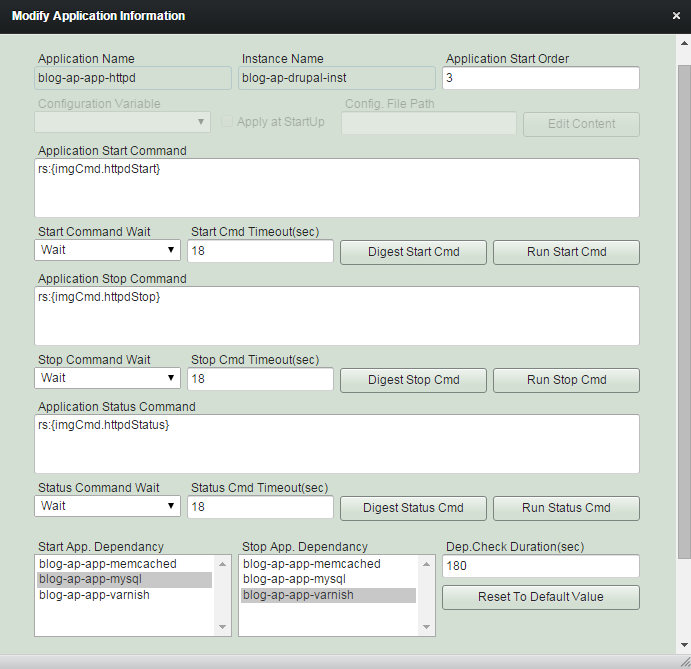
Start command run here come from "Application Start Command" slot in its configuration form.
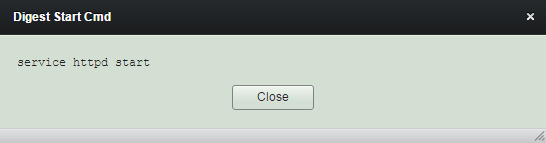
Start App. Dependency for this application is 'blog-ap-app-mysql' and its checking continues 3 minutes.
Stop Application
This will stop an application checking its 'Stop dependency'. If you select multiple applications, it will stop them according to those groupstack-wide
reverse 'Start Order'.
(1) Click "Applications" tab in groupstack sub table view. And select applications you want to stop.
(2) Click "Stop Application".
Be sure that stop-dependency applications stopped if they are not a part of applications you'd like to stop. Or it will wait until the dependency fulfilled or timed-out.
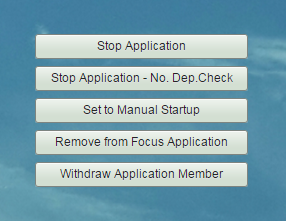
(3) 'Stop Application' workflow.
1. Checks stop-dependency of the highest 'Start Order' application.
2. Stops the highest application.
3. Waits until the application stopped if its waiting option of the stop command is 'Wait'. Or continues for next application at once.
(3) 'Stop Application' workflow.
4. Continues the same steps for next application.
(4) 'Stop Application' completed.
Stopping order come from reversed "Application Start Order" slot in its configuration form.
Stop command run here come from "Application Stop Command" slot in its configuration form.
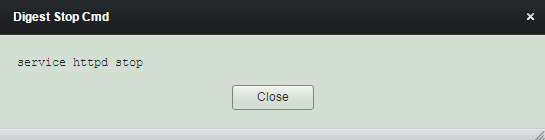
Stop App. Dependency for this application is 'blog-ap-app-varnish' and its checking continues 3 minutes.
Start Application
- No Dep. Check
This will start applications without checking those 'Start dependency' nor 'Start Order'.
(1) Click "Applications" tab in groupstack sub table view. And select applications you want to start.
(2) Click "Start Application - No Dep. Check".
(3) 'Start Application - No Dep. Check' completed.
Stop Application
- No Dep. Check
This will stop applications without checking those 'Stop dependency' nor 'Stop Order'.
(1) Click "Applications" tab in groupstack sub table view. And select applications you want to stop.
(2) Click "Stop Application - No Dep. Check".
(3) 'Stop Application - No Dep. Check' completed.
Set Auto Startup Feature
You can set applications whether they are started automatically or not
on those groupstack or singlestack startups.
(1) Click "Applications" tab in groupstack sub table view. And select an application you want to change its startup feature.
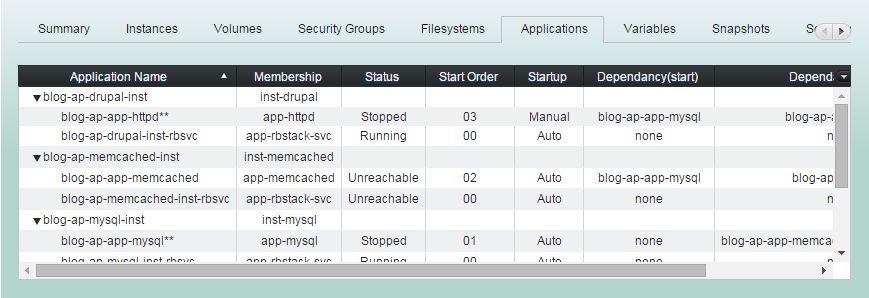
(2) Click "Manual" or "Auto" as needed.
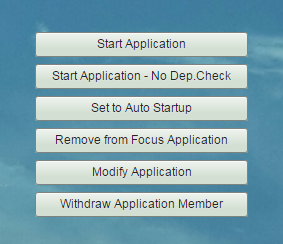
(3) Changing startup feature completed.
Set Focus Application
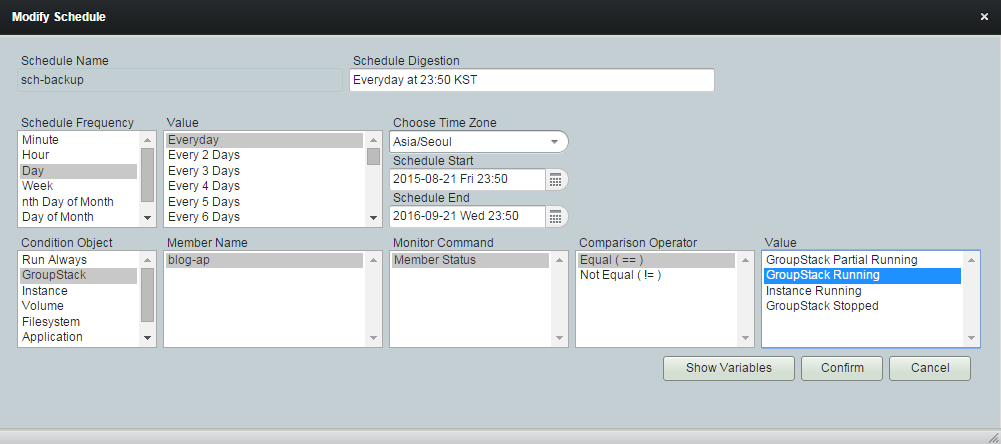
If you set one or more applications as 'Focus Application', then the groupstack status will be shown as "GroupStack Running" if they are all running. And will be shown as "GroupStack Partial Running" if at least one focus application is running.
(1) Click "Applications" tab in groupstack sub table view. And select applications you want them to be set as focus applications.
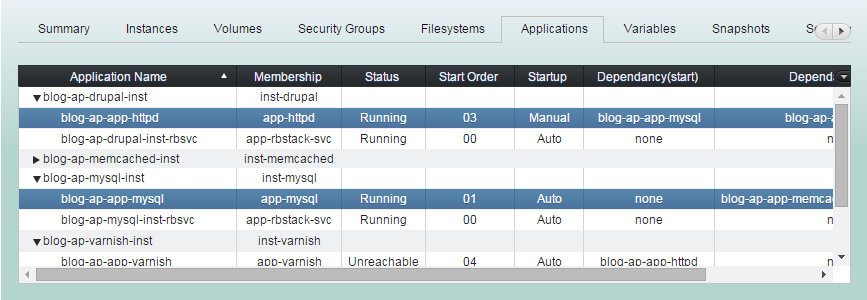
(2) Click "Set to Focus Application".
And click "Confirm" for confirmation.
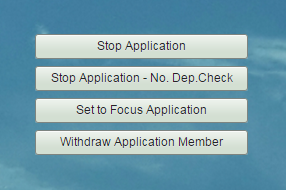
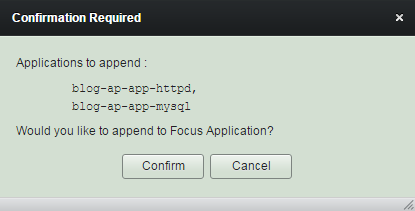
(3) 'Set to Focus Application' completed.
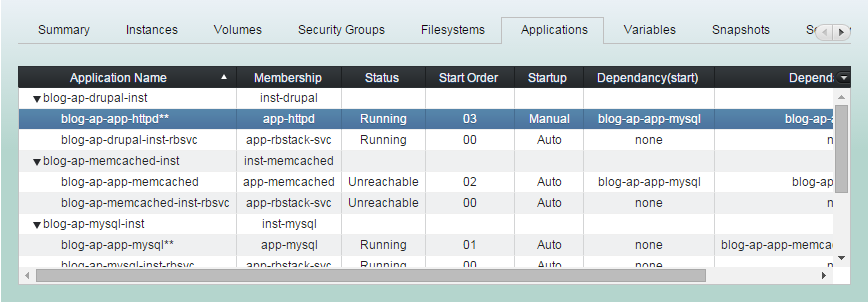
Note "**" will have been appended to the name of the application.
You can put the groupstack status in practice when you apply a condition of groupstack status in 'Schedule Job' .
Modify Application
Application configuration can be modified and changed at any moment on the fly.
(1) Click "Applications" tab in groupstack sub table view. And select an application you want to modify.
You can change groupstack-wide 'Start Order' here.
You can set same number for several applications. But be aware that they will run not in parallel but will run in serial. And nobody knows which one will run first.
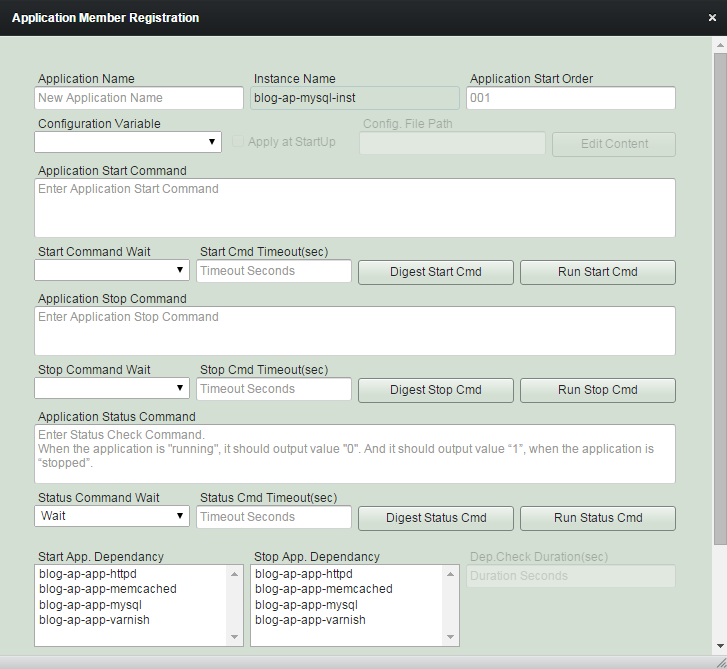
The start command you entered will become a variable for the application - rs:{sysCmd.start}.
You can change 'Start' command feature here.
Start cmd run result can be waited for its timeout seconds before moving to the next application start.
You can change 'Stop' command feature here.
Stop cmd run result can be waited for its timeout seconds before moving to the next application stop.
The stop command you entered will become a variable for the application - rs:{sysCmd.stop}.
Status cmd run result will always be waited for its timeout seconds to produce the status of application.
Remind you should set the status command run to produce return value "0" if the application is running, and return value "1" if it is stopped.
The status command you entered will become a variable for the application - rs:{sysCmd.status}.
You can set 'Start' and 'Stop' dependency applications here.
Status cmds of the dependency applications will be continually run until the status of the dependencies are fulfilled for the check duration. Then this application will be 'Started/Stopped'.
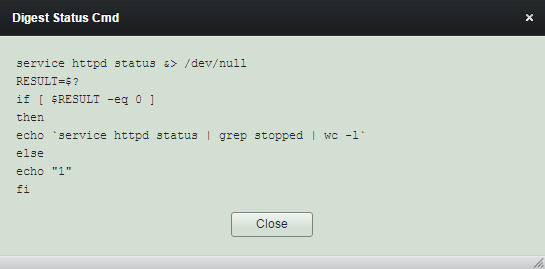
You can see the commands with these buttons if they includes robustack variables.
Menu buttons right side are for ease of using. Any results by running through these buttons will not be reflected to groupstack properly.
Register Application Member
You can register existing applications installed and in-use to groupstack.
The expression 'register to groupstack' means 'giving membership to a resource which is outside the groupstack' and 'withdraw from groupstack' means 'taking the membership back from a resource which is inside the groupstack'.
(1) Click "Applications" tab in groupstack sub table view. And select a instance you want to register application into.
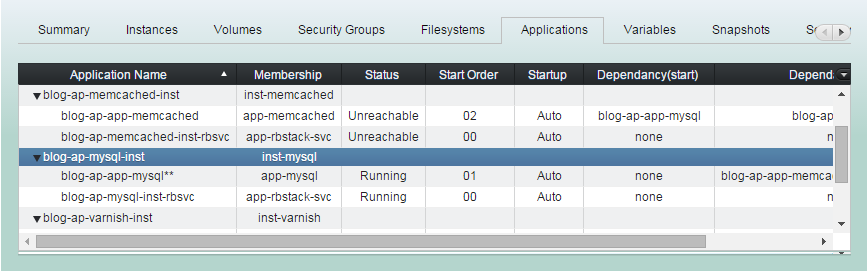
(2) Click "Register Application Member"
(3) Enter relevant item values as needed and click "Confirm" button.
(4) 'Register Application' completed.
Be sure to enter correct 'Status' command script. Or start/stop of groupstack, singlestack and application will not work properly.
Withdraw Application Member
Withdrawing an application from groupstack will never destroy its contents nor stop it. Only the application will lose its membership.
The expression 'register to groupstack' means 'giving membership to a resource which is outside the groupstack' and 'withdraw from groupstack' means 'taking the membership back from a resource which is inside the groupstack'.
Managing Application
By robustack.com
Managing Application
Managing Application. Robustack is an Amazon EC2 Orchestration Platform. This slides shows how to manage groupstack applications.