Managing
Filesystem
robustack.com
Mount Filesystem
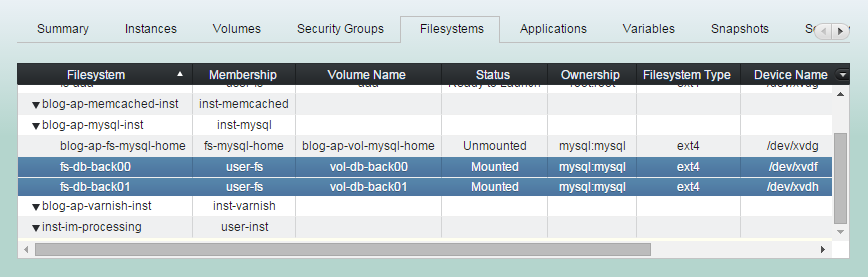
(1) Click "Filesystems" tab in groupstack sub table view. And select filesystems you want to mount.
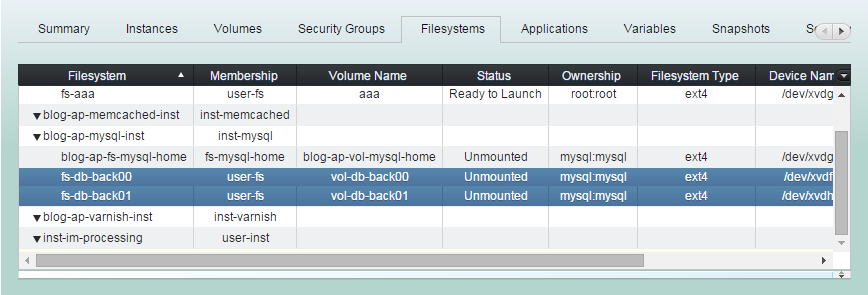
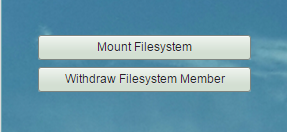
(2) Click "Mount Filesystem".
Be sure bound volume is attached to the instance.
(3) 'Mount Filesystem' completed.
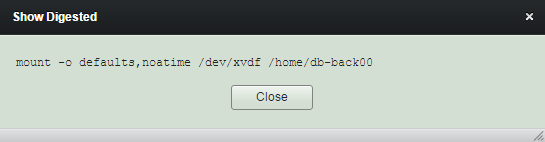
Mount command run here come from "Filesystem Mount Command" slot in its configuration form.
Unmount Filesystem
(1) Click "Filesystems" tab in groupstack sub table view. And select filesystems you want to unmount.
(2) Click "Unmount Filesystem".
Be sure to stop applications running on the filesystem in advance.
(3) 'Unmount Filesystem' completed.
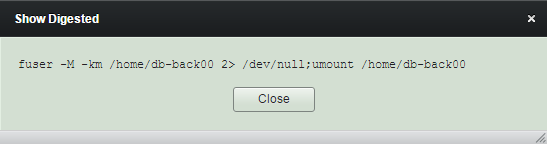
Unmount command run here come from "Filesystem Unmount Command" slot in its configuration form.
Modify Filesystem
You can see 'Modify Filesystem' button during the filesystem is unmounted,
if it is in-use filesystem.
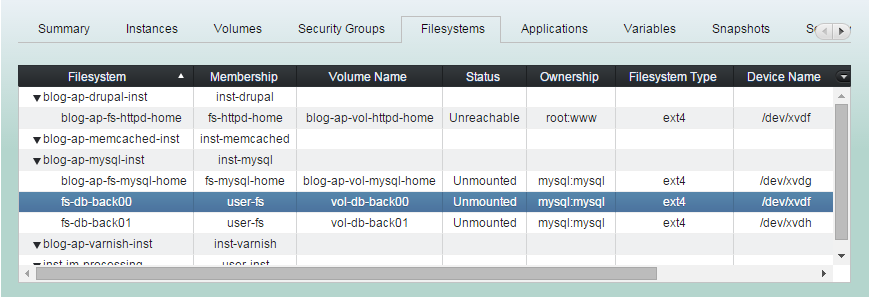
(1) Click "Filesystems" tab in groupstack sub table view. And select unmounted filesystem you want to modify.
(2) Click "Modify Filesystem" button.
Modifying in-use filesystem configuration is limited and only subject to commands which will be run from that point on.
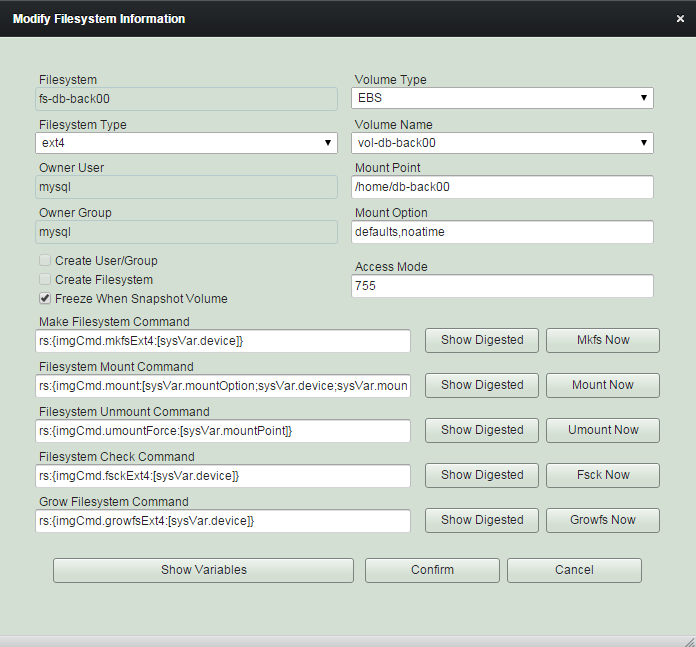
(3) Modify items as needed and click "Confirm"
You can choose whether the filesystem will be freezed or not when you snapshot the bound volume.
You can tweak mount and unmount command to be run from that point on.
You can tweak grow filesystem command to be run from that point on. The command will be utilized when there is restoring snapshot to larger size.
You can create new filesystem selecting "Filesystem Type" and clicking "Mkfs Now" button. All current contents will be destroyed.
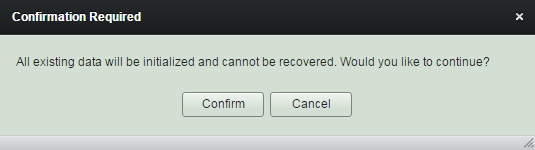
Menu buttons right side are for ease of using. Any results by running through these buttons will not be reflected to groupstack properly.
Register Filesystem Member
You can register an existing filesystem in use to groupstack.
Or you can register new filesystem to groupstack creating and mounting it.
The expression 'register to groupstack' means 'giving membership to a resource which is outside the groupstack' and 'withdraw from groupstack' means 'taking the membership back from a resource which is inside the groupstack'.
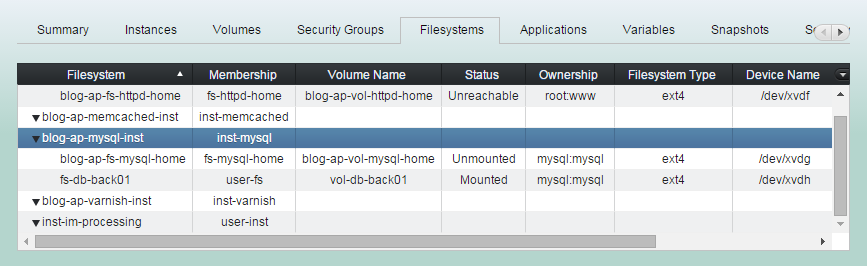
(1) Click "Filesystems" tab in groupstack sub table view. And select a instance you want to register filesystem into.
(2) Click "Register Filesystem Member"
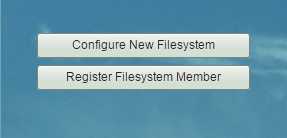
The button will only be shown while the instance is running.
(3) Enter relevant item values as needed and click "Confirm" button.
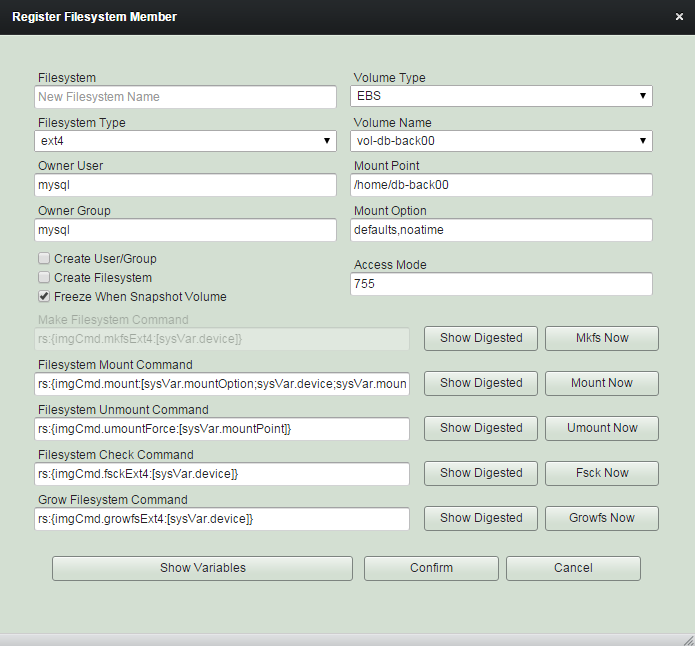
You must not check "Create Filesystem" box if you're going to register an in-use existing filesystem.
(4) 'Register Filesystem' workflow
1. Creates mount point if it doesn't
already exist.
2. Makes filesystem if it is configured as "Create Filesystem".
3. Mounts filesystem.
(5) 'Register Filesystem' completed.
Behavior of registering filesystem largely depends on its configuration, such as filesystem type, create filesystem, create user/group, mkfs commands ...
Withdraw Filesystem Member
Withdrawing a filesystem from groupstack will never destroy its contents nor unmount it. Only the filesystem will lose its membership.
The expression 'register to groupstack' means 'giving membership to a resource which is outside the groupstack' and 'withdraw from groupstack' means 'taking the membership back from a resource which is inside the groupstack'.
(1) Click "Filesystems" tab in groupstack sub table view. And select a filesystem you want to withdraw.
(2) Click "Withdraw Filesystem Member".
(3) 'Withdraw Filesystem Member' completed.
In order to keep using the filesystem inside Linux OS, you should enroll the entry at /etc/fstab properly.
Managing Filesystem
By robustack.com
Managing Filesystem
Managing Filesystem. Robustack is an Amazon EC2 Orchestration Platform. This slides shows how to manage groupstack filesystems.