Launch Filesystem
robustack.com
Configure New Filesystem
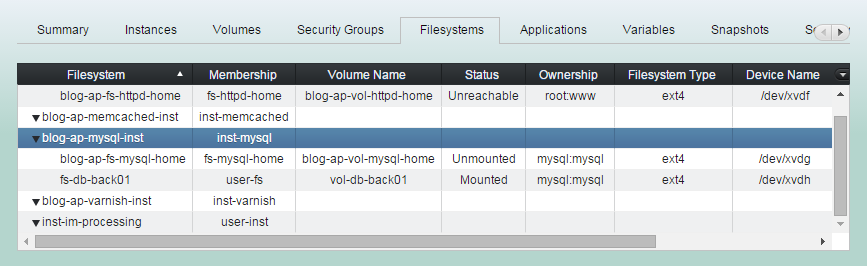
(1) Click "Filesystems" tab and select an instance to configure a filesystem on it.
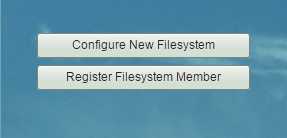
(2) Click "Configure New Filesystem".
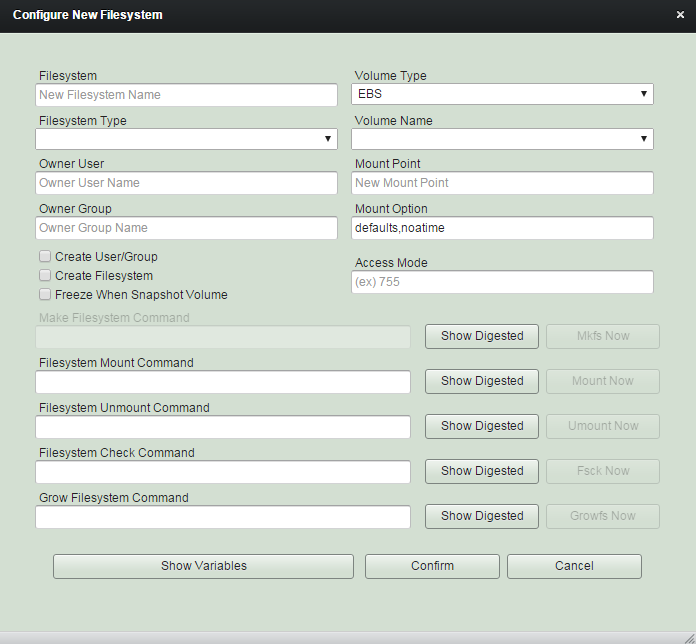
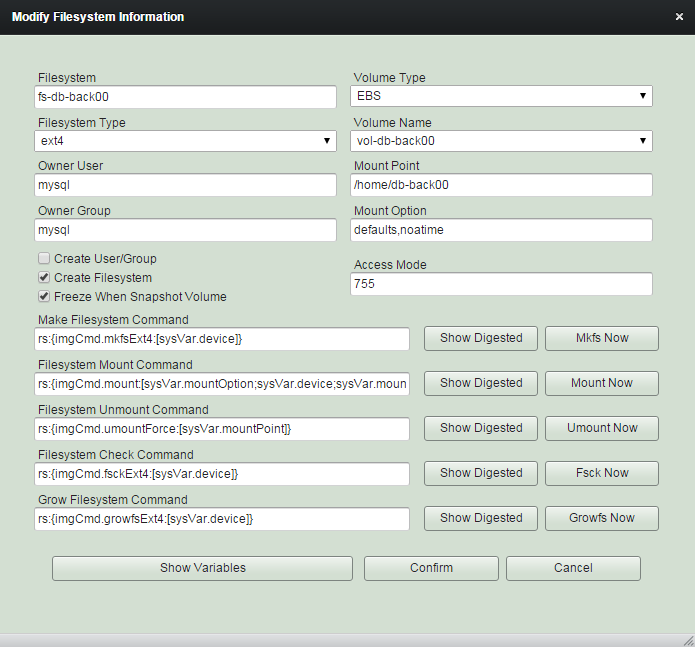
Enter 'Filesystem Name'.
Resource name in robustack is important. In case of filesystem, the name must be unique in the groupstack.
Though you can modify the name while it is being configured, you cannot modify the name once it is launched.
Select 'Volume Type'.
Only 'EBS' type is available at the moment.
Select 'Volume' on which the filesystem is to be launched.
Select 'Filesystem Type'.
The value will become rs:{sysVar.fsType}.
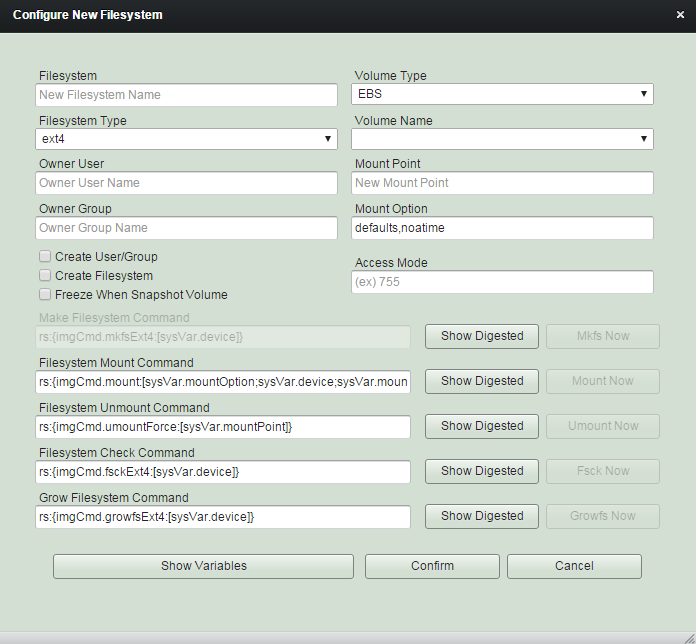
Default commands will be filled once you select the type.
You should set 'Filesystem Type' as "User Defined" if you installed additional filesystem subsystem and you are going to use it. And all the fs commands need to be edited manually.

Enter 'Owner User' and 'Owner Group'. And enable check box if these entities are need to be created.
The value will become
rs:{sysVar.fsOwner} and rs:{sysVar.fsGroup}.
The value will become
rs:{sysVar.mountPoint},
rs:{sysVar.mountOption},
rs:{sysVar.mountPointMode}
Enter 'Mount Point', 'Mount Option'
and 'Access Mode'.
Enable 'Create Filesystem' check box if you'd like to create new filesystem. This will destroy the content of the volume when it is launched.
Enable 'Freeze When Snapshot Volume' check box if you'd like to freeze the filesystem whenever its volume snapshot begins. The filesystem will be unfreezed just after the snapshot initiated.
Enter 'Make Filesystem Command' to use.
The value will become rs:{sysCmd.mkfs}.
Enter 'Filesystem Mount Command' to use.
The value will become rs:{sysCmd.mount}.
Enter 'Filesystem Unmount Command' to use.
The value will become rs:{sysCmd.umount}.
Enter 'Filesystem Check Command' to use.
The value will become rs:{sysCmd.fsck}.
Enter 'Grow Filesystem Command' to use.
The value will become rs:{sysCmd.grfs}.
(3) Click "Confirm" to end filesystem configuration.
(4) Click "Save Configuration", then the status of the filesystem will be turned to "Ready to Launch".
Launch Filesystem
'Launch Filesystem' is the robustack terminology that creates and attaches bound volume and then makes and mounts filesystem.
(1) Click "Filesystems" tab in groupstack sub table view. And select 'Ready to Launch' filesystems you want to launch.
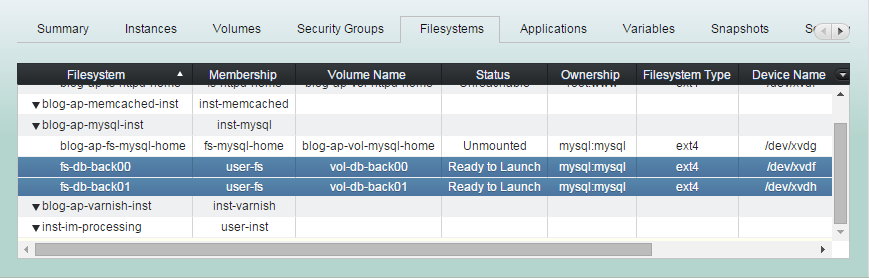
(2) Click "Launch Filesystem"
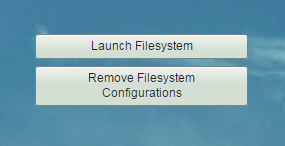
The menu button will not be come up if the bound instance is not running.
(3) 'Launch Filesystem' workflow
1. Creates bound volumes if they are in 'Ready to Launch' status.
2. Waits until the creation completed.
3. Attaches the bound volumes to the bound instances.
(3) 'Launch Filesystem' workflow
4. Makes filesystems if they are configured as 'Create Filesystem' checkbox enabled.
5. Waits until making filesystems done and then mounts filesystems.
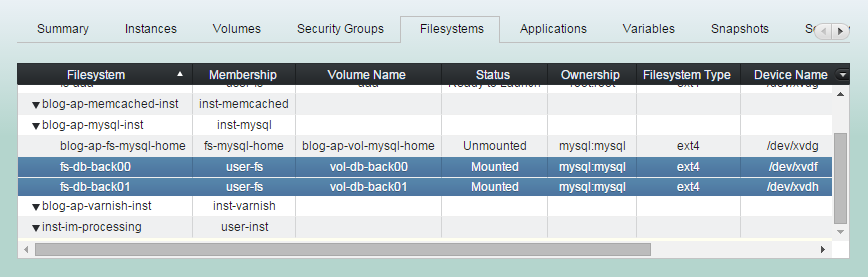
(4) 'Launch Filesystem' completed.
The status are now "Mounted".
Behavior of launching filesystem largely depends on its configuration, such as filesystem type, create filesystem, create user/group, mkfs commands ...
Managing Filesystem - Launch
By robustack.com
Managing Filesystem - Launch
Managing Filesystem - Launch. Robustack is an Amazon EC2 Orchestration Platform. This slides shows how to launch filesystems which are in 'ready to launch' state.