Managing
Variable
robustack.com
Lookup Image Variable
Every groupstack instance is created based on a certain image. Image variables are those which tied to the type of image.
Domain - imgCmd, imgCfg
(1) Click "Variables" tab in groupstack sub table view. And check the image type of instance you want to lookup its variables.
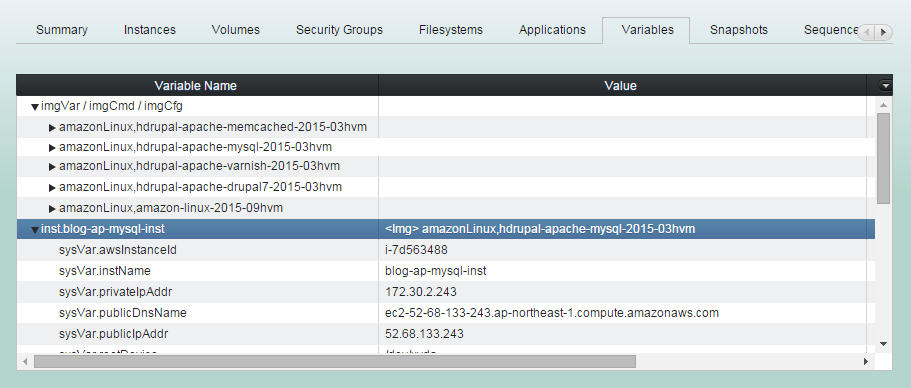
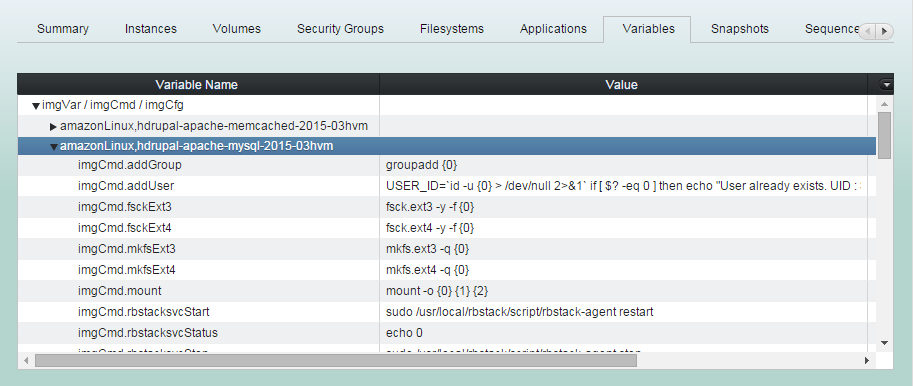
(2) Select the image type in "imgVar/imgCmd/imgCfg" tree.
And checkout the exploded table rows.
You can use these image variables with the notation
rs:{imgCmd.xxx} or rs:{imgVar.xxx}
in any text edit window or in any command input window
for the instance, for the filesystems bound, for the applications bound.
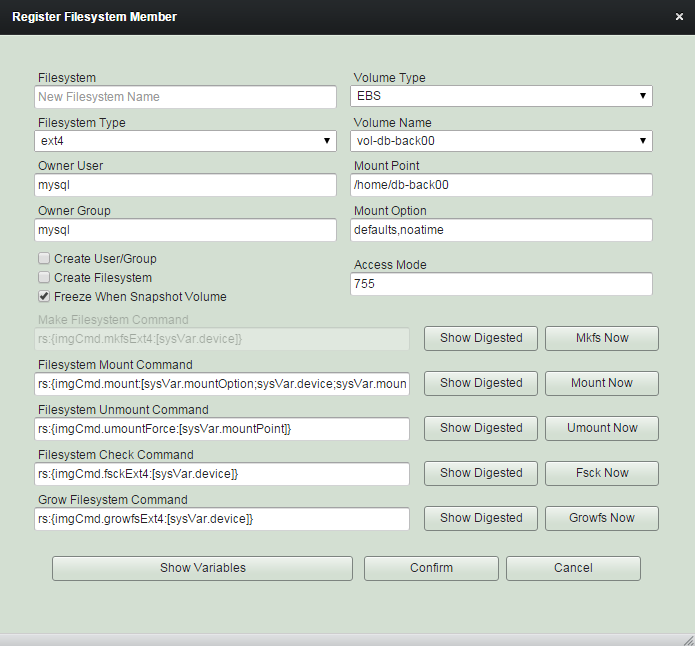
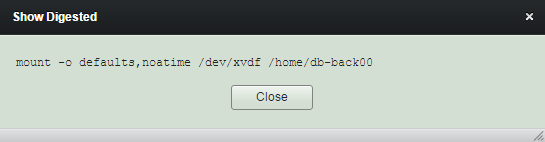
imgCmd.mount -> mount -o {0} {1} {2}
{0} -> sysVar.mountOption -> defaults,noatime
{1} -> sysVar.device -> /dev/xvdf
{2} -> sysVar.mountPoint -> /home/db-back00
imgCmd.mount:[{0};{1};{2}]
-> mount -o defaults,noatime /dev/xvdf /home/db-back00
Lookup System Variable
System variables are those which tied to each groupstack members. The variables are usually representing state values of the members (sysVar) or command scripts manipulating the members (sysCmd). Some of them are maintained by robustack and some of them are modified by user input.
Domain - sysVar, sysCmd, sysCfg
(1) Click "Variables" tab. And check under the instance system variables to lookup the variables for its bound resources.
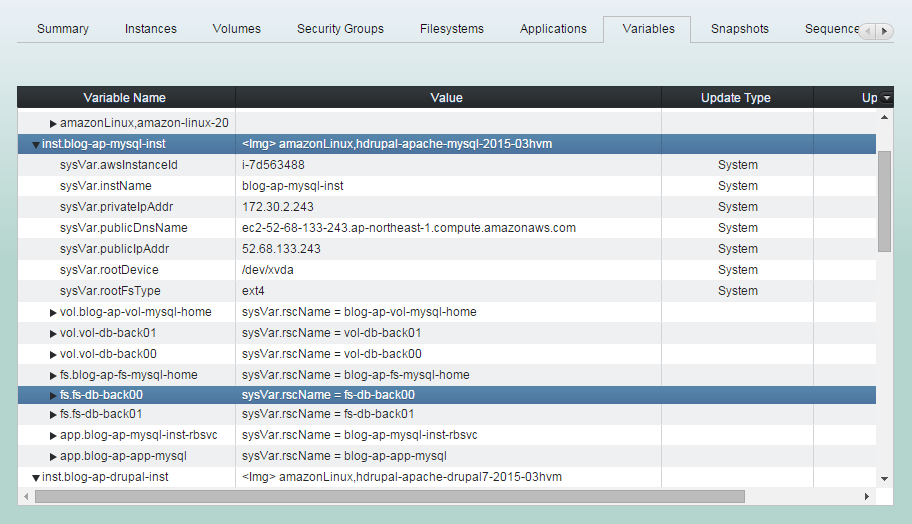
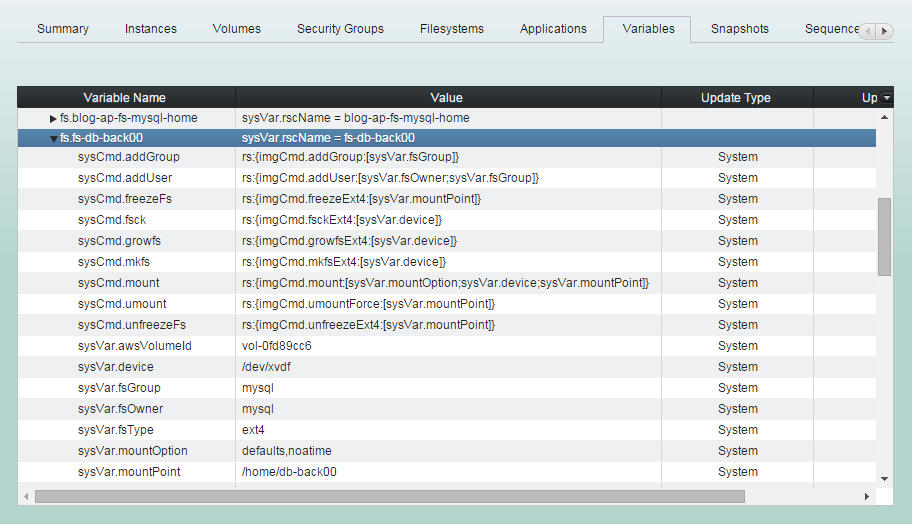
You can use these system variables with the notation
rs:{sysCmd.xxx} or rs:{sysVar.xxx}
in any text edit window or in any command input window
for the resource member.
imgCmd.mount -> mount -o {0} {1} {2}
{0} -> sysVar.mountOption -> defaults,noatime
{1} -> sysVar.device -> /dev/xvdf
{2} -> sysVar.mountPoint -> /home/db-back00
imgCmd.mount:[{0};{1};{2}]
-> mount -o defaults,noatime /dev/xvdf /home/db-back00
sysVar.mount
sysVar.umount
sysVar.fsck
sysVar.growfs
sysVar.mountPoint
sysVar.mountOption
sysVar.mountPointMode
sysVar.volumeType
sysVar.fsGroup
sysVar.fsOwner
sysVar.fsType
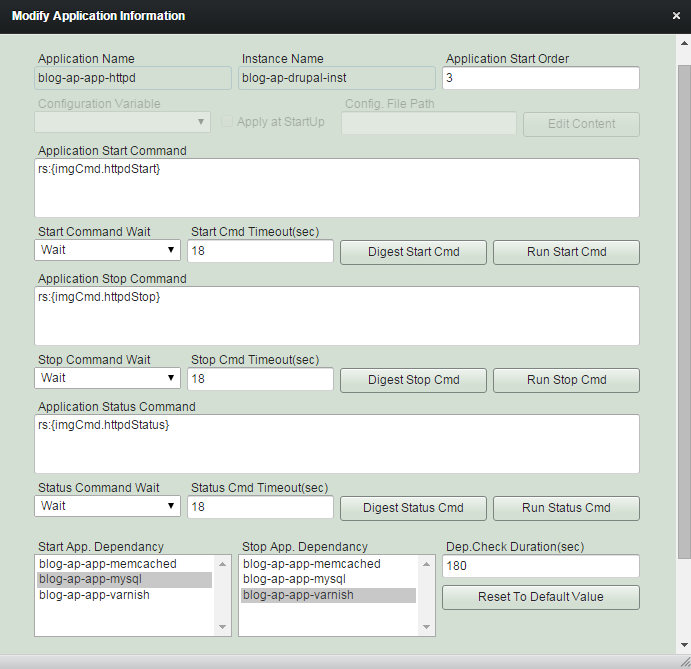
sysCmd.start
sysCmd.stop
sysCmd.status
Variable Notation
rs:{<groupstack>,<rsc-type>.<rsc-name>,<domain>.<name>
:[<param00>;<param01>;<param02>; ... ] }
(1) Full notation
You can reference it from anywhere.
<groupstack> - Name of groupstack
<rsc-type> - Resource type (inst | vol | fs | app).
<rsc-name> - Resource name.
<domain> - Variable domain ( imgCmd|sysVar|sysCmd ... )
<name> - Variable name.
<paramXX> - String enclosed with "", or variable without rs:{ }
(example)
rs:{blog,inst.blog-mysql-inst,sysVar.publicIpAddr}
rs:{blog,fs.fs-mysql-home,sysCmd.umount:["/dev/xvdg"]}
rs:{<rsc-type>.<rsc-name>,<domain>.<name>
:[<param00>;<param01>;<param02>; ... ] }
(2) Local groupstack notation
You can reference it from inside groupstack.
<rsc-type> - Resource type (inst | vol | fs | app).
<rsc-name> - Resource name.
<domain> - Variable domain ( imgCmd|sysVar|sysCmd ... )
<name> - Variable name.
<paramXX> - String enclosed with "", or variable without rs:{ }
(example)
rs:{inst.blog-mysql-inst,sysVar.publicIpAddr}
rs:{fs.fs-mysql-home,sysCmd.umount:["/dev/xvdg"]}
rs:{<domain>.<name>:[<param00>;<param01>; ... ]}
(3) Self resource notation
You can reference it within a resource.
<domain> - Variable domain ( imgCmd|sysVar|sysCmd ... )
<name> - Variable name.
<paramXX> - String enclosed by "", or variable without rs:{ }
(example)
rs:{sysVar.publicIpAddr}
rs:{sysCmd.umount:["/dev/xvdg"]}
rs:{sysCmd.umount:[sysVar.mountPoint]}
Digest Variable Value
You can see the interpreted value of groupstack variable clicking the button "Digest Variable" or similar name at many places on which you should type in command scripts.
Add User Variable
You can create your own variables which belong to groupstack members.
And you can define how those values to be updated. User variables can also be referenced as the same way as system variables be done.
(1) Click "Variables" tab. And select a member to which you'd like to add variable.
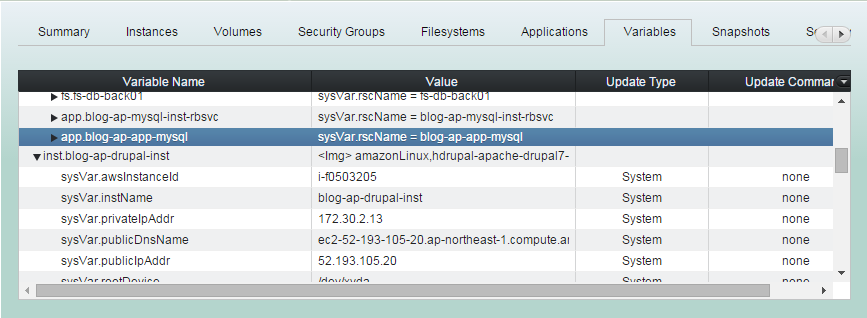
(2) Click "Add User Variable" button.
The variable will be updated when user initiate or after app-mysql started.
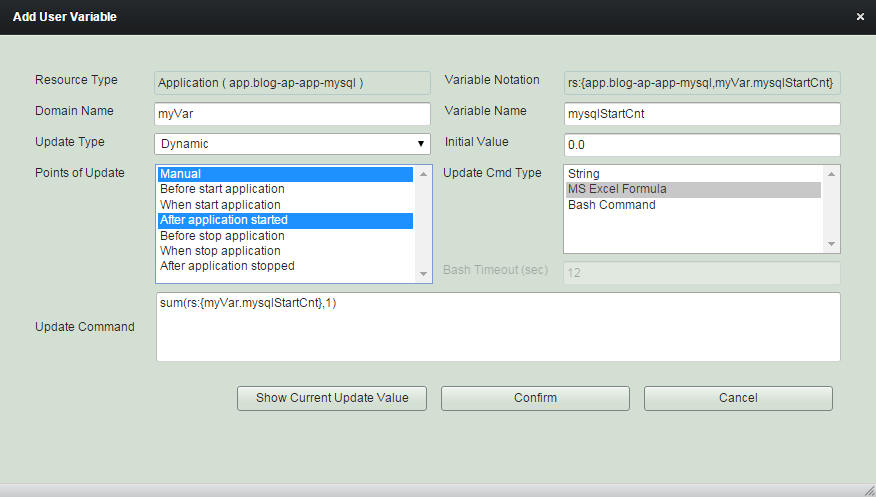
The variable will be updated with calculated 'MS Excel Formula'
(3) 'Add User Variable' completed.
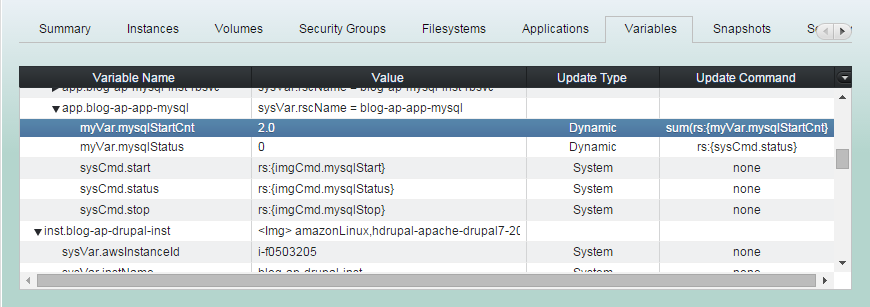
Modify User Variable
(1) Click "Variables" tab. And select an user variable to modify.
(2) Click "Modify User Variable" button.
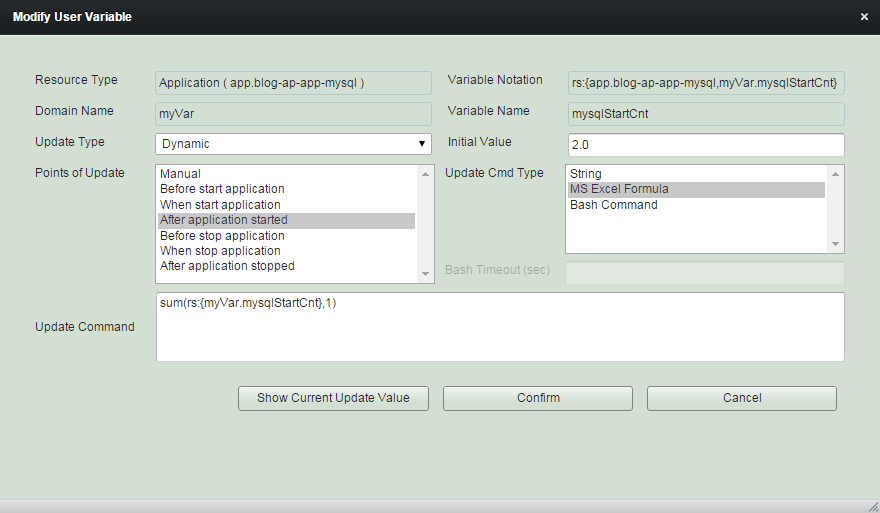
(3) Modify items as needed and click "Confirm"
Update User Variable
You can update an user variable which 'Point of Update' value contains "Manual" by clicking "Update User Variable" button.
(1) Click "Variables" tab. And select an user variable to update.
(2) Click "Update User Variable" button.
This button will not be shown if you select an user variable which 'Point of Update' doesn't include 'Manual'.
Remove User Variable
You can remove user variables any time. But be sure if they are referred from anywhere.
Managing Variable
By robustack.com
Managing Variable
Managing Variable. Robustack is an Amazon EC2 Orchestration Platform. This slides shows how to manage groupstack variables.