Managing
Detached (available) Volume
robustack.com
Attach Volume
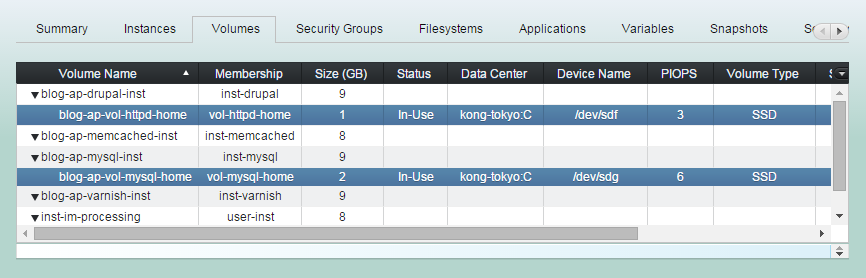
(1) Click "Volumes" tab in groupstack sub table view. And select detached (available) volumes you want to attach.
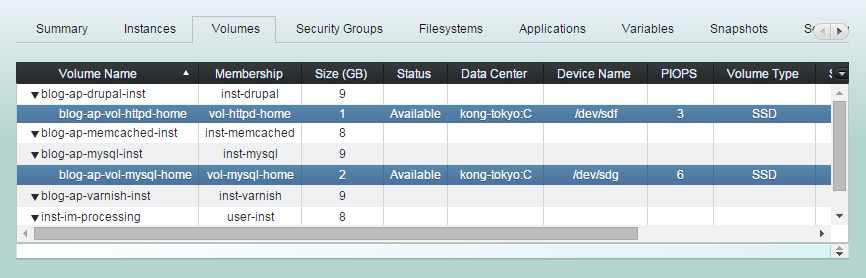
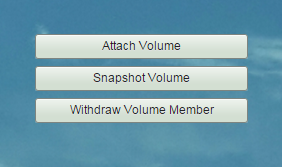
(2) Click "Attach Volume" button.
(3) Attach Volume workflow
1. Attaches selected volumes to the instance.
2. Waits the attachment completed.
(4) Attach Volume completed.
The status are now "In-Use".
Snapshot Volume
(1) Click "Volumes" tab in groupstack sub table view. And select detached (available) volumes you want to snapshot.
(2) Click "Snapshot Volume" button.
(3) Enter 'Group Snapshot Name'.
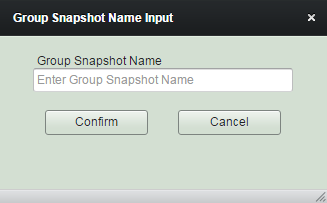
(4) Snapshot Volume workflow
1. Checks current status of bound filesystems and records it for future reference.
2. Initiates snapshot for the volumes.
3. Waits until the snapshot done.
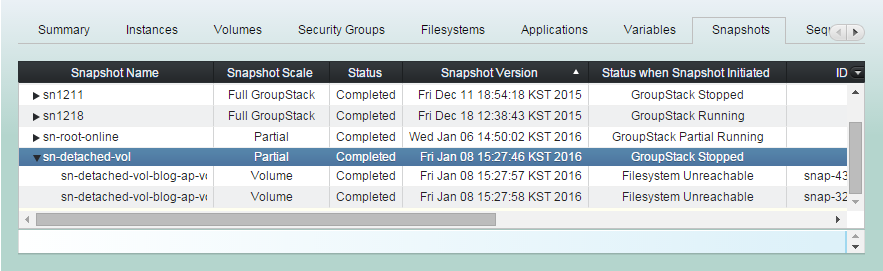
(5) Snapshot Volume completed.
You can check the result from "Snapshots" tab.
Register Volume Snapshot
You may have a volume snapshot you created from other volume.
You can utilize the snapshot when you restore or clone volume as if it was created from the volume here.
The expression 'register to groupstack' means 'giving membership to a resource which is outside the groupstack' and 'withdraw from groupstack' means 'taking the membership back from a resource which is inside the groupstack'.
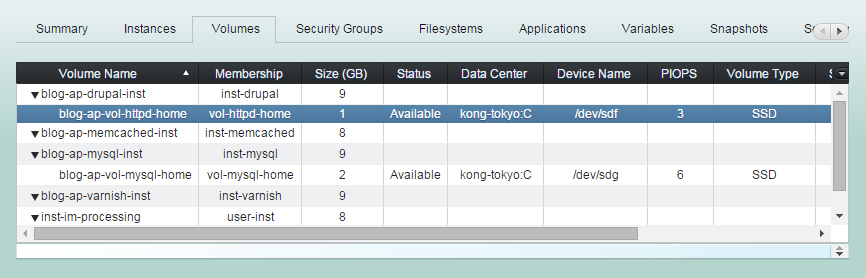
(1) Click "Volumes" tab in groupstack sub table view. And select a volume you want a snapshot to be registered as its.
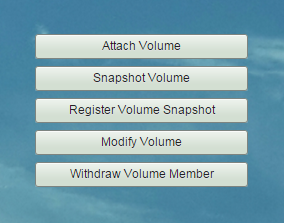
(2) Click "Register Volume Snapshot"
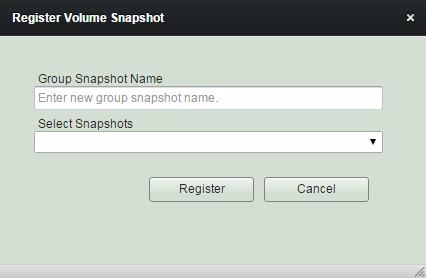
(3) Enter Group Snapshot Name and select snapshot you want to register. And Click "Register" button.
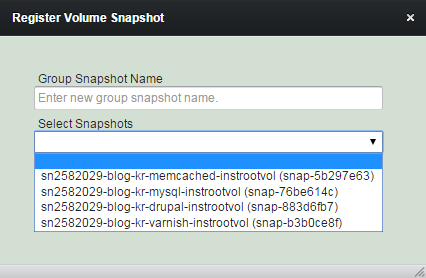
You can select a snapshot among which don't belong to any group snapshots.
(4) Registering volume snapshot has been completed. You can see the snapshot is now in the group snapshot.
You can restore the volume
with the snapshot you've registered here later.
Modify Volume
You can change the device which the volume is attached to.
(1) Click "Volumes" tab in groupstack sub table view. And select a detached volume (available) you want to modify.
(2) Click "Modify Volume" button.
(3) Select a device you want the volume newly attached to.
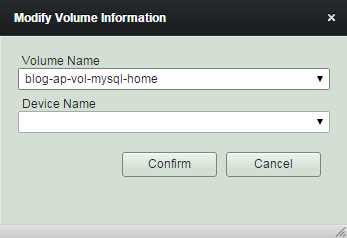
(4) Modify Volume completed.
The volume will be attached to the instance as the device you changed from now on.
Register Volume Member
You can register any volume in the same location as a groupstack member, if the volume is not already a member of other groupstack.
The expression 'register to groupstack' means 'giving membership to a resource which is outside the groupstack' and 'withdraw from groupstack' means 'taking the membership back from a resource which is inside the groupstack'.
(1) Click "Volumes" tab in groupstack sub table view. And select an instance you want a volume outside the groupstack to be attached to.
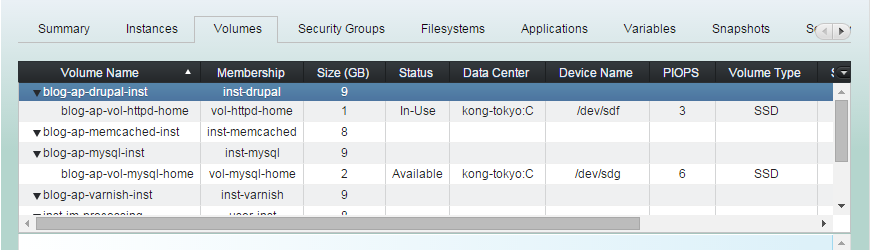
(2) Click "Register Volume Member"
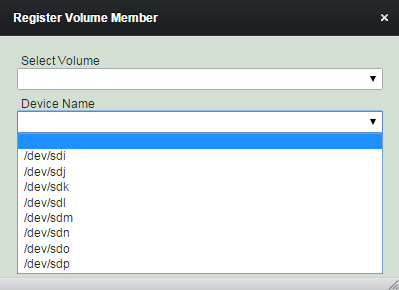
(3) Select a volume you want to register. And select a device you want the volume to be attached to.
You can choose a volume in the same availability zone with the selected instance and it is in "available" status.
(4) Register Volume Member completed.
Withdraw Volume Member
Withdrawing volumes from a groupstack will never detach nor remove EBS volumes. Only the volumes will lose those memberships. Bound resources will have been withdrawn beforehand in order to withdraw the volumes.
The expression 'register to groupstack' means 'giving membership to a resource which is outside the groupstack' and 'withdraw from groupstack' means 'taking the membership back from a resource which is inside the groupstack'.
(1) Click "Volumes" tab in groupstack sub table view. And select volumes you want to withdraw from groupstack.
(2) Click "Withdraw Volume Member".
(3) Withdraw Volume Member completed.
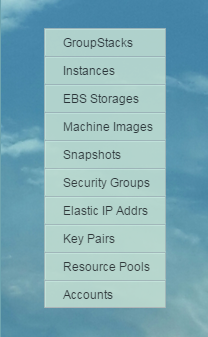
If you don't want to use the volumes any longer, click "EBS Storages" in main menu bar and remove the volumes accordingly in the management view.
Managing Volume - Volume Detached
By robustack.com
Managing Volume - Volume Detached
Managing Volume - Volume Detached (Available). Robustack is an Amazon EC2 Orchestration Platform. This slides shows how to manage detached groupstack member volumes.