Managing View
robustack.com
Selecting Items
and Buttons
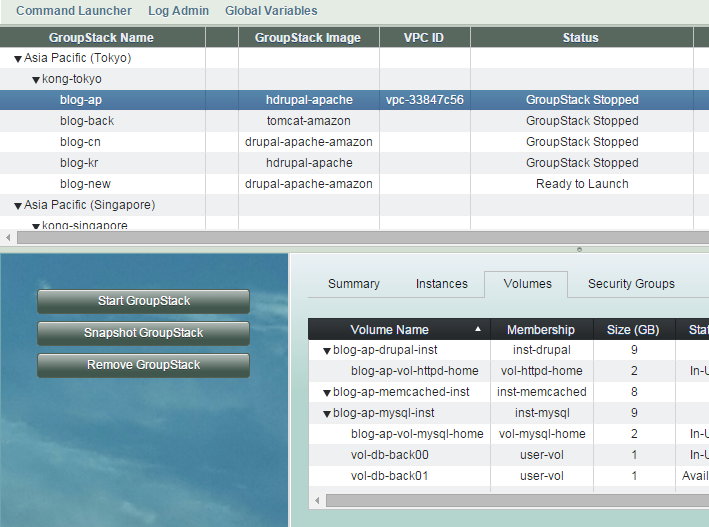
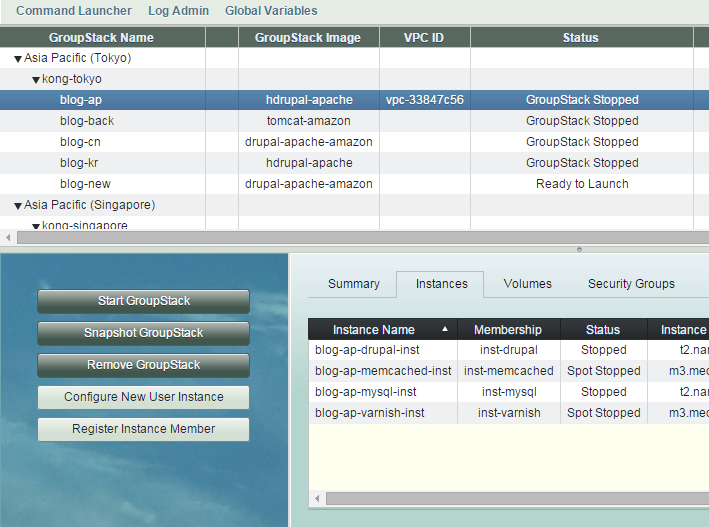
Dark buttons are for main table view item selection.
Bright buttons are for sub table view item selection.
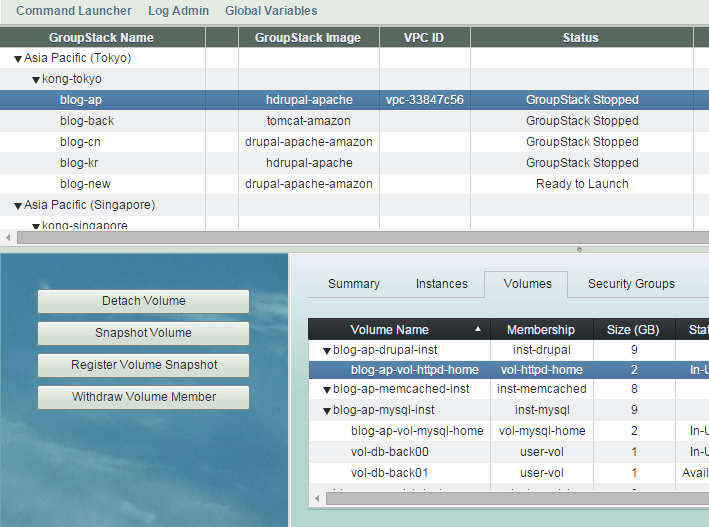
Instance Member Menu
GroupStack Menu
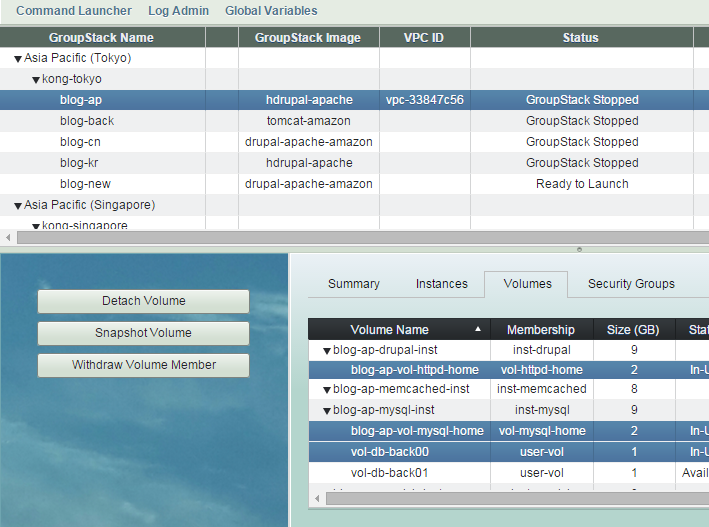
Items in sub table view are usually multi-selectable.
Select holding Ctrl key.
Items in main table are single-selectable.
Choosing Time Zone
You can see all time stamps in robustack console with a time zone you choose on the fly, such as those in the console log view, batch job log view, groupstack snapshot view, etc.
(1) Select "Choose Time Zone" in main menu.
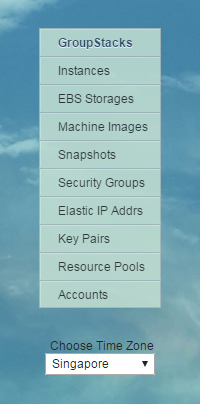

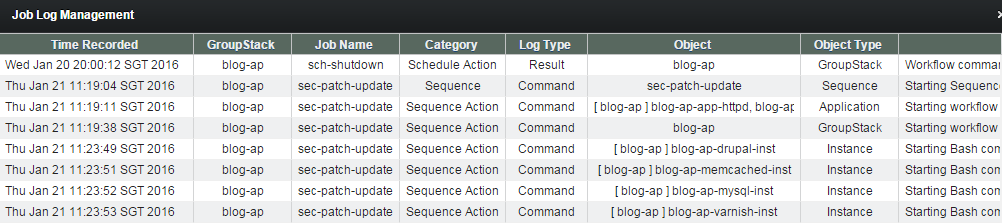
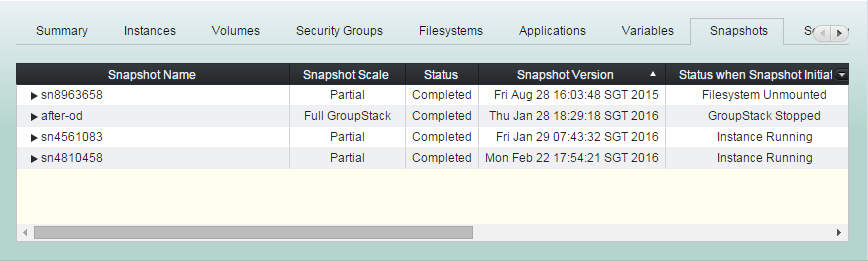
You can see the time stamps displayed with the time zone you have chosen.
Log View
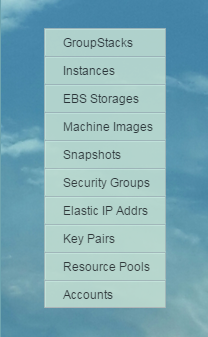
(1) Click "GroupStacks" in main menu.

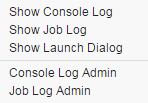

(2) Click "Log Admin" in top menu. And select log targets.
Selection for the item currently selected.
Will bring up new admin window.
If the item currently selected is a region, then all console logs for the region will be shown in the log view area. And if the item is a resource pool, logs for the resource pool will be shown. If it is a groupstack, logs for the groupstack will be shown as well.
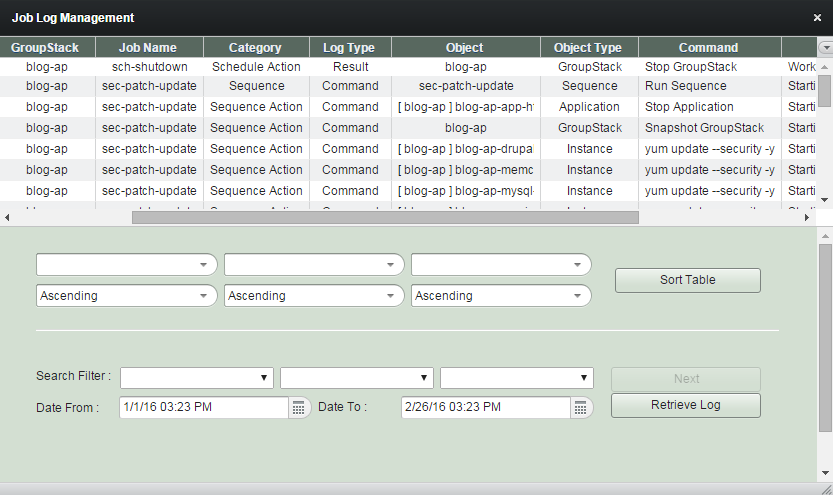
If the item currently selected is a region, then all job logs for the region will be shown in the log view area. And if the item is a resource pool, logs for the resource pool will be shown. If it is a groupstack, logs for the groupstack will be shown as well.

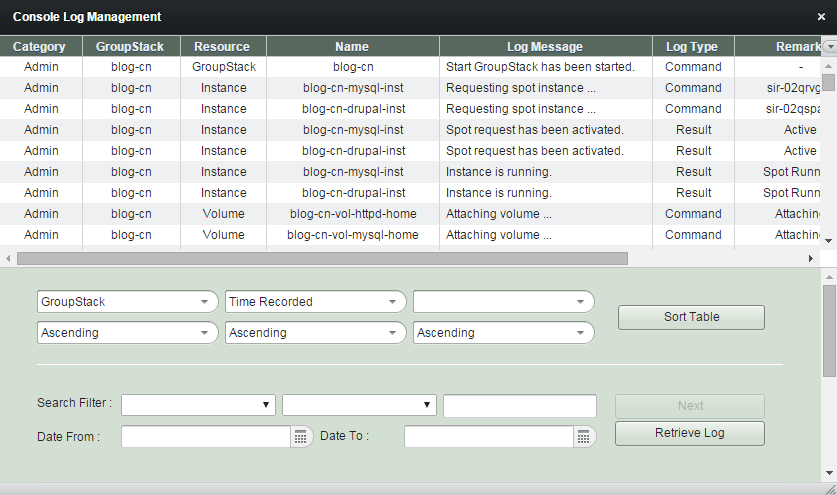
You can retrieve the logs long time ago and you can use a filter.
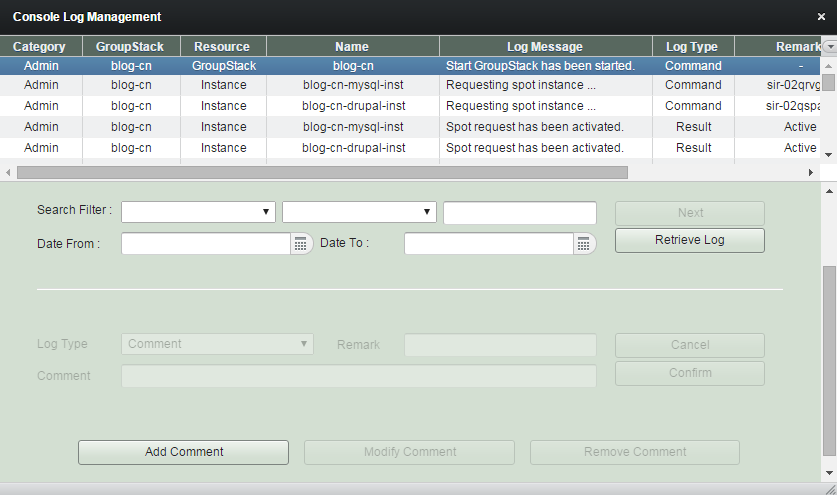
You can add several comments just below the log item you selected.
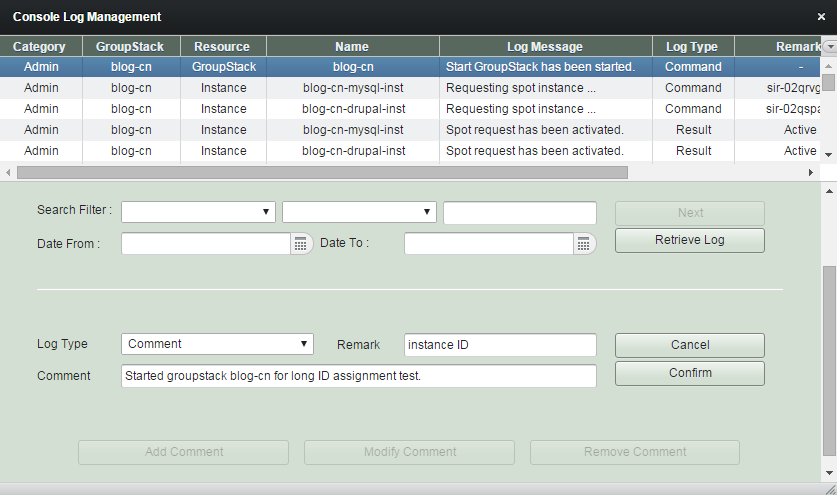
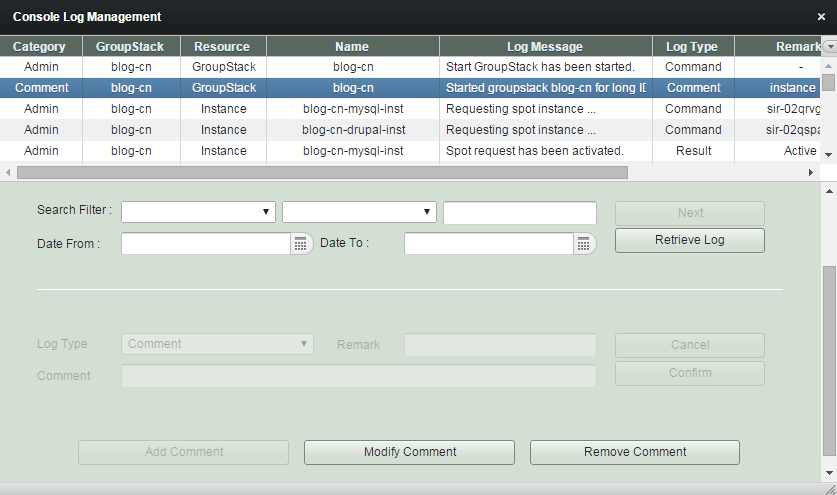
You can modify or remove log items if they are 'Comment'.
You can retrieve the logs long time ago and you can use a filter.
Redraw View
Many views in robustack console are always being regenerated reflecting the status of the object item currently selected. For example, if the status of an instance is 'running' and you select the instance, the menu area will be filled with the buttons which can be executable when an instance is in 'running' state.
But sometimes, the status of the object will be changed not by the console action of yours but by the numerous external interactions or by the background threads.
In those cases, the views in robustack may not be updated timely and sometimes it will be required your intervention.
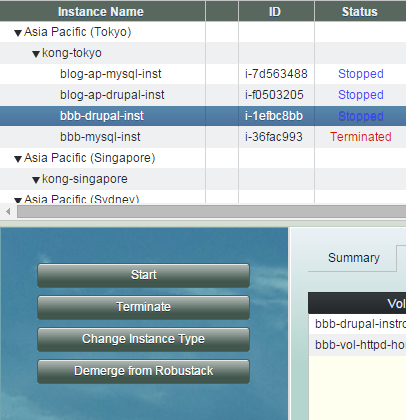
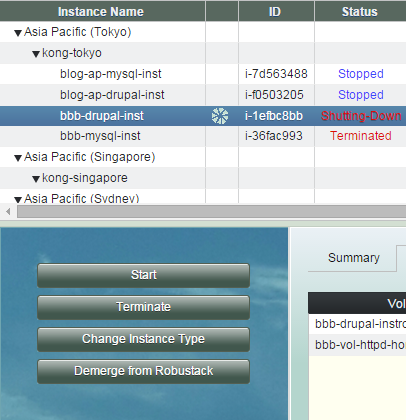
You terminate an instance and the termination started.
Despite the termination completed and the status of the instance turned to 'Terminated', the menu buttons are still for that of 'Stopped'.
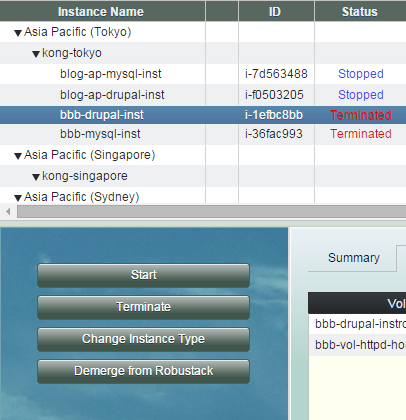
Clicking redraw icon on the top right corner will redraw buttons on menu area right.
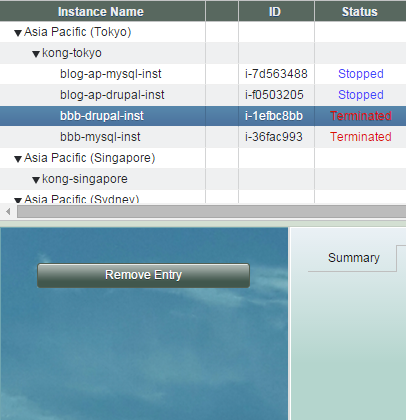
Selecting any other item and then select back will result in the similar effect as clicking redraw icon.
Refresh View
Items in robustack views keep various informations inside which are gathered from the sources like Amazon EC2. The informations will not always be updated unless there is definite reason to be updated. Such as, in case when you sign in to robustack, or in case you initiated an instance stop and the instance is now stopped.
But sometimes, the information will become outdated or become incorrect due to various external reasons, such as a failure of an EC2 instance.
In those cases, the informations should be cleaned and updated in order you to take relevant measures on the incident.
Clicking refresh icon on the top right corner will refresh the view.
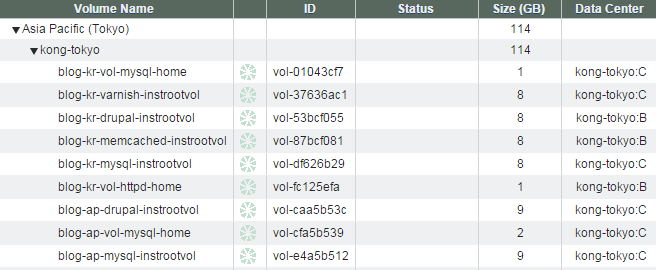
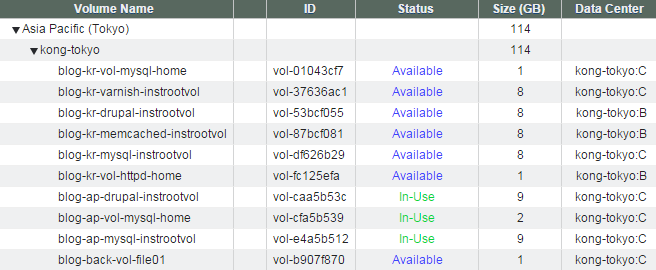
Spining icon will be shown during refresh.
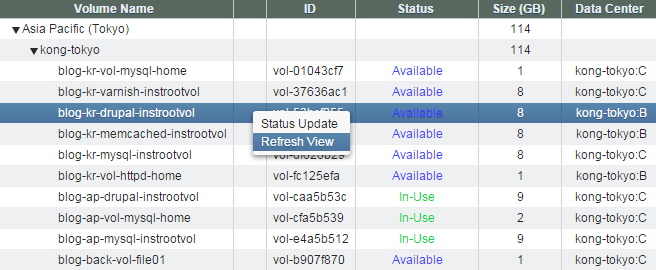
You can refresh the current view as well by clicking RIGHT mouse button and select "Refresh View".
Heartbeat
Any screen update done from server side will not be seen from the client side (your web browser) if there is no user interaction, such as clicking somewhere inside the browser window, from the client side.
Robustack deploys 'spinning icon' automatically to overcome such behavior.
But unfortunately, when you want to see the progress of 'Sequence Job' timely, you should deploy 'spinning icon' by yourself.
You can start and stop 'spinning icon' manually by toggle clicking 'Heartbeat'.
'Spinning icon' will appear if you click 'Heartbeat'.

'Spinning icon' will disappear if you click 'Heartbeat' again.
Using Console - Managing View
By robustack.com
Using Console - Managing View
Using Console - Managing View. Robustack is an Amazon EC2 Orchestration Platform. This slides explains the feature of robustack views and how you can use them.