IP-Tables/Firewalld

Why Should we know This ?
Firewall
A firewall is a set of rules. When a data packet moves into or out of a protected network space, its contents (in particular, information about its origin, target, and the protocol it plans to use) are tested against the firewall rules to see if it should be allowed through.
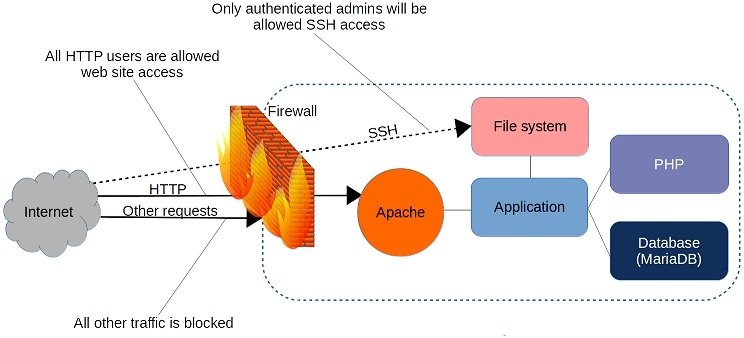
Who manage this :-
- IP-Tables
- FirewallD
- NF-Tables
What is IP-Tables ?
Iptables is a command-line firewall utility that uses policy chains to allow or block traffic & its a rule based system
Packet Journey
When a packet arrives, the kernel identifies the chain and navigates it until a matching expression is found. It will then apply the defined target on the data packet hence deciding either to DROP, ACCEPT, or REJECT that packet.
Basic Structure Of Ip-Table
Chains
Rules
Tables
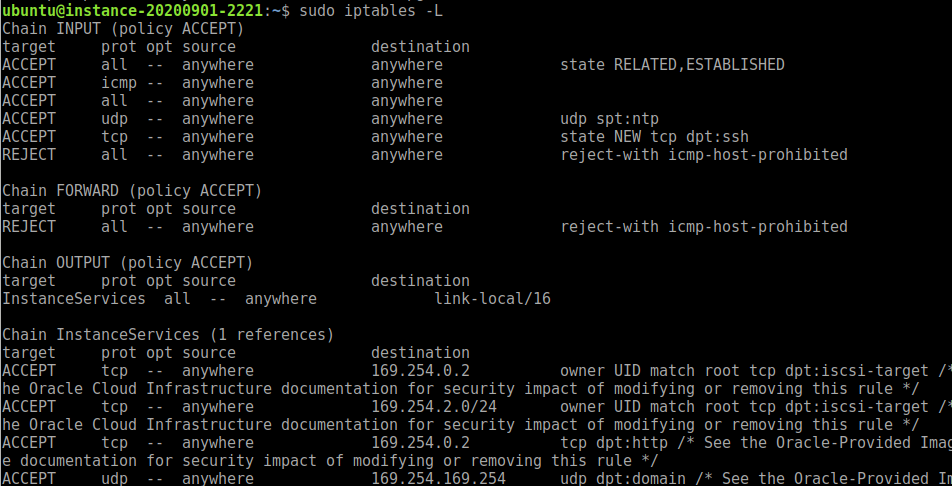
sudo iptables -LRUN
Installing IP-Tables
For debian :-
sudo apt install iptables
For centos/rhel/fedore :-
sudo yum install iptables
Installed
Verify by running :- sudo iptables -L -v
Mainly 3 types of Tables
- filter – The Linux kernel will search for rules in this table for every input packet. Based on the rule, the packet is either accepted or dropped
- nat – The kernel uses this table for NATing rules. Network Address Translation (NAT) allows us to change the source or destination IP address in a packet. iptables can do this for both incoming and outgoing packets
- mangle – This table allows us to alter IP headers. For example, we can change the TTL value in the input packet
iptables -t nat -L -vChains
- INPUT – This chain contains rules to apply on incoming connections
- FORWARD – This contains rules for data packets that must only be forwarded and not consumed locally. For example, a router that only forwards the data to other machines
- OUTPUT – This chain contains rules for outgoing connections
Find policy in your Ip-Tables
sudo iptables -L | grep policy
Networking
iptables -A INPUT -m state --state ESTABLISHED,RELATED -j ACCEPT
iptables -A INPUT -s 192.168.1.0/24 -j ACCEPT
iptables -P INPUT DROP
iptables -P FORWARD DROP


Blocking ICMP Ping
sudo iptables -A OUTPUT -p icmp --icmp-type 8 -j DROP- ACCEPT – Allow the packet to reach the destination socket
- DROP – Drop the packet but don’t send any error back to the client
- REJECT – Drop the packet and send an error back to the client
Block all connections from an IP <==ip-here==>
iptables -A INPUT -s <==ip-here==>  -j DROP


Block Connections from an IP Range iprange = 10.0.0.25/16
iptables -A INPUT -s <==ip-range==> -j DROP


Block ssh connections from a specific ip
iptables -A INPUT -p tcp --dport ssh -s <==ip-here==> -j DROP

Flushing existing rules
iptables --F

Allowing HTTP/HTTPS using IP-Tables
iptables -A INPUT -i eth0 -p tcp --dport 80 -m state --state NEW,ESTABLISHED -j ACCEPT
iptables -A OUTPUT -o eth0 -p tcp --sport 80 -m state --state ESTABLISHED -j ACCEPT
iptables -A INPUT -i eth0 -p tcp --dport 443 -m state --state NEW,ESTABLISHED -j ACCEPT
iptables -A OUTPUT -o eth0 -p tcp --sport 443 -m state --state

Allowing Multiple Ports with a single Rule
iptables -A INPUT -i eth0 -p tcp -m multiport --dports 3306,80,443 -m state --state NEW,ESTABLISHED -j ACCEPT
iptables -A OUTPUT -o eth0 -p tcp -m multiport --sports 3306,80,443  -m state --state ESTABLISHED -j ACCEPT
Port forwarding
Its an example
iptables -t nat -A PREROUTING -p tcp -d 192.168.87.100 --dport 5722 -j DNAT --to 192.168.87.200:22
Filtering Packets By Expression Matching
Drop all packets to this port
iptables -A INPUT -p tcp --dport 8080 -s <==ip-no===> -j DROP

To drop all packets on a particular protocol:
iptables -A INPUT -p tcp --dport 22 -j DROP
Iptables works where you least expect it
Some tools in Linux use iptables in the backend. One very striking example of it is fail2ban. Fail2ban uses iptables to temporarily block anyone who will enter the incorrect SSH password on a specific interval.
https://www.fail2ban.org/wiki/index.php/Main_Page

Append , delete ,Restart
IP-Tables Append Command
iptables -A INPUT -p tcp --dport 22 -j DROP

IP-Tables Delete Command
iptables -A INPUT -p tcp --dport 22 -j DROP

IP-Tables List Rules
iptables -L -v

Saving IP-Tables Command
iptables-save > /etc/network/iptables.rules
sudo iptables-save
IP-Tables For Security
IP-Tables Block DDOS
iptables -A INPUT -p tcp --dport 80 -m limit --limit 20/minute --limit-burst 100 -j ACCEPT

BLOCK Port Scanning
sudo iptables -N block-scan
sudo iptables -A block-scan -p tcp —tcp-flags SYN,ACK,FIN,RST RST -m limit —limit 1/s -j RETURN
sudo iptables -A block-scan -j DROP

Block Bad Ports
badport="135,136,137,138,139,445"
sudo iptables -A INPUT -p tcp -m multiport --dport $badport -j DROP
sudo iptables -A INPUT -p udp -m multiport --dport $badport -j DROP
Firewalld
Firewalld provides a dynamically managed firewall with support for network/firewall zones that defines the trust level of network connections or interfaces. It has support for IPv4, IPv6 firewall settings, ethernet bridges and IP sets. There is a separation of runtime and permanent configuration options. It also provides an interface for services or applications to add firewall rules directly.
How is it Made ?
So, firewalld uses zones and services instead of chain and rules for performing the operations and it can manages rule(s) dynamically allowing updates & modification without breaking existing sessions and connections.
Features
- D-Bus API.
- Timed firewall rules.
- Rich Language for specific firewall rules.
- IPv4 and IPv6 NAT support.
- Firewall zones.
- IP set support.
- Simple log of denied packets.
- Direct interface.
- Lockdown: Whitelisting of applications that may modify the firewall.
- Support for iptables, ip6tables, ebtables and ipset firewall backends.
- Automatic loading of Linux kernel modules.
- Integration with Puppet.
Setup/Working
Remove IP-Tables
sudo systemctl stop iptables
sudo systemctl mask iptables
sudo systemctl status iptables


Install Firewalld

For Ubuntu
sudo apt-get remove ufw
sudo apt-get install firewall-applet

For CentOS
sudo yum install firewalld firewall-config -y
Using firewalld
Find status of firewalld
sudo systemctl status firewalld


For zones
sudo firewall-cmd --get-active-zones
sudo firewall-cmd --get-zones


Default Zone
sudo firewall-cmd --get-default-zone

For Services
sudo firewall-cmd --get-services
BLOCKING
Blocking Port 80
sudo firewall-cmd --permanent --zone=public --add-port=80/tcp

sudo firewall-cmd --reload

sudo firewall-cmd --zone=public --list-ports
 or
sudo firewall-cmd --zone=public --list-all


Adding Services
sudo firewall-cmd --zone=public --add-service=ftp
Removing Service
sudo firewall-cmd --zone=public --remove-service=smtp


Block Any Incoming
sudo firewall-cmd --panic-on
Block Any Outgoing
sudo firewall-cmd --panic-off


Adding IP Address
sudo firewall-cmd --zone=public --add-rich-rule='rule family="ipv4" source address="192.168.1.4" accept'

Blocking IP Address
sudo firewall-cmd --zone=public --add-rich-rule='rule family="ipv4" source address="192.168.1.4" reject'
END
IP-Tables/Firewalld
By Sahil Joseph