TEACHER REFERENCE


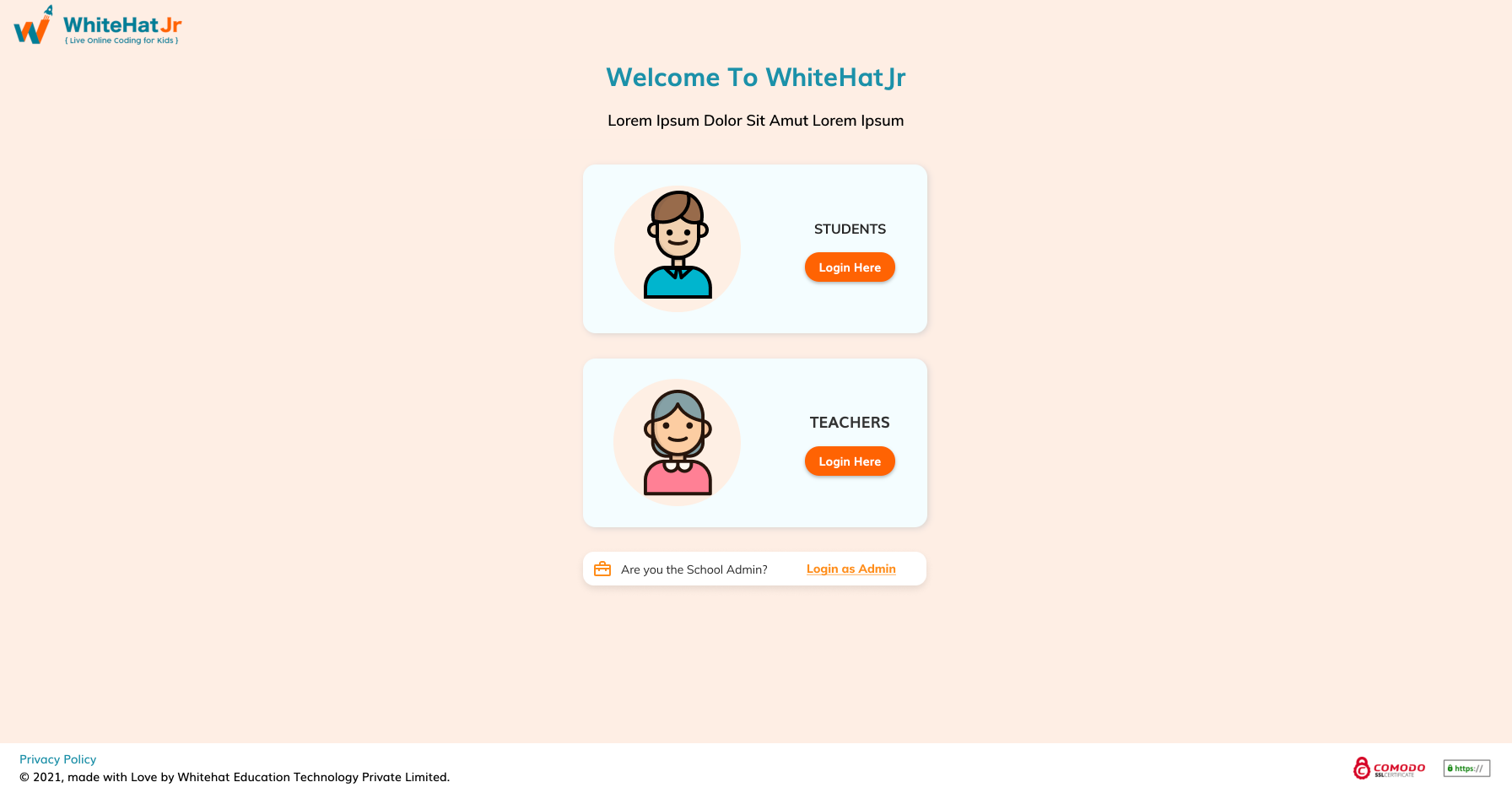
Login Screen
TEACHER REFERENCE
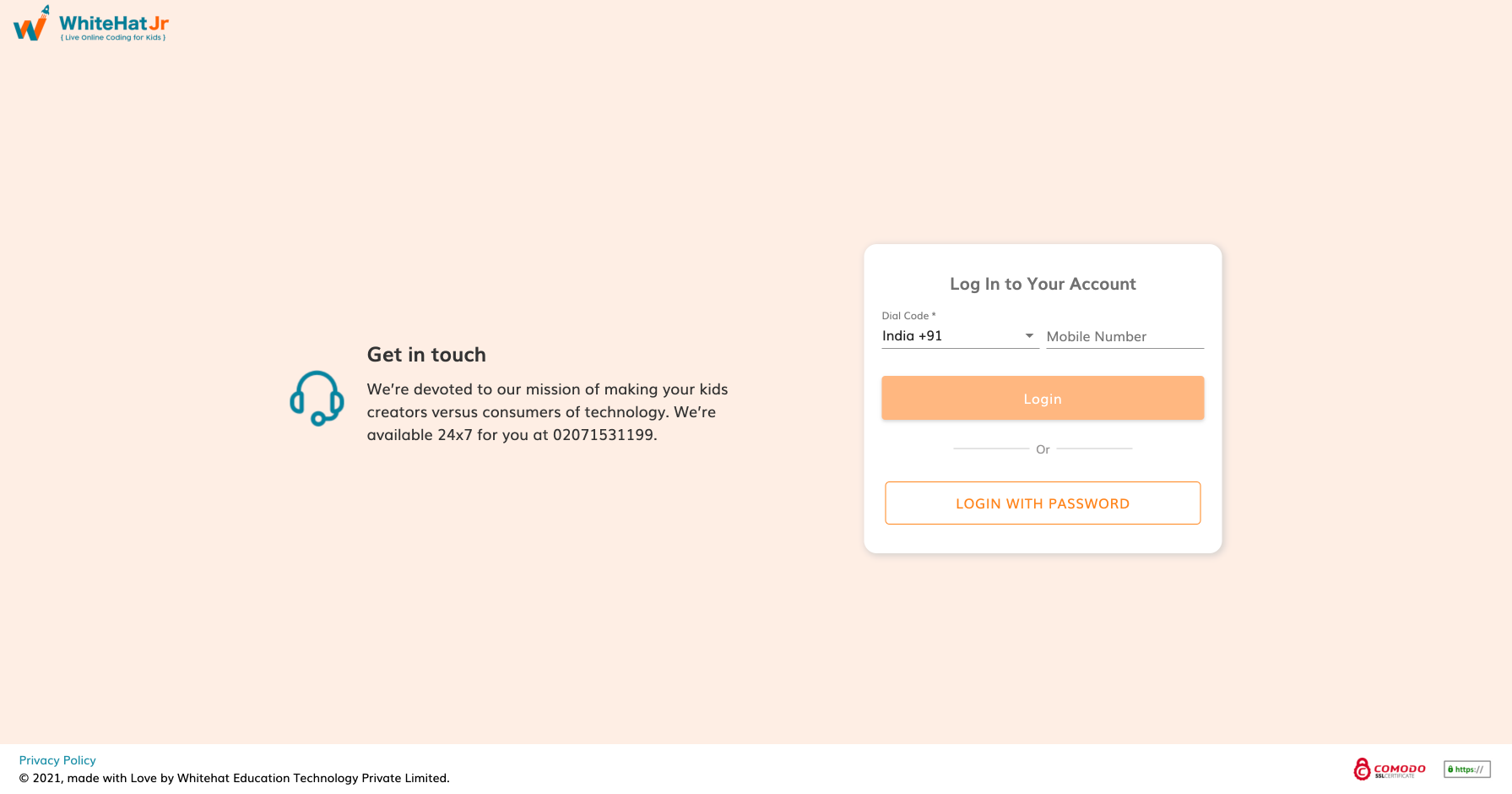
Teacher Login
TEACHER REFERENCE
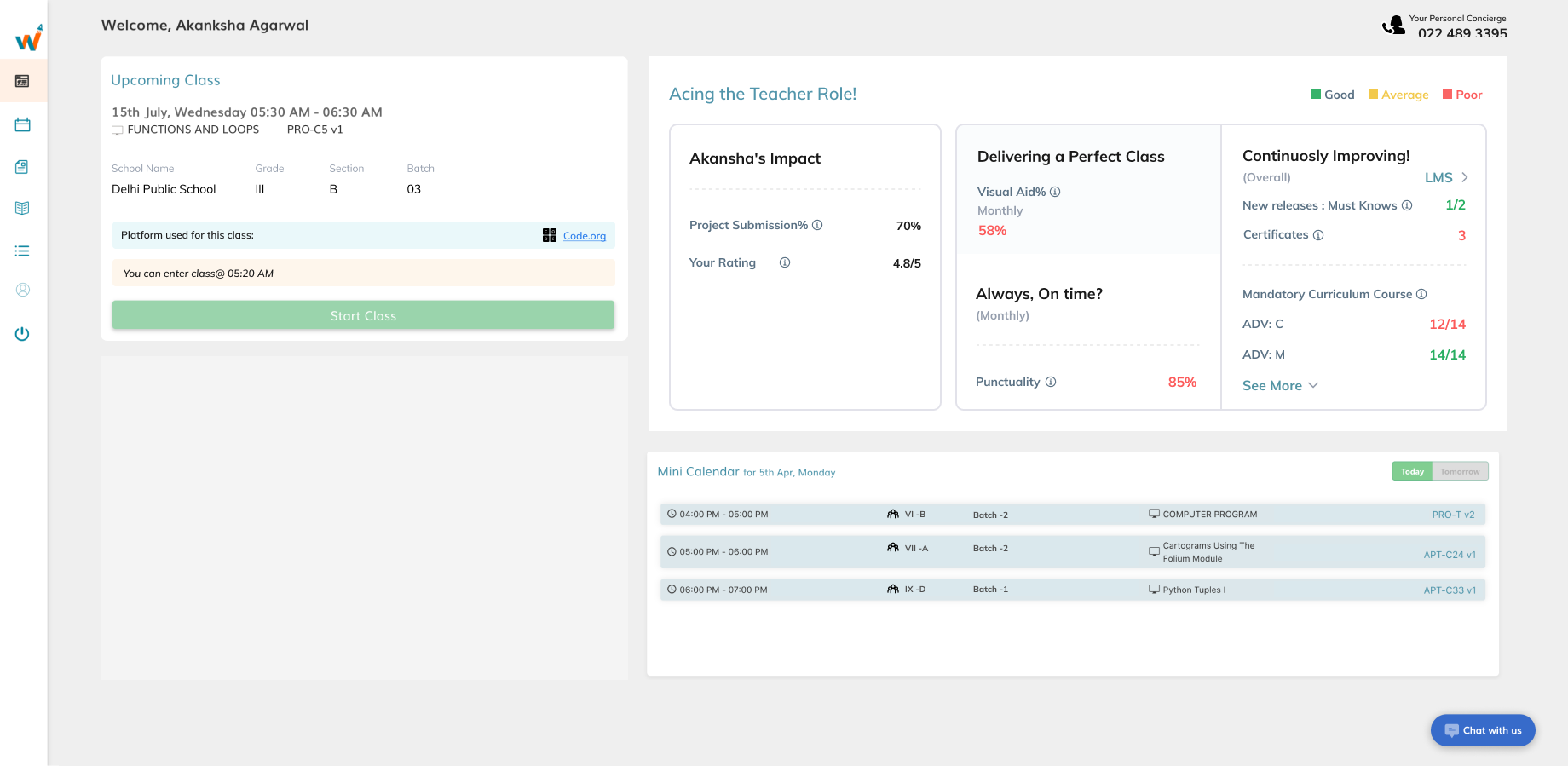
Teacher Dashboard: Click on "Start Class"
TEACHER REFERENCE
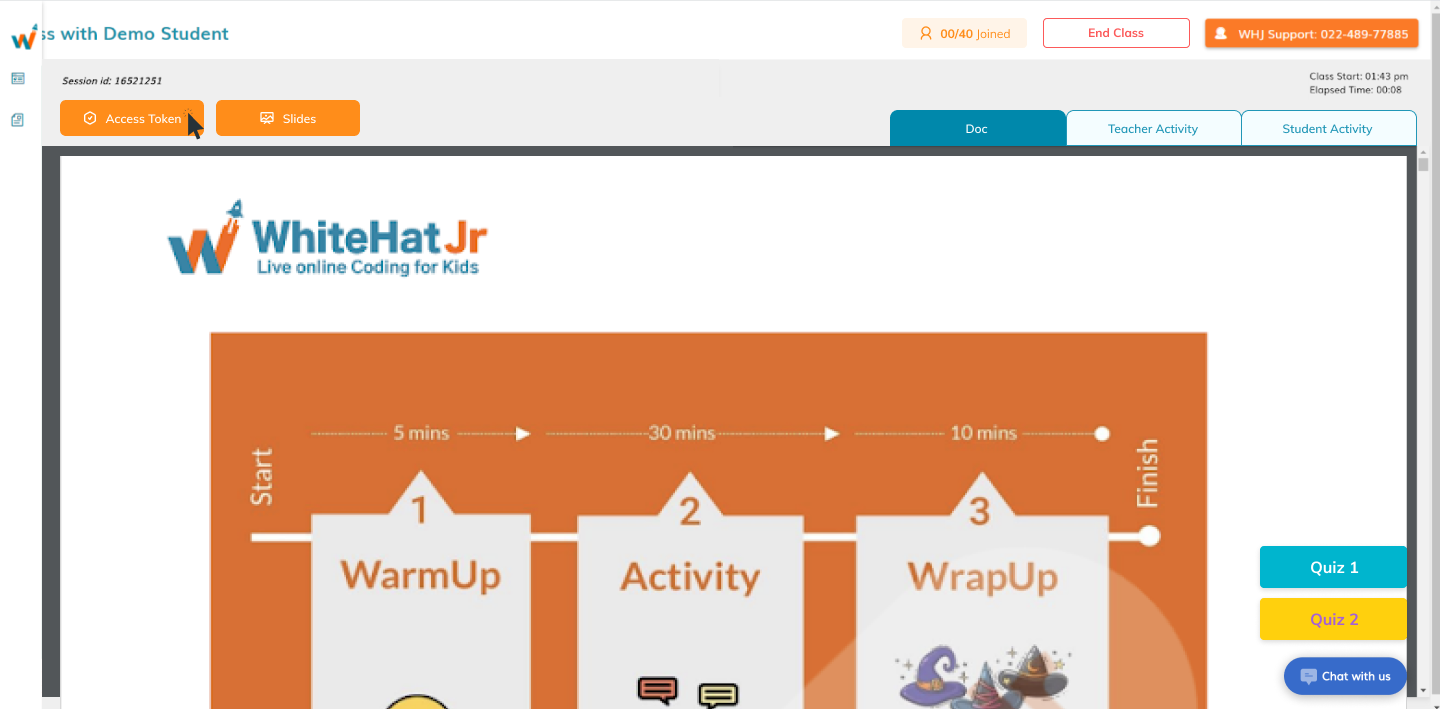
In class Dashboard: Click on the "Access Token"
TEACHER REFERENCE
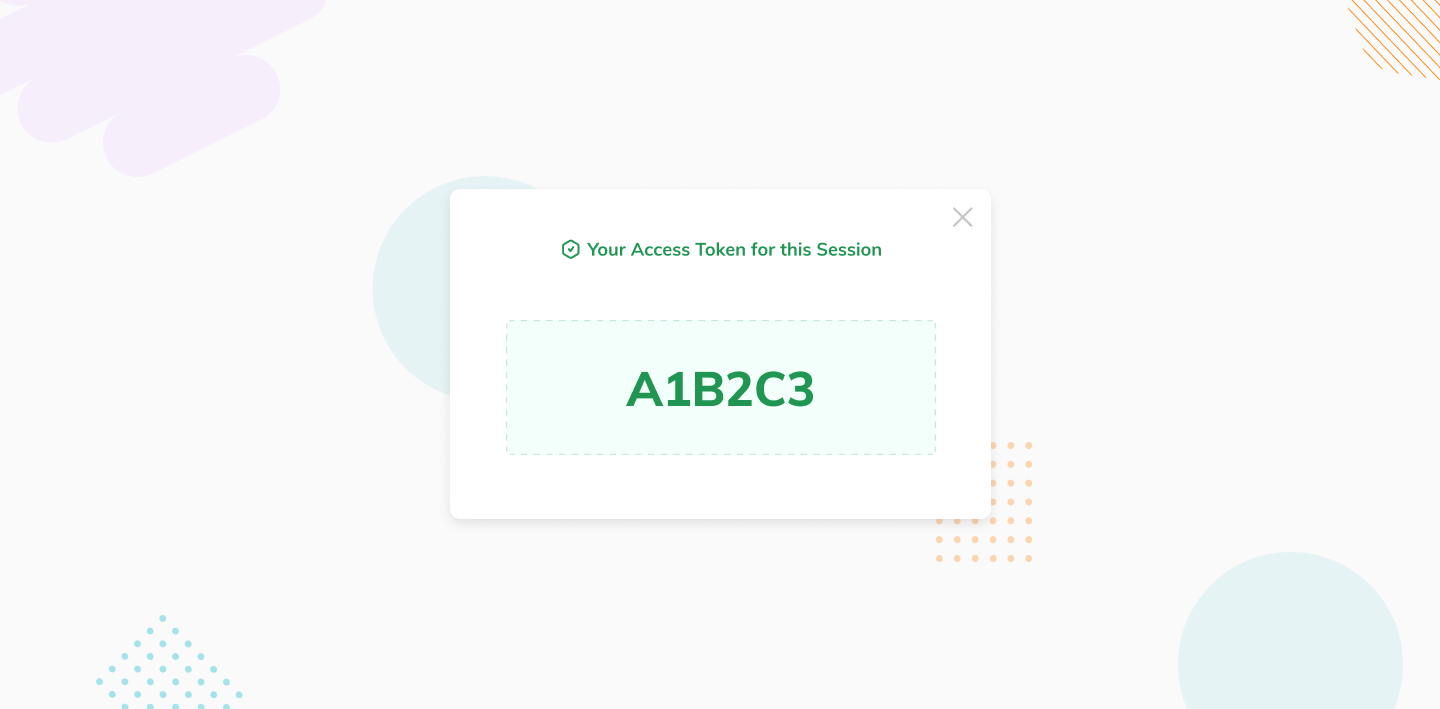
Share this "Acess Token" with students
TEACHER REFERENCE
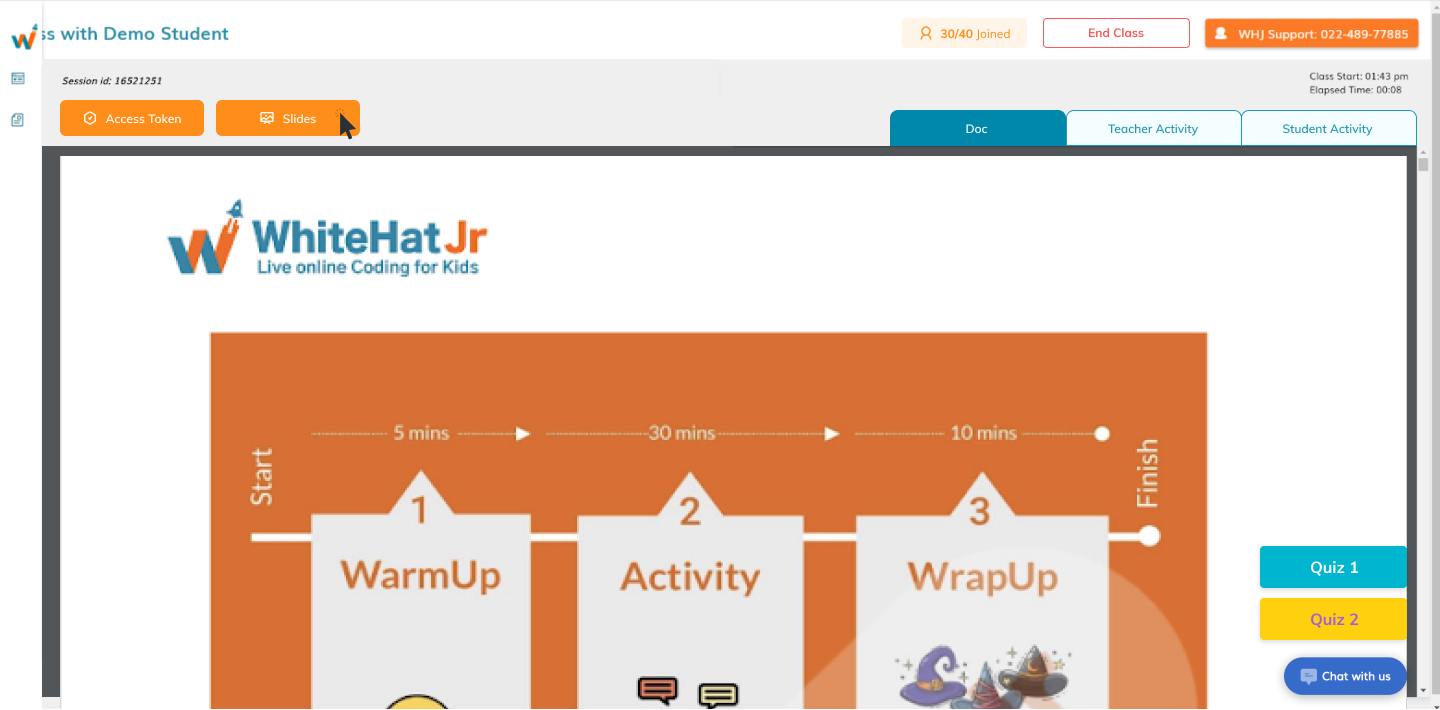
Check if all students have joined, then click on "Slides" to start the class
TEACHER REFERENCE
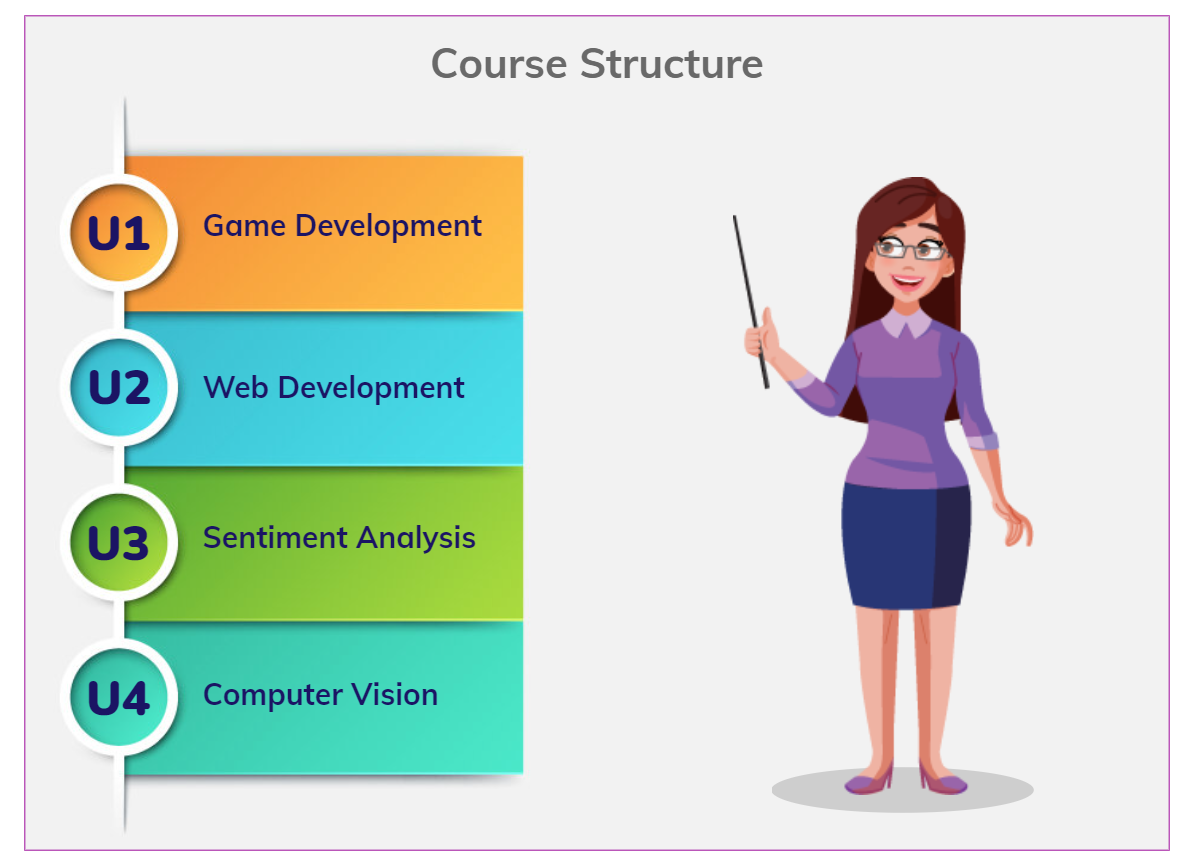
Project the slide using the newly opened tab
TEACHER REFERENCE
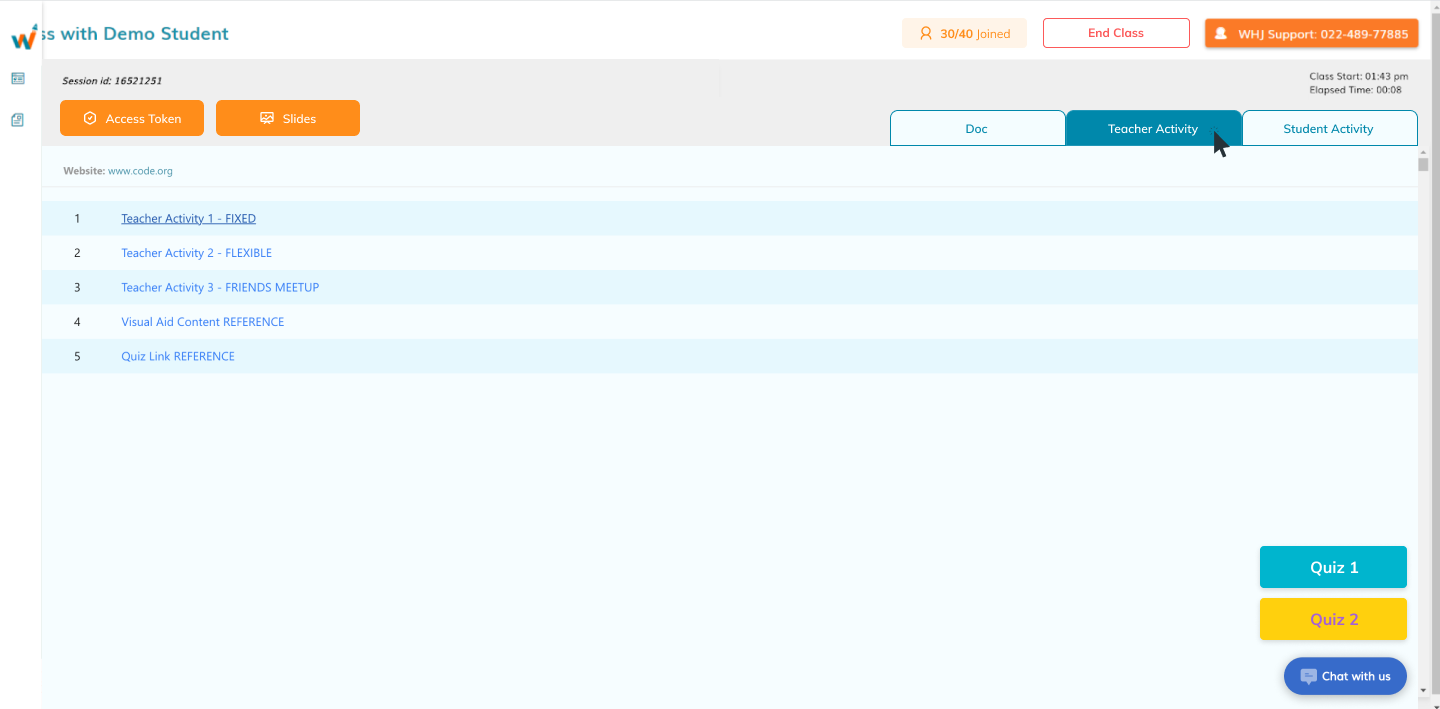
Click on "Teacher Activity" & start performing the activities one by one.
TEACHER REFERENCE
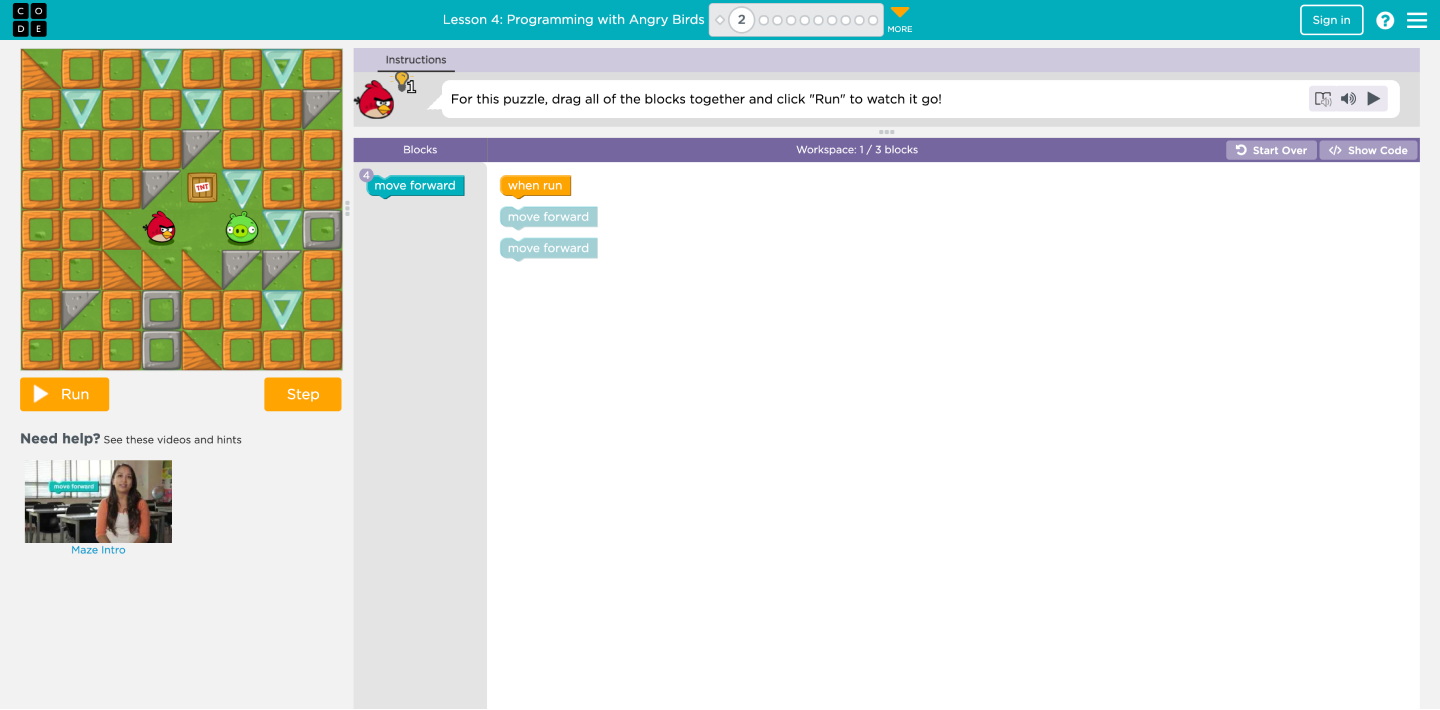
An activity like this will get opened in a new tab. Project the activity in front of students.
TEACHER REFERENCE
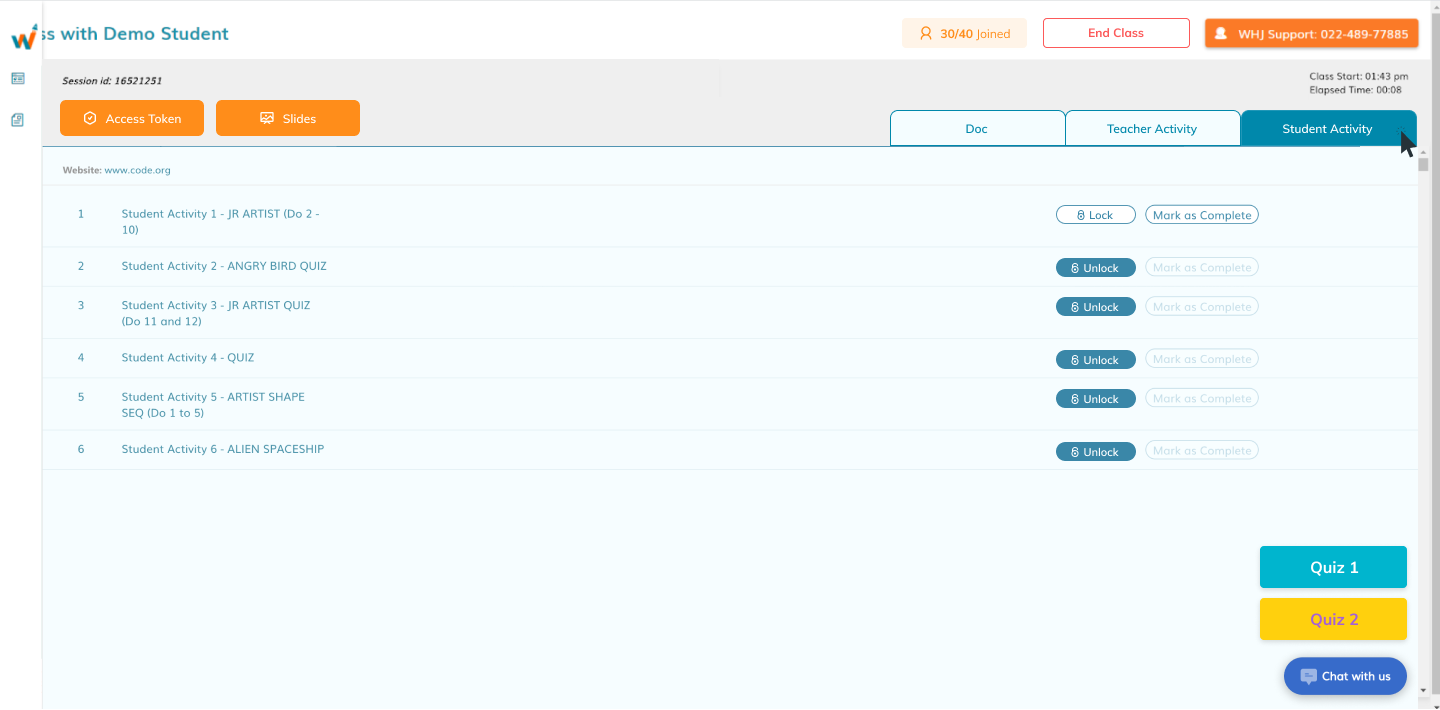
Once you complete the activity, unlock the student activities so that students can open and perform them.
TEACHER REFERENCE
Once students complete all activities, click on "Quiz 1" to show the first question, and so on.
TEACHER REFERENCE
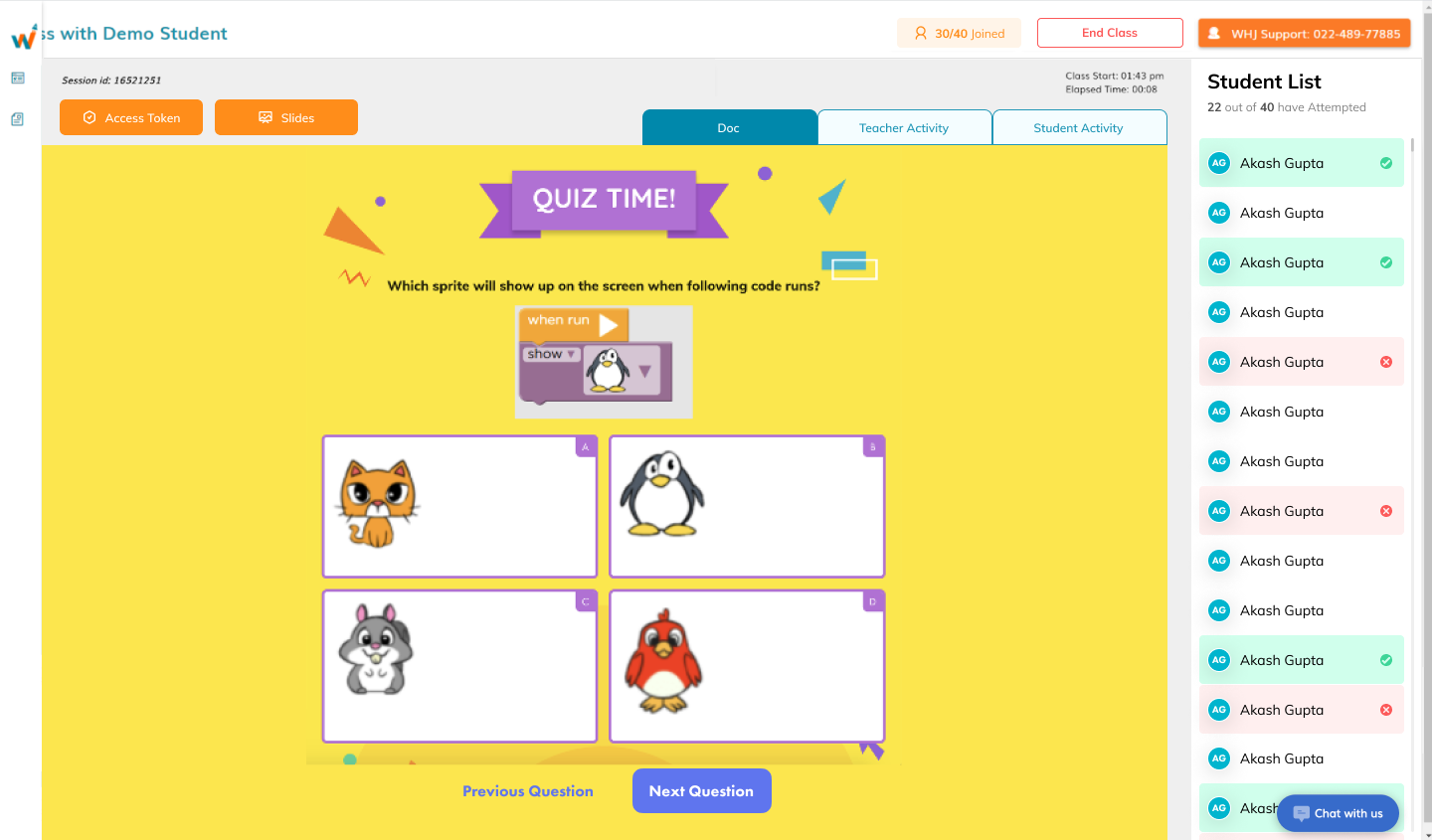
The quiz on the panel will look like this. Explain the answer once students submit their responses.
TEACHER REFERENCE
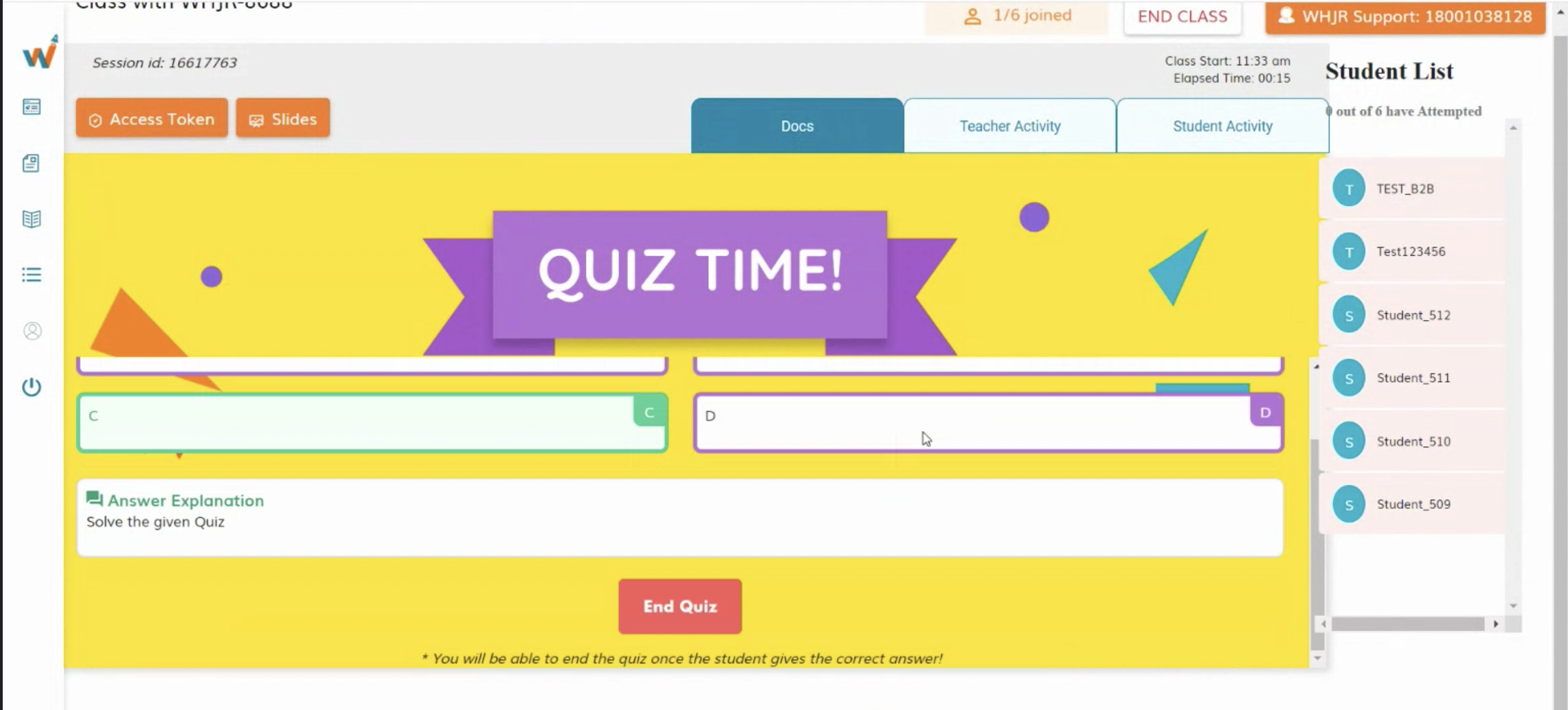
Click on "End Quiz" after each question to end the quiz
TEACHER REFERENCE
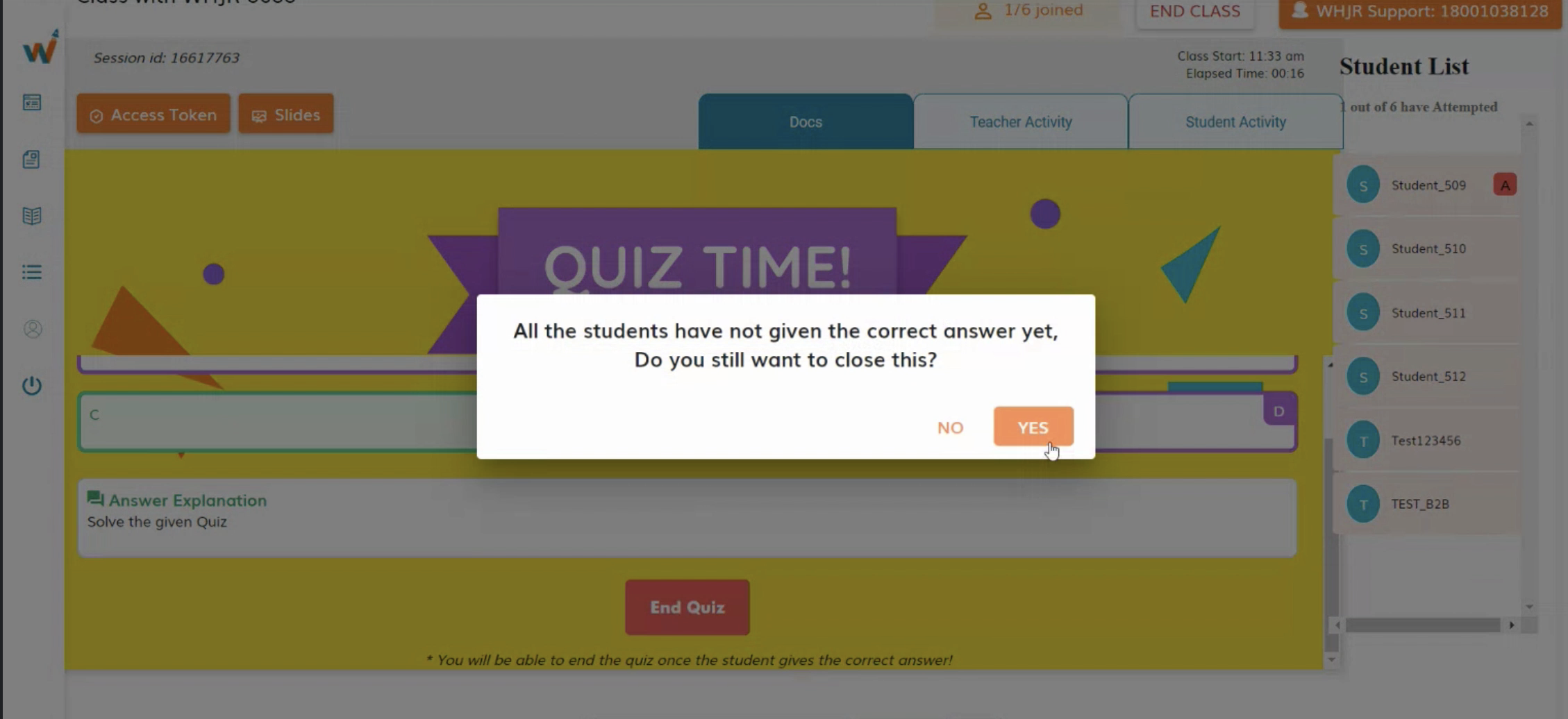
Click on "Yes" to end the quiz
TEACHER REFERENCE
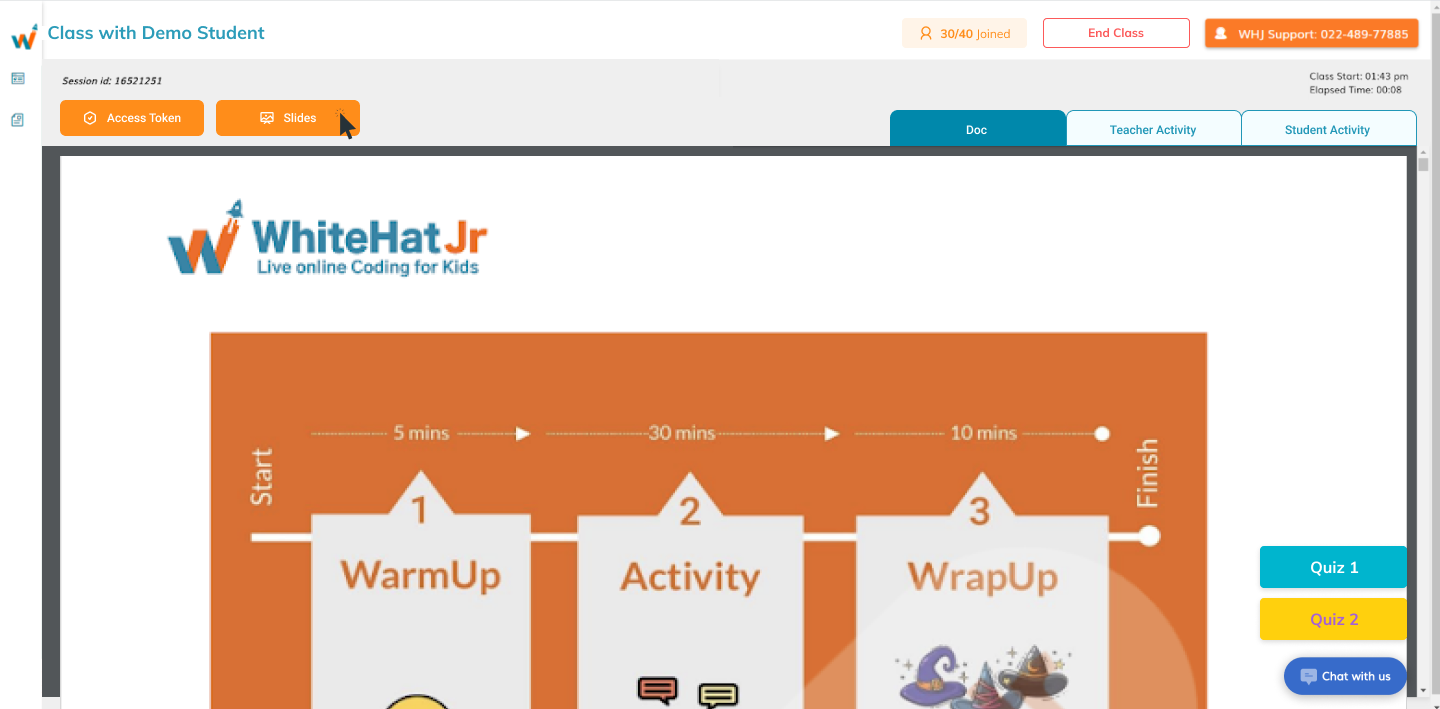
Check the number of students who joined the class to verify the attendance
TEACHER REFERENCE
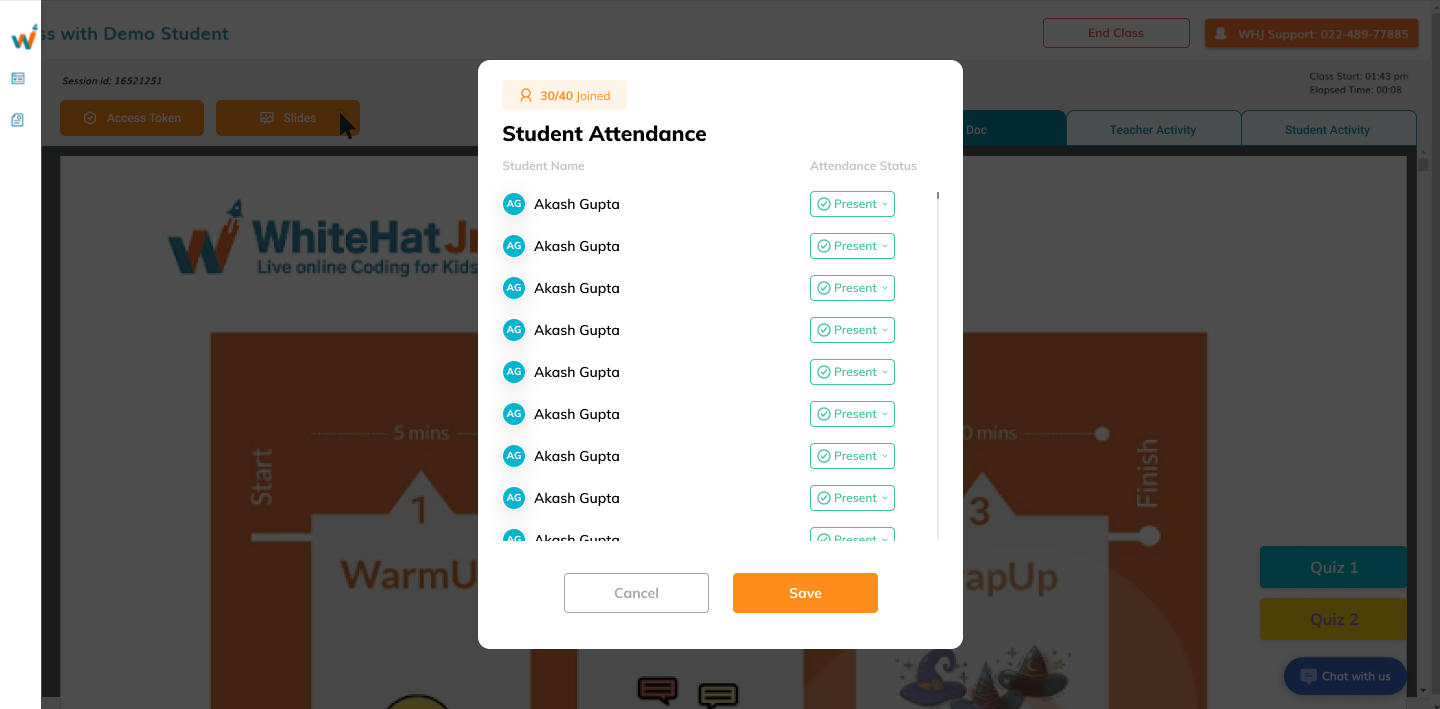
Modify the attendance whenever needed
TEACHER REFERENCE
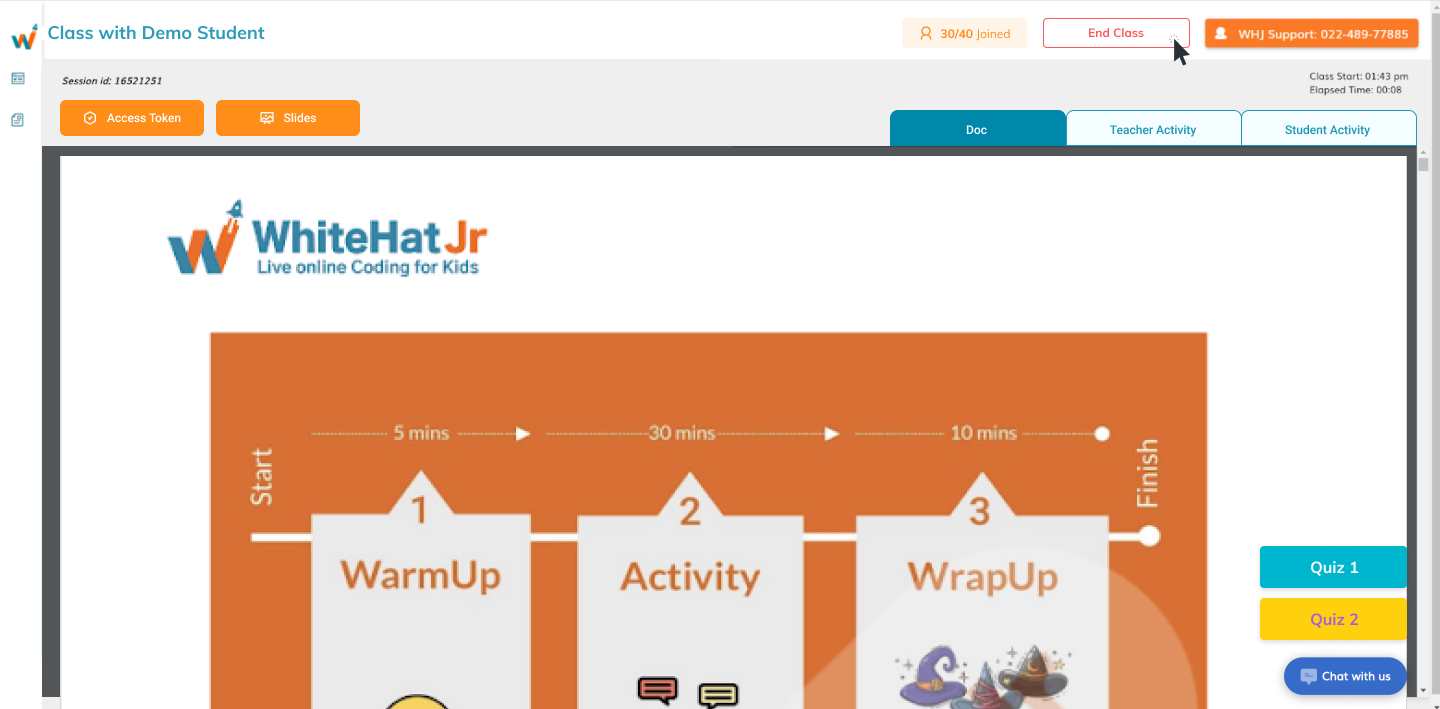
Click on "End Class" to conclude the class
TEACHER REFERENCE
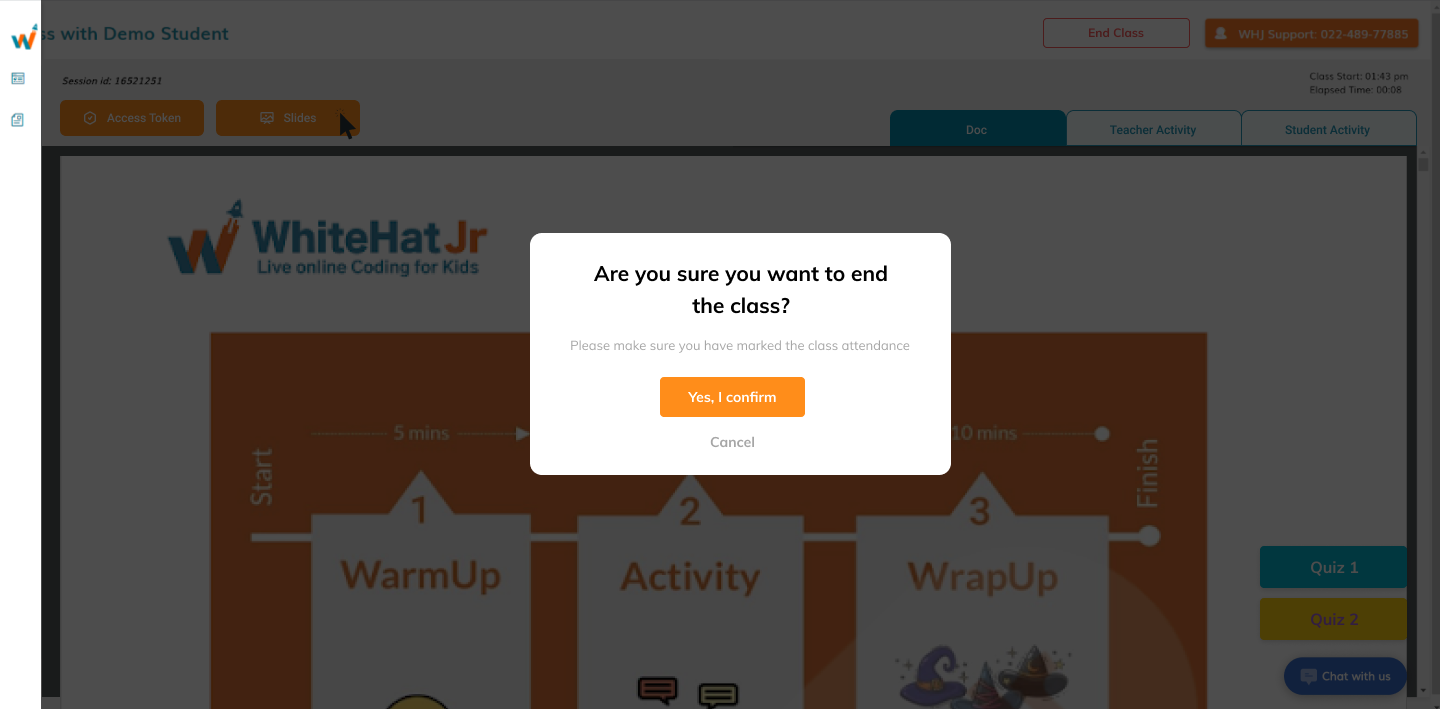
Click on "Yes, I confirm" to end the class
TEACHER REFERENCE
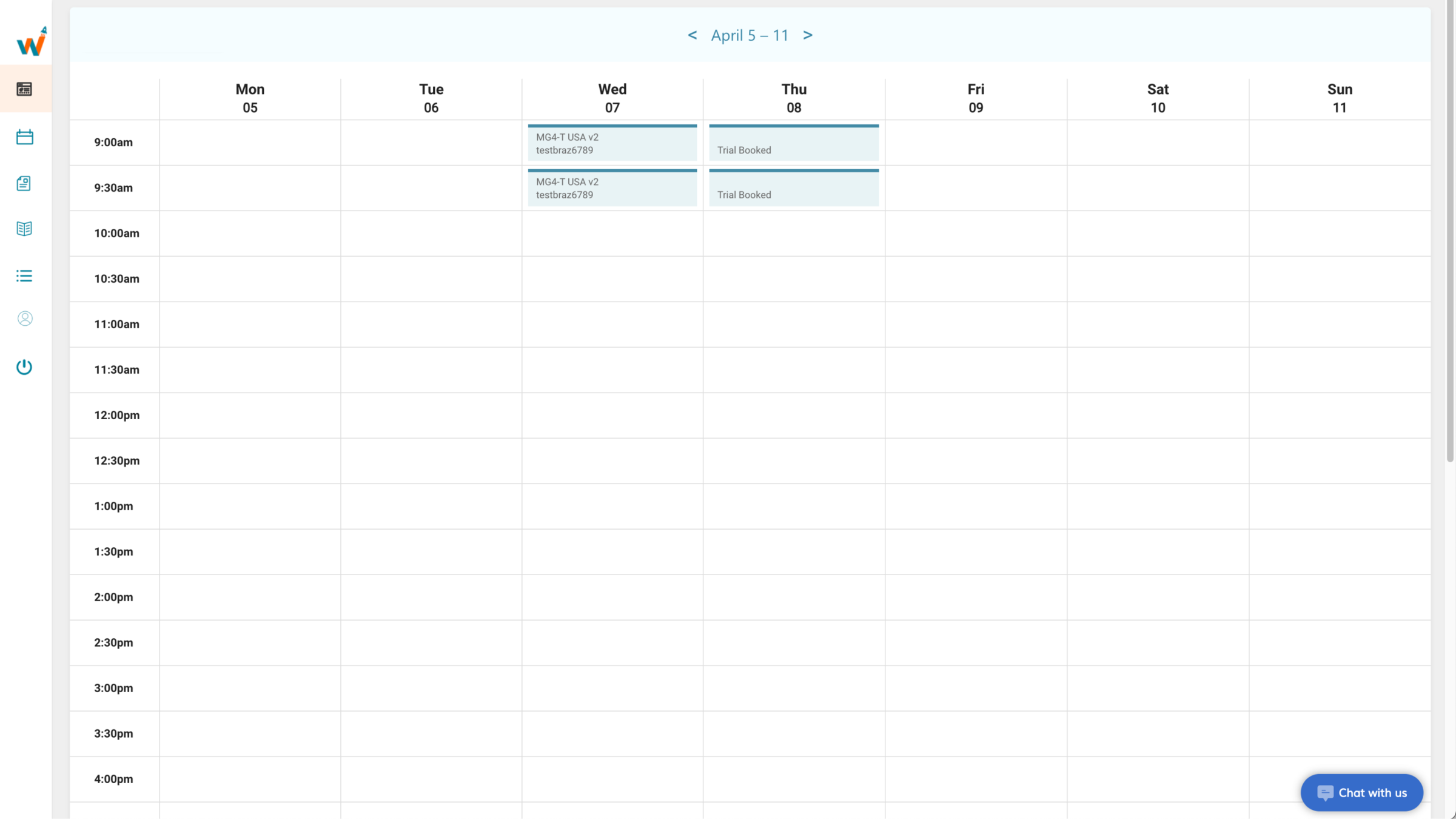
Teacher Calendar
TEACHER REFERENCE
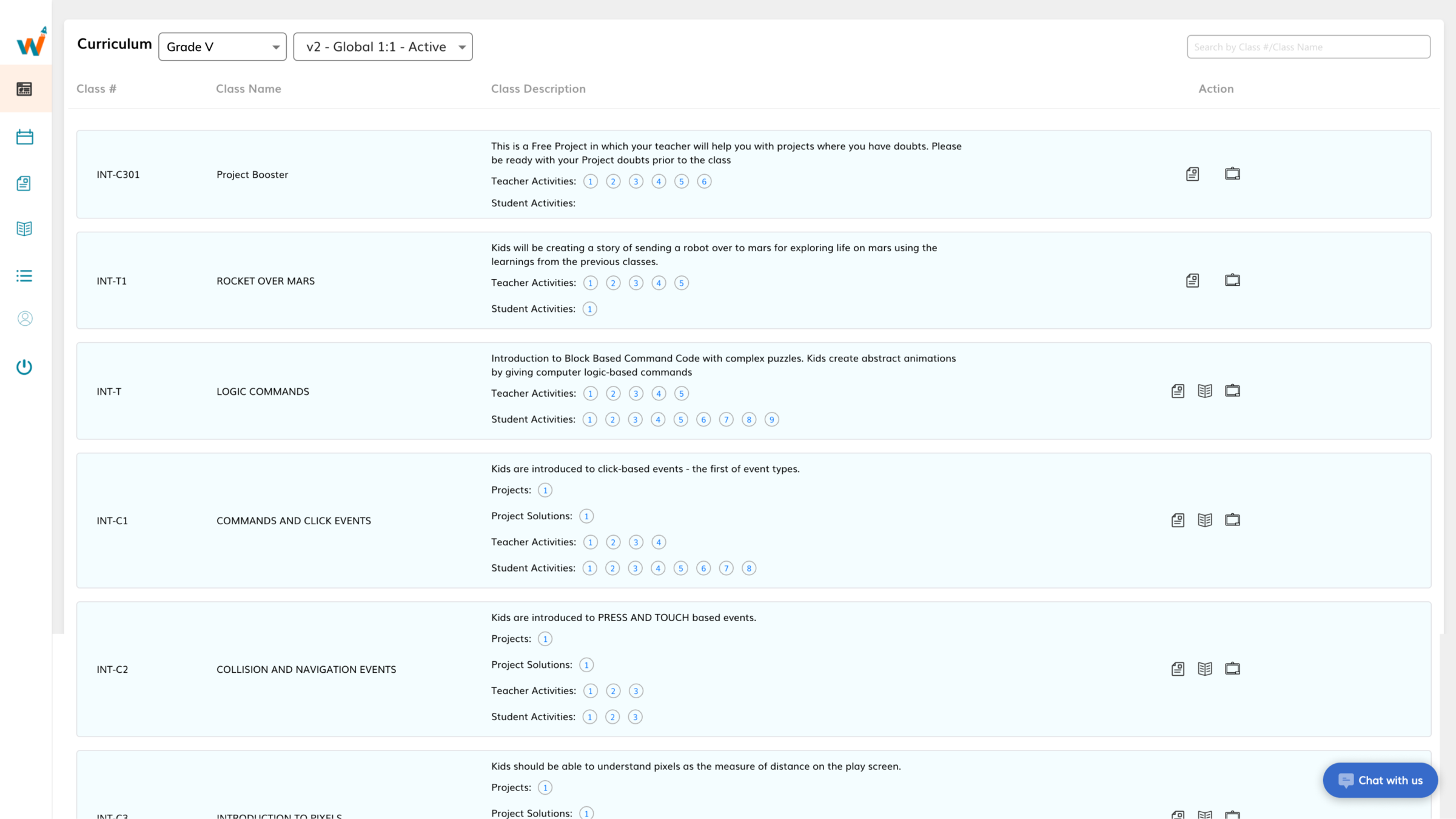
Teacher Curriculum
TEACHER REFERENCE
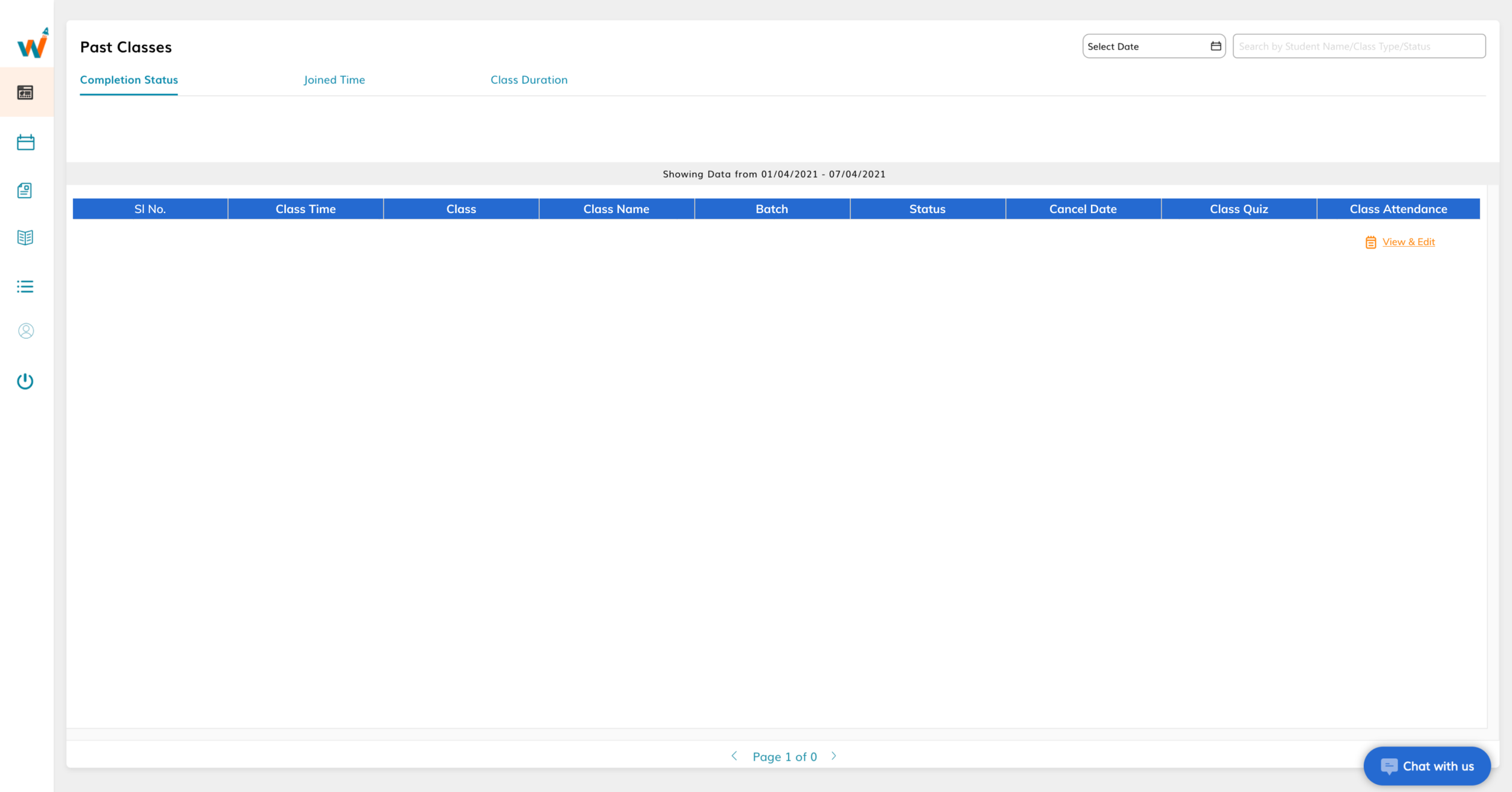
Teacher's Past Classes
TEACHER REFERENCE
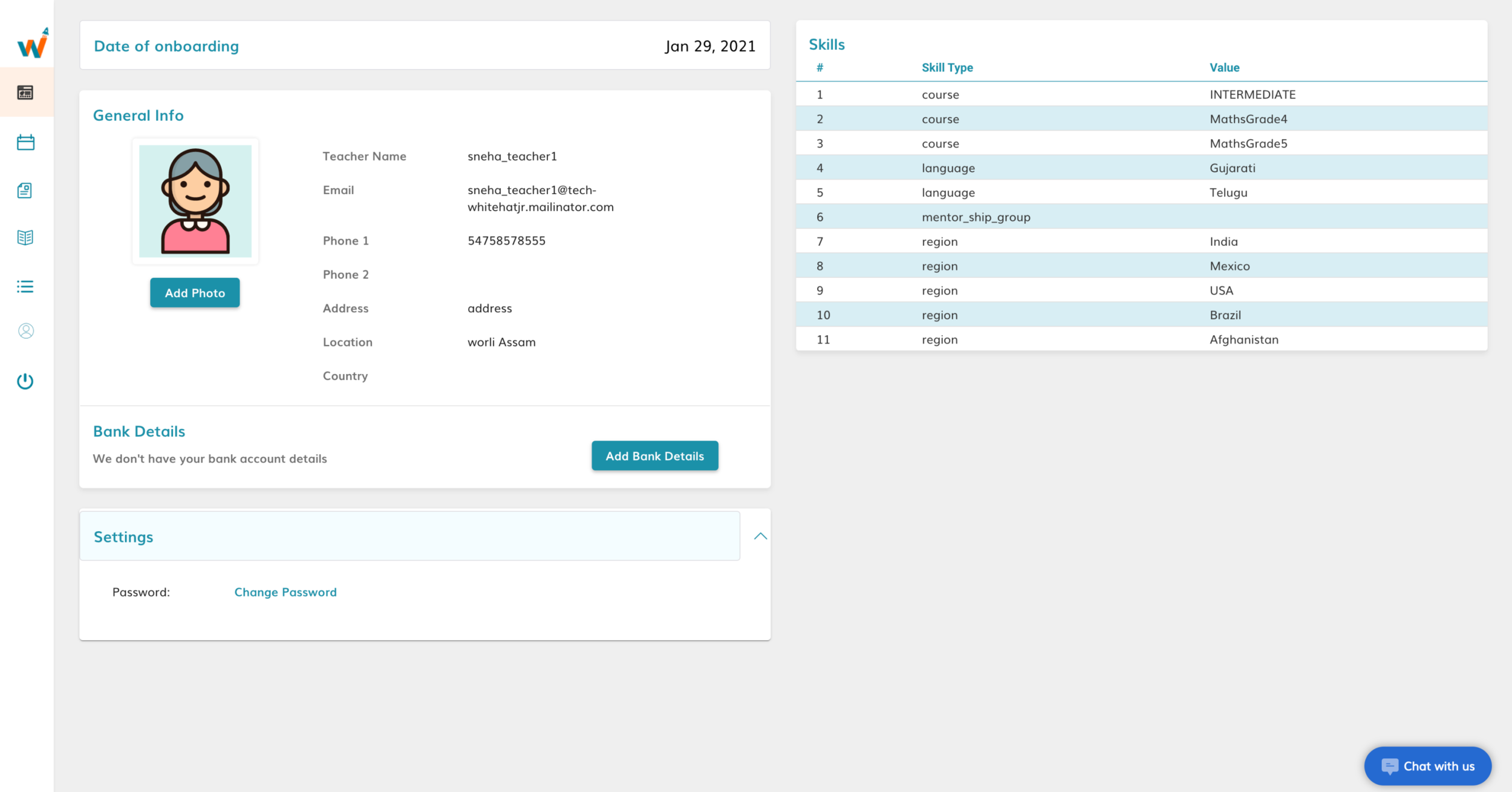
Teacher Profile
TEACHER REFERENCE
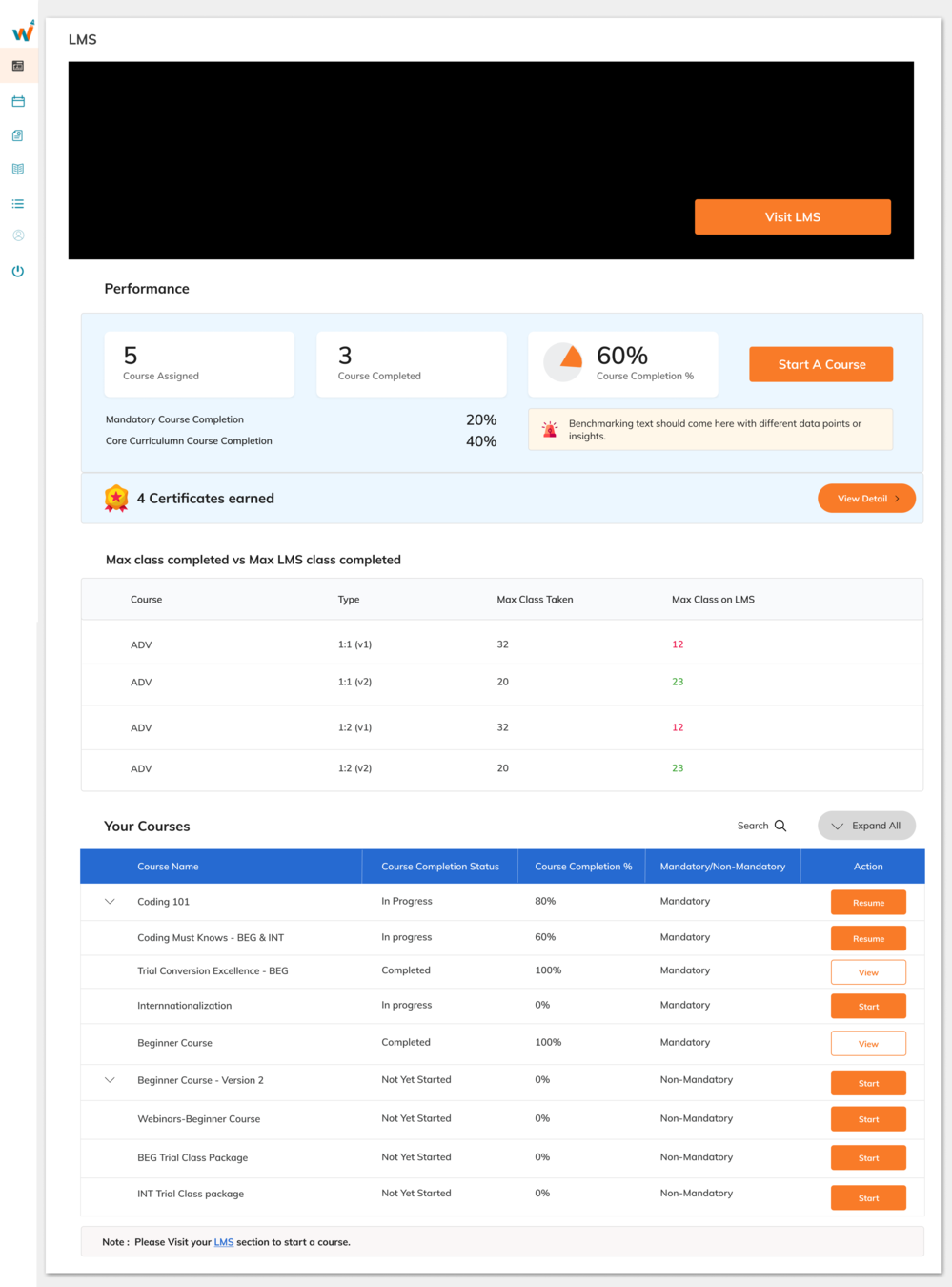
Teacher LMS

Student Login Screen
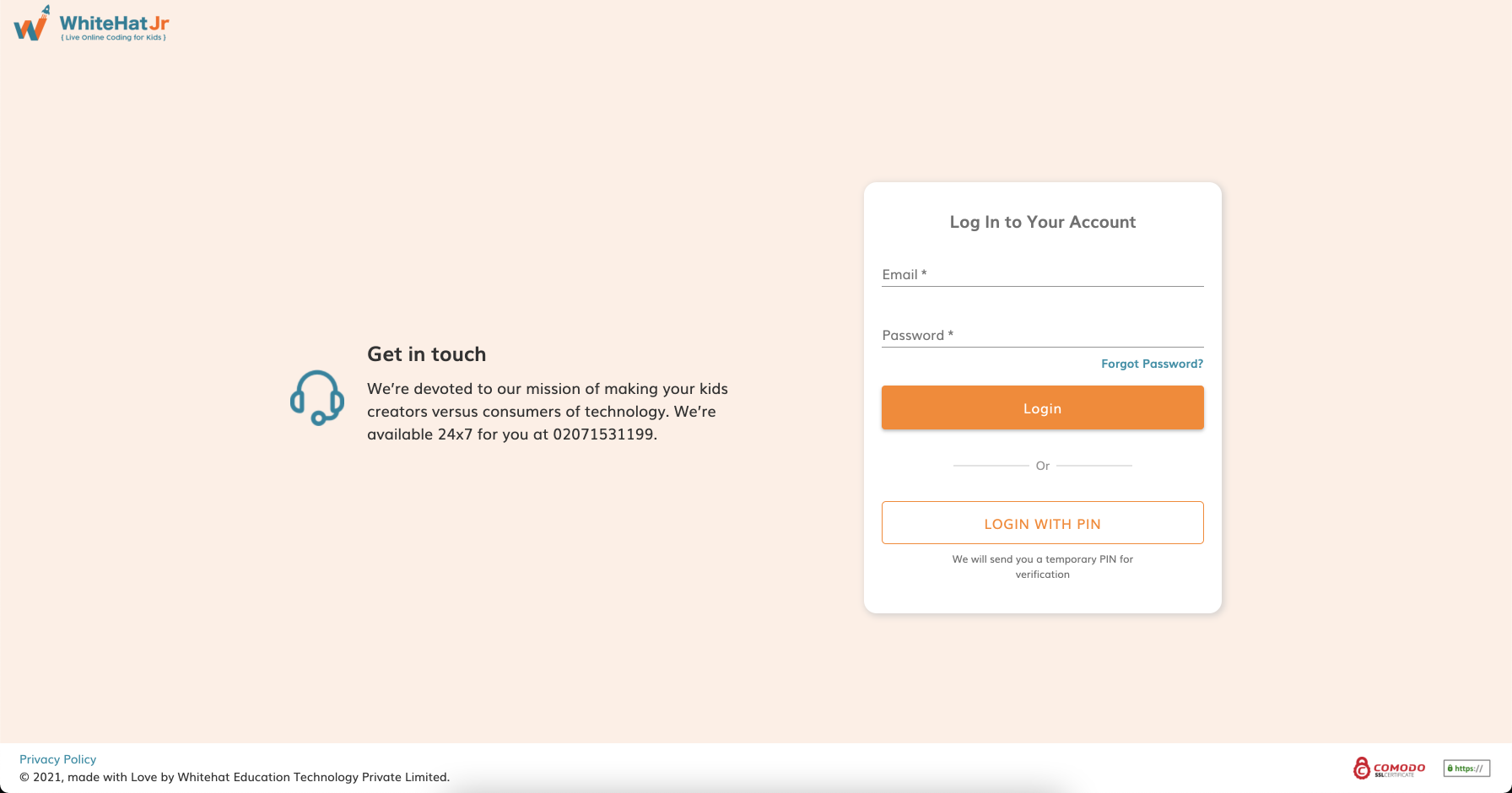
Click on "LOGIN WITH PIN"
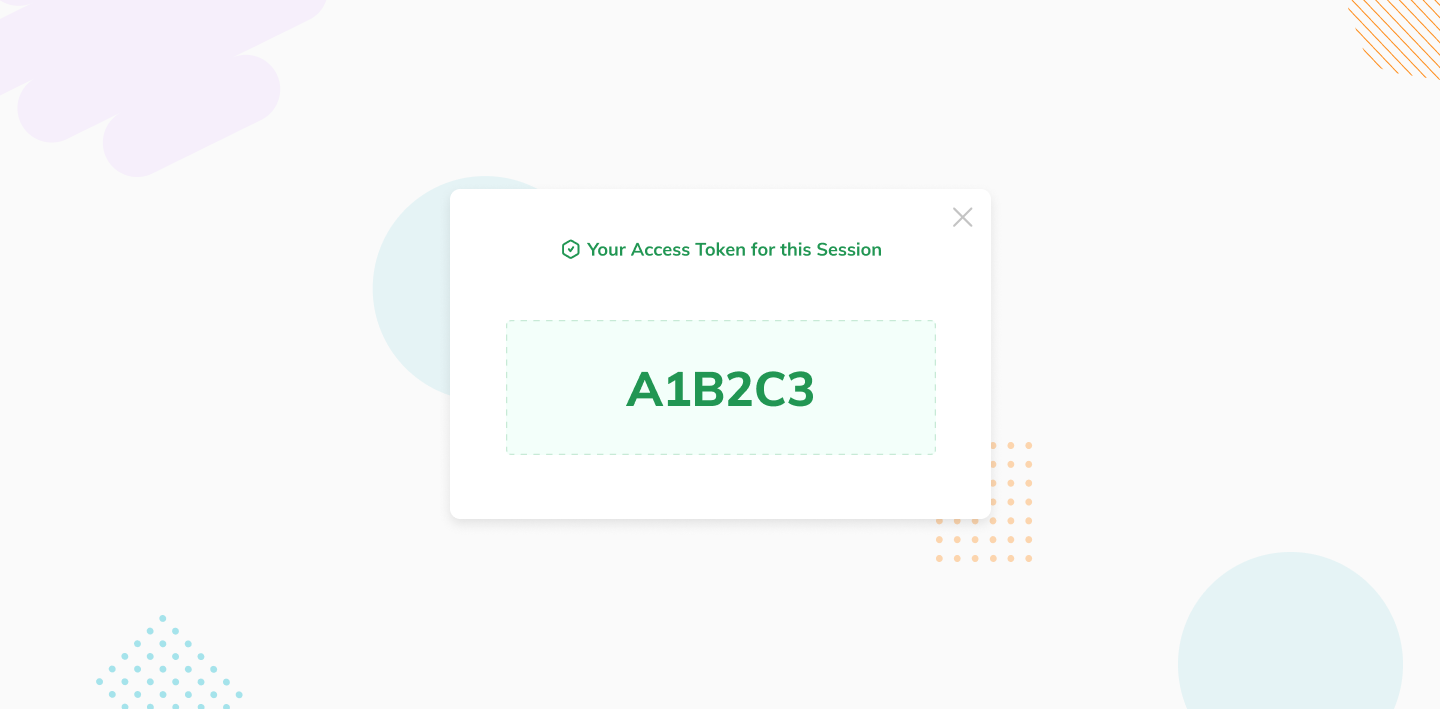
The teacher will provide a PIN like this on the screen
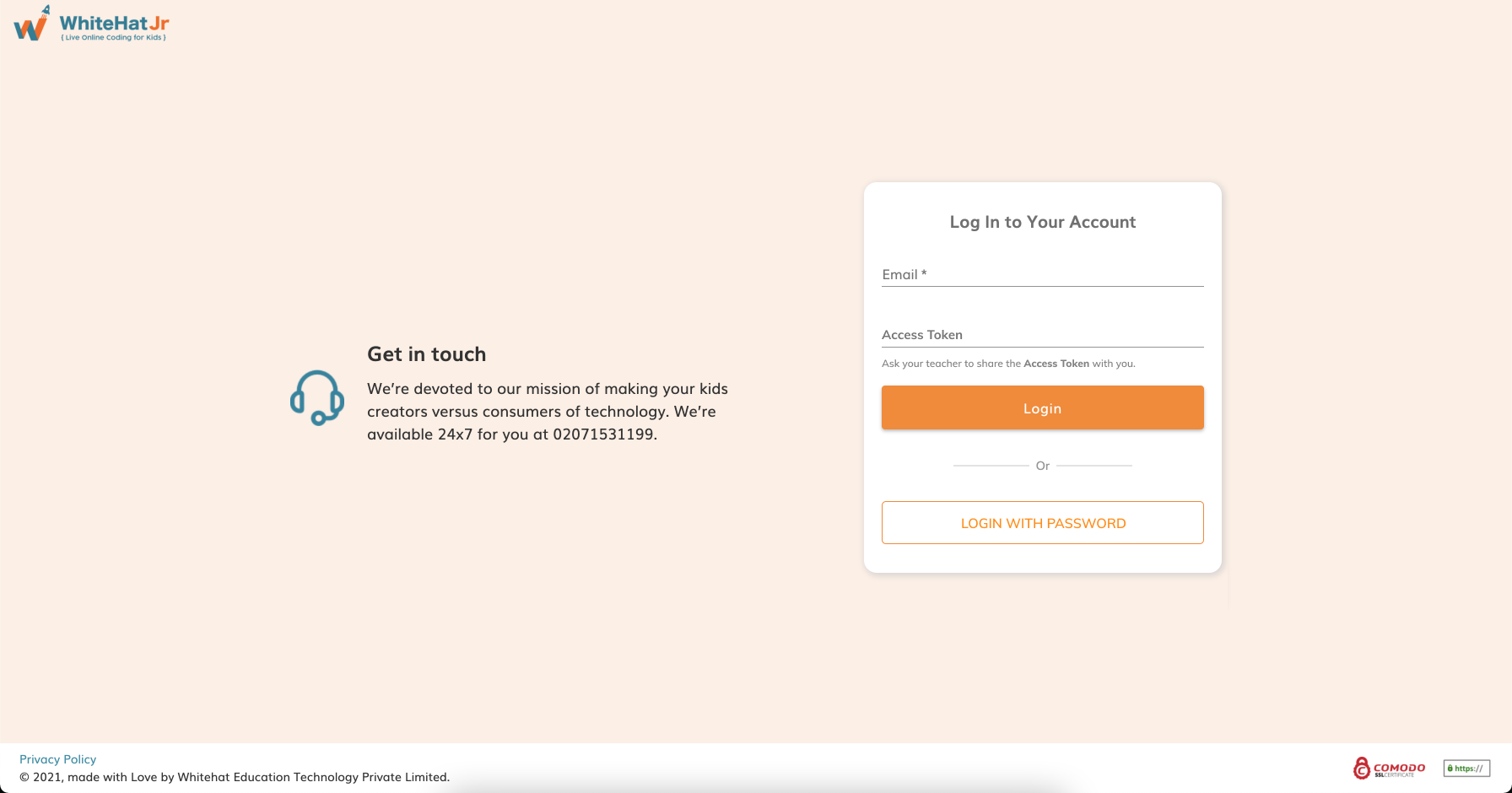
Enter your "Email" and the "PIN" provided by the teacher
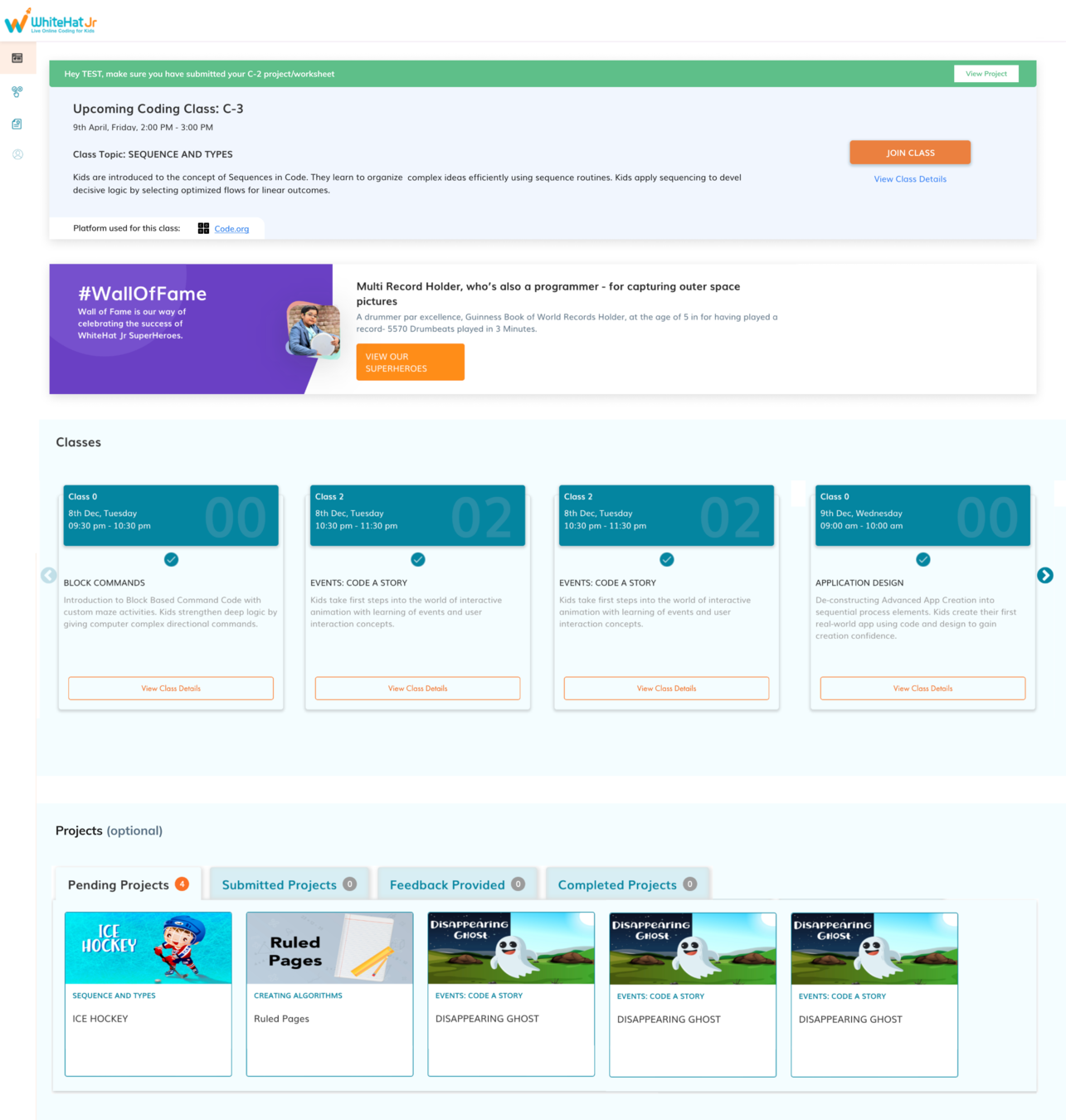
Student Dashboard
Click on "JOIN CLASS" to enter the class
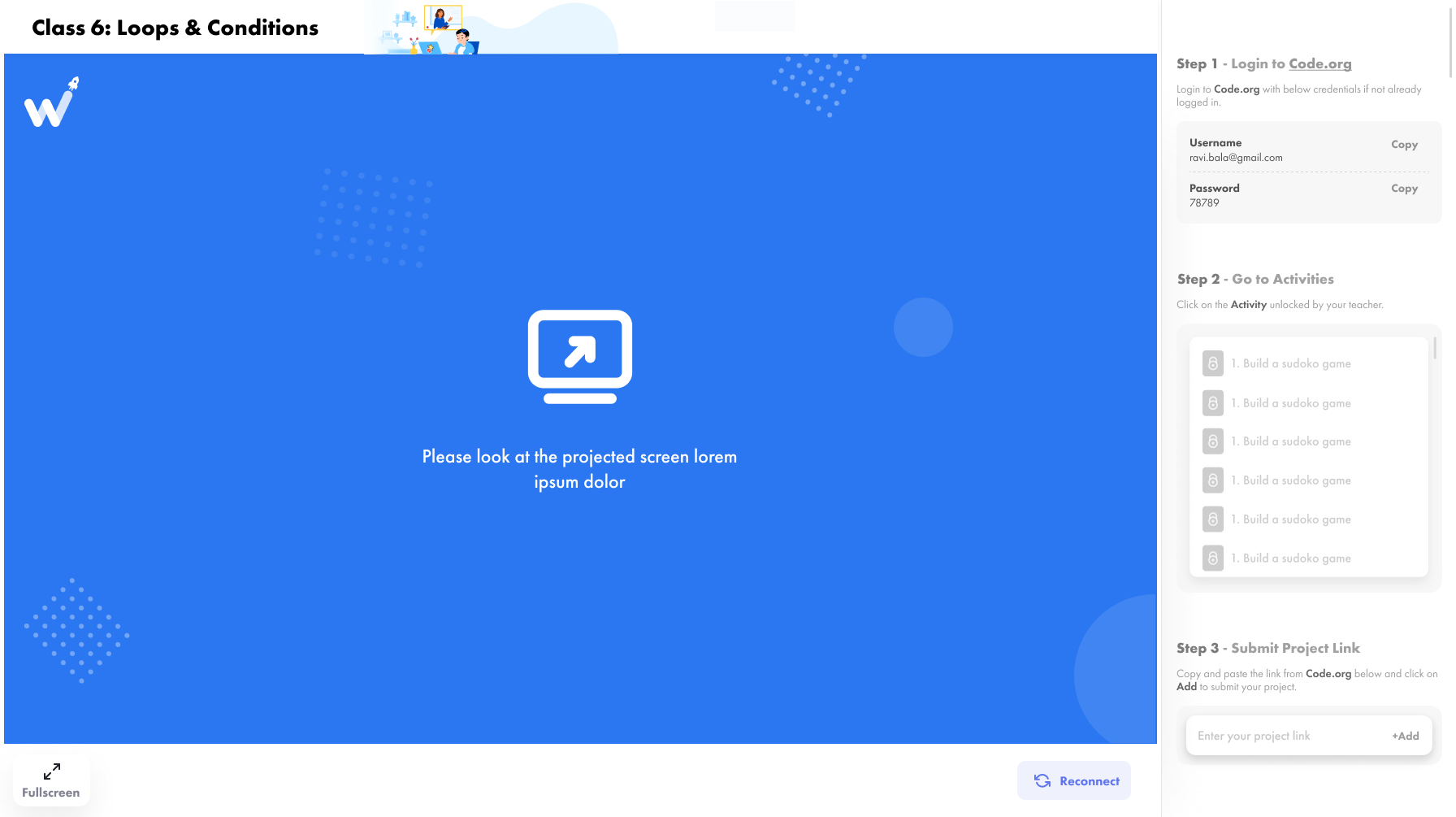
This is how your screen will look when you join the class
You can see the same screen while the teacher is performing the teacher activities
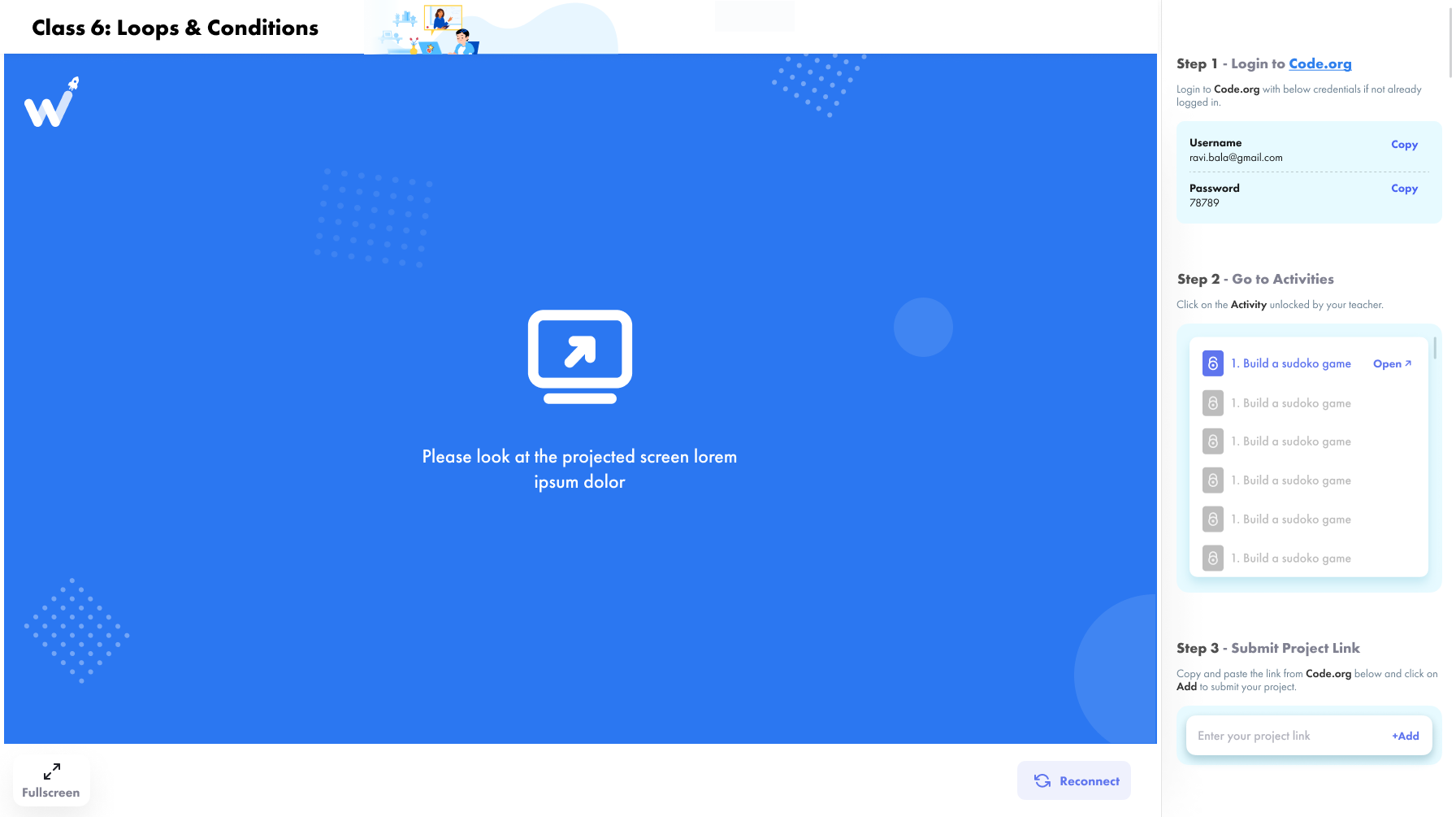
When the teacher finishes her activities, you have to click on the activity link as shown below
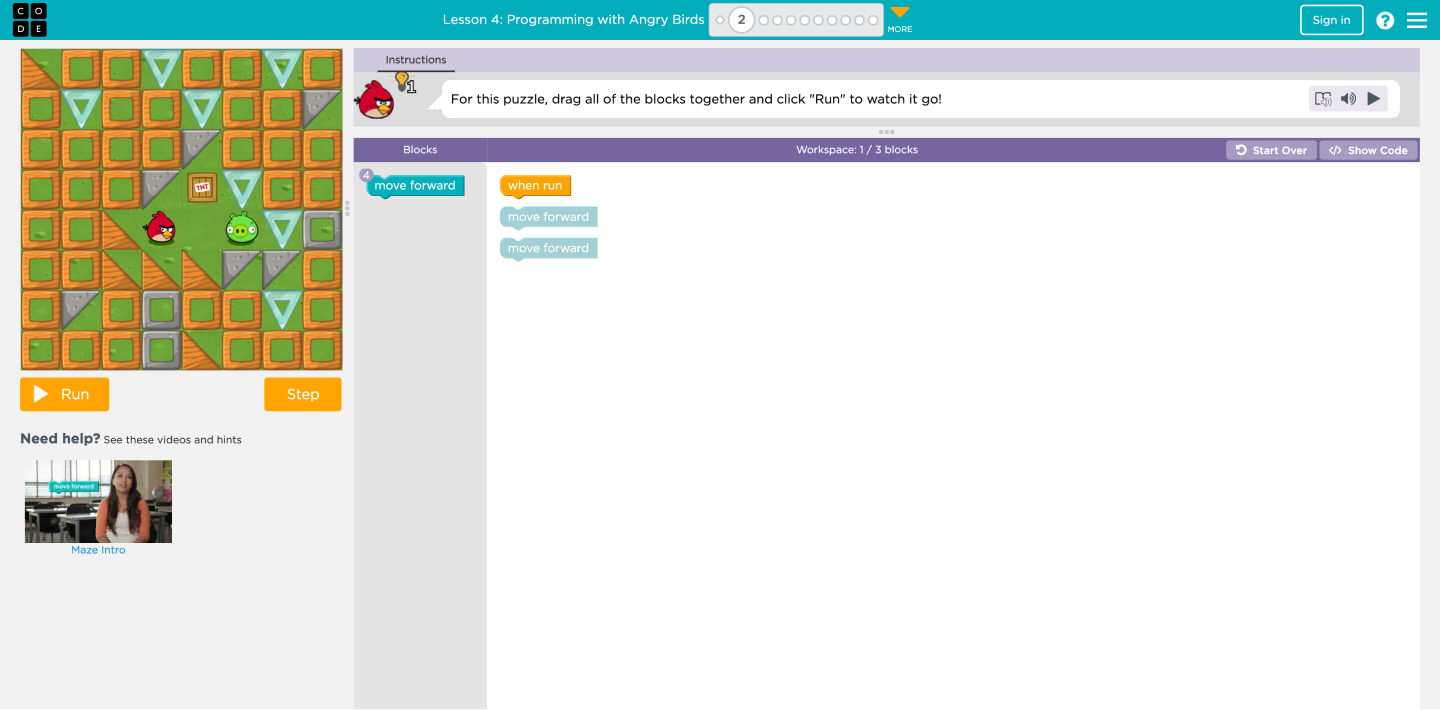
Once you click on the activity link, the activity will open on a new tab
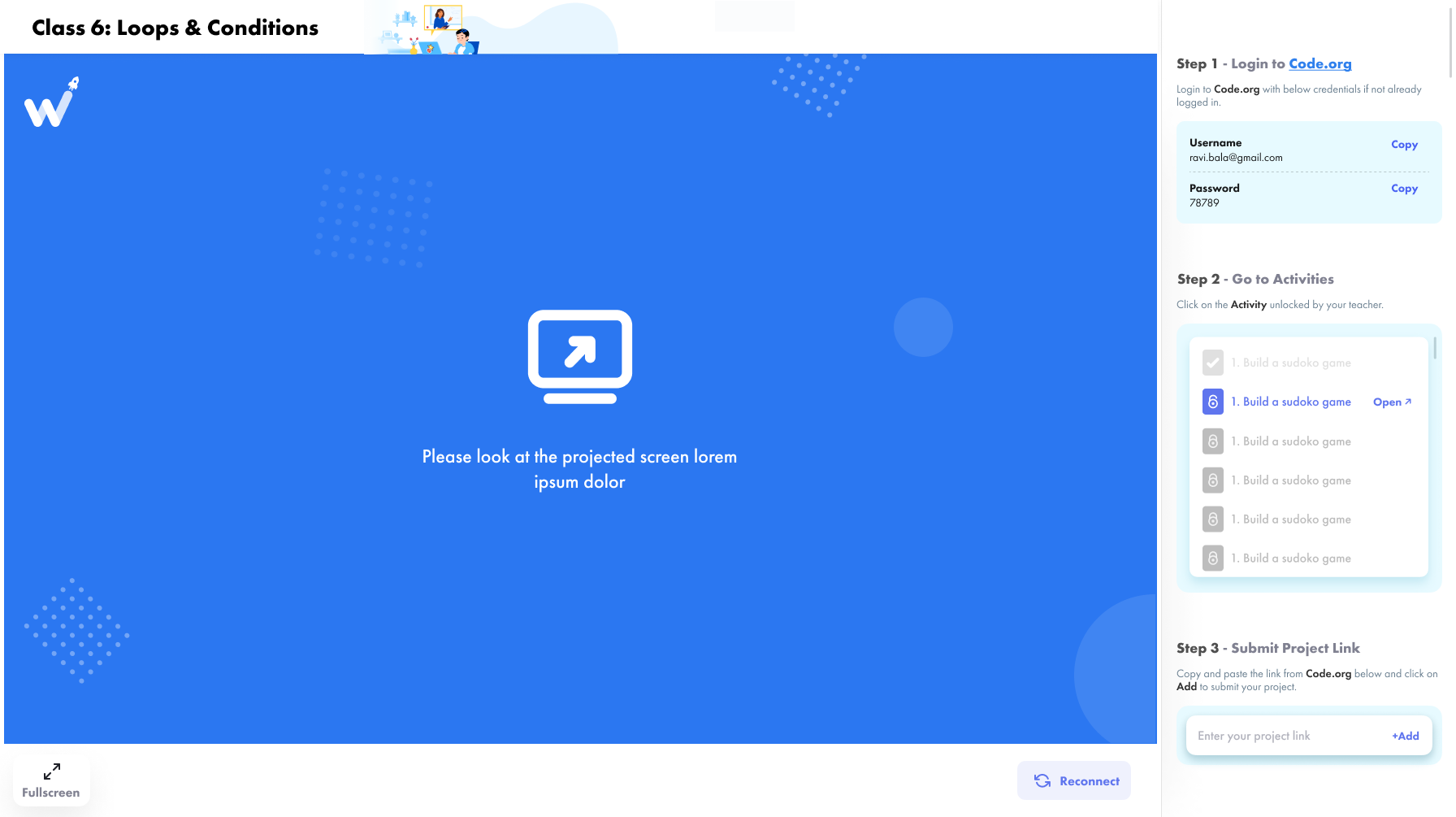
Once you complete the first activity, the second activity link will get unlocked!
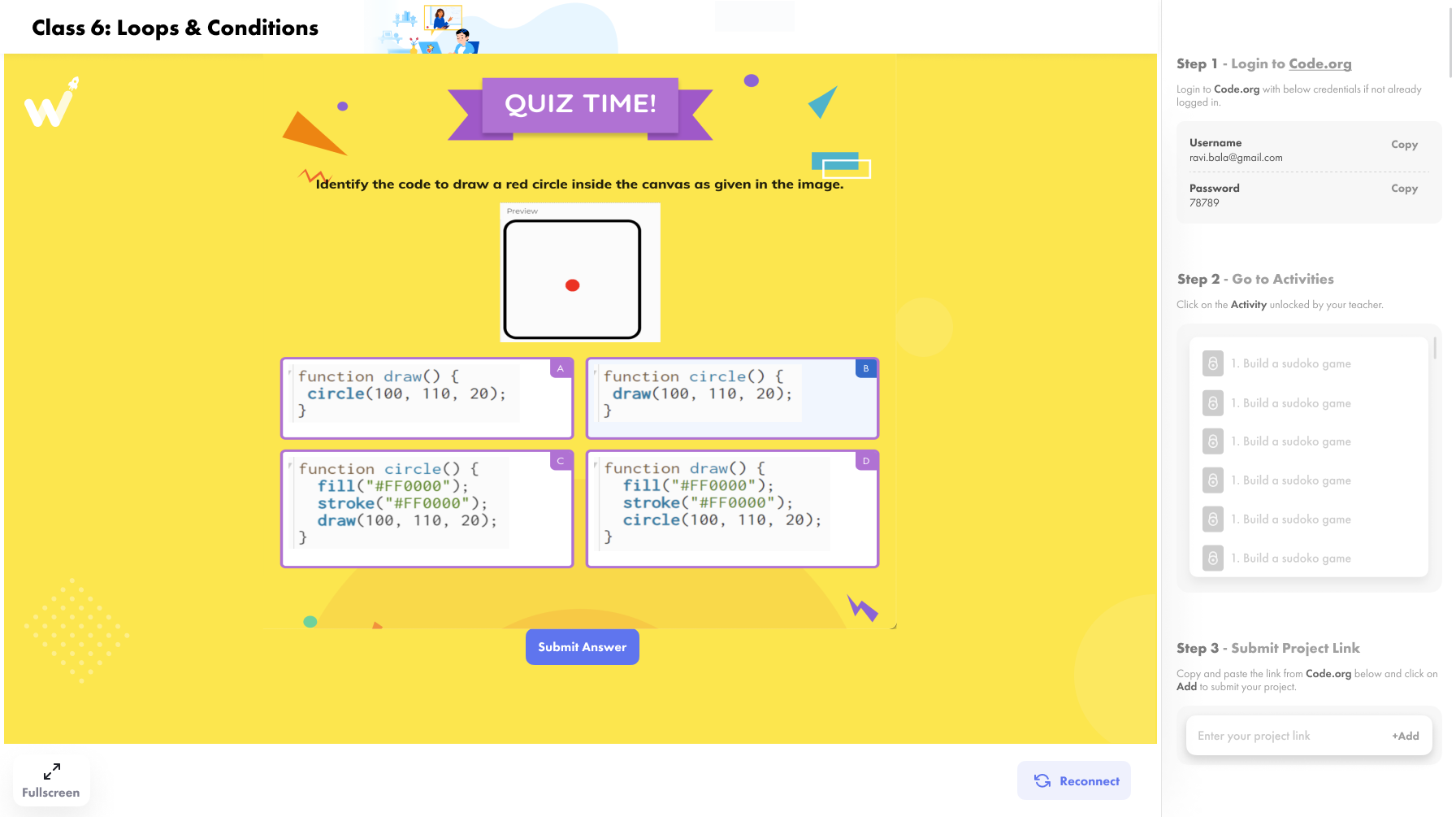
Once you complete all the activities, you can start with the quiz
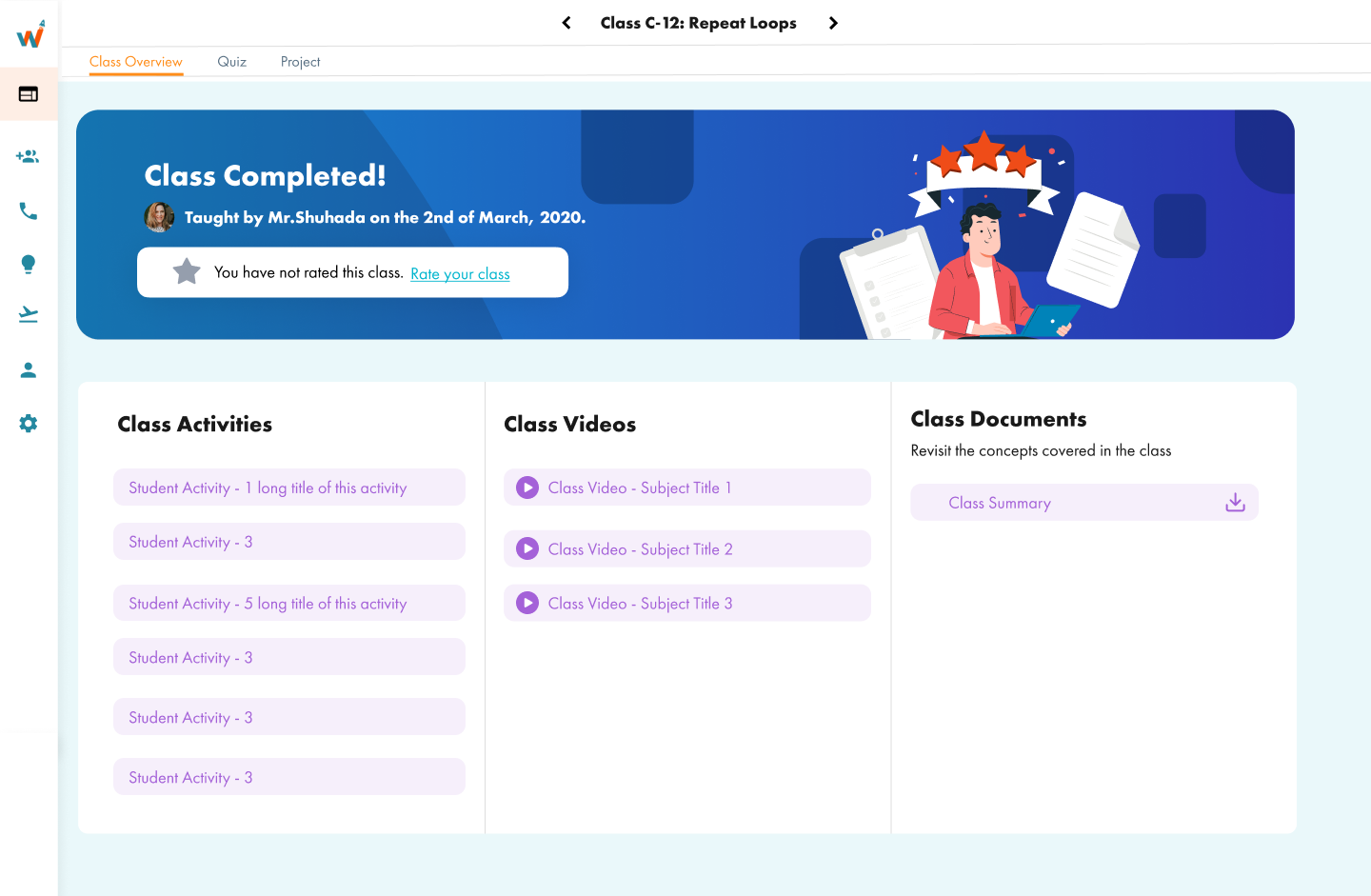
Once you have completed the class, you can start with "Post Class Quiz" or "Project"
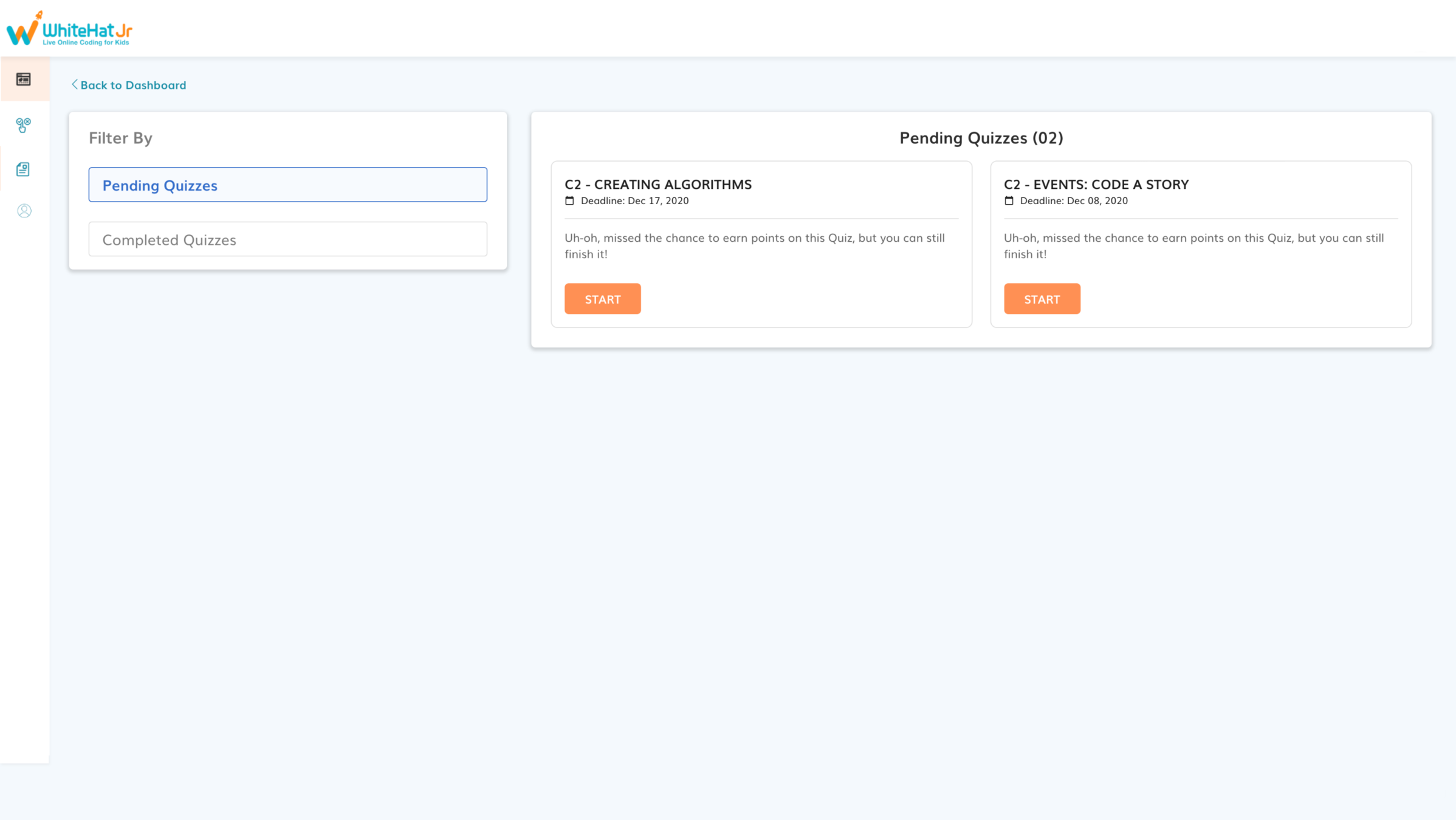
Once you click "Quiz", you can see the "Pending Quizzes" and "Completed Quizzes". Click on "START" the quiz.
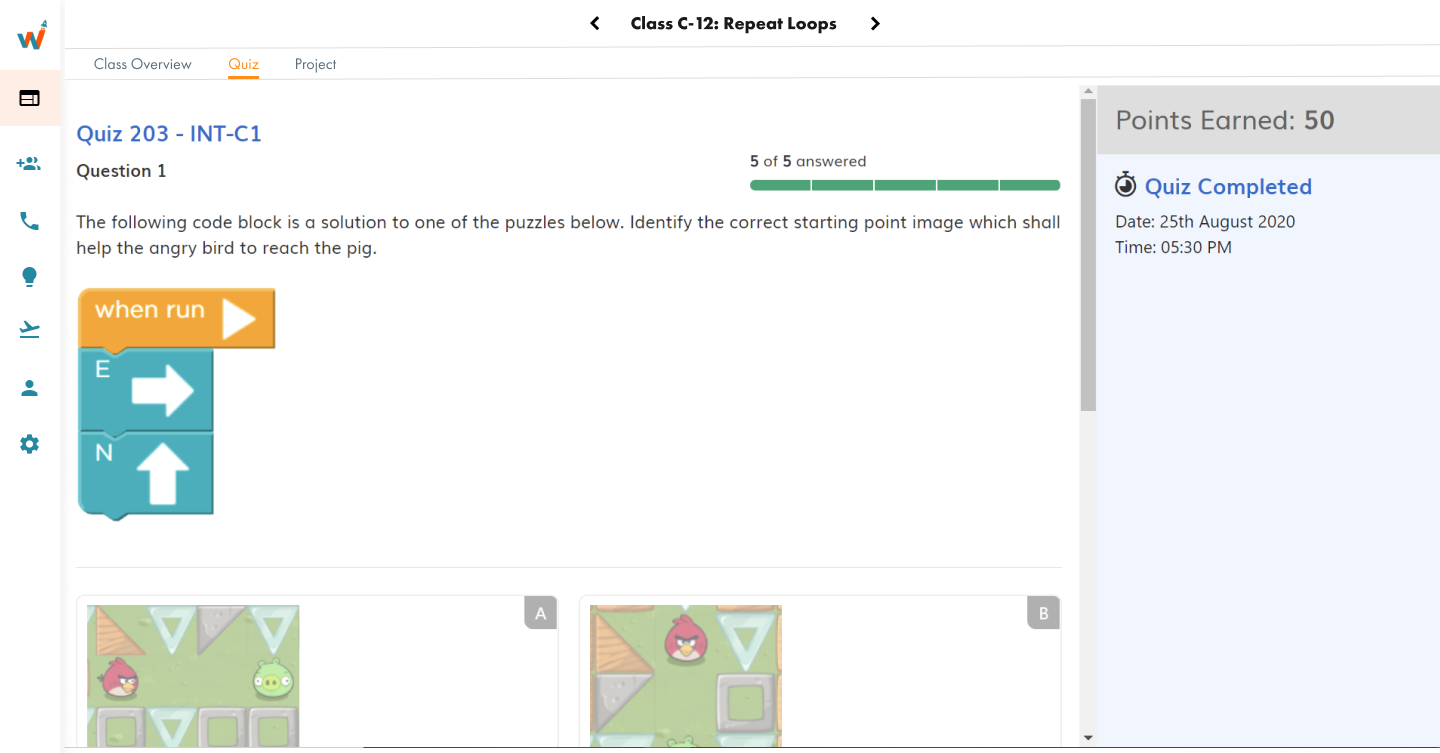
Complete the Quiz
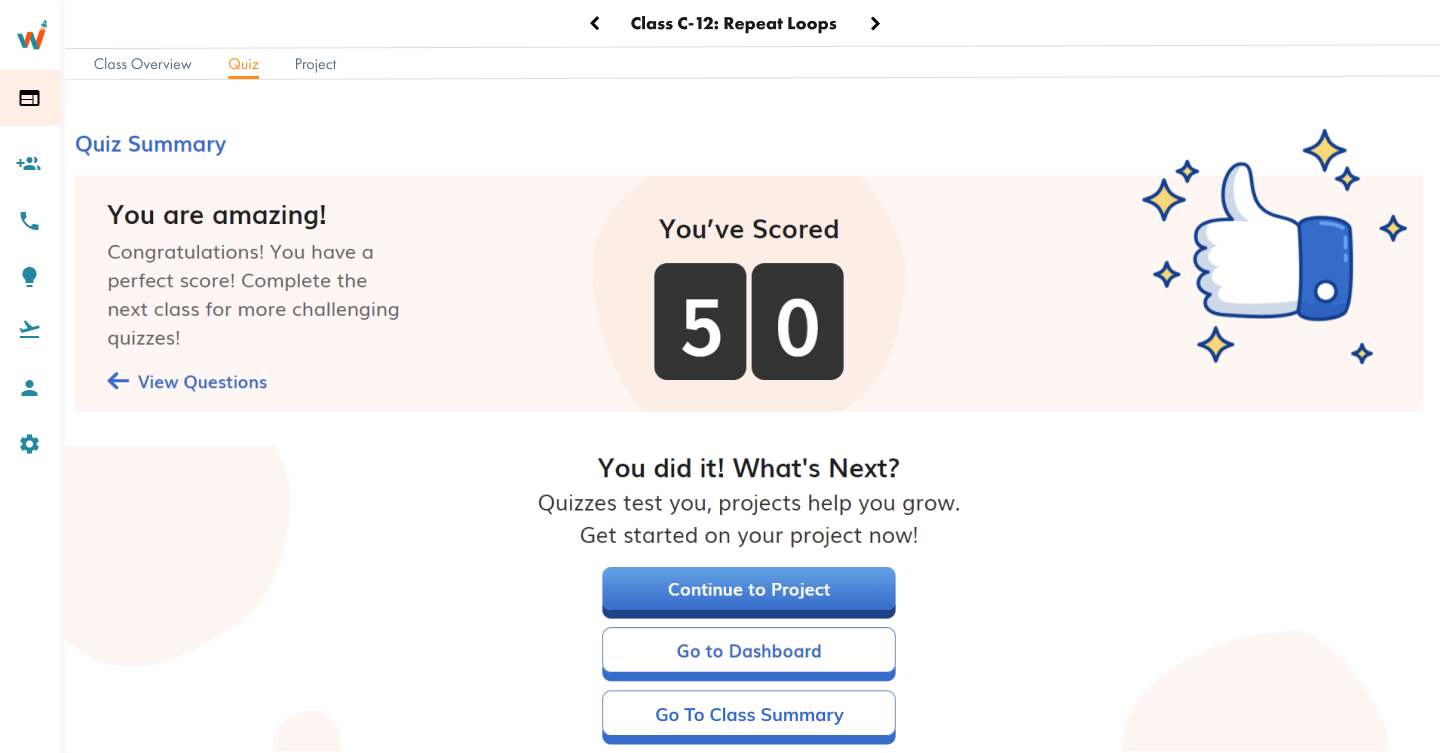
You can see your quiz score like this. Click on "Continue to Project" to start the project
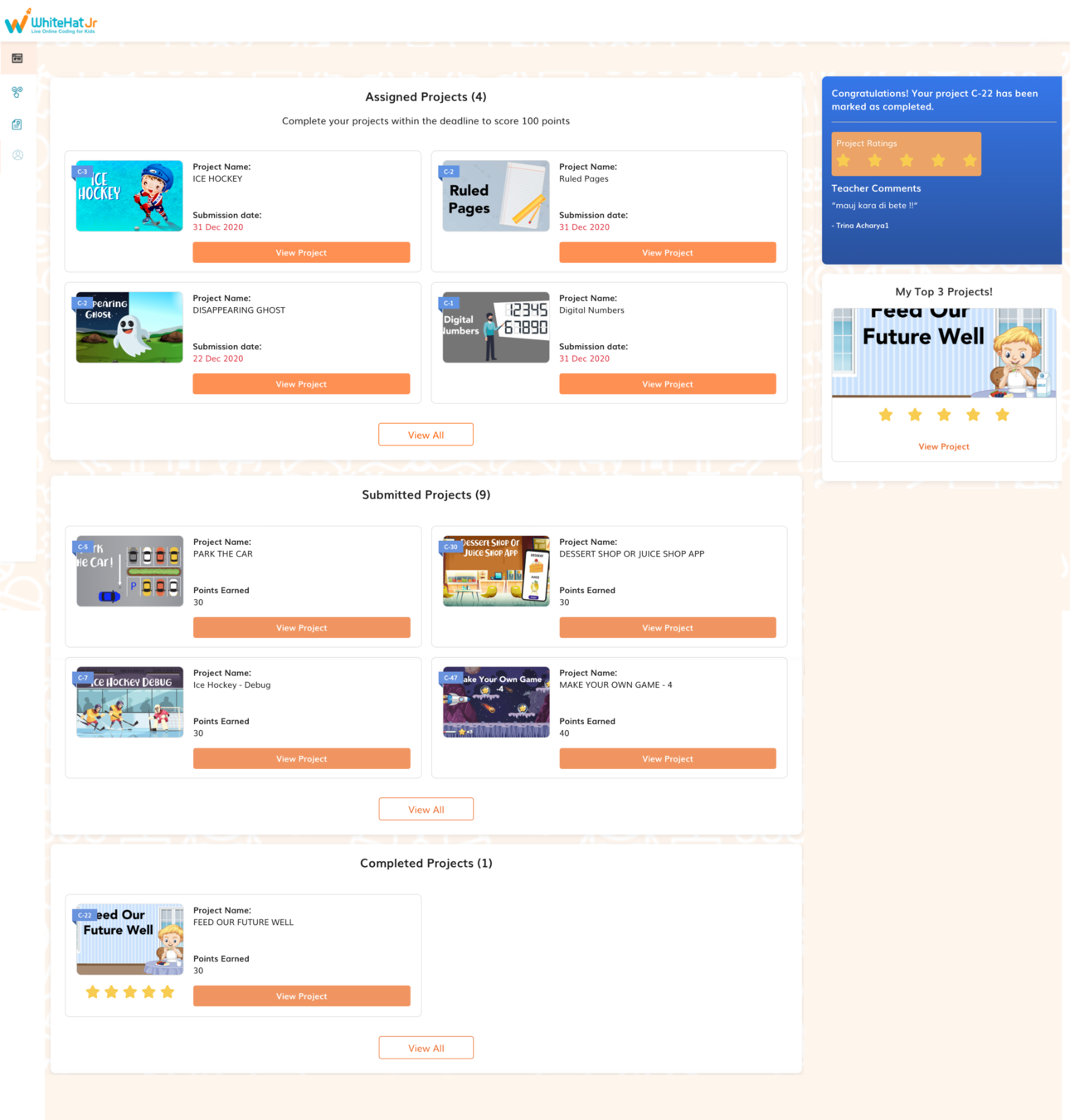
You can click on "View Project" to start the project
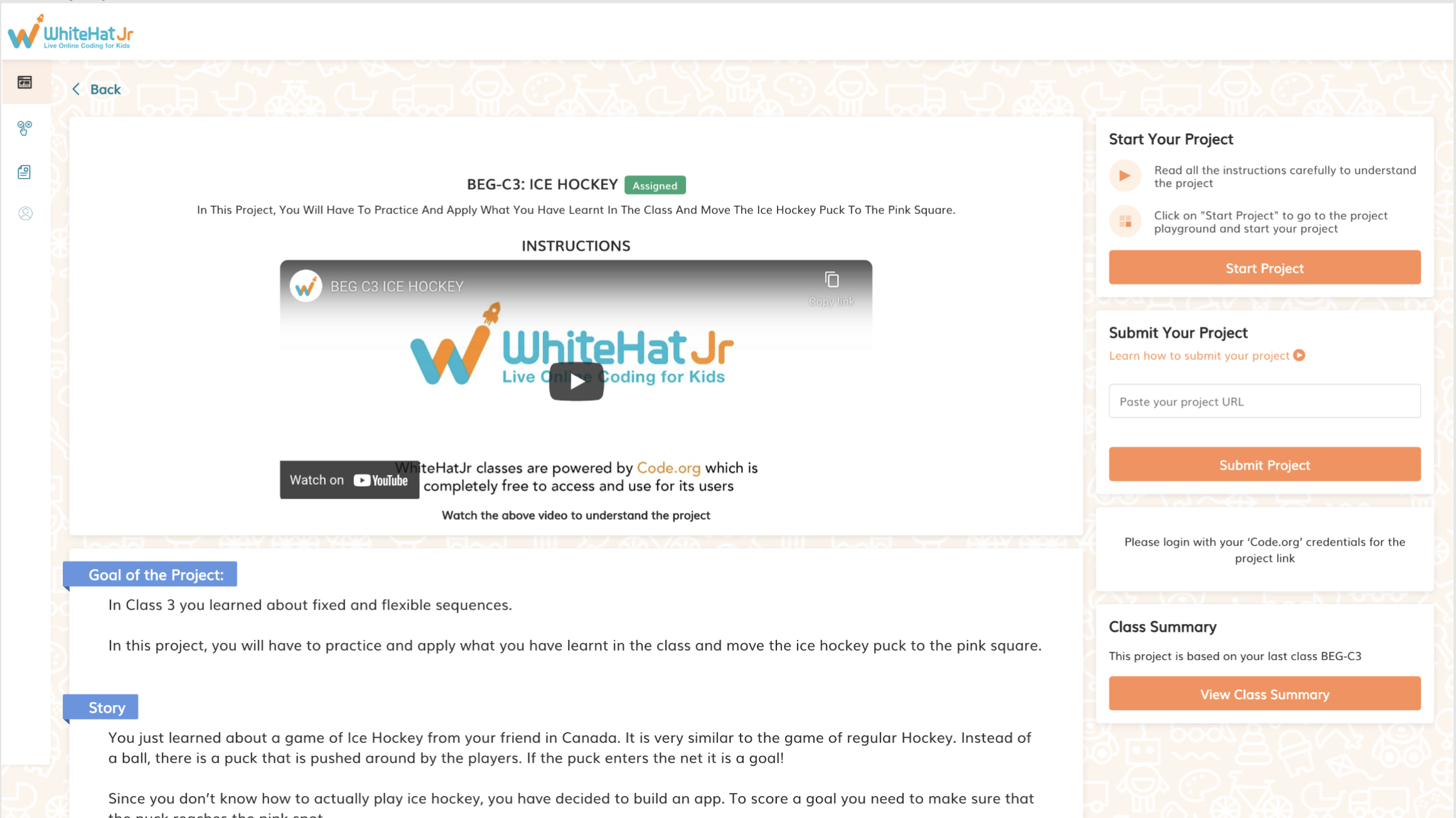
You can click on "Start Project" to perform the project
Complete the project. Copy the project link and paste it in the "Paste your Project URL" box and click on "Submit Project"
Copy of Product_Usage
By Sanjukta Bhattacharya


