












Tim Carlson
I'm a lecturer at University of Washington
The policy for this course projects:
For full details, see the syllabus and the Gen AI in Projects Guidelines
# switch to starter branch to get new starter code
git checkout starter

# download new starter code
git pull

# switch back to main branch for coding
git checkout main

# merge in new starter code (use default msg)
git merge starter --no-edit

# code and enjoy!
Get the starter code from the starter branch, but do all of your work on main.
Layout: e.g., stacking elements rather than having side by side
Media: having small (or no) images to reduce loading times
Fonts: making text large enough to read
Navigation: e.g., using a "hamburger menu" to take less space
Inputs: making sure buttons/icons are large enough to tap
Content: including mobile-specific content (e.g., tel:links)
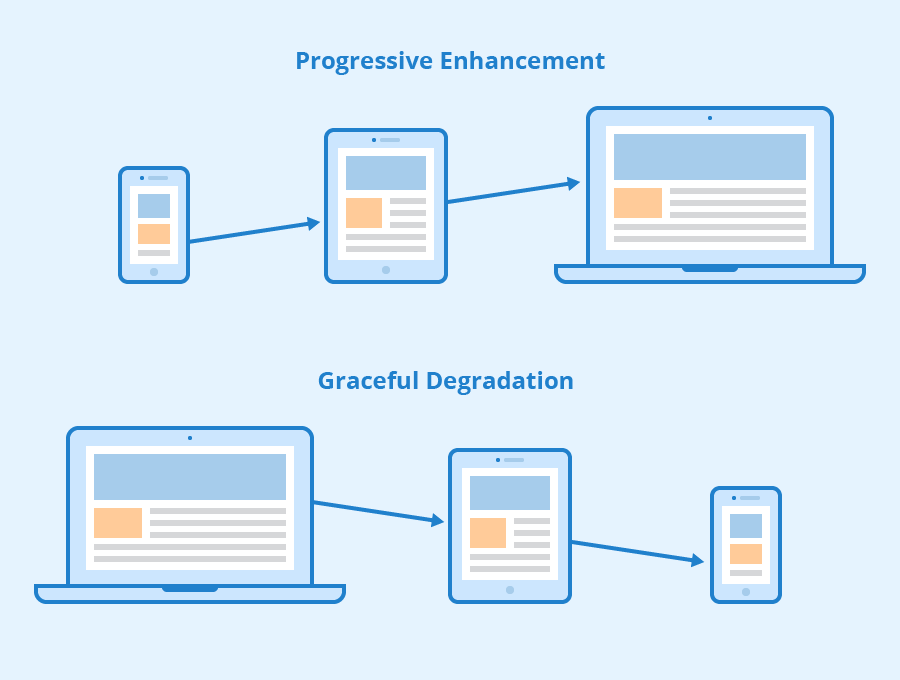
1. maintaining functionality when moving to limited devices (graceful degradation)
2. adding functionality when moving to super-capable devices (progressive enhancement)
1. "normal" styling for desktops/laptops; media queries for mobile
2. "normal" styling for mobiles; media queries for desktops/laptops
1. at the top of the file
2. in the middle of the file
3. at the bottom of the file
1. true
2. false
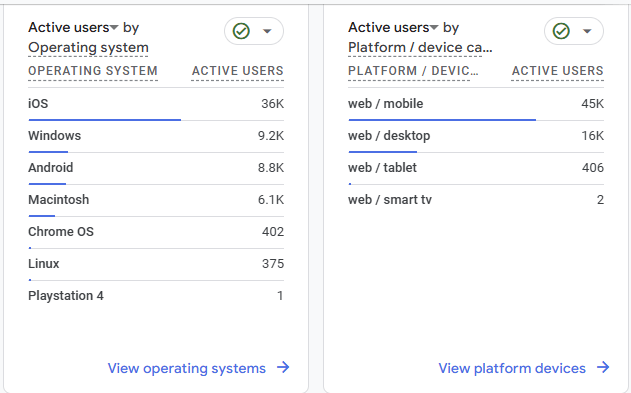
Example: Analytics Report from the app I work on (yesterday)
Notice the percentages of mobile/desktop/tablet
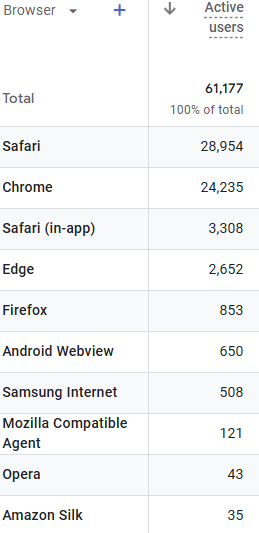
Example: Analytics Reports from the app I work on (yesterday)
Notice broad use of browsers with high percent of chrome and safari
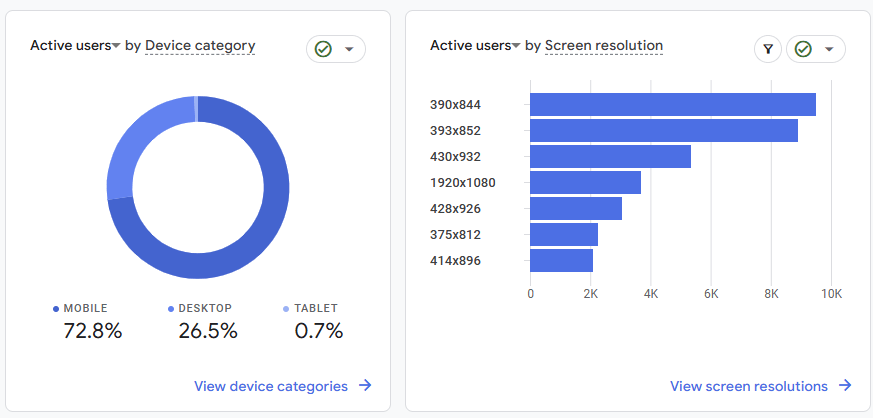
Example: Analytics Reports from the app I work on (yesterday)
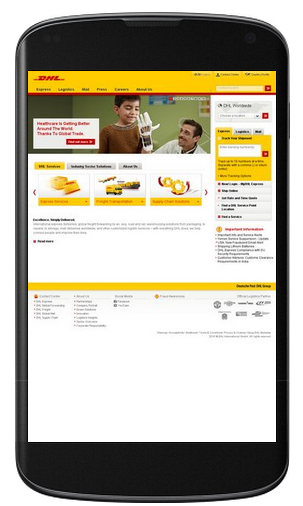
Mobile web browsers will do some work on their own to adjust to large web pages by shrinking content to fit
Include the viewport meta element to allow your code to control responsive appearances (rather than the browser).
<head>
  <meta charset="utf-8"> <!-- always need this -->
  <meta name="viewport" content="width=device-width, initial-scale=1, shrink-to-fit=no">

  <!-- more head elements, including <link> ... -->
</head>
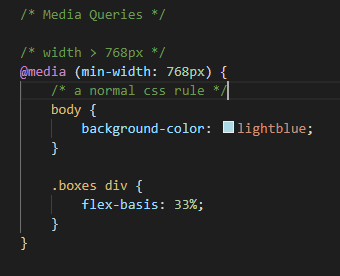
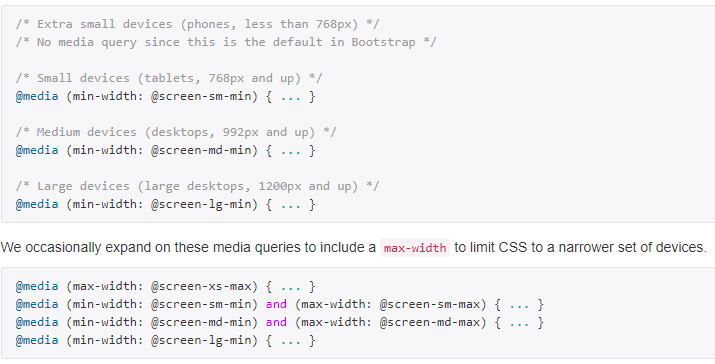
Media Queries conditionally apply CSS rules much like an "if" statement
Applying a condition and rules (selectors and properties) that are applied when the condition is true.
If the width > 768px:
then apply these CSS Rules
You need to put full rules (including selector) inside the media query body
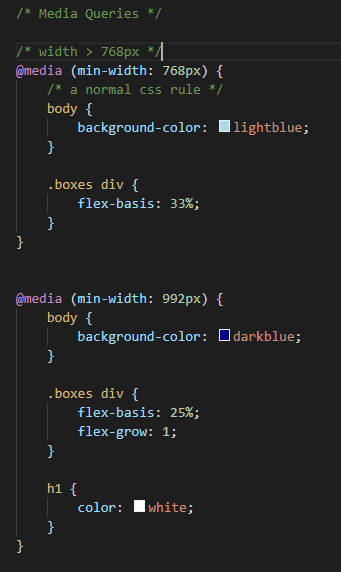
Last rule on page wins thus:
Basic Recommended Structure:
If CSS file is organized by section (header, body, footer). It's okay to modify:
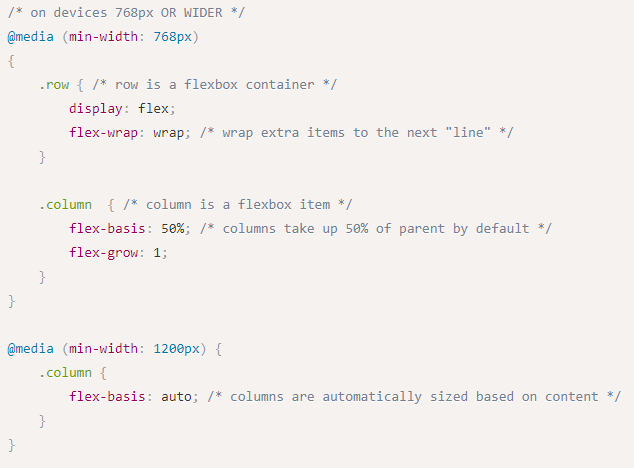
With CSS media query turns to flexbox
block items, stacked by default
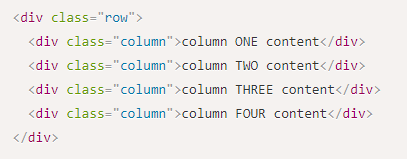
Basic HTML
Will turn to flexbox when width gets larger than 768px
Could add additional conditions:
At 768px it wraps with 2 columns
At 1200px all items will stay on the row if their size is less than with width of the parent
A CSS Framework is a collection of CSS rules published and made available for you to use. So rather than writing your own rules, you just use the ones provided to you.
Bootstrap is the oldest and most popular CSS framework. Created by Twitter in 2011.
<head>
  <!--... other elements here...-->

  <!-- link Bootstrap -->
  <link rel="stylesheet"
        href="https://cdn.jsdelivr.net/npm/bootstrap@5.3.8/dist/css/bootstrap.min.css">

  <!-- link own stylesheets AFTER framework -->
  <link rel="stylesheet" href="css/my-style.css">
</head>
minified CSS file!
Add Bootstrap to your page by including a <link> to the CSS file. This is usually loaded from a Content Delivery Network (CDN) site.
CDN
Non Minified version
<head>
  <!-- link Bootstrap -->
   <link href="https://cdn.jsdelivr.net/npm/bootstrap@5.3.8/dist/css/bootstrap.min.css"
   	rel="stylesheet" >

  <!-- link own stylesheets AFTER framework -->
    <link rel="stylesheet" href="css/my-style.css">
</head>
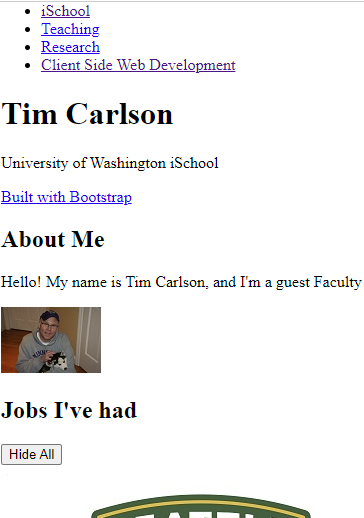
Before
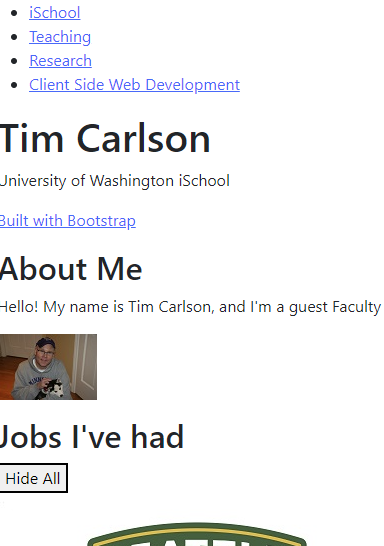
After
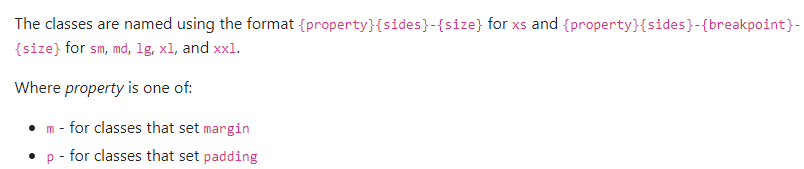
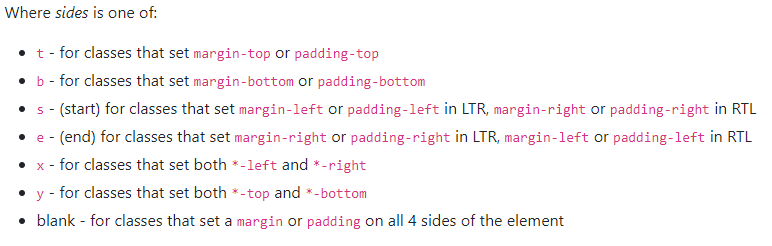
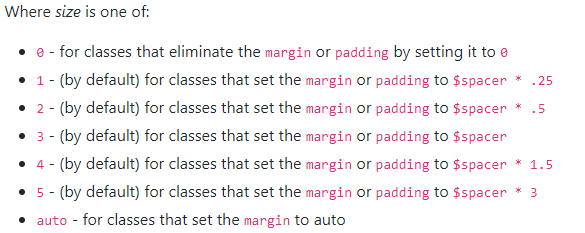
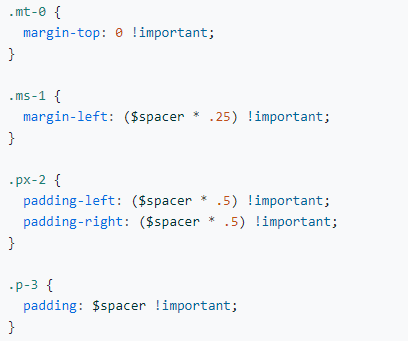
Bootstrap provides rules that apply to particular classes. Give an element that class in order to style it in a certain way.
margin top of 0
margin side of 1
padding on left and right of 2
padding of 3
Levels of size range from 0 to 5
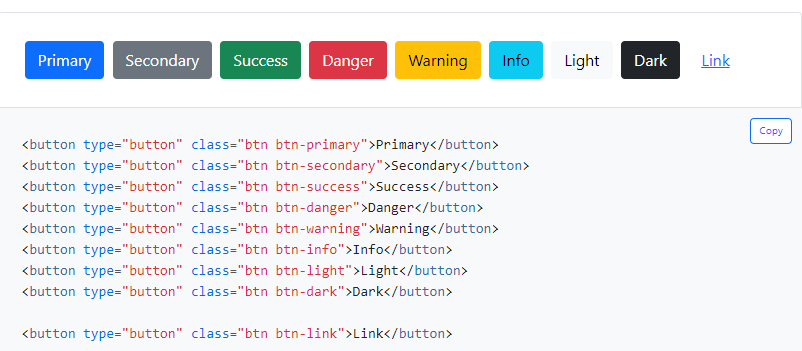
Buttons, Cards, Carousel, Dropdowns, Navbar, Spinners, etc...
Button example
Example:
Syntax
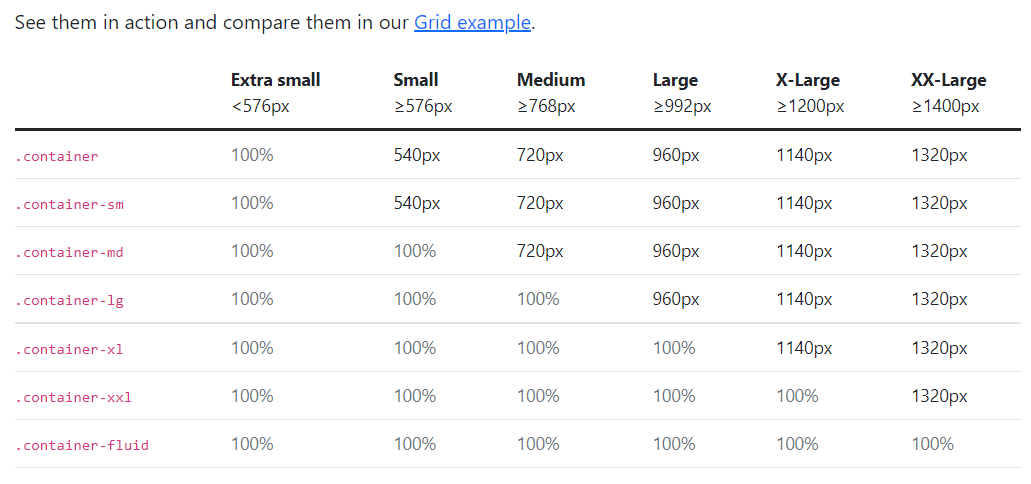
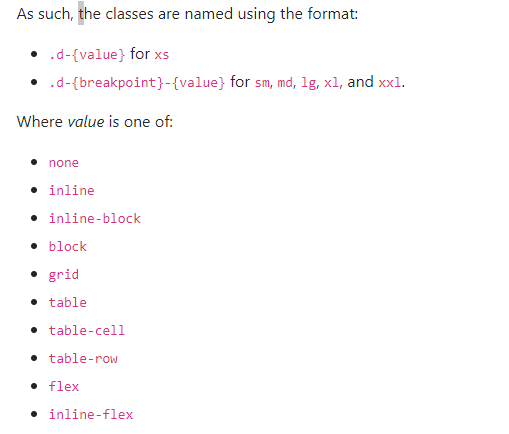
The media queries effect screen widths with the given breakpoint or larger.
We tend to write the responsive utility classes left to right:
<div class =d-none d-sm-block d-md-none">
Within the HTML brackets '<' '>' the order doesn't matter. Bootstrap has the media query ordered in the CSS file smallest to largest.
Make sure to put link your stylesheet further down in the html file than bootstrap to override bootstrap classes
Bootstrap has responsive versions of most utility classes. These class names include a infix indicating at which size (or larger) the styling should apply.
row
row
column
column
column
There are 12 columns in the grid
Elements can take up many columns
Row 1:
Row 2:
Row 3:
Specify columns based on screen-size
Smaller screen display
A Row:
The Bootstrap framework provides some interactive "widgets" you can use without writing separate JavaScript code, just by using specific HTML attributes.
https://getbootstrap.com/docs/5.3/components
You will need to add Bootstrap's JavaScript code to your page by including a <script> tag in your <head>
<head>
  <!-- include Bootstrap library (before your script!) -->
  <!-- copy script tag from the Bootstrap home page -->
  <script src="https://cdn.jsdelivr.net/npm/bootstrap@5.3.8/dist/js/bootstrap.bundle.min.js"></script>
</head>As a simple example, you can make an element "collapsable" so that it disappears with a button click!
<button class="btn btn-primary"
        data-bs-toggle="collapse"
        data-bs-target="#collapseExample"
        aria-expanded="false" aria-controls="collapseExample">
   Button with data-bs-target
</button>


<div class="collapse" id="collapseExample">
    Some placeholder content for the collapse component. This panel is
    hidden by default but revealed when the user clicks the toggler.
</div>
aria for screen-readers
See https://getbootstrap.com/docs/5.3/components/
navbar/#toggler for an example of a NavBar with a collapsible "hamburger menu"
Complete task list for Week 3 (all items)
Read: Chapter 10Problem Set 03 due Wednesday
Problem Set 04 due Sunday
Next: JavaScript!
The complete HTML & CSS. A static "screenshot" of what your app will look like.
The complete HTML & CSS. A static "screenshot" of what your app will look like.
Working as a group:
By Tim Carlson