Tips and Tricks to Boost Performance in Your Xamarin Apps
Alan Grgic
@spellgrgicright
small steps for big gains





A Little About Me
- Software Development
- Board Games
- Metal Music
- Corgis
- Beverages
Native Apps are Fast, Right?

Machines do as they're told...
Unnecessary or misused Abstractions

Machines do as they're told!
Performance Win Opportunities
- HttpClient
- async/await
- Compiler settings
- Image Optimizations
- Binding Optimizations
- Layout Optimizations

HttpClient: avoiding socket exhaustion
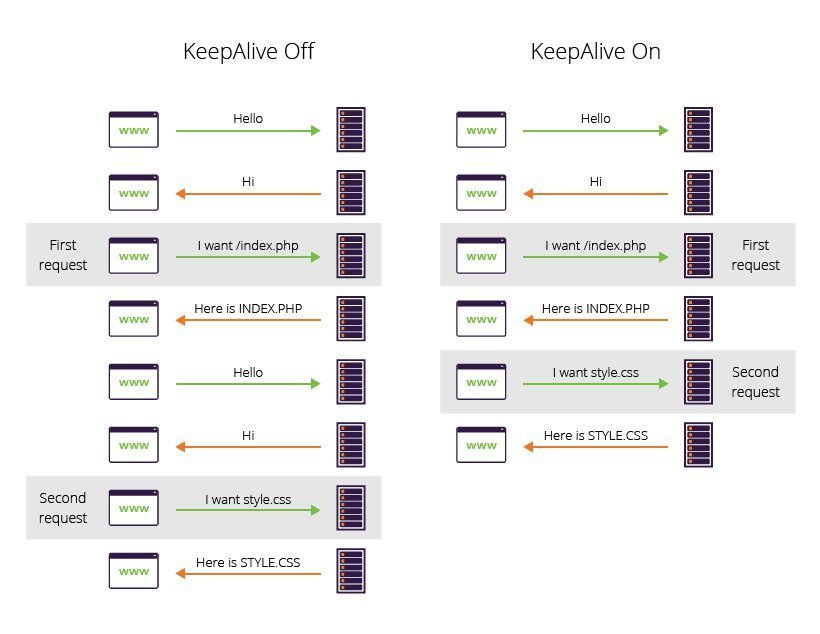
Understand Connection: keep-alive
HttpClient: Don't do this!
- you miss out on the benefits of keep-alive even though it is being used
- a new socket is opened each time a request is made
- each of those sockets stays open because of keep-alive
- executing lots of requests quickly makes the server run out of sockets
- your app is doing unnecessary work and your server is weeping in agony
using (var client = new HttpClient())
{
    // do stuff with the http client
}
HttpClient: Instead, do this
public class MyClient
{
    private static HttpClient _client = new HttpClient();

    public Task<HttpResponseMessage> Get(string uri)
    {
        return _client.GetAsync(uri);
    }
}-
HttpClient is thread safe and designed to be created once and re-used
-
Your app will do less network work by leveraging keep-alive
-
Your app will do less work by not newing up clients all the time
- The server will be thankful for this completely normal experience
HttpClient: Use gzip
public class MyClient
{
    private static HttpClient _client = BuildClient();

    public Task<HttpResponseMessage> Get(string uri)
    {
        return _client.GetAsync(uri);
    }

    private static HttpClient BuildClient(){
    {
        var httpClient = new HttpClient();
        var header = new StringWithQualityHeaderValue("gzip");
        httpClient.DefaultRequestHeaders.AcceptEncoding.Add(header);
        return httpClient;
    }
}-
gzip is a compression format supported by many servers
-
responses will be smaller and thus download faster
- HttpClient decompresses gzipped responses automatically
HttpClient: Don't do this
public class MyClient
{
    private static HttpClient _client = new HttpClient();

    public async Task<Stream> GetStream(string uri)
    {
        var response = await _httpClient.GetAsync("http://abigfile.com");
        response.EnsureSuccessStatusCode();
        return await response.Content.ReadAsStreamAsync();
    }
}-
GetAsync will block until the entire big file is downloaded
-
Depending on how big that file is:
- This could time out (not unlikely, default timeout is 100 sec)
- OutOfMemoryException could occur
HttpClient: Instead, do this
public class MyClient
{
    private static HttpClient _client = new HttpClient();

    public async Task<Stream> GetStream(string uri)
    {
        var response = await _httpClient.GetAsync("http://abigfile.com",
                                                  HttpCompletionOption.ResponseHeadersRead);
        response.EnsureSuccessStatusCode();
        return await response.Content.ReadAsStreamAsync();
    }
}-
Response will return once just the headers are downloaded
-
The response content will be streamed as we intended
-
The response content will be streamed as we intended
-
Size of the file will no longer cause timeouts
-
OutOfMemoryException not an issue either
- Unless we do something silly like stream into memory
HttpClient: Similarly, do this
public class MyClient
{
    private static HttpClient _client = new HttpClient();
    private static JsonSerializer _serializer = new JsonSerializer();

    public async Task<T> Get(string uri)
    {
        var response = await _httpClient.GetAsync("http://somejson.com",
                                                  HttpCompletionOption.ResponseHeadersRead);
        response.EnsureSuccessStatusCode();

        using (var stream = await response.Content.ReadAsStreamAsync())
        using (var reader = new StreamReader(stream))
        using (var json = new JsonTextReader(reader))
        {
            return _serializer.Deserialize<T>(json);
        }
    }
}-
With JsonConvert.DeserializeObject<T>(obj) (the typical approach) :
- full JSON string itself would be in memory
- at the same time, properties would be duplicated on the POCO
- Streaming allows only one JSON property to be in memory at a time
- Also consider excluding properties you don't use from POCOs
HttpClient: Use the Native Handlers


-
On by default now, but older projects might still not be using them
-
Makes the message handler use the OS's native SDK instead of Mono
- Significantly faster, but not all features of HttpClient are implemented
Async/Await

Getting multiple things done at a time
Async/Await: Don't do this
protected override async void OnAppearing()
{
    await _viewModel.LoadOrderInfoAsync();
}-
async void is a DEATHTRAP of USELESSNESS and PAIN
-
void methods cannot be awaited
-
wrapping calls to them in a try/catch doesn't do anything
-
unhandled Exceptions that happen in them will crash your app
- the call stack will show that the exception occurred somewhere in the void method, even though the actual exception may have been thrown several levels deeper.
-
void methods cannot be awaited
Async/Await: Instead, do this
protected override void OnAppearing()
{   // "fire and forget"
    _viewModel.LoadOrderInfoAsync().WithErrorHandling();
}

public static class TaskExtensions
{
    // one async void to rule them all
    public static async void WithErrorHandling(this Task task)
    {
        try
        {
            await task;
        }
        catch (Exception ex)
        {
            // log and show a sytem dialog or something
        }
    }
}-
Your app won't crash
-
Logs will contain information that is actually helpful
- Your code will not be littered with try/catch blocks everywhere
Async/Await: Don't do this
public async Task LoadOrderAsync()
{
    await _viewModel.LoadBasicOrderInfoAsync();
    await _viewModel.LoadOrderItemsAsync();
}- Order items will not begin being retrieved until basic info is done!
public void LoadOrderAsync()
{
    _viewModel.LoadBasicOrderInfoAsync();
    _viewModel.LoadOrderItemsAsync();
}- Orders won't be done loading after this finishes execution!
public void LoadOrderAsync()
{
    _viewModel.LoadBasicOrderInfoAsync().Wait();
    _viewModel.LoadOrderItemsAsync().Wait();
}- Calling thread will be blocked! If it's the UI thread, this is even worse.
Async/Await: Instead, do this
public async Task LoadOrderAsync()
{
    var order = _viewModel.LoadBasicOrderInfoAsync();
    var items = _viewModel.LoadOrderItemsAsync();
    await Task.WhenAll(order, items);
}-
Order info and items will be requested at the same time
-
Execution doesn't finish until both info and items are done
- Calling thread is not blocked
Async/Await: avoid "return await"
// instead of this
public async Task GetOrderAsync()
{
    return await _myClient.GetAsync<Order>("https://getymyorder.com");
}

// try this
public Task GetOrderAsync()
{
    return _myClient.GetAsync<Order>("https://getymyorder.com");
}-
Unnecessary use of "async" causes:
-
the compiler to generate unneeded state machine code
-
your app size to increase
-
tasks that are already to done to be treated as if they are not
-
the compiler to generate unneeded state machine code
- Always use await inside "using" and "try" blocks
Async/Await: Use .ConfigureAwait(false)
public async Task LoadOrderAsync()
{
    var order = _viewModel.LoadBasicOrderInfoAsync();
    var items = _viewModel.LoadOrderItemsAsync();
    await Task.WhenAll(order, items).ConfigureAwait(false);
}-
EXCEPT when calling methods from the UI thread
-
e.g. OnAppearing or in Device.BeginInvokeOnMainThread
-
e.g. OnAppearing or in Device.BeginInvokeOnMainThread
-
Does the thread that does everything after the await have to be the same as the one that started the await?
- If not, use ConfigureAwait(false)
- Usually, the only time we don't want this is when calling from/returning to the UI thread
Compiler Optimizations

Understanding the Linker

-
Tree-Shaking
-
Mono and Xamarin are like, really big
-
Not all of their code will be used
-
The Linker:
-
Detects what parts of code are actually used
-
Makes sure only the parts that are actually needed get in
- Decreases app size and startup time
-
Detects what parts of code are actually used
Linker Settings
| Setting | Behavior | Ideal For |
|---|---|---|
| Don't Link | Include all of Mono and Xamarin | Debugging |
| Link SDK Assemblies | Remove unused Xamarin and Mono code | "safe/lazy" release builds |
| Link All Assemblies | Remove all unused code (from all 3rd party libraries, plus your own code)* | optimized release builds |
* Including stuff you might not want removed. Use Preserve attributes!
Android: Use d8 and r8

-
Android is JIT compiled by default
-
We will usually end up shipping some Java jars with our app
- Typically this is the Android support libraries
-
If you don't include those, you're gonna have a bad time
-
You can think of:
- r8 as the Java "minifier"
- d8 as the Java/dex "linker"
Android: AOT compilation
<PropertyGroup Condition=" '$(Configuration)|$(Platform)' == 'Release|AnyCPU' ">
    <AndroidEnableProfiledAot>true</AndroidEnableProfiledAot>
</PropertyGroup>
Image Optimizations

Use Vector Images

-
Smaller app sizes
-
Less memory usage
-
Scale with no loss in quality
-
Monochromatic flexibility
- One image, different colors!
Use Vector Images: Android
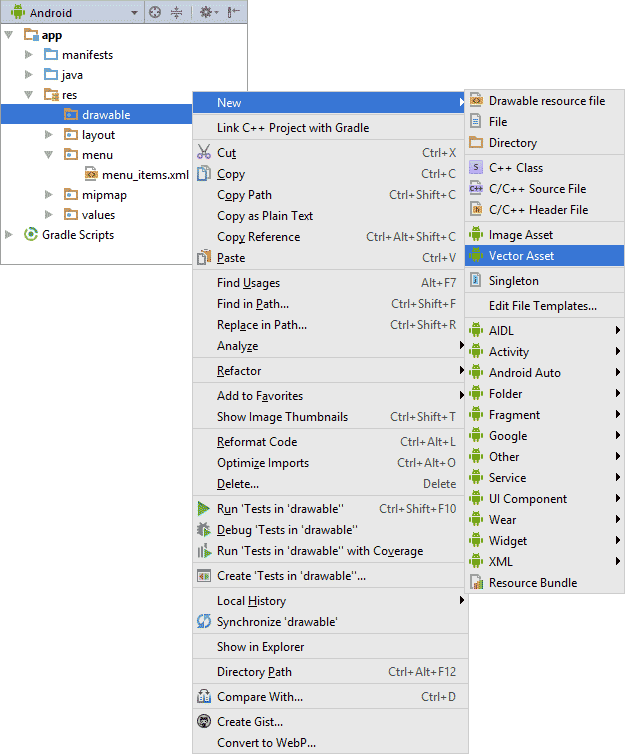
In Android Studio...
Use Vector Images: Android
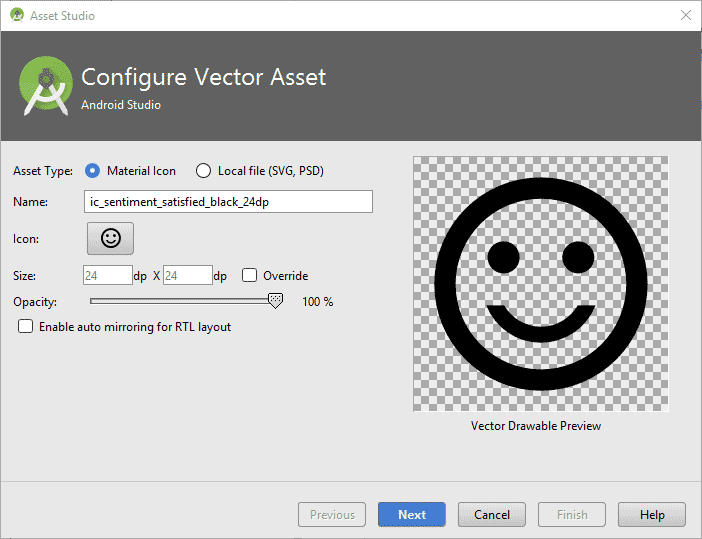
Use Vector Images: iOS

-
Asset catalog accepts pdfs in the Vector field
-
Several utilities to convert svgs to pdfs are available
- ImageMagick
- Inkscape
Cache Images Fetched Over Http
<Image
	HorizontalOptions="CenterAndExpand"
	VerticalOptions ="CenterAndExpand">
	<Image.Source>
		<UriImageSource Uri="{Binding Image}"
			CacheValidity="14"
			CachingEnabled="true"/>
	</Image.Source>
</Image>
Binding Optimizations

Use Compiled Bindings
<ContentPage xmlns="http://xamarin.com/schemas/2014/forms"
             xmlns:x="http://schemas.microsoft.com/winfx/2009/xaml"
             xmlns:local="clr-namespace:DataBindingDemos"
             x:Class="DataBindingDemos.CompiledColorSelectorPage"
             Title="Compiled Color Selector">
    <StackLayout x:DataType="local:HslColorViewModel">
        <StackLayout.BindingContext>
            <local:HslColorViewModel Color="Sienna" />
        </StackLayout.BindingContext>
        <StackLayout Margin="10, 0">
            <Label Text="{Binding Name}" />
            <Slider Value="{Binding Hue}" />
            <Label Text="{Binding Hue, StringFormat='Hue = {0:F2}'}" />
            <Slider Value="{Binding Saturation}" />
            <Label Text="{Binding Saturation, StringFormat='Saturation = {0:F2}'}" />
            <Slider Value="{Binding Luminosity}" />
            <Label Text="{Binding Luminosity, StringFormat='Luminosity = {0:F2}'}" />
        </StackLayout>
    </StackLayout>
</ContentPage>
8-20x Performance improvement, depending on Binding Mode!
Select the appropriate Binding Mode
| Binding Mode | Behavior |
|---|---|
| TwoWay | data goes both ways |
| OneWay | data goes from source to target |
| OneWayToSource | data goes from target to source |
| OneTime | data goes from source to target, but only when the BindingContext changes |
...but the fastest binding is no binding!
Default Binding Modes of Controls
-
Most properties (including Label.Text) default to OneWay
-
Notable Two-Way Default Properties:
- DatePicker.Date
- Text property of Editor, Entry, SearchBar
- ListView.IsRefreshing
- SelectedIndex and SelectedItem properties of Picker
- Value property of Slider and Stepper
- Switch.IsToggled
- TimePicker.Time
Layout Optimizations

Minimize View Count!
Minimize Binding Usage!
Layouts: Don't Do This
<ContentPage xmlns="http://xamarin.com/schemas/2014/forms"
             xmlns:x="http://schemas.microsoft.com/winfx/2009/xaml"
             x:Class="Details.HomePage"
             Padding="0,20,0,0">
    <StackLayout>
        <StackLayout Orientation="Horizontal">
            <Label Text="Name:" />
            <Entry Placeholder="Enter your name" />
        </StackLayout>
        <StackLayout Orientation="Horizontal">
            <Label Text="Age:" />
            <Entry Placeholder="Enter your age" />
        </StackLayout>
        <StackLayout Orientation="Horizontal">
            <Label Text="Occupation:" />
            <Entry Placeholder="Enter your occupation" />
        </StackLayout>
        <StackLayout Orientation="Horizontal">
            <Label Text="Address:" />
            <Entry Placeholder="Enter your address" />
        </StackLayout>
    </StackLayout>
</ContentPage>
Layouts: Instead, Do This
<ContentPage xmlns="http://xamarin.com/schemas/2014/forms"
             xmlns:x="http://schemas.microsoft.com/winfx/2009/xaml"
             x:Class="Details.HomePage"
             Padding="0,20,0,0">
    <Grid>
        <Grid.ColumnDefinitions>
            <ColumnDefinition Width="100" />
            <ColumnDefinition Width="*" />
        </Grid.ColumnDefinitions>
        <Grid.RowDefinitions>
            <RowDefinition Height="30" />
            <RowDefinition Height="30" />
            <RowDefinition Height="30" />
            <RowDefinition Height="30" />
        </Grid.RowDefinitions>
        <Label Text="Name:" />
        <Entry Grid.Column="1" Placeholder="Enter your name" />
        <Label Grid.Row="1" Text="Age:" />
        <Entry Grid.Row="1" Grid.Column="1" Placeholder="Enter your age" />
        <Label Grid.Row="2" Text="Occupation:" />
        <Entry Grid.Row="2" Grid.Column="1" Placeholder="Enter your occupation" />
        <Label Grid.Row="3" Text="Address:" />
        <Entry Grid.Row="3" Grid.Column="1" Placeholder="Enter your address" />
    </Grid>
</ContentPage>
Additional General Tips
-
Use Dependency Injection containers carefully
-
Minimize the use of static resources, especially at the App level
-
Avoid LINQ (favor simple foreach loops)
-
Use CollectionView over ListView
-
Use DataTemplateSelectors
-
Avoid RelativeLayout
-
Use Layout compression
- Use "LineBreakMode=NoWrap" on Labels

Tips and Tricks to Boost Performance in Your Xamarin Apps
Alan Grgic
@spellgrgicright
Thanks!
Tips and Tricks to Boost Performance in Your Xamarin Apps
By Alan Grgic
Tips and Tricks to Boost Performance in Your Xamarin Apps
small steps for big gains