CSS 101
Translating Design To Code
ALEC ORTEGA
Front End Engineer
@whynotdostuff


alecortega
There are only three things that make up all of the internet
HTML
- Hypertext Markup Language
- Provides the structure of a page
- Think of it like the skeleton

CSS
- Cascading Stylesheet
- Provides the styling for the page
- Color, fonts, sizes, animations

Javascript
- Makes a webpage interactive
- Video games, Netflix, chat
- Data handling, 3D modeling, etc


ONLY HTML
HTML + CSS
Buttons, forms, etc
Animations
So how does this actually work?
You already know how to code CSS
BasketBall

- Round
- Orange
- 9.5 inches
.basketball {
    border-radius: 50%;
    color: orange;
    height: 10px;
    width: 10px;
}
Soccer ball

- Round
- White
- 8.5 inches
.soccerball {
    border-radius: 50%;
    color: white;
    height: 9px;
    width: 9px;
}
SO what is CSS?

It's giving something a certain name, and then giving that name specific attributes that describe what it looks like
.basketball {
    border-radius: 50%;
    color: orange;
    height: 10px;
    width: 10px;
}
Selector
PROPERTY
VALUE
The element that we want to put these styles on
What we want to describe
The value for that description
.basketball {
    border-radius: 50%;
    color: orange;
    height: 10px;
    width: 10px;
}
Class
A name we can give this grouping of styles.
<div class="basketball"></div>
<div class="basketball"></div>
<div class="basketball"></div>
Begins with a "."
<div class="basketball"></div>We can place this name on as many elements as we want
#basketball {
    border-radius: 50%;
    color: orange;
    height: 10px;
    width: 10px;
}
ID
A name we can give this grouping of styles.
<div id="basketball"></div>
<div id="basketball"></div>
<div id="basketball"></div>
Begins with a "#"
<div id="basketball"></div>We can only place this on ONE element.
p {
    color: orange;
    font-size: 15px;
}
TAG
The tag that we want to place these styles on.
<p>Resilient Coders</p>
<p>Resilient Coders</p>
<p>Resilient Coders</p>
<p>Resilient Coders</p>Will apply styling on all tags that match.
How do we actually see this?
HTML

<h1>
    Title
</h1>
<h1 class='title'>
    Title
</h1>
CSS
.title {
    color: blue;
}
So we give each element a name and then give that name a description in our CSS?


Similar
DIFFERENT
- Round
- Color
- Size
HTML
<div class="basketball"></div>
<div class="soccerball"></div>
<div class="tennisball"></div>
<div class="baseball"></div>
CSS
.soccerball {
    border-radius: 50%;
    color: white;
    height: 9px;
    width: 9px;
}
.basketball {
border-radius: 50%;
color: orange;
height: 10px;
width: 10px;
}.tennisball {
border-radius: 50%;
color: green;
height: 4px;
width: 4px;
}.baseball {
border-radius: 50%;
color: white;
height: 4px;
width: 4px;
}Think of classes like adjectives
not names
.round {
    border-radius: 50%;
}
.baseball {
color: white;
height: 4px;
width: 4px;
}.basketball {
color: orange;
height: 10px;
width: 10px;
}Similar
Different
HTML
<div class="round basketball"></div>
<div class="round soccerball"></div>
<div class="round tennisball"></div>
<div class="round baseball"></div>
REAL WORLD EXAMPLE

HTML
<div class="box-1"></div>
<div class="box-2"></div>
<div class="box-3"></div>
.box-1 {
background-color: blue;
height: 100px;
width: 100px;
}
.box-2 {
background-color: green;
height: 100px;
width: 200px;
}
.box-3 {
background-color: blue;
height: 100px;
width: 100px;
}- They're all boxes and have the same height
- Width and colors of boxes
Similar
Different
.box {
  height: 100px;
}
.box-1 {
  background-color: blue;
  width: 100px;
}
.box-2 {
  background-color: green;
  width: 200px;
}
.box-3 {
  background-color: blue;
  width: 100px;
}
.box-1 {
background-color: blue;
height: 100px;
width: 100px;
}
.box-2 {
background-color: green;
height: 100px;
width: 200px;
}
.box-3 {
background-color: blue;
height: 100px;
width: 100px;
}.box {
height: 100px;
}
.small {
background-color: blue;
width: 100px;
}
.large {
background-color: green;
width: 200px;
}

HTML
<div class="small box"></div>
<div class="large box"></div>
<div class="small box"></div>
But how do I build a website with this?

Copy paste this <link> tag into your code and make sure the css file is in the same folder as your html file
<head>
  <link rel="stylesheet" type="text/css" href="main.css">
</head>
<body>
</body>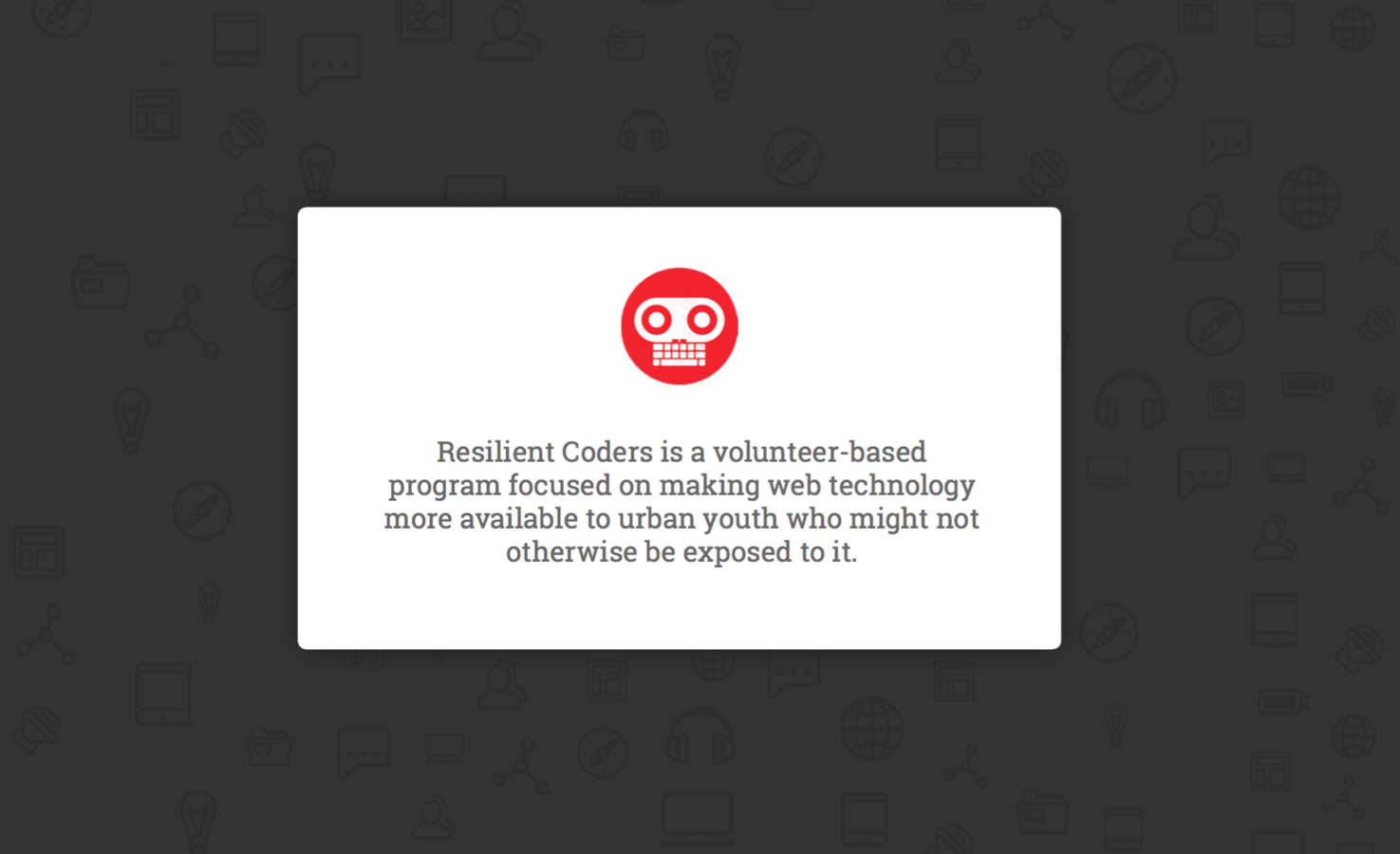
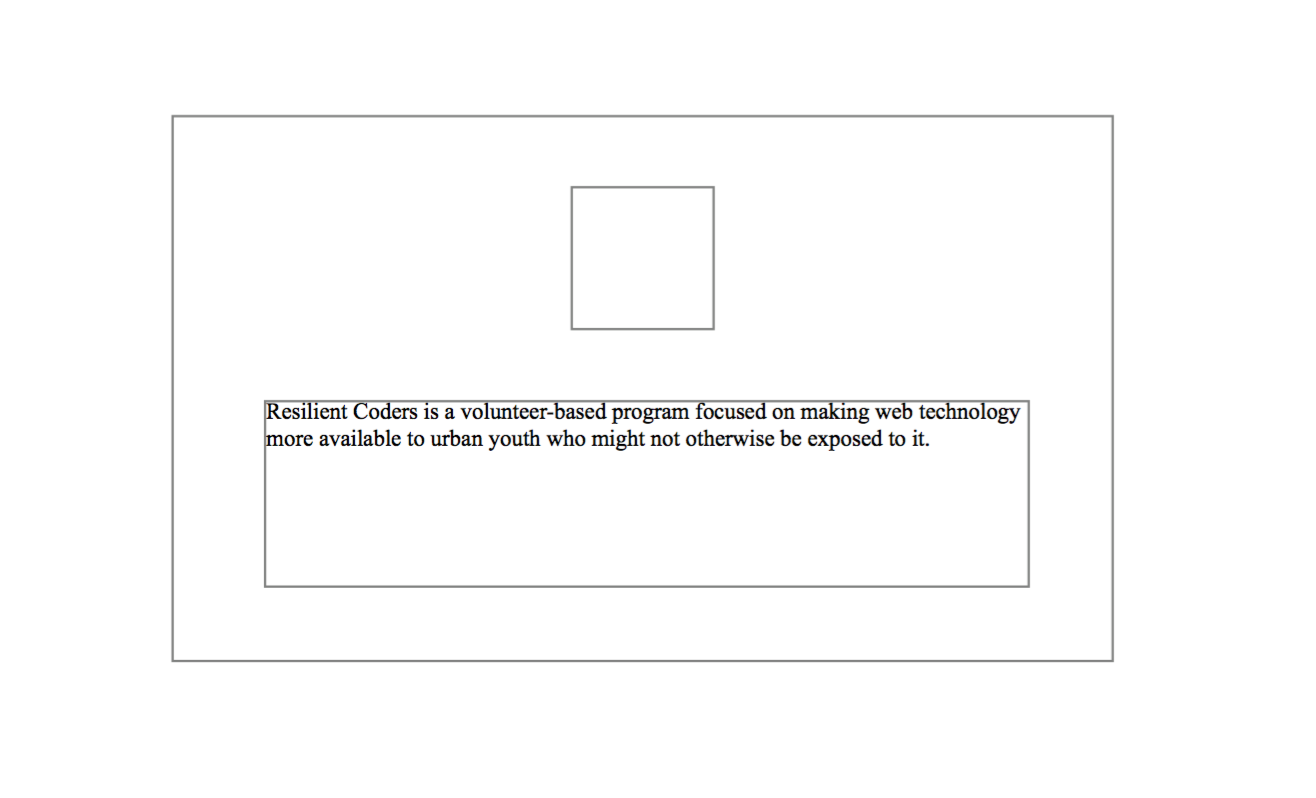
Imagine everything like a box within a box within a box within a...

<body>
</body>

HTML structure is the same as the visual hierarchy of your page
<div>
</div>
<img src=''/>
<p>
</p>
<body>
</body>
<body>
  <div>
    <img src="./path/to/img"/>
    <p>
      Resilient Coders is a...
    </p>
  </div>
</body>
Ok I did that but it still looks like...


CSS TO THE RESCUE
Let's start with the background
body {
  /* Uhhh how do background on this */
}
Google is your
best friend.
I still Google CSS properties I can't remember, and I do this professionally.
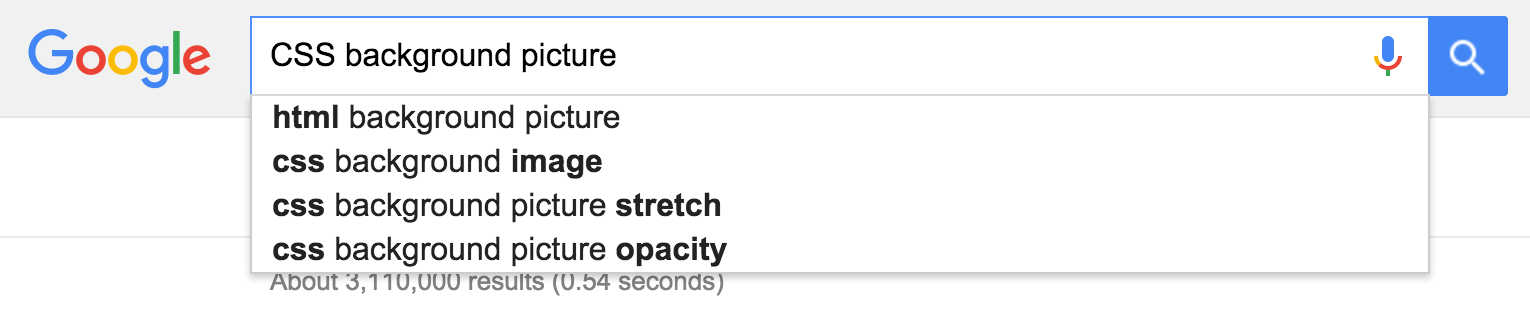
Start with "CSS" then whatever you want to change
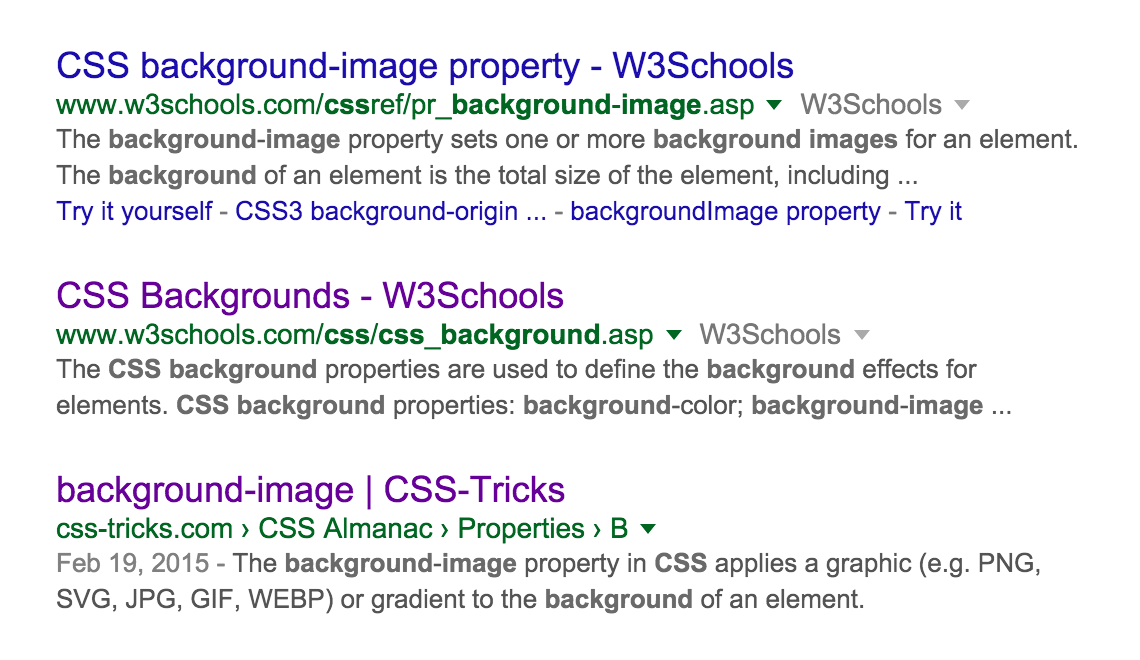
w3schools, MDN, or css-tricks are all really awesome.
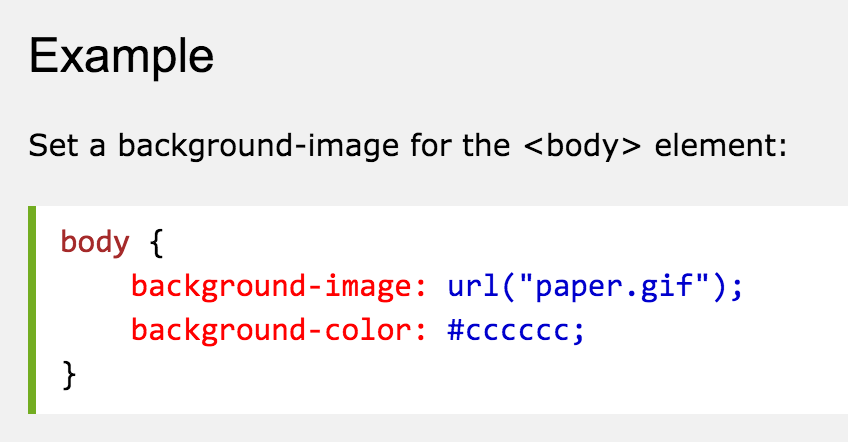
w3schools.com
Whoa look at that, that's exactly what we want!
body {
  background-image: url('resilient.jpg');
}
We can just copy paste the example into our code and change it to where our image is.
But isn't copy pasting CODE, plagiarizing?

Examples and libraries of code exist to reduce the amount of work that you need to do and help you learn!
Nope!
Aiight, awesome but it still looks like...

We need some way of making this <div> look like a white container.
<div>
</div>
A <div> is just a normal box
<body>
  <div class="container">
    <img src="resilient.jpg"/>
    <p>
      Resilient Coders is a...
    </p>
  </div>
</body>
Let's put a class on it so we can describe what it should look like in our CSS!
.container {
    background-color: white;
}
Now all we have to do it describe what we want it to look like.

Getting closer...
Remember when we described how big the basketball was? We can do the same thing to our elements here!
.container {
    background-color: white;
    width: 600px;
}
Let's describe it as 600px wide

But how do I make it go in the center?
Margin
Padding
Content
Margin
Pushes boxes away
from other boxes
Padding
Gives a cushion for things inside the box
Four ways to write margin or padding:
div {
    // margin: top right bottom left;
    margin: 5px 10px 15px 20px;

    // margin: top (right and left) bottom;
    margin: 5px 15px 10px;

    // margin: (top and bottom) (right and left);
    margin: 10px 15px;

    // margin: all sides;
    margin: 10px;
}
Adding "auto" for the left and right sides will center an element
div {
    margin: 0 auto;
}
Let's center our container and push it away from the top of the page by 75px
.container {
    background-color: white;
    margin: 75px auto 0;
    width: 600px;
}
Now let's try adding some padding to the container to make things look nice
.container {
    background-color: white;
    margin: 75px auto 0;
    padding: 35px;
    width: 600px;
}

FINISH THE PAGE
CSS is just a lot of tweaking and googling
THANKS!
@whynotdostuff
alecortega
CSS 101
By Alec Ortega