



Content ITV PRO
This is Itvedant Content department
Learning Outcome
6
Control default browser behavior using preventDefault()
5
Identify and use common mouse,keyboard,form and window events
4
Explain why addEventListener is preferred over onclick
3
Use addEventListener() and removeEventListener() correctly
2
Connect user actions to Javascript using event listeners
1
Explain what browser events are and why they exist
Core Concepts (Slide 6)
Step 1: Start Your Virtual Machine
First, start your Virtual Machine with:
Ubuntu or
Linux Mint
Make sure the VM is running properly and you have terminal access.
Step 2: Install Java (Prerequisite for Jenkins)
Jenkins is a Java-based application, so Java must be installed before Jenkins.
Run the following command:
sudo apt install fontconfig openjdk-21-jre
Core Concepts (Slide 7)
After installation, verify Java:
This confirms that Java is installed and working correctly
Step 3: Prepare the System for Jenkins Installation
Before installing Jenkins, we need to:
Add Jenkins official GPG key
Add Jenkins package repository
This ensures Jenkins is installed from a trusted and official source.
java -version
Core Concepts (.....Slide N-3)
Step 4: Add Jenkins GPG Key
Run the following command:
This key verifies that Jenkins packages are authentic and not modified
Step 5: Add Jenkins Repository
Now add the Jenkins package source:
This step tells Linux where to download Jenkins from
sudo wget -O /etc/apt/keyrings/jenkins-keyring.asc \
https://pkg.jenkins.io/debian-stable/jenkins.io-2026.key
echo "deb [signed-by=/etc/apt/keyrings/jenkins-keyring.asc] \
https://pkg.jenkins.io/debian-stable binary/" | sudo tee \
/etc/apt/sources.list.d/jenkins.list > /dev/null
Core Concepts (.....Slide N-3)
Step 6: After adding the Jenkins repository, we now install Jenkins and make sure its service is running correctly on the system
Updates the system package list
Shows Jenkins service status
Starts the Jenkins service
Enables Jenkins at system startup
Installs Jenkins on the system
sudo apt update
sudo apt install jenkins
sudo systemctl enable jenkins
sudo systemctl start jenkins
sudo systemctl status jenkins
Core Concepts (.....Slide N-3)
Step 7: Access Jenkins in Browser
Open the browser inside your virtual machine and visit:
http://YourIPAddress:8080/
This opens the Jenkins web interface
Step 8: Locate Initial Administrator Password
When Jenkins starts for the first time, it asks for an Administrator Password
The UI shows a file path:
/var/lib/jenkins/secrets/initialAdminPassword
Step 9: Retrieve Administrator Password
Run this command in the terminal:
cat /var/lib/jenkins/secrets/initialAdminPassword
This command displays the initial admin password
Step 10: Unlock Jenkins
Copy the password from the terminal
Paste it into the Jenkins UI
Click Continue
Core Concepts (.....Slide N-3)
Step 11: Create Jenkins User
Set up:
Username
Password
This user will be used to log in to Jenkins
Step 12: Configure Jenkins URL
For personal or learning use, keep the default URL
In industry environments, DevOps/SRE teams usually customize this URL based on infrastructure needs
Click Save and Finish
Jenkins setup is now complete!
Jenkins UI
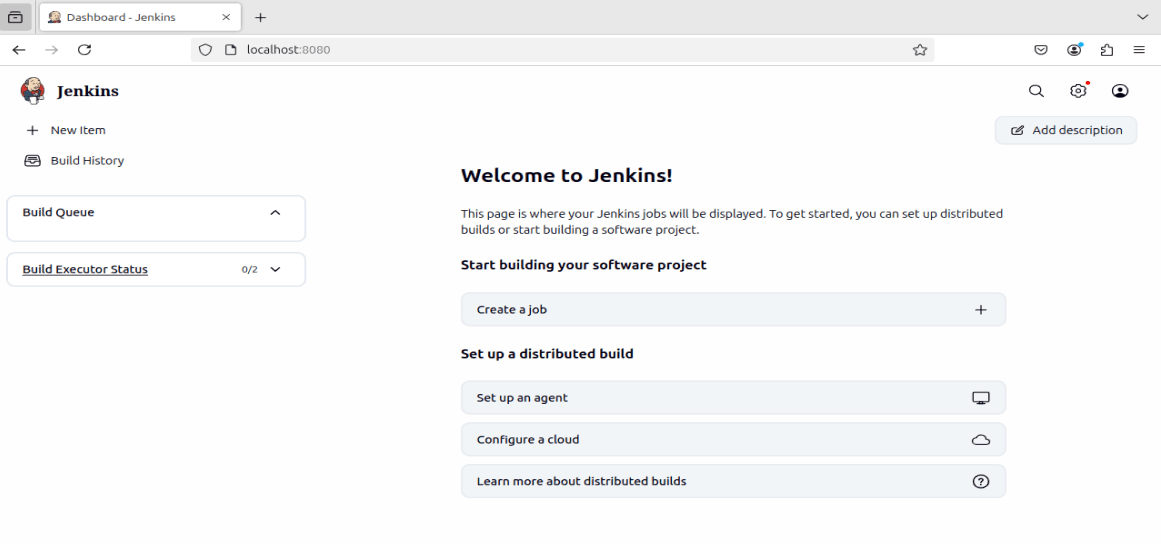
When we open Jenkins in a browser, the first screen we see is called the Jenkins Dashboard
The Jenkins dashboard is the main control panel of Jenkins
From here, we create jobs, run tasks and manage Jenkins settings
Jenkins UI
This dashboard is used to control & monitor everything that Jenkins does
Jenkins UI
This dashboard is used to control & monitor everything that Jenkins does
Jenkins UI
Dashboard
New Item
Build History
Manage Jenkins
Jenkins logo
The home page of Jenkins
Used for configuration and settings
Shows past job runs
Used to create a new job
Clicking it always brings you back to home
Section
Description
Summary
5
Build strong branding
4
Use different marketing channels
3
Target the right audience
2
Create and communicate value
1
Understand customer needs
Quiz
Which platform is mainly used for professional networking and B2B marketing ?
A. Facebook
B. Instagram
C. LinkedIn
D. Snapchat
Quiz-Answer
Which platform is mainly used for professional networking and B2B marketing ?
A. Facebook
B. Instagram
C. LinkedIn
D. Snapchat
By Content ITV