


Content ITV PRO
This is Itvedant Content department
Understanding Dynamic Product Rendering in React
Business Scenario
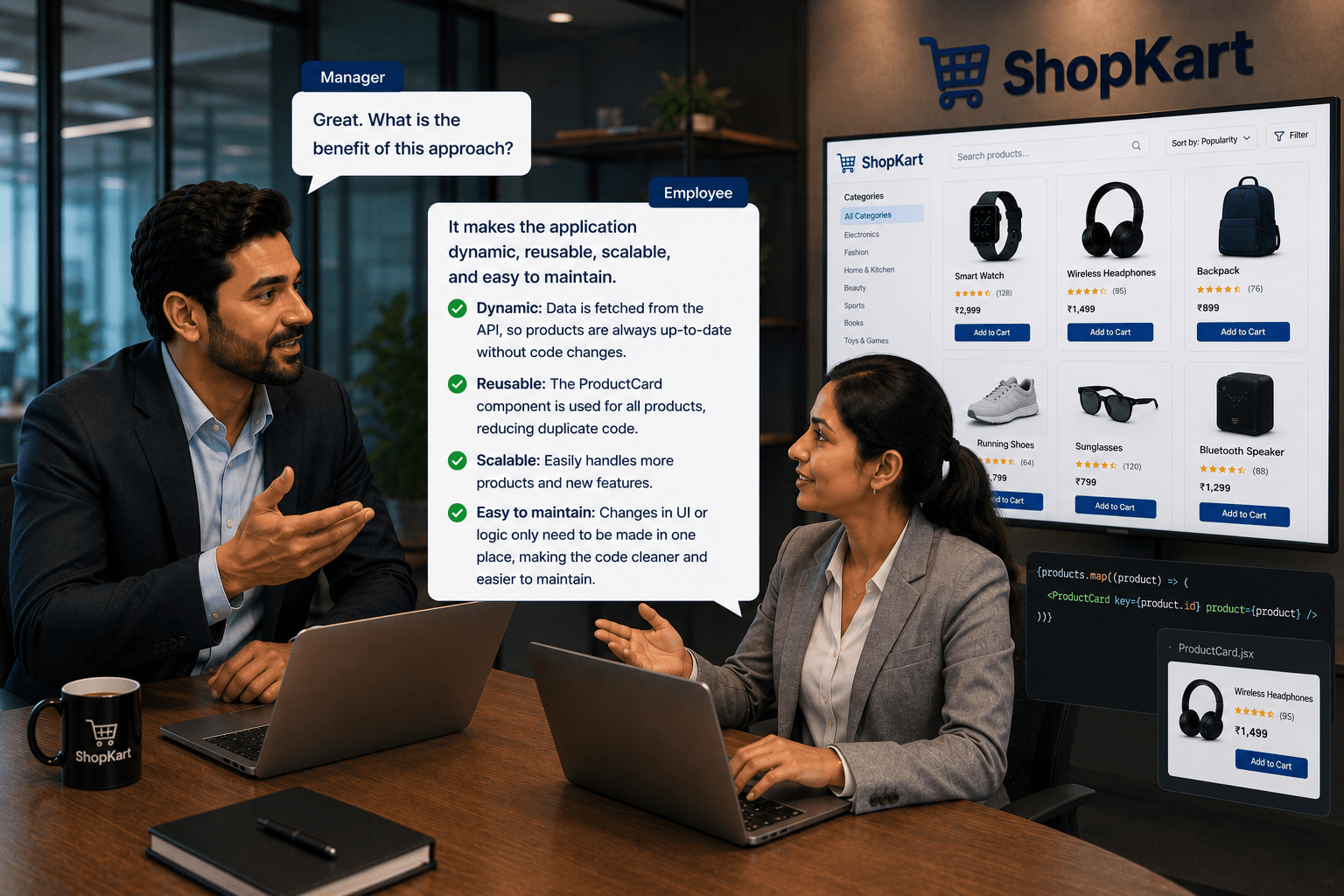
To understand how dynamic product listing works in React, let’s look at a conversation between a manager and an employee.
Manager:
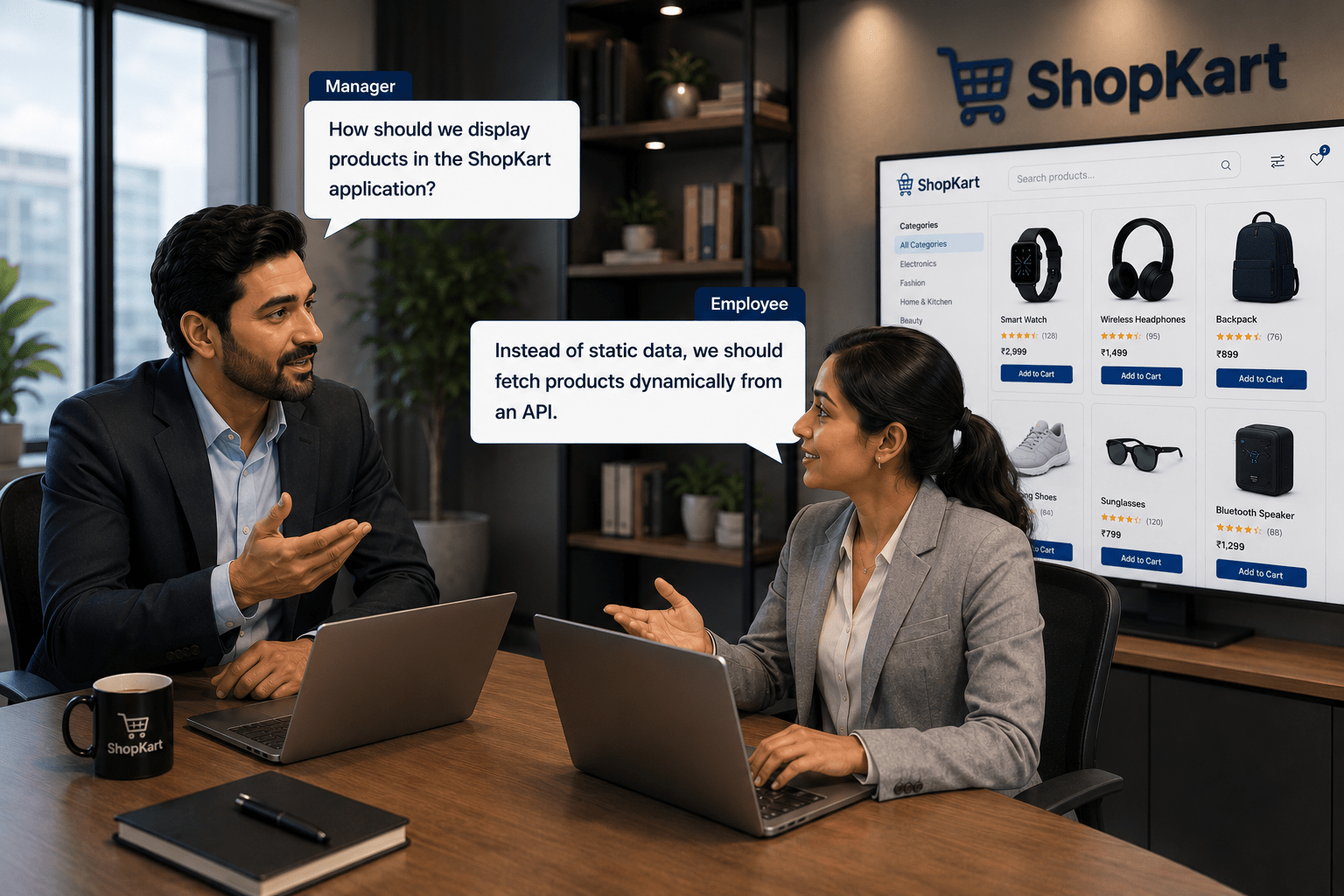
How should we display products in the ShopKart application?
Employee:
Instead of static data, we should fetch products dynamically from an API.
Manager: How will we manage and display the data in React?
Employee:
We can use useState and useEffect to fetch and store data, then use map to display products.
Manager:
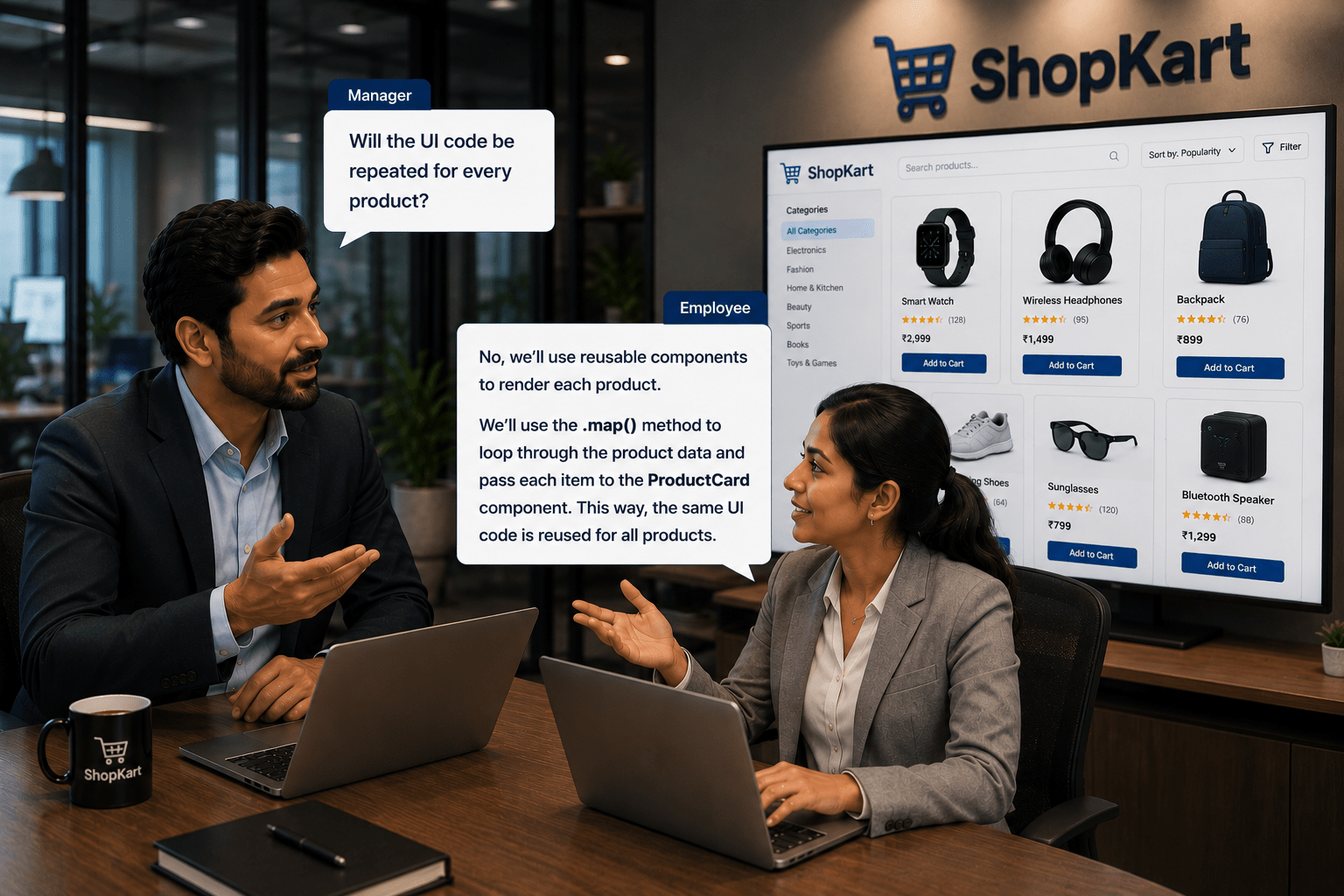
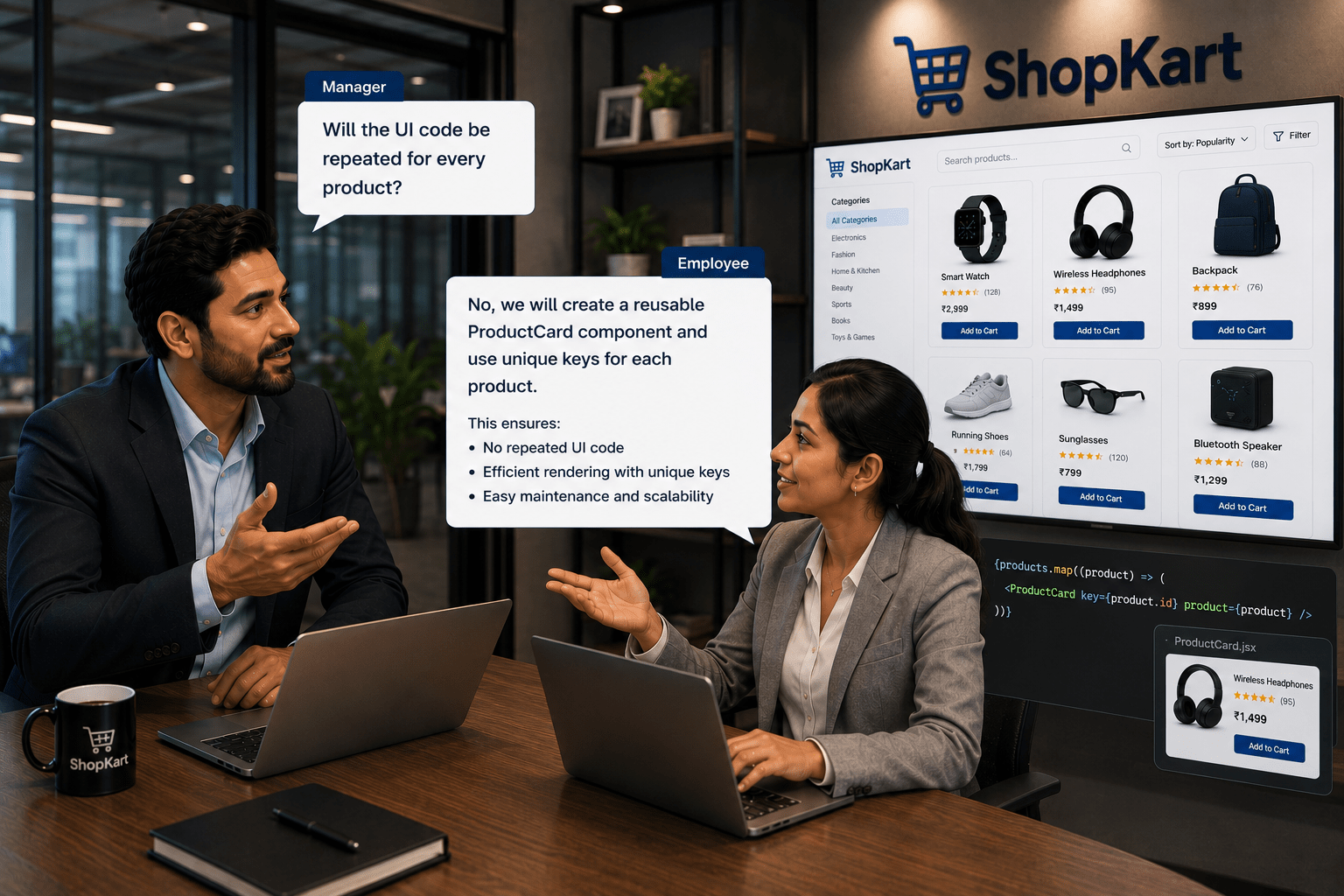
Will the UI code be repeated for every product?
Employee:
No, we will create a reusable ProductCard component and use unique keys for each product.
Manager:
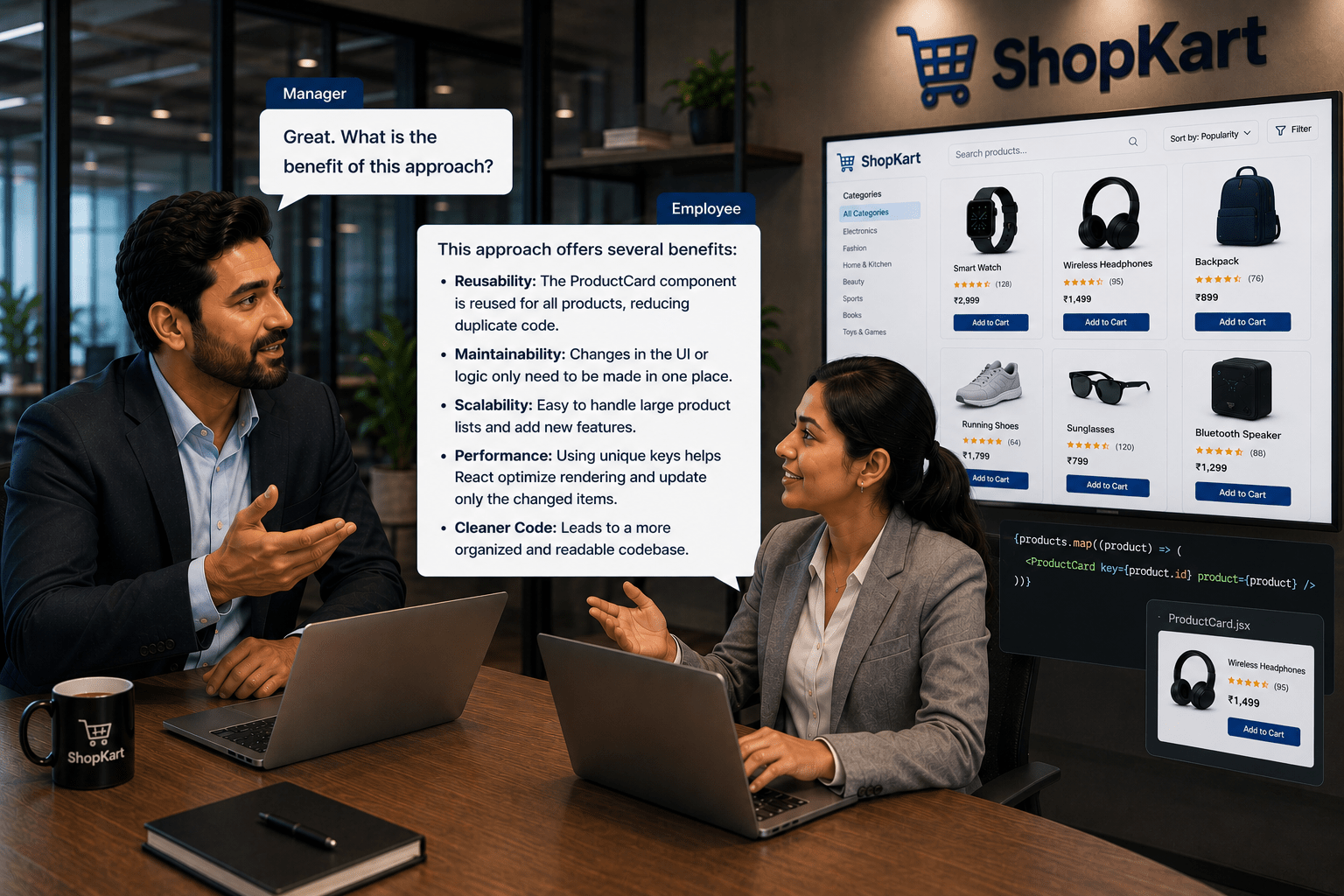
Great. What is the benefit of this approach?
Employee:
It makes the application dynamic, reusable, scalable, and easy to maintain.
Pre-Lab Preparation
What are React Components
What are Props in React
What is useState Hook
What is useEffect Hook
Lists and Keys in Reacta
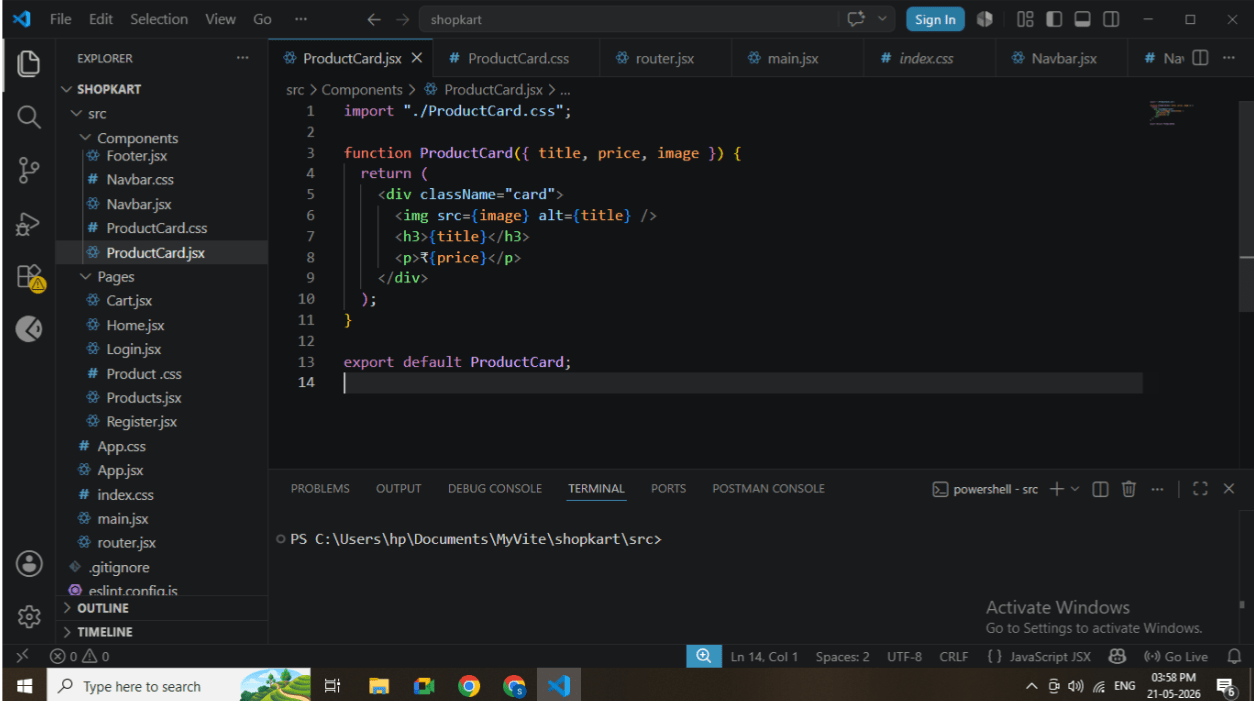
Task 1: Create ProductCard Component
1
Navigate to components folder
2
Create a file
(ProductCard.jsx)
3
Add the following code
function ProductCard({ title, price, image }) {
 return (
   <div>
     <img src={image} width="100" />
     <h3>{title}</h3>
     <p>₹{price}</p>
   </div>
 );
}

export default ProductCard;
ProductCard component code
Task 2: Create Products Page
1
Navigate to pages folder
2
Create file: Products.jsx
3
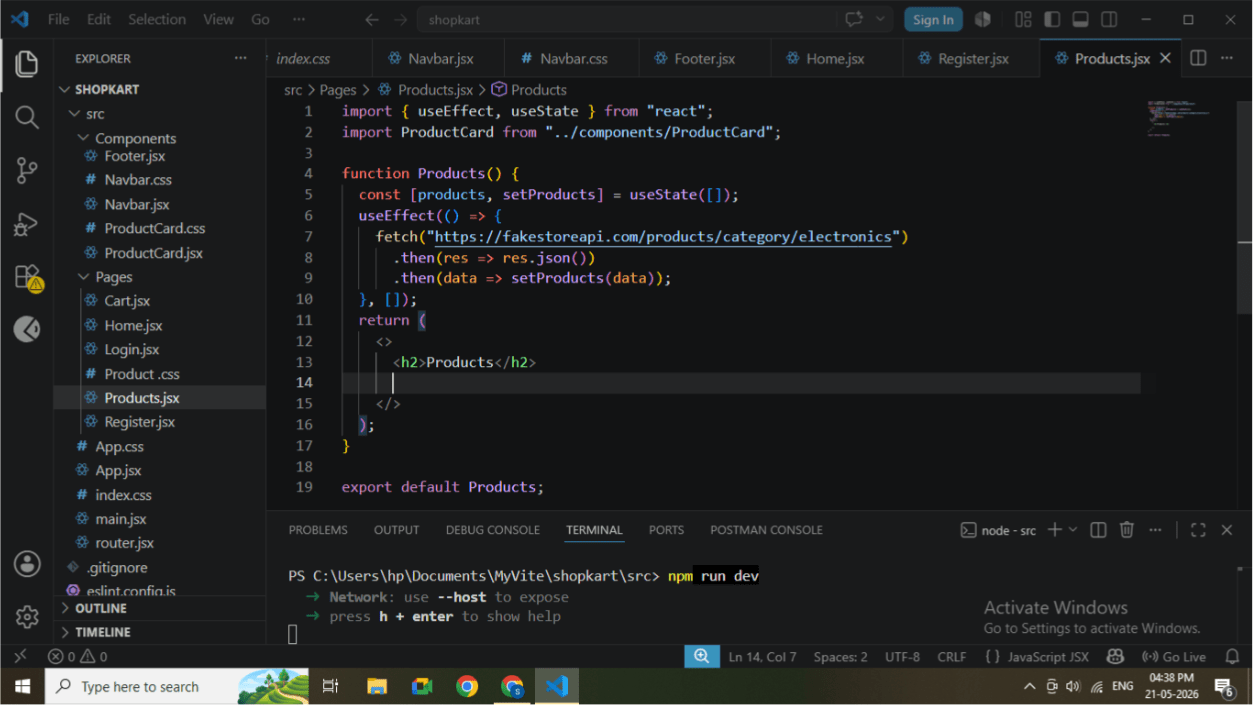
Import required hooks and component
import { useEffect, useState } from "react";
import ProductCard from "../components/ProductCard";
4
Initialize state
const [products, setProducts] = useState([]);
5
Fetch API data
useEffect(() => {
 fetch("https://fakestoreapi.com/products
")
   .then(res => res.json())
   .then(data => setProducts(data));
}, []);
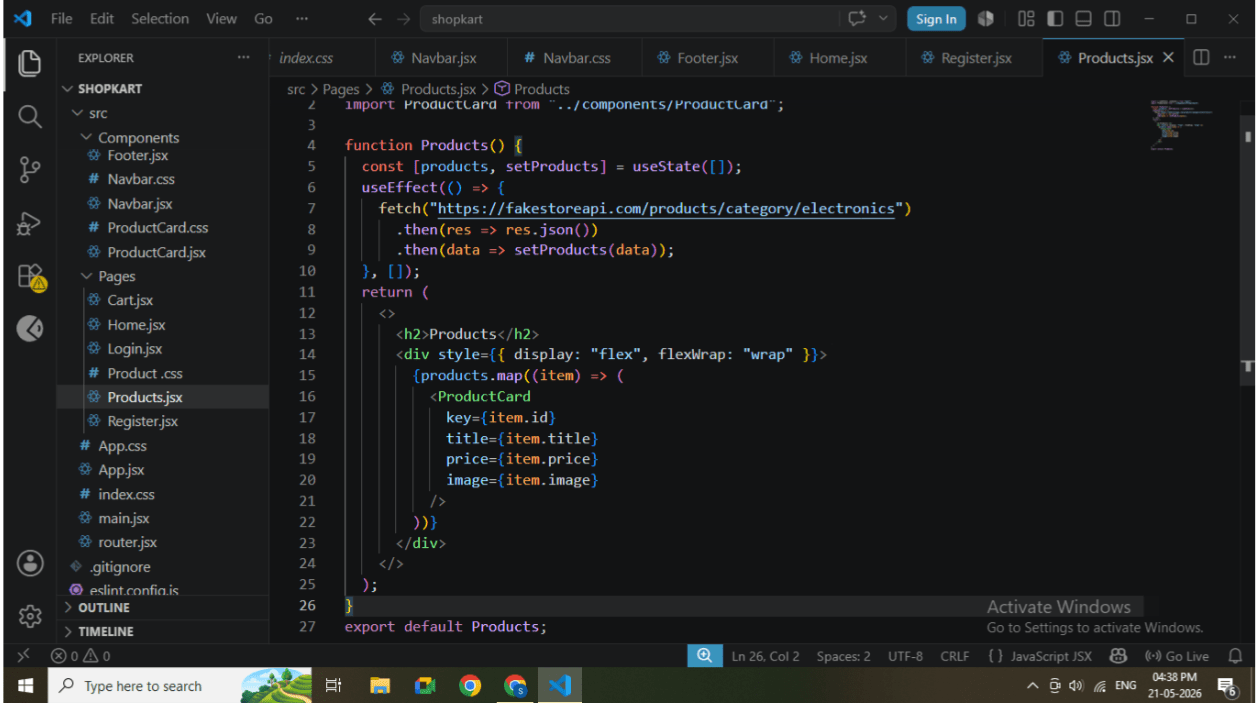
Task 3: Render Product List
1
Use map function to display products
{products.map((item) => (
 <ProductCard
   key={item.id}
   title={item.title}
   price={item.price}
   image={item.image}
 />
))}
2
Wrap inside container
<div>
 <h2>Products</h2>
 {products.map(...)}
</div>
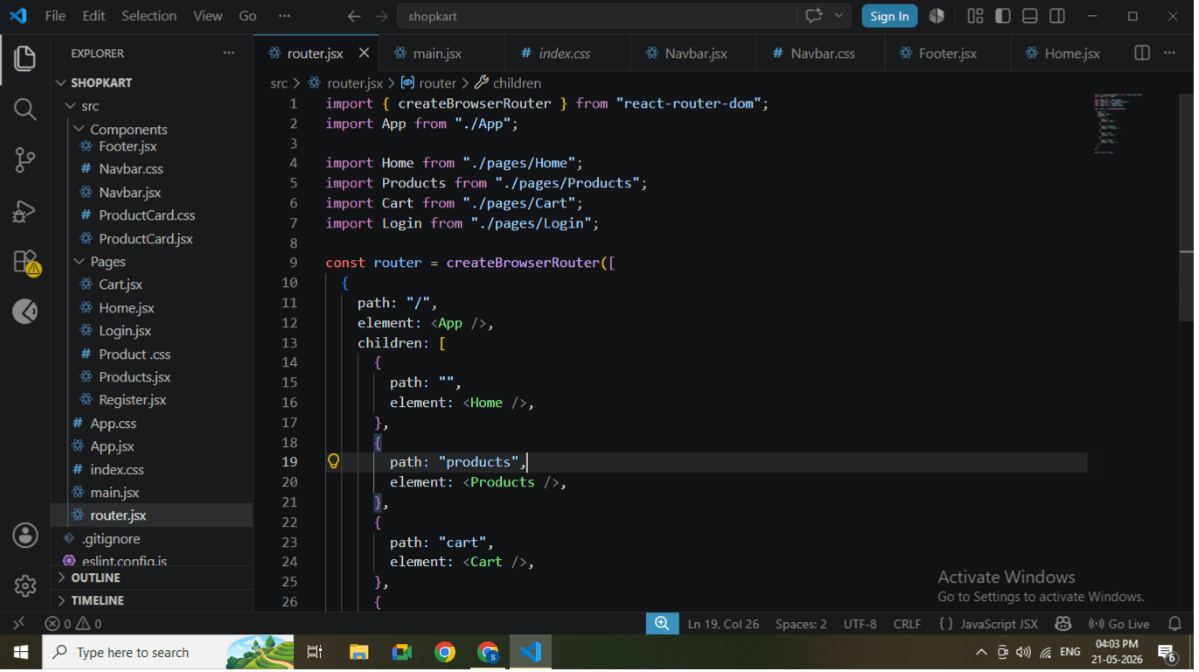
Task 4: Verify Routing Integration
1
Open router.jsx
2
Ensure Products route exists
{
 path: "products",
 element: <Products />,
}
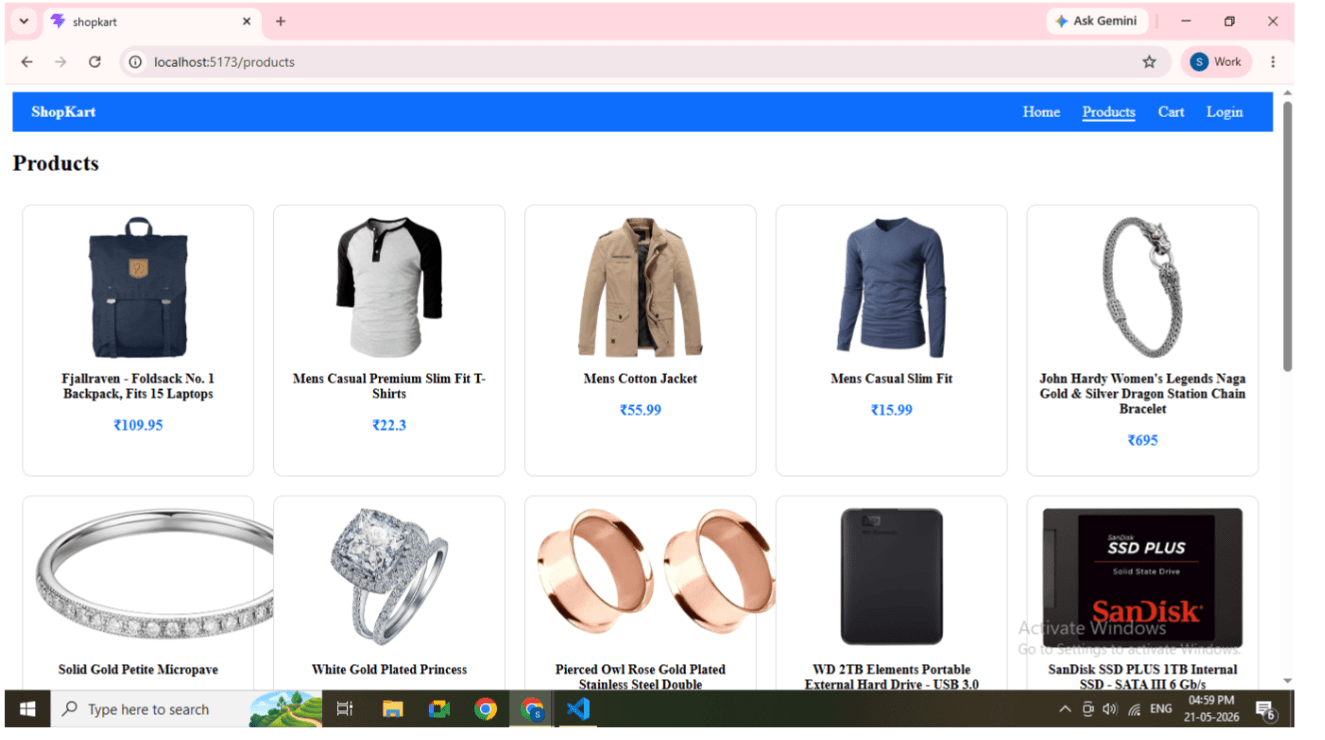
Task 5: Run Application
1
Run command
npm run dev
2
Open browser
https://fakestoreapi.com/products
Great job!
Created reusable ProductCard component
Used props for data passing
Managed API data using useState and useEffect
Rendered dynamic product list using map and keys
Integrated API with React application
Checkpoint
Next-Lab Preparation
Add to Cart functionality
State management
Form handling
Backend integration
By Content ITV