How do I...
Using the ICO Library Catalog
Check my account
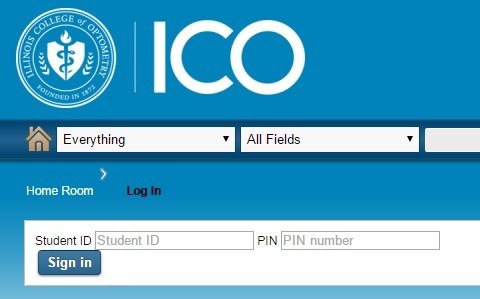
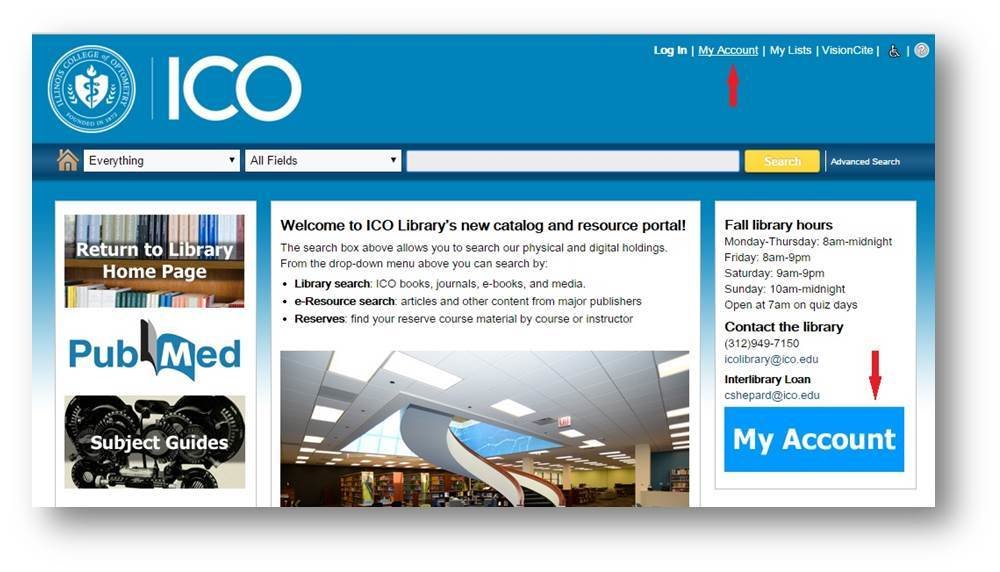
1. Click on My Account
2. Enter your Student ID and PIN number in the appropriate fields.

1
2
Renew Books
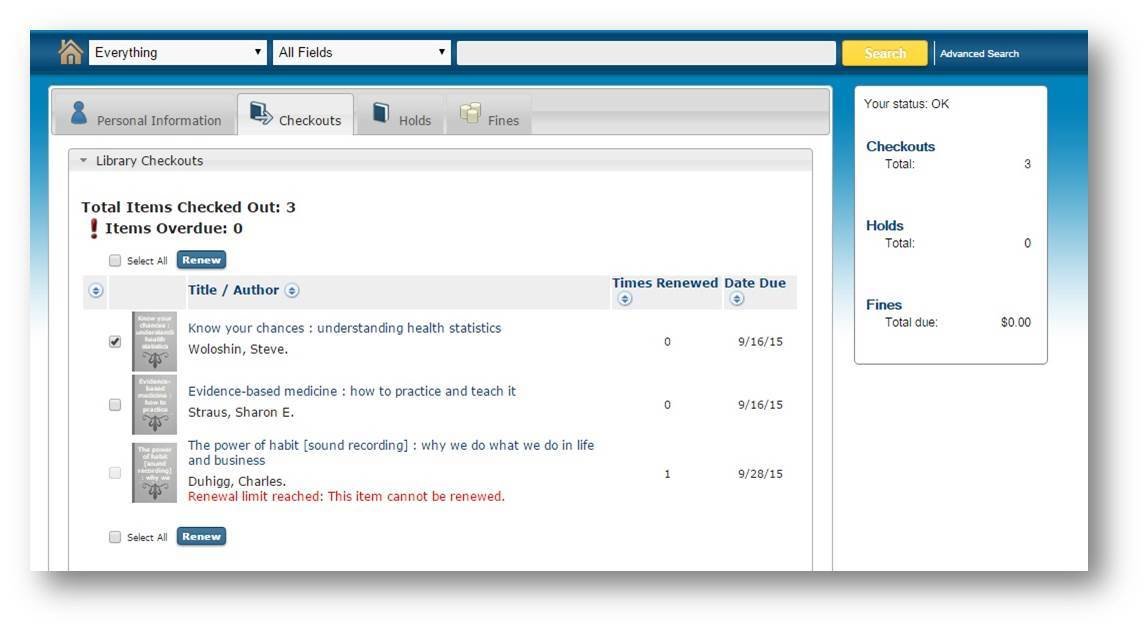
1. Login to My Account
2. Select the Checkouts tab
3. Select the items you want to renew, click the Renew button.
Narrow Search Results
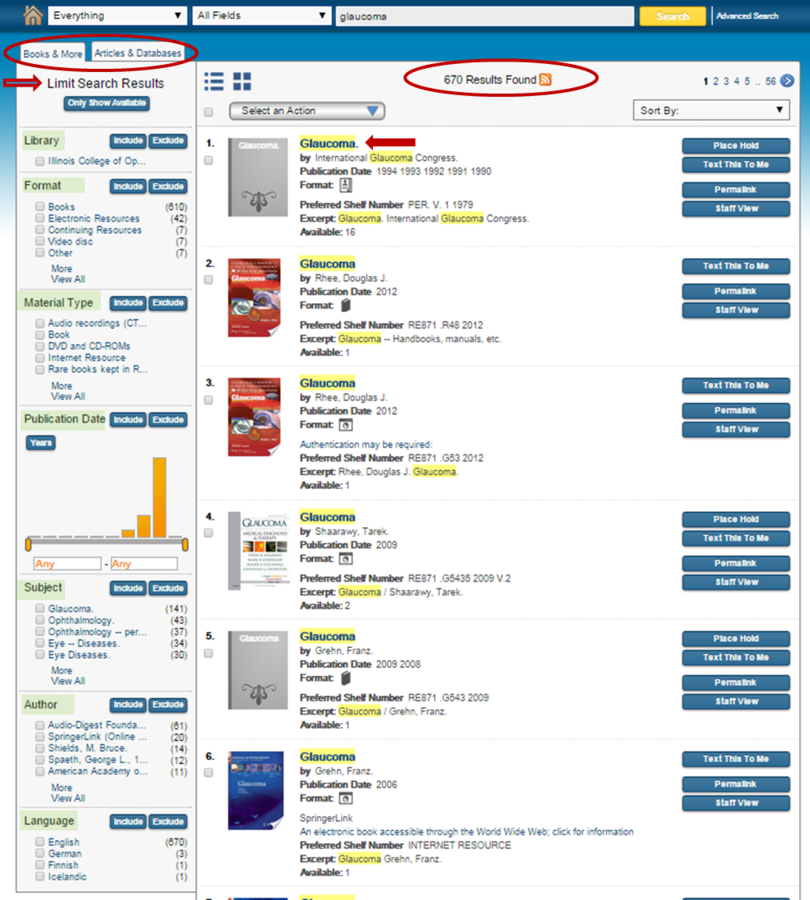
Use the filters on the left to narrow results. Options include:
Books & More: Books, ebooks, DVDs, CDs, equipment, multimedia.
Articles & Databases: Subscription and Open Access journal articles, ebooks, multimedia.
Format / Material type
Publication date
Subject
Author cont'd
Narrow Search Results
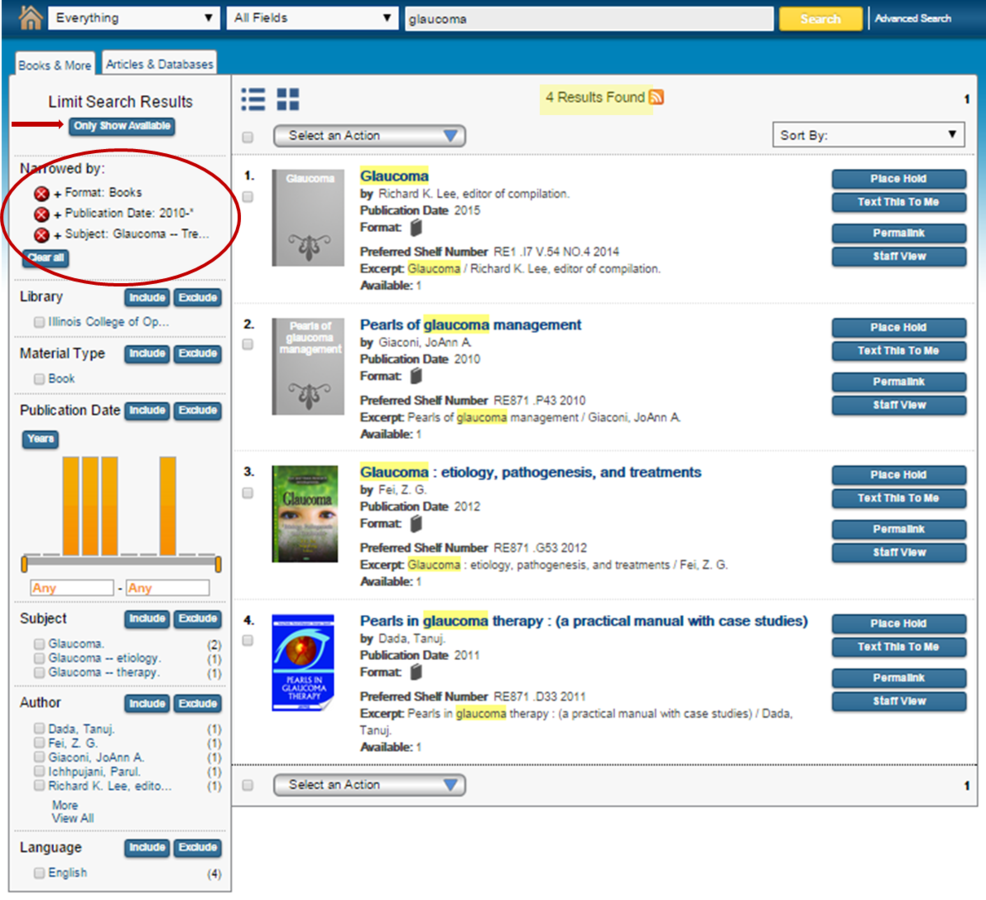
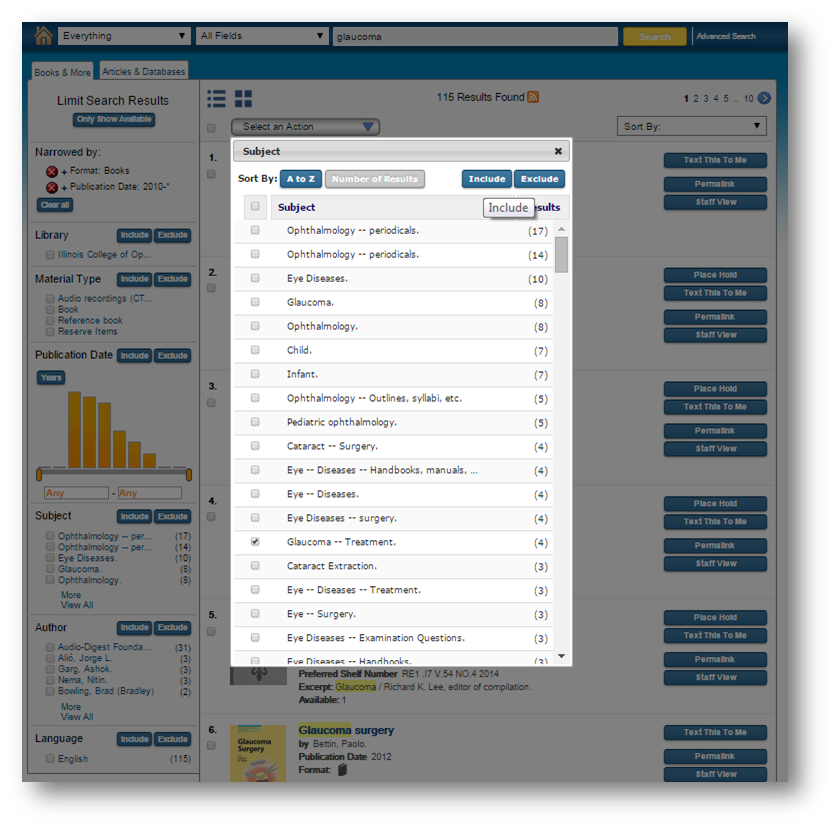
- Select the search limits wanted.
- Search limits can be removed
- Click Only Show Available to see items on hand
Cont'd
1
2
3
Conduct an Advanced Search
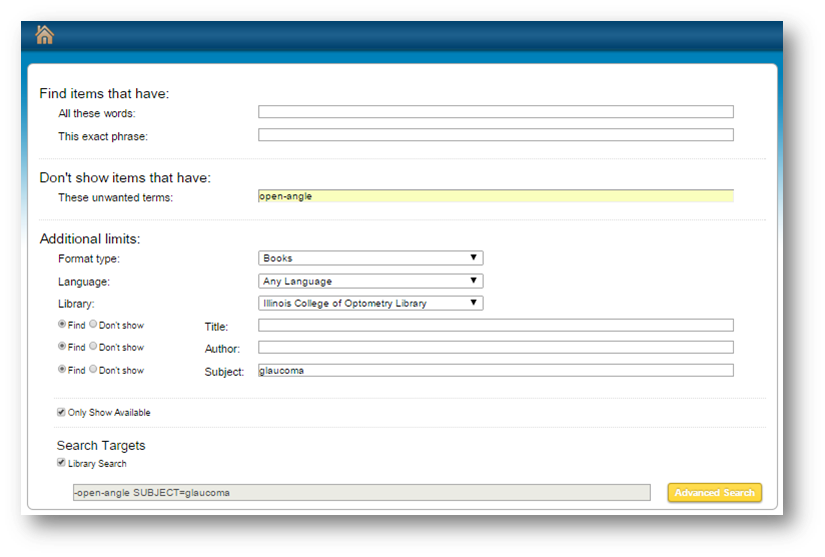
- Click on advanced search
- Enter the search terms you want to include or exclude.
- Limit search by subject, format, language, availability, etc.

1
2
3
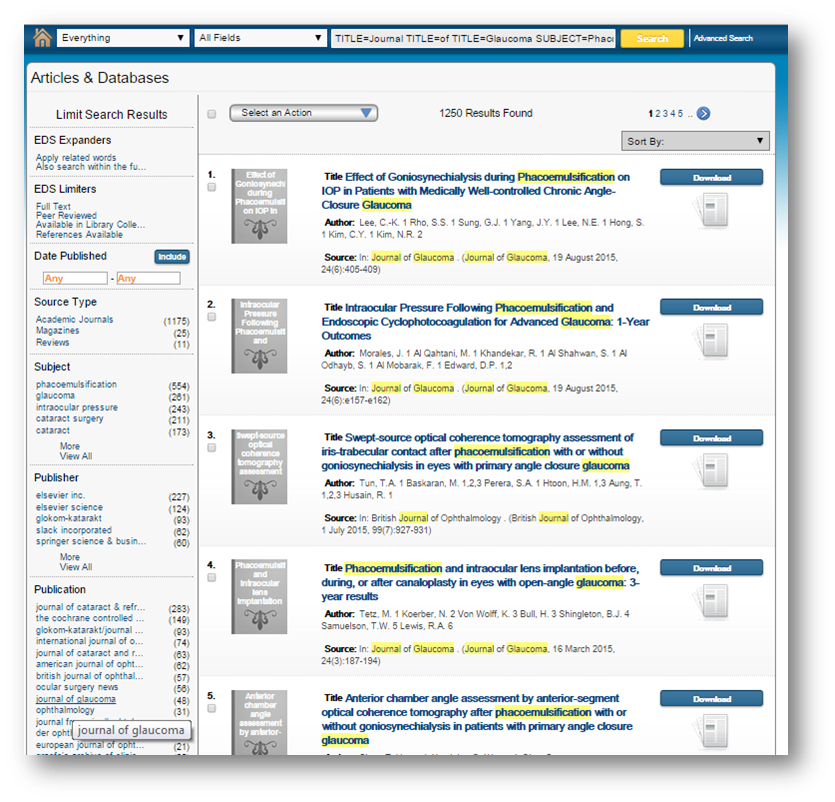
Search within a journal
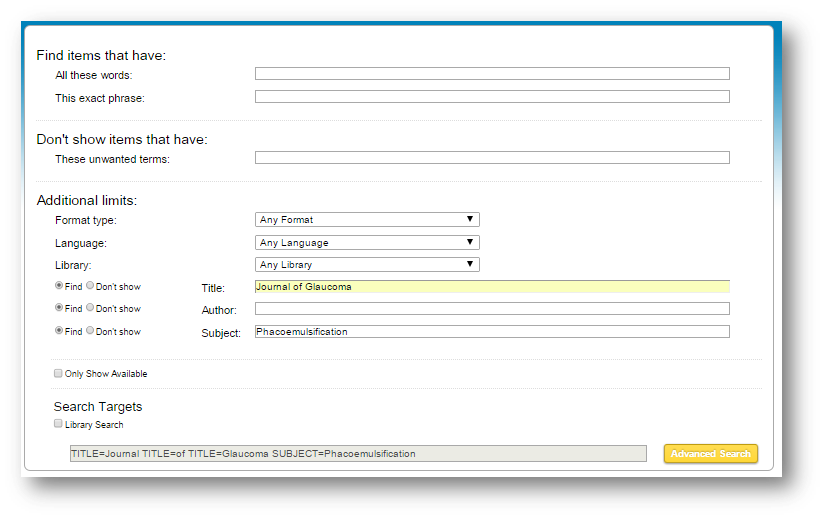
1. Click on Advanced Search.
2. Enter journal title and subject or author.
3. Submit search terms.
4. Click Switch to Articles & Databases.
5. Under the Publication filter, select journal.

3
4
5
2
1
Find Articles
- Select Articles & Databases
- Select search query type
- Enter your search term
- Click Search
- Select Articles & Databases tab
- Sort search results by date or relevance
- Limit search results by
- full-text
- peer reviewed
- source type
- date
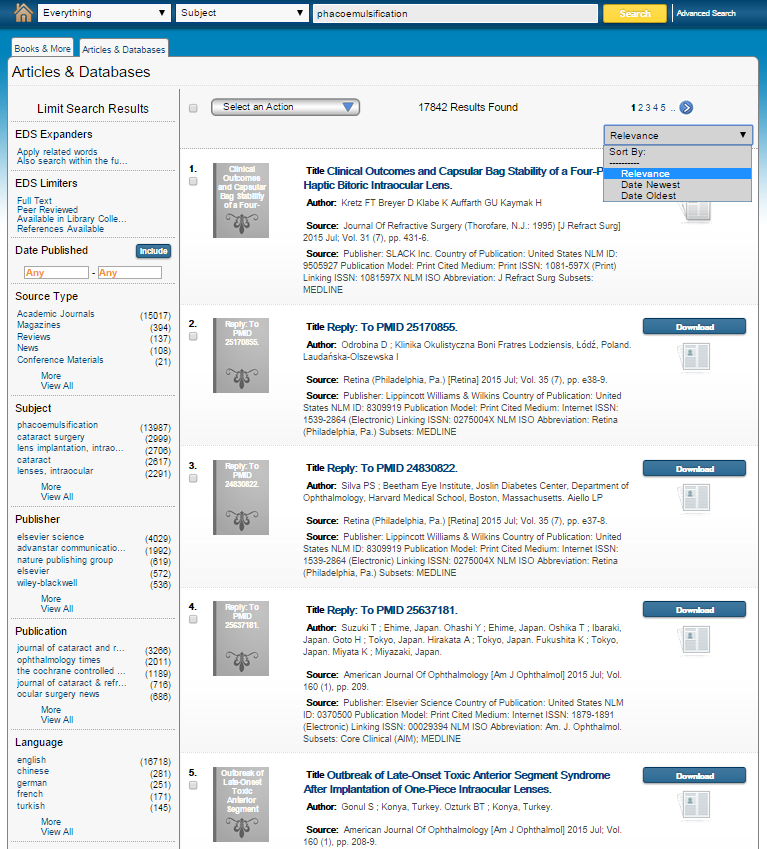

- subject
- publication
- language, etc.
- publisher
1
2
3
4
5
6
7
Access
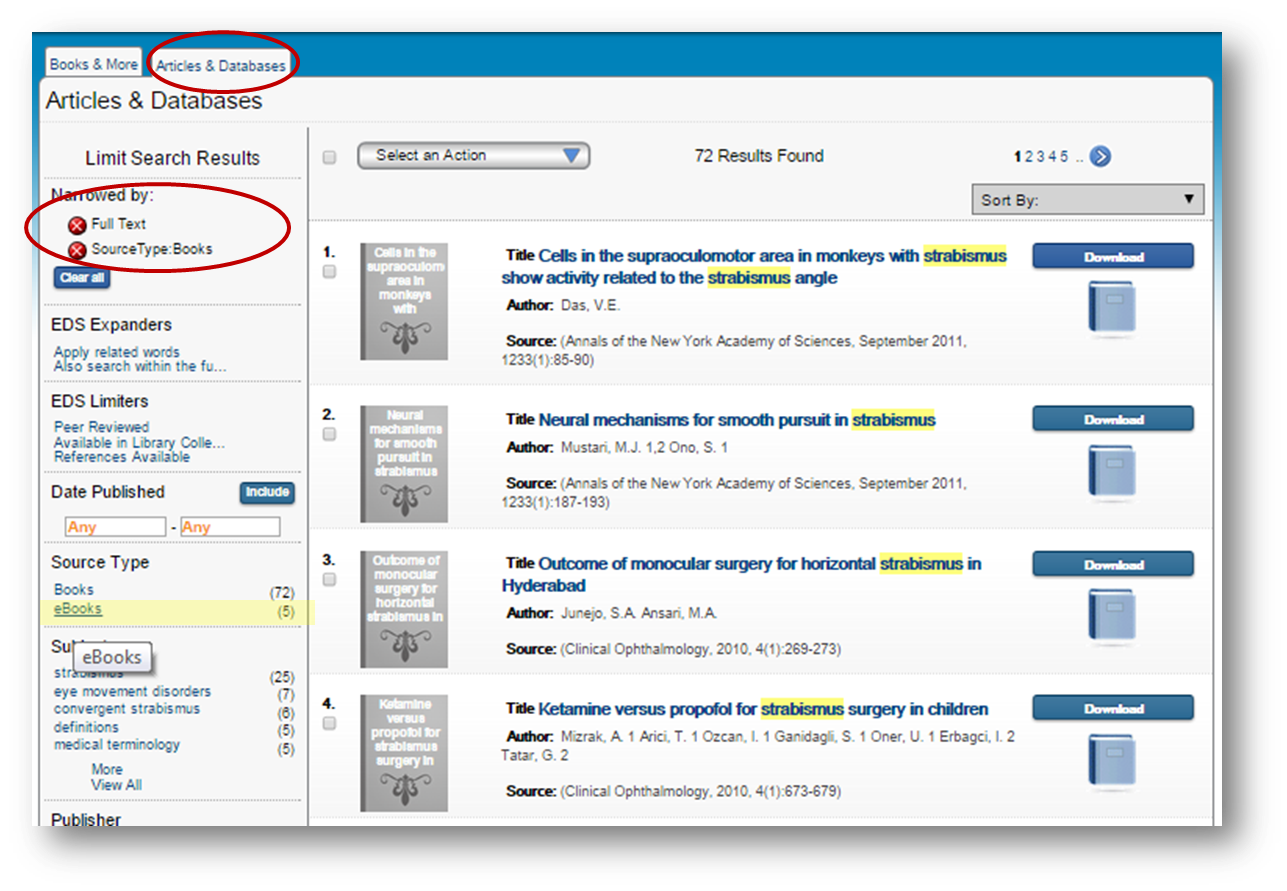
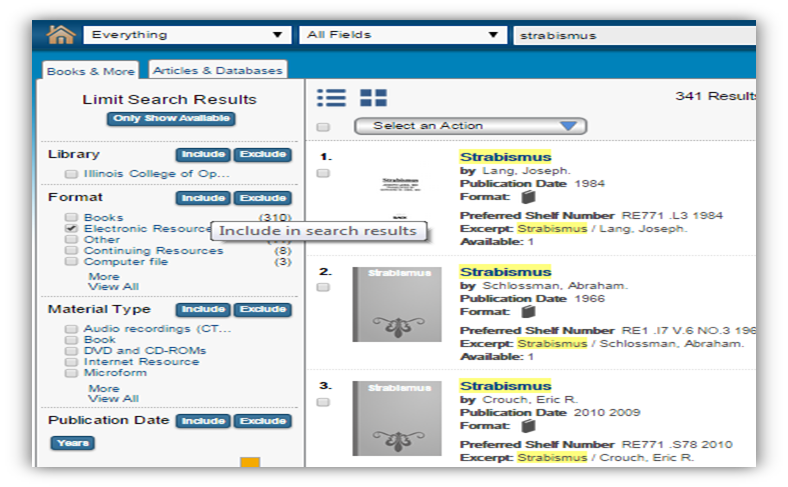
eBooks
1. Enter search term in search box.
2. Under Books & More tab, select Electronic Resources, click Include.
3. Under Articles & Databases tab, select Full Text and Books.
4. Under Source Type select eBooks for eBooks or Books for electronic reference articles in encyclopedias and reference books.
1
2
3
4
OR
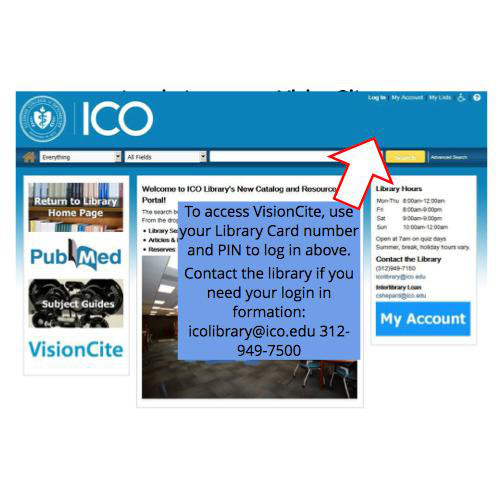
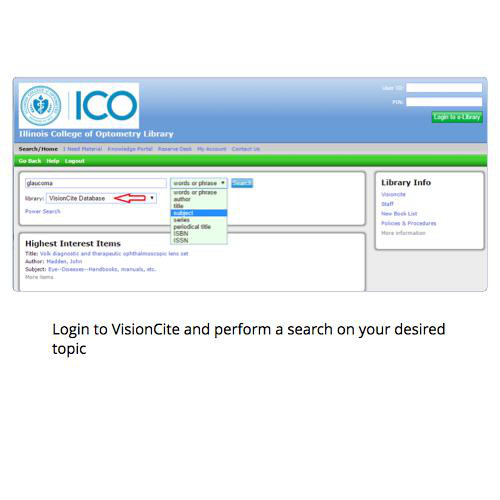
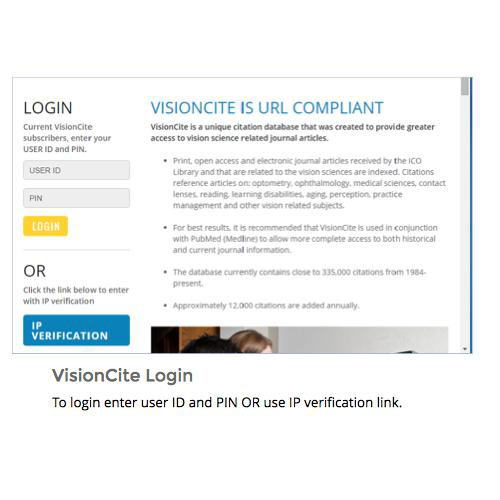
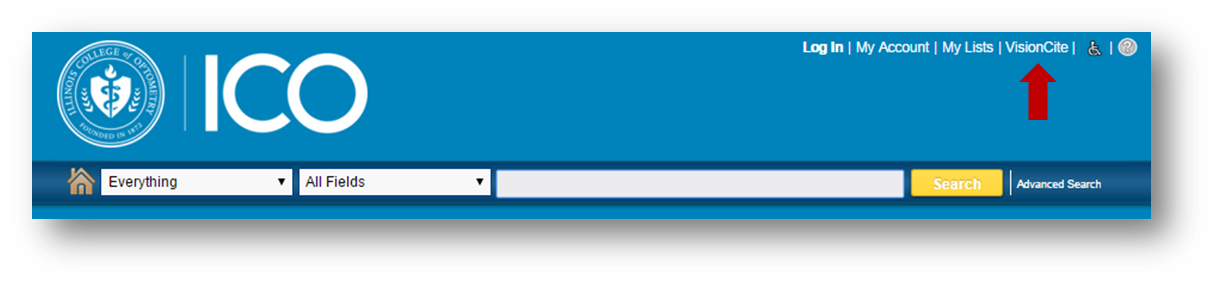
Find VisionCite Articles
- Click VisionCite
- See guide for Searching VisionCite
Enterprise Search
By ICO Library
Enterprise Search
Quick tutorial on how to use the new ICO Library catalog.