Week 9 Promineo Tech
Introduction to Chrome Debugger
Chrome DevTools Debugger: Debug, Inspect, Troubleshoot

What are your browser's debugger tools and what do they do?
Debugger tools help you troubleshoot problems with your JavaScript code. You can pause code execution, inspect variables, and step through the code line by line.
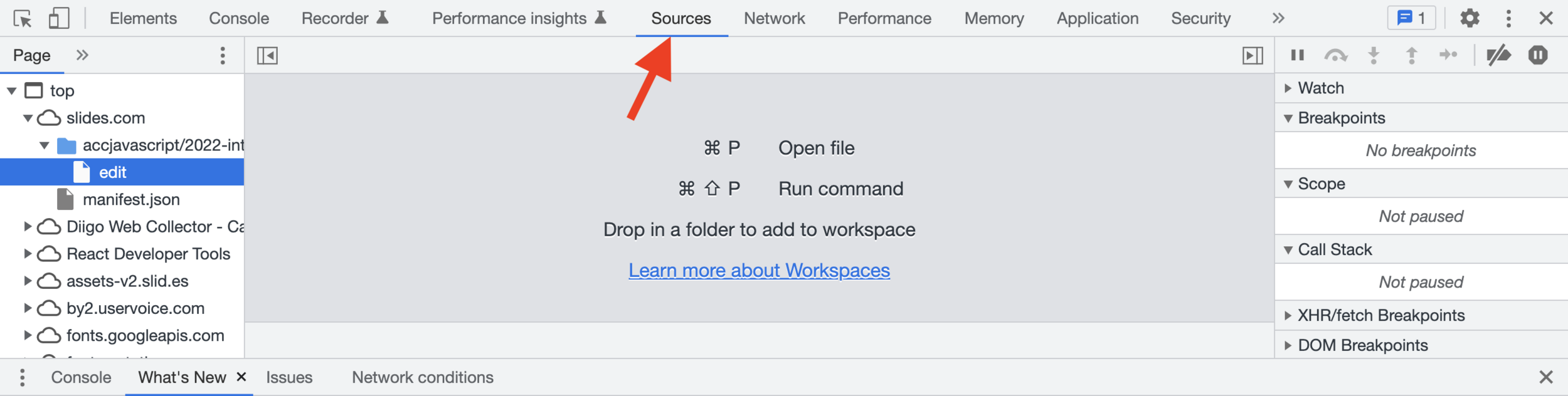
Note that most browsers (and IDEs) have debugger tools, but we will be demoing Chrome's debugger tools in class
You can add breakpoints to pause your JavaScript on any line of code, and learn what a variable or expression is equal to at that point in time.
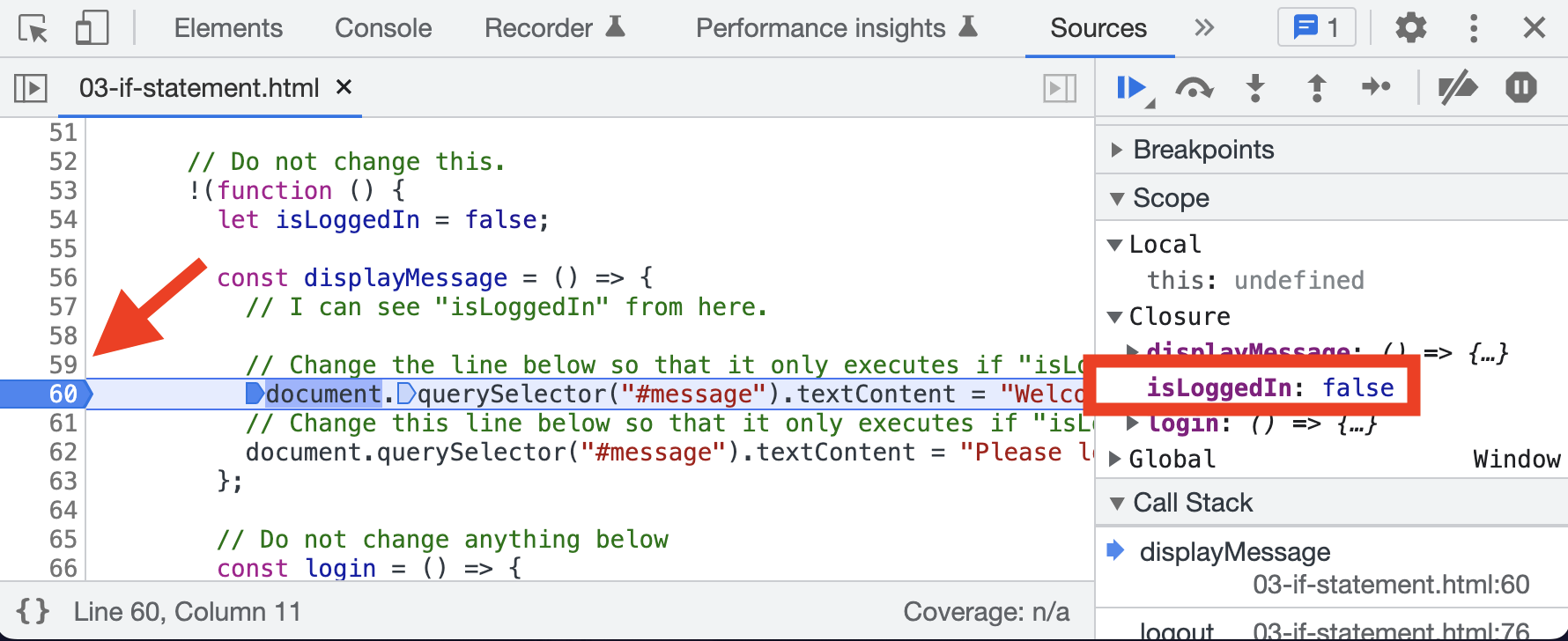
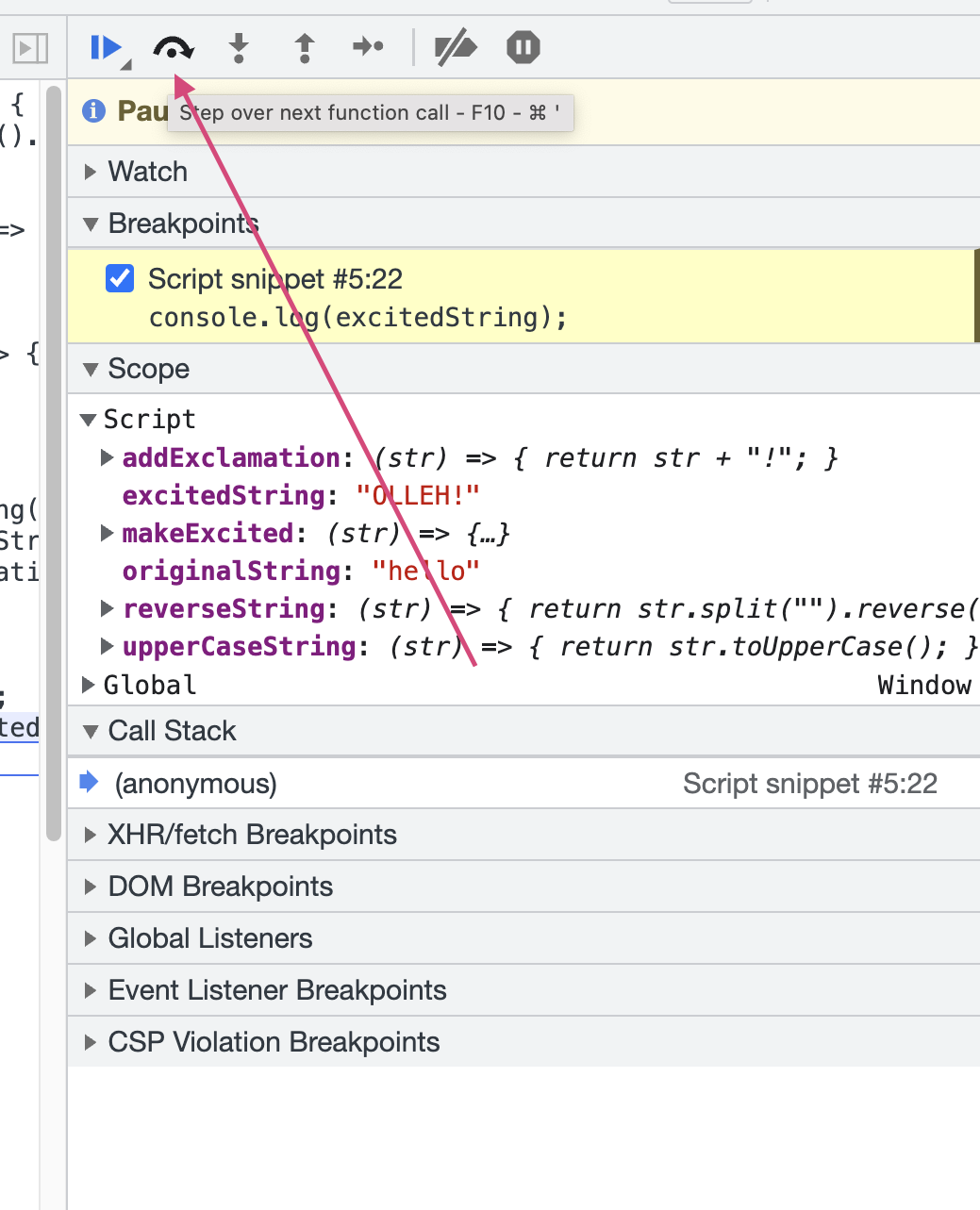
Stepping through code:
- Step over next
- Step into
- Step out of
- Step line by line
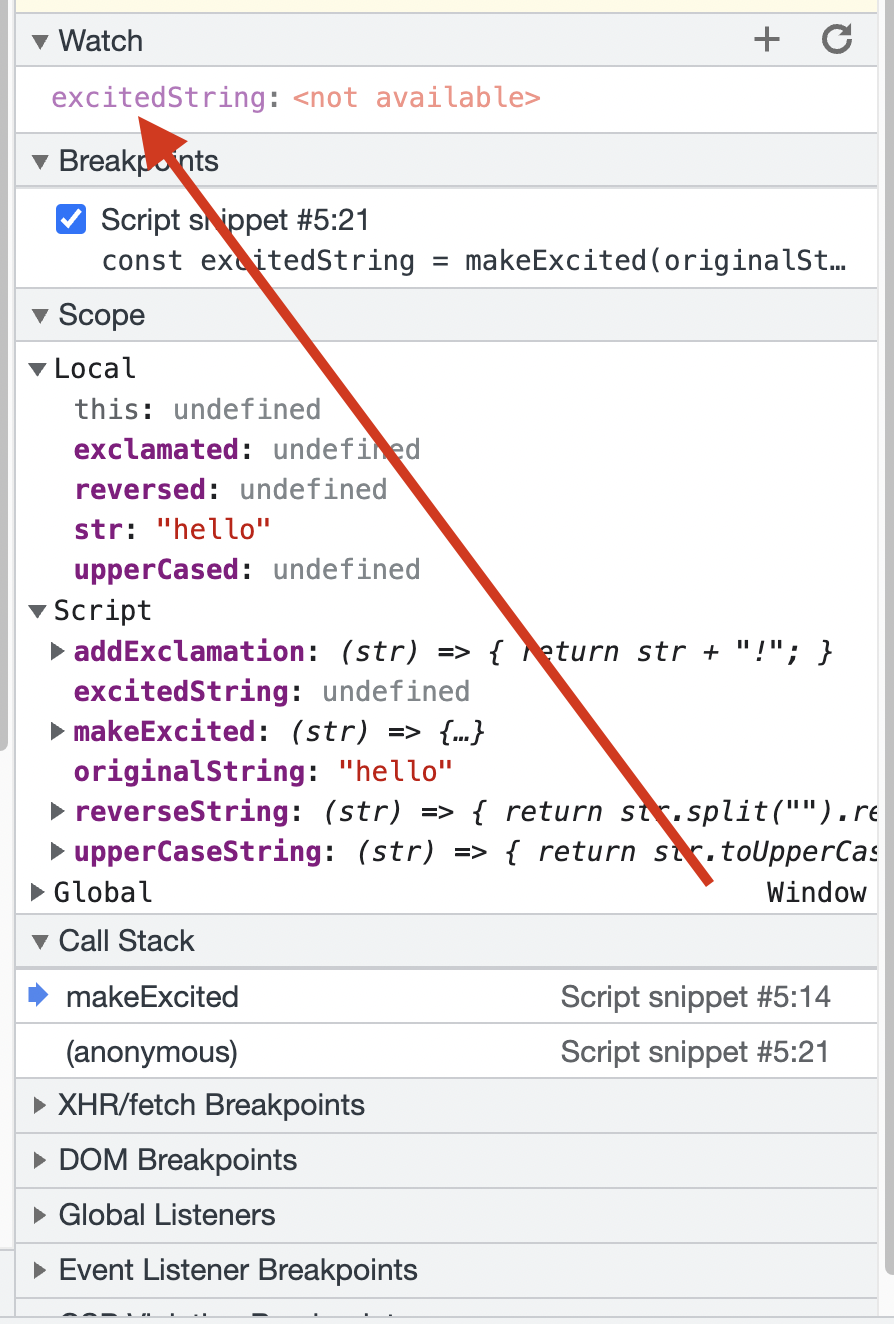
You can add a variable or expression to your watch list. Now you can always see the variable or expression is at any give point in time.
You can add and execute code with code snippets
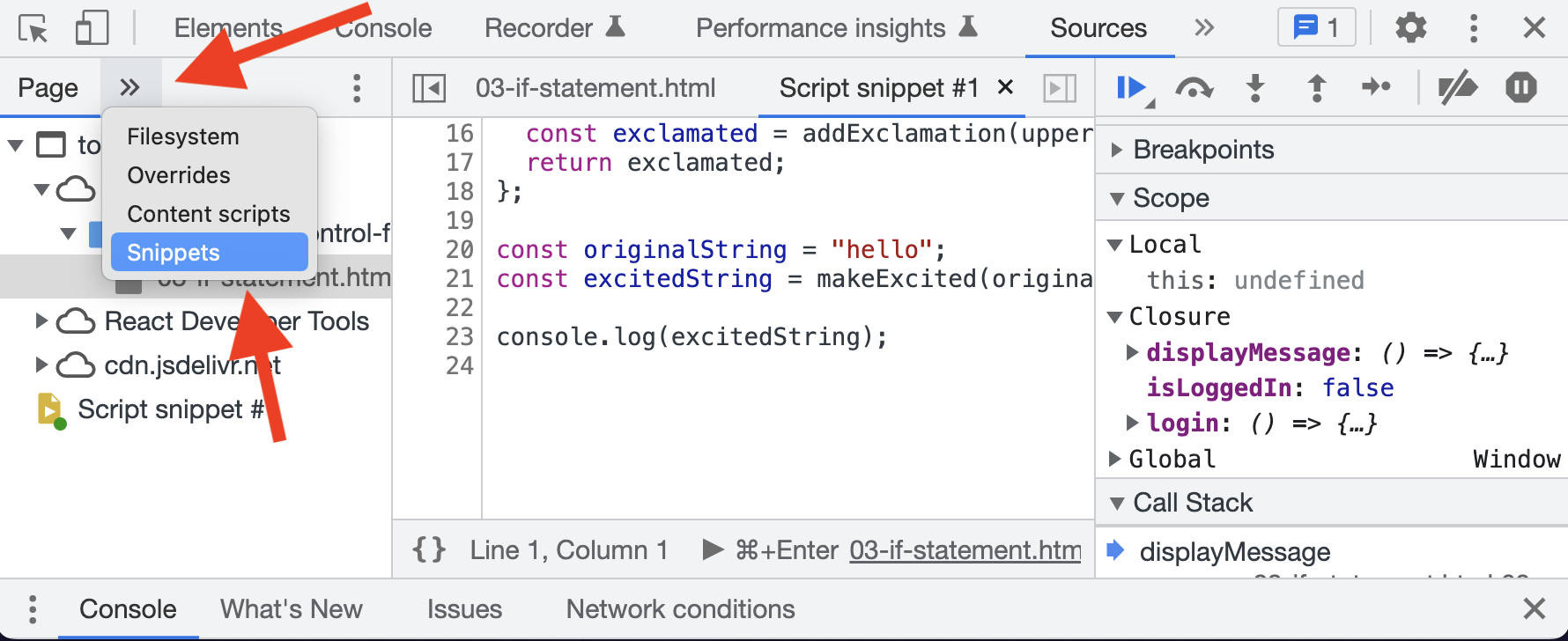
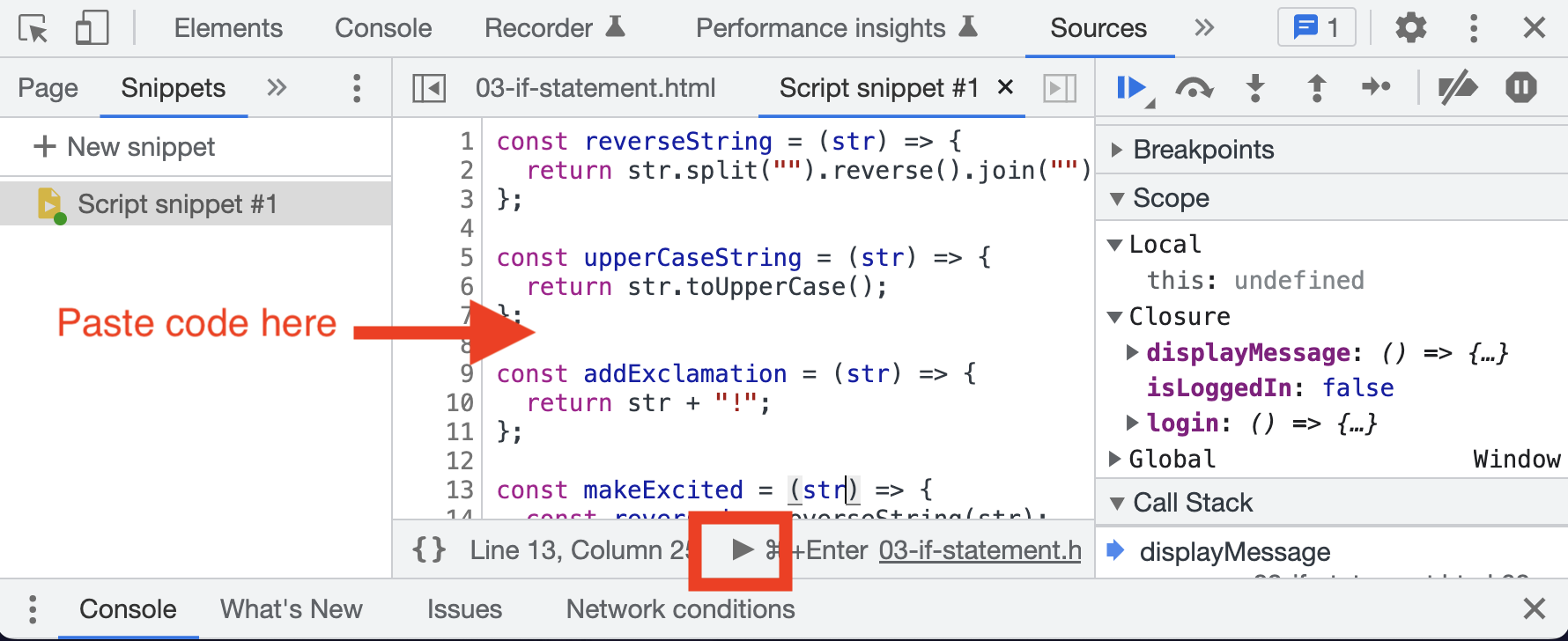
Terminology
Step-Over-Next-Function-call: Step Over is a feature in a debugger that allows you to execute the current line of code, and if it calls a function, move to the next line in the current function instead of diving into the function call.
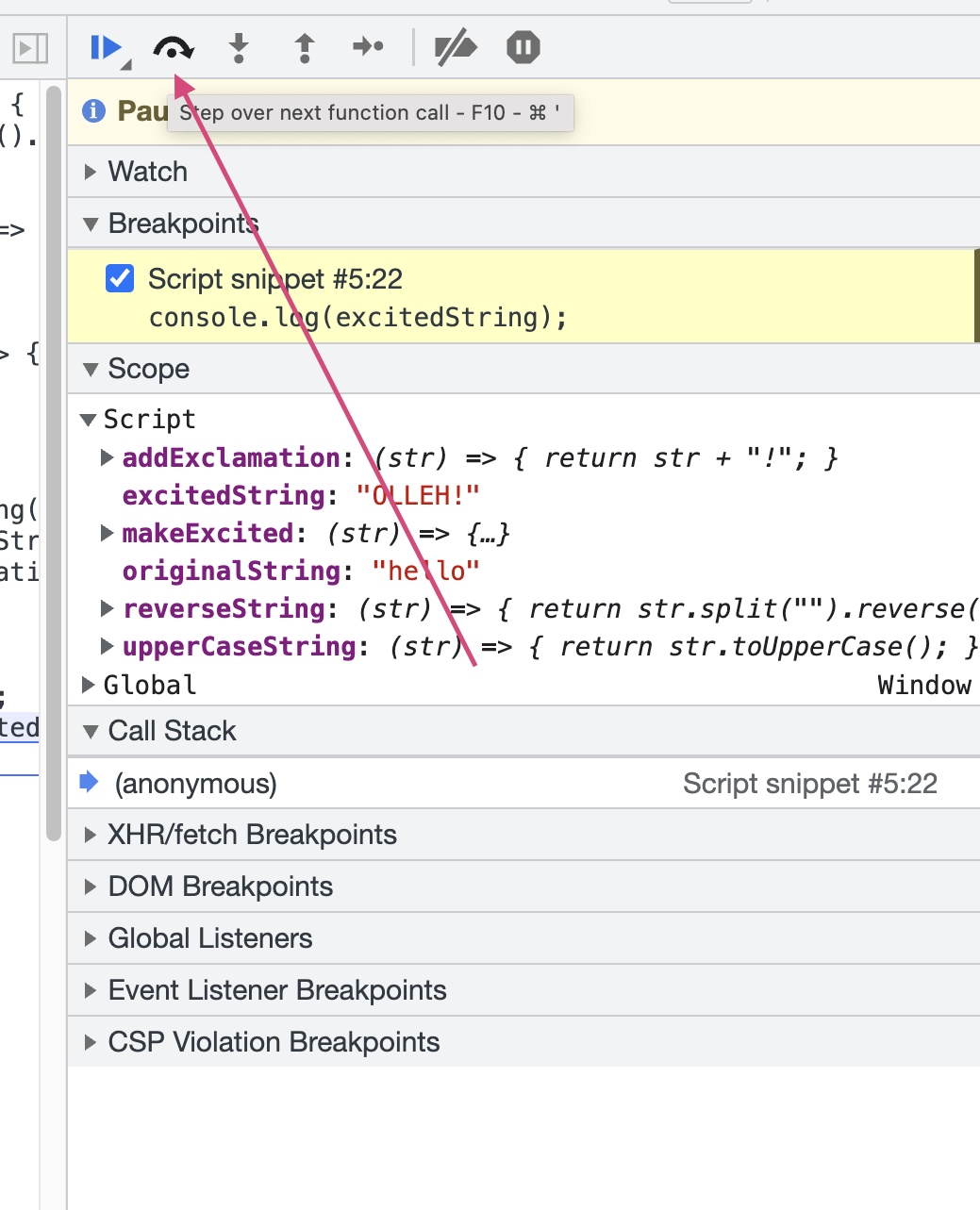
Step-Over-Next-Function-call is best used when you want to execute the current function and move to the next one, without stepping into its inner functions
Step-Into-Next-function-Call:
Step Into is a debugging tool that allows you to move step-by-step through a function's code, including the functions it calls, to examine the execution of your code.
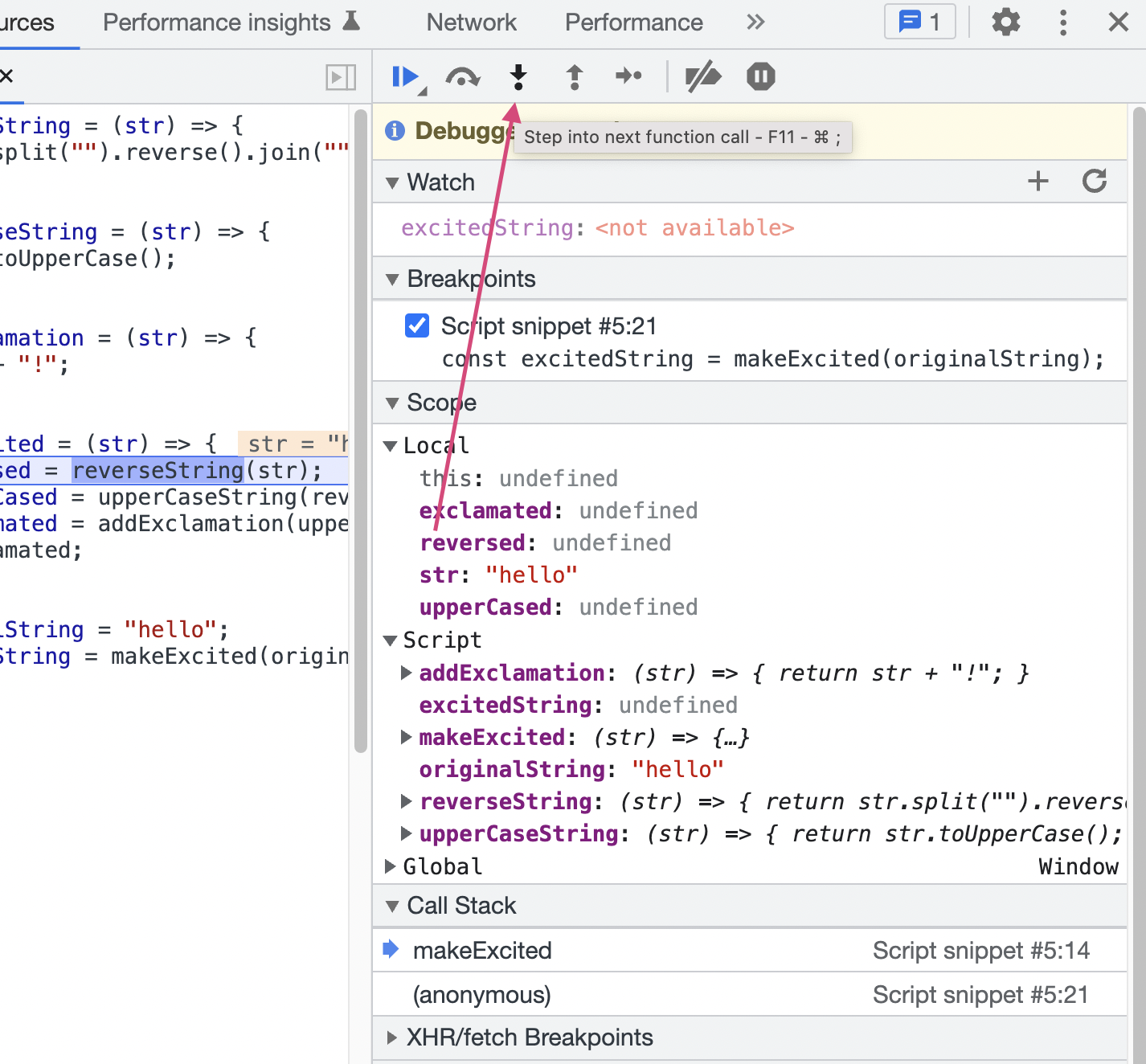
Step-Into-Next-function-Call: is useful for debugging because it allows you to dive into the next function call and examine its inner workings, including its variables and behavior, in order to identify any issues or errors.
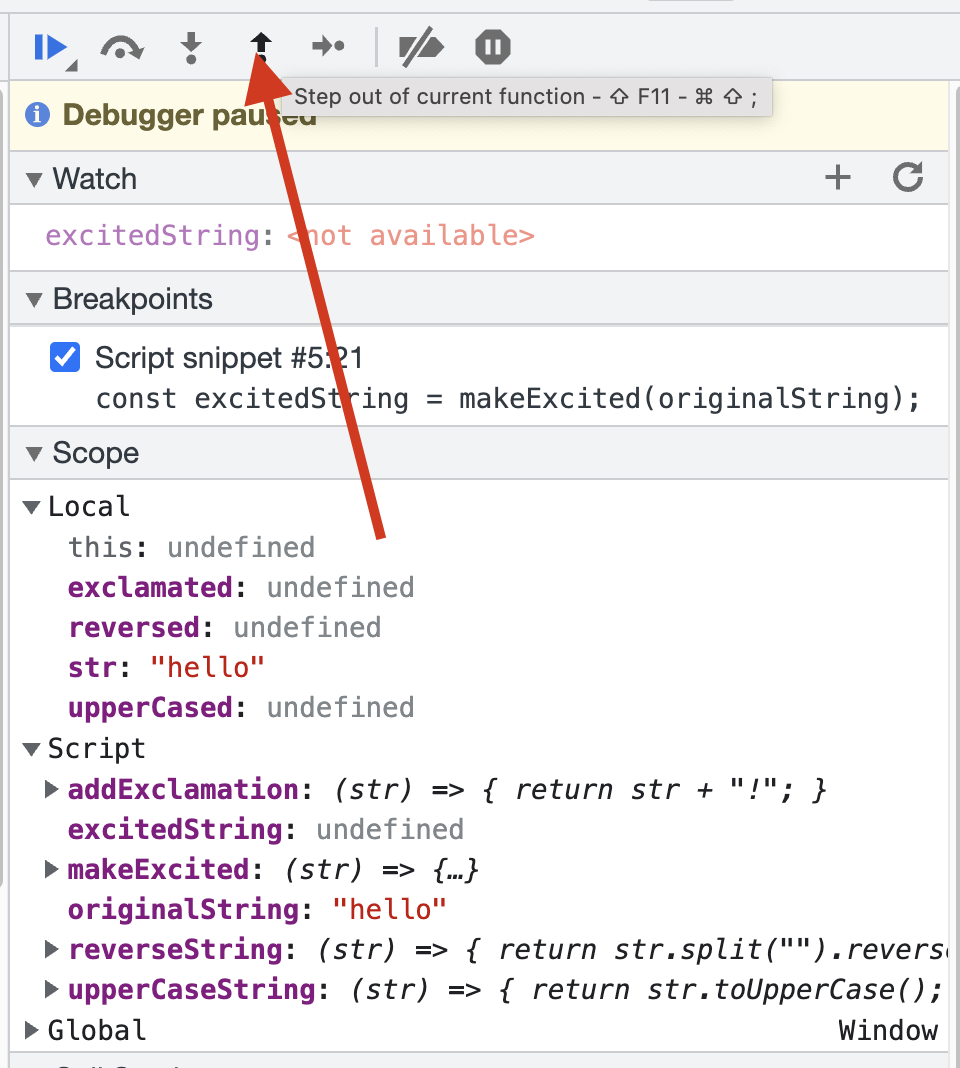
Step-Out-of-current-Function-call
allows you to continue executing code outside of the current function. It enables you to step out of the current function, without stepping into the next function call. When you reach the end of the current function, the debugger will stop at the next line of code outside of the function, allowing you to continue debugging.
This feature is useful when you want to see the overall behavior of the code and not get bogged down in the details of a specific function.
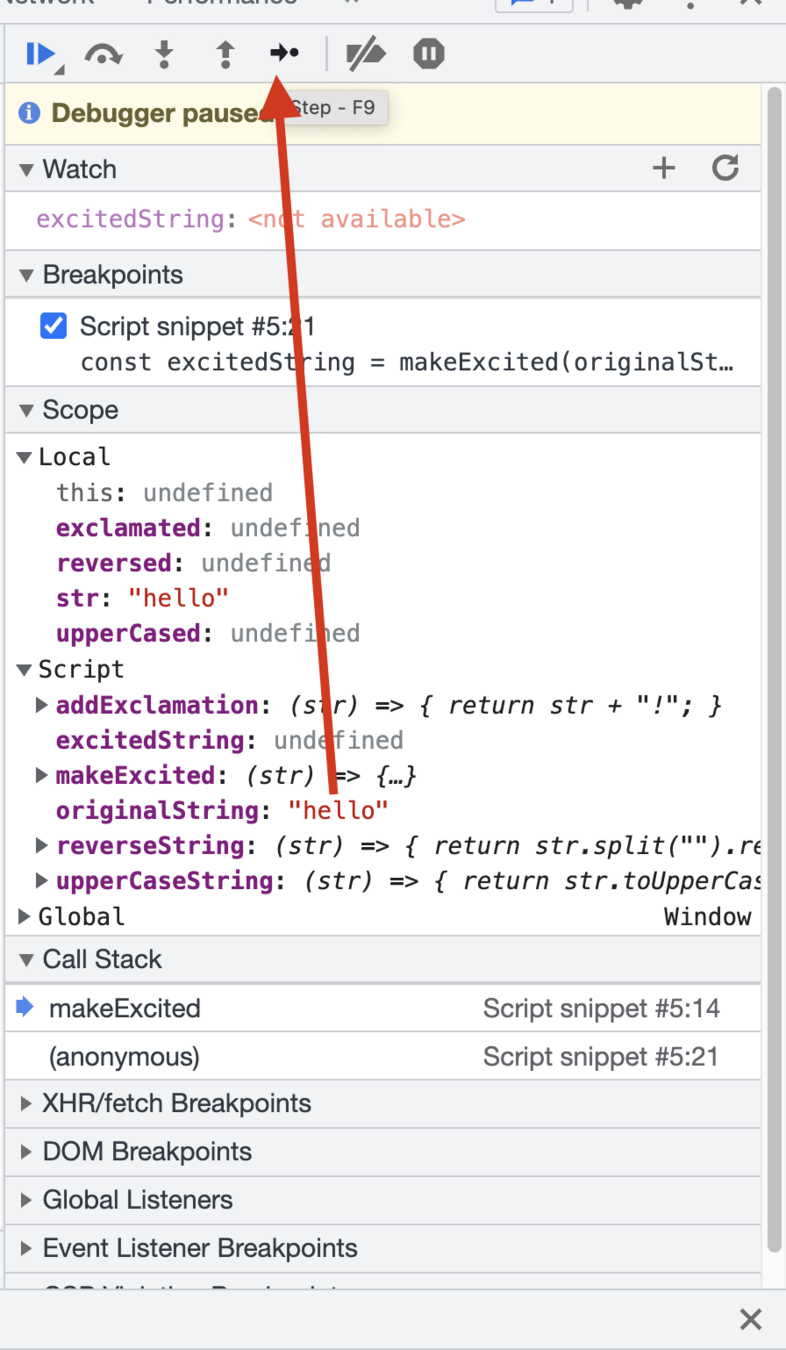
"Step (F9)":in Chrome DevTools allows you to step through the code line by line, executing each line of code as you go. It allows you to see the effect of each line of code on your program as it is executed.
This can be especially useful when trying to identify errors in your code, as you can see exactly where and how things are going wrong. Additionally, stepping through code can help you understand how it works and give you a better understanding of how different parts of your program are interacting with each other.
In the Chrome Debugger, the "Watch" feature allows you to keep track of specific variables or expressions while debugging your code. You can add variables or expressions to the watch list, and the debugger will display their values each time you hit a breakpoint or pause the execution of the code.
This is useful because it helps you to understand how the values of these variables change during the execution of the code, and helps you to debug any issues or unexpected behavior

Bug Ticket
Acceptance Criteria
The function makeExcited should correctly reverse, uppercase, and add an exclamation mark to the input string.
The function should return the expected output of "!OLLEH!" when passed the input string "hello".
The returned value should match the expected output exactly, including capitalization and exclamation mark placement.
const reverseString = (str) => {
  return str.split("").reverse().join("");
};

const upperCaseString = (str) => {
  return str.toUpperCase();
};

const addExclamation = (str) => {
  return str + "!";
};

const makeExcited = (str) => {
  const reversed = reverseString(str);
  const upperCased = upperCaseString(reversed);
  const exclamated = addExclamation(upperCased);
  return exclamated;
};

const originalString = "hello";
const excitedString = makeExcited(originalString);

console.log(excitedString);
Expected Results:
- User enters two numbers into the input boxes
- User clicks submit button
-
The result of the addition of the two numbers is displayed on the page.
Actual Results: - User enters two numbers into the input boxes
- User clicks submit button
-
The result of the concatenation of the two numbers is displayed on the page instead of the addition.
AC: Two Input Addition Debugging Challenge
Steps to Reproduce:
- Open the Two Input Addition Debugging Challenge page
- Enter two numbers into the input boxes
- Click the submit button
- Observe the result displayed on the page
https://roaring-tartufo-39ff37.netlify.app/
Automated Testing
CHAI and Mocha
Types of Automated Testing
Unit Testing
UI
Component,
Integration, API
* This does not include every type of testing
Unit Testing
A unit test focuses on a single “unit of code” – usually a function in an object or module. By making the test specific to a single function, the test should be simple, quick to write, and quick to run.
Title Text
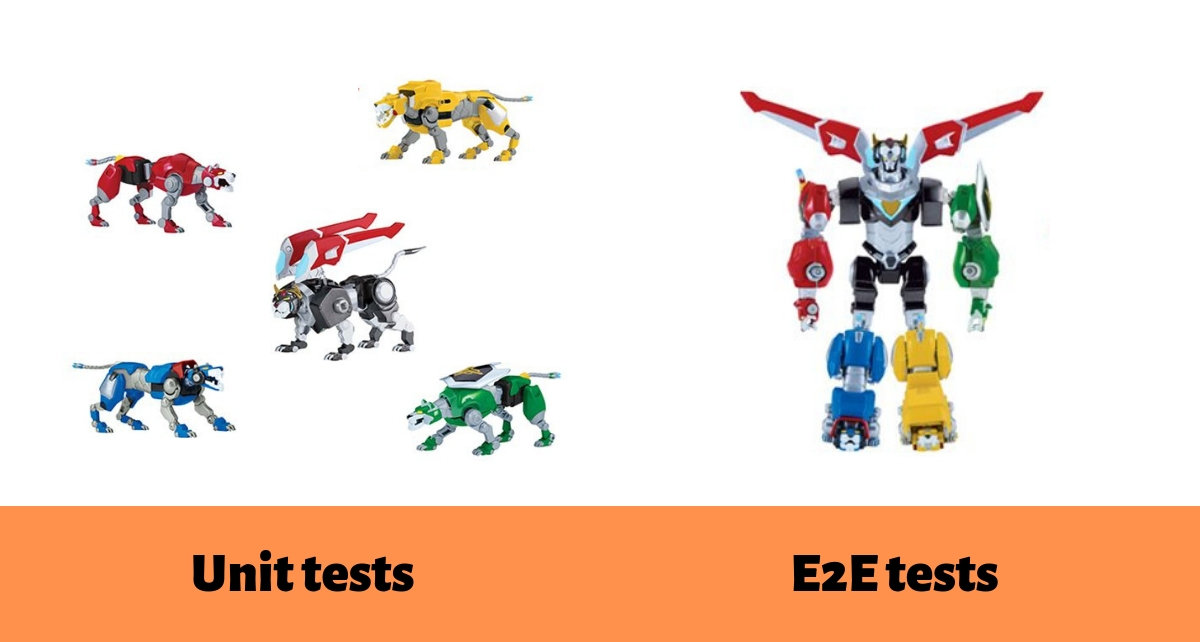
Unit Tests
End-to-End Tests
End-to-end testing
is a method of testing that validates the software system's performance from start to finish, covering all components, interactions, and data flow. The goal is to mimic real-world scenarios and ensure that the software system works as expected.
End-to-end testing provides numerous benefits
-
Improved User Experience: By testing the entire system, end-to-end testing ensures that the user experience is seamless and consistent.
-
Early Detection of Integration Issues: End-to-end testing helps to identify any integration issues between different components of the system, allowing developers to resolve them before the product is released.
-
Increased Confidence in the System: End-to-end testing provides confidence that the entire system is functioning as expected, reducing the risk of critical failures.
Benefits of Unit Testing
- Makes the process agile (that is, your code can adopt to changing business requirements over time)
- Finds software bugs early
- Finds software bugs easily when you refactor your code
- Increases code quality
- Makes debugging code easy - when your tests fails, you can spot where the bug is
- Provides documentation on what you expect your code to do
- Reduces costs (in the long run)
Benefits of Unit Testing
- Makes the process agile (that is, your code can adopt to changing business requirements over time)
- Finds software bugs early
- Finds software bugs easily when you refactor your code
- Increases code quality
- Makes debugging code easy - when your tests fails, you can spot where the bug is
- Provides documentation on what you expect your code to do
- Reduces costs (in the long run)
Title Text

Two Styles of Unit Testing
- Test Driven Development (TDD)
- Behavior Driven Development (BDD)
Test Driven Development
You write your test before you start writing any code
write test > watch it fail > implement > watch it pass > refactor > repeat
Write
Test
Pass
Test
Refactor
Pros
- You write code you know will meet the business requirements
- TDD projects often get a code-coverage of 90-100%, which means maintaining the code and adding new features is easy
Cons
-
The most difficult thing about TDD for many developers is the fact you have to write your
test before writing your code.
Behavior Driven Development
initialize state > change state > verify new state
The goal of BDD is a business readable and domain-specific language that allows you to describe a system’s behavior without explaining how that behavior is implemented.
Behavior-Driven Development (BDD)
Initialize State: Set up the initial conditions for a feature or scenario.
Change State: Trigger actions or inputs to modify the system's state.
Verify New State: Ensure the resulting state aligns with the expected behavior.
BDD aims to provide a business-readable, domain-specific language for describing a system's behavior, focusing on what it does rather than how it is implemented.
Mocha + Chai
Unit testing frameworks in JavaScript


expect: Chai's default assertion library, which allows you to make assertions about the results of your code.assert: An alternate assertion library that provides a more traditional, less-verbose way to make assertions.should: An assertion style that makes your test code read like natural language, for exampleexpect(result).should.equal(expected).- Plugins: Chai has a large number of plugins available that add additional assertion types, such as
.be.afor type checking, and.deep.equalfor deep object comparisons.
Title Text
Typically you phrase BDD tests in the form of
“it should do something”.
describe("Counter", () => {
  test("should increase count by 1 after calling tick", () => {
    const counter = new Counter();
    const oldCount = counter.count;

    counter.increment();

    expect(counter.count).toBe(oldCount + 1);
  });
});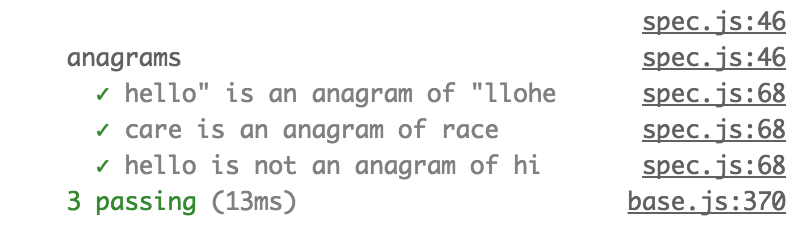
describe("anagrams", () => {

  it('hello" is an anagram of "llohe', () => {
    expect(anagrams("hello", "llohe")).to.equal(true);
  });
  it("care is an anagram of race", () => {
    expect(anagrams("care", "race")).to.equal(true);
  });
  it("hello is not an anagram of hi", () => {
    expect(anagrams("hello", "hi"), function() {
      expect(anagrams("hello", "hi")).to.equal(false);
    });
  });
});
describe
it
- npm init
- npm install mocha
- npm install chai
Installing
Mocha
Sets everything up with describe() and it()
Chai
Better testing of values with expect() and
should() and assert()
Week 9: JS6-DevTools,Debugging, & Unit Tests
By Jamal Taylor