Week 10
JavaScript in the
Browser
The Document Object Model (DOM) and Events
Document Object Model (DOM)
HTML in JavaScript
The DOM is a programming interface for HTML (and XML) documents, where HTML elements are represented as a tree of nodes and objects.
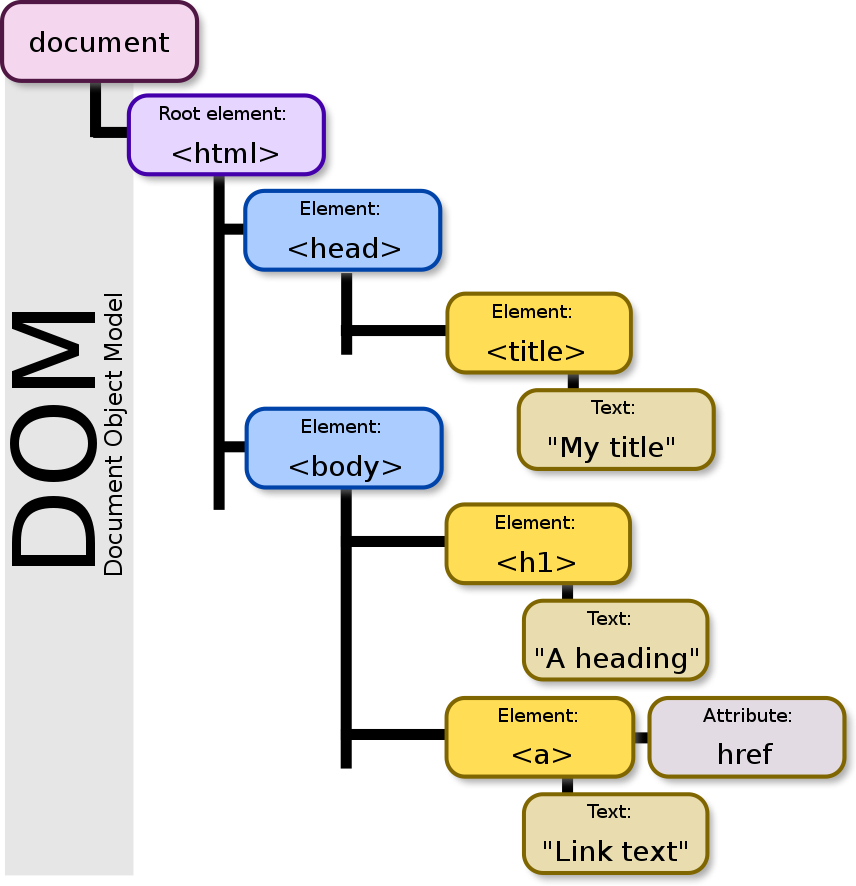
<!DOCTYPE html>
<html>
<head>
  <title>My title</title>
</head>
<body>
  <h1>A heading</h1>
  <a href="https://www.google.com/">Link text</a>
</body>
</html>
Image source: https://en.wikipedia.org/wiki/File:DOM-model.svg
Examples of how we can transform the DOM in JavaScript:
- Update text content (what is between <mytag></mytag>)
- Create, remove and edit HTML elements
- Add, remove and edit HTML attributes
- Add CSS classes and inline styles
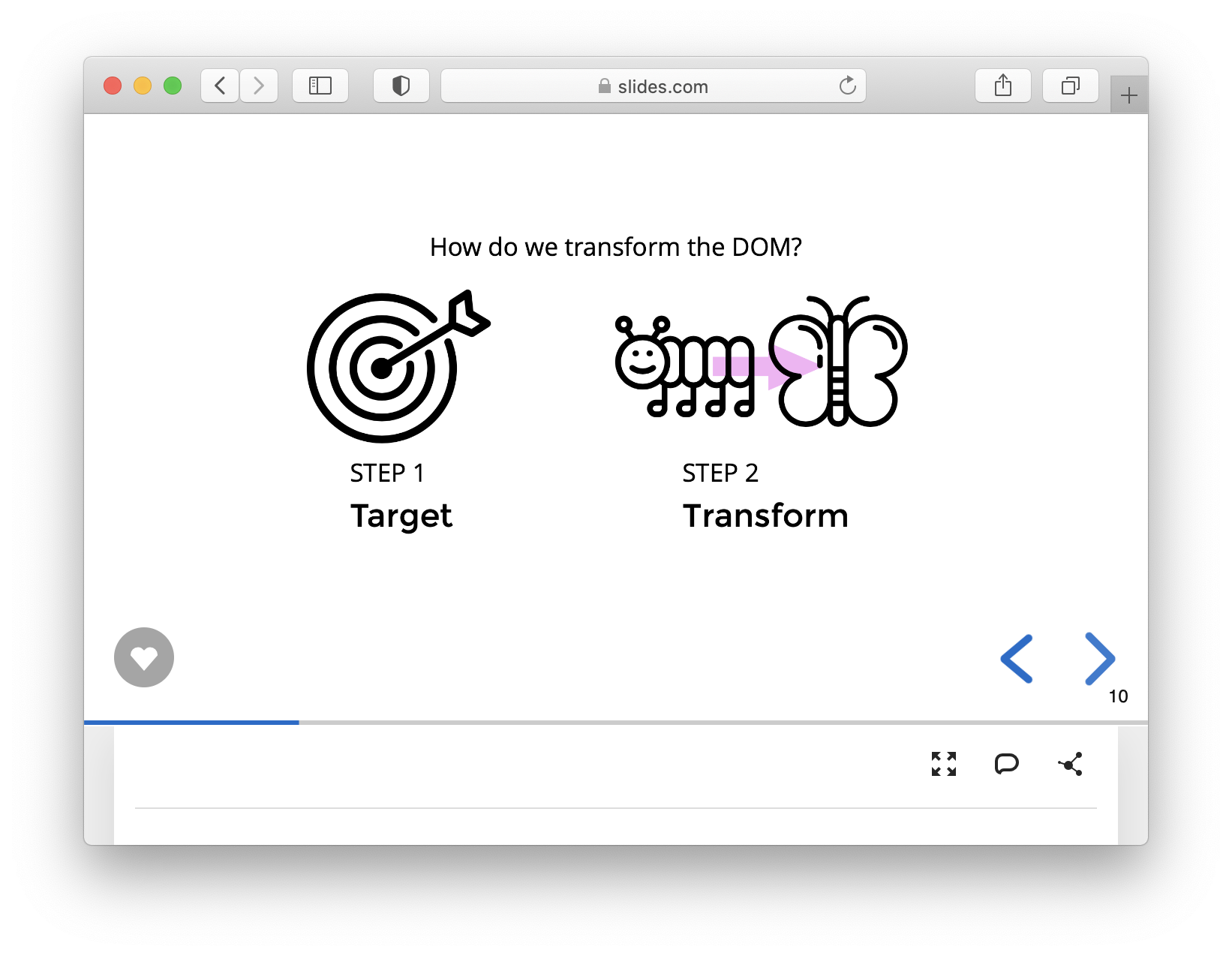
How do we transform the DOM?


STEP 1
Target
STEP 2
Transform
STEP 1
Target
Targets an HTML element on the page
document.querySelector()
document.querySelector("CSS Selector Here");
This gets the first element on the page that matches a given CSS selector.
const heading = document.querySelector("h1");
console.log(heading); // <h1>My Heading</h1>Common CSS Selectors
for JavaScript
For more CSS selectors, see https://www.w3schools.com/cssref/css_selectors.asp
button {

}

#myId {

}

[type="checkbox"] {

}
button {
background-color: "#ccfcccc";
}
#myId {
display: "none";
}
[type="checkbox"] {
margin-right: 10px;
}Common CSS Selectors
for JavaScript
#id
<button id="myId">Click Me!</button>
document.querySelector("#myId");
elementType
<button">Click Me!</button>
document.querySelector("button");
E.g. first button on the page
[attribute="value"]
<input type="checkbox">
document.querySelector('[type="checkbox"]');
E.g. first checkbox on the page
For more CSS selectors, see https://www.w3schools.com/cssref/css_selectors.asp
Targets more than one element on a page
document.querySelectorAll()
document.querySelectorAll("CSS Selector Here");
const links = document.querySelectorAll("a");
console.log(links);
/**
 * {
 *   0: <a href="/about.html">About</a>,
 *   1: <a href="https://www.google.com/">Google</a>
 * }
 */
This returns an object of HTML (NodeList).
Looping through a NodeList with
.forEach()
const links = document.querySelectorAll("a");
links.forEach((link) => {
  console.log(link);
});
/**
 * <a href="/about.html">About</a>
 * <a href="https://www.google.com/">Google</a>
 */
Looping through a NodeList with a
for ... of loop
const links = document.querySelectorAll("a");
for (const link of links) {
  console.log(link);
}
/**
 * <a href="/about.html">About</a>
 * <a href="https://www.google.com/">Google</a>
 */
STEP 2
Transform
Document Object Model (DOM)
HTML in JavaScript
The DOM is a programming interface for HTML (and XML) documents, where HTML elements are represented as a tree of nodes and objects.
How JavaScript represents HTML elements:
<button id="mybutton" type="button" class="btn btn-primary" style="background-color:#ccfcccc;">Click Me</button>
{
  tagName: "BUTTON",
  textContent: "Click Me",
  id: "mybutton",
  type: "button",
  classList: { 0: "btn", 1: "btn-primary" },
  style: {
    backgroundColor: "#ccfcccc"
  }
}
HTML attributes
Node (JavaScript) properties
HTML Attribute
From a file with HTML that is loaded to the screen.
Node Property
What is currently displayed on the screen as JavaScript interprets it.
Note that it does not update when changes occur. (e.g. user types in a textbox, a user checks a box, JavaScript changes something on the screen).
Note that an HTML attribute does not always map to a property (e.g. class, data-, aria- and the original value in href)
Node Properties
Get a property
const div = document.querySelector("#myDiv");
const id = div.id;
Check to see if an element has a property
const input = document.querySelector('#myInput');
if (input.value) { // e.g. textbox
  // do something
}
Node Properties
Set or change a property
const image = document.querySelector("img");
image.src = "my-image.png";
Remove a property
const button = document.querySelector("button");
button.disabled = undefined;
<input type="password">
const input = document.querySelector("[type=password]");
console.log( input.type ); // password
input.type = "text";
HTML attribute
Node (JavaScript) property
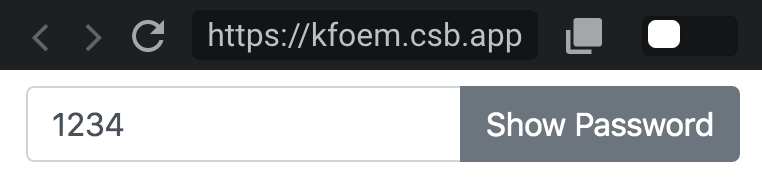

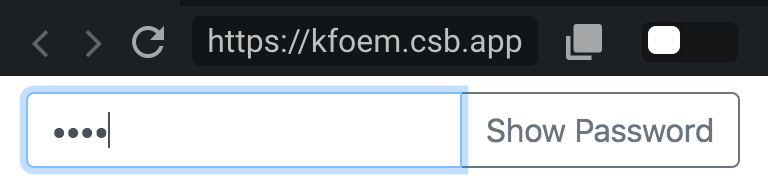
E.g. changing a property
Reading text on a page
element.textContent
<button id="mybutton">Click Me</button>
const button = document.querySelector("#mybutton");
console.log( button.textContent );
// Read Me
HTML
JavaScript
Click Me
Writing or changing text on a page
element.textContent
<button id="mybutton">Next</button>
const button = document.querySelector("#mybutton");
button.textContent = "Loading ...";
HTML
JavaScript
Next
Loading ...
Before:
After:
Writing or changing an inline style
element.style.styleProperty
<div id="alert" class="alert alert-warning alert-dismissible">
<strong>Holy guacamole!</strong> Please close me.
<button class="close">×</button>
</div>const alert = document.querySelector("#alert");
alert.style.display = "none";
HTML
JavaScript
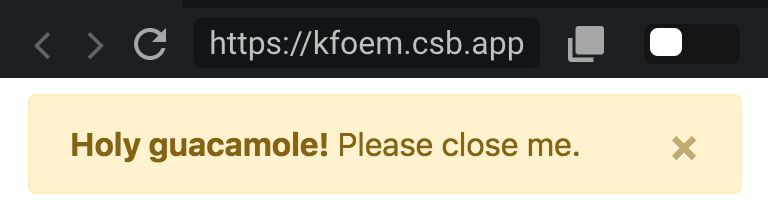
Note that you must write style properties in camel case
const alert = document.querySelector("#alert");
alert.style.backgroundColor = "#ccfcccc";
E.g. changing background color
CSS Classes
Get all classes
const cssClasses = element.classList;Add a class
element.classList.add("new-class");Remove a
class
element.classList.remove("old-class");Check to see if an element has a class
if (element.classList.contains("my-class")) {
  // do something
}Modify a group of elements with
document.querySelectorAll()
and .forEach()
const links = document.querySelectorAll("a");
links.forEach((link) => {
  link.target = "_blank";
});
console.log(links);
/**
 * {
 *   0: <a href="/about.html" target="_blank">About</a>,
 *   1: <a href="https://www.google.com/" target="_blank">Google</a>
 * }
 */
Events

e.g. a button is clicked, a form is filled out, an option is selected from a list, the page finishes loading
Common Events
See more events: https://developer.mozilla.org/en-US/docs/Web/Events
Inputs and Other Form Elements
- change
- input
- focus
- blur
Links, Buttons, Checkboxes and Radio Buttons
- click
Forms
- submit
Window (the page as a whole)
- load
- resize
- scroll
- error
Keyboard
- keydown
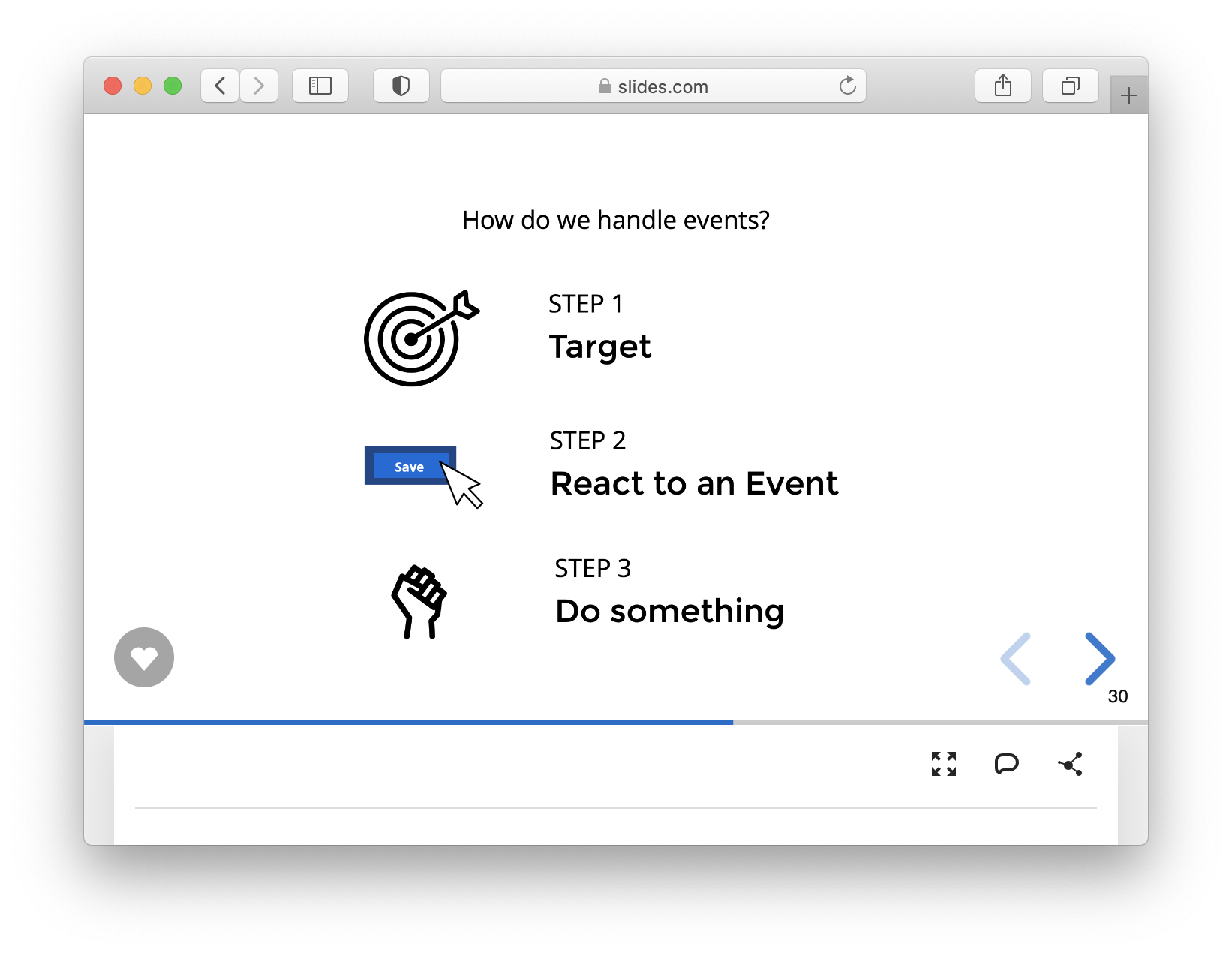
How do we handle events?
STEP 1
Target
STEP 2
React to an Event
STEP 3
Do something
Save


Event Handlers
code that reacts to events
Event handlers can take a callback, which can be either:
- a named function
- an anonymous function
const myEventHandler = (event) => { /* Code Here */ }

element.addEventListener("eventType", myEventHandler);
With a named function
element.addEventListener("eventType", (event) => {
  // code reacts to event here
});
With an anonymous function
// STEP 1 Target
const button = document.querySelector("#button");
const handleClick = () => {


};

// STEP 2 React to Event
button.addEventListener("click", handleClick);
const handleClick = () => {
  // STEP 3 Do Something
  console.log("You clicked me!");
};

// STEP 2 React to Event
button.addEventListener("click", handleClick);
A named function
Save
Removes an event
element.removeEventListener()
<button id="button">Click Me</button>const button = document.querySelector("#button");
const handleClick = () => {
console.log("You clicked me!");
};
button.addEventListener("click", handleClick);
button.removeEventListener("click", handleClick);
HTML
JavaScript
How do we transform the DOM after an event?
callback
// STEP 1 Target
const button = document.querySelector('#button');

const handleClick = () => {
  // STEP 3 Do something
  // -- Target
  const sendingNotification = document.querySelector('#sending');
  // -- Transform
  sendingNotification.style.display = 'block';
};

// STEP 2 React to Event
button.addEventListener('click', handleClick);
E.g. display a notification after we click on a button
Send
Sending ...
// STEP 1 Target
const button = document.querySelector('#button');

const handleClick = () => {
  // STEP 3 Do something
  button.disabled = 'disabled';
  button.textContent = 'Loading ...';
};

// STEP 2 React to Event
button.addEventListener('click', handleClick);
E.g. transform the button that the user clicked
Send
Loading
// STEP 1: Target
const buttons = document.querySelectorAll("button");

buttons.forEach((button) => {
  // STEP 2: React to an Event
  button.addEventListener("click", () => {
    // STEP 3: Do something
    button.disabled = "disabled";
    button.textContent = "Loading ...";
  });
});
E.g. transform the button that the user clicked when there are multiple buttons with function scope
Send
Send
Loading
// STEP 1: Target
const alert = document.querySelector("#alert");
const dismissButton = document.querySelector("#alert button");

// STEP 3: Do something
const dismiss = () => {
  // Hiding alert by using an inline display
  alert.style.display = "none";
};

// STEP 2: React to an event
dismissButton.addEventListener("click", dismiss);
E.g. hidding content on the screen using inline styles
https://stackblitz.com/edit/stackblitz-starters-jrsax6?file=script.js
// STEP 1: Target
const productDescription = document.querySelector("#productDescription");
const showHideLink = document.querySelector("#showHideLink");

// STEP 2: React to an event
showHideLink.addEventListener("click", (e) => {
  e.preventDefault(); // We will go over this later

  // STEP 3: Do something
  // The full product description is hidden because it has a CSS "hidden" class.
  if (productDescription.classList.contains("hidden")) {
    // This will show the full product description
    productDescription.classList.remove("hidden");
  } else {
    // This will hide the full product description
    productDescription.classList.add("hidden");
  }
});
E.g. toggling content on the screen using CSS classes
↓ Scroll down
Forms
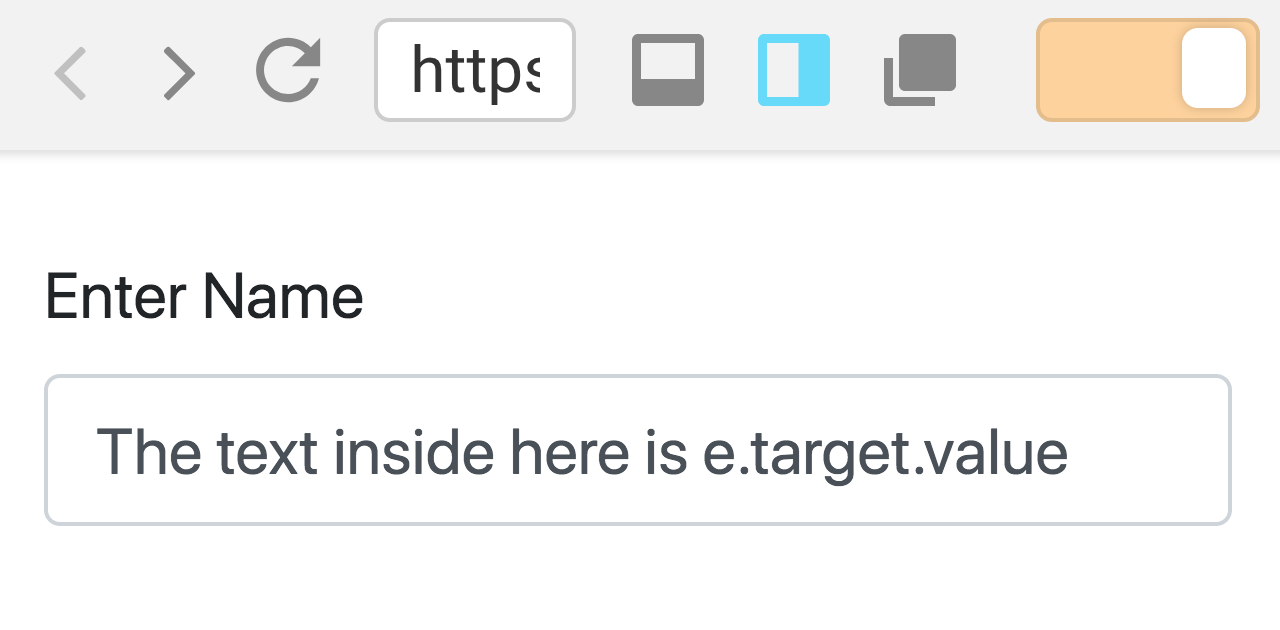
<input type="text" id="name">
// How can I read the input the user types into the textbox?
HTML
JavaScript
By using the event target's value
Textboxes
change or input
const name = document.querySelector("#name");
name.addEventListener("input", event => {
  console.log("You typed something!")
  // How can I read the input the user types into the textbox?
});
event.target.value
the text that the user enters into a textbox or other type of form element
<input type="text" id="name">const name = document.querySelector("#name");
name.addEventListener("input", event => {
console.log(event.target.value);
// This will log what the user is typing
});
HTML
JavaScript
Textboxes
change or input
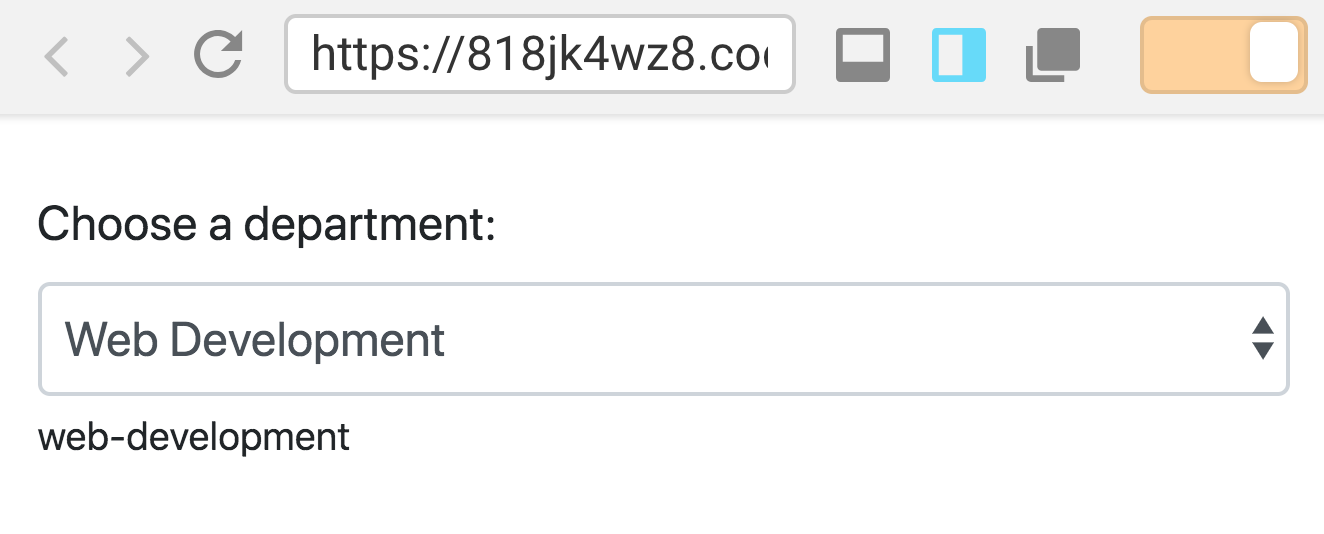
<select id="department" class="form-control">
  <option value=""></option>
  <option value="web-design">Web Design</option>
  <option value="web-development">Web Development</option>
  <!-- ... -->
</select>
const name = document.querySelector("#name");
name.addEventListener("input", event => {
  console.log(event.target.value);
  // This will log what is inside "value" in the HTML above
});
HTML
JavaScript
Selectboxes
change
<input type="checkbox" id="addExtraCheese">
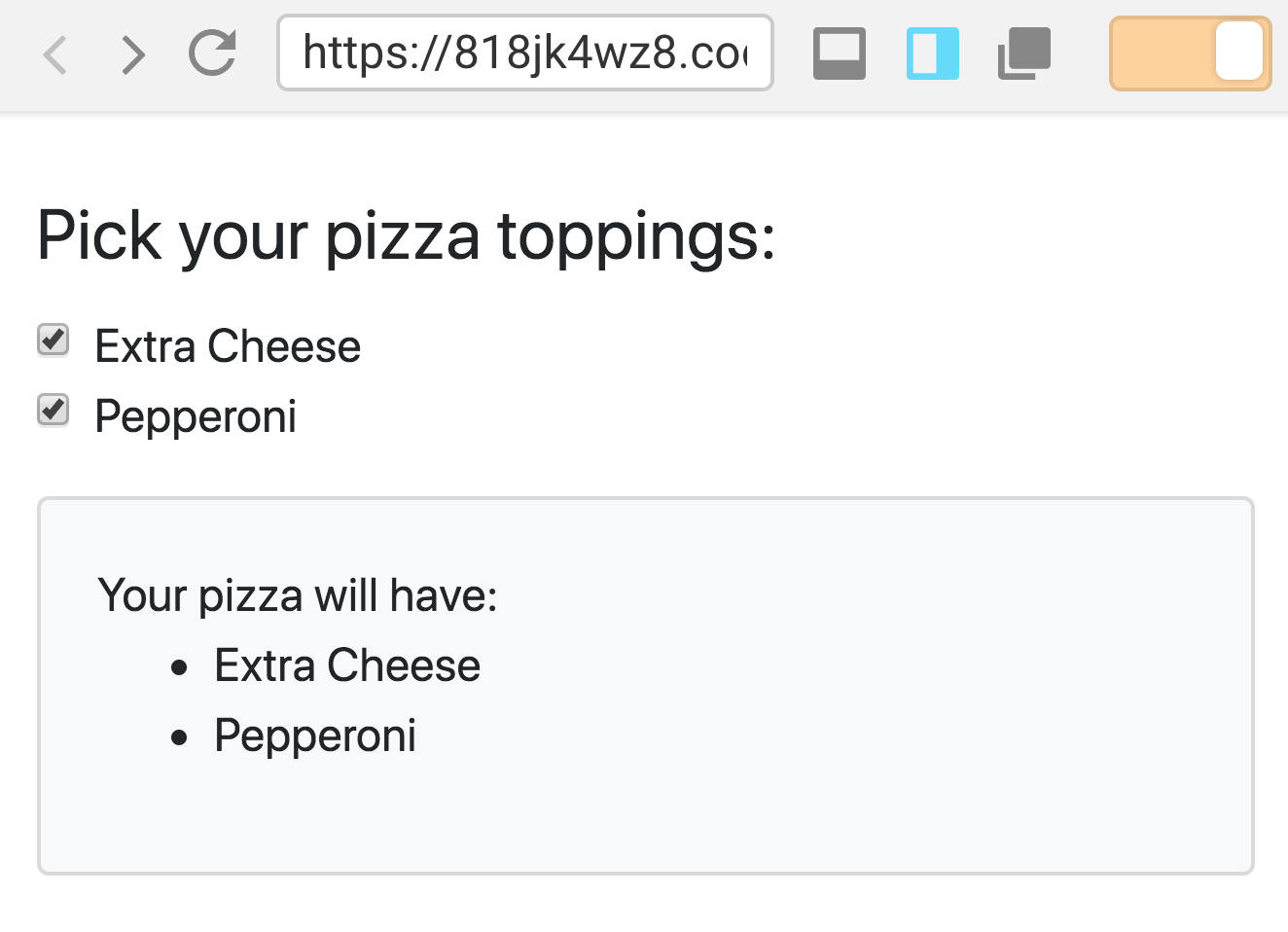
<label or="addExtraCheese">Extra Cheese</label>
const addExtraCheese = document.querySelector("#addExtraCheese");

addExtraCheese.addEventListener("click", event => {
  // This will return true or false, depending on if
  // the checkbox is checked
  console.log(event.target.checked);
});
HTML
JavaScript
Checkboxes
click or change
stopping undesired browser behavior
event.preventDefault()
Common Use Case 1: Forms
Stops a form from being submitted, which will refresh the page or go to a new page
Common Use Case 2: Links
Stops a link from navigating to a new page
<form id="randomForm">
  <!-- ... -->
</form>
const randomForm = document.querySelector("#randomForm");
randomForm.addEventListener("submit", event => {
  event.preventDefault(); // Stops the page from refreshing
  // Logs a message and all of the elements in the form
  console.log("Form submitted! Elements are ", event.target.elements);
});
HTML
JavaScript
Forms
submit
You can access the elements in a form with event.target.elements
<div id="communter" class="vehicle">Commuter ...</div>
<div id="commercial" class="vehicle">Commercial ...</div>
// Targeting all the things I need on the page
const options = document.querySelectorAll(".vehicle");
// Looping through each card that the user can click on
options.forEach((option) => {
  // Reacts to when the user clicks on the card
  option.addEventListener("click", () => {
    // Gets the vehicle the user clicked on from the ID
    const vehicle = option.id;
    console.log(`You selected "${vehicle}".`);
  });
});
HTML
JavaScript
E.g. knowing what element the user clicked on in a group using IDs
↓ Scroll down
<div data-vehicle="Communter">Commuter ...</div>
<div data-vehicle="Commercial">Commercial ...</div>
// Targeting all the things I need on the page
const options = document.querySelectorAll("[data-vehicle]");
// Looping through each card that the user can click on
options.forEach((option) => {
  // Reacts to when the user clicks on the card
  option.addEventListener("click", () => {
    // Gets the vehicle the user clicked on from the data attribute
    const vehicle = option.getAttribute("data-vehicle");
    console.log(`You selected "${vehicle}".`);
  });
});
HTML
JavaScript
E.g. knowing what element the user clicked on in a group using data attributes
↓ Scroll down
Creating Elements
Creating Elements
document.createElement()
Let's say you are trying to create this:
<button>Click Me!</button>const button = document.createElement("button");
button.textContent = "Click Me!";
document.querySelector("body").appendChild(button);
Con
It is incredibly verbose. It can take so many lines of code.
element.innerHTML()
create a new HTML element from a string
Let's say you are trying to create this:
<button>Click Me!</button>const buttonStr = "<button>Click Me!</button>";
parent.innerHTML += buttonStr;
element.insertAdjacentHTML()
create a new HTML element from a string
Let's say you are trying to create this:
<button>Click Me!</button>const buttonStr = "<button>Click Me!</button>";
parent.insertAdjacentHTML("beforeend", buttonStr);
Cons of innerHTML(), insertAdjacentHTML() and anything that creates a new element from a string:
- Are not as performant as document.createElement().
- Are vulnerable to Cross-site scripting (XSS).
Cross-Site Scripting (XSS)
Attackers inject harmful code into into your application through elements like textboxes and other sources of user input

To fight against XSS, sanitize user input with a third party library.
https://codesandbox.io/s/element-innerhtml-62muq?fontsize=14
https://codesandbox.io/s/elementinsertadjacenthtml-xyyhl?fontsize=14
Week 10
By Jamal Taylor