Print Style Sheets
Overview
- Design For Print, Not Screen
- Force Background Images And Colors
- Expand External Links For Print
- Print QR Codes For Easy URL References
- Use CSS3 Filters To Improve Print Quality
Design For Print, Not Screen
@media print {

}
Let’s cover the basics. Modern print style sheets are typically placed within a media query:
For best results, make color changes explicit. At the very least, a basic print media query should consist of the following:
@media print {
   body {
      color: #000;
      background: #fff;
   }
}
Eliminate page elements that are simply irrelevant in print, including navigation bars and background images.
h1 {
   color: #fff;
   background: url(banner.jpg);
}

@media print {
   h1 {
      color: #000;
      background: none;
   }

   nav, aside {
      display: none;
   }
}
To ensure that you are using the printed page effectively, write CSS to display content edge to edge, negating any margins or padding that may be present, and balance:
@media print {
   h1 {
      color: #000;
      background: none;
   }

   nav, aside {
      display: none;
   }

   body, article {
      width: 100%;
      margin: 0;
      padding: 0;
   }

   @page {
      margin: 2cm;
   }
}
Need to ensure that content is not broken across pages when printed. One obvious step is to prevent headings from being printed at the bottom of the page:
h2, h3 {
   page-break-after: avoid;
}

page-break-after: auto|always|avoid|left|right|initial|inherit;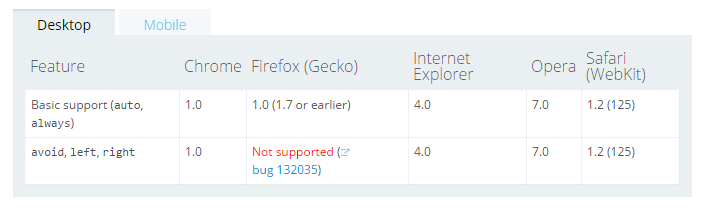
page-break-before คือขึ้นหน้ากระดาษใหม่ก่อนถึงอิลิเมนต์นี้
page-break-after คือขึ้นหน้ากระดาษใหม่หลังจากอิลิเมนต์นี้
Ensure that articles always start on a fresh page:
article {
   page-break-before: always;
}
Prevent large elements, such as unordered lists and images, from being split across multiple pages.
ul, img {
   page-break-inside: avoid;
}
Prevent images from bleeding over the edge of the printed page:
img {
   max-width: 100% !important;
}
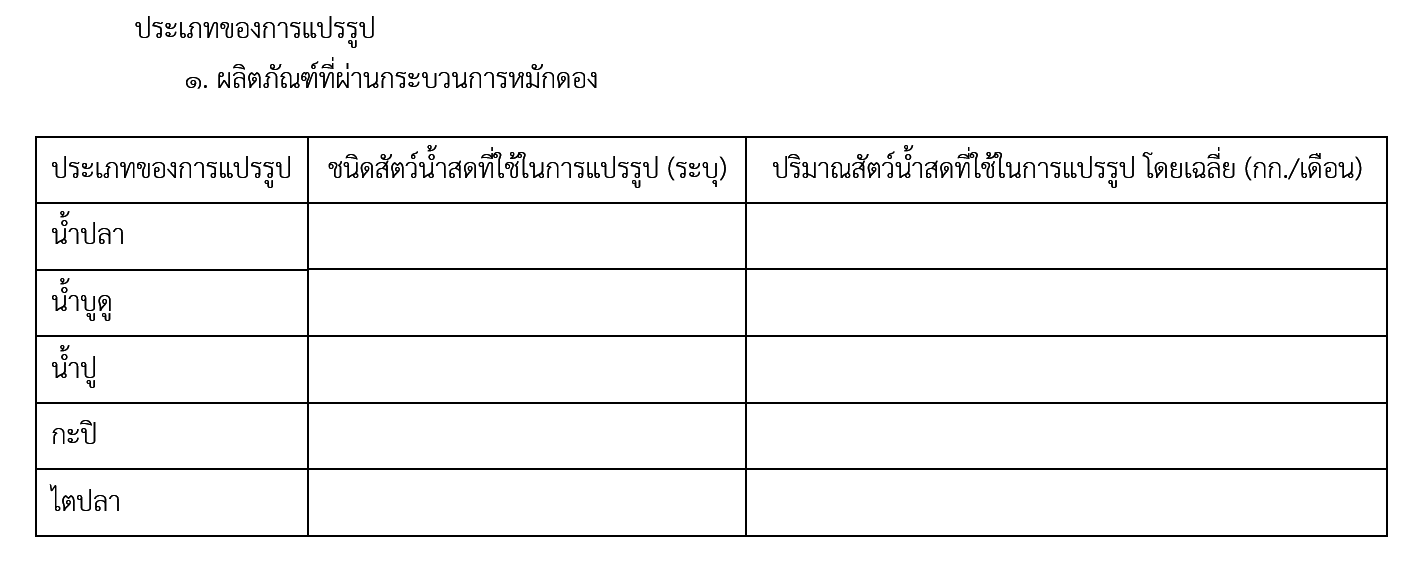
@media print {
table { page-break-inside:auto; }
tr { page-break-inside:avoid; page-break-after:auto; }
thead { display:table-header-group; }
tfoot { display:table-footer-group; }
} 
Force Background Images and Colors
Background images and colors are an important visual component. If the user is printing from a WebKit browser (Google’s Chrome or Apple’s Safari), we can force the printer to render the colors as seen on screen (i.e. force any background images and colors to appear on the printed page).
@media print and (color) {
   * {
      -webkit-print-color-adjust: exact;
      print-color-adjust: exact;
   }
}
** Firefox, Opera and Internet Explorer are not work. **
Expand External Links For Print
We can’t (yet) directly interface with a printed page to explore links, so link URLs should be visible on the printed version of the Web page. So, preventing internal links and links around images from being printed:
@media print {
   article a {
      font-weight: bolder;
      text-decoration: none;
   }

   article a[href^=http]:after {
      content:" <" attr(href) "> ";
   }
}
<p>
You’ve explored this <a href="/blog">website</a>; now it’s time to
<a href="http://www.webplatform.org">read other Web development documentation</a>.
</p>You've explored this site; now its time to read
other web development documentation
<http://www.webplatform.org>
Here is the printed result:
Print QR Codes For Easy
URL References

To create the matching QR code, we’ll use Google’s Chart API, which has four required components:
- The kind of chart information we want Google to deliver (qr, in our case);
- The rendered size of the QR sigil, in pixels;
- The URL to encode;
- The form of character encoding to use.
<header>
    <h1>Lizabeth’s Salon</h1>
    <h2>Providing Intellectual Stimulation Online Since 2001</h1>
</header>
header h1 {
margin-right: 200px;
margin-bottom: 2rem;
line-height: 1.5;
}@media print {
h1:after {
content: url(https://chart.googleapis.com/chart?cht=qr&chs=150x150
&chl=http://<?=$_SERVER["SERVER_NAME"].$_SERVER["REQUEST_URI"];?>
&choe=UTF-8);
position: absolute;
right: 0;
top: 0;
}
}The downside of forcing the developer to enter a URL individually for each page into the API code. If your Web host is running PHP, you can provide the URL of the current page automatically:
@media print {
   h1:after {
      content: url(https://chart.googleapis.com/chart?cht=qr&chs=150x150
&chl=http://<?phpthe_permalink();?>&choe=UTF-8);
      position: absolute;
      right: 0;
      top: 0;
   }
}
For WordPress:
** Obviously, both of the solutions above will only work on PHP and WordPress pages. **
Use CSS3 Filters To Improve Print Quality
Browsers often have issues with printing out banner images, especially if the banners are white against a dark background:

Logo as a solid image
Logo as an alpha-masked PNG


Using CSS filters (and their SVG equivalent, for Firefox) to invert the image just before it hits the printed page:
@media print {
   header {
      background: none;
      color: #000;
   }

   header img {
      filter: url(inverse.svg#negative);
      -webkit-filter: invert(100%);
      filter: invert(100%);
   }
}
<svg xmlns="http://www.w3.org/2000/svg">
<filter id="negative">
<feColorMatrix values="-1 0 0 0 1
0 -1 0 0 1
0 0 -1 0 1
0 0 0 1 0" />
</filter>
</svg>CSS3 filters do what you’d expect — invert the colors in header images, turning black to white and vice versa — but they only work in Chrome and Safari. To cover Firefox, we need a different approach — the equivalent filter written as a separate SVG file:

The result of printing either form of logo (i.e. alpha-masked PNG or solid-black background) is now this:
Resources
http://www.smashingmagazine.com/2013/03/tips-and-tricks-for-print-style-sheets/
Print Style Sheet
By Jiratha Laothong