MongoDB and JavaScript

SQL vs MongoDB

Getting Started

  • Sign up as a GitHub Student Developer.
    • Read the Student Benefit FAQs​
    • If asked what your goal is, say to learn MongoDB.
    • If asked what type of application you're building, say you are just exploring.
    • Select JavaScript as your preferred language.

Bookmark These

MongoDB Atlas

Atlas Organizations

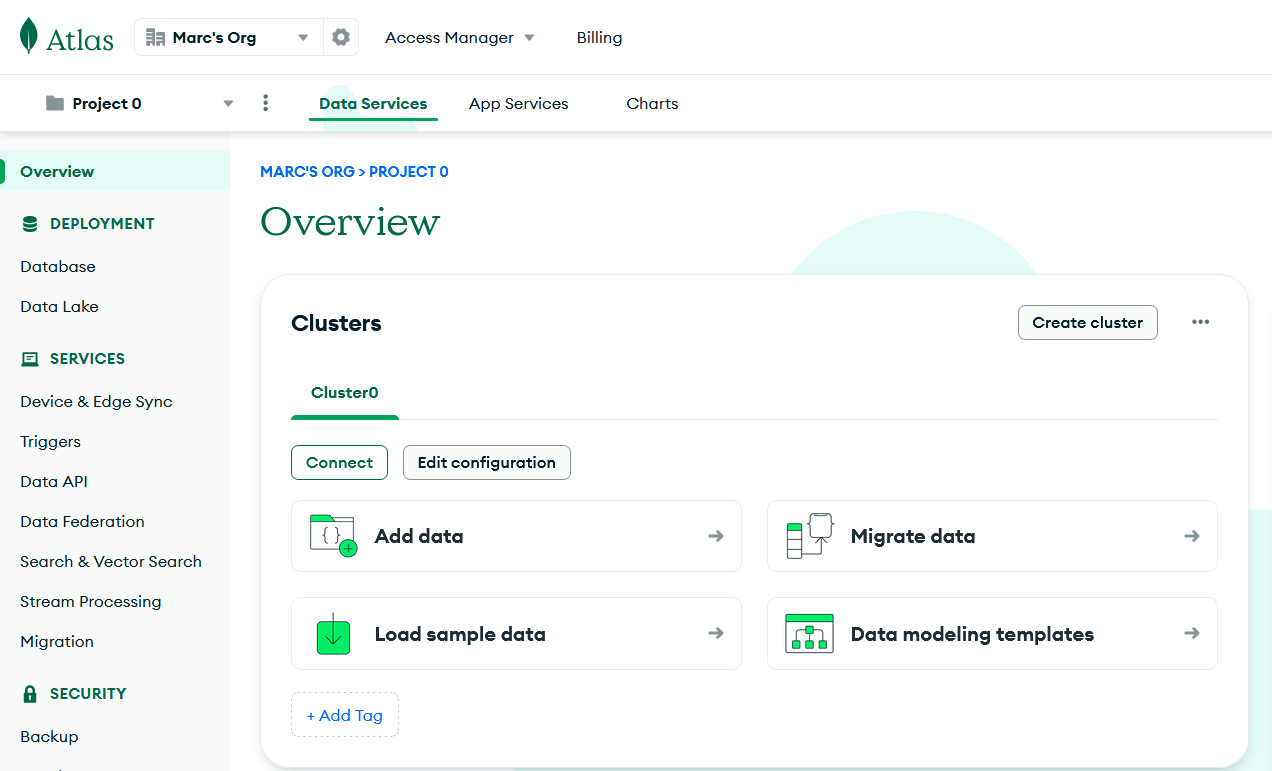
  • After signing in, you will see your Atlas dashboard.
  • Organizations allow you to group and define users and teams and grant them project access.
  • Your organization will be selected in the upper-left corner. 
  • Click the link to view all organizations.
  • Personalize your preferences, such as the time zone, date, and time format.
  • Click the organization name to view its projects and settings.
  • Change organization settings, such as the name, multi-factor authentication, and more.
  • From "Access Manager," you can invite a partner or teacher to access all projects in your organization.
  • View the "Billing" section to ensure you have credits from the GitHub Student Developer promotion.
  • Optionally, add a payment method to continue using MongoDB after your credits expire.

Atlas Projects

  • In your organization screen, go to the "Projects" tab and click the default project name.
  • Projects allow you to define and organize resources, like database clusters.
  • It is common to create several projects, one for development, testing, and production environments.
  • Click the menu icon next to the project name and click "Project Settings". 
  • Personalize your settings, such as the project name, time zone, etc.
  • From "Access Manager," you can invite a partner or teacher to access your an individual project.

Create a Database

  • With your project selected, create a new database cluster.
  • Click the white "Go to Advanced Configuration" button for additional configuration options. 
  • Cluster types:
    • Serverless is for testing environments with variable traffic.
      • Please note that an unexpected, significant increase in usage could result in an expensive invoice.
    • Dedicated is for high-load production environments that must operate 24/7. You pay per hour.  M10 is the least expensive.
    • Shared is for learning and exploring MongoDB. 
      • M0 is free and offers no data backup. There is a limit of one M0 cluster per project.
      • With M2 and M5, you pay per hour. M2 is about $9/month.
  • Choose a cloud provider (Google Cloud, Iowa)
  • Name the cluster "Cluster0" or anything you would like.

Security

  • Create a database user.
    • Do not use special characters in the password
    • Save the username and password to a .txt file
  • Setup database connection controls
    • By default, MongoDB blocks access from all IP Addresses (except Atlas itself).
    • For this class, please allow access from anywhere by entering "0.0.0.0/0" as the IP Address
    • For production databases, you should limit access to your current IP Address (multiple entries for work and home)
    • Kirkwood's IP addresses include:
      • 207.165.224.70 (to .100) and 207.165.225.70 (to .100)
  • Click "Finish and Close".
  • You can update access rules in the "Database Access" and "Network Access" sidebar links.

Add Sample Data

  • You should be on the Project Overview screen, which shows your database deployment.
  • Click the "Load sample data" button. This process will take a few minutes.

Data Explorer - View data

  • You can view, filter, and modify the sample data by clicking the "Browse Collections" button.
  • Note that several sample datasets were added:
    • airbnb
    • analytics
    • geospatial
    • guides
    • mflix
    • restaurants
    • supplies
    • etc.
  • Click on the "analytics" database to see three collections:
    • accounts
    • customers
    • transactions

Data Explorer - Filter data

  • Click the "accounts" collection name to view the documents within it.
  • Use the filter bar to specify a particular query to find a specific document.
  • Type "{account_id: 794875}" and click the "Apply" button to view the document with that id.
  • Click the "airbnb" database. Click the "listingsAndReviews" collection. 
  • Type "{bedrooms: {$gt : 3}}" to view all listings with more than 3 bedrooms.
    • $gt is greater than, $gte is greater than or equal to
    • $lt is less than, $lte is less than or equal to
    • $eq is equal, $ne is not equal
  • Click the "mflix" database. Click the "movies" collection.
  • Type "{rated: {$in: ['TV-G', 'G']}}" to view all listings that are rated TV-G or G.

Data Explorer - Add Data

  • Click the "+ Create Database" button. 
    • Name the database "sample_blog".
    • Name the collection "posts".
    • Do not select any additional preferences.
  • The blog.posts collection will display.
  • To create a new collection, click blog, and click the green "Create Collection" button (or the plus sign button).
    • Name the collection "comments".
  • To create a new blog post document, click posts, and click the white "Insert Document" button. 
  • You now have the ability to edit a JSON-like document, which will be inserted into the collection.
  • Type "title" as the key and "My First Blog Post" as the value.
  • Click the green "Insert" button. 

Connecting to MongoDB

  • Click the "Connect" button shown on the Database Cluster.
  • Click "Drivers" under the "Connect to your application" section.
  • Open JetBrains WebStorm.
  • Click the + button to add a new data source, select MongoDB.
  • Click the "Download missing driver files" link.
  • Copy the full connection string from the website and paste it in the URL field in DataGrip.
    • Add your saved password, removing the < and > characters.
mongodb+srv://YOUR-DB-USERNAME:YOUR-DB-PASSWORD@YOUR-CLUSTER-URL.mongodb.net/?retryWrites=true&w=majority&appName=YOUR-CLUSTER-NAME
  • Click the "Test Connection" link. If it says "Succeeded", click "OK".
    • Common errors are incorrect passwords or using an IP Address that isn't whitelisted.
  • Toggle open the database, click the "..." next to "No schemas selected". Check all of the sample databases. 

sample_training Dataset

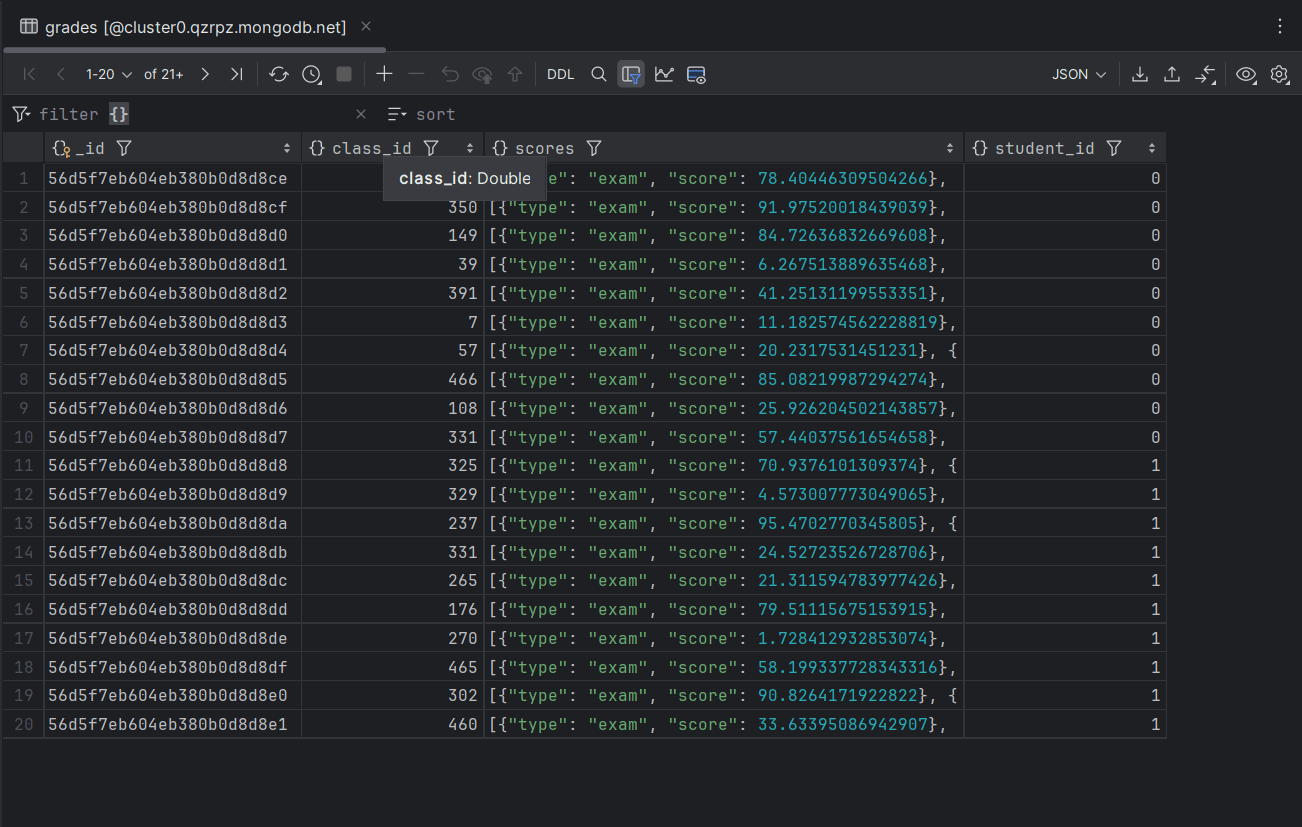
  • In the sample dataset, you can find the database sample_training, which contains a collection called "grades".
  • Each document in this collection represents a student's grades for a particular class.
  • Here is the JSON representation of a document
{
    "_id" : ObjectId("56d5f7eb604eb380b0d8d8ce"),
    "student_id" : 0,
    "scores" : [
        {
            "type" : "exam",
            "score" : 78.40446309504266
        },
        {
            "type" : "quiz",
            "score" : 73.36224783231339
        },
        {
            "type" : "homework",
            "score" : 46.980982486720535
        },
        {
            "type" : "homework",
            "score" : 76.67556138656222
        }
    ],
    "class_id" : 339
}

sample_training Dataset

  • If you hold your mouse pointer over the column headings you will see the data type.
  • Note that student_id and class_id are actually a double and not an integer, which is not explicit in the JSON representation on the last slide. 
  • A JSON object is an unordered set of name/value pairs. The order in which the columns appear in DataGrip and in MongoDB Atlas may not be the same.

Copy of MongoDB and Java

By Marc Hauschildt

Copy of MongoDB and Java

  • 223