Introduction to Blender
Form 3 - Computer
2022-2023
Floor 4 - Computer Room
Mr. Peter

Outline
Outline
Blender Animation Principal

1
Blender Animation - Ex16
2
Blender Animation Mechanism
Keyframe 1
Keyframe 2
Add animation automatically
Blender Animation Mechanism
Keyframe 1
Blender Animation Mechanism
Keyframe 2
Blender Animation - Ex16
Ex16 - Multiple Objects Animation

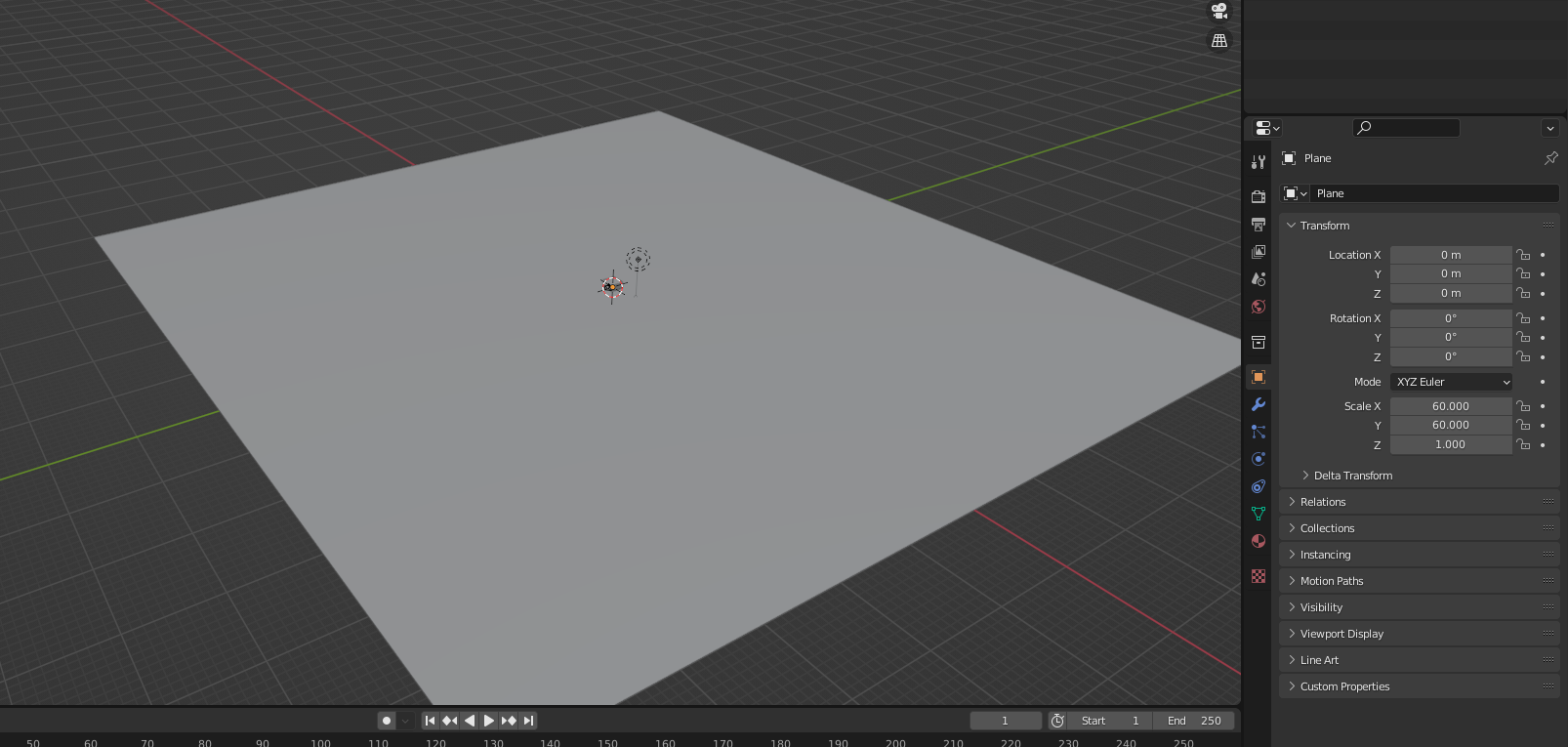
2. Set X and Y scale of the plane to 60
1. Add Plane
Setting the scene
Blender Animation - Ex16
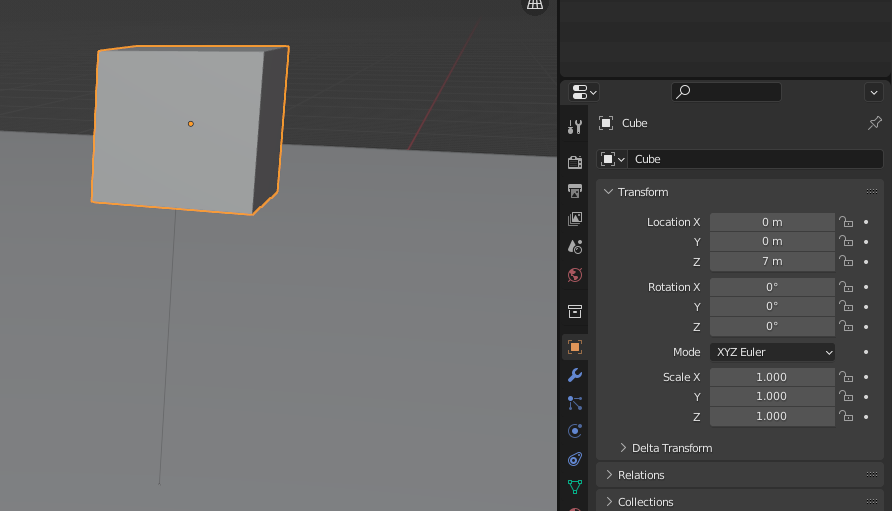
2. Set the Z axis of the cube to 7m.
1. Select the cube
Setting the scene - Head
Blender Animation - Ex16
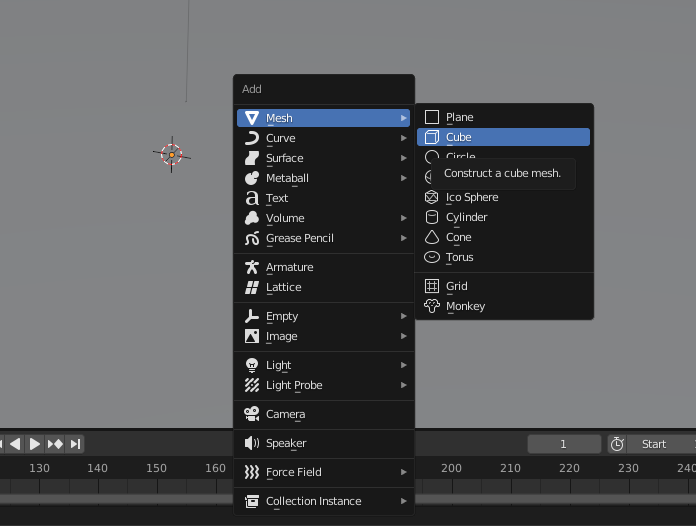
2. Select cube.
1. Press Shift + A key to popup a menu
Setting the scene - Body
Blender Animation - Ex16
1. Select the cube
Setting the scene - Body
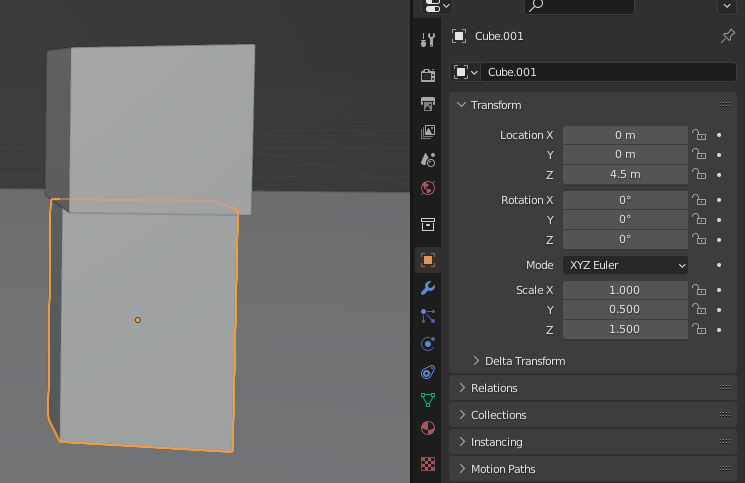
Scale
X: 1, Y: 0.5, Z: 1.5
Location
X: 0, Y: 0, Z: 4.5
Blender Animation - Ex16
2. Select cube.
1. Press Shift + A key to popup a menu
Setting the scene - Left Hand
Blender Animation - Ex16
1. Select the cube
Scale
X: 0.5, Y: 0.5, Z: 1.5
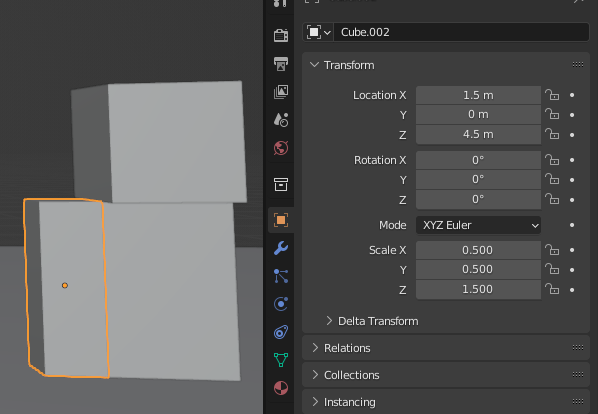
Setting the scene - Left Hand
Location
X: 1.5, Y: 0, Z: 4.5
Blender Animation - Ex16
2. Select cube.
1. Press Shift + A key to popup a menu
Setting the scene - Right Hand
Blender Animation - Ex16
1. Select the cube
Scale
X: 0.5, Y: 0.5, Z: 1.5
Setting the scene - Right Hand
Location
X: -1.5, Y: 0, Z: 4.5
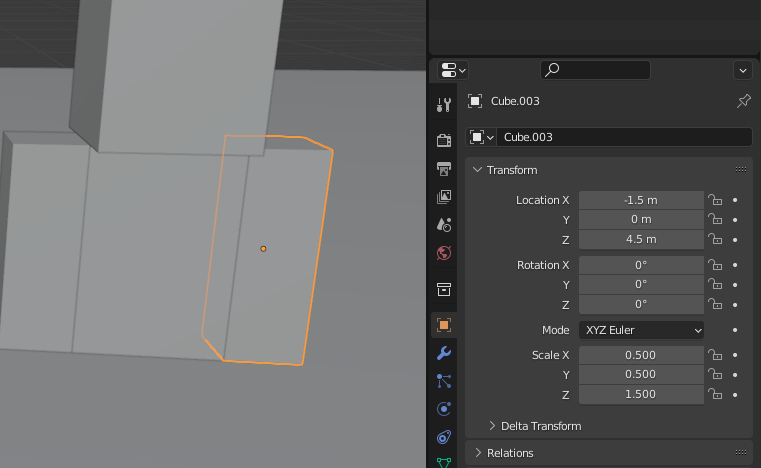
Blender Animation - Ex16
2. Select cube.
1. Press Shift + A key to popup a menu
Setting the scene - Left Foot
Blender Animation - Ex16
1. Select the cube
Scale
X: 0.5, Y: 0.5, Z: 1.5
Setting the scene - Left Foot
Location
X: 0.5, Y: 0, Z: 1.5
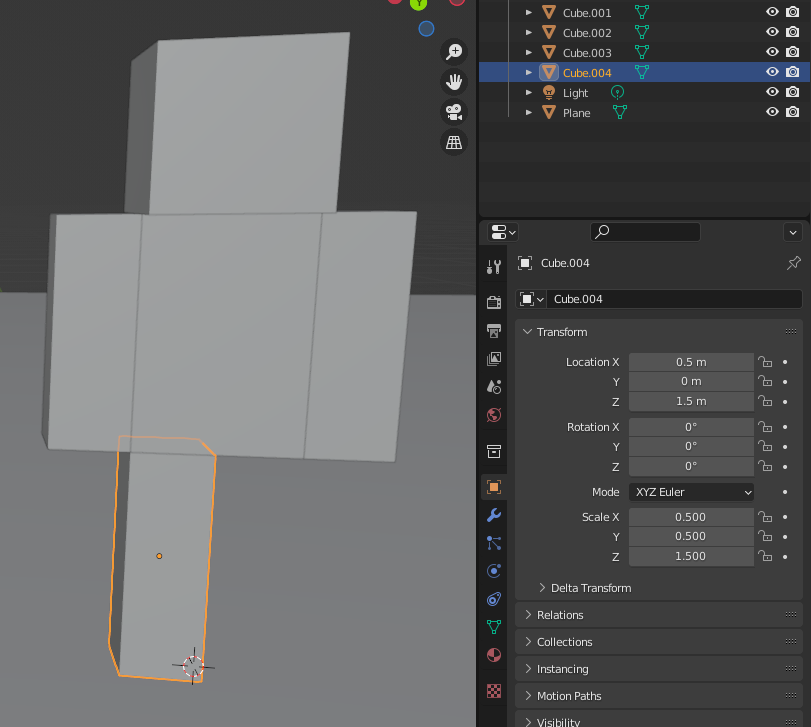
Blender Animation - Ex16
2. Select cube.
1. Press Shift + A key to popup a menu
Setting the scene - Right Foot
Blender Animation - Ex16
1. Select the cube
Scale
X: 0.5, Y: 0.5, Z: 1.5
Setting the scene - Right Foot
Location
X: -0.5, Y: 0, Z: 1.5
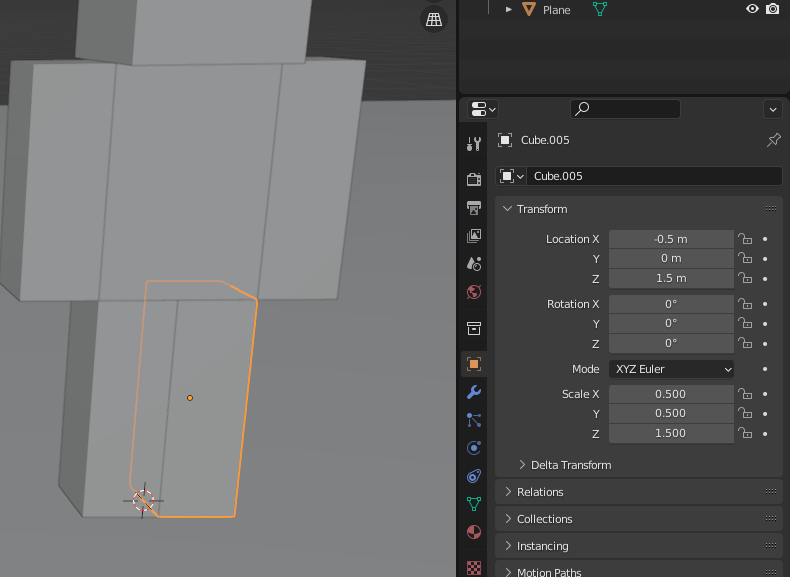
Blender Animation - Ex16
Set rotation origin - Left Hand
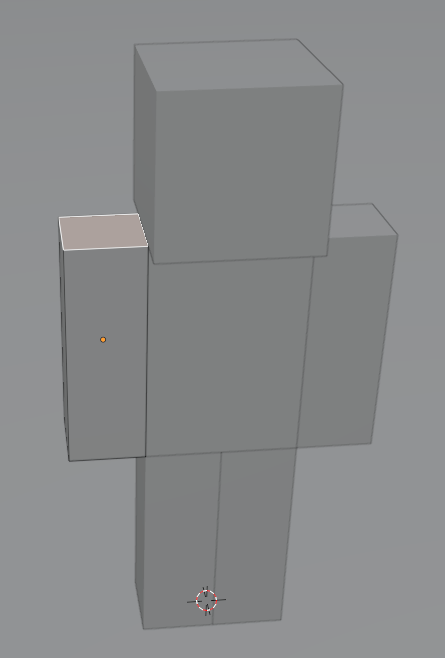
The orange point is the rotation origin point.
Blender Animation - Ex16
Set rotation origin - Left Hand
We need to move it to the center of the upper face by the coming steps.
Blender Animation - Ex16
1.
Set rotation origin - Left Hand
Select the hand
2.
Press Tab key to edit the hand
3.
Select the top face
Blender Animation - Ex16
1.
Set rotation origin - Left Hand
Press Shift + S key to popup the menu
2.
Select Cursor to Selected
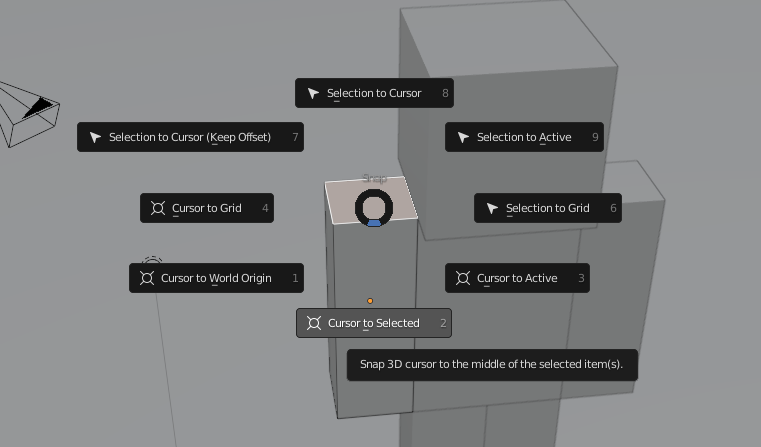
3.
Press Tab key to leave the edit mode
Blender Animation - Ex16
Set rotation origin - Left Hand
1.
Ensure that the origin point is relocated to the center of the upper face.
Select Object in the menu bar
2.
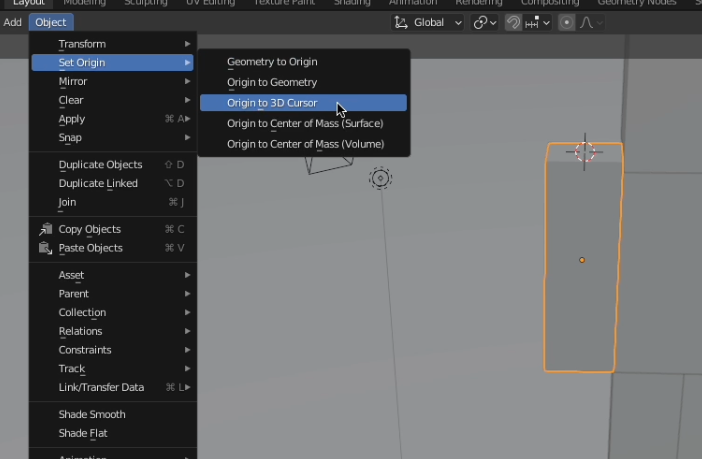
Set Origin
3.
Origin to 3D Cursor
4.
Blender Animation - Ex16
Set rotation origin - Left Hand
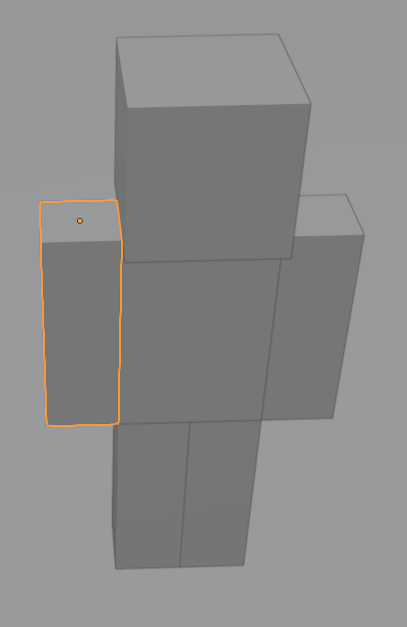
The rotation origin point is moved.
Blender Animation - Ex16
Set rotation origin
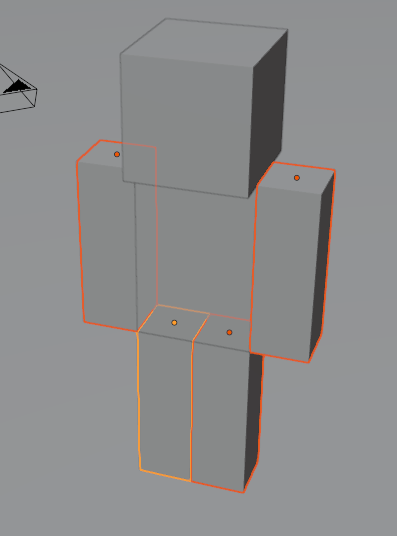
Now let's do the same thing we just did, but for the right hand and feet too!
Blender Animation - Ex16
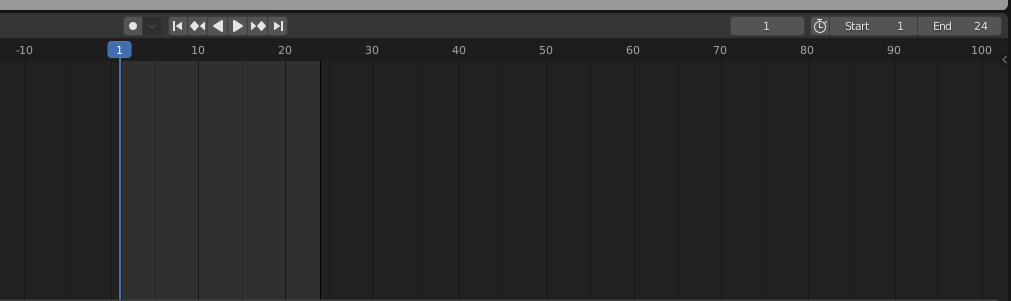
Animate the character - Frame 1 ~ 24
Set the End frame is 24
That means the animation duration is
\frac{24}{24} = 1 \text{ second}
Blender Animation - Ex16
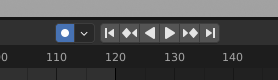
Enable the auto-keying button, which automatically adds a keyframe when the object's state changes.
Blender Animation - Ex16
Animate the character - Frame 1 ~ 24
Animate the character - Left Hand
Blender Animation - Ex16
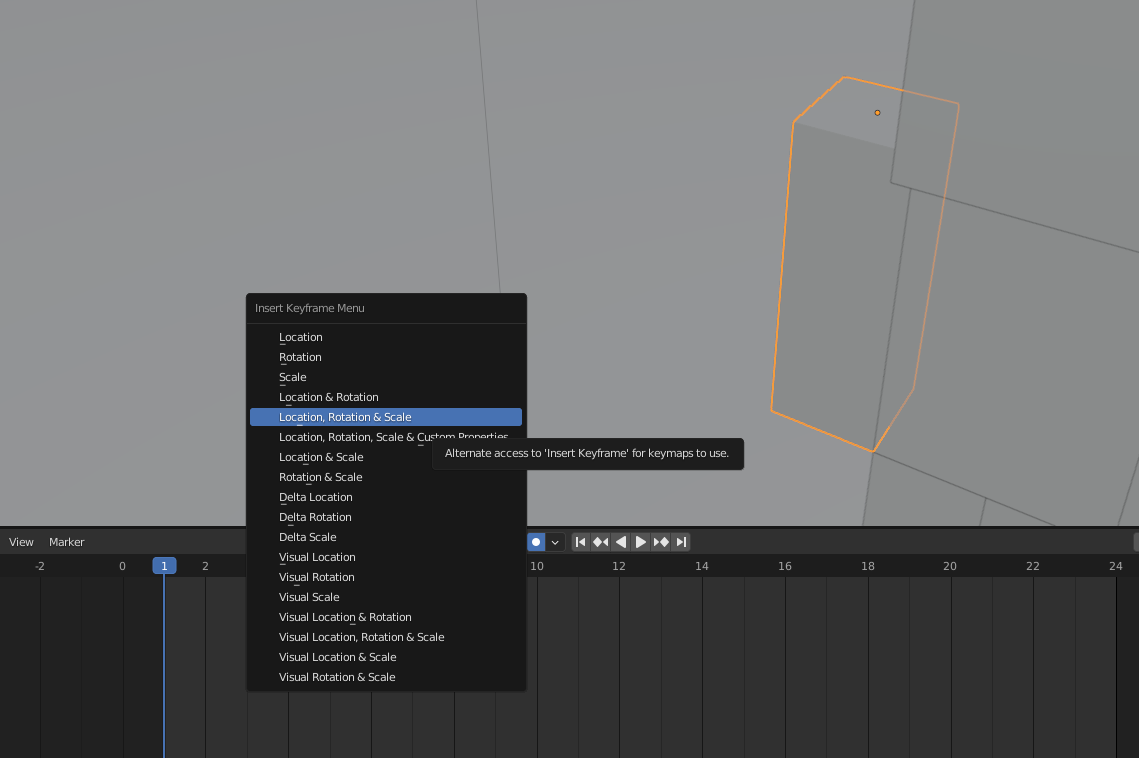
1. Select the cube
Press the "i" key to open the menu and insert a keyframe.
2. Focus on the frame 1.
3.
Animate the character - Left Hand
Blender Animation - Ex16
1. Select the cube
Press the "i" key to open the menu and insert a keyframe.
2. Focus on the frame 1.
3.
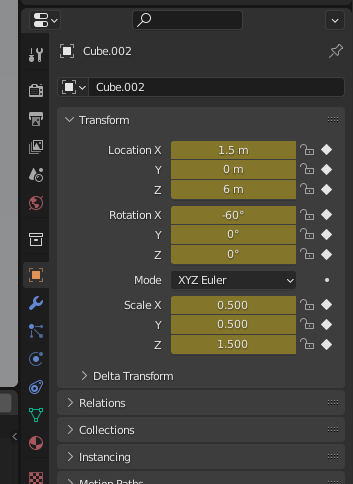
Rotation X: -60
3.
Blender Animation - Ex16
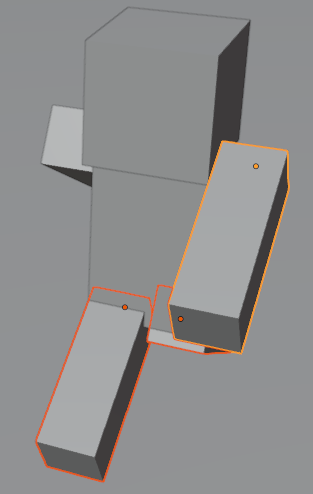
Animate the character - Frame 1
Do the same thing for right hand and feet
But different Rotation X for the different direction.
1.
2.
Blender Animation - Ex16
Animate the character - Frame 12
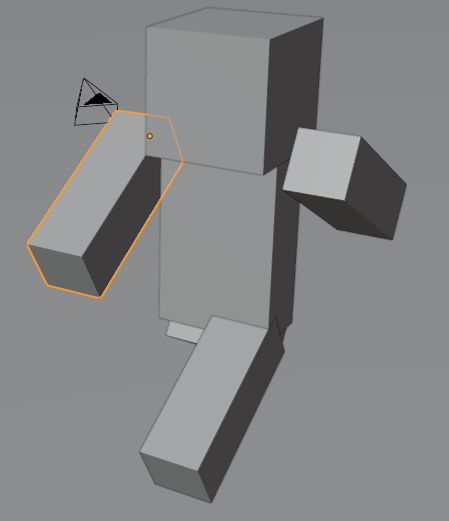
Set the Rotation 60 for the left hand in frame 12.
1.
Blender Animation - Ex16
Animate the character - Frame 24
In frame 24, it is the same frame 1.
Press the Space key to play the animation, and save it as XX_YYYY_ex16.blend
Blender Animation - Ex16
End :D
F3 - Introduction to Blender
By Mr Peter