
React Advanced
Instructor
Marcin Kieruzel
I'm a Software Engineer.
I run a small software house –
No Input Signal
We do front-end and back-end development and graphic design. We specialize in React, React Native, Node.js and some PHP and Python as well.


Schedule
Start time: 11.00
End time: 16.00
Development of modern front-end applications
- overview and similarities of React, Angular, Vue.js
- declarative rendering
- components - defining custom HTML tags
- using create-react-app to initialize a React project
Modern JavaScript
- developing using node.js and npm
- JavaScript versions
- working with modules
- functions and arrow functions
- classes
- functional programming in JavaScript (map, filter, ...)
TypeScript
- static vs dynamic typing
- declaring types of variables, functions and classes
- basic data types
- tuples, objects
- interfaces
- generics
React template language
- JavaScript-based template language: JSX
- setting element properties
- repeating elements
- if / else
- events
- CSS classes and styles
Managing state in React
- setting and changing the application state
- using the state hook and setState
- capturing the content of input elements in the state
Components: Building blocks of modern web applications
- defining custom HTML tags in React
- state, props & events
- data flow between components
- function components and class components
- using hooks in function components
- component lifecycle events (mount, update, unmount)
- including predefined components from a library
State management with Redux
- Redux basics: state mangment with pure functions, reducers and immutable data
- using the reducer hook in React
- integrating Redux into a React application
- presentational and container components
- the Redux ecosystem
- handling asynchronous events with Thunk
- fetching data from a REST API
Developer tools and testing
- React developer tools
- Redux developer tools
- Testing JavaScript with Jest
- Testing reducers
- Testing React components
React Router
- client-side routing
- displaying different views based on the current browser route
App development with React
- short overview of React Native
- creating an installable mobile and desktop application with Progressive Web Apps
- comparison of Progressive Web Apps and native apps
Introduction
What is React?
➡️ React is a JavaScript library for building interactive user interfaces.
➡️ It is a free and open - source front - end Javascript library for building user interfaces based on UI components.
*By user interfaces, we mean the elements that users see and interact with on-screen.
*By library, we mean React provides helpful functions to build UI, but leaves it up to the developer where to use those functions in their application.

sources: Next.js.org & Wikipedia
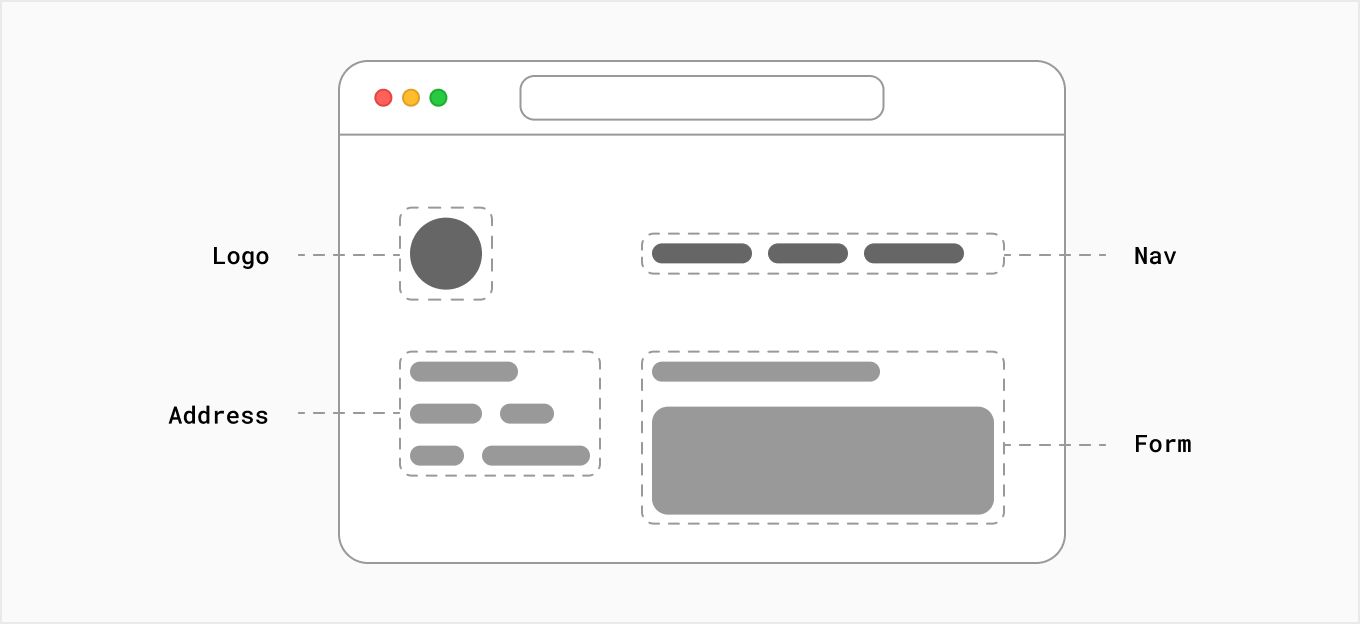
It also means, however, that building a complete React application from the ground up requires some effort. Developers need to spend time configuring tools and reinventing solutions for common application requirements.
source: Next.js.org
sources: Next.js.org & Wikipedia
Who created React and Why?
Original Author: Jordan Walke
Initial Release: May 29, 2013 | 11 years ago
Story: In 2011, as Facebook’s Ad app began to pick up major momentum, their code began seeing a myriad of new updates and team members which became overwhelming and hard to manage after a while. In an attempt to help remedy this problem, Jordan Walke created FaxJS, a prototype which made this process more efficient. This was the birth of what would later evolve into the version of React that we all currently know and love today.
Who created React and Why?
How to start?
1. Node – install node on your machine
2. Module bundler – pick one of Webpack, Vite, Rollup, Parcel
3. Transpiler – picke one of Babel, SWC, TypeScript
4. Ready to use boilerplates – CRA, Next.js, Vite, Remix, Gatsby
How to start?
Let's start with Hello World
import React from "react"
import ReactDOM from "react-dom"

const root = ReactDOM.createRoot(document.getElementById('root'));
root.render(<h1>Hello, world!</h1>);
Main React Concepts
➡️ Virtual DOM
➡️ JSX
➡️ One - Way Data Binding
Virtual DOM
What is DOM?
DOM - stands for Document Object Model
The DOM is an object representation of the HTML elements. It acts as a bridge between your code and the user interface, and has a tree-like structure with parent and child relationships.
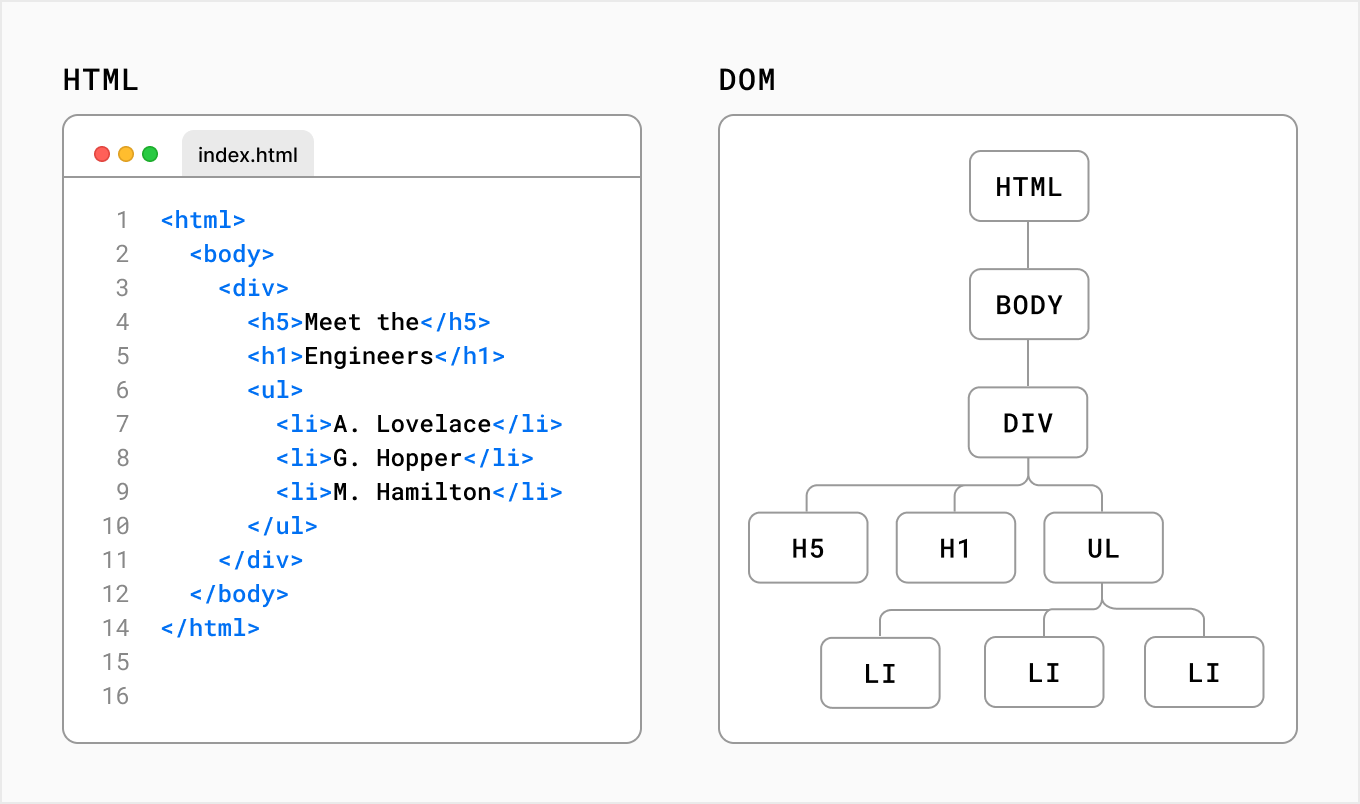
source: Nexj.js.org
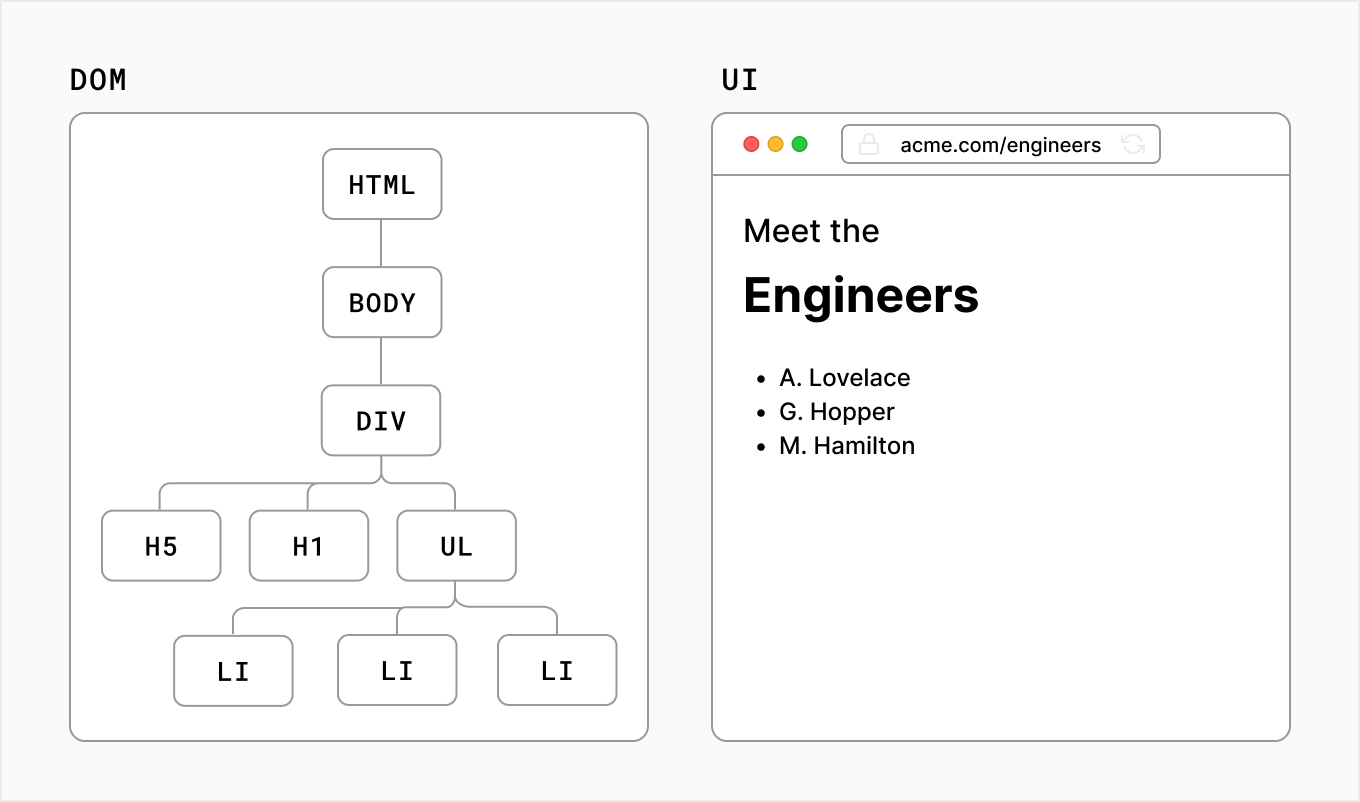
source: Next.js.org
What is Virtual DOM or VDOM?
A virtual DOM object is a representation of a DOM object, like a lightweight copy.
It has the same properties as a real DOM object, but it lacks the real thing’s power to directly change what’s on the screen.
In React, for every DOM object, there is a corresponding “virtual DOM object.”
source: codeacademy.com
Why do you need virtual DOM?
While this is simple enough, once you start performing continuous mutations, more complexity arises. This is why the virtual DOM was created - to allow you to write declarative content (like the string in the innerHTML example) while harnessing performance by making only pinpoint changes to the DOM.
source: dev.to
Virtual DOM Process
Once Virtual DOM contains all the updated changes, it is then compared with the Real DOM and the difference is calculated between them.
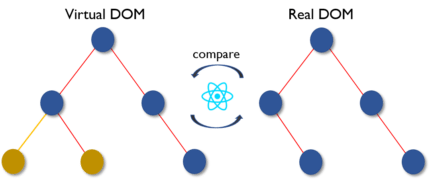
Once the difference is calculated the real DOM will update only the new components that have actually changed.This is called Reconciliation. Virtual DOM is faster and more effective than Real DOM as it just focuses on the updated components instead of updating the entire DOM.
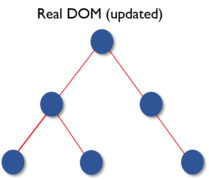
Virtual DOM (Fiber nodes) plays a major role in boosting the performance of the applications.
Only those few objects are changed in the real DOM that was the outcome of the comparison between the previous states and the new states. This feature made things move faster and also reduced cost.
JSX
JSX stands for JavaScripts XML
- JSX allows us to write HTML in React. (source: w3schools.com)
- a syntax extension of JavaScript which allows users to write React components.
JSX
JavaScript uses a method called createElement() to generate an html node. After the element has been made you may append the element to the document.
const div = document.createElement("div");
div.innerText = "Hello World";
document.querySelector("body").appendChild(div);
JSX
React uses a very similar approach, but createElement() method is applied to the React object not to the document.
Of course, you can use React.createElement() method straightforwardly, but it would pretty soon turn out to be tedious and complicated with lots of hard-to-follow curly braces. Thanks to JSX we can write React.createElement in a more declarative way.

Examine Babel Repl to see how JSX translates to JS
JSX
Basically the syntax resembles html with a few differences.
<img /> //always close tag
...
<p contentEditable={true}> //use camelcase
...
<p>{Math.pow(2,2)}</p> //inject JS in curly braces
...
<div style={{width: "200px", height: "200px"}}>
</div> //add inline styles as an object
...
<div style={{width: "200px", height: "200px"}}>
{["a", "b", "c"]}
</div> //arrays with primitives would get split automaticly into separate values
same as <div>a b c</div>
One - Way Data Binding
In one-way data binding one of the following conditions can be followed. Component to View: Any change in component data would get reflected in the view. View to Component: Any change in View would get reflected in the component’s data. (source: geeksforgeeks.org)
One-way data binding will bind the data from the component to the view (DOM) or from view to the component. One-way data binding is unidirectional/one-way. You can only bind the data from component to the view or from view to the component. (source: pluralsight.com)
What is one-way binding?
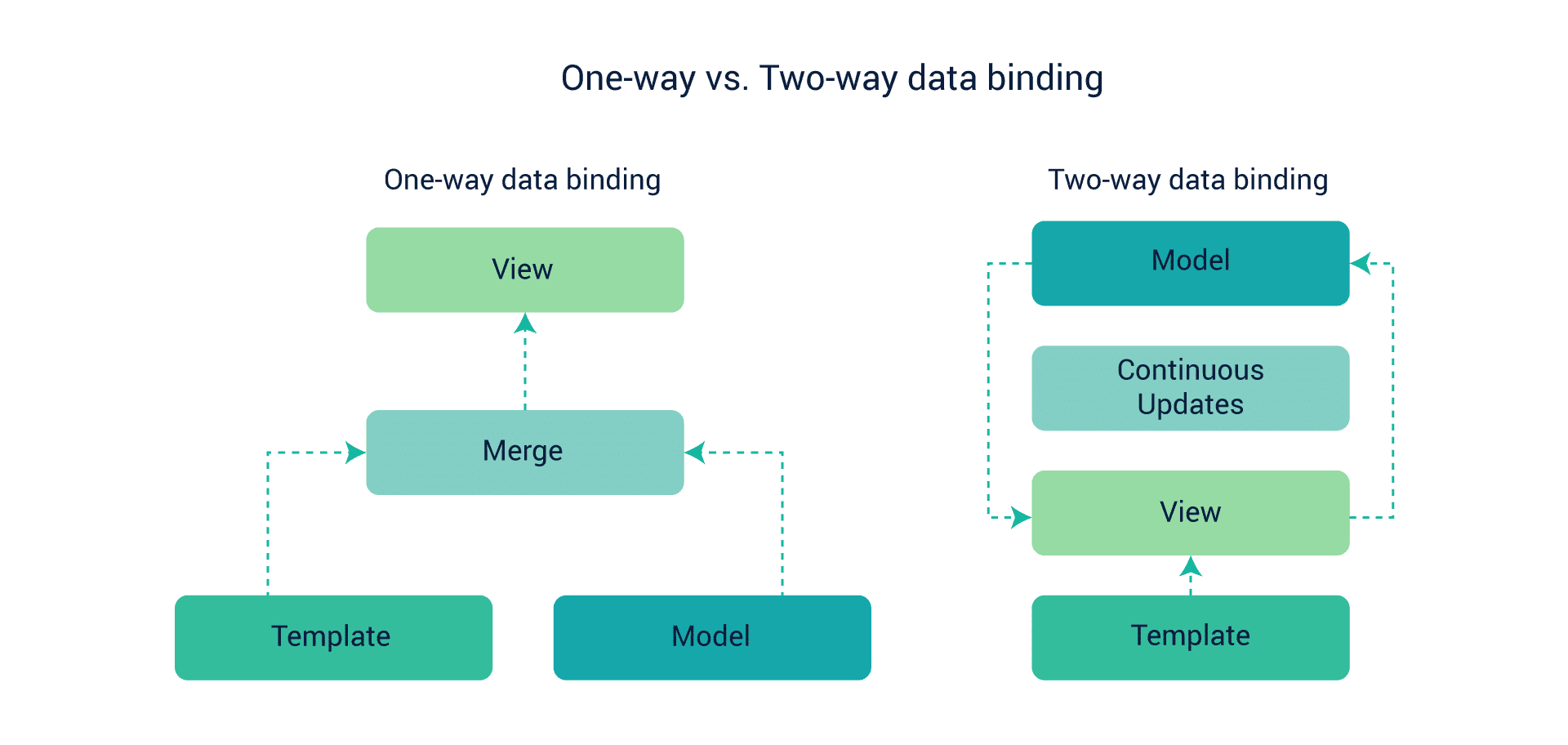
The Angular framework uses a two-way binding approach that changes the model state automatically when any change is made in the UI element and vice versa. The React library uses a one-way approach. This approach allows the change in the UI elements only after a change is made in the model state. The two-way approach seems to be easier, but React’s one-way approach is more effective for projects with large amounts of coding.
Props & State
Props stands for properties.
It is a special keyword in React which is used for passing data from one component to another. Logically, components are just like JavaScript functions. They accept random inputs (called “props”) and return React elements which tell what should be displayed on the screen. (source:knowledgehut.com)
Props are used to pass data, whereas state is for managing data. Data from props is read-only, and cannot be modified by a component that is receiving it from outside.
State data can be modified by its own component, but is private (cannot be accessed from outside).(source: freecodecamp.org)
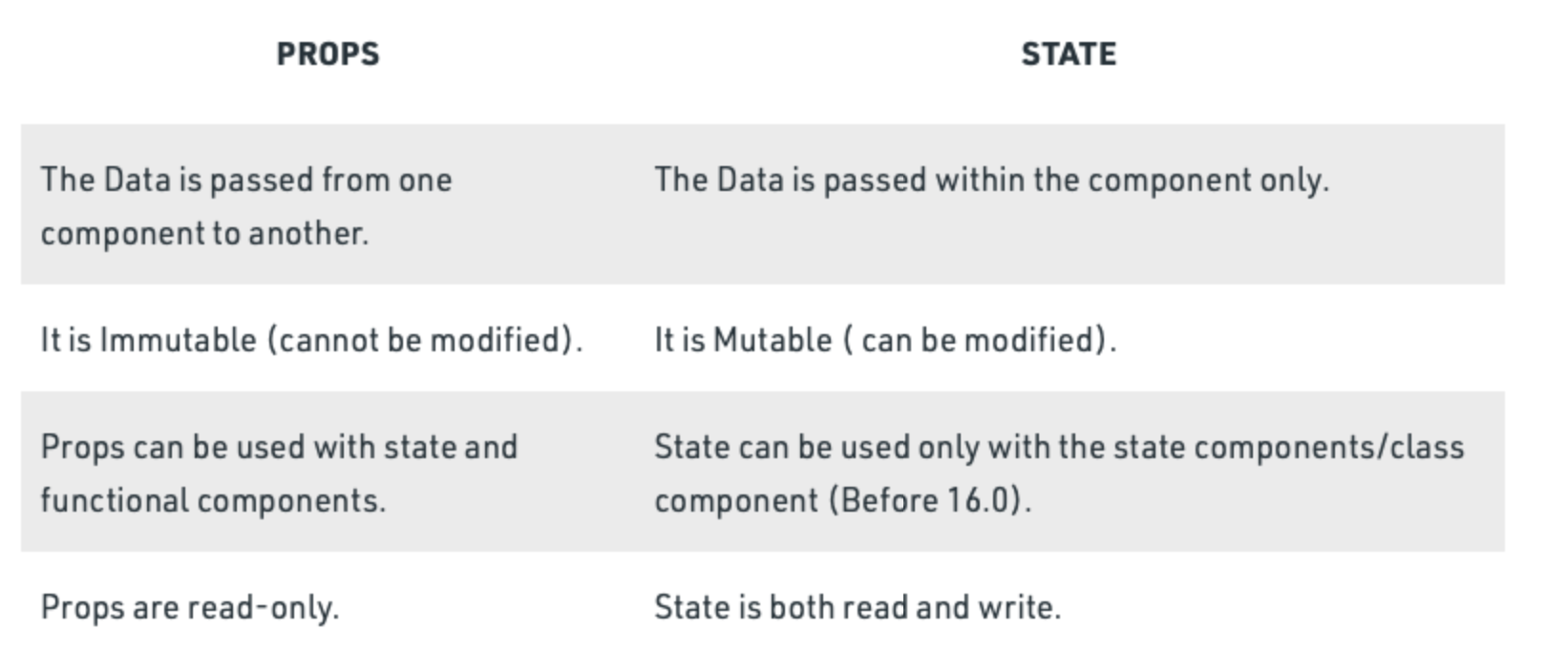
Difference between props and state:
State
The state is a built-in React object that is used to contain data or information about the component. A component's state can change over time; whenever it changes, the component re-renders.
//Class component
class App extends React.Component {
	constructor() {
    	this.state = {
        counter: 1
        }
    }
}
//Function component
const App = () => {
const [counter, setCounter] = useState(0)
}source:https://www.simplilearn.com/tutorials/reactjs-tutorial/reactjs-state
State
Because of this nature of React internal state it must not be modified straight forward. Instead of that we use special method to not only change the state but cause the rerendering accordingly.
//Class component
class App extends React.Component {
	constructor() {
    	this.state = { counter: 1 }
    }

    change() {
    	// this.state = 2 – WRONG!
    	this.setState({counter: 2})
    }
    ...
}
//Function component
const App = () => {
const [counter, setCounter] = useState(0)
const change = () => {
// counter = 2 WRONG!
setCounter(2)
}
}Data Flow in React
What is unidirectional data flow in React?
Unidirectional data flow describes a one-way data flow where the data can move in only one pathway when being transferred between different parts of the program.
React, a Javascript library, uses unidirectional data flow. The data from the parent is known as props. You can only transfer data from parent to child and not vice versa.This means that the child components cannot update or modify the data on their own, making sure that a clean data flow architecture is followed. This also means that you can control the data flow better.
(source: Sheza Munir educative.io)
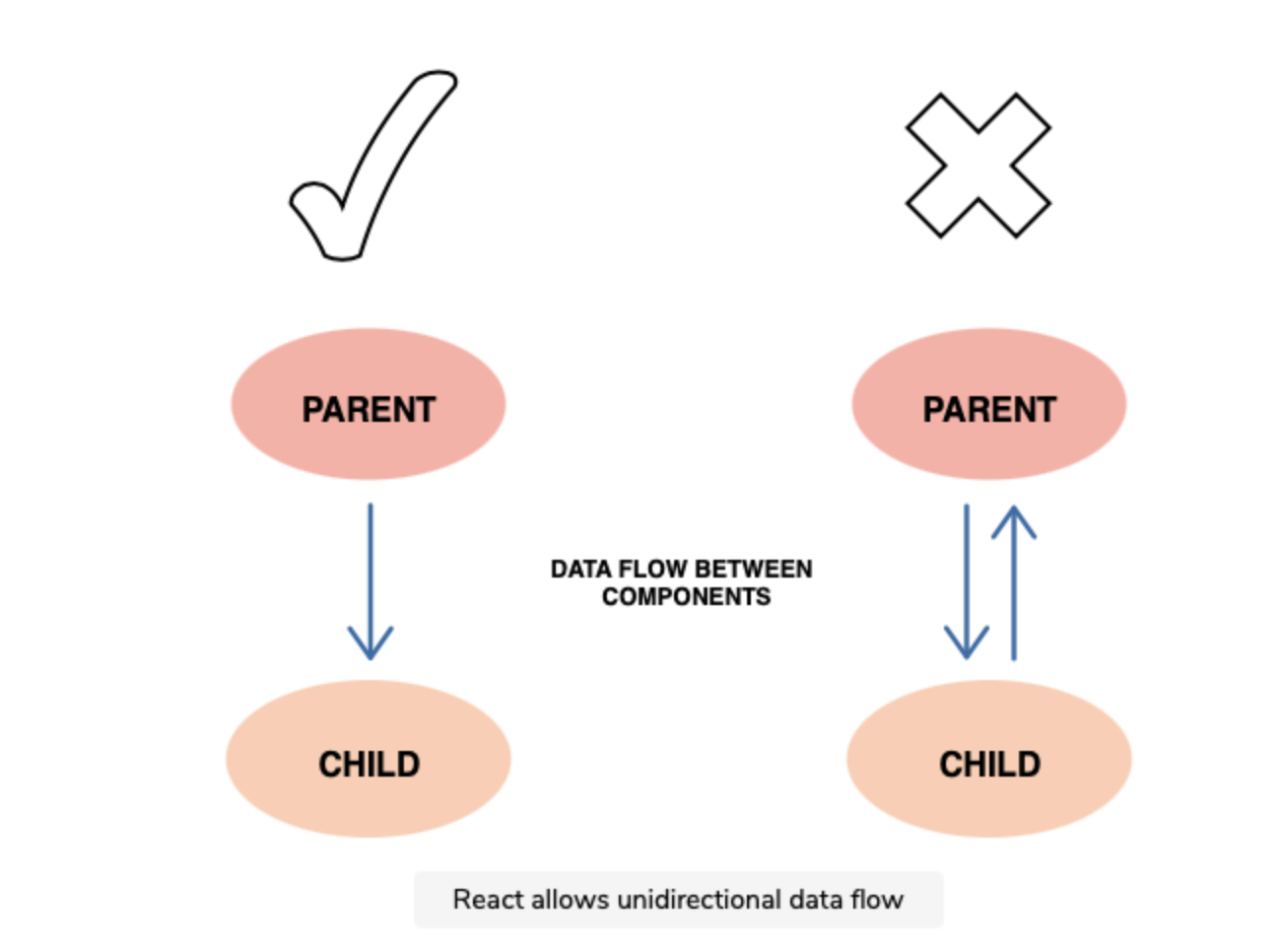
(source: Sheza Munir educative.io)
Effect of state changes
In React, each state is owned by one component. Due to the unidirectional flow, the changes made on the state of the component will only affect the children and not the parents or siblings.
Advantages of unidirectional data flow
There are many advantages of unidirectional data flow, some of which are listed below:
- Debugging One-way data flow makes debugging much easier. When the developer knows where the data is coming from and where it is going, they can dry run (or use tools) to find the problems more efficiently.
- Better control Having data flow in one direction makes the program less prone to errors and gives the developer more control.
- Efficiency As the used libraries are wary of the limitations and specifications of the unidirectional flow, extra resources are not wasted, leading to an efficient process.
source: Sheza Munir educative.io
React Components
What are components?
Components are independent and reusable bits of code. They serve the same purpose as JavaScript functions, but work in isolation and return HTML (JSX). Components come in two types, Class components and Function components.
As for now (2022) class components are rarely used. Prior to version 16.8 they were the only way to use component internal state. Since that version hooks has been present and thanks to them we can do without class.
How to create a component
- Class
- Function
- Function Expression
- Arrow function
What is a Class Component?
Class Component
A class component must include the extends React.Component statement. This statement creates an inheritance to React.Component, and gives your component access to React.Component’s functions.
The component also requires a render() method, this method returns HTML.
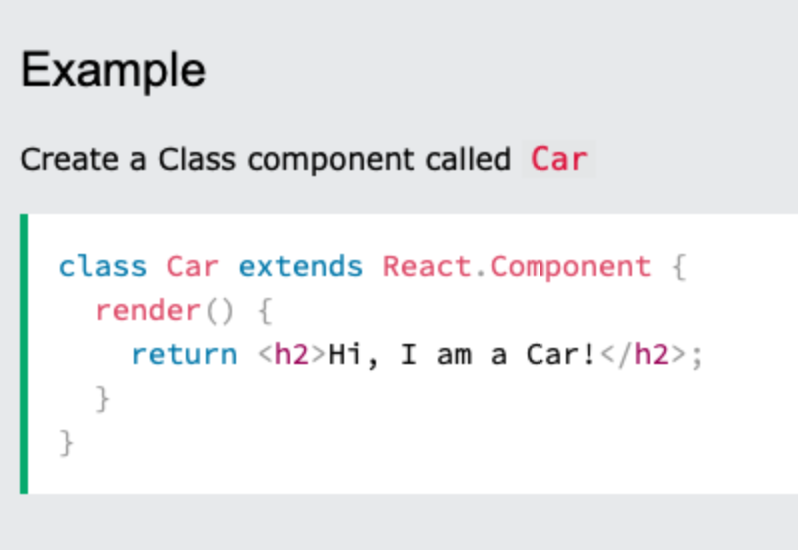
Note: When creating a React component, the component’s name MUST start with an upper case letter.
What is a Functional Component?
A Function component also returns HTML, and behaves much the same way as a Class component, but Function components can be written using much less code, are easier to understand.
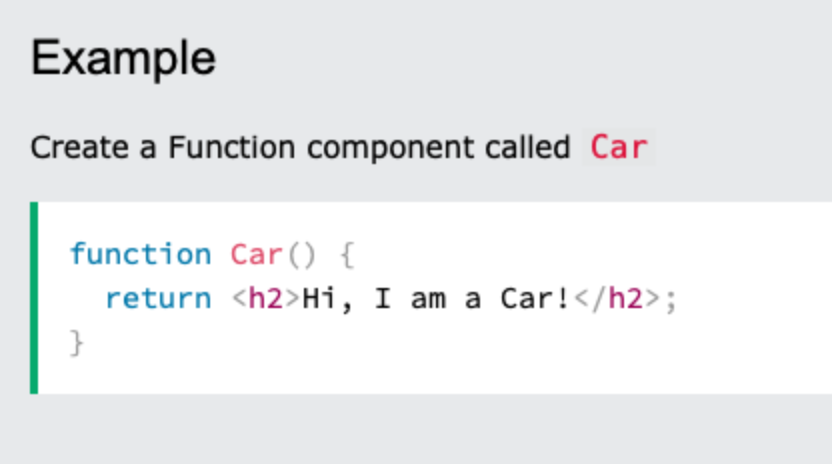
Demystifying components?
Let's try to demystify components a bit. In JavaScript, we use functions to create objects. Class syntax is just a syntactical sugar build on top of functions.
function Person(name) {
	this.name = name
}

const me = new Person("Martin")
class Person {
constructor(name){
this.name = name
}
}
const me = new Person("Marcin")Demystifying components?
When JavaScript references html element it creates an object of a specific type.
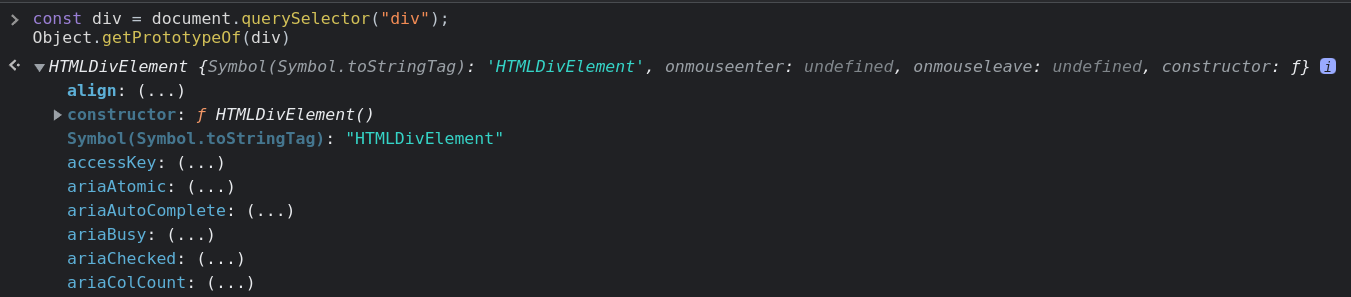
The same happens when it creates element.

Demystifying components?
So components simply creates html nodes as objects. Under the hood, we have a well known object instantiation.
function Person({name}) {
	this.name = name
}

//const me = new Person("Martin")
<Person name="Marcin" />
class Person {
constructor(name){
this.name = name
}
}
//const me = new Person("Marcin")
<Person name="Marcin" />What is instantiate object in JavaScript?
Instantiation refers to the creation of an object. Following that, instantiation patterns refer to the myriad ways to create instances of objects.
source: https://dev.to/mconner89/a-quick-guide-to-instantiation-in-javascript-6n
The this problem in JS

The this problem in JS
Arrow functions, introduced in ECMAScript 6 (ES6), provide a concise way to write function expressions in JavaScript. They are syntactically shorter than traditional function expressions and come with some differences in behavior, particularly with the this keyword.
The this problem in JS
One of the most significant differences is that arrow functions do not have their own this context. Instead, they inherit this from the surrounding non-arrow function. This is called lexical scoping.
Reconcilliation – how component rerenders
Let's introduce some terminology
1. Mounting
2. Unmounting
3. Render
4. Rerender
Mounting
Mounting a component in the context of React refers to the process of integrating a component into the DOM (Document Object Model) for the first time. When a component is mounted, the following events occur:
-
Initialization: The component is initialized, meaning its constructor is called (if it is a class component), and the initial state and props are set up.
-
Lifecycle Methods:
- For class components, the
componentDidMountlifecycle method is called. This method is often used for tasks like fetching data from an API, setting up subscriptions, or any initialization that requires a DOM node. - For functional components using hooks, the
useEffecthook with an empty dependency array[]acts similarly tocomponentDidMountand runs only once after the component is mounted.
- For class components, the
-
Rendering: The component's
rendermethod is called (for class components) or the function body is executed (for functional components), producing React elements which describe what should be displayed on the screen. -
Updating the DOM: React takes the elements returned from the render method and updates the DOM to match these elements. This is where the component gets visually displayed to the user.
Unmounting
Unmounting a component in React refers to the process of removing a component from the DOM. When a component is unmounted, it is completely removed from the DOM and its lifecycle comes to an end. This process is important for cleaning up resources and avoiding memory leaks.
Lifecycle Method for Unmounting
In class components, the componentWillUnmount lifecycle method is called just before a component is removed from the DOM. This method can be used to perform any necessary cleanup, such as invalidating timers, canceling network requests, or cleaning up subscriptions.
In functional components, the cleanup logic is handled within the useEffect hook by returning a cleanup function. This function is executed when the component is unmounted.
Rendering
Rendering a component in React refers to the process of generating the DOM elements that correspond to the component's structure and displaying them on the screen. This process can occur for the first time when a component is mounted or repeatedly when the component's state or props change, causing updates.
Initial Rendering
When a component is initially rendered, React:
- Calls the Render Method: For class components, React calls the
rendermethod. For functional components, React simply executes the component function. - Creates React Elements: The
rendermethod or function returns React elements, which are plain JavaScript objects representing the structure of the UI. - Updates the DOM: React takes these elements and translates them into actual DOM nodes, updating the DOM to match the elements.
Rerendering
Re-Rendering
Re-rendering occurs when a component's state or props change. This triggers a new render cycle, where React:
- Detects Changes: React detects changes in the component's state or props.
- Calls the Render Method Again: For class components, React calls the
rendermethod again. For functional components, it re-executes the function. - Compares with Previous Output: React uses a diffing algorithm (Reconciliation) to compare the new React elements with the previous ones.
- Updates the DOM Efficiently: React updates only the parts of the DOM that have changed, minimizing the number of actual DOM operations.
Rerendering
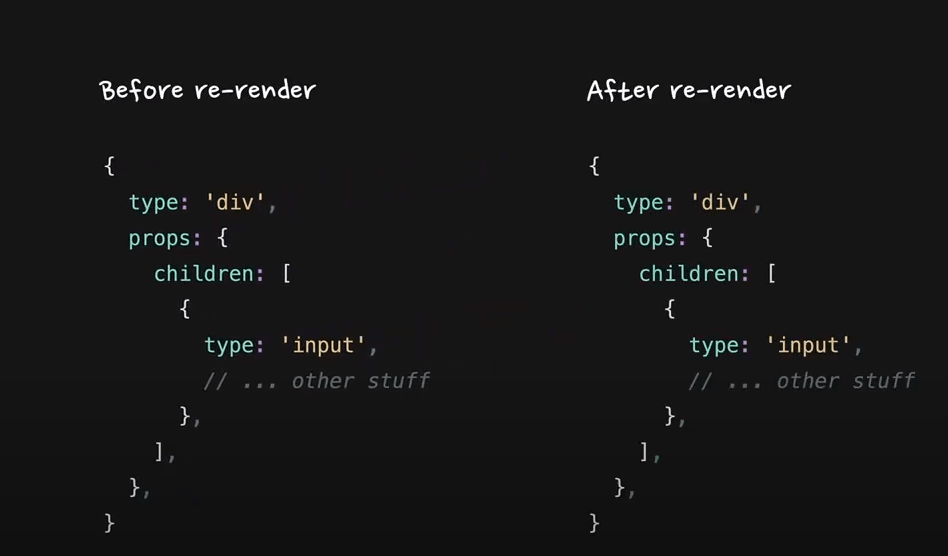
React Keys
In React, keys are special attributes you need to include when creating lists of elements. They help React identify which items have changed, are added, or are removed. This is crucial for efficiently updating the user interface.
Why Are Keys Important?
- Performance Optimization: Keys help React perform reconciliation efficiently by providing a way to identify which items in a list have changed, allowing React to minimize the number of DOM manipulations.
- Stability: Keys ensure that components maintain their state and identity across re-renders. Without keys, React may re-use the wrong component instances, leading to bugs and inconsistent UI.
React Keys
How to Use Keys
Keys should be given to the elements inside an array to give the elements a stable identity. The best practice is to use a unique identifier from your data as the key. If your data doesn't have a unique identifier, using the array index as a key is the last resort.
import React from 'react';

const ListWithKeys = () => {
  const items = ['Item 1', 'Item 2', 'Item 3'];
  return (
    <ul>
      {items.map((item, index) => (
        <li key={index}>{item}</li>
      ))}
    </ul>
  );
};

export default ListWithKeys;
React Hooks
- Hooks let you use state and other React features without writing a class.
- Hooks are a new addition in React 16.8 react.js
- Hooks allow us to hook into React features such as state and lifecycle methods.
source:w3schools.com
Hook Rules
There are 3 rules for hooks:
- Hooks can only be called inside React function components.
- Hooks can only be called at the top level of a component.
- Hooks cannot be conditional.
Note: Hooks will not work in React class components.
Read this for more info about Hooks⬇️
useState
useState is the most basic React Hook. It's used to assign the state to the component and to optionally change the state.
The signature of the hook is a tuple where the first element is the state itself and the second element is the setter function.
const [count, setCount] = useState(0);Each state has its own initial value. It's null by default but we may assign any initial value (It's 0 in the example above).
useState
import React, { useState } from 'react';

function Example() {
  // Declare a new state variable, which we'll call "count"
  const [count, setCount] = useState(0);

  return (
    <div>
      <p>You clicked {count} times</p>
      <button onClick={() => setCount(count + 1)}>
        Click me
      </button>
    </div>
  );
}
Let's keep in mind that each state change makes the component render (return again).
useState
import React, { useState } from 'react';

function Example() {
  // Declare a new state variable, which we'll call "count"
  const [count, setCount] = useState(0);
  const [color, setColor] = useState("blue");

  return (
    <div>
      <p>You clicked {count} times</p>
      <button onClick={() => setCount(count + 1)}>
        Click me
      </button>
      <button
      	style={{background: color}}
		onClick={() => {
        	setColor(prev => prev === "blue" ? "red" : "blue")
            }
        }>
        Click me
      </button>
    </div>
  );
}
Feel free to add as many states as you want.
useState
import React, { useState } from 'react';

function Example() {
  // Declare a new state variable, which we'll call "count"
  const [count, setCount] = useState({count: 0});
  const [color, setColor] = useState("blue");

  return (
    <div>
      <p>You clicked {count} times</p>
      <button onClick={() => setCount(prev => {count: prev.count + 1})}>
        Click me
      </button>

    </div>
  );
}
You may as well create a state which value is scalar – object or array.
useState
//When we don't need the previous value
setCount(10);

//When we want to update state base on it's actual value
setCount(prev => ({count: prev.count + 1}));
Setter function has exactly one argument. It can be function or any other value. In case it's a function you may safely reference the actual state and modify it.
useEffect
import React, { useState, useEffect } from 'react';

function Example() {
  const [count, setCount] = useState(0);

  useEffect(() => {
    // Update the document title using the browser API
    document.title = `You clicked ${count} times`;
  });

  return (
    <div>
      <p>You clicked {count} times</p>
      <button onClick={() => setCount(count + 1)}>
        Click me
      </button>
    </div>
  );
}
useEffect hook allows you to perform side effects in your components. Some examples of side effects are: fetching data, directly updating the DOM, and timers. useEffect accepts two arguments.
source:https://www.w3schools.com/react
useEffect
  useEffect(() => {
    // Update the document title using the browser API
    document.title = `You clicked ${count} times`;
  });
First argument of the hook is always a callback function. It's says whenever anything changes in the component (props or state) function shall execute.
useEffect
  useEffect(() => {
    const interval = setInterval(() => console.log("I'm still alive"), 1000);

    return () => clearInterval(interval)
  });
In numerous cases you would like to "clean up" after your component. In the example below we have an interval.
Imagine that your component disappeared from UI, the interval would still be functioning. To prevent that we can clean up any intervals, unresolved api call etc. on return. We do so returning the callback with cleanups from the hook.
useEffect
  useEffect(() => {
    console.log("I'm reacting to first render")
  }, []);

  useEffect(() => {
    console.log("I'm reacting to a specific change")
  }, [anyValue]);
As for now our hook has reacted to any state or props change. But we can easily make it react to any particular state or props change. We need to add a second parameter which is an array of values that the hook is supposed to observe. If the array is empty it means that the callback will work just once after the first render.
useEffect
Be careful with useEffect hook. It can be tricky and if you overdo it, it will lead to callback hell (hard to follow and debug sequence of state changes).
Callback Hell is essentially nested callbacks stacked below one another forming a pyramid structure. Every callback depends/waits for the previous callback, thereby making a pyramid structure that affects the readability and maintainability of the code.
source:https://www.geeksforgeeks.org/what-to-understand-callback/
useMemo
useMemo allows us to cache any heavy computations in our components. Each function inside your component would execute on each render.
const memoizedValue = useMemo(() => computeExpensiveValue(a, b), [a, b]);In the example above computeExpensiveValue would execute only if any of a or b changes.
React.memo()
When it comes to memoization, there is one more method worth mentioning. When parent components render all, its children render accordingly even if nothing changes actually inside it. To cache the component and prevent rendering, whenever parent component renders, we may memoize it.
const MyComponent = React.memo(function MyComponent(props) {
  /* render using props */
} /* optional comaparison function (prevProps, nextProps) => { ... } */);
In react memo, it will render only if any of its props changes. The comparison is shallow in this case so we might need a second parameter to compare props.
React.memo()
Do not overuse React.memo – it might me tempting to use it everywhere but comparing props is a procedure that consumes resources as well. Consider if memoization is worth this expense. In numerous cases, memoization would harm your performance not increase it.
useCallback
useCallback is one of the toughest to understand. In fact, on the Internet there are plenty of misleading information about it.
Function is just an object (like everything in JavaScript under the hood). So, while comparing props (for example in React.memo process) any callback sent to the children components would be a different prop and would cause rerendering.
{} === {} // FalsyuseCallback
Thanks to useCallback the callback function will not be recreated on each render. The same as with useMemo it takes the second parameter with the list of dependencies. When those dependencies changes the function is recreated accordingly.
...
const memoizedCallback = useCallback(
  () => {
    doSomething(a, b);
  },
  [a, b],
);

return <Child callback={memoizedCallback} />
...

function Child = React.memo(({callback}) => {
...
})
useRef
With useRef hook we can reference the actual DOM element as we would have done this with methods like document.querySelector. This simply means that ref stays intact of the full component life-cycle and it is mutable.
The common use case is when you want to reference DOM elements imperatively.
function TextInputWithFocusButton() {
  const inputEl = useRef(null);
  const onButtonClick = () => {
    // `current` points to the mounted text input element
    inputEl.current.focus();
  };
  return (
    <>
      <input ref={inputEl} type="text" />
      <button onClick={onButtonClick}>Focus the input</button>
    </>
  );
}
useRef
To access current ref value we use its current attribute.
function TextInputWithFocusButton() {
  const inputEl = useRef(null);
  const onButtonClick = () => {
    // `current` points to the mounted text input element
    inputEl.current.focus();
  };
  return (
    <>
      <input ref={inputEl} type="text" />
      <button onClick={onButtonClick}>Focus the input</button>
    </>
  );
}
useRef
The second important function of refs is its ability to expose DOM elements to third party libraries inside react components. As you know React operates with the boundaries of virtual DOM but most third party libraries don't. One of the most popular examples is the usage of Google Maps in React Component.
const map = new google.maps.Map(
    document.getElementById("map") as HTMLElement, // use ref instead
    {
      zoom: 4,
      center: uluru,
    }
  );
You may as well use event jQuery with ref. Another example: animations with GSAP, sliders ect.
useRef
There is a rare occasion when you might need to listen to the process of attaching and detaching ref to an element in a child component. It can be useful in animations.
In this case you can use the so-called callback ref.
https://reactjs.org/docs/hooks-faq.html#how-can-i-measure-a-dom-node
https://codesandbox.io/s/818zzk8m78
forwardRef
There is an infrequent occurrence when we might need to access the ref of a child component from the parent perspective. It happens with animations and when it comes to small reusable components like button.
const FancyButton = React.forwardRef((props, ref) => (
  <button ref={ref} className="FancyButton">
    {props.children}
  </button>
));

// You can now get a ref directly to the DOM button:
const ref = React.createRef();
// you may now access the ref of a button from parent perspective
// for example ref.current.focus()
<FancyButton ref={ref}>Click me!</FancyButton>;
useImperativeHandle
useImperativeHandle when you want to expose methods of a child component to be callable by the parent component. This is an advanced use case and is typically needed when you need to control the behavior of child components imperatively rather than declaratively.
How to Use useImperativeHandle
-
Create a Ref in the Parent Component: First, create a
refin the parent component usingReact.createReforuseRef. -
Pass the Ref to the Child Component: Pass the
refto the child component where you want to expose methods. -
Use
useImperativeHandlein the Child Component: Use theuseImperativeHandlehook in the child component to specify which methods or properties you want to expose.
useImperativeHandle
import React, { useRef } from 'react';
import ChildComponent from './ChildComponent';

function ParentComponent() {
  const childRef = useRef();

  const handleClick = () => {
    if (childRef.current) {
      childRef.current.focusInput();
    }
  };

  return (
    <div>
      <ChildComponent ref={childRef} />
      <button onClick={handleClick}>Focus Input</button>
    </div>
  );
}

export default ParentComponent;
useImperativeHandle
import React, { useImperativeHandle, useRef } from 'react';

const ChildComponent = React.forwardRef((props, ref) => {
  const inputRef = useRef();

  useImperativeHandle(ref, () => ({
    focusInput: () => {
      inputRef.current.focus();
    }
  }));

  return <input ref={inputRef} />;
});

export default ChildComponent;
useReducer
Another pretty useful hook is useReducer. Not that popular but definitely worth mentioning. Basically, it's the same as useState but it allows us to deal with complicated and nested states. It also allows us to carry out complicated mutations of the state.
const [state, dispatch] = useReducer(reducer, initialArg, init);- reducer – a function with two arguments a state and an action.
- initial state
- optional function - is to initiate state in a lazy manner.
useReducer
The most important part is the reducer function. We may conduct complicated mutations of the state there.
An action must have its type and optionally a set of data attached to the action. It's conventionally named payload. In reducer we check the type either with a switch statement or with an if statement and we mutate it accordingly.
function reducer(state, action) {
  switch (action.type) {
    case 'increment':
      return {count: state.count + action.payload};
    case 'decrement':
      return {count: state.count - action.payload};
    case 'reset':
      return init(action.payload);
    default:
      throw new Error();
  }
}
The concept of reducer function is widely used in Redux as well.
Concurent Features
React team were working many years on a feature that would allow asynchronous rendering. There are some evloutions of that process.
Async Mode
Concurrent Rendering
Concurrent Mode
Concurrent Features
useDefferedValue
In React, useDeferredValue is a hook introduced in React 18. It is used to defer the computation of a value and to render the updated value asynchronously. This can help to improve the user experience by avoiding unnecessary blocking of the main thread for expensive computations or rendering operations, making the UI feel more responsive.
import { useState, useDeferredValue } from 'react';

function SearchPage() {
  const [query, setQuery] = useState('');
  const deferredQuery = useDeferredValue(query);
  // ...
}
useTransition
useTransition is a hook introduced in React 18 that allows you to manage transitions in a way that doesn't block the main rendering process. It helps to distinguish between urgent and non-urgent updates, enabling smoother user experiences even during state changes that involve significant computations or rendering work.
function TabContainer() {
  const [isPending, startTransition] = useTransition();
  const [tab, setTab] = useState('about');

  function selectTab(nextTab) {
    startTransition(() => {
      setTab(nextTab);
    });
  }
  // ...
}
useLayoutEffect
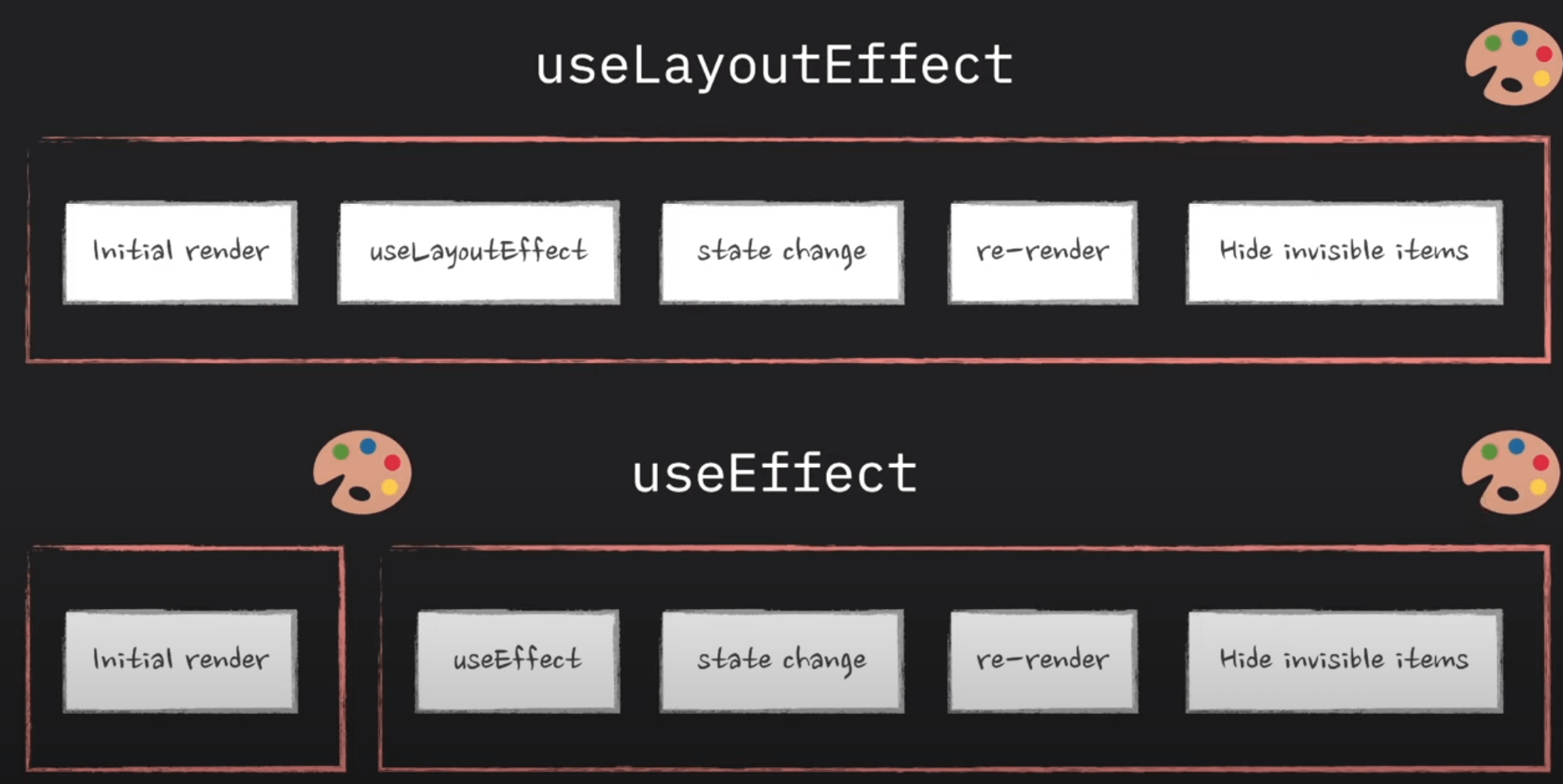
useLayoutEffect is a hook in React that allows you to run side effects in your components, similar to useEffect. However, there are important differences in when these effects are executed. Understanding these differences can help you optimize your React applications and prevent potential UI issues.
Key Differences Between useEffect and useLayoutEffect
useLayoutEffect
-
Timing of Execution:
useEffect: Runs asynchronously after the browser has painted the screen. This means it does not block the visual rendering of the component.useLayoutEffect: Runs synchronously after all DOM mutations but before the browser has a chance to paint. This means it blocks the painting of the component until the effect has run, ensuring that any DOM changes are made before the paint.
-
Use Cases:
useEffect: Suitable for side effects that do not affect the layout of the component, such as data fetching, subscriptions, or logging.useLayoutEffect: Ideal for side effects that require reading or writing layout information, such as measurements, mutations that should happen before the paint, and updating refs.
useLayoutEffect
useId
It's just a simple helper hook that gives us a uniqe id consistent between renders
Custom Hooks
A custom Hook doesn’t need to have a specific signature. We can decide what it takes as arguments, and what, if anything, it should return. In other words, it’s just like a normal function. Its name should always start with use so that you can tell at a glance that the rules of Hooks apply to it.
source: Read ⬇️ https://reactjs.org/docs/hooks-custom.html
Example:
The purpose of our useFriendStatus Hook is to subscribe us to a friend’s status. This is why it takes friendID as an argument, and returns whether this friend is online:
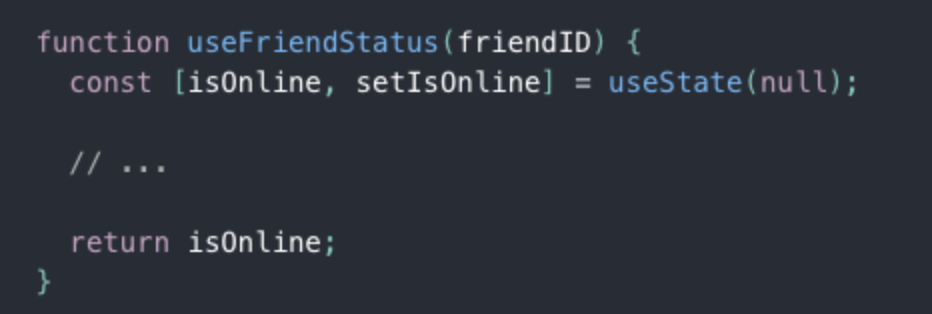
Custom Hooks offer the flexibility of sharing logic that wasn’t possible in React components before. You can write custom Hooks that cover a wide range of use cases like form handling, animation, declarative subscriptions, timers, and probably many more we haven’t considered. What’s more, you can build Hooks that are just as easy to use as React’s built-in features.
Synthetic Events in React.js
Why do we use synthetic events in ReactJS?
In ReactJS, there are events by which user uses to interact with an application UI. React listens to events at the document level, after receiving events from the browser, React wraps these events with a wrapper that has a similar interface as the local browser event, which helps us to use methods like preventDefault().
Why use such a wrapper?
So, often we use different browsers where the same event has different names. Here wrapper does is triggering all the different names for the same event effect. Therefore, whenever we are triggering an event in a ReactJS, we are not actually trying to trigger the real DOM event, instead, we are using the ReactJS custom event type, which is the synthetic event.
The examples of the synthetic events are onClick(), onBlur() and onChange(). These all are not real DOM events but react synthetic events.
Benefits of using synthetic events:
- Cross browsers applications are easy to implement.
- Synthetic events are that ReactJS reuses these events objects, by pooling them, which increase the performance.
How does it look like?
In the old days of JavaScript we used to attach event to html elements in a inline manner.
<button onclick="myFunction()">Click me</button>With React it's very similar.
As with many other syntax in React we also use the Camel Case here.
<button onClick={(e) => {

    console.log(e.currentTarget);

}}>Click me</button>
Camel Case the use of a capital letter to begin the second word in a compound name or phrase, when it is not separated from the first word by a space: Examples of camel case include "iPod" and "GaGa". https://dictionary.cambridge.org/dictionary/english/camel-case
Synthetic events
There are couple of ways on how to write an event callback.
//Inline
<button onClick={(e) => {

    console.log(e.currentTarget);

}}>Click me</button>

//With a named function
const handleClick = () => console.log(e.currentTarget)

<button onClick={handleClick}>Click me</button>

//With a named function and additional parameters
const handleClick = (e,b) => console.log(e.currentTarget, b)

<button onClick={(e) => handleClick(e, "some value")}>Click me</button>
Events with forms
We need special consideration when it comes to forms. In React we have so called controlled components. In this case it simply means that we store internal state of the form inputs in React state.
Events with forms
const Form = () => {
  const [formState, setFormState] = useState({
    name: "",
    lastName: "",
  });

  return (
    <form onSubmit={e => e.preventDefault()}>
      <input
        value={formState.name}
        onChange={(e) =>
          setFormState({ ...formState, name: e.currentTarget.value })
        }
      />
      <input
        value={formState.lastName}
        onChange={(e) =>
          setFormState({ ...formState, lastName: e.currentTarget.value })
        }
      />
      <button>Send</button>
    </form>
  );
};
Events with forms
- each input keeps its value in the React state
- each input has its onChange method
Events with forms
React provides a unified API for inputs. All of them act the same way.
<textarea value={this.state.value} onChange={this.handleChange} />
//not <textarea>Some text</textarea>

<select value={this.state.value} onChange={this.handleChange}>
	<option value="grapefruit">Grapefruit</option>
</select>
// not
<select>
	<option value="grapefruit">Grapefruit</option>
</select>
Fetching data
const DataFetchingComponent = () => {
  const [data, setData] = useState(null);
  const [loading, setLoading] = useState(true);
  const [error, setError] = useState(null);

  useEffect(() => {
    fetch('https://jsonplaceholder.typicode.com/posts')
      .then(response => {
        return response.json();
      })
      .then(data => {
        setData(data);
        setLoading(false);
      })
      .catch(error => {
        setError(error);
        setLoading(false);
      });
  }, []); // Empty dependency array means this effect runs only once when the component mounts

  if (loading) return <p>Loading...</p>;
  if (error) return <p>Error: {error.message}</p>;

  return (
      <ul>
        {data.map(post => (
          <li key={post.id}>{post.title}</li>
        ))}
      </ul>
  );
};

export default DataFetchingComponent;
Global State Management
What is state management?
It refers to managing the state of one or several user interface control systems like that of radio controls, action buttons, input fields, etc. It is a programming technique for User Interface in which the state of a single UI control completely or partially depends on the state of all the other UI controls.
source: https://www.simplilearn.com/tutorials/asp-dot-net-tutorial/state-management-in-asp-net
Global state is the data we manage across multiple components. Global state is necessary when we want to get and update data anywhere in our app, or in multiple components at least. A common example of global state is authenticated user state.
source: https://www.freecodecamp.org/news/how-to-manage-state-in-your-react-apps/
Flux Architecture
React Context API
Redux
Flux Architecture
One of the more common design patterns is called the MVC design pattern, which stands for model, view, controller. This pattern organizes your code into three boxes:
- The raw data that will be the model of your application
- The logic that takes that raw data and turns into functions that will control the state of the application
- The user interface where your client will interact with and view the application
As applications scale, the MVC data flow can become more of a problem because MVC applications have data that can move in multiple directions, creating two-way data flows. Code is difficult to maintain. If we want to iterate on problems quickly, this way of writing the code is not going to work.
Facebook solved this problem with the creation of the Flux Architecture.
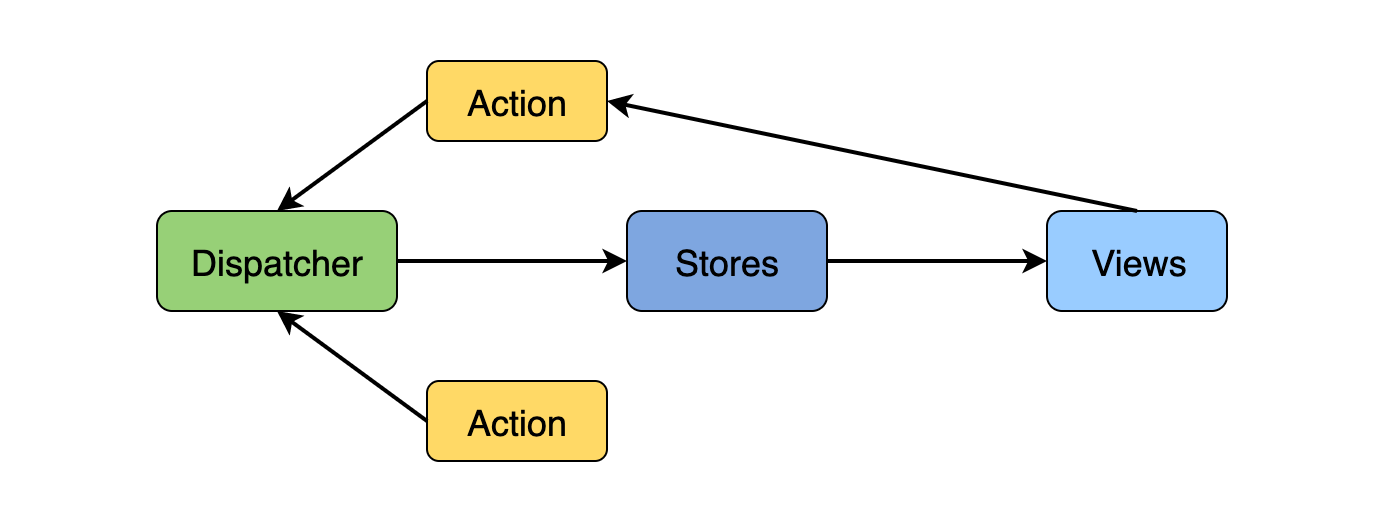
Flux Architecture – a design pattern that only allows data to flow in one direction while working in conjunction with React to only update a web page when the state of a component changes.
Parts of the Flux Architecture
React Context API
What is Context API?
The React Context API is a way for a React app to effectively produce global variables that can be passed around. This is the alternative to "prop drilling" or moving props from grandparent to child to parent, and so on. Context is also touted as an easier, lighter approach to state management using Redux.
Context API is a (kind of) new feature added in version 16.3 of React that allows one to share state across the entire app (or part of it) lightly and with ease.
source: https://www.loginradius.com/blog/engineering/react-context-api/
Read: https://reactjs.org/docs/context.html#api
What is React 16 context API and why should you care?
Context is designed to share data that can be considered “global” for a tree of React Components.
It sits next to React to props and state.
In other words, Context provides a way to pass data through the component tree without having to pass props down manually at every level.
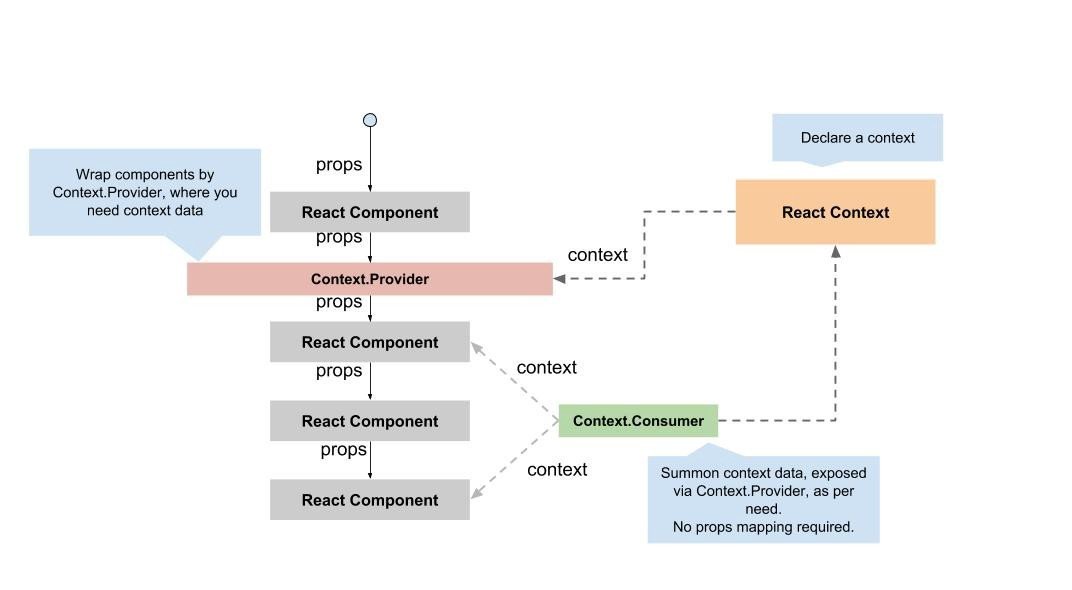
https://ipraveen.medium.com/react-basic-how-react-16-context-api-work-7257591589fc
How to Use React Context
1. Create a Context
First, create a context using React.createContext().
import React from 'react';

const MyContext = React.createContext();
How to Use React Context
2. Provide Context Value
Use the Provider component to pass down the context value. Wrap the component tree where you want the context to be available.
import React from 'react';
import ReactDOM from 'react-dom';
import App from './App';

const MyContext = React.createContext();

const Main = () => (
  <MyContext.Provider value={{ user: 'John Doe' }}>
    <App />
  </MyContext.Provider>
);

ReactDOM.render(<Main />, document.getElementById('root'));
How to Use React Context
3. Consume Context Value
Access the context value in a component using the Consumer component or the useContext hook.
import React from 'react';
import MyContext from './MyContext';

const MyComponent = () => (
  <MyContext.Consumer>
    {value => <div>User: {value.user}</div>}
  </MyContext.Consumer>
);

export default MyComponent;
How to Use React Context
3. Consume Context Value
Access the context value in a component using the Consumer component or the useContext hook.
import React, { useContext } from 'react';
import MyContext from './MyContext';

const MyComponent = () => {
  const contextValue = useContext(MyContext);
  return <div>User: {contextValue.user}</div>;
};

export default MyComponent;
Redux Architecture
Redux is a library that acts as a state container and helps to manage your application data flow. It is similar to Flux architecture and has a lot in common with it.
The Redux Architecture takes what we already know about the Flux Architecture and expands it so it is more efficient for grander, more complex applications.
The two biggest improvements that Redux offers is one store that is accessible and subscriptable to all React components, and a reducer inside that store that will determine the changes to your application’s state.
Much of the architecture to Redux is very similar to that of Flux Architecture.
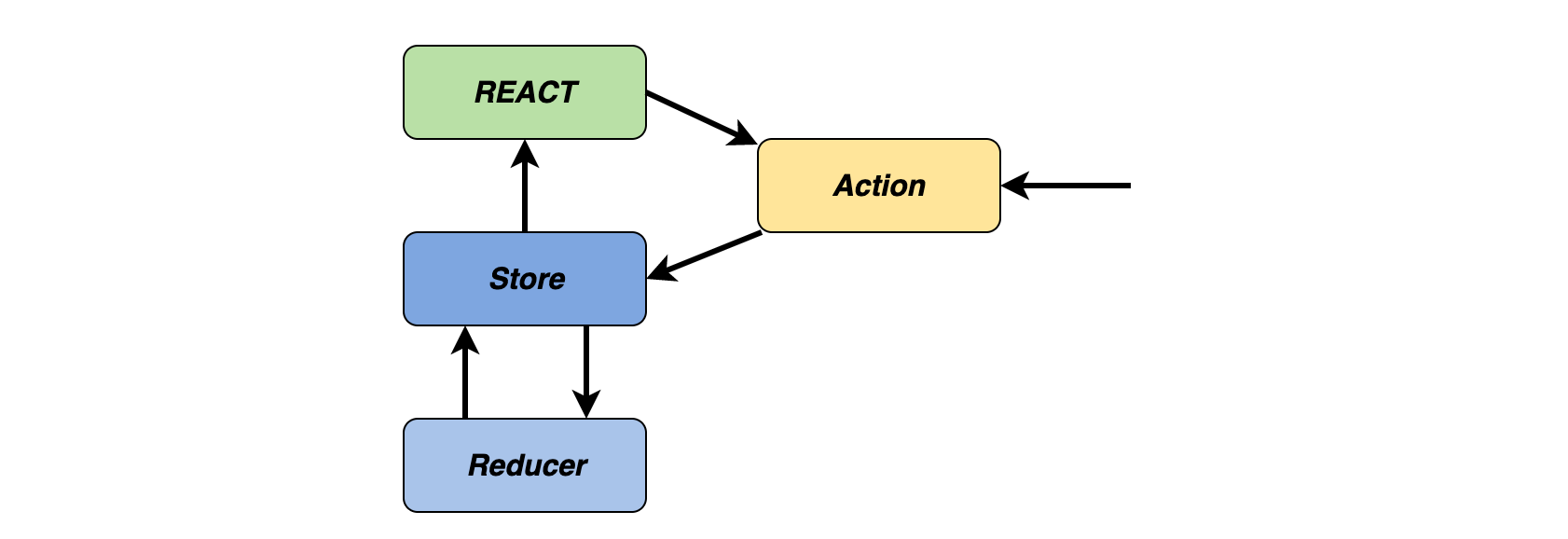
Parts of the Redux Architecture
One Store to Hold State
When we think about the Flux Architecture and how it works, we know it has a unidirectional data flow. We tend to think of our React applications in terms of parent-child relationships. What if we had a child component that said, for instance, needed to talk to a cousin?
If using Flux Architecture, the state would be lifted up to both components’ nearest common ancestor. This gets to be a bit complex when that nearest common ancestor is five generations back. This can lead to a problem called props drilling and makes your code a bit less readable. This is where Redux comes in.
https://www.educative.io/blog/react-design-patterns-best-practices#flux
TypeScript
TypeScript is a statically typed superset of JavaScript that adds static types to the language. It was developed by Microsoft to improve the development process of JavaScript applications by catching errors early through type checking and to enhance developer productivity with better tooling and autocompletion.

TypeScript
Static Typing:
- Type Annotations: Developers can specify types for variables, function parameters, and return values.
- Type Inference: TypeScript can automatically infer types when they are not explicitly provided.
TypeScript
Advanced Types:
- Interfaces: Define contracts for objects, ensuring that they adhere to certain shapes.
- Enums: Define a set of named constants, making code more readable and maintainable.
- Union and Intersection Types: Combine multiple types or restrict a variable to a subset of types.
- Generics: Create reusable components that can work with a variety of types.
TypeScript
Modern JavaScript Features:
- Support for ES6+: Includes features like classes, modules, arrow functions, and async/await.
- Compatibility: TypeScript code compiles down to plain JavaScript, ensuring compatibility with all JavaScript environments.
TypeScript
Tooling:
-
TypeScript Compiler (
tsc): Converts TypeScript code into JavaScript. - Integration with IDEs: Provides enhanced autocompletion, navigation, and refactoring capabilities.
TypeScript
TypeScript Configuration:
-
tsconfig.json: A configuration file that allows customization of the TypeScript compiler options.
TypeScript
Dynamic typing
Dynamic typing is a feature of some programming languages where the type of a variable is determined at runtime rather than at compile-time. This allows variables to hold values of any type and to change their type as the program executes.
Examples: Python, Ruby, JS
TypeScript
Static Typing
Static typing is a feature of some programming languages where the type of a variable is known at compile-time. This means that type checking is performed during compilation, and any type errors are caught before the program is run.
C++, Java
TypeScript
Weak typing
Weak typing, also known as weakly typed or loosely typed, refers to a type system in programming languages where types are not strictly enforced by the compiler or interpreter. In weakly typed languages, implicit type conversions (also known as type coercion) are common, allowing operations to be performed between different types without explicit type casting.
TypeScript
Strong typing
Strong typing refers to a type system in programming languages where types are strictly enforced, and implicit type conversions (coercions) are minimal or non-existent. This ensures that operations are performed only on compatible types, and type errors are caught early, often at compile-time.
TypeScript
- Static strong: OCaml/Reason, TypeScript
- Static weak: C, C++
- Dynamic strong: Python
- Dynamic weak: JavaScript
TypeScript
Duck typing is a concept often associated with dynamic languages, where the suitability of an object for a particular use is determined by the presence of certain methods and properties rather than the object's actual type. The name comes from the saying, "If it looks like a duck, swims like a duck, and quacks like a duck, then it probably is a duck."
In TypeScript, duck typing is achieved through the use of interfaces and structural typing. Structural typing means that TypeScript compares the structure of objects to determine if they are compatible, rather than their explicit types. This allows for a form of duck typing within the static type system of TypeScript.
TypeScript
Structural Typing:
- Objects are compatible if they have the same shape or structure.
- TypeScript checks for the presence of required properties and methods, not the explicit type.
TypeScript
Nominal typing, also known as nominative typing, is a type system where compatibility and equivalence of types are determined by explicit declarations and names rather than by their structure or behavior. In other words, two types are considered compatible if they have the same name or explicitly declared relationship, such as through inheritance or interfaces, rather than having the same shape or properties.
TypeScript
Key Characteristics of Nominal Typing
-
Type Names and Declarations:
- Types are identified by their names and explicit declarations (like enums in TS)
- Two types are considered the same if they share the same name or are explicitly declared to be related.
TypeScript
1. Primitive Types
These are the basic types provided by TypeScript.
number: Represents both integer and floating-point numbers.
let count: number = 42;
let price: number = 99.99;
TypeScript
1. Primitive Types
These are the basic types provided by TypeScript.
string: Represents text data.
let name: string = "Alice";TypeScript
1. Primitive Types
These are the basic types provided by TypeScript.
boolean: Represents true/false values.
let isValid: boolean = true;TypeScript
1. Primitive Types
These are the basic types provided by TypeScript.
symbol: Represents unique and immutable values often used as keys for object properties.
let uniqueKey: symbol = Symbol("key");TypeScript
1. Primitive Types
These are the basic types provided by TypeScript.
bigint: Represents arbitrarily large integers.
let largeNumber: bigint = 9007199254740991n;TypeScript
2. Special Types
These types are used to represent more specialized values.
any: Represents any type. Usage of any disables type checking.
let anything: any = 4;
anything = "could be a string";
anything = false;
TypeScript
2. Special Types
These types are used to represent more specialized values.
unknown: Represents any value but is safer than any as it requires type checking before performing operations.
let unsure: unknown = 4;
unsure = "could be a string";

if (typeof unsure === "string") {
  console.log(unsure.toUpperCase()); // Type-safe
}
TypeScript
2. Special Types
These types are used to represent more specialized values.
void: Represents the absence of any type, often used as the return type of functions that do not return a value.
function logMessage(message: string): void {
  console.log(message);
}
TypeScript
2. Special Types
These types are used to represent more specialized values.
null and undefined: Represent the null and undefined values.
let n: null = null;
let u: undefined = undefined;
TypeScript
2. Special Types
These types are used to represent more specialized values.
never: Represents the type of values that never occur, such as functions that throw errors or never return.
function error(message: string): never {
  throw new Error(message);
}
TypeScript
3. Object Types
These types are used to describe more complex data structures.
object: Represents non-primitive types (everything except number, string, boolean, symbol, null, or undefined).
let person: object = { name: "Alice", age: 30 };TypeScript
3. Object Types
These types are used to describe more complex data structures.
Array: Represents a collection of values.
let list: number[] = [1, 2, 3];
let genericList: Array<number> = [1, 2, 3];
TypeScript
3. Object Types
These types are used to describe more complex data structures.
Tuple: Represents an array with a fixed number of elements of specific types.
let tuple: [string, number] = ["Alice", 30];TypeScript
4. Function Types
These types are used to describe functions.
Function Type Expressions: Specifies the parameter types and return type.
let add: (a: number, b: number) => number = (a, b) => a + b;
TypeScript
4. Function Types
These types are used to describe functions.
Call Signatures and Construct Signatures: Used in interfaces and type aliases to describe function shapes.
interface Adder {
  (a: number, b: number): number;
}

let adder: Adder = (a, b) => a + b;
TypeScript
5. Union and Intersection Types
Union Types: Represents a value that can be one of several types.
let value: string | number;
value = "Hello";
value = 42;
TypeScript
5. Union and Intersection Types
Intersection Types: Combines multiple types into one.
interface Person {
  name: string;
}
interface Employee {
  employeeId: number;
}
let employee: Person & Employee = { name: "Alice", employeeId: 123 };
TypeScript
5. Literal types
String Literals, Number Literals, and Boolean Literals:
let specificString: "hello" = "hello";
let specificNumber: 42 = 42;
let specificBoolean: true = true;
Types in React
Functional Components Describing functional components with types is much more pleasant, faster, easier, and without the error-proneness known from classes. What does a fully and correctly typed functional component in React look like?
function MyComponent() {
// …
}

function MyComponent(props: ComponentProps) {
// …
}

function MyComponent({ name, age }: ComponentProps) {
// …
}

const MyComponent = ({
name,
age,
}: ComponentProps) => {
// …
};
Types in React
How to type props with React.FC?
const MyComponent: React.FC<ComponentProps> = ({
	name,
	age,
}) => {
	// …
};

const MyComponent = React.memo<ComponentProps>(
  ({ name, age }) => {
  	// …
  },
);
Types in React
React Node Type for children
import type { ReactNode } from "react";
type ComponentProps = {
	children: ReactNode;
};
Types in React
Generic Components
type Props<T> = {
	value: T;
	onChange(val: T): void;
};
function Dropdown<T>(props: Props<T>) {
	// …
}
<Dropdown<number>
	value={1}
	onChange={(val) => console.log(val)}
/>;

const Dropdown = <T,>(props: Props<T>) => {
	// …
};
Types in React
useState
const [
	product,
	setProduct,
] = useState<Product | null>(null);

type _ = Dispatch<SetStateAction<Product>>;
Types in React
useRef
const ref = useRef<HTMLButtonElement | null>(null);Types in React
Events
import type {
FormEvent,
ChangeEvent,
MouseEvent,
} from "react";
function Form() {

  function handleSubmit(e: FormEvent) {
      // …
  }
  function handleChange(e: ChangeEvent) {
      // …
  }
  function handleClick(e: MouseEvent) {
      // …
  }
  return (
    <form onSubmit={handleSubmit}>
      <input onChange={handleChange} name="test" />
      <button onClick={handleClick}>Kliknij!</button>
    </form>
	);
}
Types in React
Events
import type {
	FormEventHandler,
	ChangeEventHandler,
	MouseEventHandler,
} from "react";

const handleSubmit: FormEventHandler = (e) => {
	// …
};
const handleChange: ChangeEventHandler = (e) => {
	// …
};
const handleClick: MouseEventHandler = (e) => {
	// …
};
Types in React
Events handlers as generics
const handleSubmit = (
e: FormEvent<HTMLFormElement>,
) => {
	// …
};

const handleChange = (
e: ChangeEvent<HTMLInputElement>,
) => {
	// …
};

const handleClick = (
e: MouseEvent<HTMLButtonElement>,
) => {
	// …
};
The End of React.js Course.
See you on the next one! 😉 ➡️
React / Redux / TypeScript
By noinputsignal