CANVAS
Canvas is ...
Canvas element and basic setup
Possibilities of Canvas
Useful tips
Conclusion and Canvas inspiration
Presentation plan:
1
2
3
4
5
What is CANVAS?
The CANVAS element, introduced in HTML5, enables the dinamic generation of bitmap images be means of JavaSript code
According to the HTML5 specification:

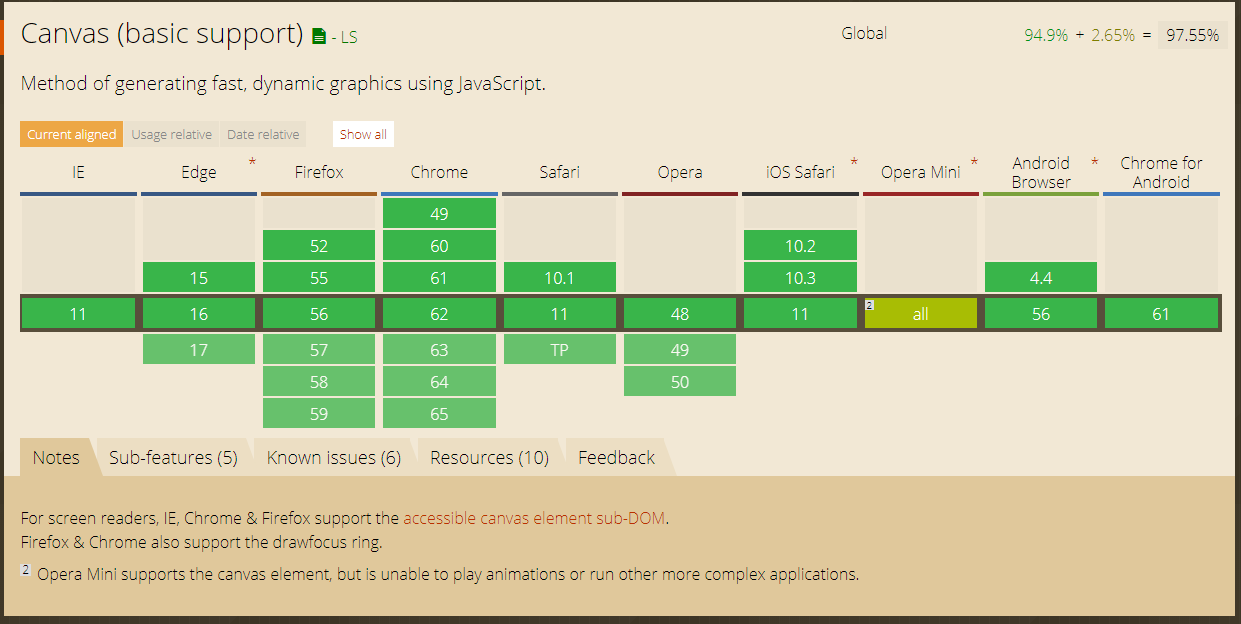
Support Canvas
Use Canvas
for drawing shapes and complex images
for drawing graphs
to create a game board in browser games
for manipulate photos
for almost all animation
to embed video in a page
it is possible to create a full-fledged player
and much more
Canvas element and basic setup
HTML
JS
ID:
Although not required, supplying an ID is recommended as it eases the process of identifying it within a script
WIDTH:
The initial width is 300px
HEIGHT:
The initial height is 300px

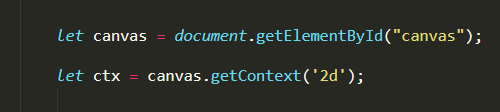
2.1 the HTMLCanvasElement
2.2 the CanvasRenderingContext2D
2.1
2.2
Two parts of code:
Required attributes:
1
2
Example basic steps

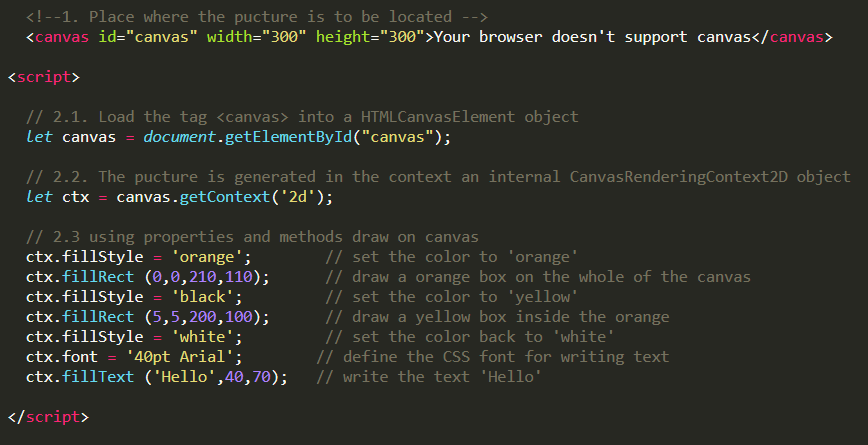
Main points of work with Canvas
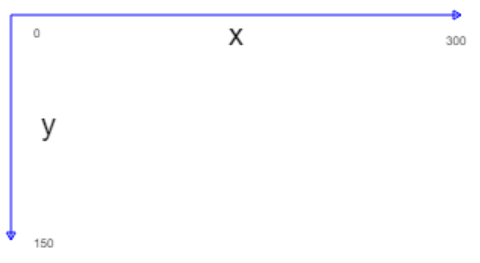
Points (x, y) and the canvas coordinates
The origin (point 0,0) is in the upper left corner.But it can be shifted
Changing the height or width of the canvas will erase all its contents
The text color, font size, style can be specified in the same way as CSS
Possibilities of Сanvas
Using about 20 properties and 35 methods to work with Canvas
you can implement complex and interesting things
Drawing shapes
Canvas supports 2 primitive shapes: rectangles and paths

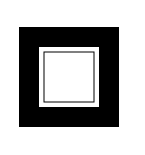
Rectangle
4 ways to create a rectangle
rect(x, y, width, height)
adds a rectangular path to a currently open path
Where:
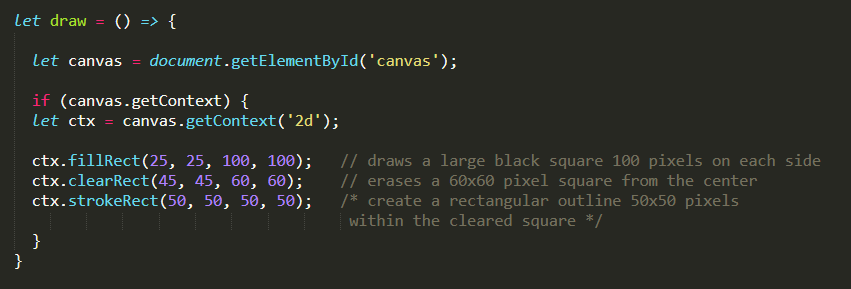
fillRect(x, y, width, height)
filled rectangle
strokeRect(x, y, width, height)
a rectangule outline
clearRect(x, y, width, height)
make the rectangular area transparent
X
the x axis of the coordinate
Y
the y axis of the coordinate
Width
the rectangle’s width
Height
the rectangle’s height
Example
Path
A path is a list of points connected by segments of lines
that can be of varying shapes, curves, widths, and colors.
Take some extra steps and metods:
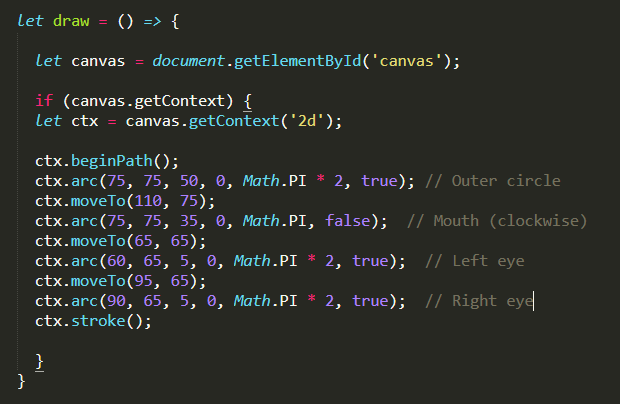
beginPath()
creates a new path
path methods
methods to set different path for object
closePath()
closes the path
1
2
3
4
stroke()
draws the shape by stroking its outline
fill()
drawing a solid shape by filling the path's content area
Path metods:
moveTo()
moves the starting point of a new sub-path
lineTo()
connects the last point in the sub-path
bezierCurveTo()
adds a cubic Bézier curve to the path
arc() and arcTo()
quadraticCurveTo()
adds a quadratic Bézier curve to the path
ellipse()
rect()
creates a path for a rectangle
Example
Applying colors
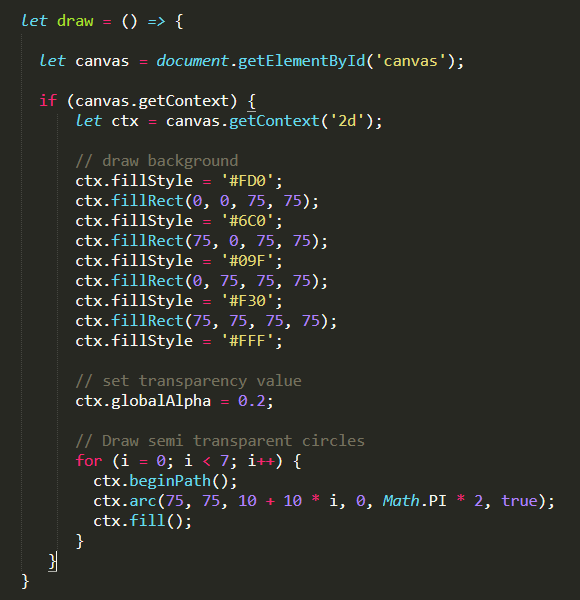
Colors
fillStyle = color
Sets the styles used when filling shapes
strokeStyle = color
Sets the styles for shape outline
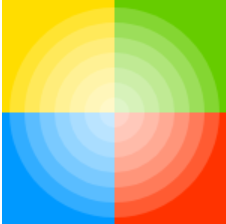
Transparency
globalAlpha = value
to all future shapes drawn
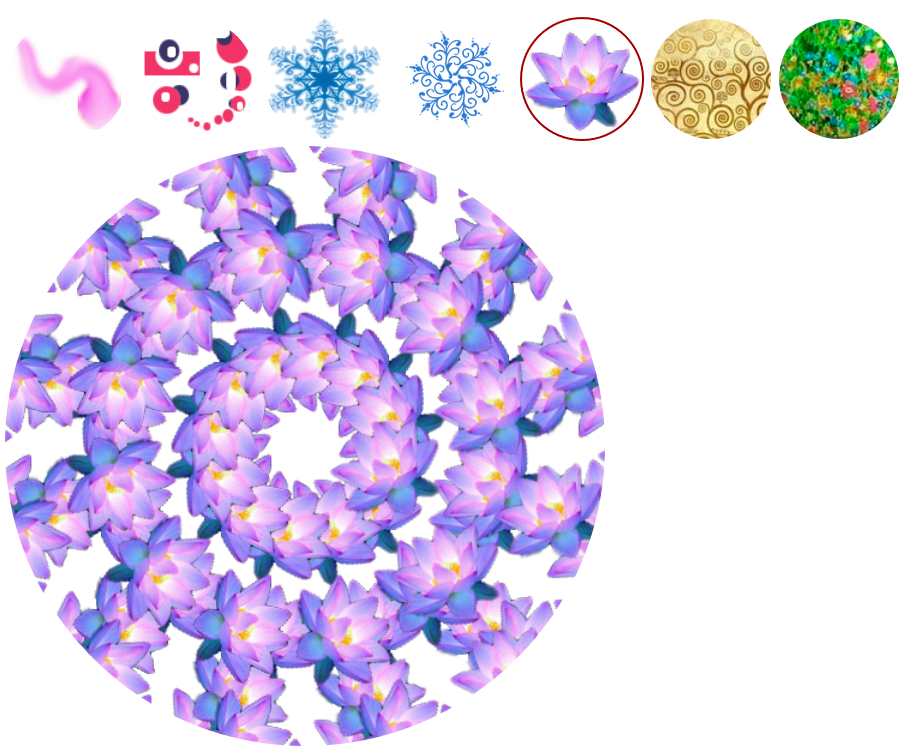
Patterns
createPattern(image, repetition)
to all future shapes drawn
Canvas fill rules
norzero-rule event-odd rule
a curve filled according rulles
Gradients
createLinearGradient(x0, y0, x1, y1);
createRadialGradient(x0, y0, x1, y1, r1);
gradient.addColorStop(position, color);
Example
Applying styles
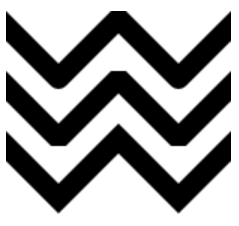
Line styles
lineWidth = value
miteralLimit = value
Shadows
getLineDash()
gets the current line dash pattern
setLineDash(segments)
sets the line dash pattern
lineDashOffset = value
shadowOffsetX = float
shadowOffsetY = float
shadowBlur = float
shadowColor = color
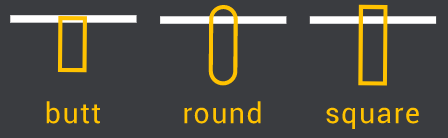
lineCap = type
determines how the end points of every line are drawn
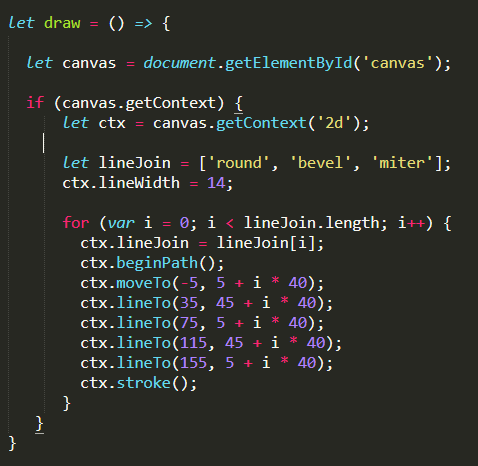
lineJoin = type
determines how two connecting segments (of lines, arcs or curves)

Example
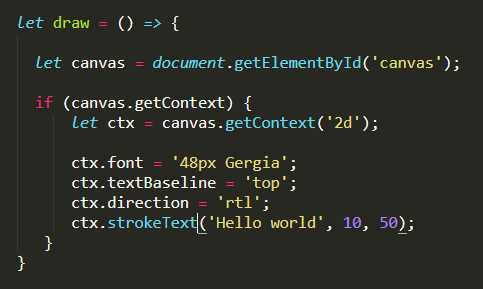
Drawing text
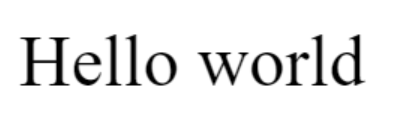
Methods
Styling text
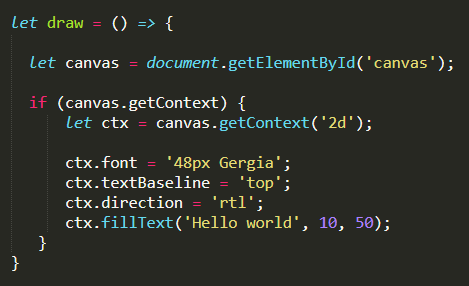
fillText(text, x, y [, maxWidth])
fills a given text at the given (x,y) position
font = value
textAlign = value
textBaseline = value
direction = value
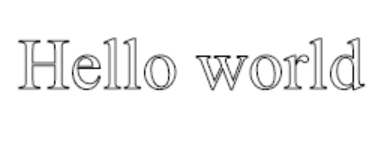
strokeText(text, x, y [, maxWidth])
strokes a given text at the given (x,y) position
measureText()
Advanced text measurement
Example
Using images
Getting image to draw
Drawing images
HTML ImageElement
drawImage(image, x, y)
draws the CanvasImageSource at the coordinates (x, y)
HTML VideoElement
HTML CanvasElement
The canvas API an image sourse:
Using images from the same page
Using images from other domains
Using other canvas elements
Creating an image from scratch
Embedding an image via data: URL
Using frames from a video
drawImage(image, x, y, width, height)
two new parameters scaled images on the canvas
- Scaling
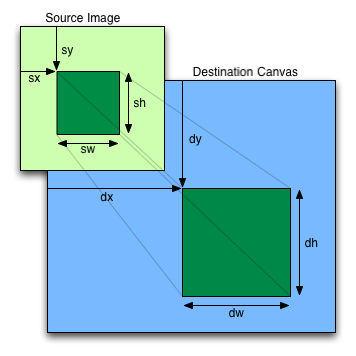
drawImage(image, sx, sy, sWidth, sHeight, dx, dy, dWidth, dHeight)
cut out a section of the source image, scale and draw
- Slicing
Example
Transformations
save()
Saves the entire state of the canvas
restore()
Restores the most recently saved canvas state
Canvas states are stored on a stack
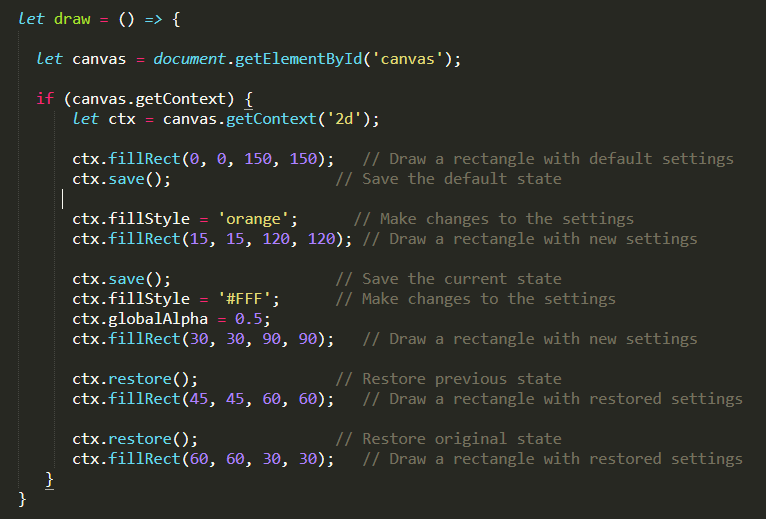

Saving and restoring state
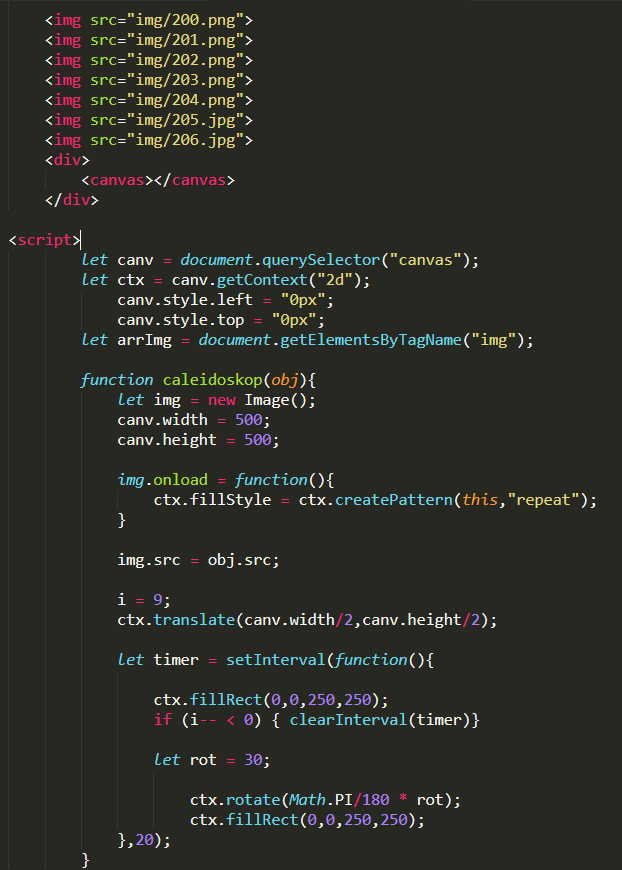
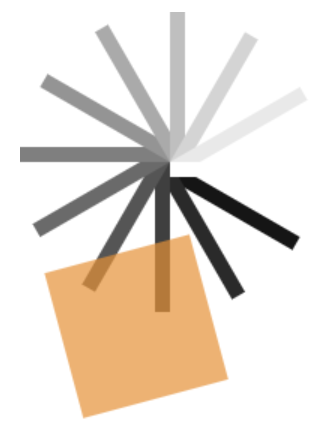
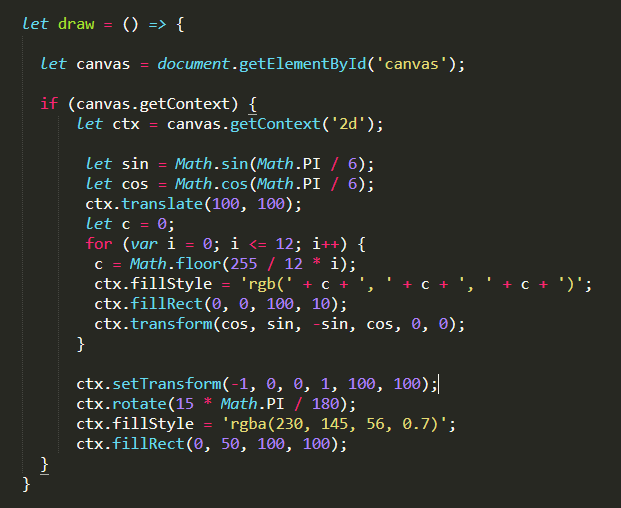
Transformations
translate(x, y)
Moves the canvas and its origin on the grid
rotate(x, y)
Rotates the canvas clockwise around the current origin by the angle number of radians
scale(x, y)
Scales the canvas units by x horizontally and by y vertically
setTransform(a, b, c, d, e, f)
Resets the current transform to the identity matrix, and then invokes the transform() method with the same arguments
resetTransform()
Resets the current transform to the identity matrix
transform(a, b, c, d, e, f)
Multiplies the current transformation matrix with the matrix described by its arguments
Example
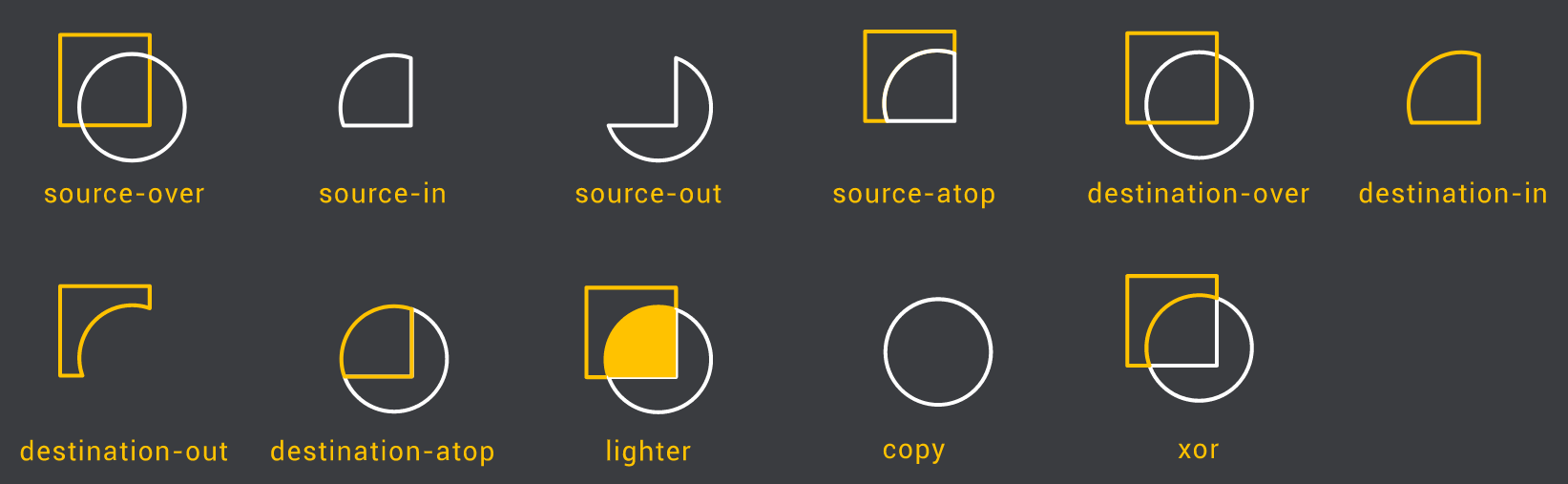
Compositiong and clipping
globalCompositeOperation = type
Sets the type of compositing operation to apply when drawing new shapes. 'Type' is used to identify which of the twelve compositing operations to use.
clip()
Turns the path currently being built into the current clipping path
Animation
Clear the canvas
setInterval(function, delay)
Basic animation steps
1
Save the canvas state
2
Draw animated shape
3
Restore the canvas state
4
Controlling an animation
setTimeout(function, delay)
requestAnimationFrame(callback)
Pixel manipulation
canvas.toDataURL('image/png')
default setting, creates a PNG image.
Methods
Saving image
createImageData()
create image data object
getImageData()
get the pixel data from the content
putImageData()
painting pixel data into content
drawImage()
zooming and anti-aliasing
canvas.toDataURL('image/jpag', quality)
creates a JPG image
canvas.toBlob(callback, type, encoderOptions)
creates a Blob object representing the image contained in the canvas
Events
Canvas doesn't define any new events. You can listen to the same mouse and touch events that you'd work with anywhere else.
The Canvas just looks like a rectangular area of pixels to the rest of the browser. The browser doesn't know about any shapes you've drawn.
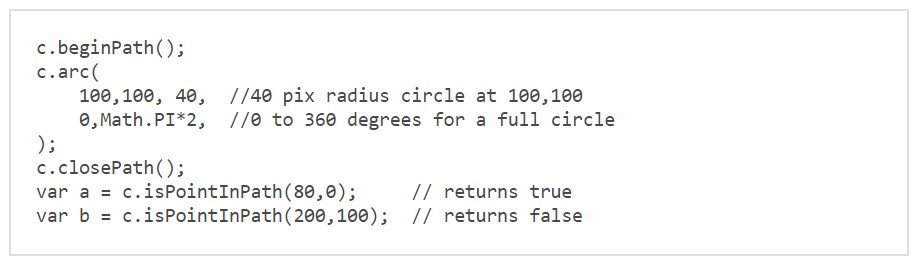
Calculating which shape is under the mouse cursor could be very difficult. Fortunately Canvas has an API to help: isPointInPath. This function will tell you if a given coordinate is inside of the current path. Here's a quick example:
Useful tips
Pre-render similar primitives or repeating objects on an off-screen canvas
Avoid floating-point coordinates and use integers instead
Don’t scale images in drawImage
Use multiple layered canvases for complex scenes
CSS for large background images
Scaling canvas using CSS transforms
Batch canvas calls together
Avoid unnecessary canvas state changes
Render screen differences only, not the whole new state
Avoid the shadowBlur property whenever possible
Avoid text rendering whenever possible
Try different ways to clear the canvas (clearRect() vs. fillRect()
With animations use: window.requestAnimationFrame() instead of window.setInterval()
Conclusion
More examples of the possibilities of canvas for Canvas inspiration
deck
By olgamardvilko