Omar Patel
Software developer/instructor
Last week, we went over using SQL queries to Create, Read, Update, and Destroy (CRUD) data from a database.
We're first going to cover a very short amount about debugging. Now, debugging can be done a variety of ways in PHP. You can:
1. Use an IDE like PHPStorm, which has its own built-in PHP debugger
2. Use a free debugger like Xdebug (usually comes with Macs)
3. Add a chrome extension or Firefox extension for debugging
4. Add a couple of lines of code to your php file and include it wherever you need it.
Let's go through the options:
1. PHPStorm is great, but it costs a ton of money, so we're not going with that option.
2. This is surprisingly technical, so I'd rather not try to implement this one.
3. Another great option, but again, very technical and prone to error.
4. Not as robust, but tends to get the job done.
The lines of code for debugging are as simple as adding the following to your php pages at the very top:
This comes from the built-in error reporting from PHP: http://php.net/manual/en/function.error-reporting.php
<?php
ini_set('display_errors', 'On');
error_reporting(E_ALL | E_STRICT);
?>For the next few weeks, we're going to concentrate on the following topics:
Notice that these are all guidelines within your final project.
Creating a Login System
This week and next week, we're going to be creating a login and registration system, collectively known as an authentication system.
An authentication system is seen across most major sites and allows you and the user to have control over the data and who can access what/where. It also provides personalization, making the user more attached to the application.
Now, this might be a bit tricky, so I've found a video that can help, along with the slides:
https://www.youtube.com/watch?v=6Z3zlt31Fl0
Again, note that the video might be different than the code I have. This is due to the video being somewhat out-of-date, so I'll be implementing some functionality differently.
First off, please download the template I've created for this project:
https://goo.gl/EdNLQ2
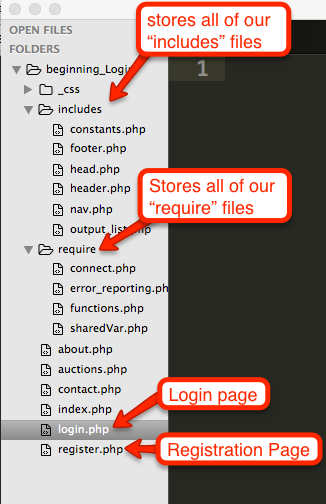
The first thing you'll notice about the directory is that there are a lot more files. Don't be scared! Most of these files just contain code you've already done before. However, instead of putting the code in each file, I've split up the code and put them into different files. That way, if I want to make changes in the header, footer, head, etc., the I can go to the file I need and change it for all of them. This is especially helpful when you start creating larger projects.
On the next page, we'll take a look at the project structure that now exists.
Go through each file and make sure you understand what's happening. The only files that have new concepts in them are the "functions.php" file and the "constants.php" file.
Let's go over the "constants.php" file first.
Constants are like variables, except that they can't be changed (given a new value somewhere else), they are automatically given a global scope, and they are always in capital case. Now, that might sound confusing, but just think of them as variables that contain a value that you don't want changed throughout your program.
An example of this would be the database name or database password. This is exactly what we have done in our constants.php file.
Take a look at the constants.php file and you should see that we define a constant using the "define" keyword, which takes a constant name that we define and then what the value of the constant will be.
We use these constants to store our database information in our "connect.php" file.
Next up is our "functions.php" file, which contains a bunch of functions I created to help us out and reduce the amount of code we want to duplicate. Take a look at each function and you should notice that there is nothing new. I've just wrapped the functionality that we had and put them into functions. That way, instead of calling 5 lines of code, we just use 1! We're going to follow this procedure throughout the course.
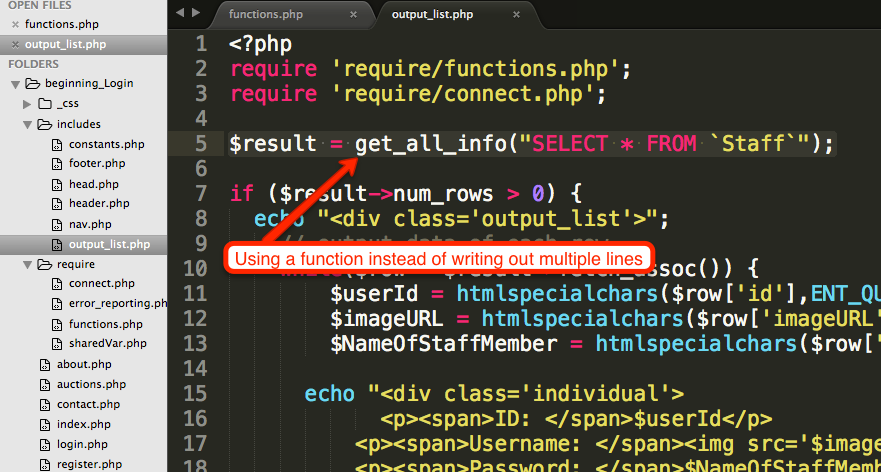
For instance, in our "output_list.php" file, I have used the "get_all_info()" function in order to perform a Read query. All I do is pass in the SQL query to the function and I get a result back!
Alright, so now that we have our structure out of the way, let's get back creating a login and registration page. Again, we're splitting this up into 2 weeks, this week and next week.
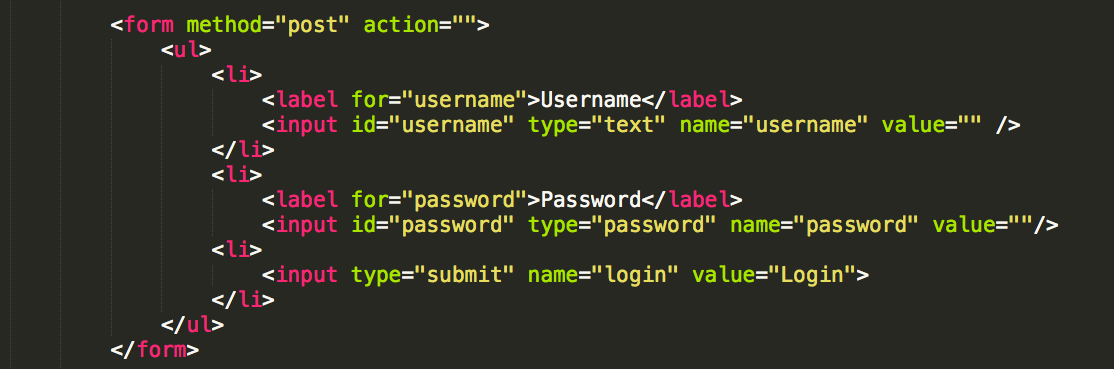
Login Form
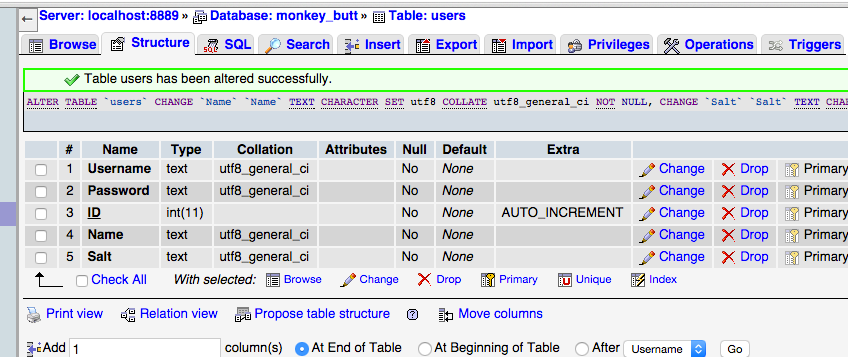
Next, we're going to go to our phpMyAdmin and create some data for us to check a login with.
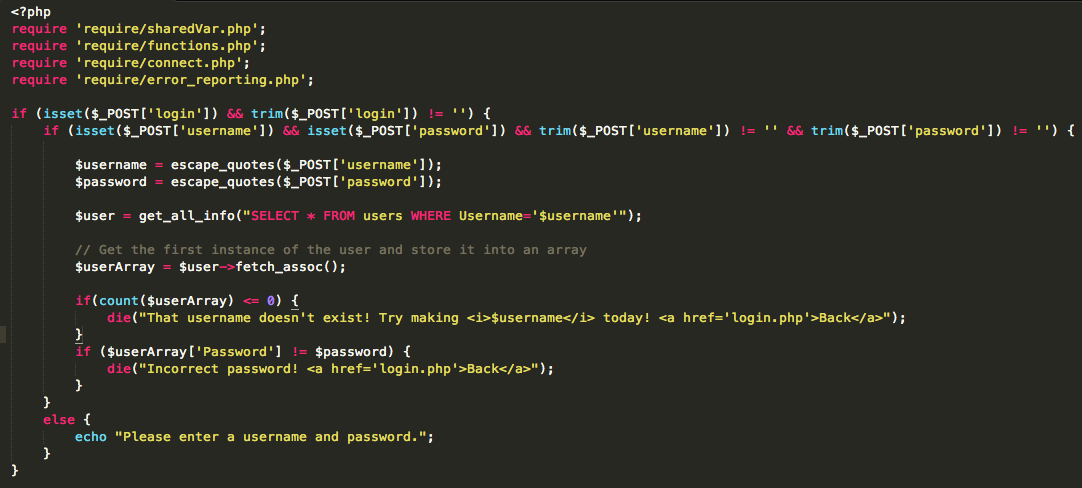
OK, now we're going to create some programming to make sure that when the form is sent, it actually checks against the login information that we have and then returns a correct result.
By Omar Patel