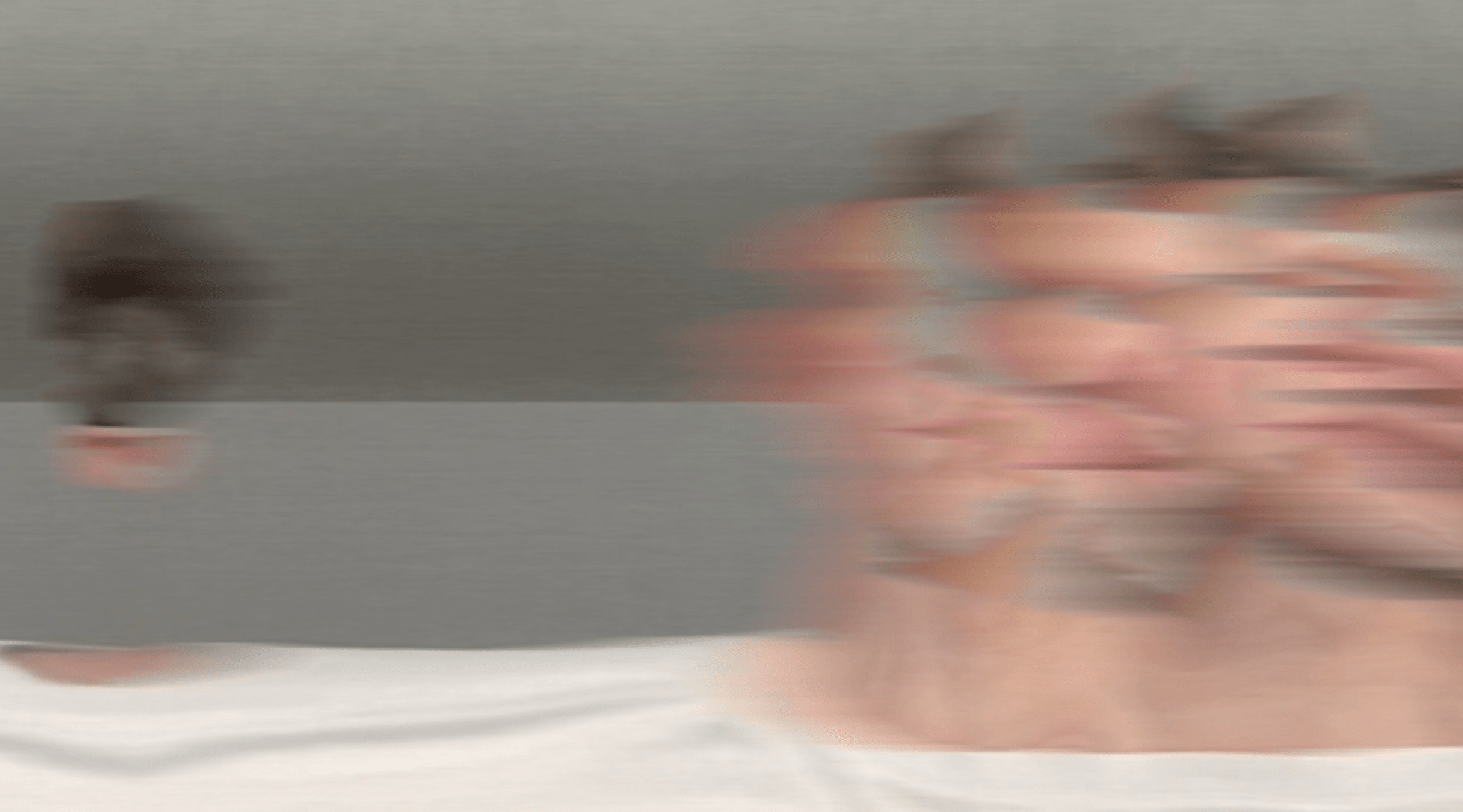
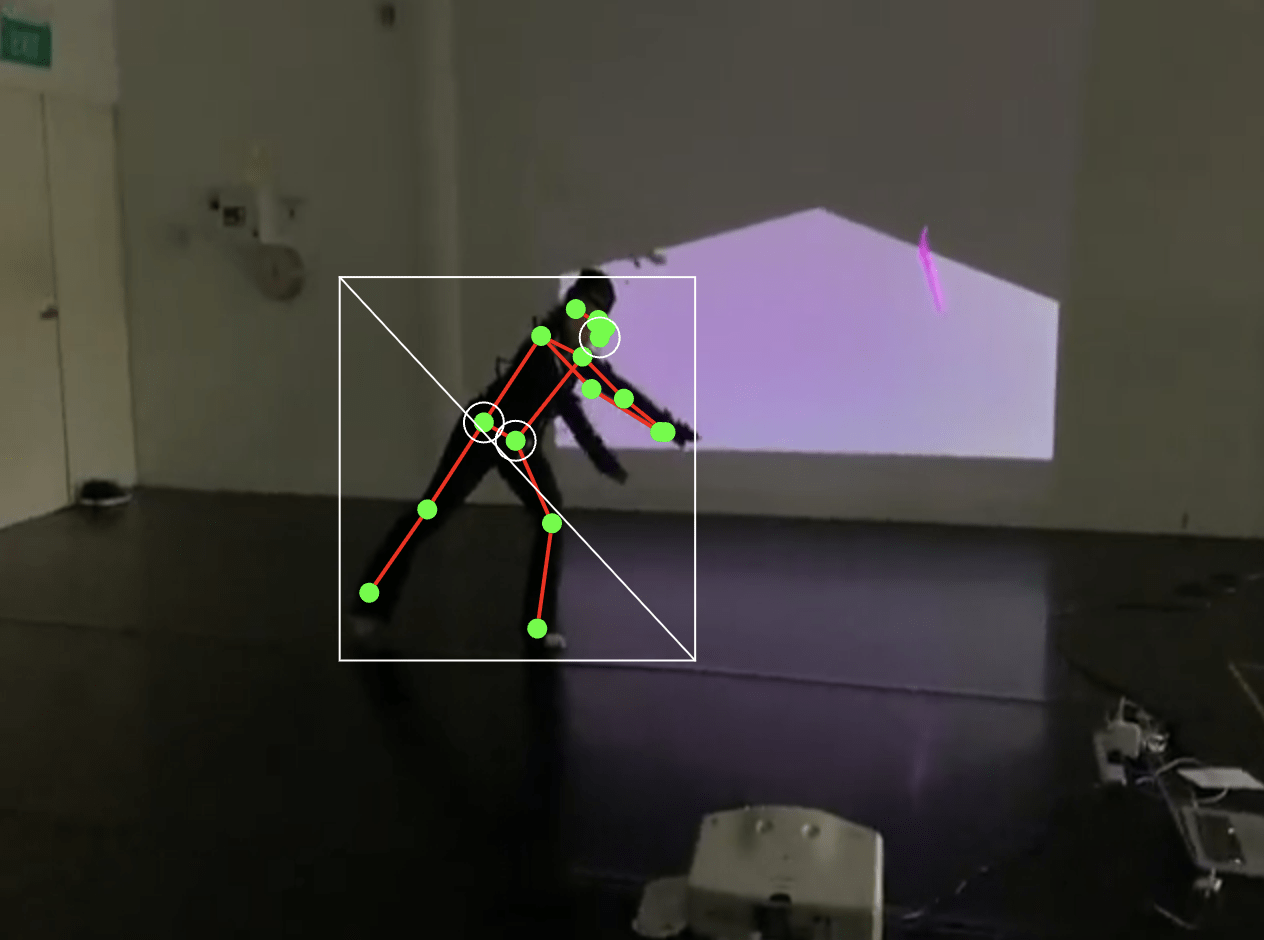
Dance x Design
The metaphor of the mirror is central to thinking about technology: machines reflect human inputs, yet always with derivations, distortions, or reconfigurations.
In Lacanian psychoanalysis, the “mirror stage” frames identity as relational; in media art, mirroring highlights how feedback loops entangle subject and system.
This live project explores code, AI and movement as mirrors that are never neutral but co-constructive.
Conceptual Framing
Mirroring Mirrored
With ml5.js, a friendly Machine Learning library for the Web, they generate visual reflections of their movements in p5.js.
These reflections, represented by coded visuals, are then progressively manipulated into visual distortions, responsive oddities, or playful encounters.
Mirroring Mirrored
Brief 1/2
Driven by collaboration, participants work with real-time computer vision and generative systems to create mirrored relationships between self and machine.
Participants here come from two different creative disciplines: Design and Dance.
Together they will explore and discover the intricate moments where humans and machines meet through code, movement, expression and dialogue.
As part of this learning journey, you will work in collaboration with your peers from the BA (Hons) Design Communication programme and students from the BA (Hons) International Contemporary Dance Practices programme at Lasalle to collaborate, explore, experiment, prototype, and test interactions.
The nature of this project is collaborative and experimental, the learning strongly focuses on exploration, curiosity and open ended outcomes.
Mirroring Mirrored
Brief 2/2
Over the course of 9 sessions we explore how bodily interactions are “mirrored” through machine generated expressions.
By engaging with both literal and metaphorical mirrors, participants reflect on how humans and machines mutually constitute each other in a recursive, entangled loop.
This collaboration gives the opportunity to work across disciplines to use and understand the body as a creative medium.
The objectives for this Live Project are
Objectives
The expected outcomes are
- Collaboration
- Negotiation
- Improvisation
- Visual and technical experimentation
- A visual compilation of experiments, movement explorations, improvised performance study
- Documentation Video
- Final Sharing Session
Monday
Familiarise
Tuesday
Meet collaborators
Wednesday
Prepare code for session 3
Thursday
Improvise, learn and ideate
Weekend
From idea to preparing code
Monday
Polishing deliverables
Tuesday
Rehearse and document
Wednesday
Finalise Deliverables
Thursday
Sharing
Week 1
Session 1–3
Week 3
Session 6-9
Monday
Experiment
Approach
Workflow
Week 2
Session 4–6
Tuesday
Review and refinement
Wednesday
Independent work
Thursday
Independent work
Weekend
Independent work
Familiarise
Implement
Finalise
Final sharing session
Deliverables
- Student groups present their process in a 7-10 mins sharing demonstration
Catalogue of Movements
- A visual compilation of experiments, movement explorations, improvised performance study
- Collective reflections on collaboration, process, technical developments and aesthetic decisions
- Include behind-the-scenes footage alongside polished moments
Documentation Video
- Document the collaborative journey from initial concept, sketches to final output
- Consider a short intro that frames the project's ideas, concept or guiding question
- Capture both the design process (drawings, coded sketches, software prototypes) and the dance process (improvisation, choreography development, rehearsals)
- Develop a suitable narrative structure: break it into clear stages like exploration, experimentation, iteration, final piece
- Self-explanatory: use subtitle and/or voice-over when and where appropriate
p5js
Software rundown
ml5
p5.js is a friendly tool for learning to code and make art. It is a free and open-source JavaScript library built by an inclusive, nurturing community. p5.js welcomes artists, designers, beginners, educators, and anyone else!
p5js.org
editor.p5js.org
ml5.js aims to make machine learning approachable for a broad audience of artists, creative coders, and students. The library provides access to machine learning algorithms and models in the browser, building on top of TensorFlow.js with no other external dependencies.
ml5js.org
Toolkit and Check List
Toolkit
- a series of sketches to test face, hand and body movement
- being able to easily access sketches from each computer
- a workflow to help you coding, for example, Claude Code
Checklist
- have at least 1 computer ready to run your sketches
- have a screen ready to work with (laptop, TV or projection)
- cameras and tripods
- assign tasks to each group member
Capture, Follow, Trigger
Session 1
In this first session we will explore the technical requirements to capture users' movements and generate visual reflections of their movements in p5.js.
This will provide a foundational understanding of how bodily movement is captured and reflected through code.
Participants will learn how to integrate AI-powered tracking using ml5.js, including body pose detection, hand keypoint tracking, and facial landmark detection.
Session 1
Core concepts:
Capture, Follow, Trigger.
-
Capture: Capture body, face and hand as input data to enable real world interactions to video streams
- Follow: Assign body features as keypoints received as data streams to control screen based visual elements
- Trigger: Interact with a screen based visual system triggered by captured body, face or hand keypoints
Session 1
Capture
In our first exercise, we will learn two methods to work with video in p5.js:
- loading video files from the sketch folder
- using the webcam as input or
Resources
Objectives
- to load and display a video in p5js
- to capture and display a video stream
Capture Exercise 1
Video file and stream
Slitscanning
Capture
Slitscan
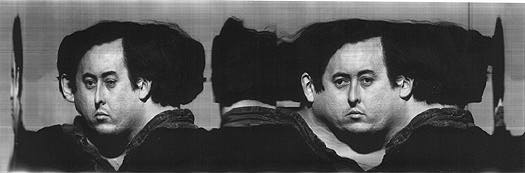
Slitscan imaging techniques are used to create static images of time-based phenomena.
In traditional film photography, slit scan images are created by exposing film as it slides past a slit-shaped aperture.
In the digital realm, thin slices are extracted from a sequence of video frames, and concatenated into a new image with one axis being time.
visit an Informal Catalogue of Slit-Scan Video Artworks and Research compiled by Golan Levin
Capture Exercise 2
Slitscanning
In this second exercise, explore the example sketches and customize at least one of them. Then, create a static image and video from your modified version.
Objectives
- to customize example code
- to create screenshots and recordings
In this exercise we will use the mesh of a face capture via the webcam to paint by moving our head
Capture Exercise 3
Face mesh drawing
Objectives
- to create an face drawing or video
- to capture screenshots and recordings
This concludes section Capture, lets move on to section Follow
Capture
Follow
Follow
Machine Learning with ml5
Follow
Keypoints
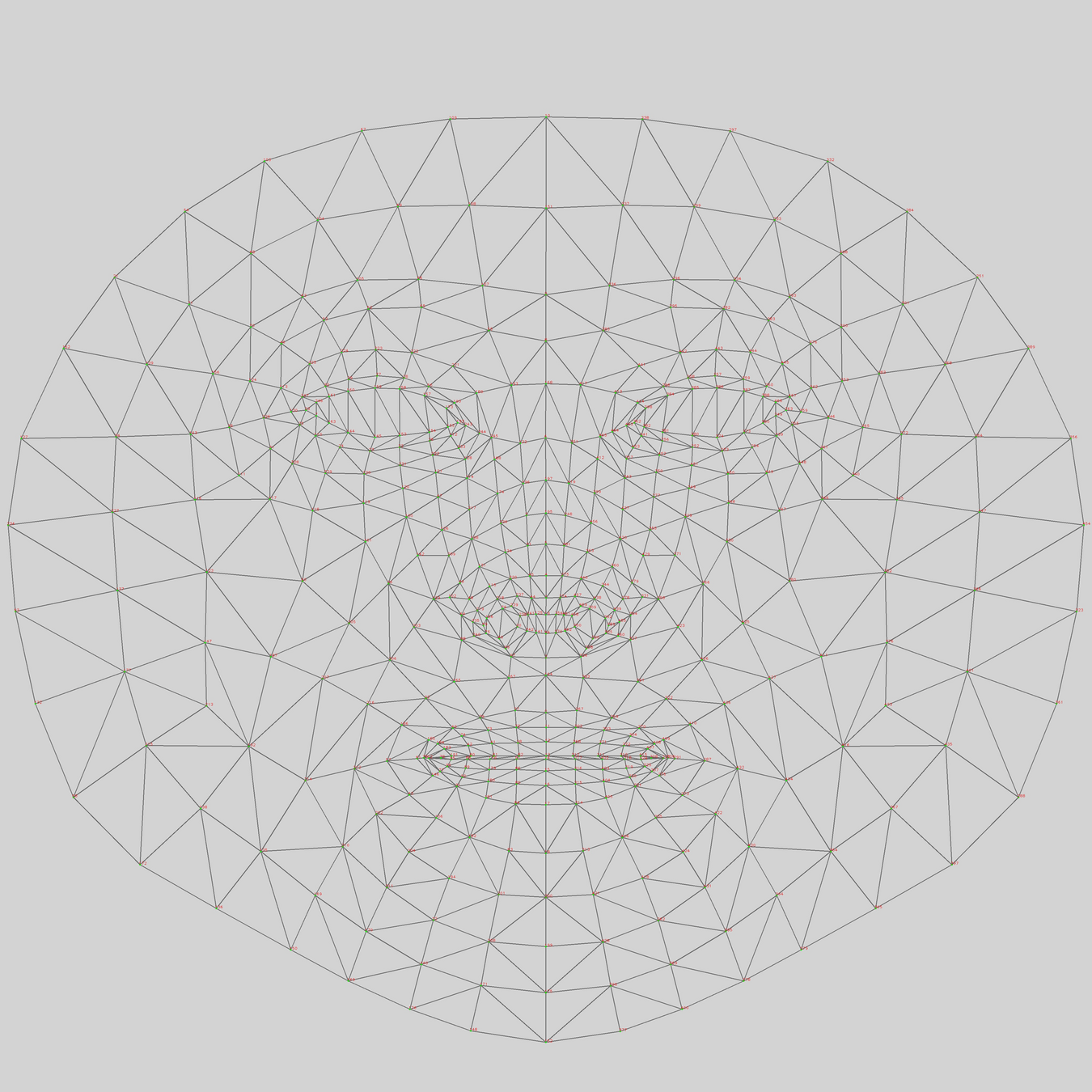
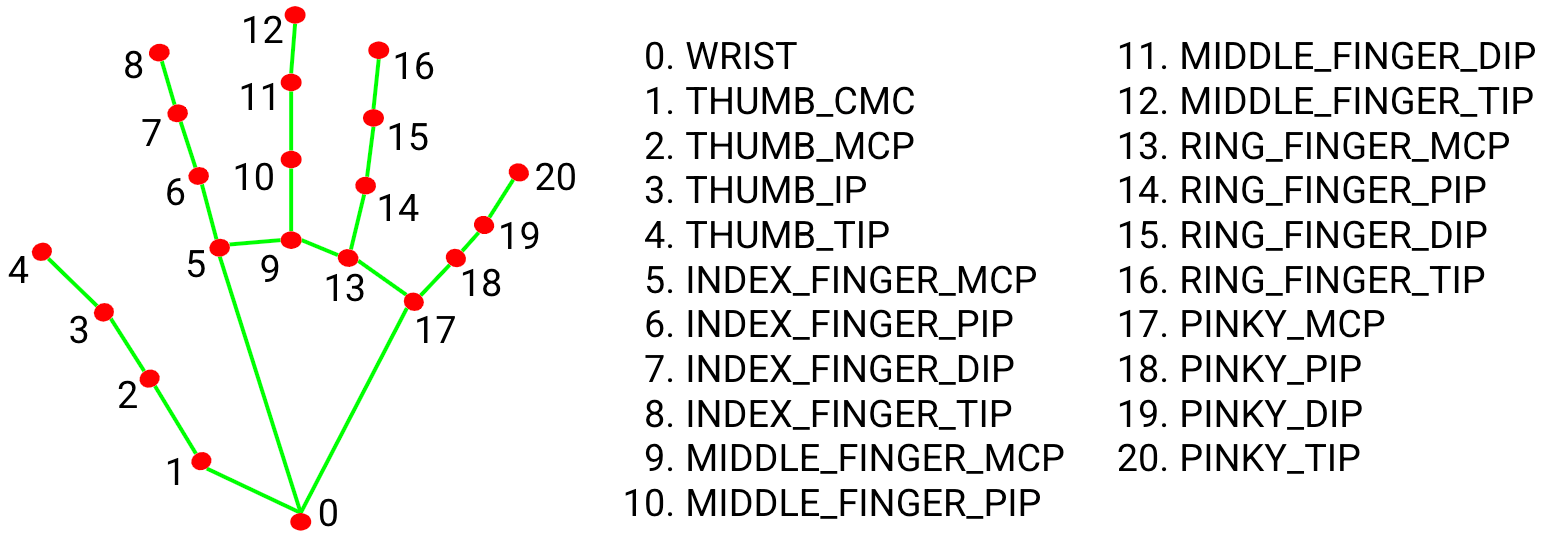
Keypoints are specific points detected on a body, face, or hand.
Think of them like dots placed on important positions on the body, face and hand that can be tracked and used to detect poses, gestures, and movements.
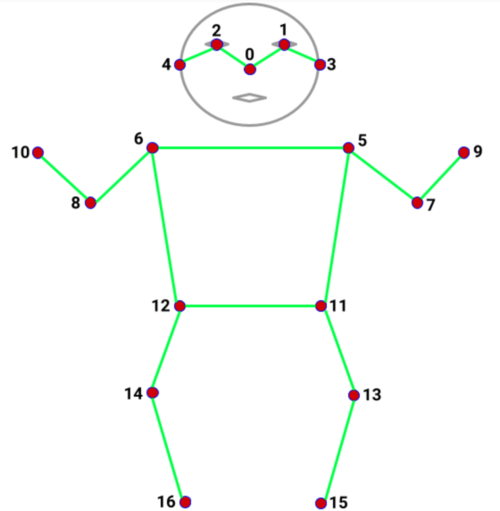
17 keypoints
nose, shoulders, elbows, wrists, hips, knees, ankles
468 keypoints
eyes, nose tip, mouth corners, jawline
21 keypoints
thumb tip, finger tips, knuckles
Follow
Machine Learning with ml5
Body Pose
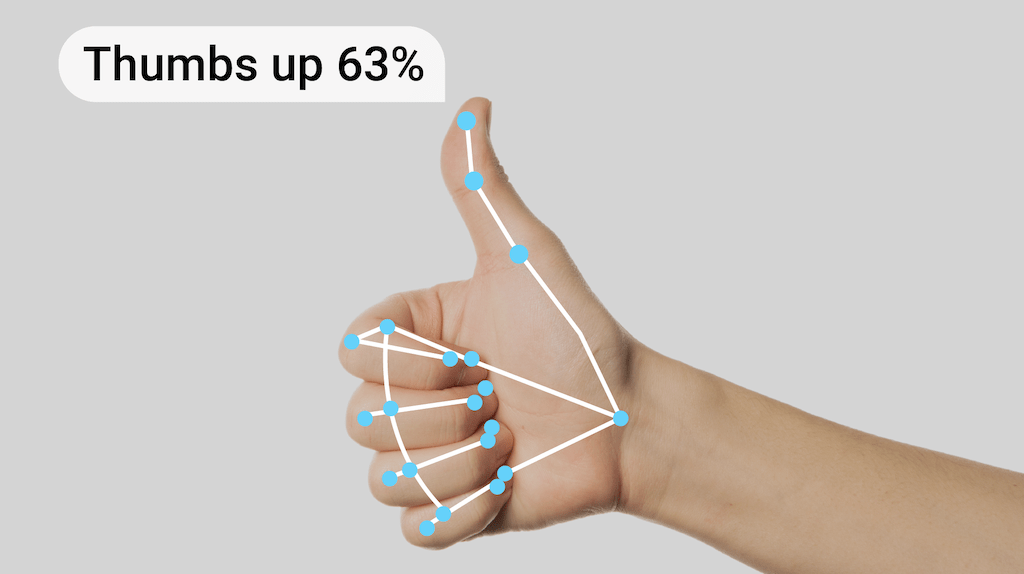
HandPose
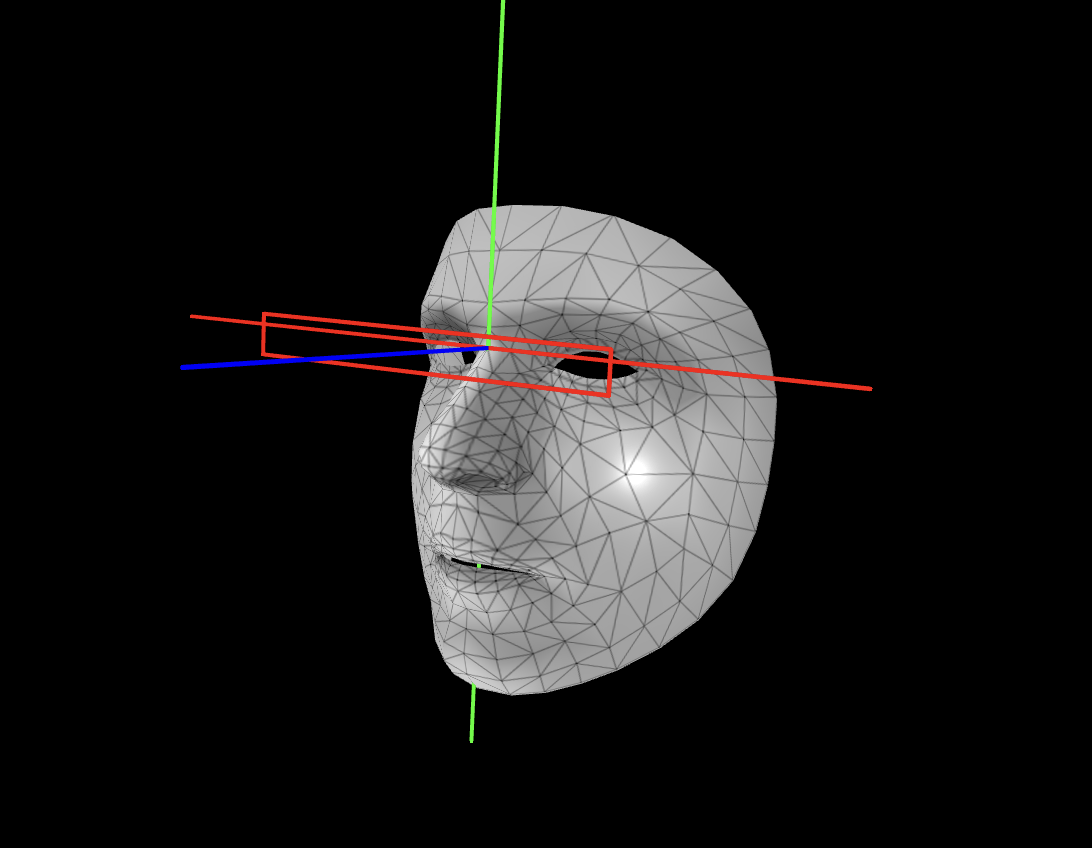
FaceMesh
In this exercise, we will capture the skeletal information of a body and see how 17 keypoints are mapped onto the source video. You can then access individual keypoints and create your own visual interpretation.
Follow Exercise 1
Body Pose
Objectives
- to link visuals to skeletal landmarks
- to capture screenshots and recordings
In this hand tracking exercise, use the example code to control visual elements with your index finger and thumb. Then, replace the given circle with something more exciting.
Follow Exercise 2
Hand Pose
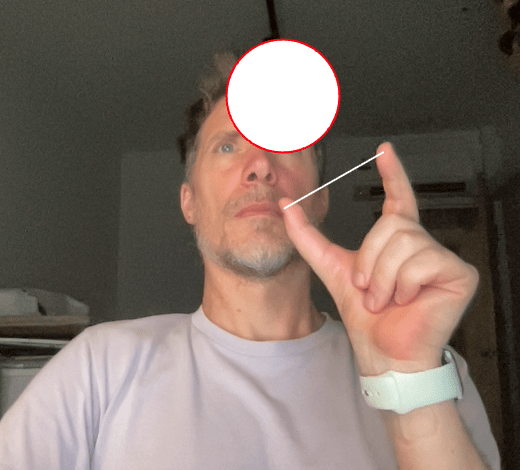
Objectives
- to to replace the given circle with a more exciting application
- to capture screenshots and recordings
In these facial feature tracking examples, play with the extracted visual elements by scaling, replacing, and modifying them to your best knowledge and understanding
Follow Exercise 3
Face Mesh
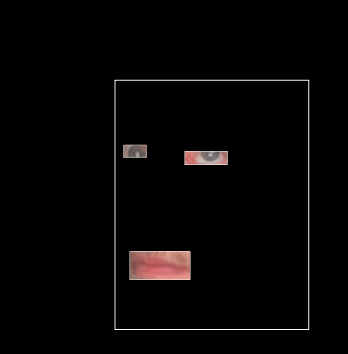
This concludes section Follow, lets move on to section Trigger
Follow
Trigger
In this last exercise we look at how blinking can be used to trigger events.
Trigger Exercise 1
Blink
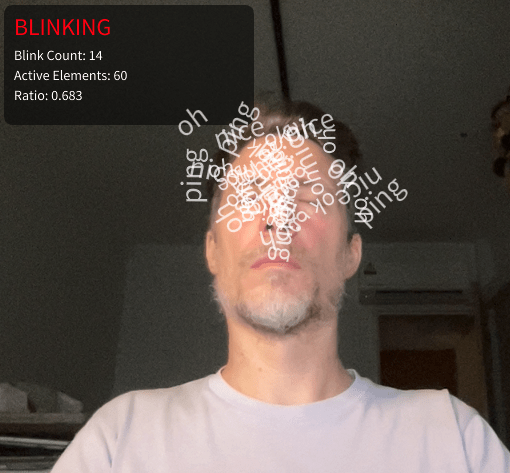
Train and Respond
Recap Keypoints
Keypoints are specific points detected on a body, face, or hand.
Think of them like dots placed on important positions on the body, face and hand that can be tracked and used to detect poses, gestures, and movements.
17 keypoints
nose, shoulders, elbows, wrists, hips, knees, ankles
468 keypoints
eyes, nose tip, mouth corners, jawline
21 keypoints
thumb tip, finger tips, knuckles
Train and Respond
What are Classifiers?
A classifier is like a program that learns to recognize different poses or gestures.
It watches what you do and learns to tell the difference between different positions.
Think of it like teaching someone to recognize hand signals.
You show them a thumbs up many times, then a peace sign many times, then a fist many times.
After seeing enough examples, they learn to recognize each signal when you make it.
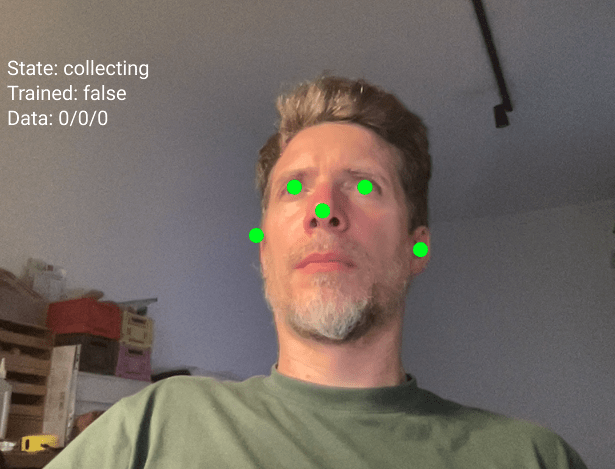
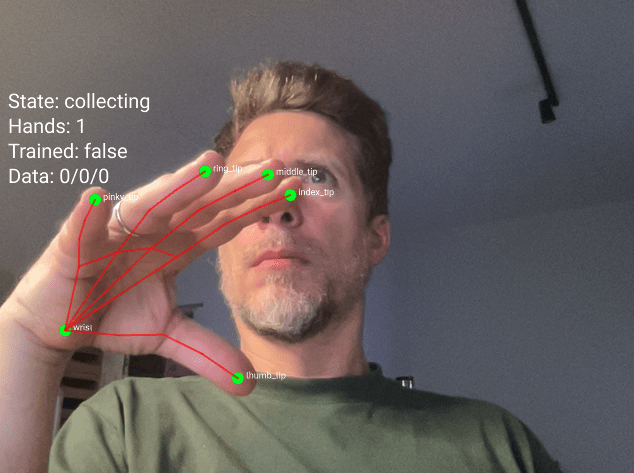
Train and Respond
How do Classifiers work?
The classifier looks at the positions of certain keypoints on your body, face or hand
For face tracking, these points are your nose, eyes, and ears. The classifier measures where these points are in relation to each other.
When you tilt your head left, your eyes and nose form one pattern. When you tilt right, they form a different pattern. The classifier learns these patterns.
Train and Respond
Step 1: Collecting Training Data
This is when you teach the classifier.
You make a pose and press a number key to save that pose as a sample.
→Press key 1 while looking straight. Do this 20 times.
→ Press key 2 while looking left. Do this 20 times in slightly different positions.
→ Press key 3 while looking right. Do this 20 times.
The more samples you give, the better the classifier learns.
Train and Respond
Step 2: Training
Press the T key to train.
The computer takes all your examples and learns the patterns.
This takes a couple of moments. You will see a message when training is complete.
Train and Respond
Step 3: Predicting
Press the P key to start predicting, often the program switches into "predicting" mode automatically after training.
Now the classifier watches you in real time and tries to guess which class you are doing.
It will show you its guess and how confident it is.
If it says "class1 (75%)" that means it thinks you are doing class 1 and it is 75 percent sure of confident.
Train and Respond
Common Problems
Low Accuracy
If the classifier keeps getting it wrong, you probably need more training examples or your classes are too similar to each other.
Predictions Are Jumpy
This is normal.
The prediction changes every frame. If you want smoother results, you can average the last few predictions or only act when confidence is above 80 percent.
Train and Respond
Save and load process
When you press the S key after training your model, the program creates three separate files.
These files contain everything the classifier learned during training.
face-model.json
face-model_meta.json
face-model.weights.bin
This is the architecture file. It describes the structure of the neural network. Think of it like a blueprint that shows how many layers the network has and how they connect to each other.
It contains information about your training setup. It knows you used 10 inputs (5 keypoints times 2 for x and y coordinates). It knows you have 3 output classes called class1, class2, and class3.
This file contains all the learned information.
Train and Respond
Save and load process
Before you can save, you must train.
Collect examples for all three classes.
Press T to train.
Wait for the console message "Training complete".
Then you can save.
Press the S key on your keyboard.
You will see a console message "Model saved to Downloads".
Take all three files from your Downloads folder and move them into the models folder of your p5js sketch (if the folder doesnt exist, create it)
Run your sketch and press L to load the model from the models folder, your previously trained model is immediately available, no need to train again.
Train and Respond
Practice
Play
- entangled_train-respond_b (noise)
- entangled_train-respond_c (sound)
- entangled_train-respond_d (text)
This concludes session 1. A lot to take in but think of the demos as possibilities.
Trigger
The objective and challenge is to develop a series of coded movement experiments that allow for exciting visual explorations together with your Dance collaborator.
Session 2
Prepare
- drawing paper, up to A1
- drawing tools such as pencils, charcoal, markers
- One sketch to test hand, face and body gestures
- Tue 31 Mar 2026, 2:30pm at G402
- Design and Dance Students
dancers arrive at 3pm
- Project introduction: movement and drawing exercises
- Getting familiar with disciplines through drawing exercises and discussions
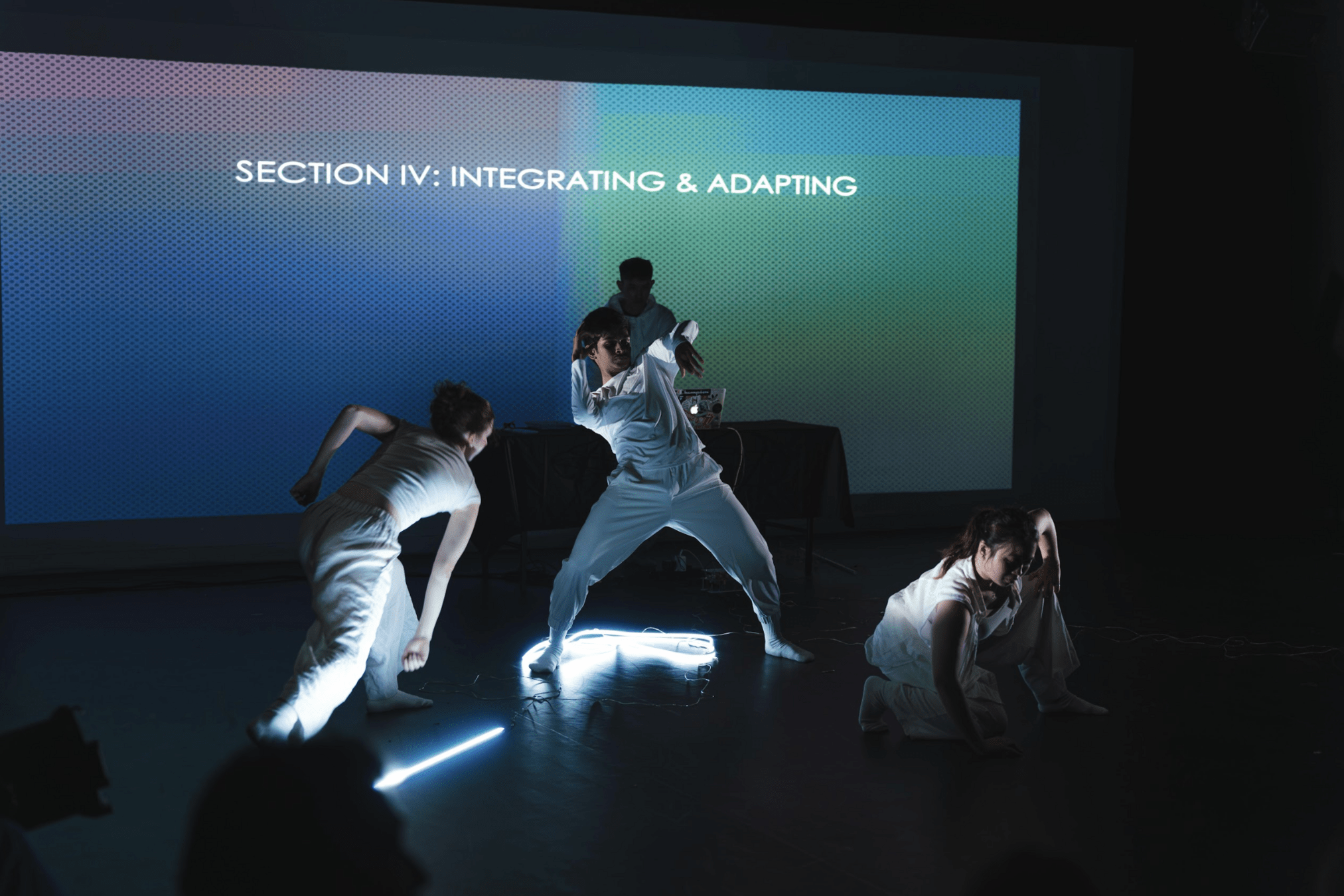
Updated template sketches
Revisit
Session 3
- Thu 2 Apr 2026, 2:30pm, G402
- Design and Dance students
First iteration of working with software templates
- Activities and explorations: movement to expression through code
- Understanding, explaining and teaching code collaboratively
Session 4
- Mon 6 Apr 2026, 9:30am, F502
- Design and Dance students
dancers arrive around 11am
- Continuation of Session 3, feedback discussions and proposed directions for independent work
- Check-in with groups on development, documentation and planning
Session 5
- Tue 7 Apr 2026, 2:30pm, E201A
- Design Students
- Review Session 3+4
- Plan for session 6, objective: refined software prototype for groups to work with
Session 6
- Thr 9 Apr 2026, 2:30pm, G402
- Design and Dance students
- Students work independently in their groups
- Student demonstrations and feedback
Session 7
- Mon 13 Apr 2026, 9:30am, F502
- Design Students
- Fine tuning and polishing of software prototypes for the final sharing
- Prepare for final presentation and documentation
live-project_mirroring-mirrored_2526
By Andreas Schlegel